> ## Documentation Index
> Fetch the complete documentation index at: https://help.lunacal.ai/llms.txt
> Use this file to discover all available pages before exploring further.
# Availability Exception
> Learn how to set availability exceptions for specific dates and times in your events.
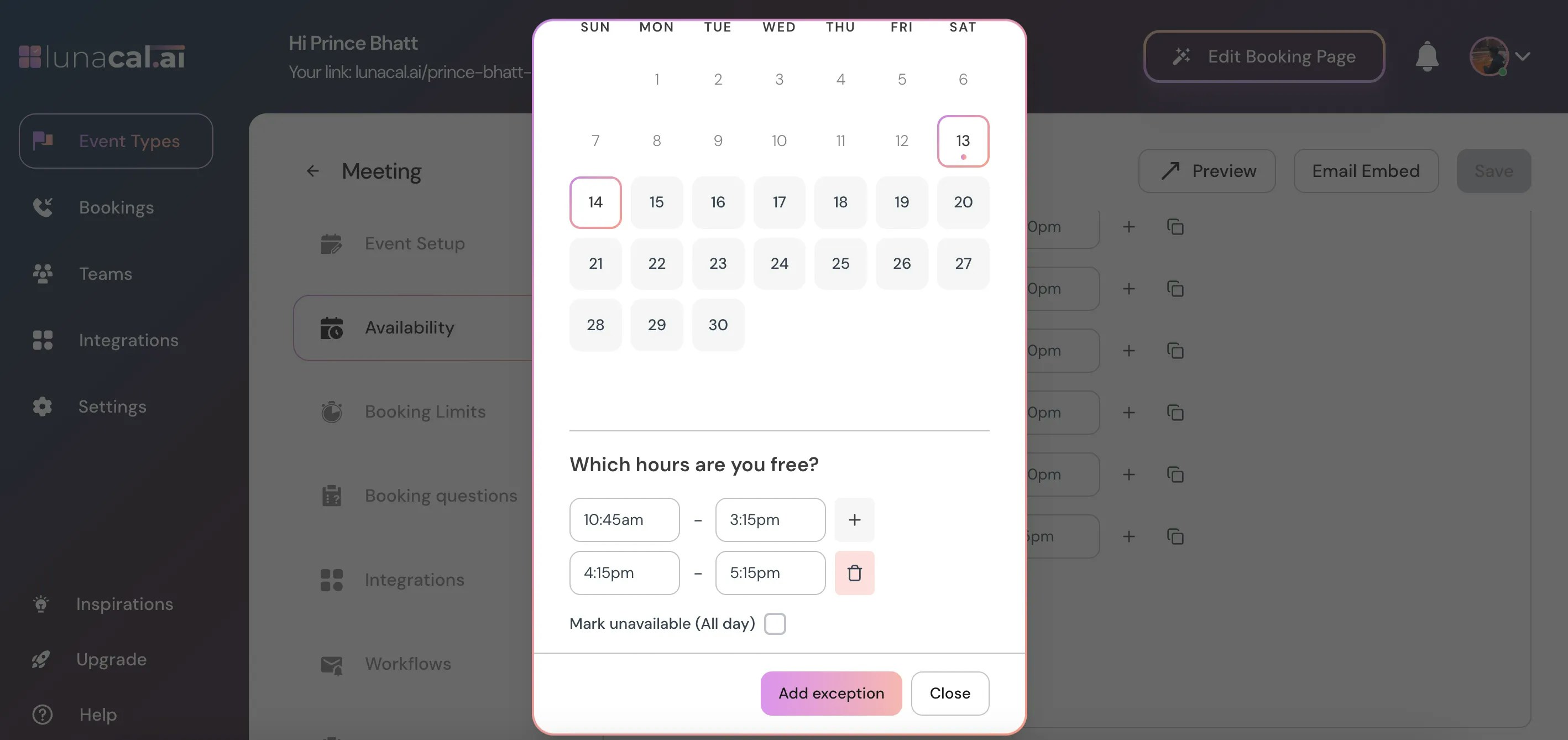
**Availability exceptions** override your base weekly availability for specific dates, such as one-off days off, vacations, or custom hours on a single day. They ensure your booking page blocks those times accurately, even if your calendar or weekly schedule shows open slots.
**Examples**
| Scenario | Steps | Result |
| ------------------- | ----------------------------------------------- | ------------------------------------------- |
| Off Dec 24-25 | Add exception: Dec 24-25, Mark Unavailable | Booking page hides all slots those days. |
| Short day Dec 20 | Add exception: Dec 20, Custom Hours 9 AM-4 PM | Only shows up to 4 PM; later slots blocked. |
| Friday shift change | Add exception: This Friday, Custom Hours 2-4 PM | Overrides weekly 9-5 to just 2-4 PM. |
## Step 1
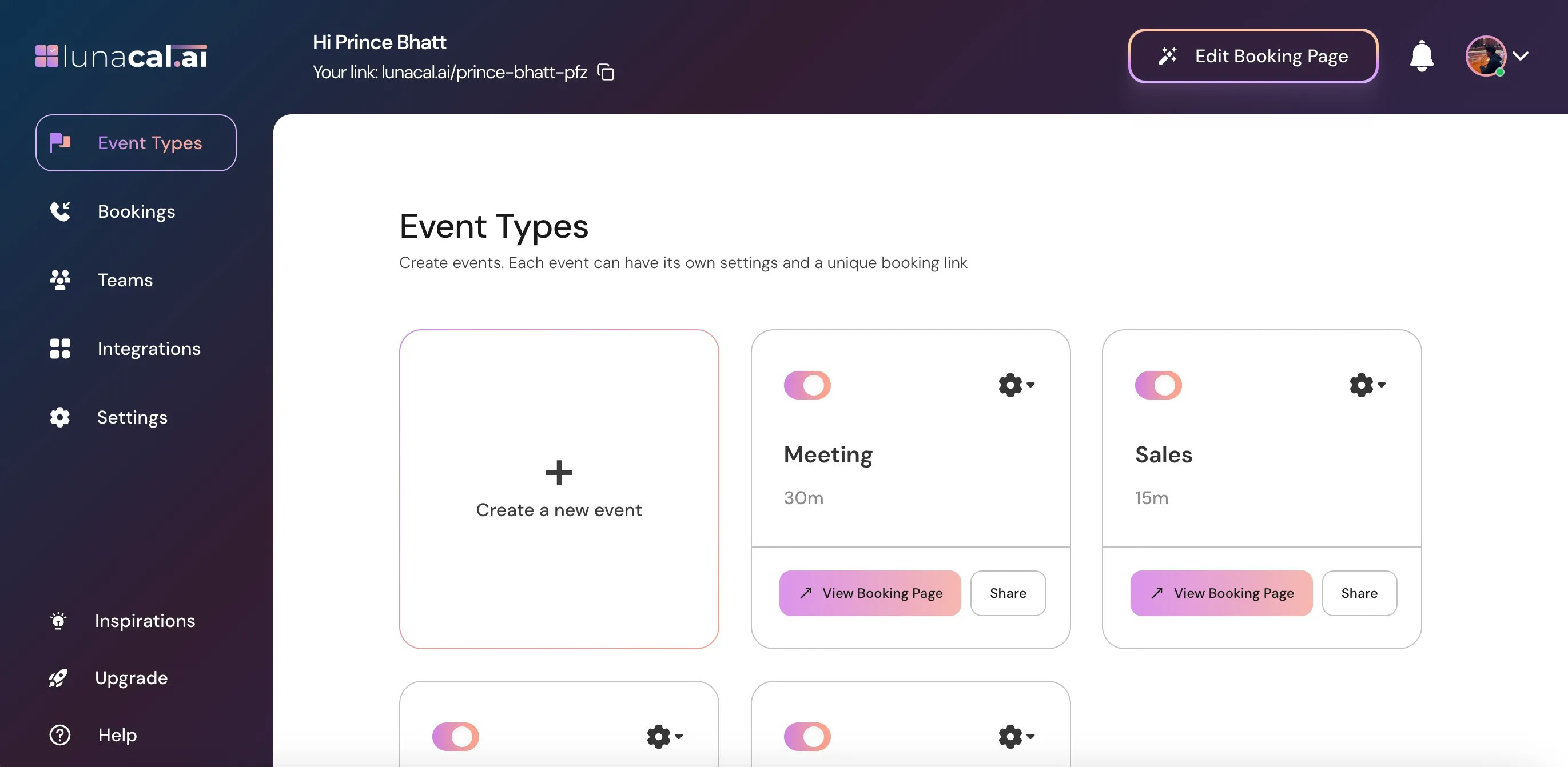
Navigate to "[Event Types](https://app.lunacal.ai/event-types)" in your dashboard sidebar. This section lists all your configured event types, such as "Meeting", If no events exist, create one first via the "+ New Event Type" button.
 ***
## Step 2
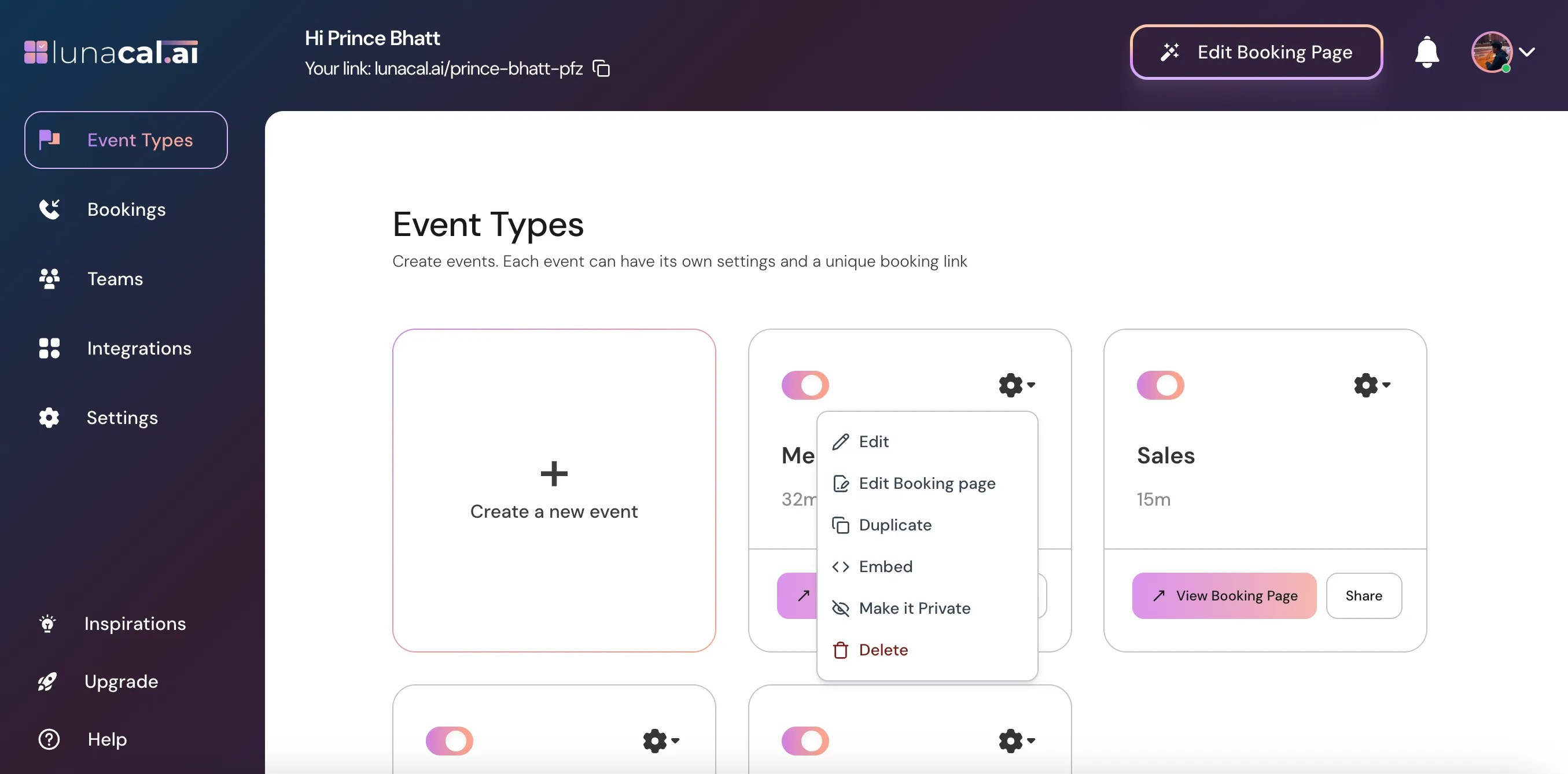
Select the event for which you want to set an availability exception and click on the **Settings** ⚙️ icon on that event card.
***
## Step 2
Select the event for which you want to set an availability exception and click on the **Settings** ⚙️ icon on that event card.
 ***
## Step 3
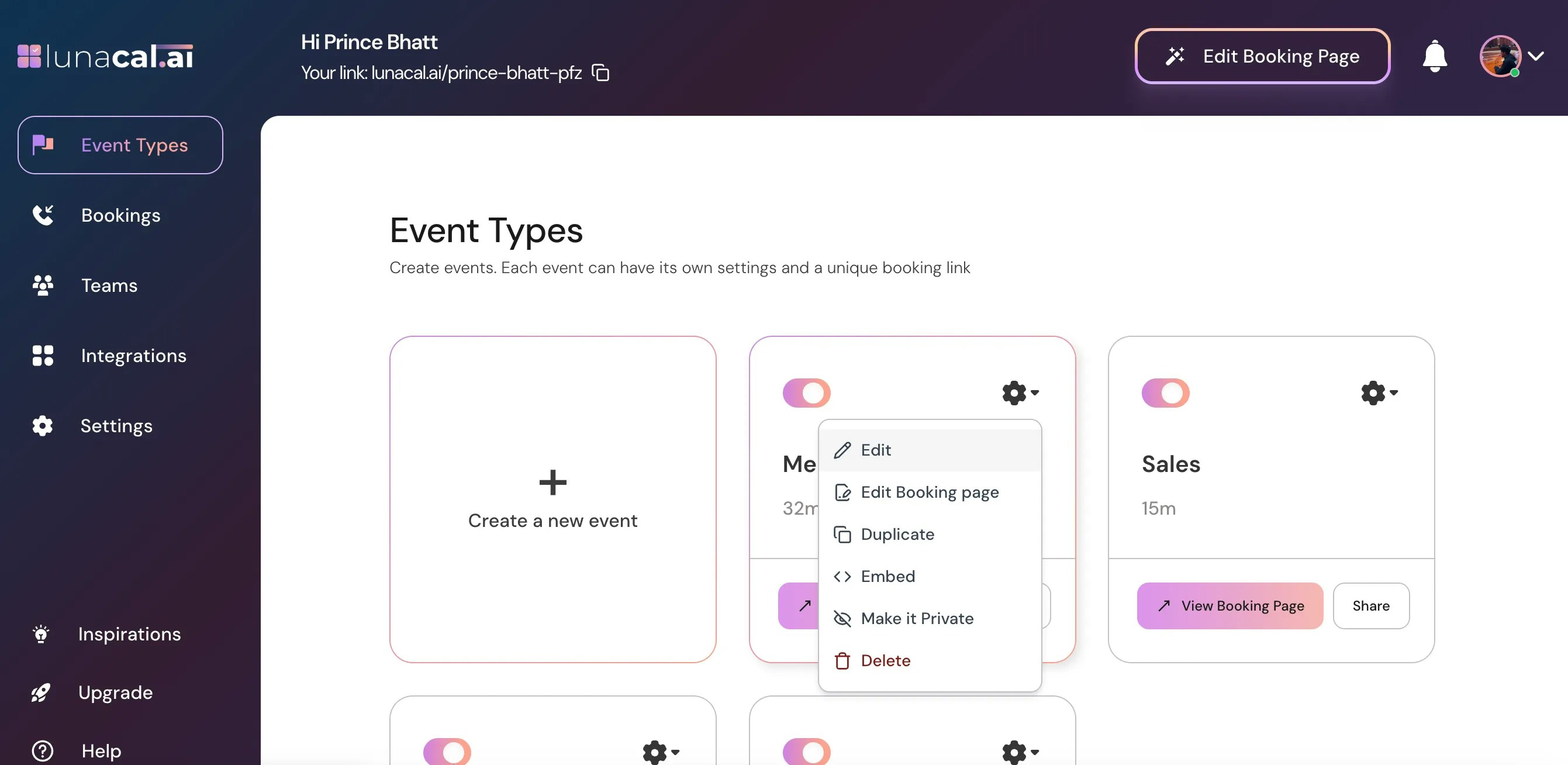
Choose **Edit** from the dropdown.
***
## Step 3
Choose **Edit** from the dropdown.
 ***
## Step 4
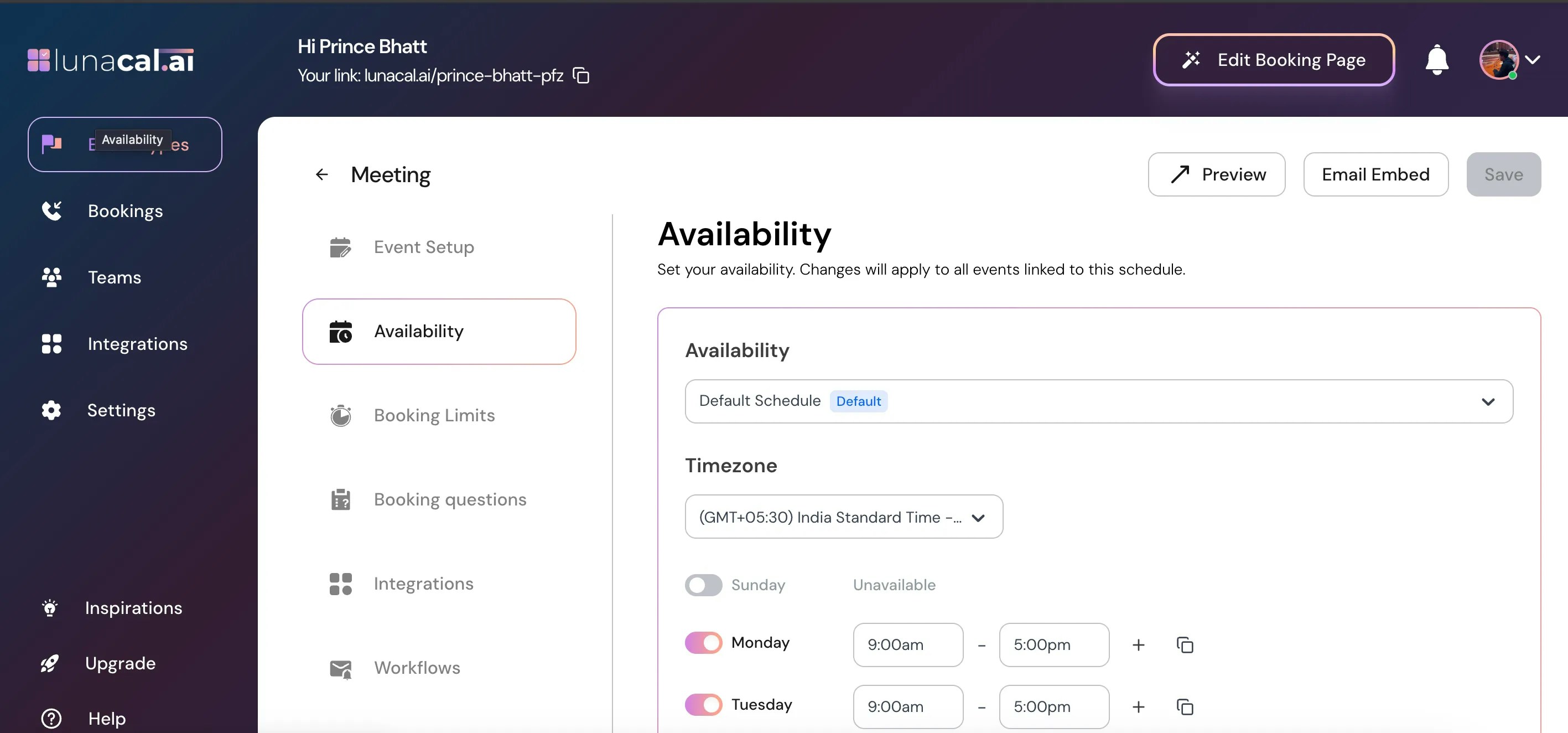
Click on the **Availability** section.
***
## Step 4
Click on the **Availability** section.
 ***
## Step 5
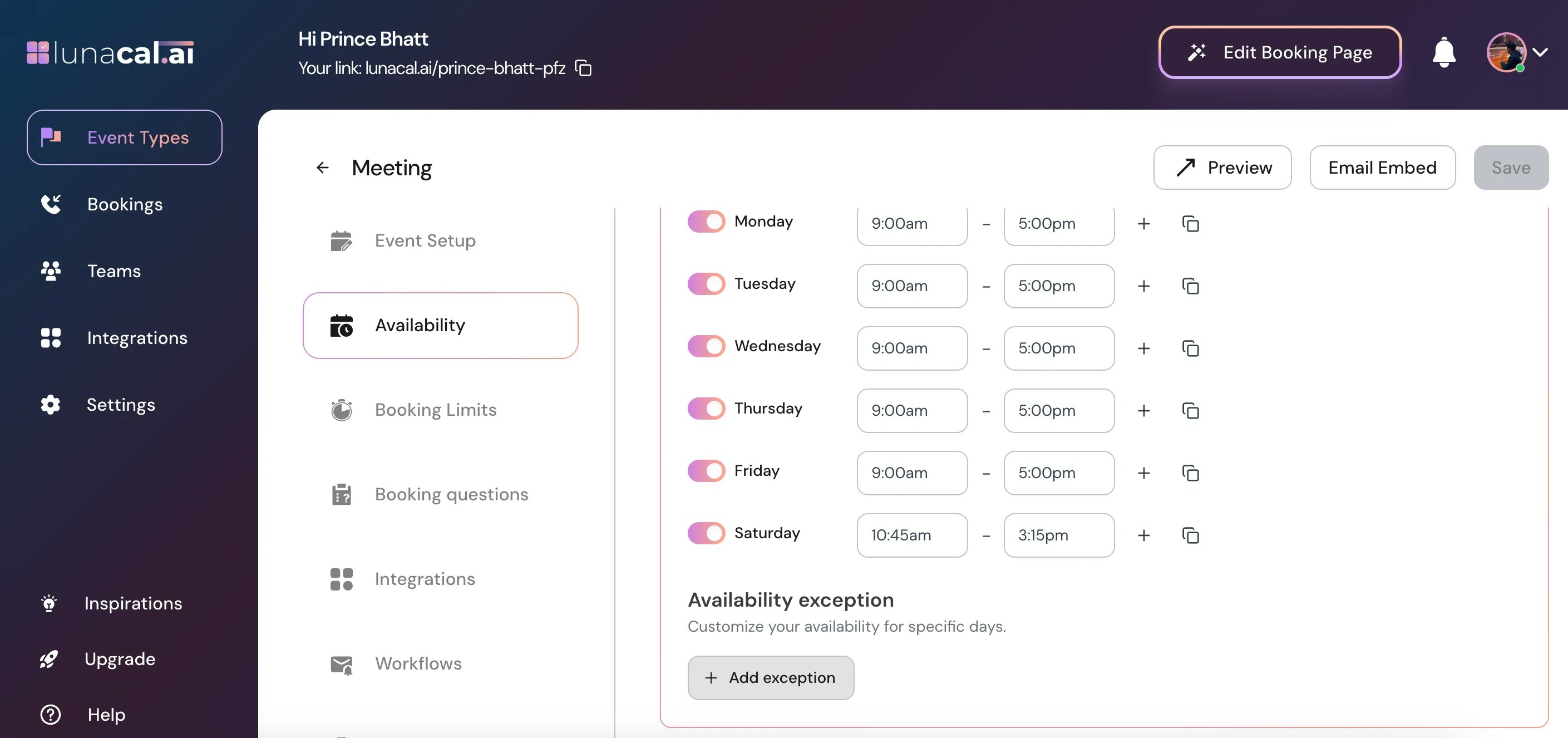
Scroll down and click on **Add exception**
***
## Step 5
Scroll down and click on **Add exception**
 ***
## Step 6
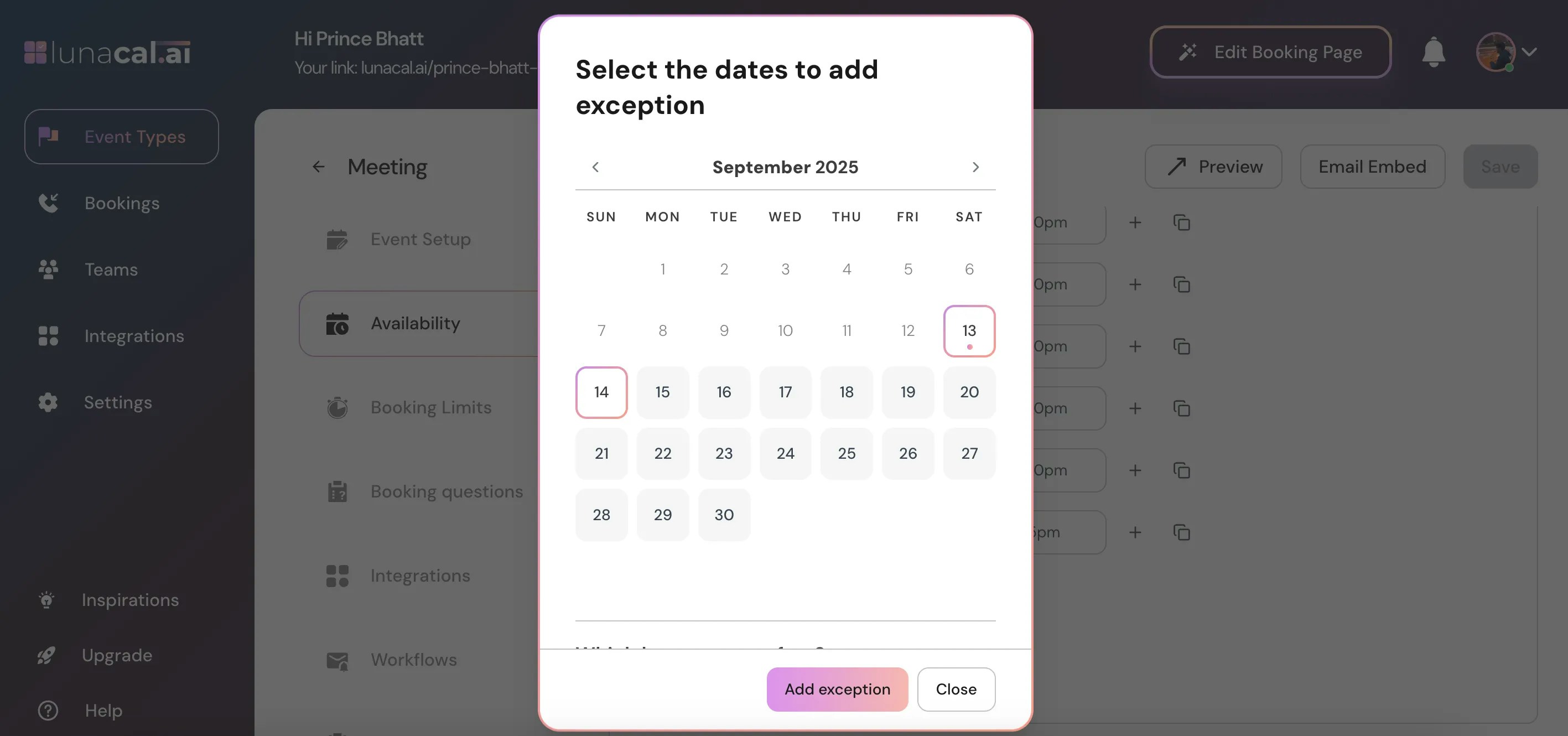
Select the dates you want to set an exception.
***
## Step 6
Select the dates you want to set an exception.
 ***
## Step 7
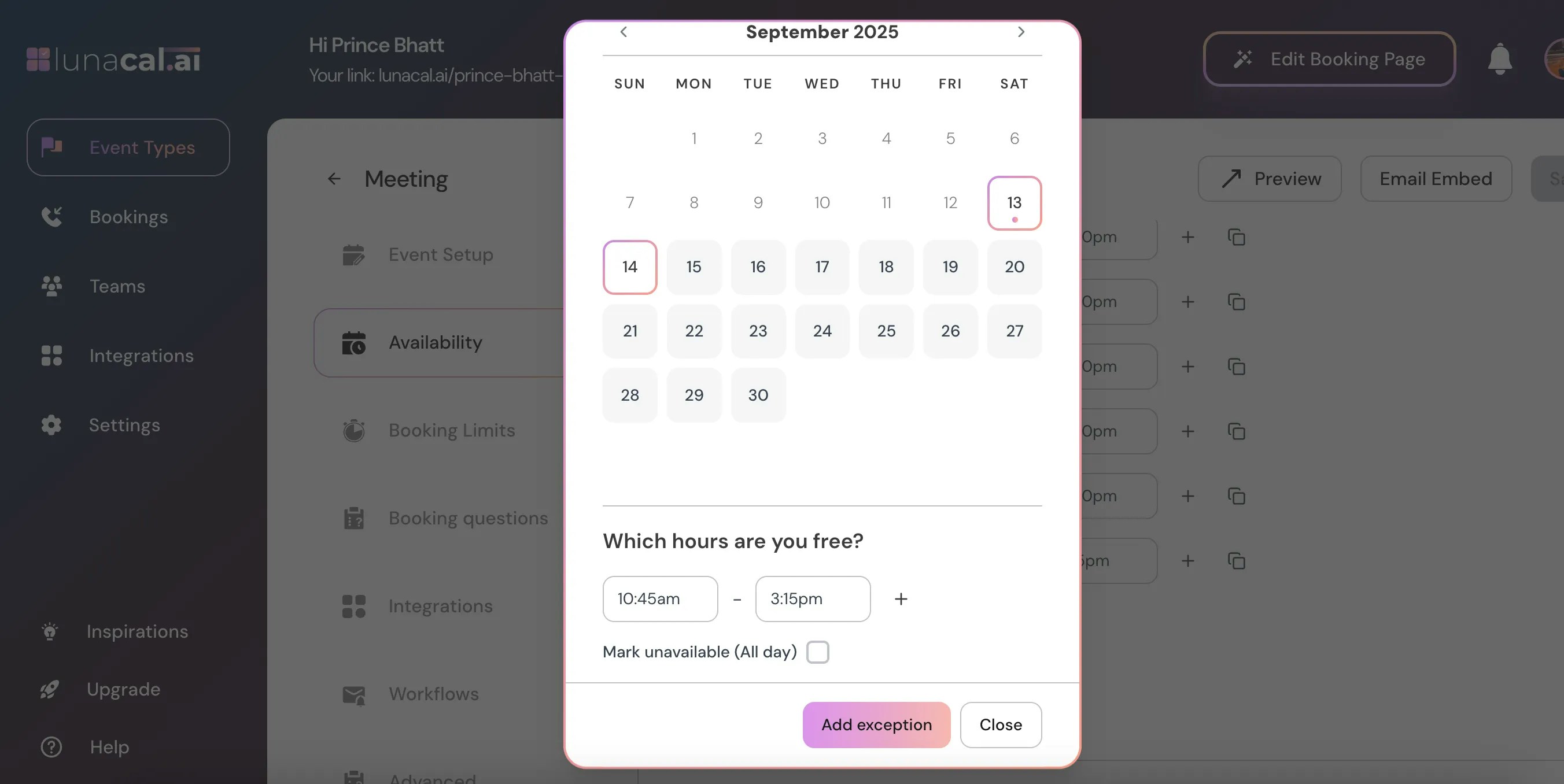
Scroll down and set the time range you’re available for that date.
***
## Step 7
Scroll down and set the time range you’re available for that date.
 ***
## Step 8
Click the "+" button to add multiple time ranges if you’re available at different slots during the same day.
***
## Step 8
Click the "+" button to add multiple time ranges if you’re available at different slots during the same day.