> ## Documentation Index
> Fetch the complete documentation index at: https://help.lunacal.ai/llms.txt
> Use this file to discover all available pages before exploring further.
# Collective Scheduling
> Learn how to use Collective Scheduling so events are booked only when all selected team members are available.
**When to use Collective vs other options (quick guide)**
Collective Scheduling lets you book a meeting only when all selected hosts are available at the same time. It’s ideal for meetings like panel interviews, group demos, or team discussions where everyone must attend.
Use [Round Robin](https://help.lunacal.ai/round-robin-scheduling) when any one qualified host can take the meeting (e.g., inbound demo queue).
## Step 1
Click on "**Create a new event**".
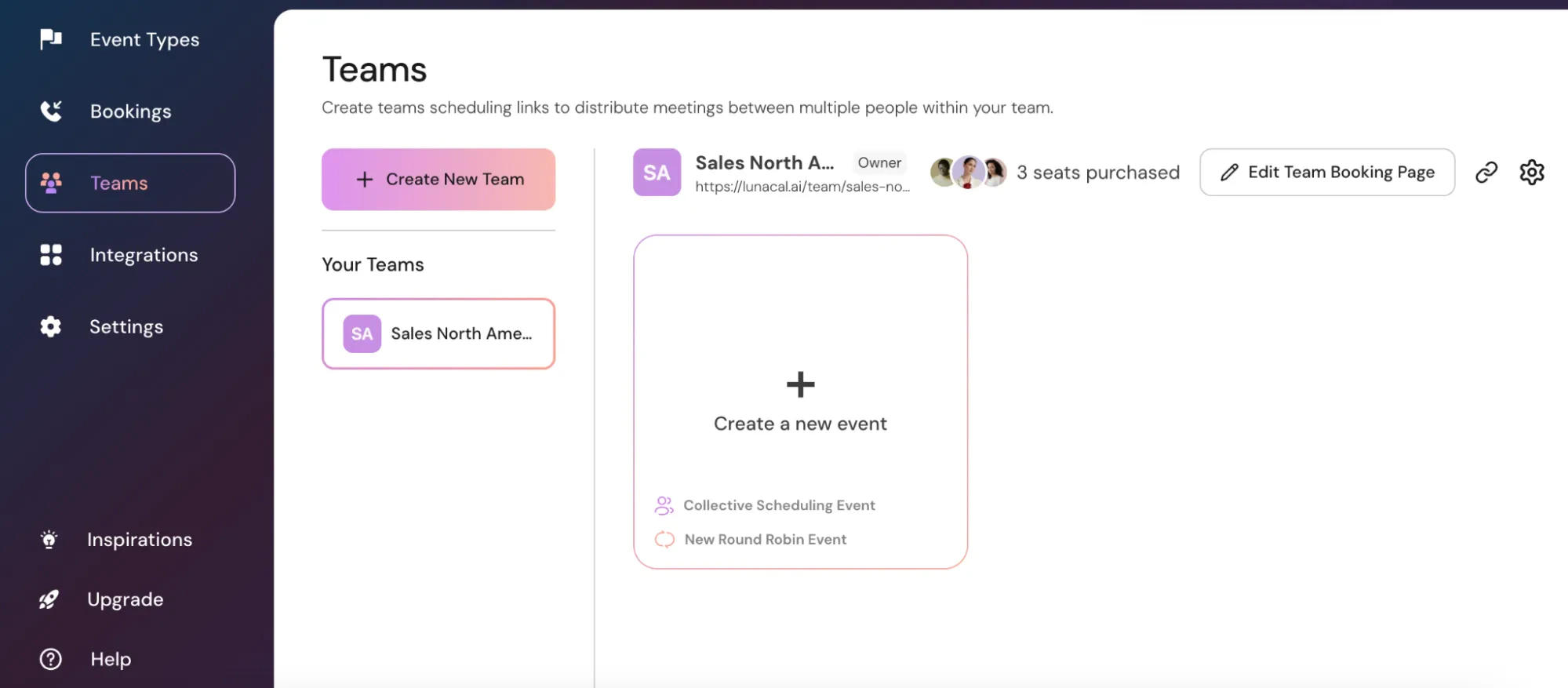 ## Step 2
Select "**Collective Scheduling**" from the Assignment options.
## Step 2
Select "**Collective Scheduling**" from the Assignment options.
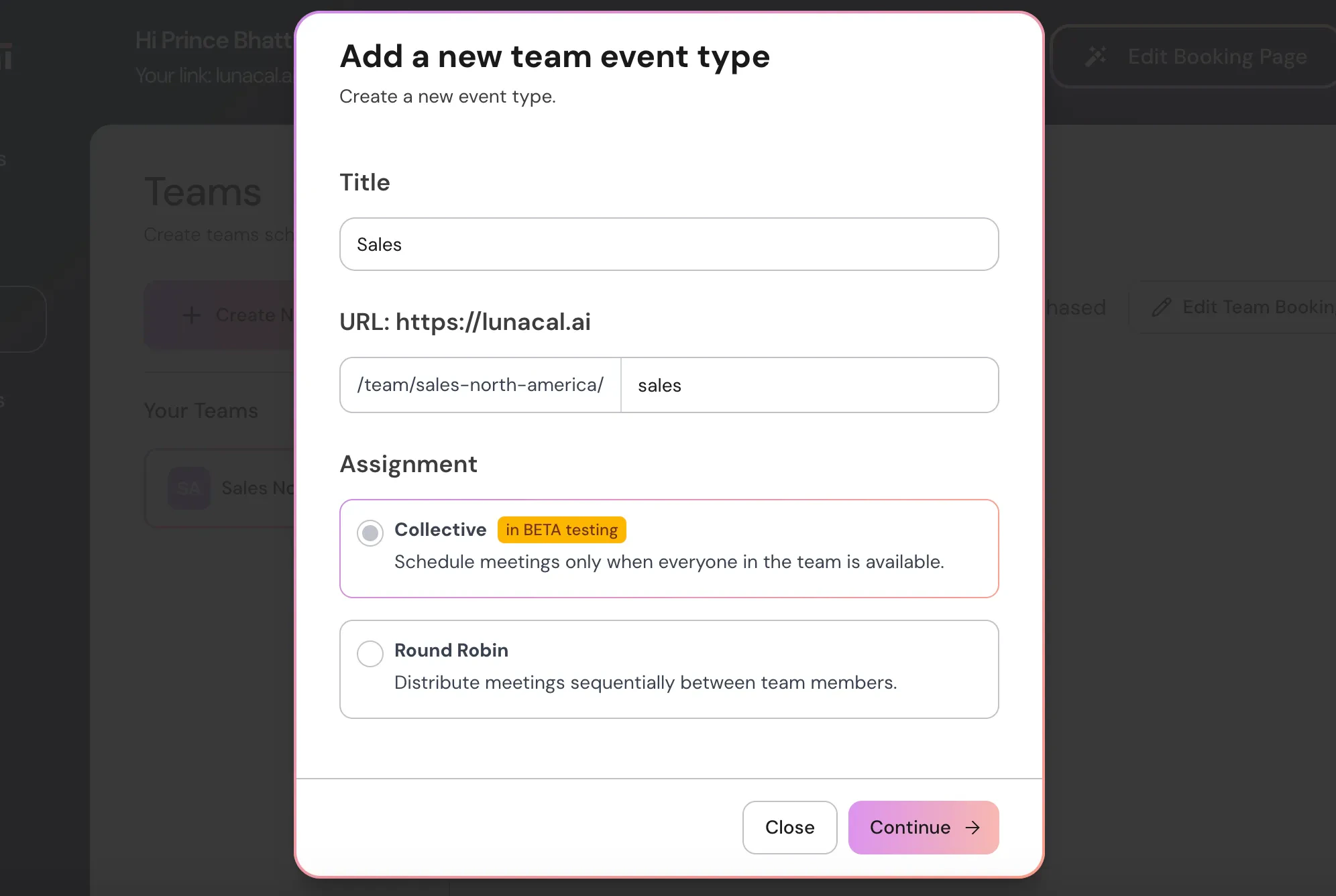 **Example** Client onboarding that always needs an **AE** and a **CSM**: pick "**Collective Scheduling**" so both must be available for a slot to appear.
## Step 3
The "**Event Setup**", "**Booking Limits**", and other features work the same way as a regular event.
**Example** Client onboarding that always needs an **AE** and a **CSM**: pick "**Collective Scheduling**" so both must be available for a slot to appear.
## Step 3
The "**Event Setup**", "**Booking Limits**", and other features work the same way as a regular event.
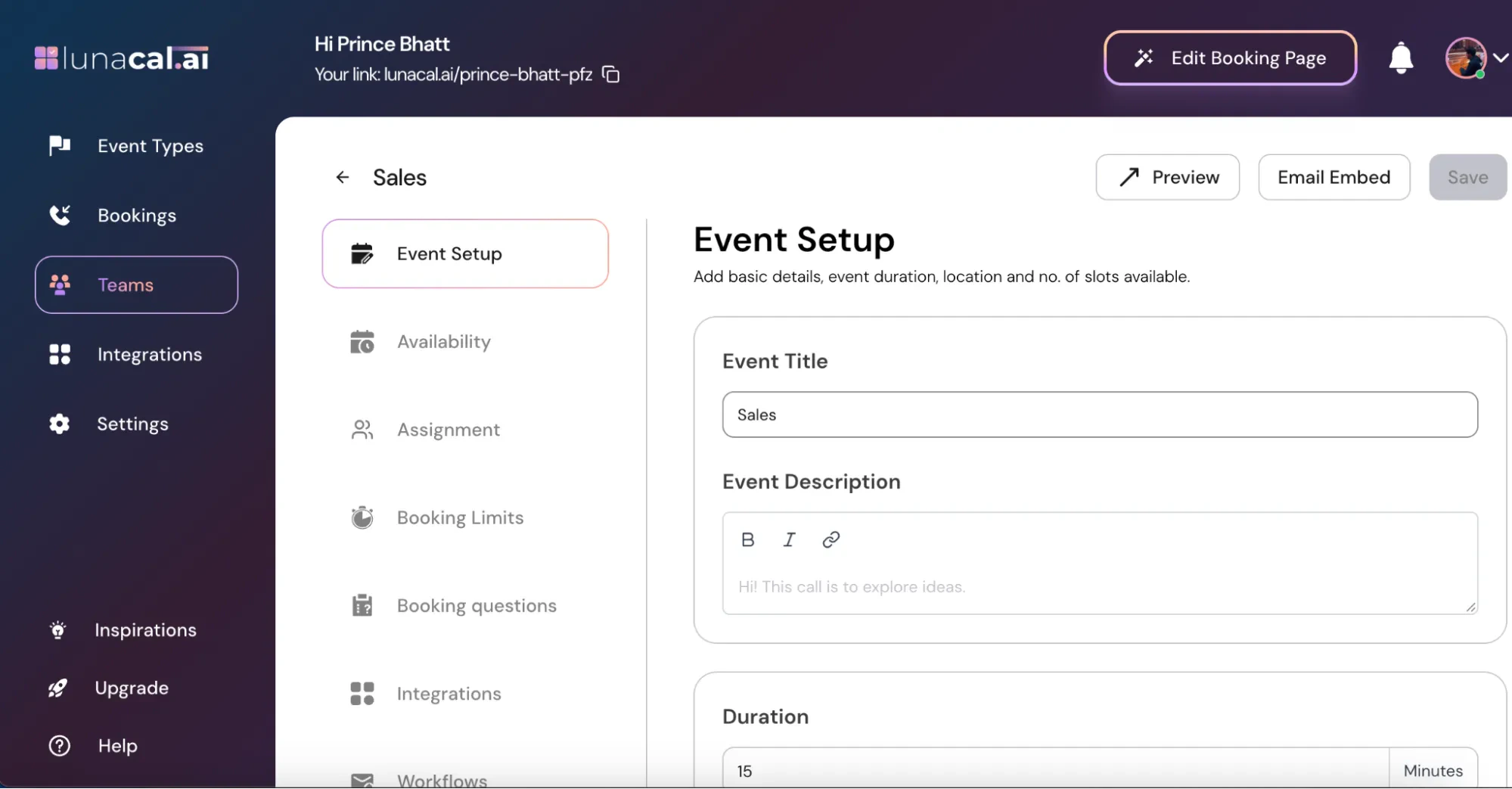 Example Keep buffers in "**Booking Limits**" (e.g., **10 min before, 15 min after**) so team members have prep and wrap-up time.
## Step 4
Go to the "**Assignment**" section.
Example Keep buffers in "**Booking Limits**" (e.g., **10 min before, 15 min after**) so team members have prep and wrap-up time.
## Step 4
Go to the "**Assignment**" section.
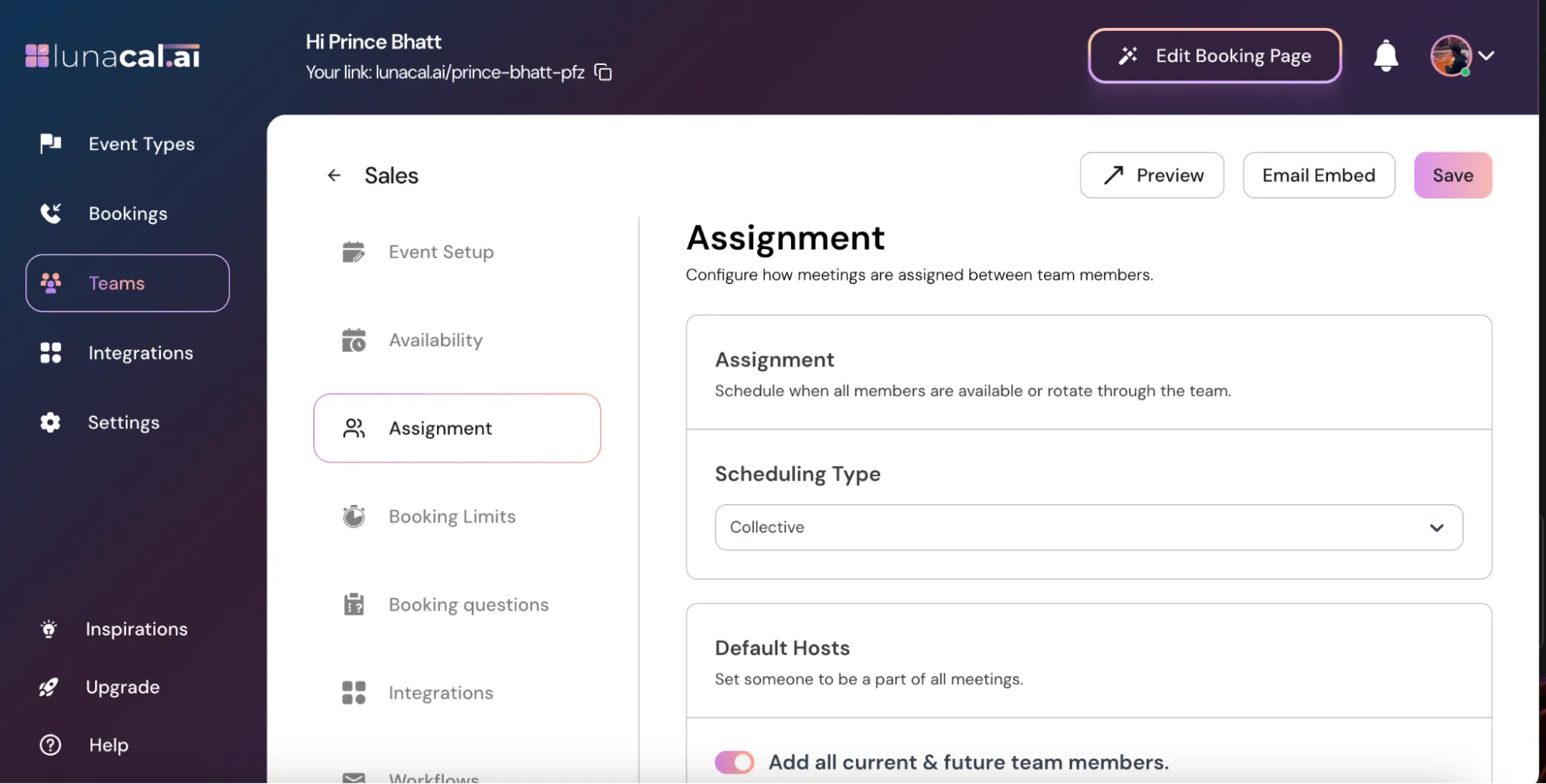 Example Pre-sales call that must include Founder + Tech Lead: add both here so only overlapping times are shown to the booker.
## Step 5
**"Default Hosts"**
Turn ON "**Add all current & future team members**" → Automatically include everyone in all meetings.
Example Pre-sales call that must include Founder + Tech Lead: add both here so only overlapping times are shown to the booker.
## Step 5
**"Default Hosts"**
Turn ON "**Add all current & future team members**" → Automatically include everyone in all meetings.
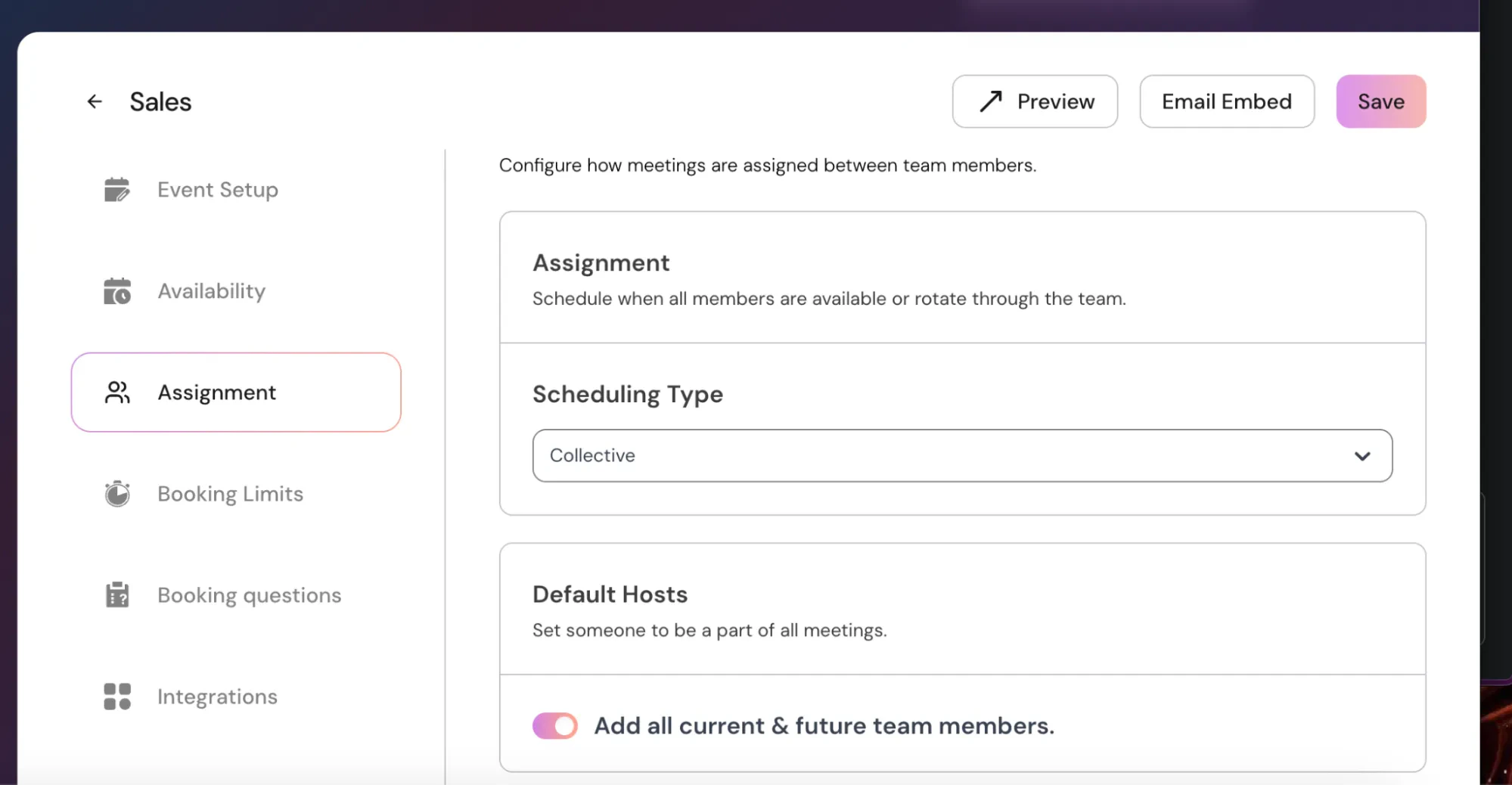 Keep it OFF → Manually select the specific team members you want to always include in the meeting.
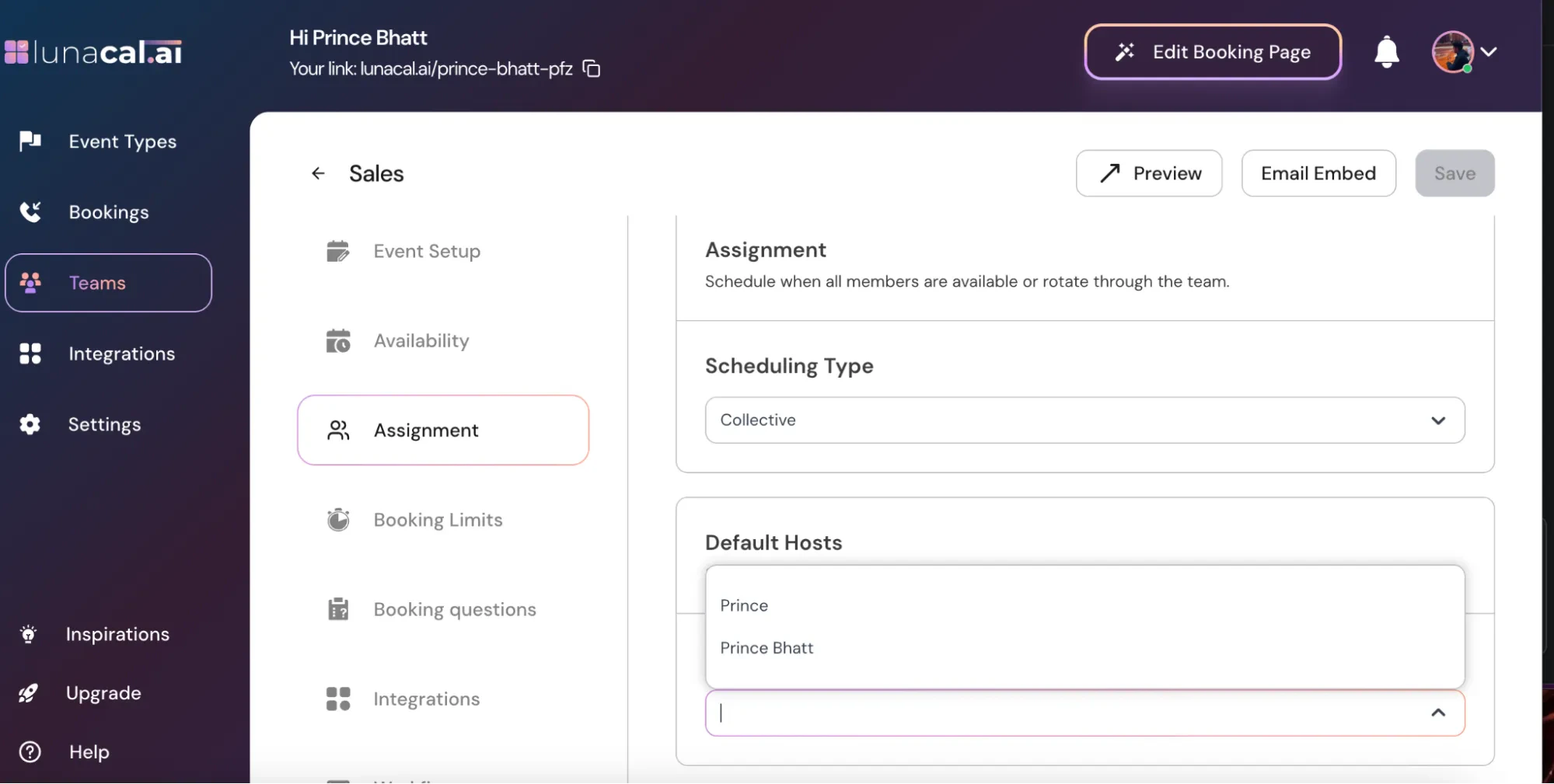 Example Weekly investor update: keep it OFF and choose just the CEO and CFO; new hires won’t be auto-added by mistake.
## Step 6
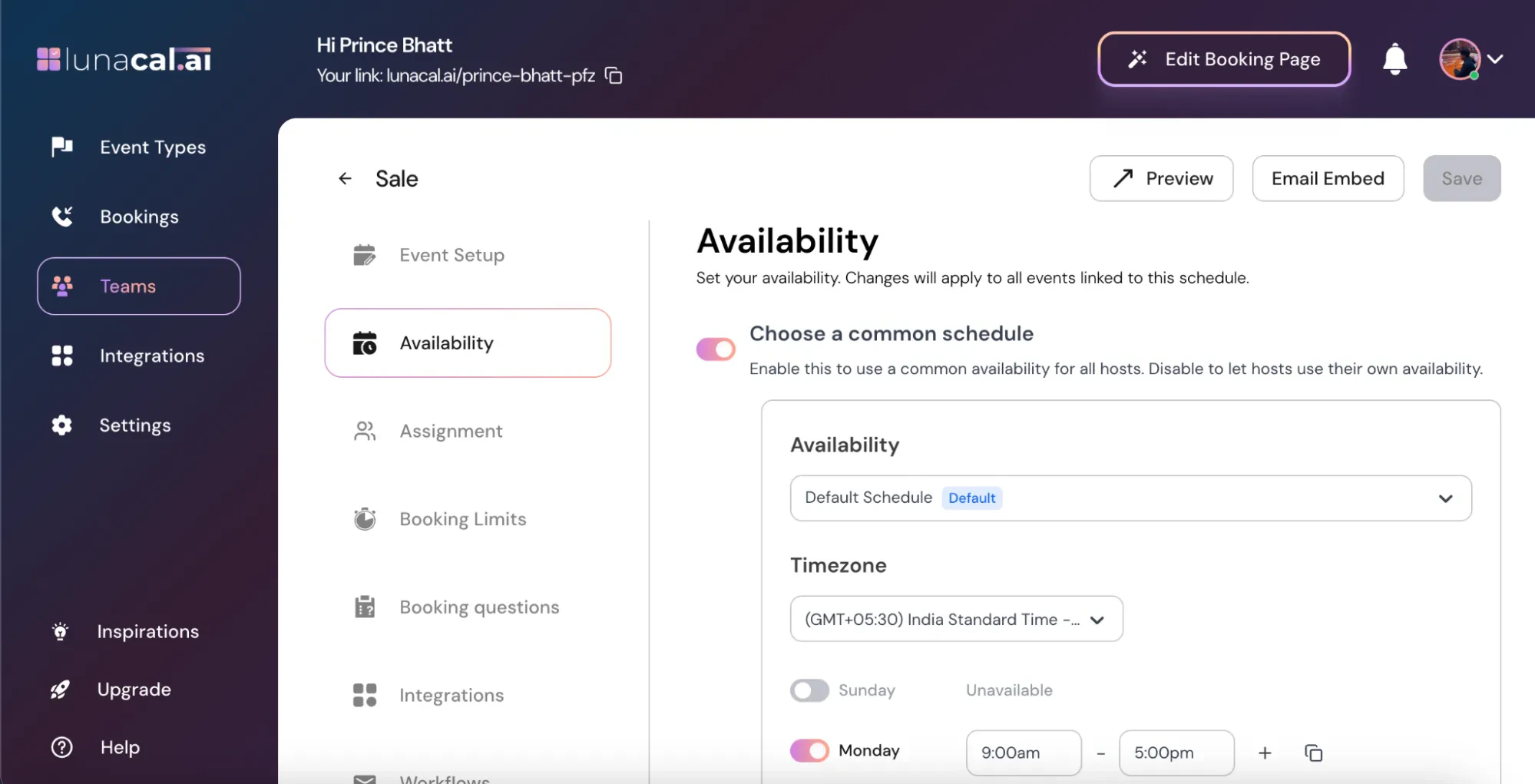
"**Availability Options**"
Choose a Common Schedule (ON): All hosts follow the same availability schedule you set here. Any changes apply to all linked events.
Example Weekly investor update: keep it OFF and choose just the CEO and CFO; new hires won’t be auto-added by mistake.
## Step 6
"**Availability Options**"
Choose a Common Schedule (ON): All hosts follow the same availability schedule you set here. Any changes apply to all linked events.
 Choose a Common Schedule (OFF): Each host can set and use their own individual availability for events.
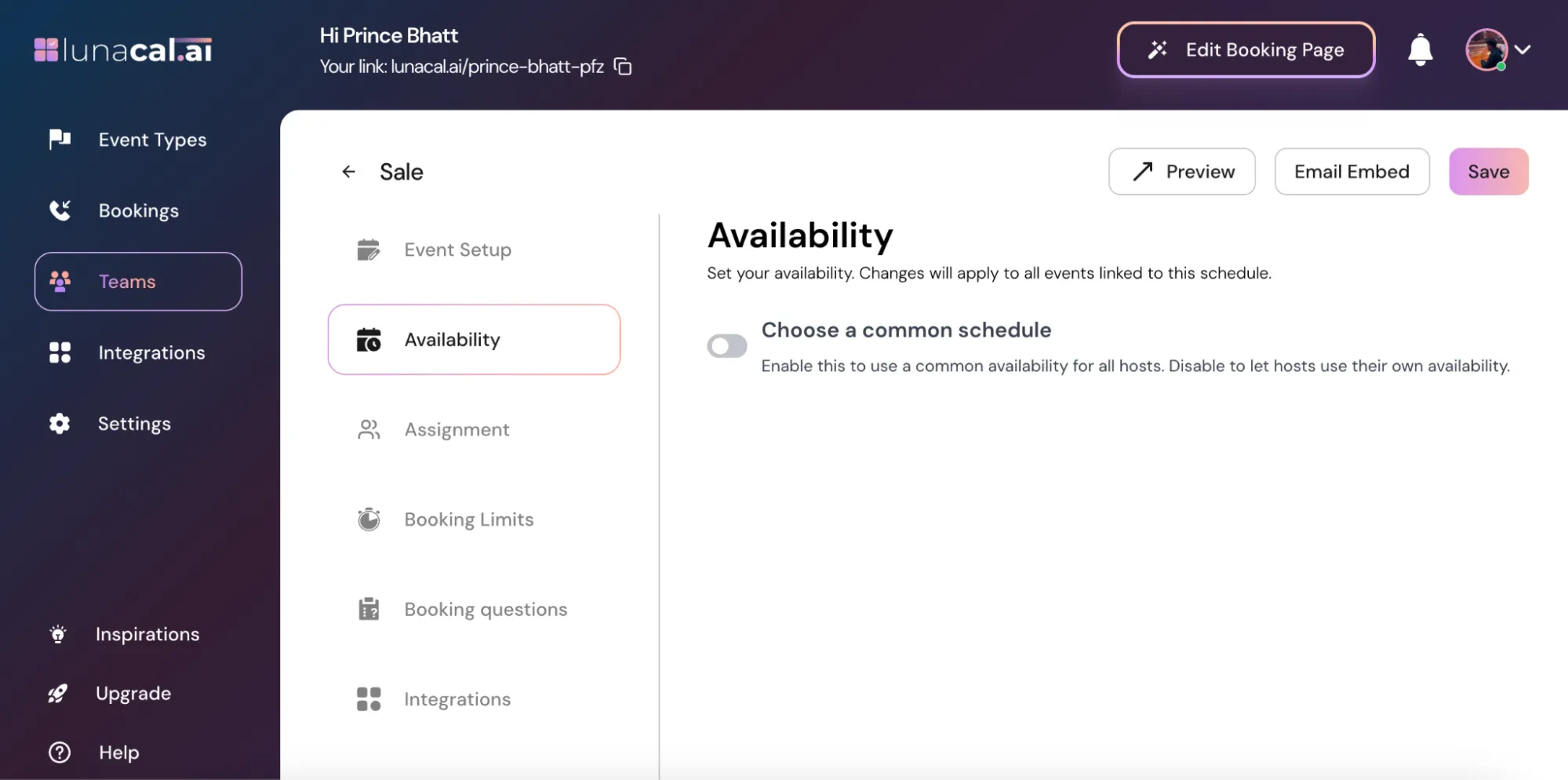 Example Global team (IST + CET + ET): use (OFF) so each person keeps their local hours; the page still shows only overlapping slots.
## Common mistakes to avoid
* Selecting "**Collective Scheduling**" but forgetting to add all required people in "Assignment", so the meeting misses a key host.
* Leaving "**Choose a Common Schedule (ON)**" when hosts work different time zones; overlapping slots may disappear.
* Turning ON "**Add all current & future team members**" for a sensitive meeting type, which auto-adds new hires.
* No buffers in "**Booking Limits**", causing tight back-to-back meetings for multiple hosts.
Example Global team (IST + CET + ET): use (OFF) so each person keeps their local hours; the page still shows only overlapping slots.
## Common mistakes to avoid
* Selecting "**Collective Scheduling**" but forgetting to add all required people in "Assignment", so the meeting misses a key host.
* Leaving "**Choose a Common Schedule (ON)**" when hosts work different time zones; overlapping slots may disappear.
* Turning ON "**Add all current & future team members**" for a sensitive meeting type, which auto-adds new hires.
* No buffers in "**Booking Limits**", causing tight back-to-back meetings for multiple hosts.