> ## Documentation Index
> Fetch the complete documentation index at: https://help.lunacal.ai/llms.txt
> Use this file to discover all available pages before exploring further.
# Custom SMTP
> Custom SMTP lets you send booking confirmation emails, reminders, and workflow notifications from your own email server instead of lunacal's default mailer.
Your guests and clients will see your domain in the sender address, keeping your brand consistent.
> **Note:** Custom SMTP is available on **Enterprise plan**. If the section does not appear in your settings, check your current plan.
***
## Where to configure it
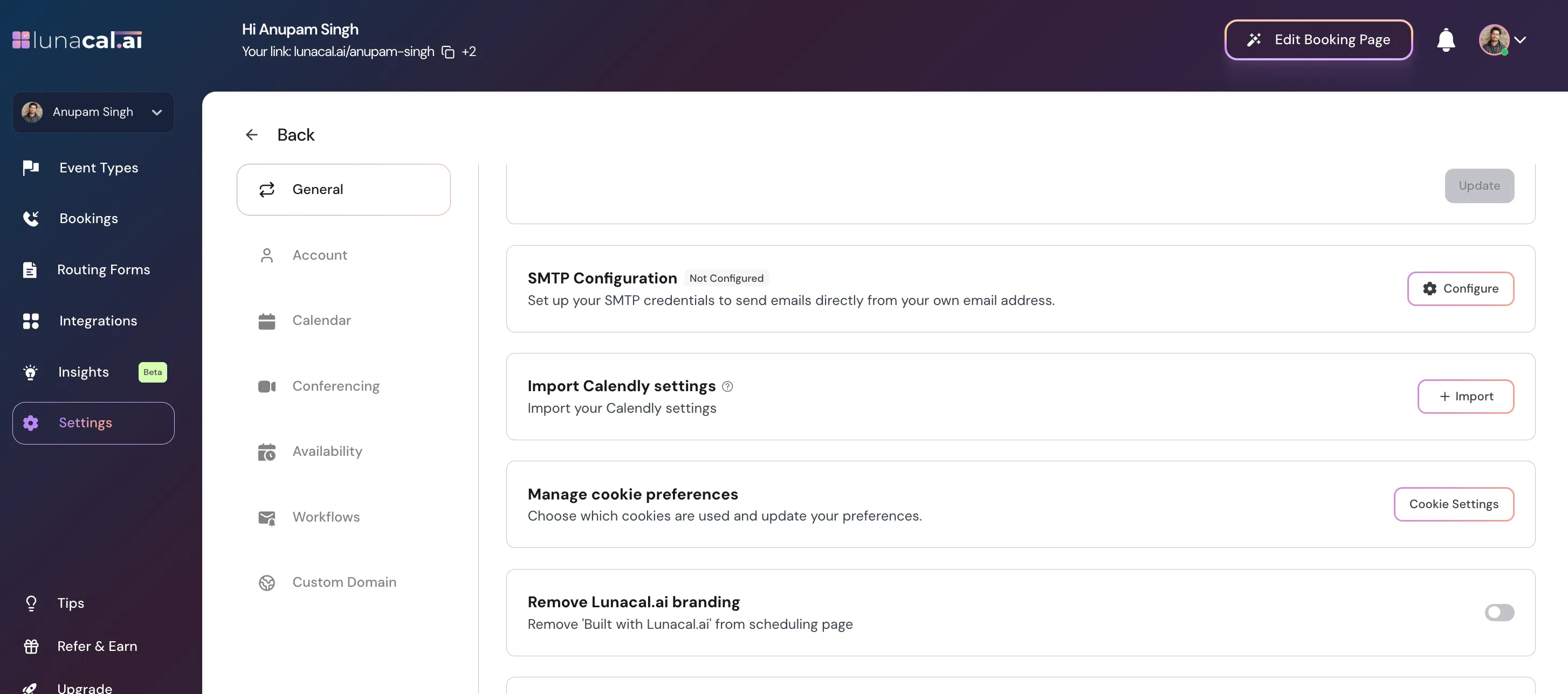
**Personal account:**\
Go to **Settings → Profile** and scroll down to the **SMTP Configuration** section.
 **Team workspace:**\
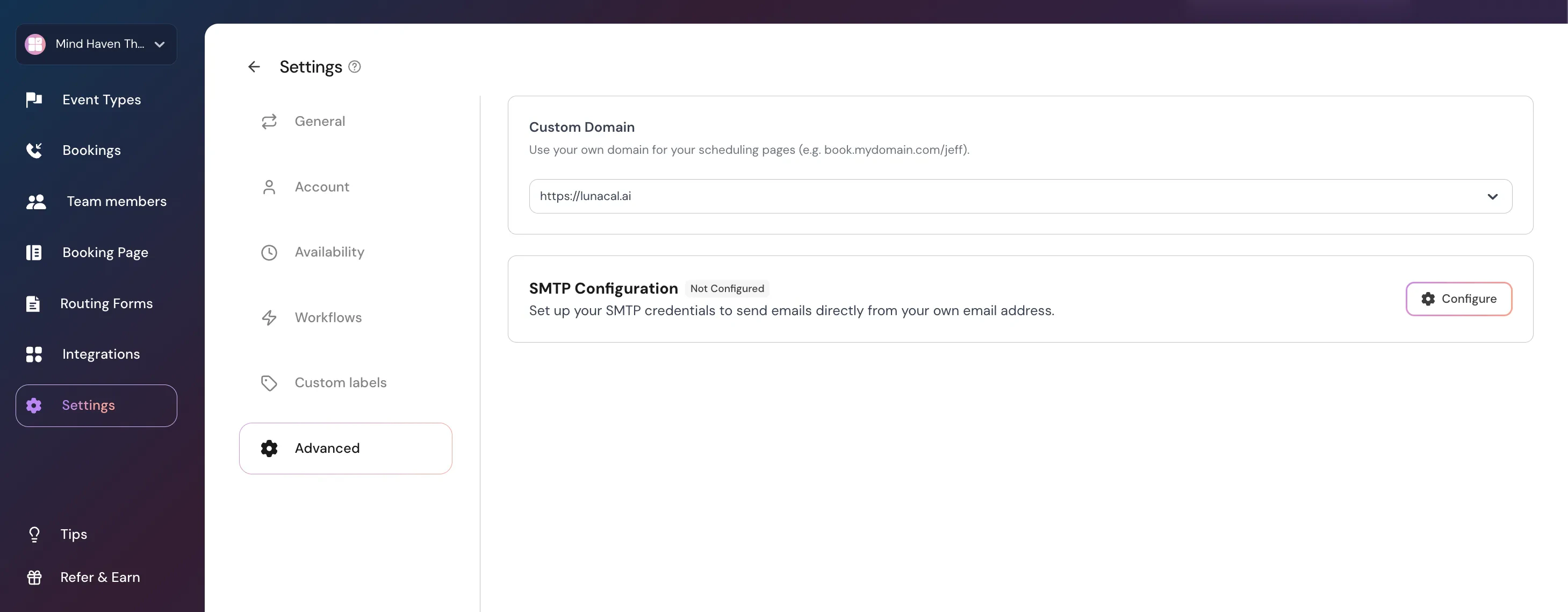
Go to **Settings → Teams → \[Your Team] → Settings → Advanced** and scroll down to the **SMTP Configuration** section.
**Team workspace:**\
Go to **Settings → Teams → \[Your Team] → Settings → Advanced** and scroll down to the **SMTP Configuration** section.
 ## Setting up Custom SMTP
1. Click **Configure** in the SMTP Configuration section.
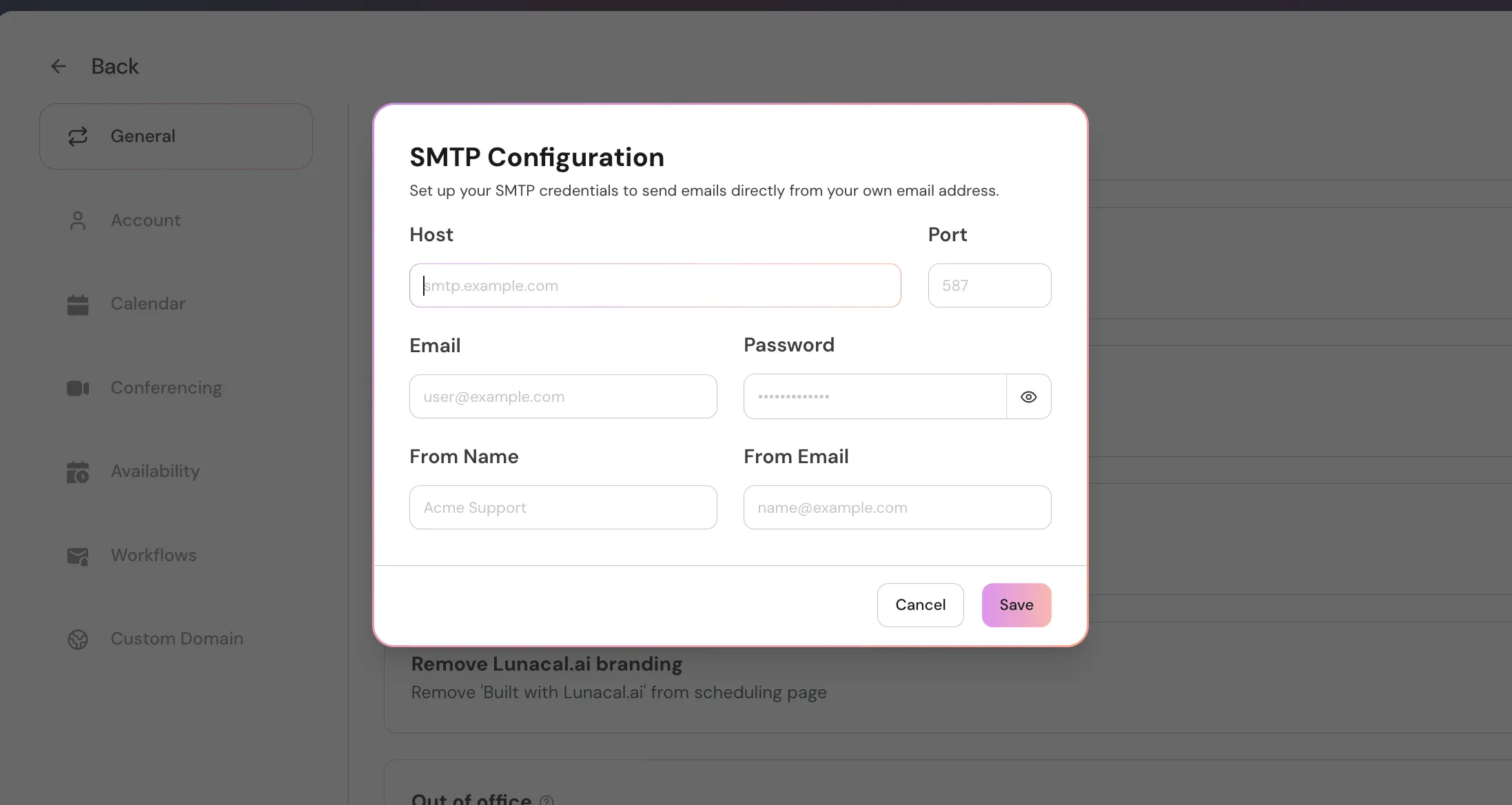
2. Fill in the following fields:
## Setting up Custom SMTP
1. Click **Configure** in the SMTP Configuration section.
2. Fill in the following fields:
 | Field | Description | Example |
| :------------- | :---------------------------------------------------------- | :------------------------ |
| **Host** | Your SMTP server hostname | `smtp.gmail.com` |
| **Port** | SMTP port (commonly 587 for TLS, 465 for SSL, 25 for plain) | `587` |
| **Email** | The SMTP login/username (usually your email address) | `you@yourdomain.com` |
| **Password** | The SMTP password or app-specific password | `uirt-beoa-opqz` |
| **From Name** | The sender name your recipients will see | `Acme Support` |
| **From Email** | The sender email address your recipients will see | `bookings@yourdomain.com` |
3. Click **Save**. The section will show a **Configured** badge when saved successfully.
> **Note:** The password cannot be edited after saving. To update it, delete the current configuration and add it again.
***
## Common SMTP settings by provider
**Gmail / Google Workspace**
* Host: `smtp.gmail.com`
* Port: `587`
* Use an [App Password](https://support.google.com/accounts/answer/185833) if 2-Step Verification is enabled.
**Outlook / Microsoft 365**
* Host: `smtp.office365.com`
* Port: `587`
***
## Disconnecting Custom SMTP
Click the **Delete** button in the SMTP Configuration section to disconnect your SMTP server.
**What happens when you disconnect:**
* **Emails stop sending** — all workflows that were created or updated while SMTP was connected will stop sending emails.
* **Workflows are disabled** — those workflows will be disabled for all event types they are attached to.
* **Re-verification required** — you will need to re-verify the email content of these workflows before they can send again.
Reconnecting SMTP will not automatically re-enable disabled workflows. You will need to re-attach them to your event types manually.
| Field | Description | Example |
| :------------- | :---------------------------------------------------------- | :------------------------ |
| **Host** | Your SMTP server hostname | `smtp.gmail.com` |
| **Port** | SMTP port (commonly 587 for TLS, 465 for SSL, 25 for plain) | `587` |
| **Email** | The SMTP login/username (usually your email address) | `you@yourdomain.com` |
| **Password** | The SMTP password or app-specific password | `uirt-beoa-opqz` |
| **From Name** | The sender name your recipients will see | `Acme Support` |
| **From Email** | The sender email address your recipients will see | `bookings@yourdomain.com` |
3. Click **Save**. The section will show a **Configured** badge when saved successfully.
> **Note:** The password cannot be edited after saving. To update it, delete the current configuration and add it again.
***
## Common SMTP settings by provider
**Gmail / Google Workspace**
* Host: `smtp.gmail.com`
* Port: `587`
* Use an [App Password](https://support.google.com/accounts/answer/185833) if 2-Step Verification is enabled.
**Outlook / Microsoft 365**
* Host: `smtp.office365.com`
* Port: `587`
***
## Disconnecting Custom SMTP
Click the **Delete** button in the SMTP Configuration section to disconnect your SMTP server.
**What happens when you disconnect:**
* **Emails stop sending** — all workflows that were created or updated while SMTP was connected will stop sending emails.
* **Workflows are disabled** — those workflows will be disabled for all event types they are attached to.
* **Re-verification required** — you will need to re-verify the email content of these workflows before they can send again.
Reconnecting SMTP will not automatically re-enable disabled workflows. You will need to re-attach them to your event types manually.