> ## Documentation Index
> Fetch the complete documentation index at: https://help.lunacal.ai/llms.txt
> Use this file to discover all available pages before exploring further.
# Using Dynamic Links
> Use “Using Dynamic Links” to find a common time across time zones without back-and-forth. On “Dynamic Bookings” pages, you can combine teammates’ schedules by adding their usernames to one link.
## Step 1
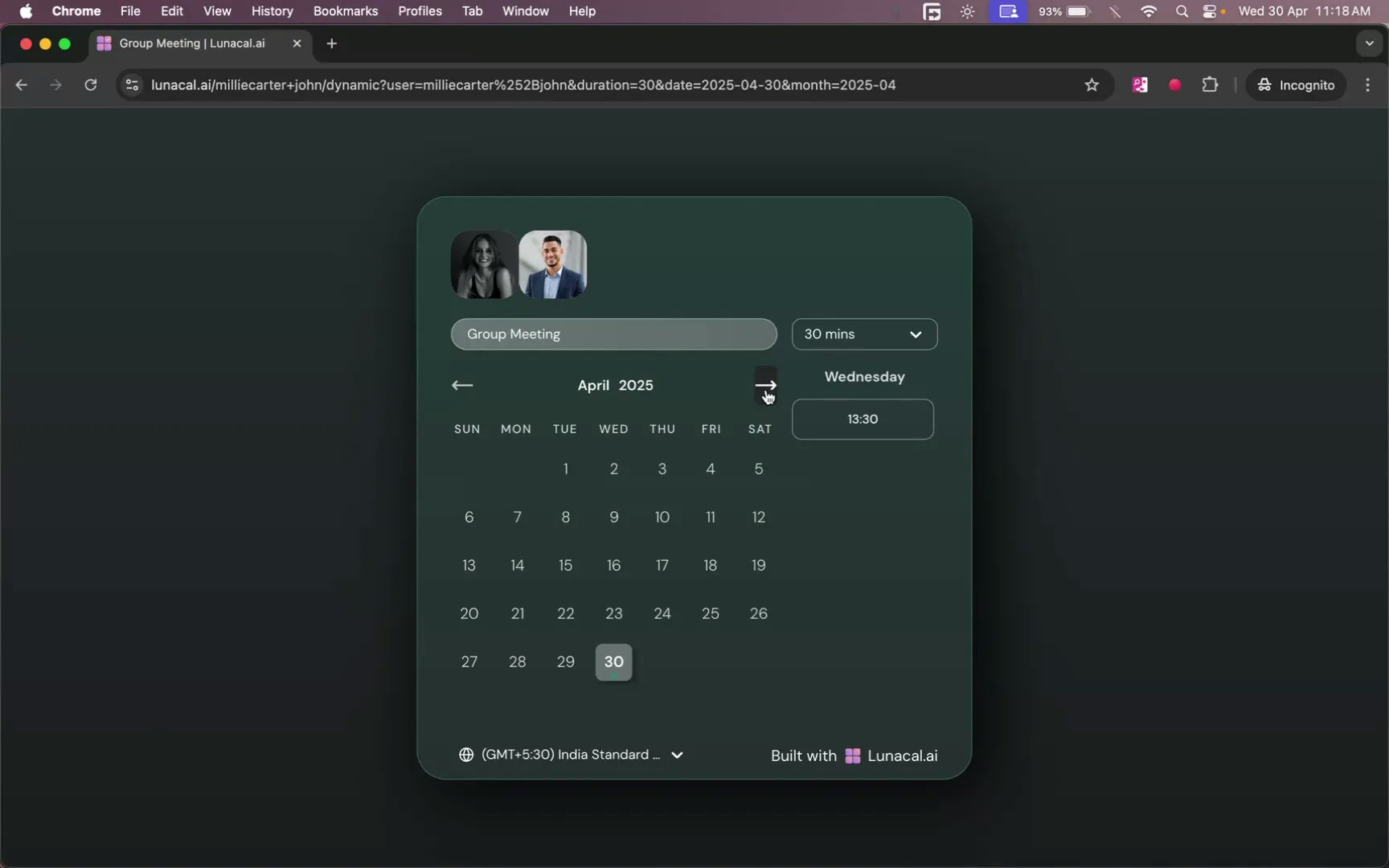
Open one teammate’s scheduling link. Append the other teammates’ username with a plus sign, then press Enter to view shared availability (e.g., …/millie+carter+john). Example: Your team sits in New York, London, and Bengaluru. Add +london\_teammate and +blr\_teammate to Millie’s link to see only slots that work for everyone.
 ## Step 2
Review the combined availability shown on the page. Pick a slot that fits all the selected teammates.
**Example:** If mornings are busy for London, scan for early afternoon IST which overlaps late morning UK and early morning ET.
## Step 3
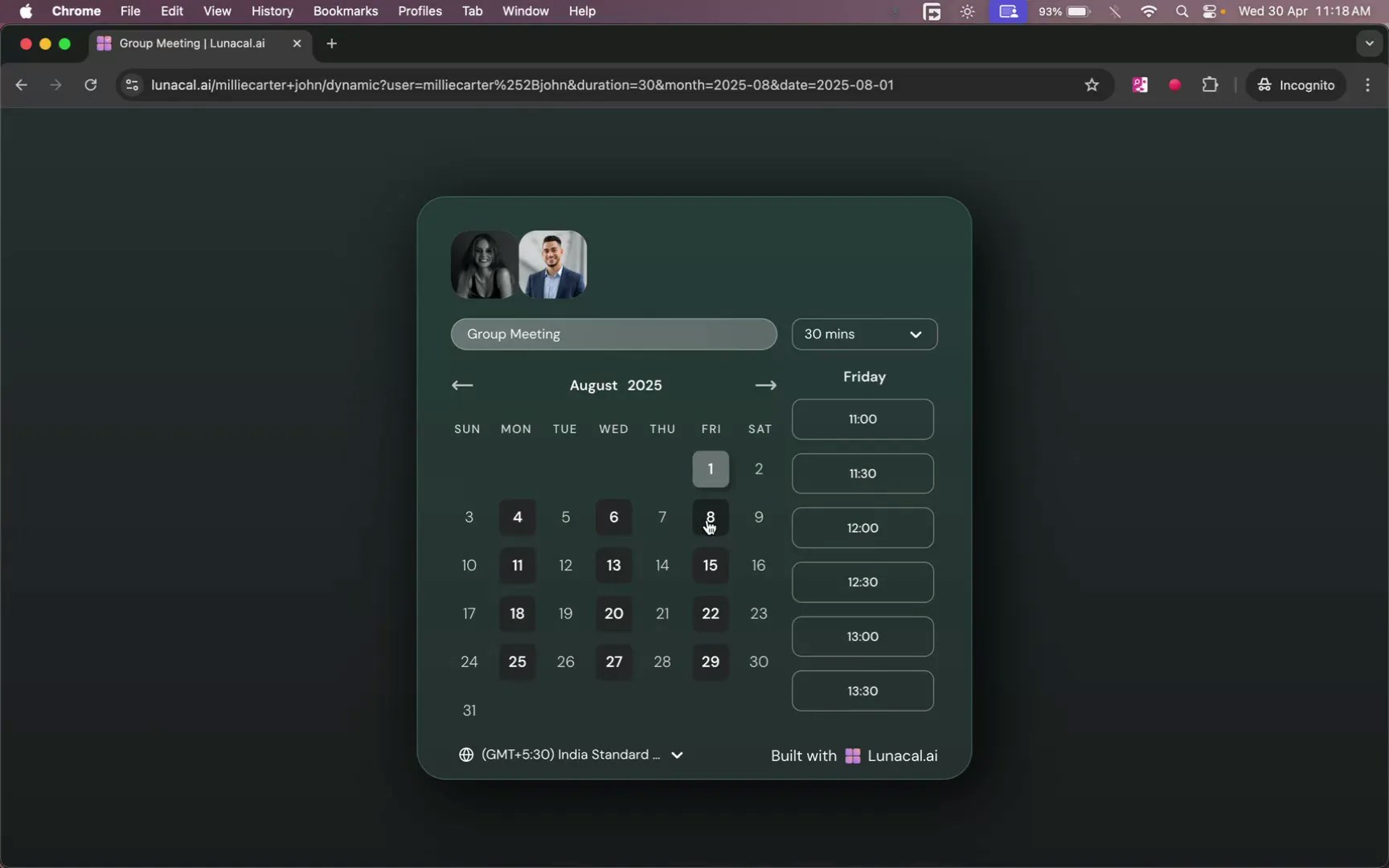
Pick a time (e.g., 8 August, 11:00). Enter your name in the field.
**Example:** If you’re booking for a client, type the client’s name here so the event shows the right attendee.
## Step 2
Review the combined availability shown on the page. Pick a slot that fits all the selected teammates.
**Example:** If mornings are busy for London, scan for early afternoon IST which overlaps late morning UK and early morning ET.
## Step 3
Pick a time (e.g., 8 August, 11:00). Enter your name in the field.
**Example:** If you’re booking for a client, type the client’s name here so the event shows the right attendee.
 ## Step 4
Enter your **email** address and hit **confirm**.
Example: Use your work email so calendar invites land on your primary calendar.
## Step 4
Enter your **email** address and hit **confirm**.
Example: Use your work email so calendar invites land on your primary calendar.
 ## Step 5
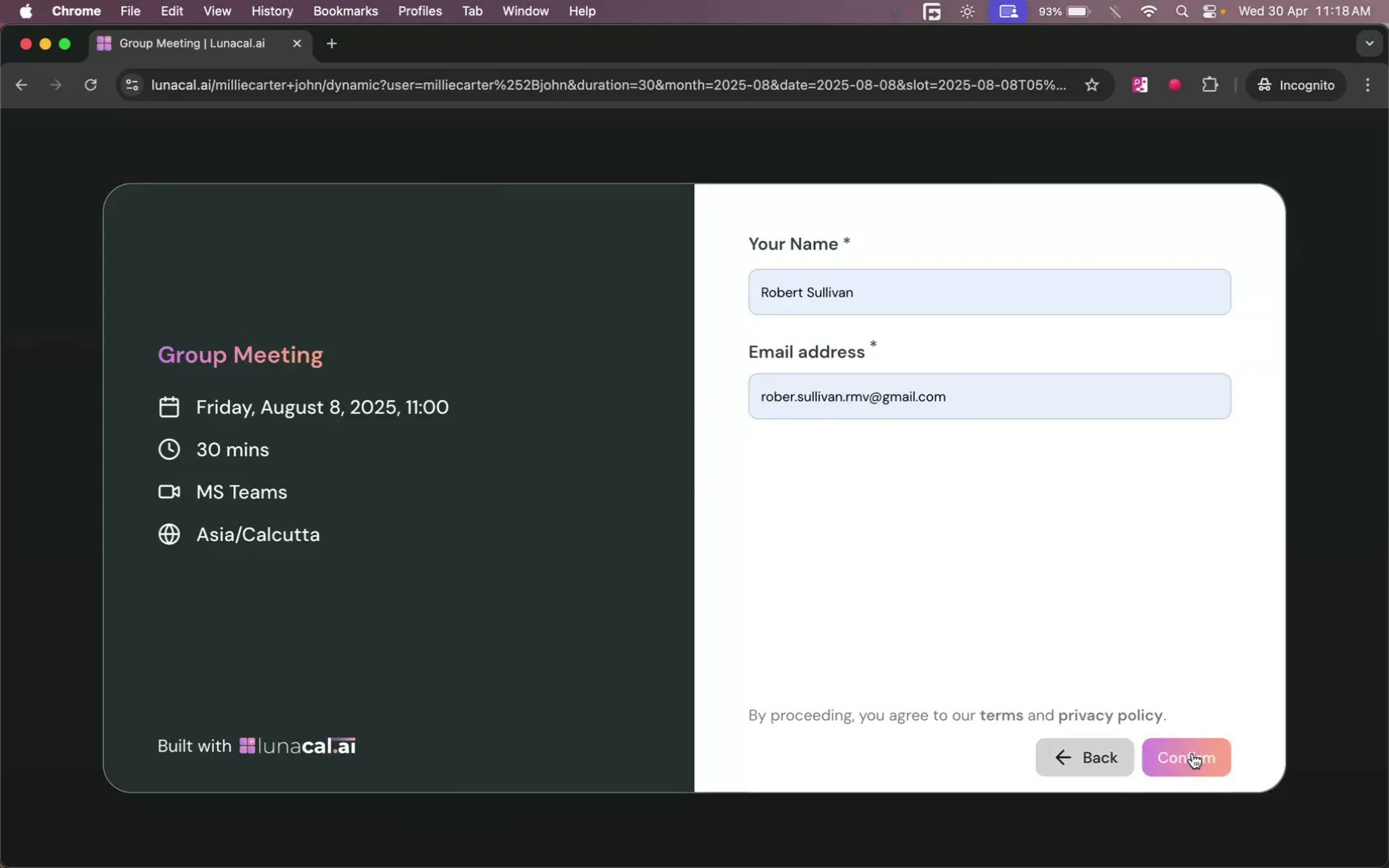
You’ll see a confirmation screen—your booking is complete.
**Example**: Need to align three teammates and an external partner? Add only your two teammates’ usernames; share the confirmed time with the partner afterward.
## Step 5
You’ll see a confirmation screen—your booking is complete.
**Example**: Need to align three teammates and an external partner? Add only your two teammates’ usernames; share the confirmed time with the partner afterward.
 **Common mistakes to avoid**
• Typing @ or spaces instead of + between usernames (use + only).
• Mixing display names with usernames; dynamic links require exact usernames.
• Adding people who don’t have any working hours set, which can hide all slots.
• Forgetting to press Enter after editing the URL, so the page doesn’t refresh.
**Good defaults to start with**• Start with 2 usernames (+teammate1+teammate2) to keep availability broad; add more only if needed.
• Prefer 30–45 minute slots when aligning 3+ people; they’re easier to match.
• Book within the next 7–14 days to maximize overlap and reduce reschedules.
**Common mistakes to avoid**
• Typing @ or spaces instead of + between usernames (use + only).
• Mixing display names with usernames; dynamic links require exact usernames.
• Adding people who don’t have any working hours set, which can hide all slots.
• Forgetting to press Enter after editing the URL, so the page doesn’t refresh.
**Good defaults to start with**• Start with 2 usernames (+teammate1+teammate2) to keep availability broad; add more only if needed.
• Prefer 30–45 minute slots when aligning 3+ people; they’re easier to match.
• Book within the next 7–14 days to maximize overlap and reduce reschedules.