> ## Documentation Index
> Fetch the complete documentation index at: https://help.lunacal.ai/llms.txt
> Use this file to discover all available pages before exploring further.
# Booking Questions
> Use Booking Questions to collect the key details you need before a meeting. You’ll find this under the “Event Types” you want to configure.
> Note: You can reset Booking Questions to default
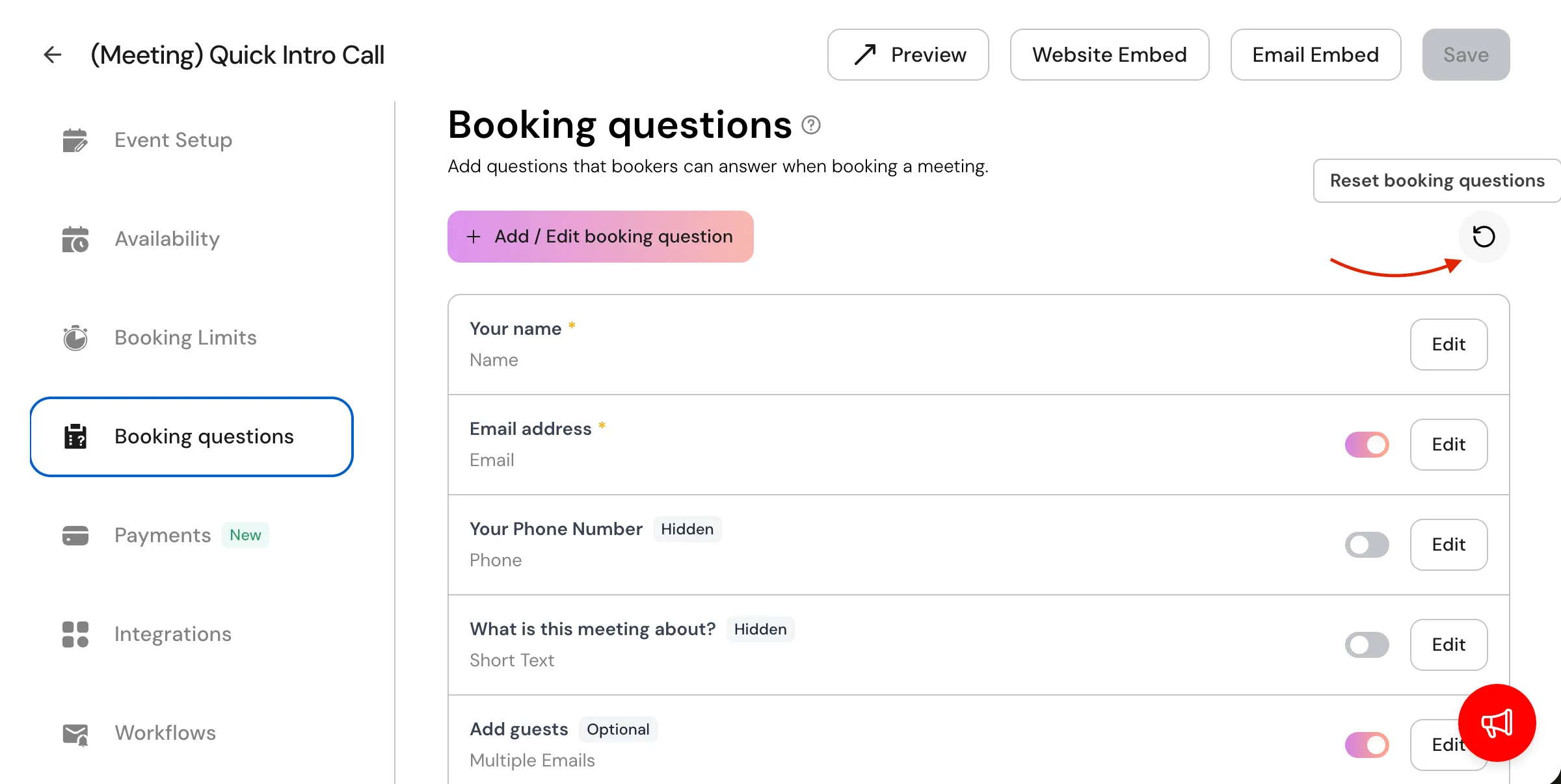 **Step 1**
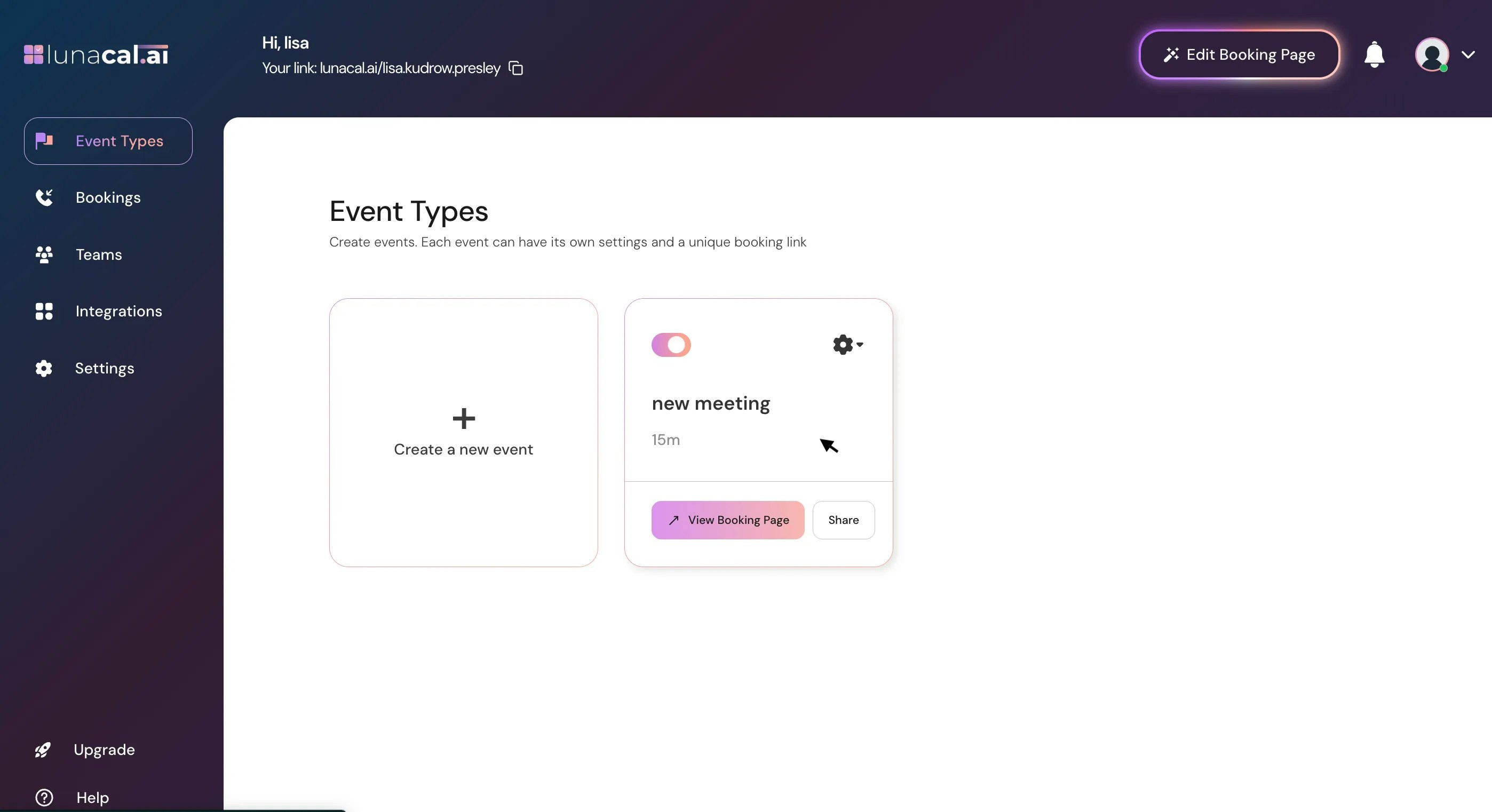
On “[**Event Types**](https://app.lunacal.ai/event-types)”, select the event type you want to edit. You can click anywhere on the square box or use the **gear button**.
**Step 1**
On “[**Event Types**](https://app.lunacal.ai/event-types)”, select the event type you want to edit. You can click anywhere on the square box or use the **gear button**.
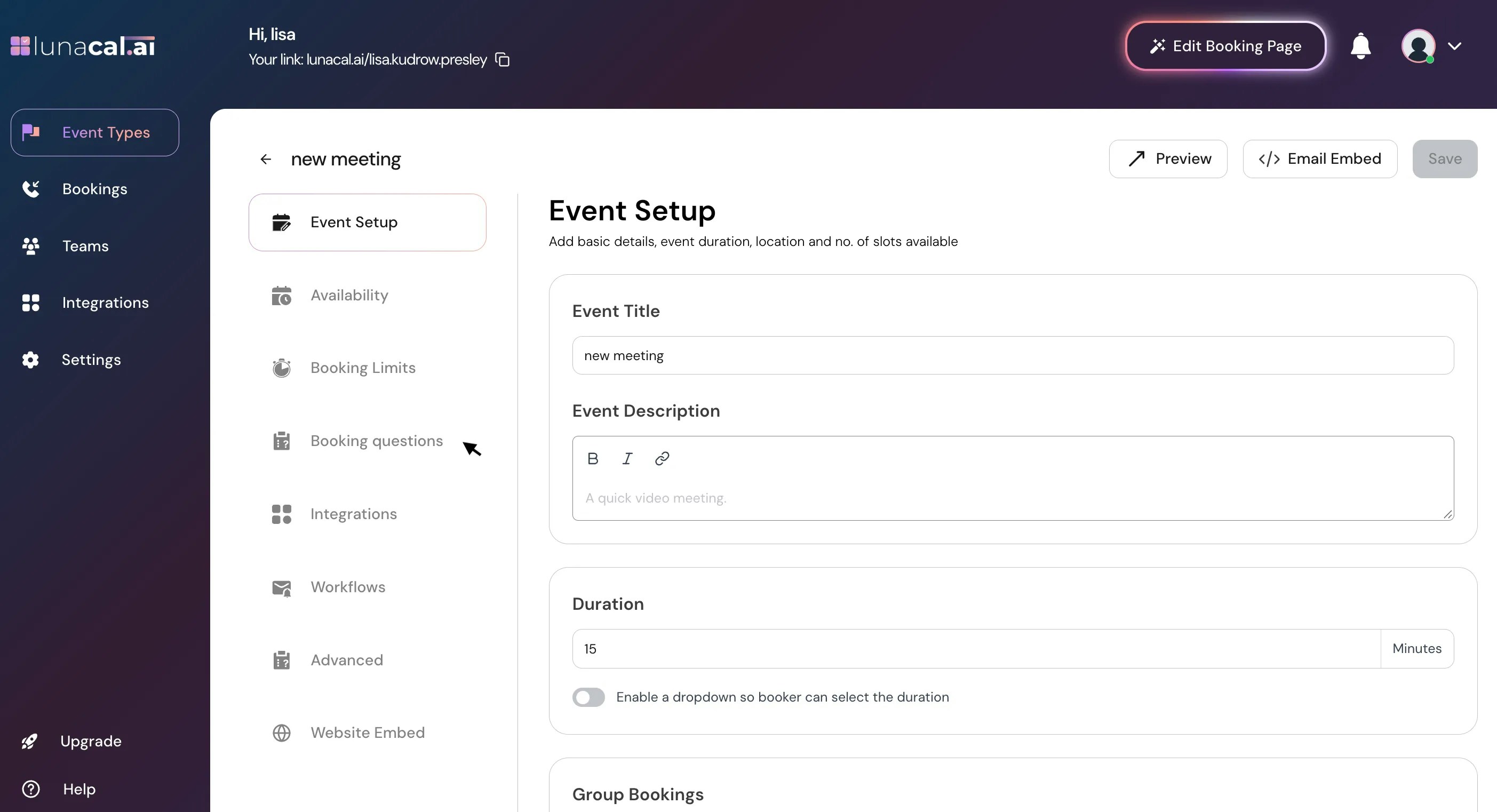
 **Step 2**
Navigate to the **Booking Questions** tab.
**Step 2**
Navigate to the **Booking Questions** tab.
 **Step 3**
**Add/Edit your booking question** **:** \
Note: You can’t delete or change the question type of **default questions**.\
\
To create a new question, click **Add/Edit Booking Question**, then choose the question type from the dropdown.\
Here are the available question types and their use cases:
| **Question Type** | **Description / Use Case** |
| :------------------------------- | :---------------------------------------------------------------------------------------------------------------------------- |
| **Email** | Collects a single email address from the attendee. |
| **Phone** | Collects a phone number with country code. |
| **Short Text** | Accepts short, one-line answers (e.g., name, company, comments). |
| **Long Text** | For longer responses or open-ended questions (e.g., “Tell us more about your project”). |
| **Dropdown** | Displays a list of predefined options — users can select one. |
| **Multiple Emails** | It allows attendee to input more than one email address (useful for group invites & every email will get confirmation email). |
| **Check Box (Multi Select)** | Lets users select multiple options from a list. |
| **Multi Choice (Single Select)** | Lets users choose only one option from multiple choices (radio-button style). |
| **Pipedrive Custom Field** | Links a question directly to a custom field in your connected Pipedrive account. |
| **Consent Checkbox** | Used for consent or agreement confirmations (e.g., “I agree to the terms and conditions”). |
| **Attachment** | Lets users upload file eg.(Images, Docs, sheets etc.) |
**When adding a new question:**
**Step 3**
**Add/Edit your booking question** **:** \
Note: You can’t delete or change the question type of **default questions**.\
\
To create a new question, click **Add/Edit Booking Question**, then choose the question type from the dropdown.\
Here are the available question types and their use cases:
| **Question Type** | **Description / Use Case** |
| :------------------------------- | :---------------------------------------------------------------------------------------------------------------------------- |
| **Email** | Collects a single email address from the attendee. |
| **Phone** | Collects a phone number with country code. |
| **Short Text** | Accepts short, one-line answers (e.g., name, company, comments). |
| **Long Text** | For longer responses or open-ended questions (e.g., “Tell us more about your project”). |
| **Dropdown** | Displays a list of predefined options — users can select one. |
| **Multiple Emails** | It allows attendee to input more than one email address (useful for group invites & every email will get confirmation email). |
| **Check Box (Multi Select)** | Lets users select multiple options from a list. |
| **Multi Choice (Single Select)** | Lets users choose only one option from multiple choices (radio-button style). |
| **Pipedrive Custom Field** | Links a question directly to a custom field in your connected Pipedrive account. |
| **Consent Checkbox** | Used for consent or agreement confirmations (e.g., “I agree to the terms and conditions”). |
| **Attachment** | Lets users upload file eg.(Images, Docs, sheets etc.) |
**When adding a new question:**
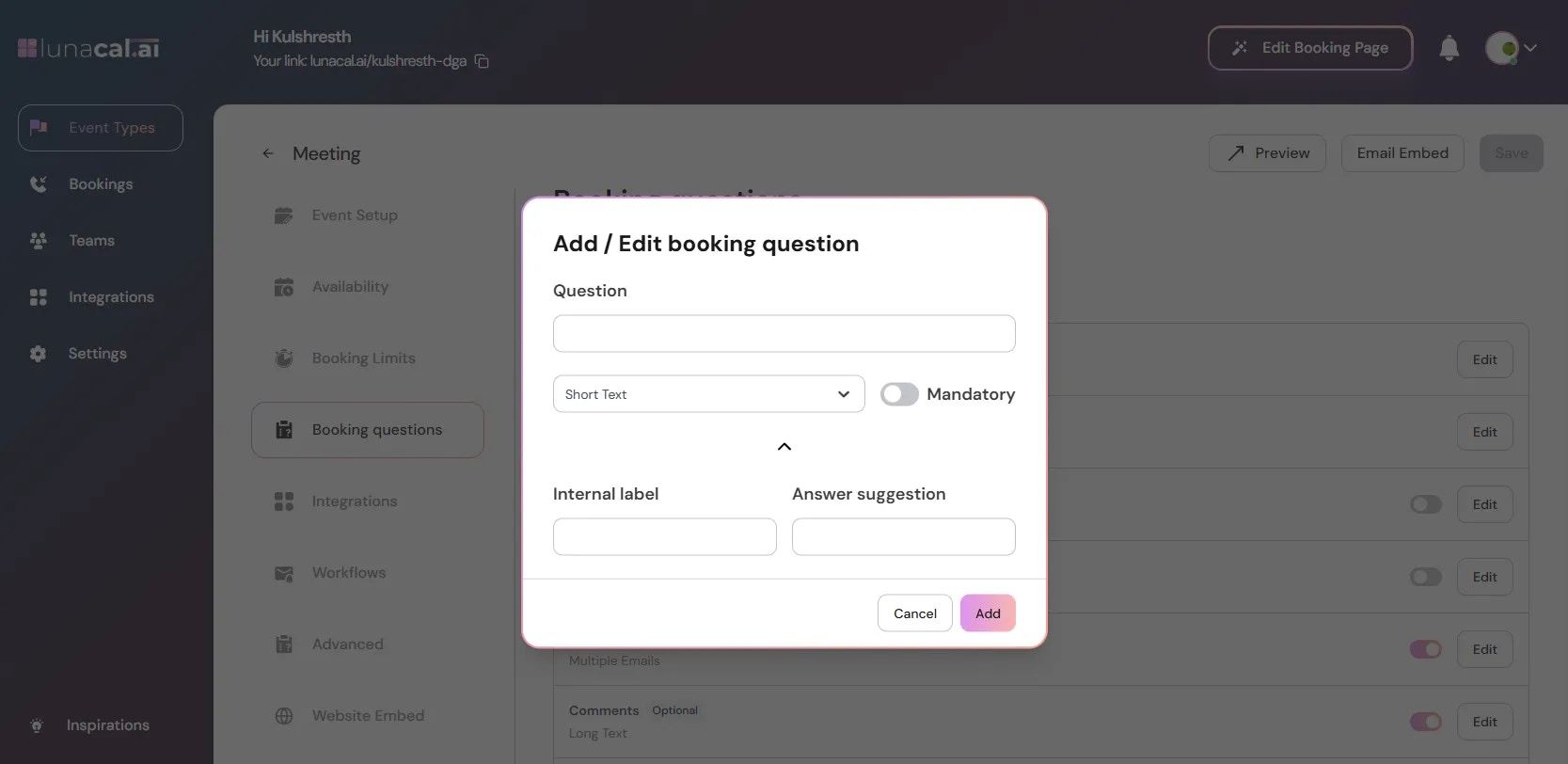 | **Field** | **Description** |
| :-------------------- | :------------------------------------------------------------------------------------------------------------------------------------------------------------------------------------------------------------------------------------------------------- |
| **Mandatory** | When enabled, attendees must answer this question before completing their booking. |
| **Internal Label** | A private tag for question (not shown to the booker). Whatever you enter here can also be used in workflows — for example, if the internal label is **Phone\_Number**, you can reference it as to display the attendee’s phone number in your workflow. |
| **Answer Suggestion** | Optional preset text or examples shown inside the input field to attendees on what to enter. |
When editing the **Name** question, you can use the **Split** option to ask the booker to enter their first and last name separately.
| **Field** | **Description** |
| :-------------------- | :------------------------------------------------------------------------------------------------------------------------------------------------------------------------------------------------------------------------------------------------------- |
| **Mandatory** | When enabled, attendees must answer this question before completing their booking. |
| **Internal Label** | A private tag for question (not shown to the booker). Whatever you enter here can also be used in workflows — for example, if the internal label is **Phone\_Number**, you can reference it as to display the attendee’s phone number in your workflow. |
| **Answer Suggestion** | Optional preset text or examples shown inside the input field to attendees on what to enter. |
When editing the **Name** question, you can use the **Split** option to ask the booker to enter their first and last name separately.
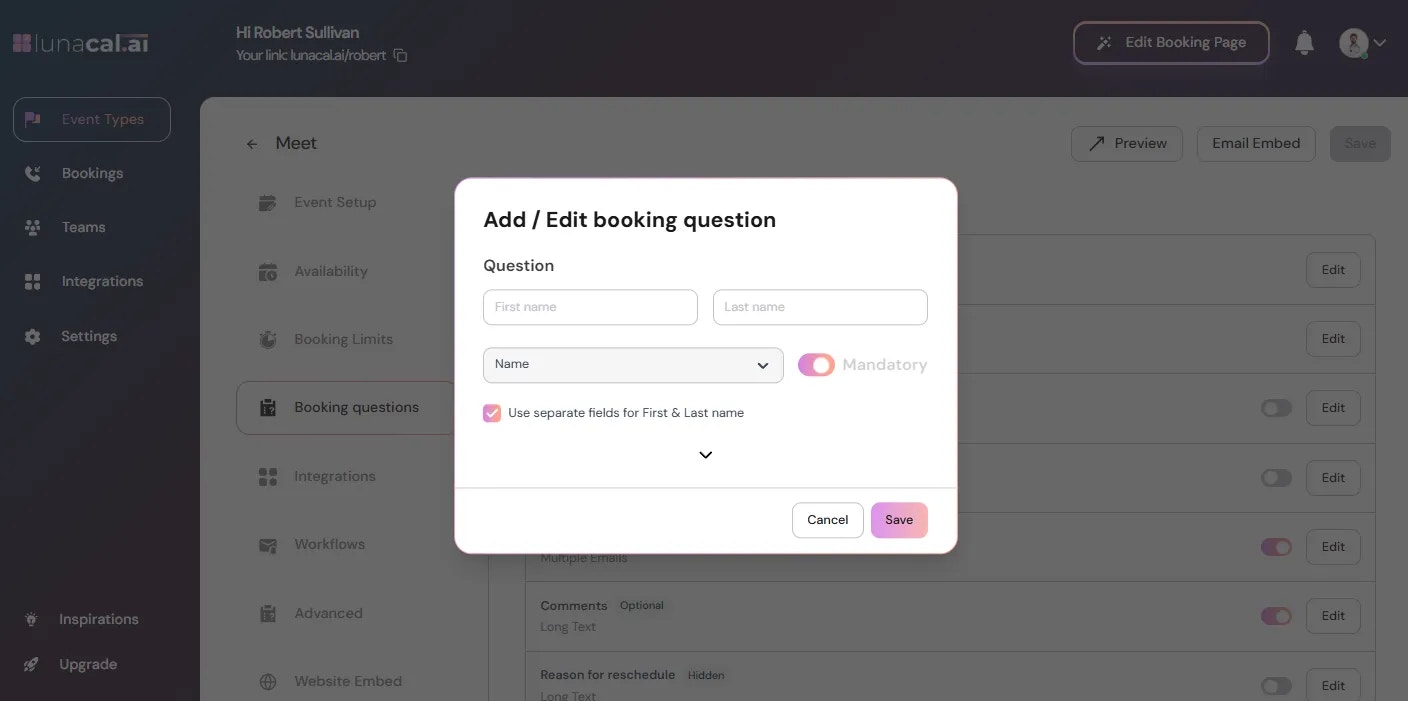 > **Please don't edit the default booking questions that you see. It might lead to unexpected behaviour. You can turn them off if you don't want to use it.**
**Step 4**
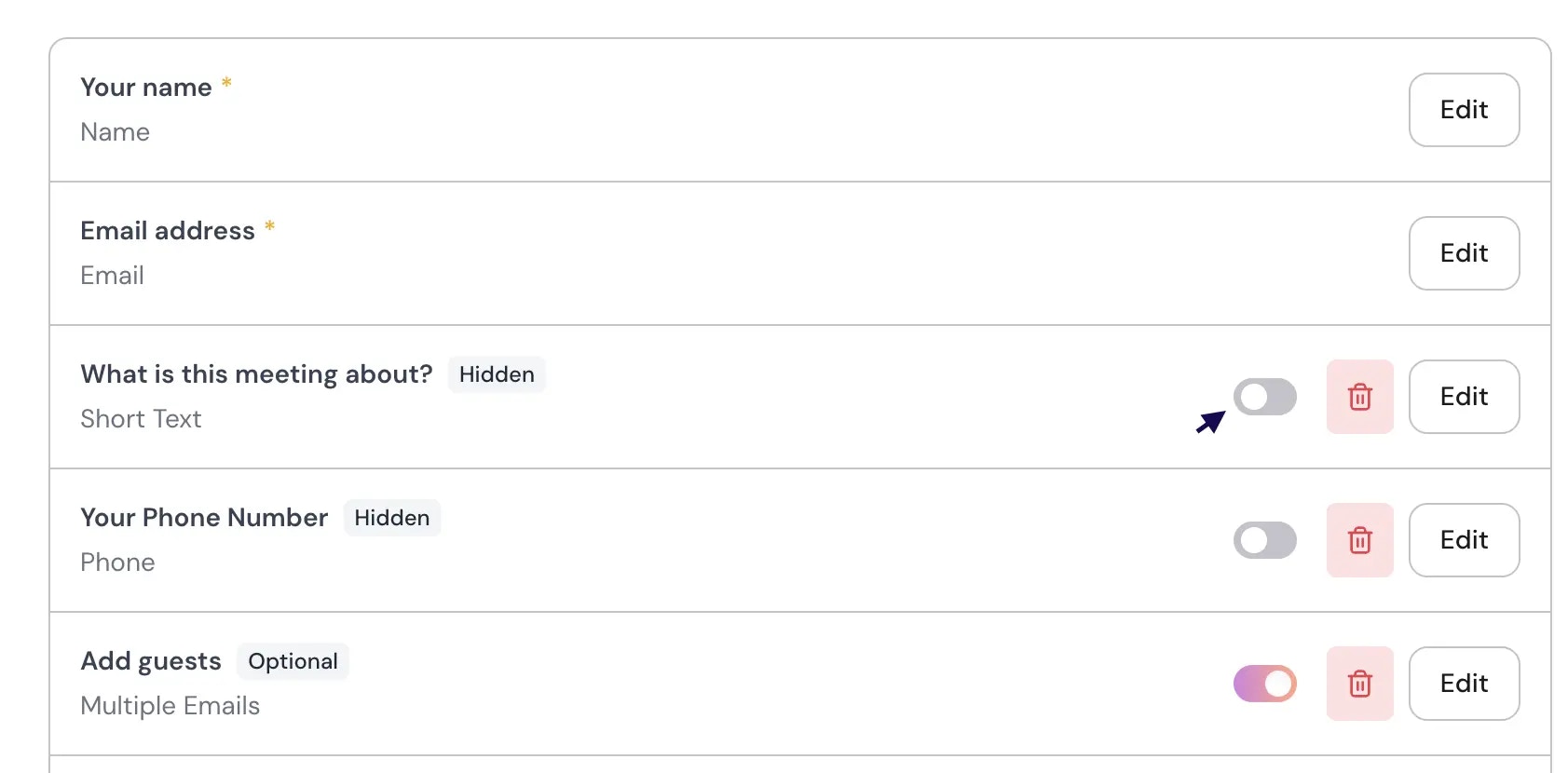
Use the toggle to “**Hide/Unhide**” any question, hidden questions aren't going to show on your public booking page to attendee.
> **Please don't edit the default booking questions that you see. It might lead to unexpected behaviour. You can turn them off if you don't want to use it.**
**Step 4**
Use the toggle to “**Hide/Unhide**” any question, hidden questions aren't going to show on your public booking page to attendee.
 **Common mistakes to avoid**
* Editing **default booking** questions instead of turning them off, which can cause unexpected behavior.
* Forgetting to click “**Save**”, so new fields don’t appear on the booking page.
* Using the wrong question type (e.g., Short text for multi-choice answers), leading to messy data.
* Hiding required info by mistake with “**Hide/Unhide**”, causing gaps in submissions.
**Good defaults to start with**
* Keep “**Name**” (with “split”), “**Email**”, and one qualifier (e.g., “Short text” for goal).
* Use “**Mandatory**” only for must-have fields; keep the form short.
* Prefer “**Dropdown**” or “**Multi Choice**” for standardized answers; use “Long text” sparingly.
* Add a “**Consent Checkbox**”, It's used for consent or agreement confirmations (e.g., “I agree to the terms and conditions”).
**Common mistakes to avoid**
* Editing **default booking** questions instead of turning them off, which can cause unexpected behavior.
* Forgetting to click “**Save**”, so new fields don’t appear on the booking page.
* Using the wrong question type (e.g., Short text for multi-choice answers), leading to messy data.
* Hiding required info by mistake with “**Hide/Unhide**”, causing gaps in submissions.
**Good defaults to start with**
* Keep “**Name**” (with “split”), “**Email**”, and one qualifier (e.g., “Short text” for goal).
* Use “**Mandatory**” only for must-have fields; keep the form short.
* Prefer “**Dropdown**” or “**Multi Choice**” for standardized answers; use “Long text” sparingly.
* Add a “**Consent Checkbox**”, It's used for consent or agreement confirmations (e.g., “I agree to the terms and conditions”).