> ## Documentation Index
> Fetch the complete documentation index at: https://help.lunacal.ai/llms.txt
> Use this file to discover all available pages before exploring further.
# Group Booking
> Learn how to enable group booking so multiple participants can book the same time slot.
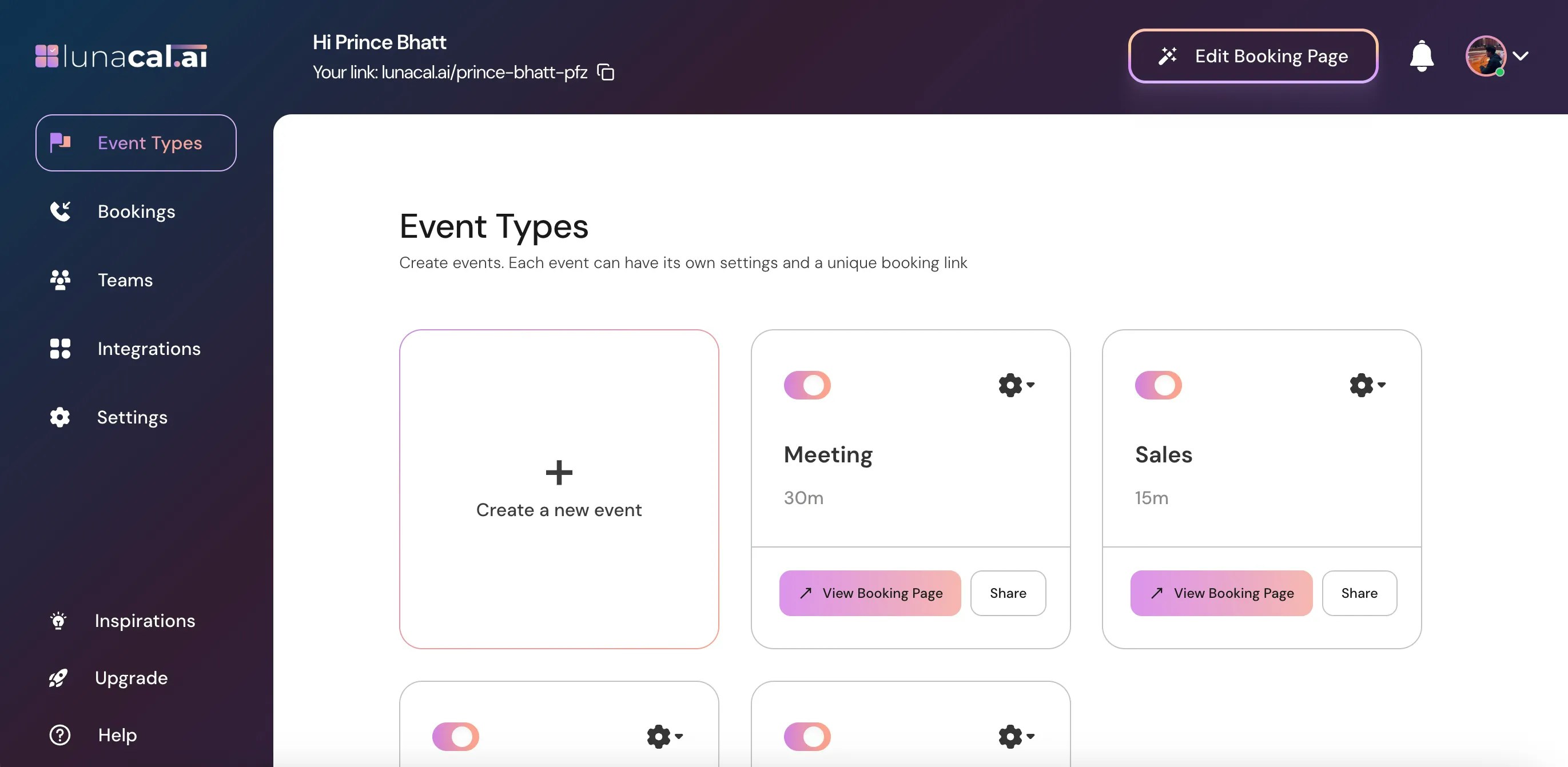
## Step 1
Go to [Event Types](https://app.lunacal.ai/event-types) on your dashboard.
 ***
## Step 2
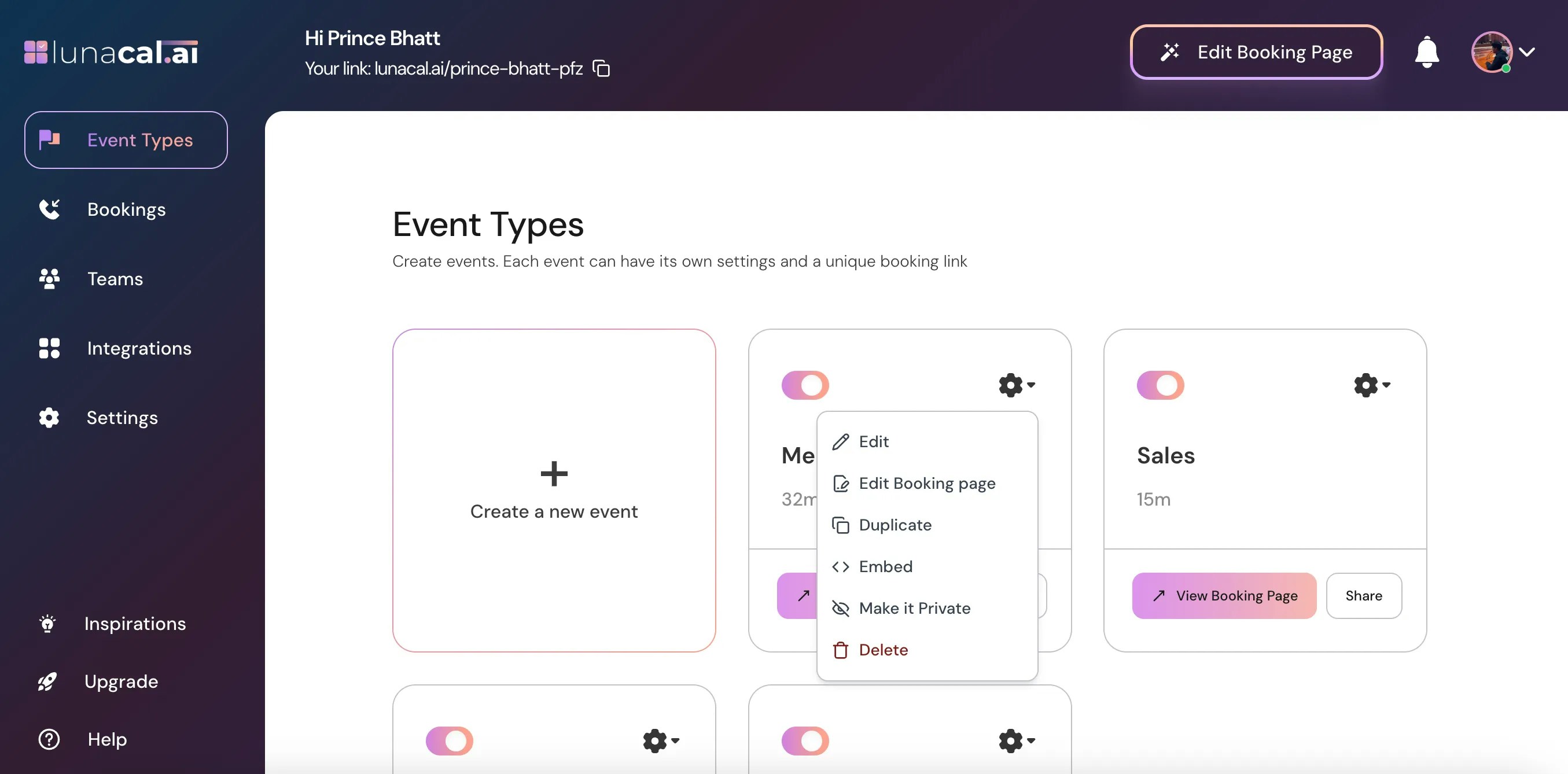
Select the event for which you want to enable group booking and click the settings ⚙️ icon on that event card.
***
## Step 2
Select the event for which you want to enable group booking and click the settings ⚙️ icon on that event card.
 ***
## Step 3
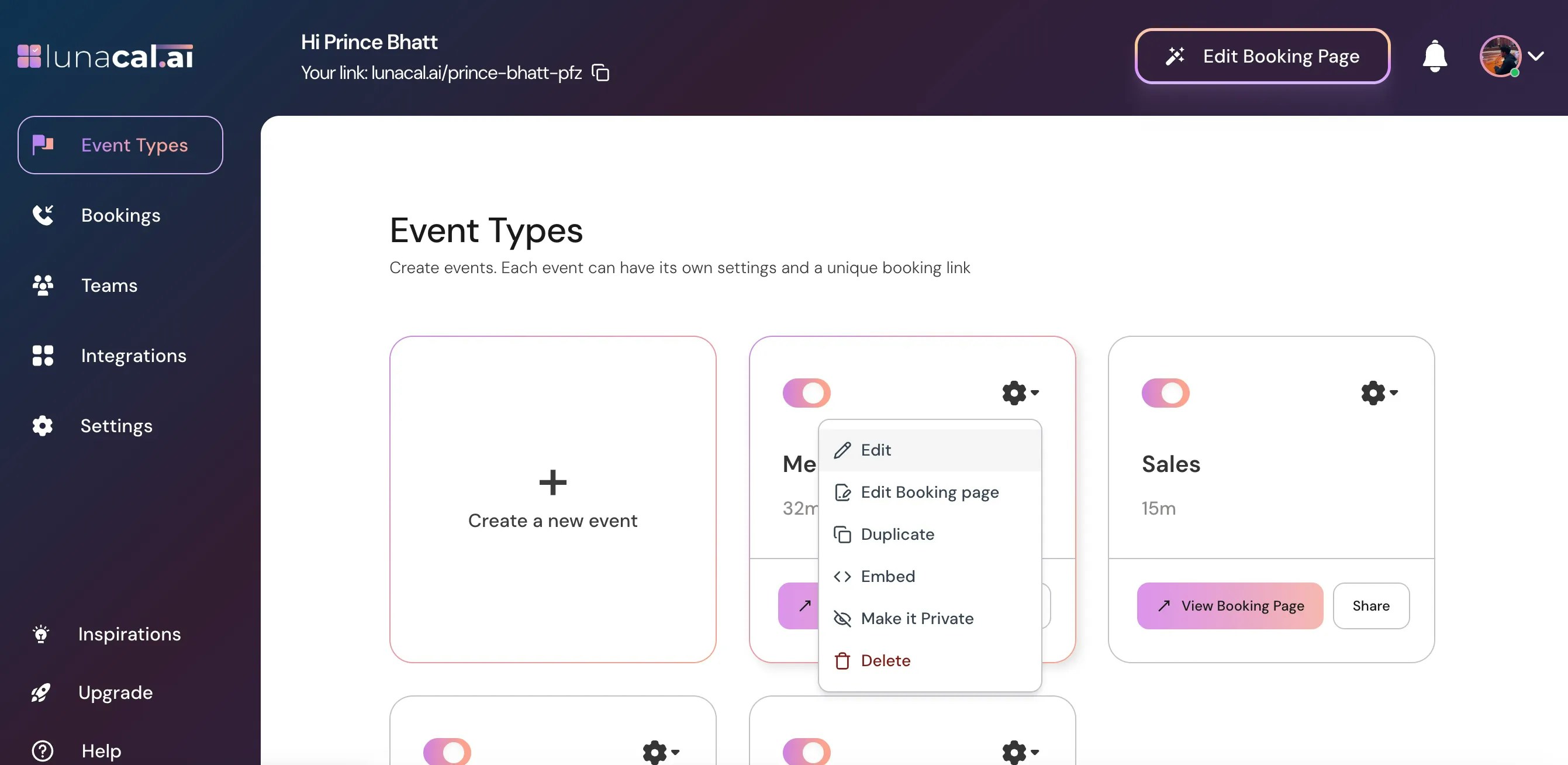
Choose "**Edit**" from the dropdown menu.
***
## Step 3
Choose "**Edit**" from the dropdown menu.
 ***
## Step 4
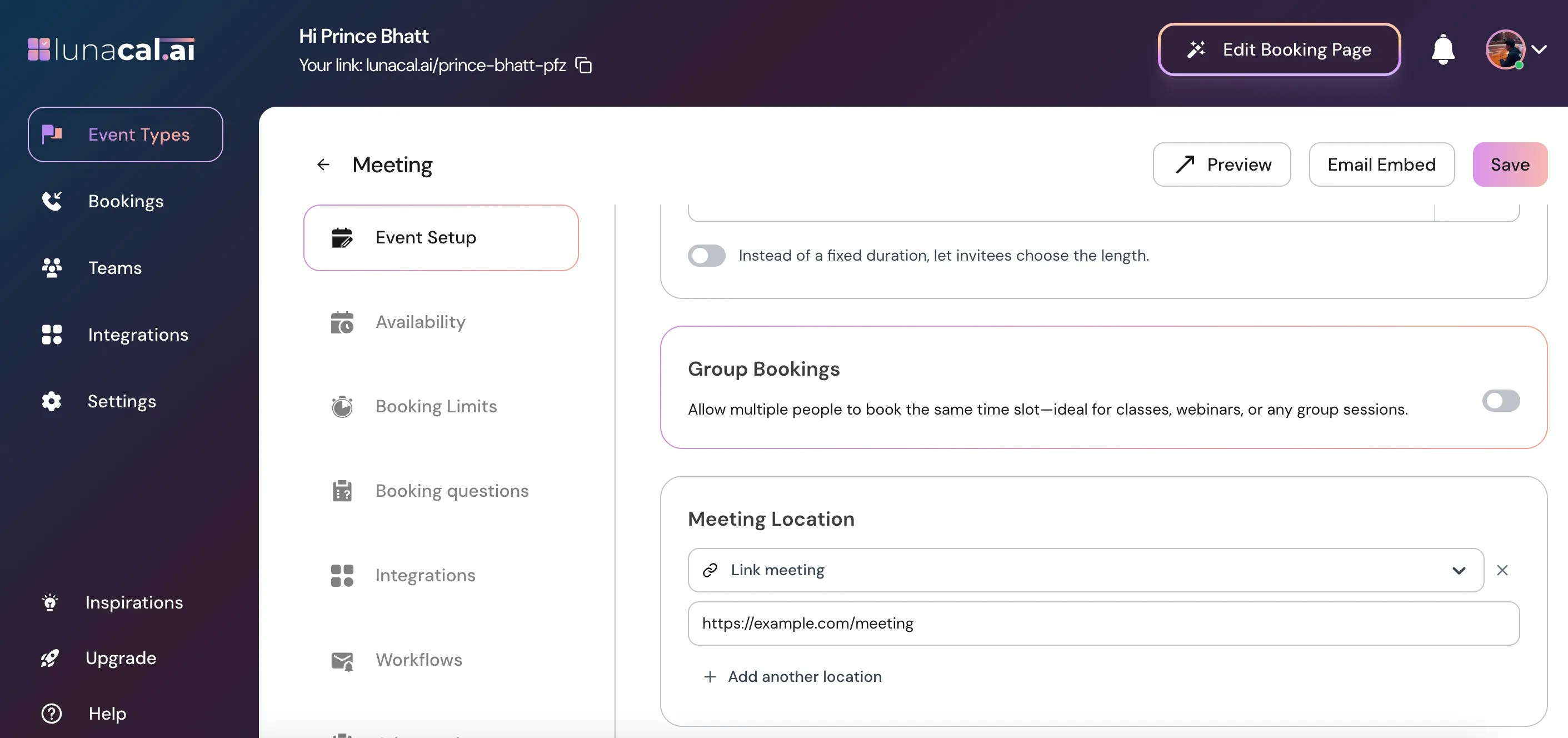
In the "**Event Setup**" section, scroll down to find "**Group Bookings**".
***
## Step 4
In the "**Event Setup**" section, scroll down to find "**Group Bookings**".
 ***
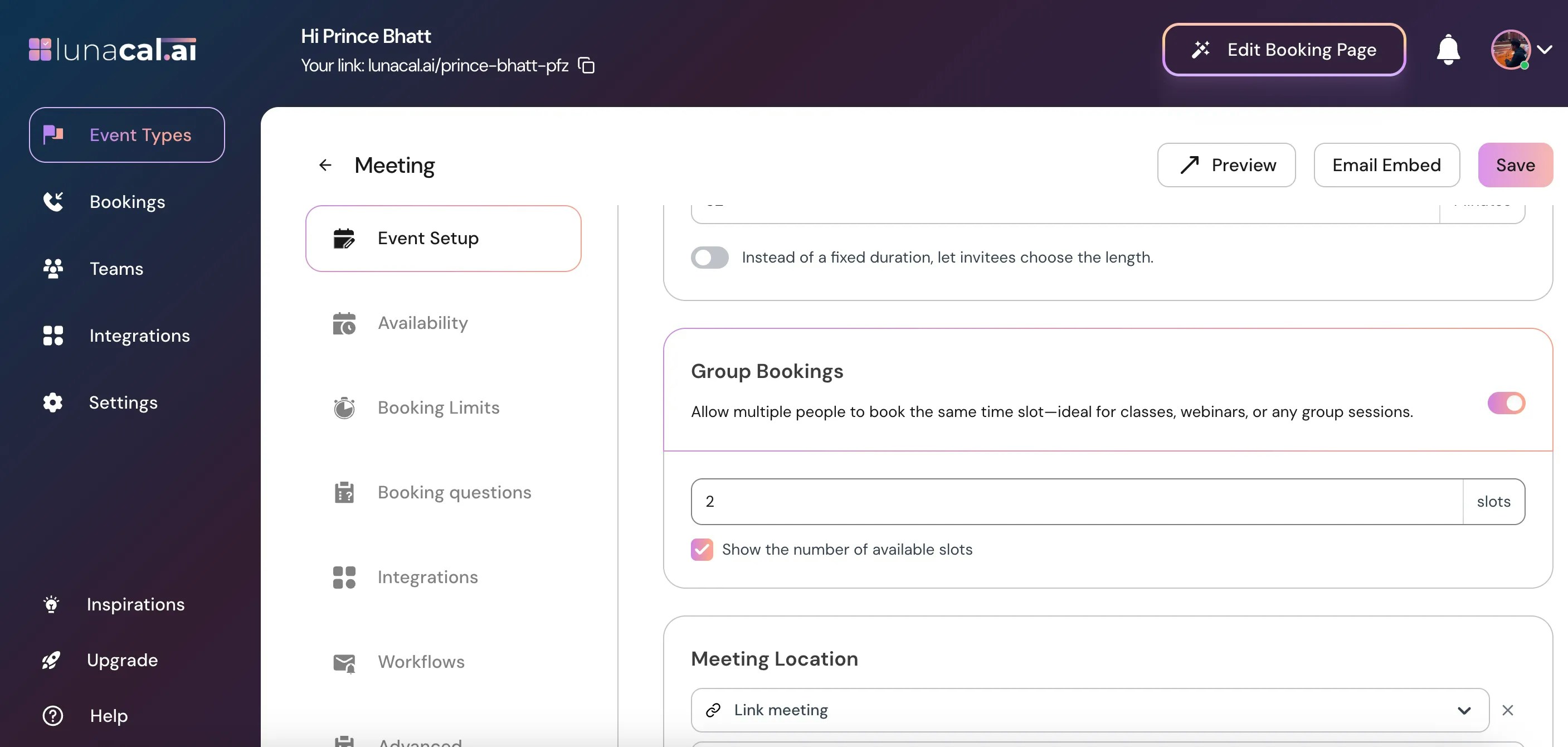
## Step 5
Toggle **ON** to allow multiple people to book the same time slot.
***
## Step 5
Toggle **ON** to allow multiple people to book the same time slot.
 ***
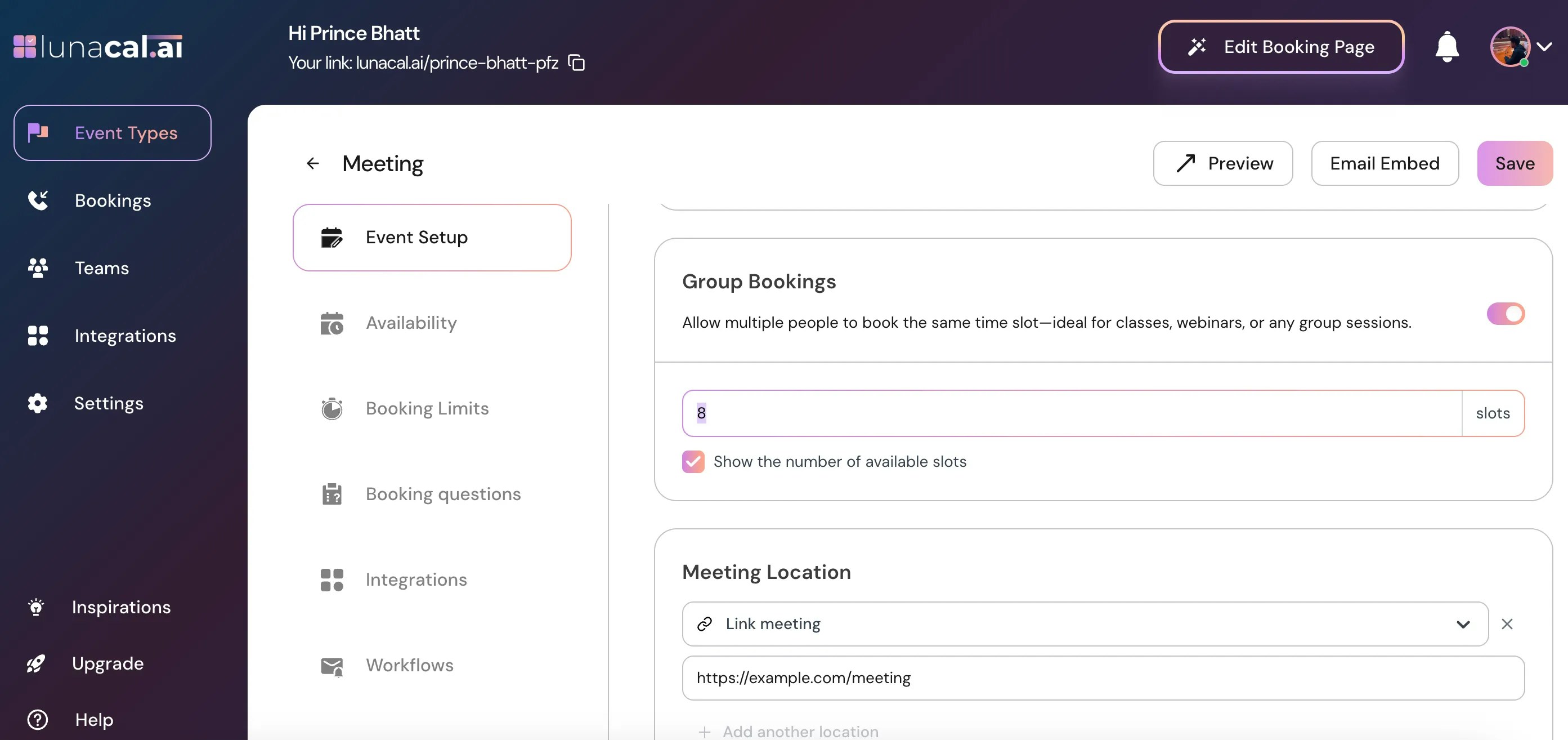
## Step 6
Enter the maximum number of participants you want to allow per slot.
***
## Step 6
Enter the maximum number of participants you want to allow per slot.
 ***
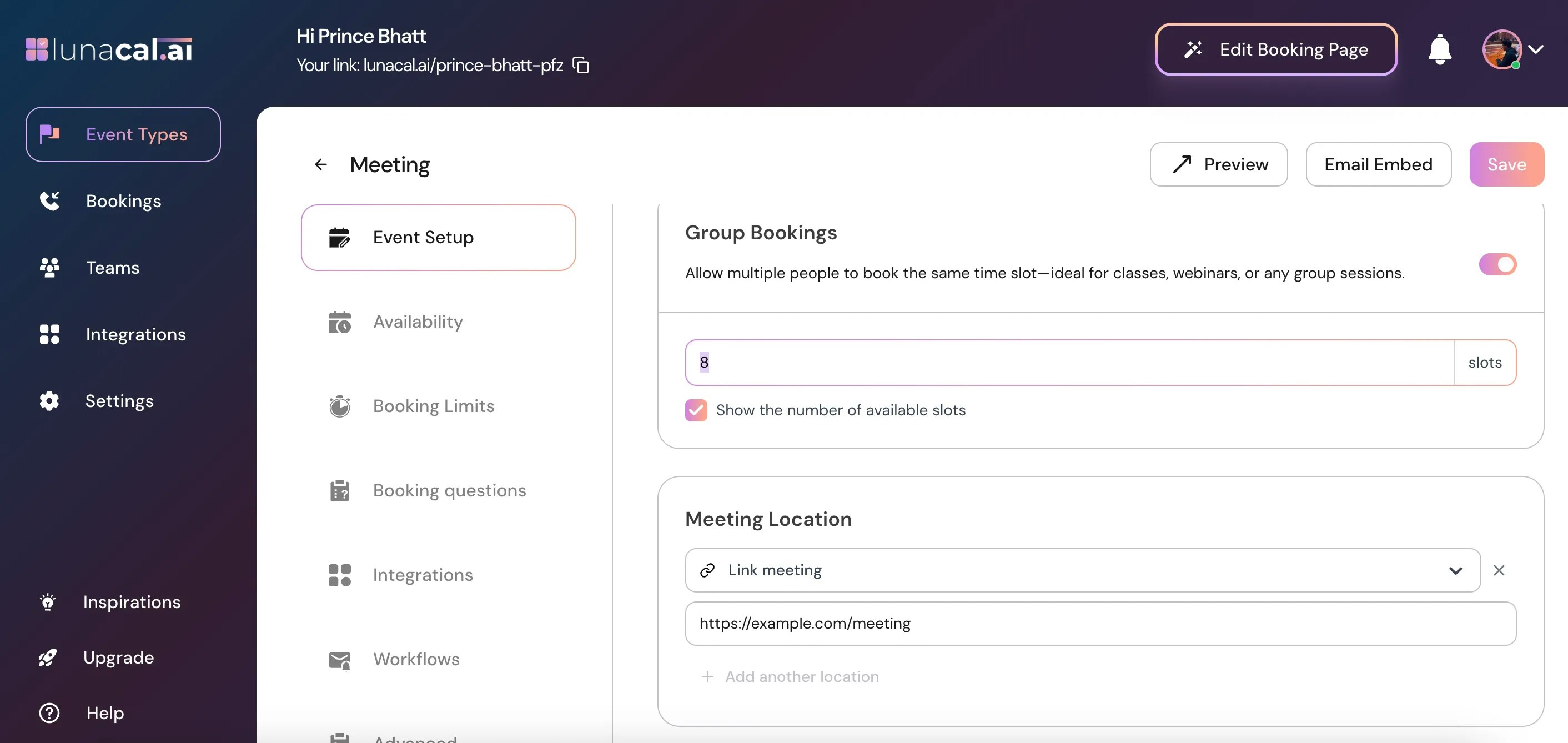
## Step 7
Click "**Save**" to apply the changes.
***
## Step 7
Click "**Save**" to apply the changes.
 | **What Attendees Will See** | **How Capacity Works** | **What Happens When Someone Cancels** |
| -------------------------------------------------------------------------------------------------- | ---------------------------------------------------------------------------------------- | ------------------------------------------------------------------------------------------------- |
| Attendees see all available time slots normally. | Each time slot has a fixed maximum capacity set by the organizer. | If a cancellation reduces capacity, the slot becomes available again automatically. |
| For group slots, they see the number of remaining seats (if enabled). Example: **“3 spots left”**. | Every new booking reduces the available seats for that particular time slot. | Seat count automatically increases by one. |
| Once a slot is fully booked, the attendee will **no longer see that time slot**. | When capacity reaches zero, the slot is marked as full and hidden from the booking page. | If the slot was hidden because it was full, it becomes *visible again* with updated availability. |
| They can only book up to the maximum number of seats allowed per booking (if you set a limit). | The system prevents bookings beyond the per-slot capacity. | The slot instantly reopens without you doing anything manually. |
| If multiple slots have availability, attendees can choose any of them. | Capacity is managed individually per time slot, not globally across the event. | Updated availability is shown in real time to the next attendee. |
| **What Attendees Will See** | **How Capacity Works** | **What Happens When Someone Cancels** |
| -------------------------------------------------------------------------------------------------- | ---------------------------------------------------------------------------------------- | ------------------------------------------------------------------------------------------------- |
| Attendees see all available time slots normally. | Each time slot has a fixed maximum capacity set by the organizer. | If a cancellation reduces capacity, the slot becomes available again automatically. |
| For group slots, they see the number of remaining seats (if enabled). Example: **“3 spots left”**. | Every new booking reduces the available seats for that particular time slot. | Seat count automatically increases by one. |
| Once a slot is fully booked, the attendee will **no longer see that time slot**. | When capacity reaches zero, the slot is marked as full and hidden from the booking page. | If the slot was hidden because it was full, it becomes *visible again* with updated availability. |
| They can only book up to the maximum number of seats allowed per booking (if you set a limit). | The system prevents bookings beyond the per-slot capacity. | The slot instantly reopens without you doing anything manually. |
| If multiple slots have availability, attendees can choose any of them. | Capacity is managed individually per time slot, not globally across the event. | Updated availability is shown in real time to the next attendee. |