> ## Documentation Index
> Fetch the complete documentation index at: https://help.lunacal.ai/llms.txt
> Use this file to discover all available pages before exploring further.
# Meeting Duration
> Learn how to update or customize the duration of your meetings, including flexible options.
## Step 1
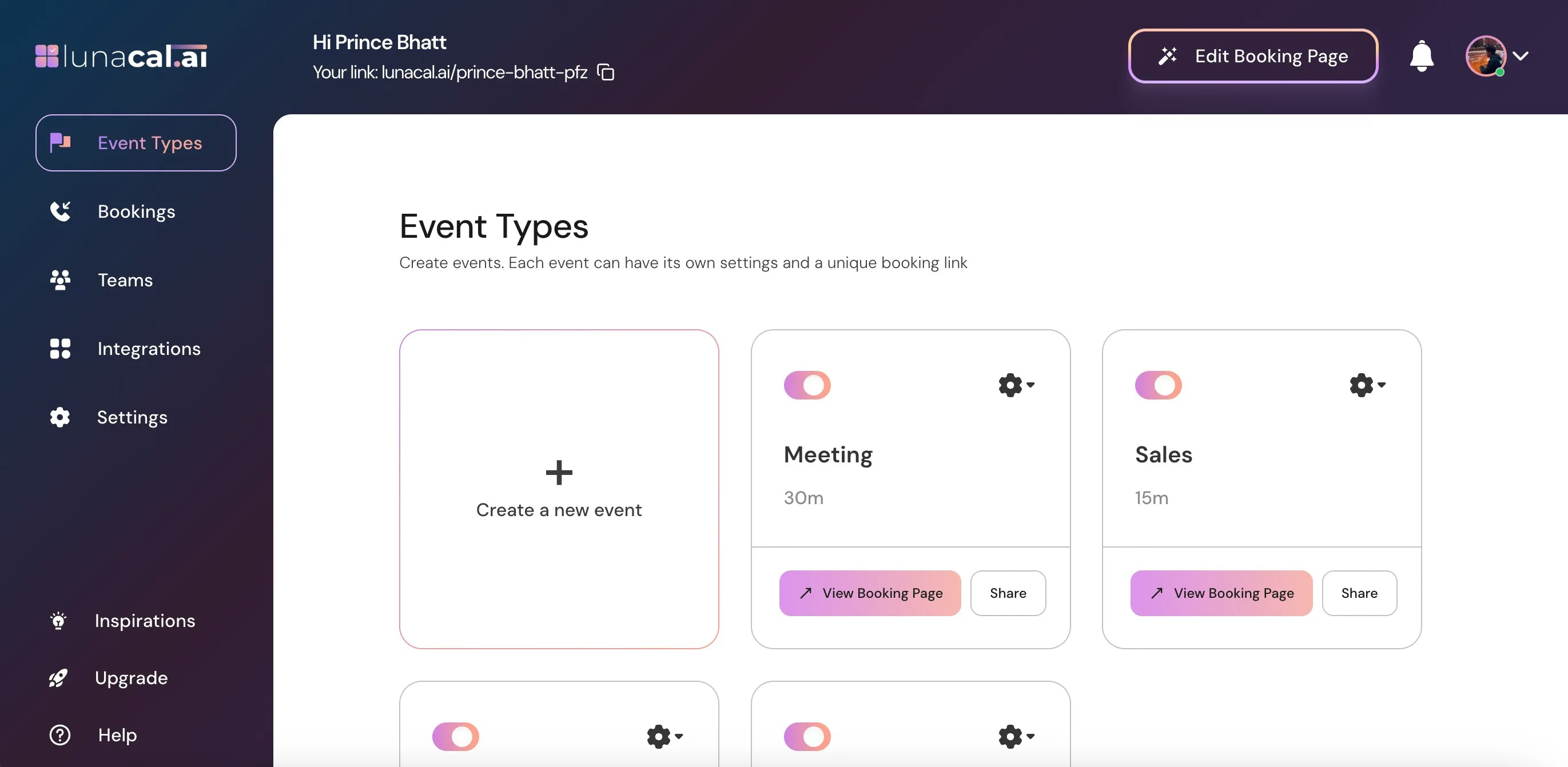
Go to "[Event Types](https://app.lunacal.ai/event-types)" in your dashboard.
 ***
## Step 2
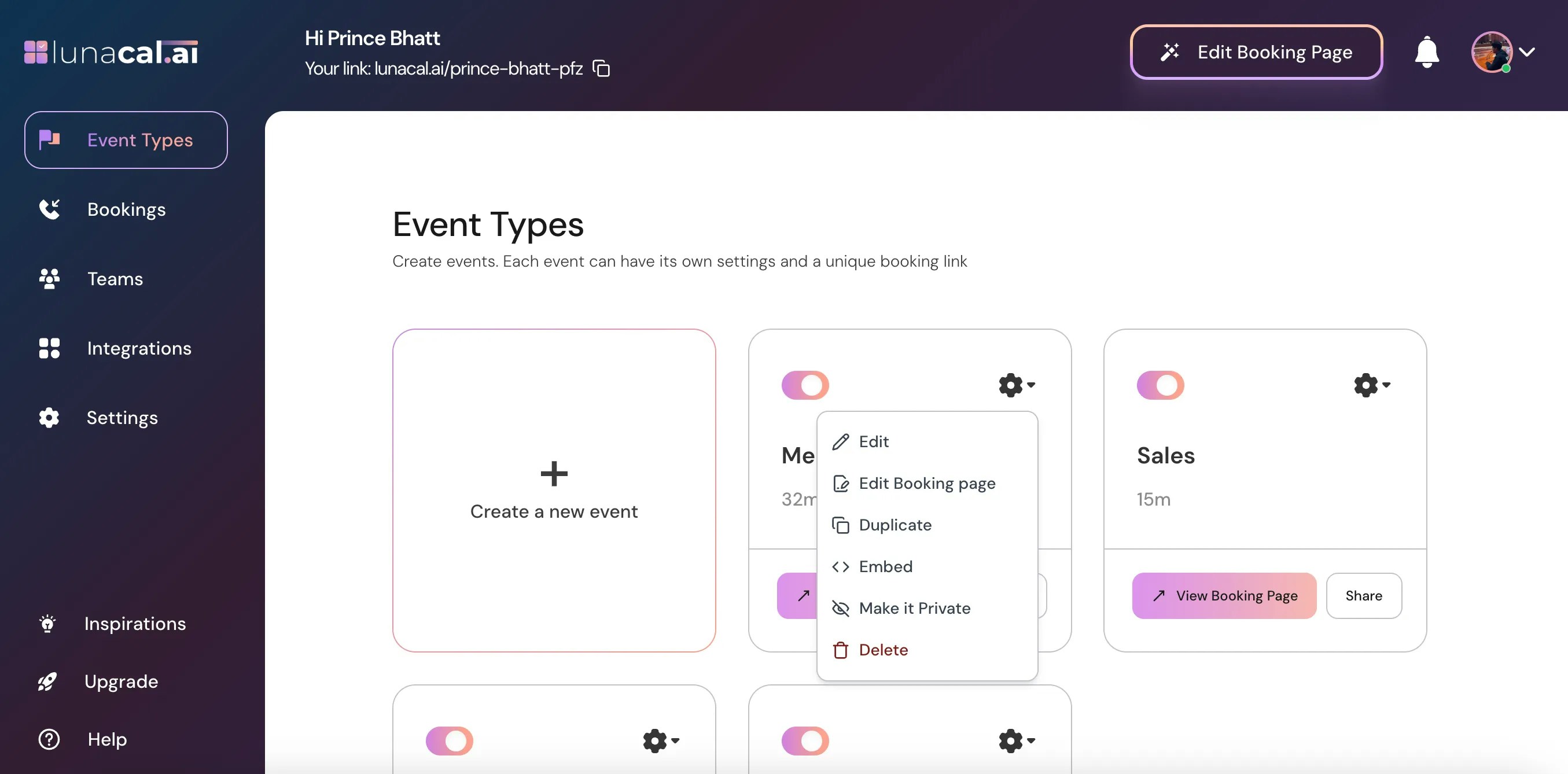
Select the event for which you want to change the duration and click the settings ⚙️ icon on that event card.
***
## Step 2
Select the event for which you want to change the duration and click the settings ⚙️ icon on that event card.
 ***
## Step 3
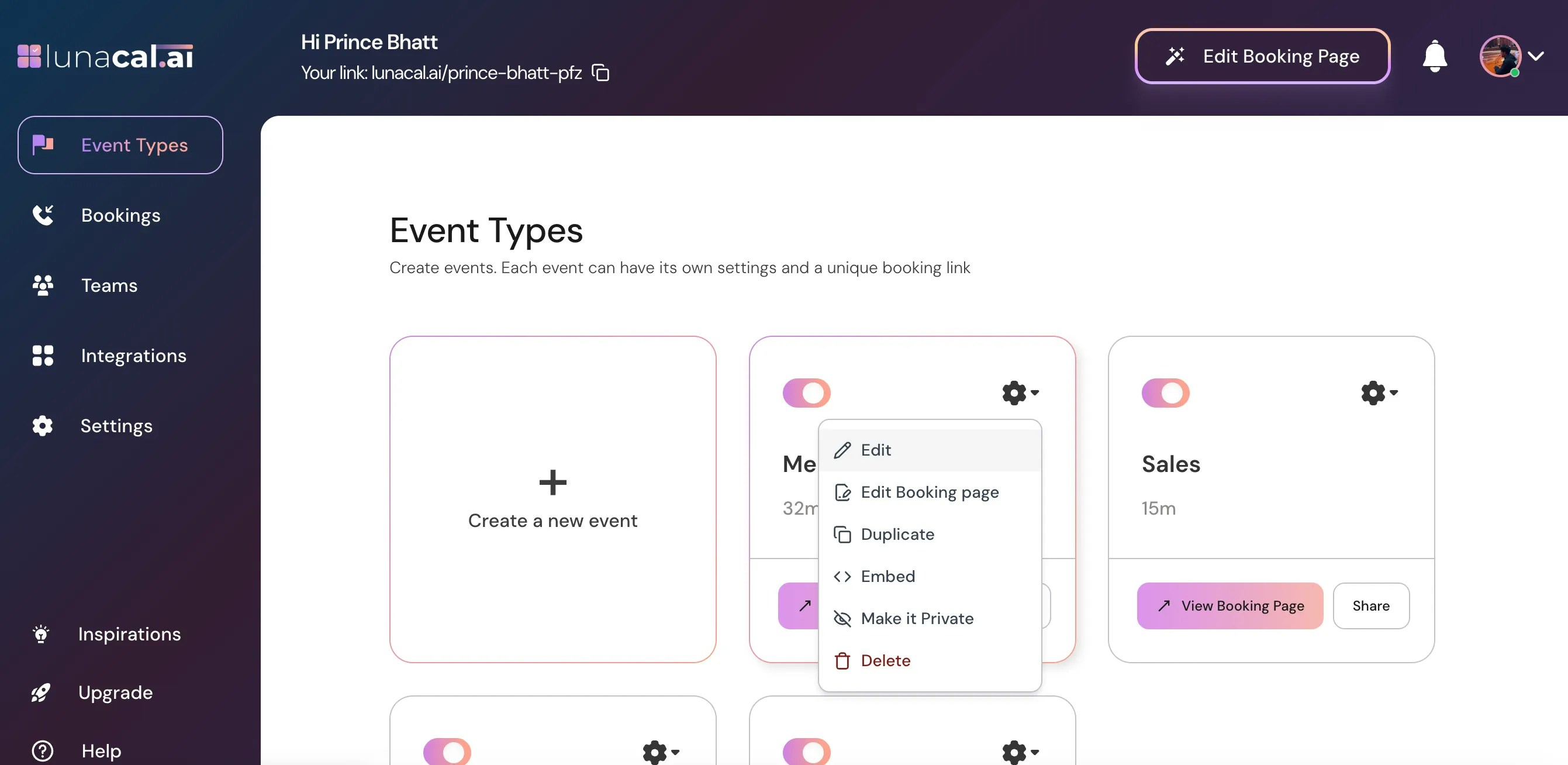
Choose **Edit** from the dropdown menu.
***
## Step 3
Choose **Edit** from the dropdown menu.
 ***
## Step 4
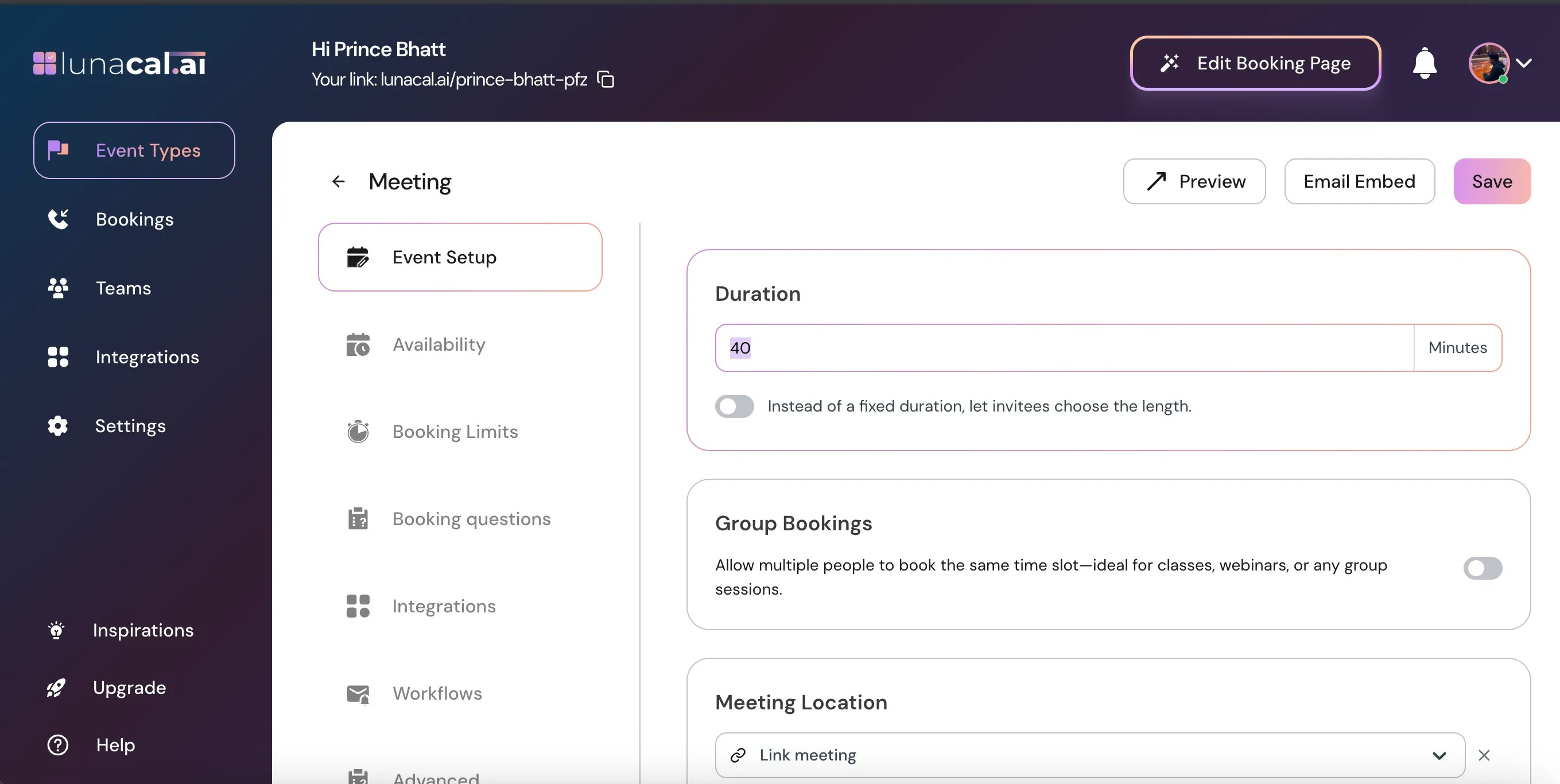
In the "**Event Setup**" section, you'll see **Duration** \
**Note**: Pricing doesn’t change with duration
Currently, duration selection doesn’t affect pricing: even if invitees choose a longer meeting duration under Flexible Duration, the price remains the same. if you need different pricing for different durations, you must create separate event types (or wait for future feature updates).\\
* To update the "**Duration**" field with the desired time.
***
## Step 4
In the "**Event Setup**" section, you'll see **Duration** \
**Note**: Pricing doesn’t change with duration
Currently, duration selection doesn’t affect pricing: even if invitees choose a longer meeting duration under Flexible Duration, the price remains the same. if you need different pricing for different durations, you must create separate event types (or wait for future feature updates).\\
* To update the "**Duration**" field with the desired time.
 ***
## Step 5
### Flexible Duration
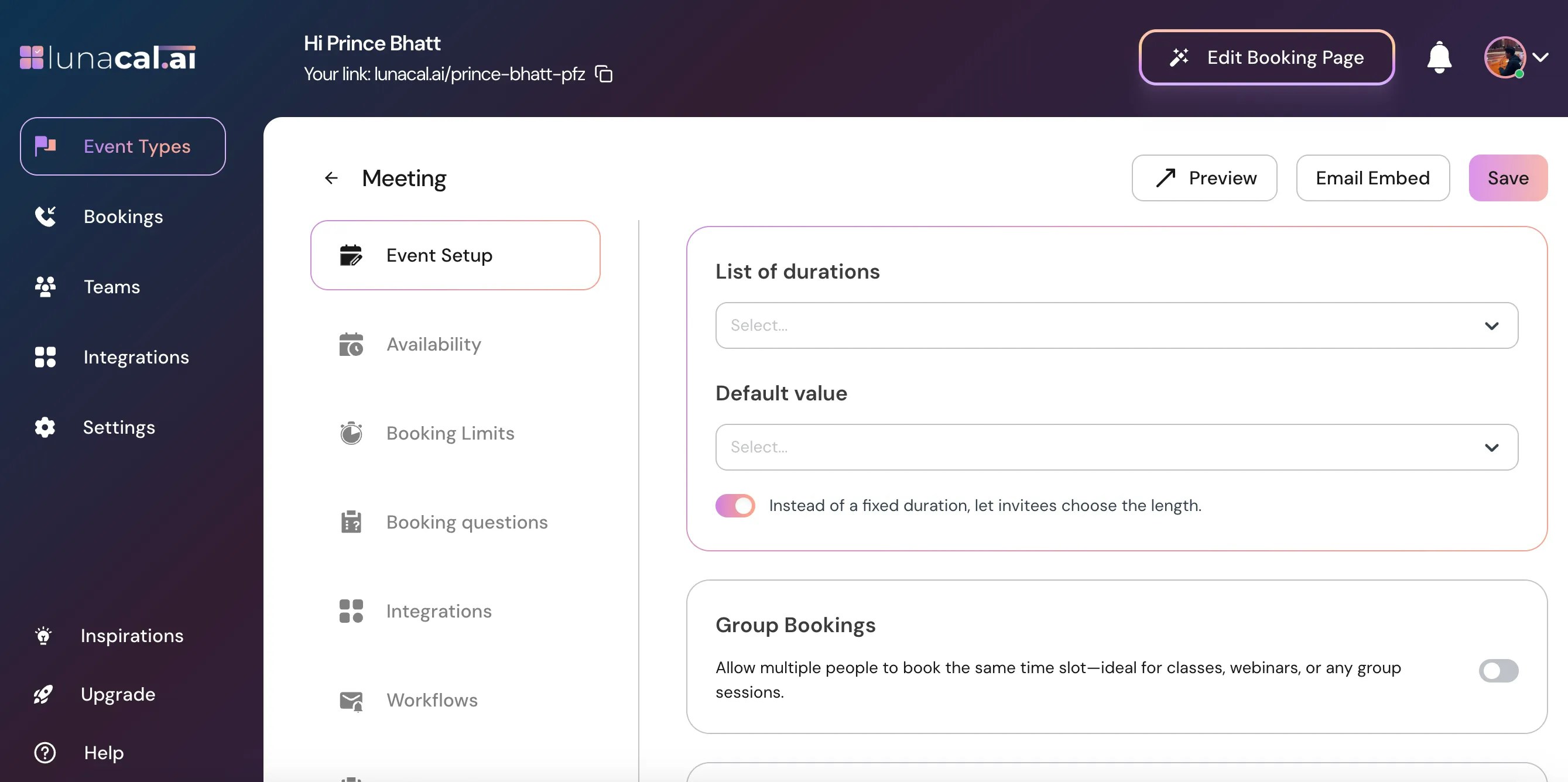
Toggle **ON** → Instead of a fixed duration, invitees can choose the meeting length.
***
## Step 5
### Flexible Duration
Toggle **ON** → Instead of a fixed duration, invitees can choose the meeting length.
 ***
## Step 6
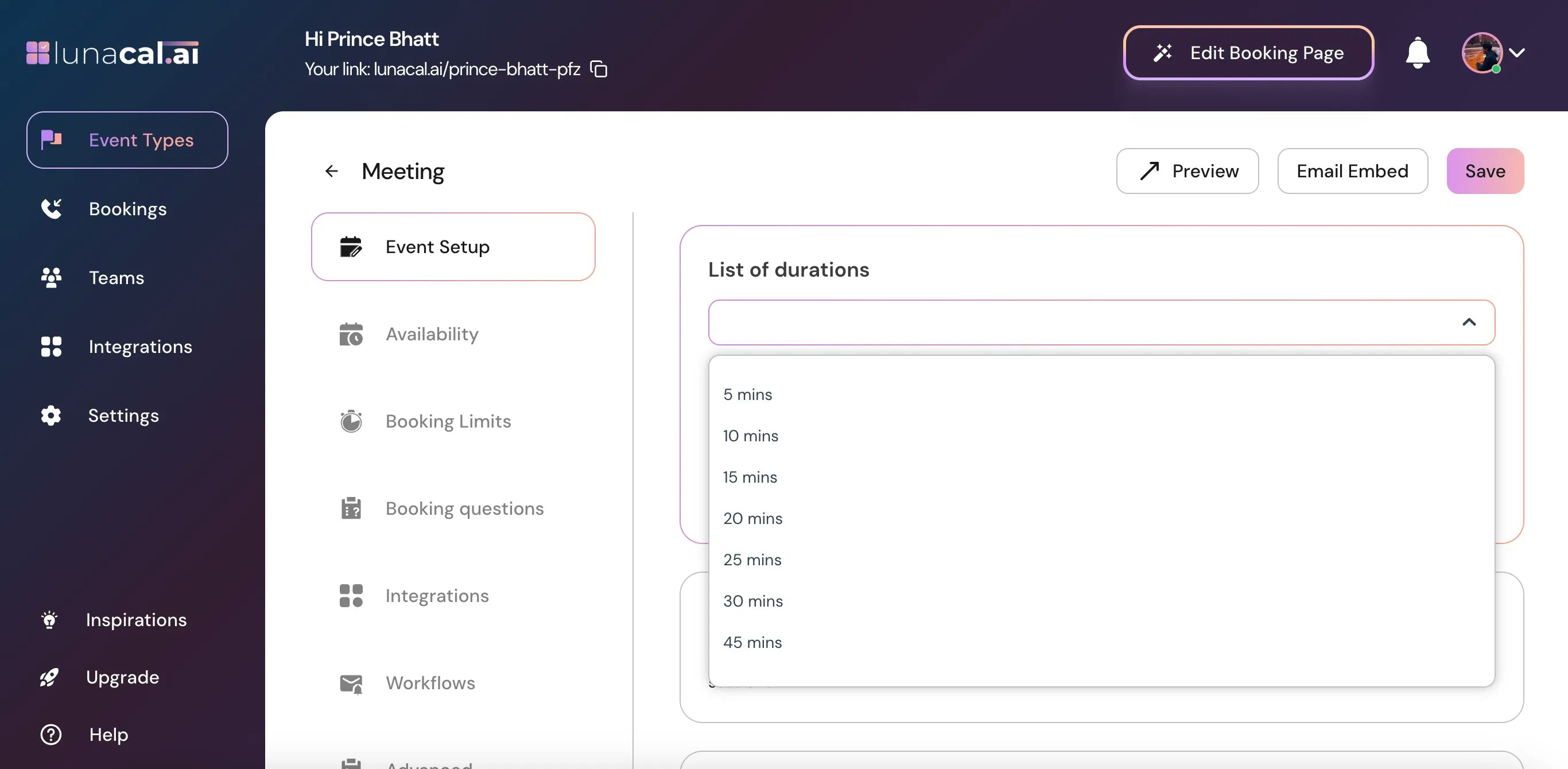
You can add **multiple time** options. Invitees can then select their preferred duration from the list when booking.
***
## Step 6
You can add **multiple time** options. Invitees can then select their preferred duration from the list when booking.
 ***
## Step 7
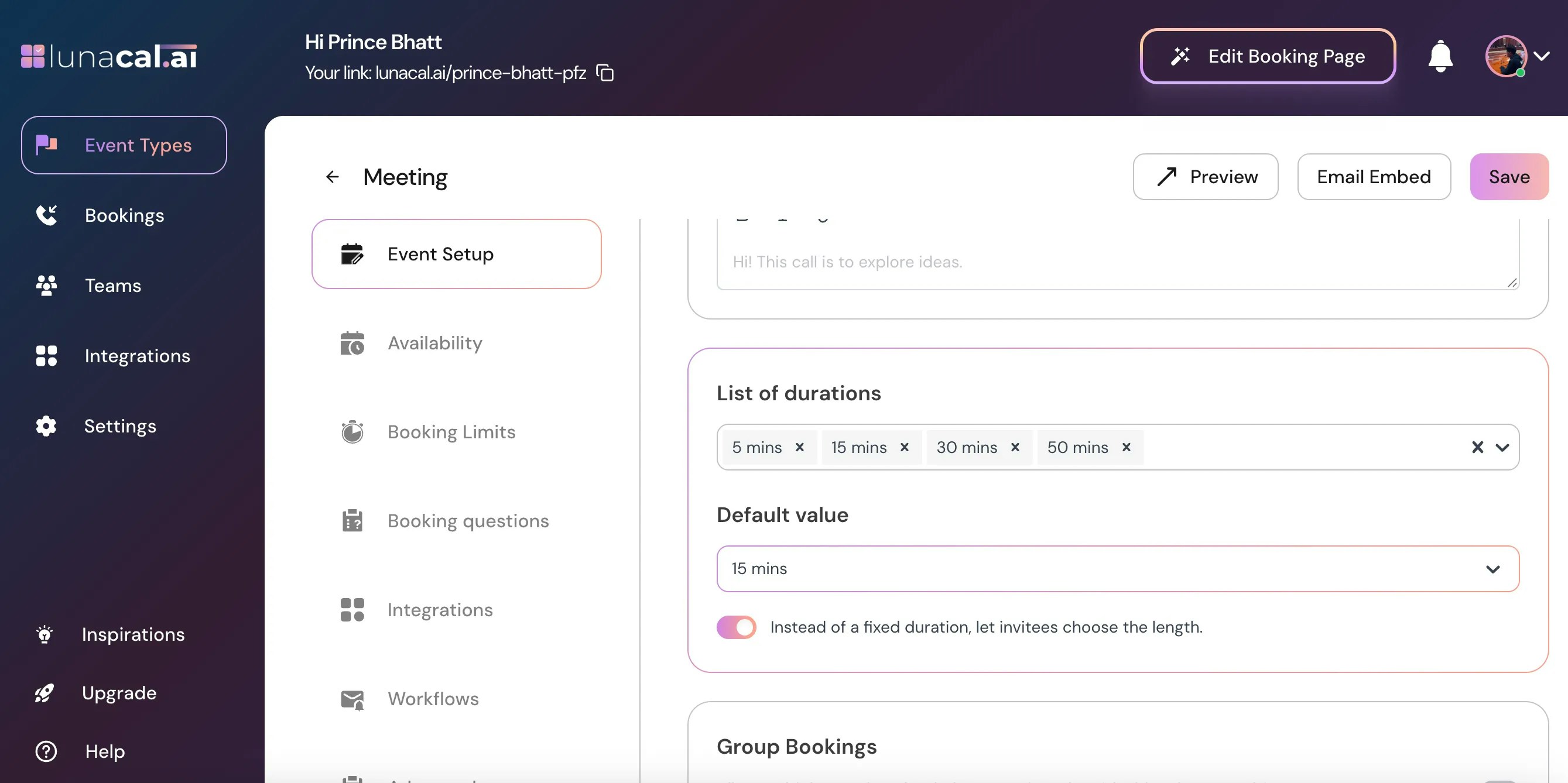
The **Default Value** under the list of durations is the pre-selected meeting length when someone opens your booking page.
***
## Step 7
The **Default Value** under the list of durations is the pre-selected meeting length when someone opens your booking page.
 ***
## Step 8
Click "**Save**" to apply the changes.
***
## Step 8
Click "**Save**" to apply the changes.
 Tip :
1. Double-check buffer and limit settings (from [Limits & Buffer](https://help.lunacal.ai/event-types/limits) page) for compatibility.
2. Save changes and preview booking page to confirm duration dropdown behaves as expected.
Tip :
1. Double-check buffer and limit settings (from [Limits & Buffer](https://help.lunacal.ai/event-types/limits) page) for compatibility.
2. Save changes and preview booking page to confirm duration dropdown behaves as expected.