> ## Documentation Index
> Fetch the complete documentation index at: https://help.lunacal.ai/llms.txt
> Use this file to discover all available pages before exploring further.
# Package Booking
> Allow attendees to book multiple time slots in a single booking using Package Booking. Learn how fixed and flexible slot packages work and when to use each.
## What is Package Booking?
Package Booking lets hosts offer **multiple time slots as part of a single booking**.\
Instead of booking one meeting at a time, attendees can select several slots in one flow.
Package Booking can be enabled for:
* **Individual (normal) events**
* **Team events** (except **Collective Scheduling** events)
> **Note:** Package Booking does **not** work with Collective Scheduling events
## Step 1
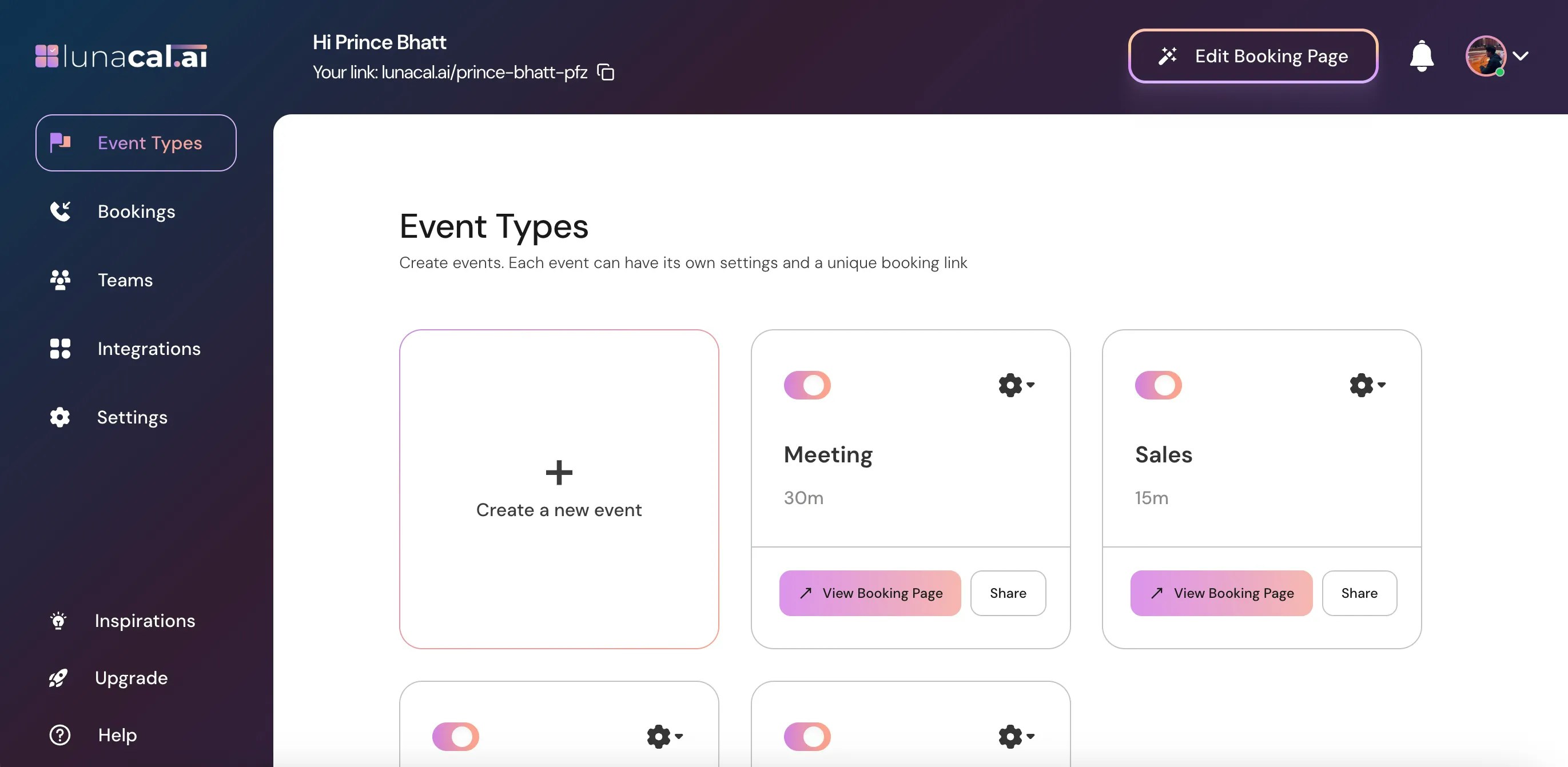
Navigate to [Event Types](https://app.lunacal.ai/event-types).
 ## Step 2
Select the event for which you want to enable package booking OR click the **settings icon** (⚙️) on that event card.
## Step 2
Select the event for which you want to enable package booking OR click the **settings icon** (⚙️) on that event card.
 ## Step 3
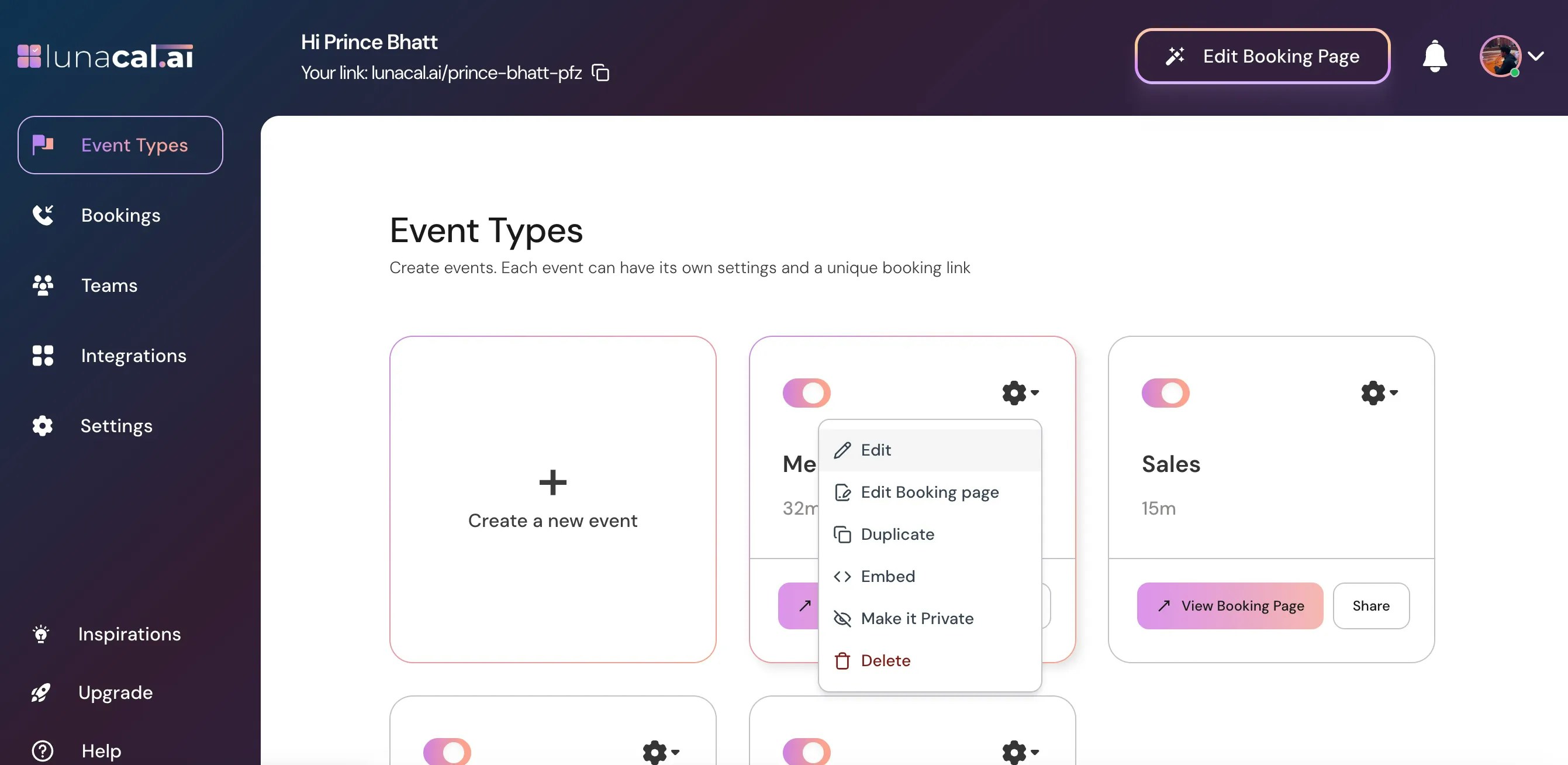
Choose "**Edit**" from the dropdown menu.
## Step 4
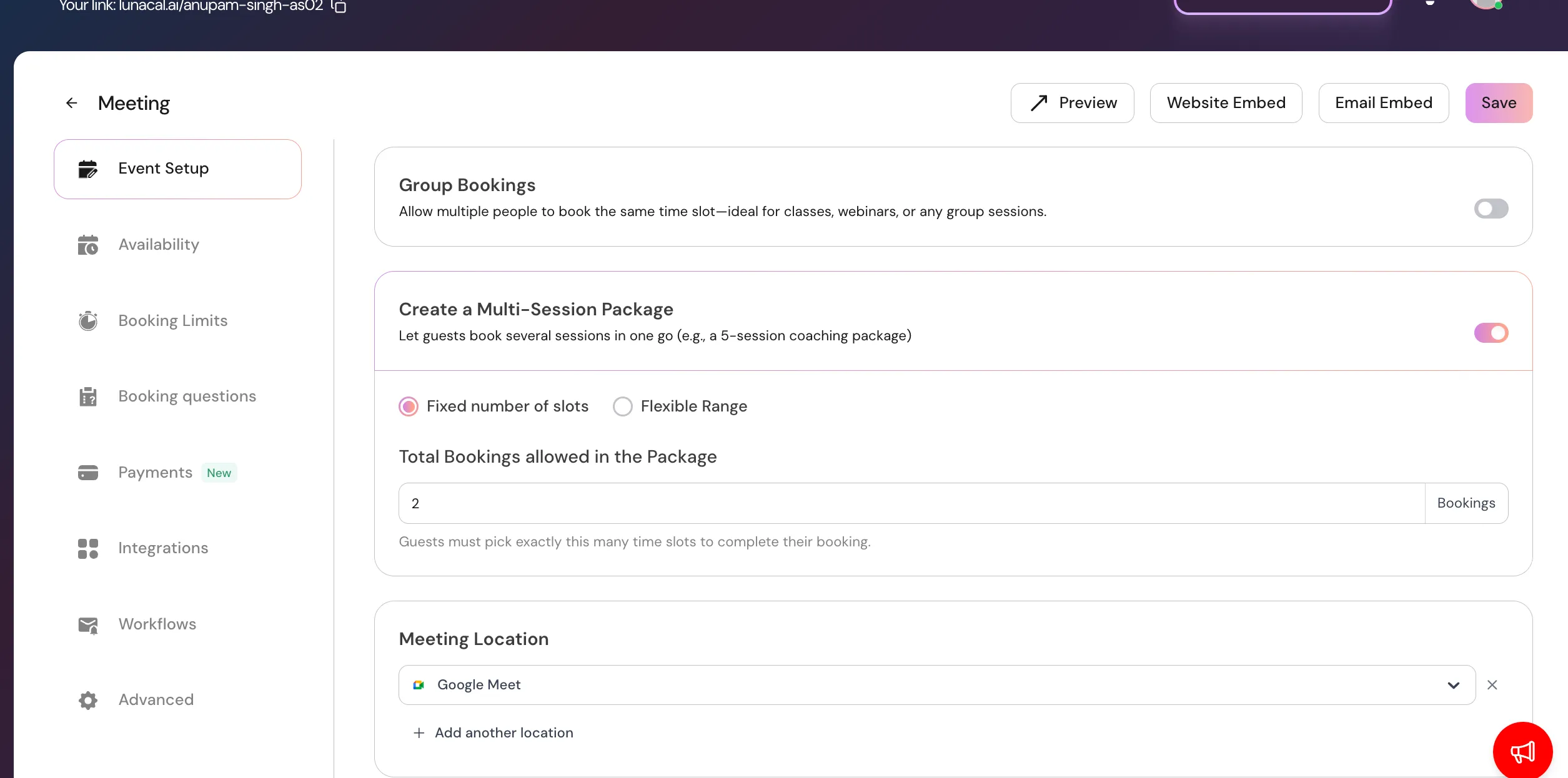
In the "**Event Setup**" section, scroll down to find "**Create a Multi-Session Package**" & **Toggle ON**.
| Feature | Fixed Slot | Flexible Range |
| :----------------------- | :----------------------------------------------------- | :--------------------------------------------------- |
| Slot count | Host sets an **exact number** of slots | Host sets a **minimum and maximum range** |
| Attendee choice | Must select **exactly the defined number** of slots | Can select **any number within the allowed range** |
| Booking condition | Booking completes **only when all slots are selected** | Booking completes once selection is within the range |
| Example setup | 4 slots | 2–6 slots |
| Example attendee action | Must book **exactly 4 sessions** | Can book **2, 3, 4, 5, or 6 sessions** |
| Flexibility for attendee | ❌ Low | ✅ High |
| Best for | Fixed programs, paid bundles, structured courses | Coaching, mentoring, flexible engagement packages |
| Pricing alignment | Easy to price per package | Useful when pricing depends on session count |
| Risk of partial booking | None (strict requirement) | Possible if expectations aren’t clearly communicated |
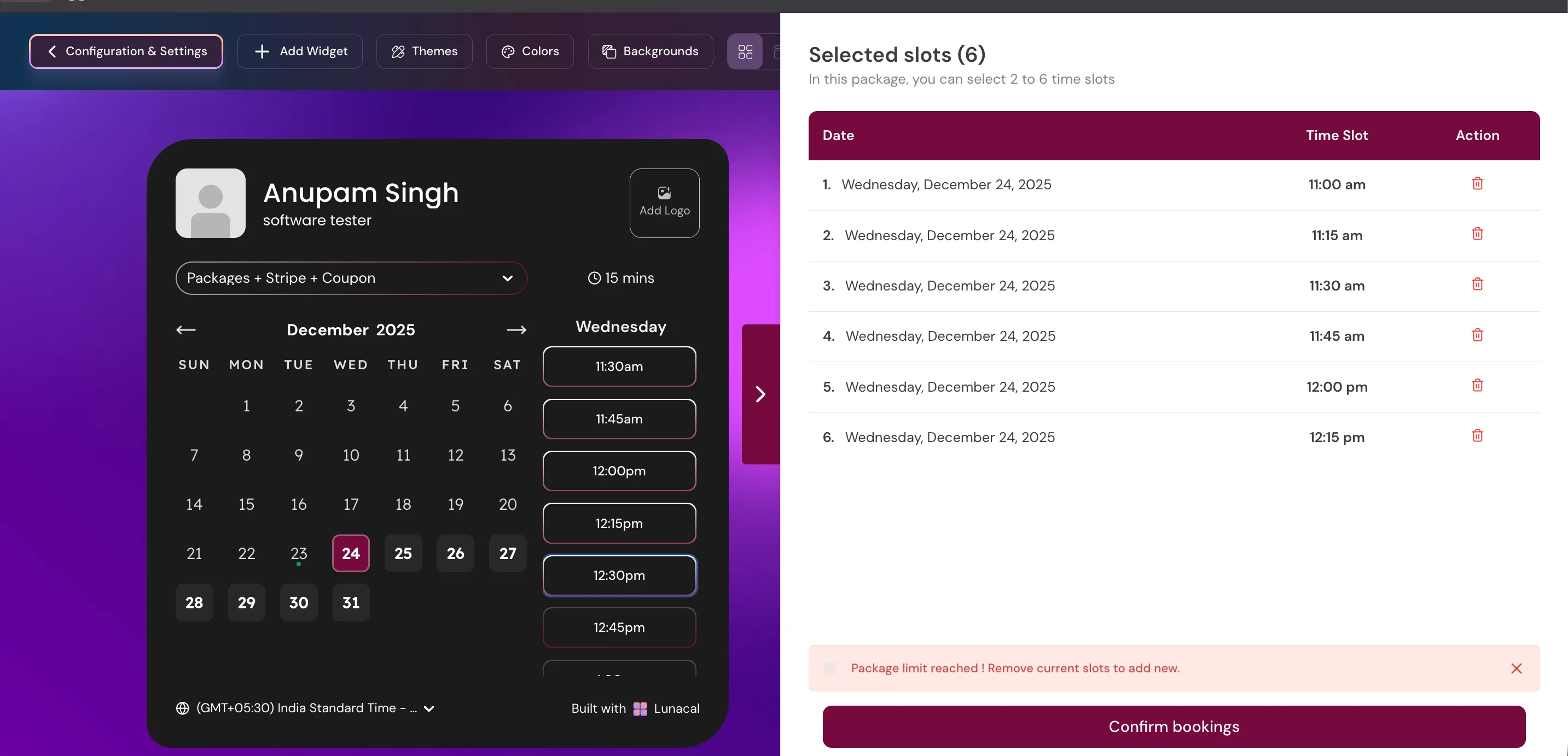
> For example In Flexible Range 2-6, I selected 6 sessions below.
## Recurring Bookings (within a Package)
Once Package Booking is enabled, you can also allow attendees to fill their package slots using a **recurring pattern** — instead of picking each session date manually, they choose a frequency (e.g., every week) and the system generates the slots automatically.
> **Note:** Recurring bookings require Package Booking to be enabled first. Recurring is **not** available for Collective Scheduling events, and it **cannot** be used when Seats are enabled on the event.
### How to Enable Recurring Bookings
After enabling Package Booking (Step 4 above), stay in the same settings area and look for the **"Allow Recurring Bookings"** toggle. Turn it on.
Once enabled, you can select which **recurrence patterns** attendees are allowed to choose from:
| Pattern | What it means |
| :--------------------- | :------------------------------------------------ |
| Daily | Repeats every day |
| Weekly | Same day every week (e.g., every Tuesday) |
| Biweekly | Same day every 2 weeks |
| Every 3 weeks | Same day every 3 weeks |
| Every 4 weeks | Same day every 4 weeks |
| Monthly (same date) | Same date each month (e.g., the 22nd) |
| Monthly (same weekday) | Same weekday each month (e.g., the 4th Wednesday) |
You can enable one or more patterns — attendees will pick from whichever patterns you allow.
***
### How Attendees Use Recurring Bookings
When an attendee is building their package and clicks on a time slot, they see two options:
* **Add this slot to package** — adds just that one slot manually
* **Make this slot recurring** — opens the recurring sessions dialog
In the recurring dialog, the attendee:
1. Selects a recurrence pattern from the ones you've allowed (e.g., "Every Wednesday")
2. Selects how many times it should repeat (up to the remaining slots in their package)
3. Reviews a preview summary — e.g., *"Every Wednesday starting June 11 for 4 sessions"*
4. Confirms — all generated slots are added to their package at once
> If some generated dates are unavailable, those slots are flagged with an **"Unavailable"** badge. The attendee must adjust those before they can complete the booking.
***
### Recurring vs. Manual Slot Selection — Which to Use?
| | Manual Selection | Recurring |
| :------------------- | :------------------------------------------------------- | :----------------------------------------------------------------------- |
| How slots are chosen | Attendee picks each date individually | Attendee picks a pattern; dates are generated automatically |
| Best for | Irregular schedules, attendees with varying availability | Regular cadences — weekly coaching, biweekly check-ins, monthly sessions |
| Attendee effort | Higher (must find and click each slot) | Lower (one pattern fills all slots instantly) |
| Flexibility | Maximum — any available slot | Limited to the selected recurrence pattern |
Both methods can be used together in a single package — an attendee can add some slots manually and fill the rest with a recurring pattern.
***
### What to Know
* **Only the first session** in a recurring series triggers a confirmation email to both you and your attendee. Subsequent sessions in the series are booked silently.
* Recurring series integrate with external calendars (Google Calendar, Outlook) as a **single recurring calendar event** using the recurrence rule — not separate events.
* Attendees can **remove individual slots** from a recurring series after it's been added to their package. Removing a slot from the middle of a series splits it into two separate groups automatically.
* Recurring slot selection is **not available during rescheduling** — attendees must adjust slots manually if they are rescheduling an existing booking.
## Step 3
Choose "**Edit**" from the dropdown menu.
## Step 4
In the "**Event Setup**" section, scroll down to find "**Create a Multi-Session Package**" & **Toggle ON**.

| Feature | Fixed Slot | Flexible Range |
| :----------------------- | :----------------------------------------------------- | :--------------------------------------------------- |
| Slot count | Host sets an **exact number** of slots | Host sets a **minimum and maximum range** |
| Attendee choice | Must select **exactly the defined number** of slots | Can select **any number within the allowed range** |
| Booking condition | Booking completes **only when all slots are selected** | Booking completes once selection is within the range |
| Example setup | 4 slots | 2–6 slots |
| Example attendee action | Must book **exactly 4 sessions** | Can book **2, 3, 4, 5, or 6 sessions** |
| Flexibility for attendee | ❌ Low | ✅ High |
| Best for | Fixed programs, paid bundles, structured courses | Coaching, mentoring, flexible engagement packages |
| Pricing alignment | Easy to price per package | Useful when pricing depends on session count |
| Risk of partial booking | None (strict requirement) | Possible if expectations aren’t clearly communicated |
> For example In Flexible Range 2-6, I selected 6 sessions below.

## Recurring Bookings (within a Package)
Once Package Booking is enabled, you can also allow attendees to fill their package slots using a **recurring pattern** — instead of picking each session date manually, they choose a frequency (e.g., every week) and the system generates the slots automatically.
> **Note:** Recurring bookings require Package Booking to be enabled first. Recurring is **not** available for Collective Scheduling events, and it **cannot** be used when Seats are enabled on the event.
### How to Enable Recurring Bookings
After enabling Package Booking (Step 4 above), stay in the same settings area and look for the **"Allow Recurring Bookings"** toggle. Turn it on.
Once enabled, you can select which **recurrence patterns** attendees are allowed to choose from:
| Pattern | What it means |
| :--------------------- | :------------------------------------------------ |
| Daily | Repeats every day |
| Weekly | Same day every week (e.g., every Tuesday) |
| Biweekly | Same day every 2 weeks |
| Every 3 weeks | Same day every 3 weeks |
| Every 4 weeks | Same day every 4 weeks |
| Monthly (same date) | Same date each month (e.g., the 22nd) |
| Monthly (same weekday) | Same weekday each month (e.g., the 4th Wednesday) |
You can enable one or more patterns — attendees will pick from whichever patterns you allow.
***
### How Attendees Use Recurring Bookings
When an attendee is building their package and clicks on a time slot, they see two options:
* **Add this slot to package** — adds just that one slot manually
* **Make this slot recurring** — opens the recurring sessions dialog
In the recurring dialog, the attendee:
1. Selects a recurrence pattern from the ones you've allowed (e.g., "Every Wednesday")
2. Selects how many times it should repeat (up to the remaining slots in their package)
3. Reviews a preview summary — e.g., *"Every Wednesday starting June 11 for 4 sessions"*
4. Confirms — all generated slots are added to their package at once
> If some generated dates are unavailable, those slots are flagged with an **"Unavailable"** badge. The attendee must adjust those before they can complete the booking.
***
### Recurring vs. Manual Slot Selection — Which to Use?
| | Manual Selection | Recurring |
| :------------------- | :------------------------------------------------------- | :----------------------------------------------------------------------- |
| How slots are chosen | Attendee picks each date individually | Attendee picks a pattern; dates are generated automatically |
| Best for | Irregular schedules, attendees with varying availability | Regular cadences — weekly coaching, biweekly check-ins, monthly sessions |
| Attendee effort | Higher (must find and click each slot) | Lower (one pattern fills all slots instantly) |
| Flexibility | Maximum — any available slot | Limited to the selected recurrence pattern |
Both methods can be used together in a single package — an attendee can add some slots manually and fill the rest with a recurring pattern.
***
### What to Know
* **Only the first session** in a recurring series triggers a confirmation email to both you and your attendee. Subsequent sessions in the series are booked silently.
* Recurring series integrate with external calendars (Google Calendar, Outlook) as a **single recurring calendar event** using the recurrence rule — not separate events.
* Attendees can **remove individual slots** from a recurring series after it's been added to their package. Removing a slot from the middle of a series splits it into two separate groups automatically.
* Recurring slot selection is **not available during rescheduling** — attendees must adjust slots manually if they are rescheduling an existing booking.