> ## Documentation Index
> Fetch the complete documentation index at: https://help.lunacal.ai/llms.txt
> Use this file to discover all available pages before exploring further.
# How to Add Zoom as the Meeting Location
> Learn how to integrate Zoom and set it as the default meeting location for your events.
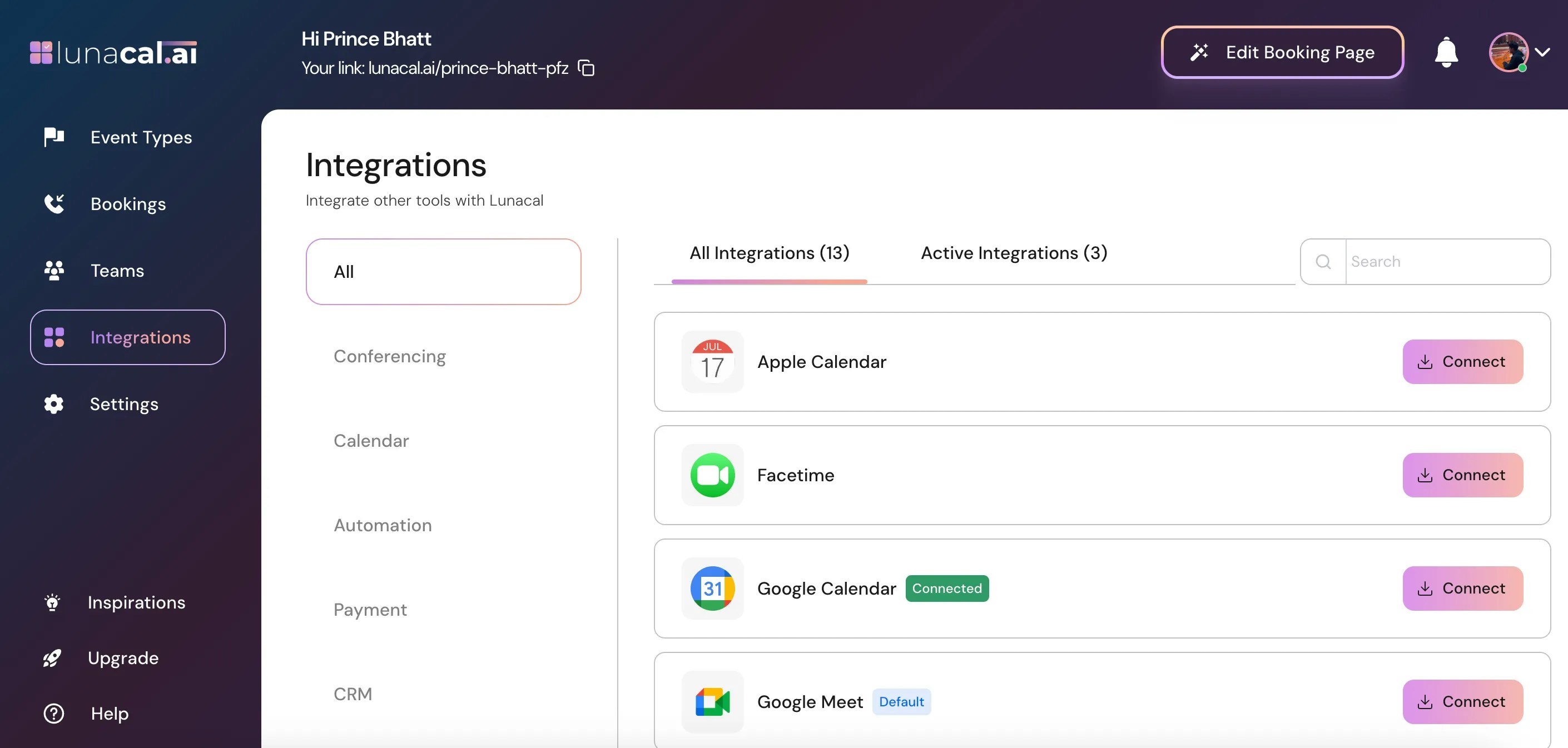
## Step 1
Go to "[Integrations](https://app.lunacal.ai/apps)" in your dashboard.
 ***
## Step 2
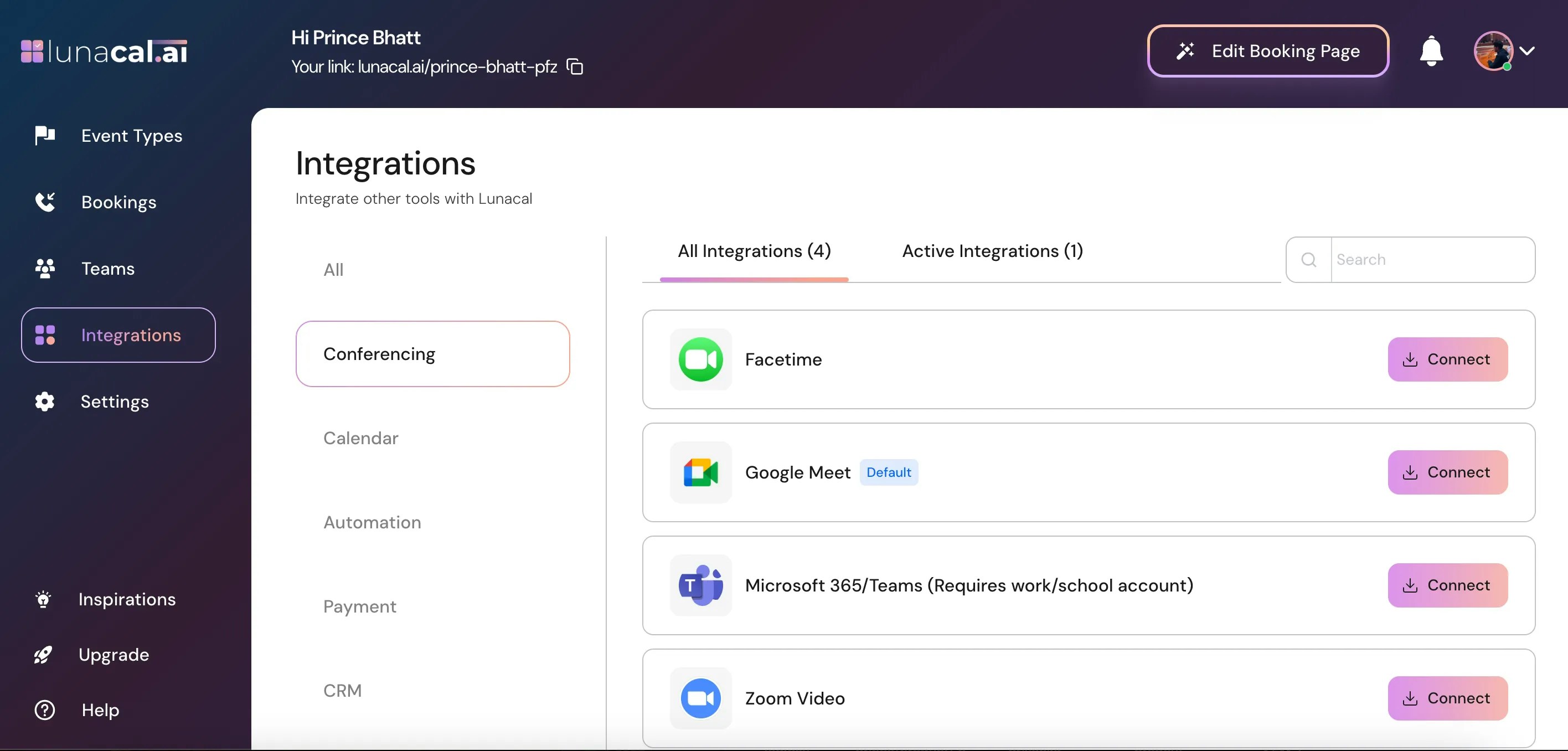
Click on "[Conferencing](https://app.lunacal.ai/apps?tab=apps\&category=conferencing)"
***
## Step 2
Click on "[Conferencing](https://app.lunacal.ai/apps?tab=apps\&category=conferencing)"
 ***
## Step 3
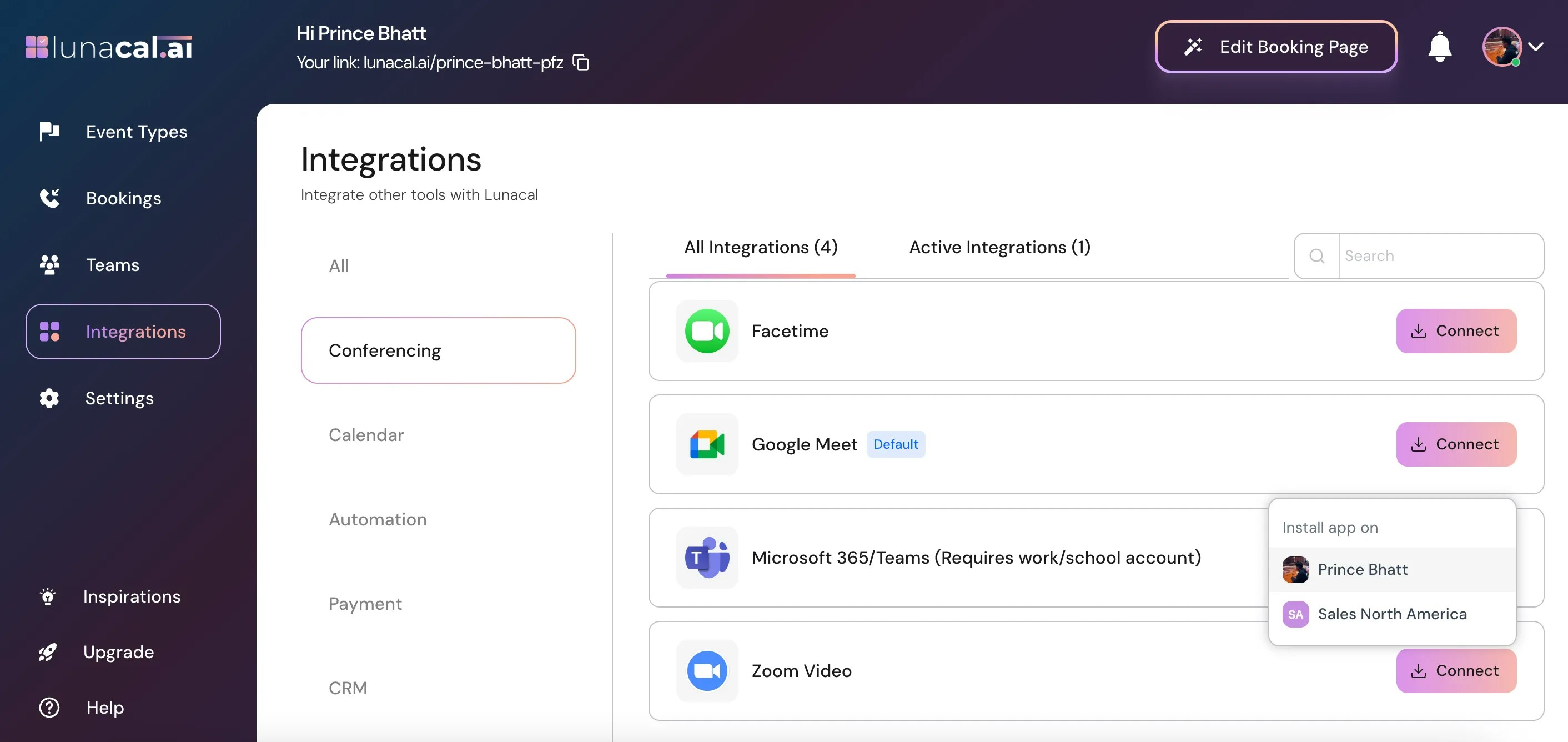
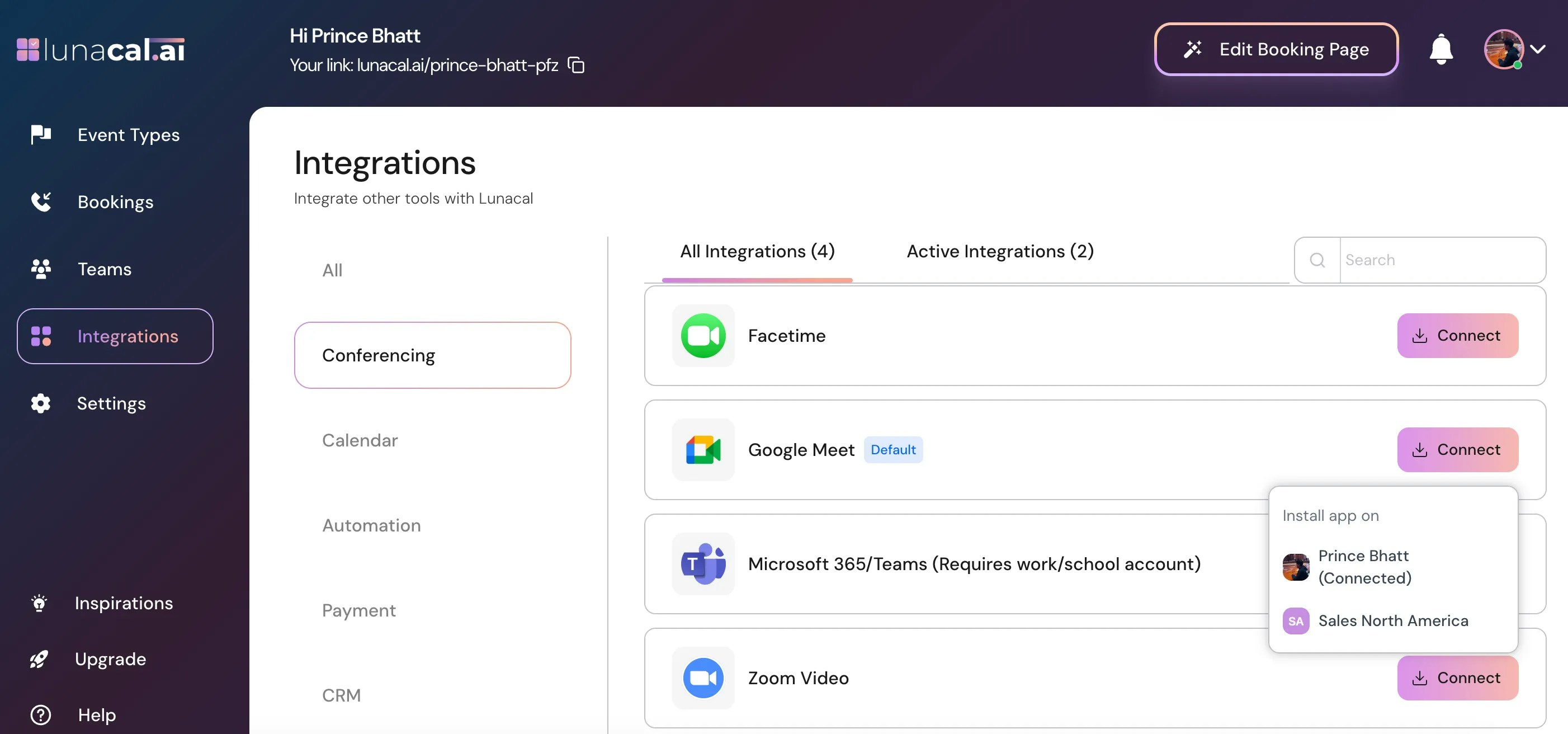
Select "**Zoom Video**" and choose whether you want to install it for:
* A team event type (e.g., Sales North America), or
* Your personal account (e.g., Prince Bhatt).
***
## Step 3
Select "**Zoom Video**" and choose whether you want to install it for:
* A team event type (e.g., Sales North America), or
* Your personal account (e.g., Prince Bhatt).
 ***
## Step 4
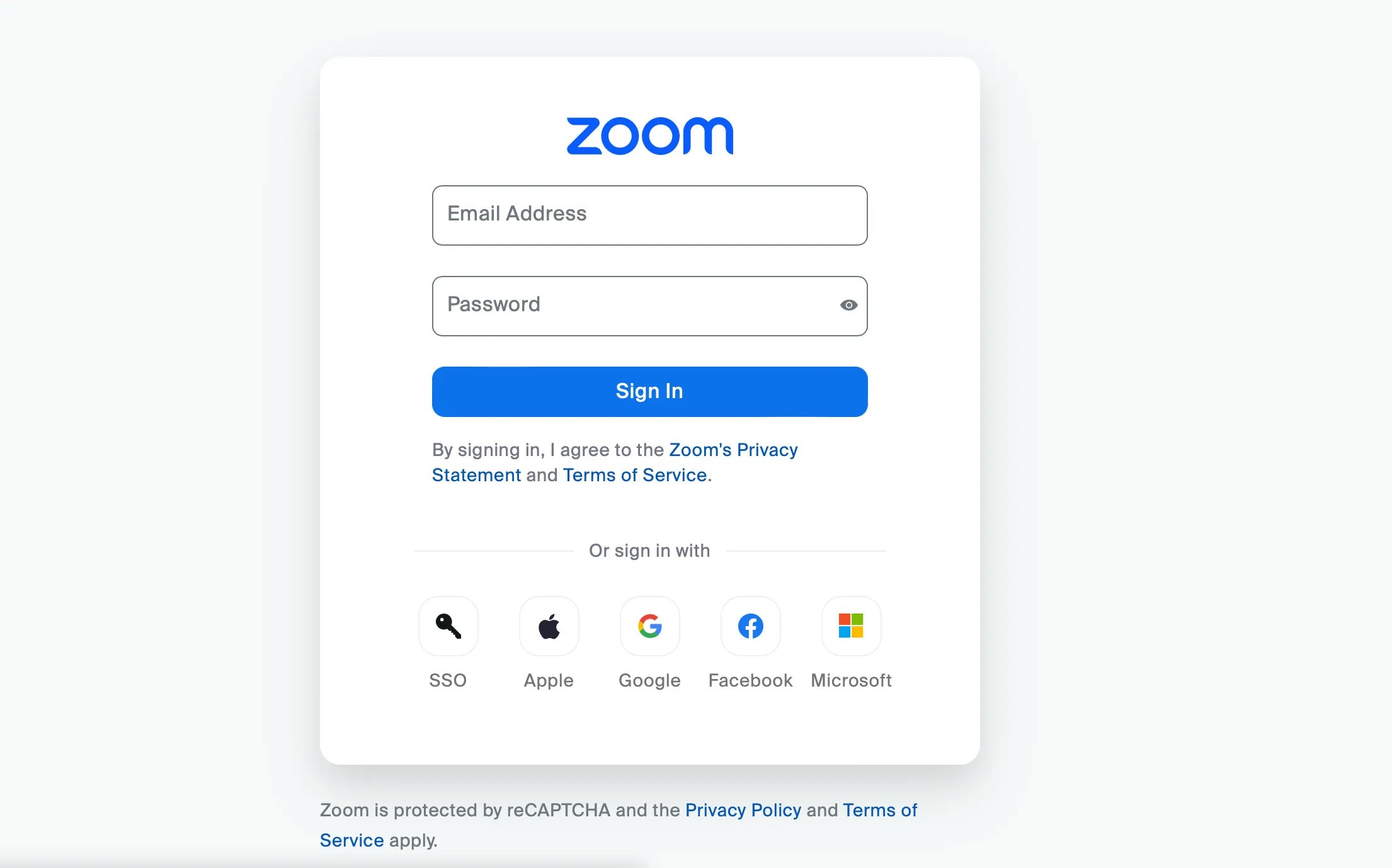
Enter your **Zoom credentials** to connect your account.
***
## Step 4
Enter your **Zoom credentials** to connect your account.
 ***
## Step 5
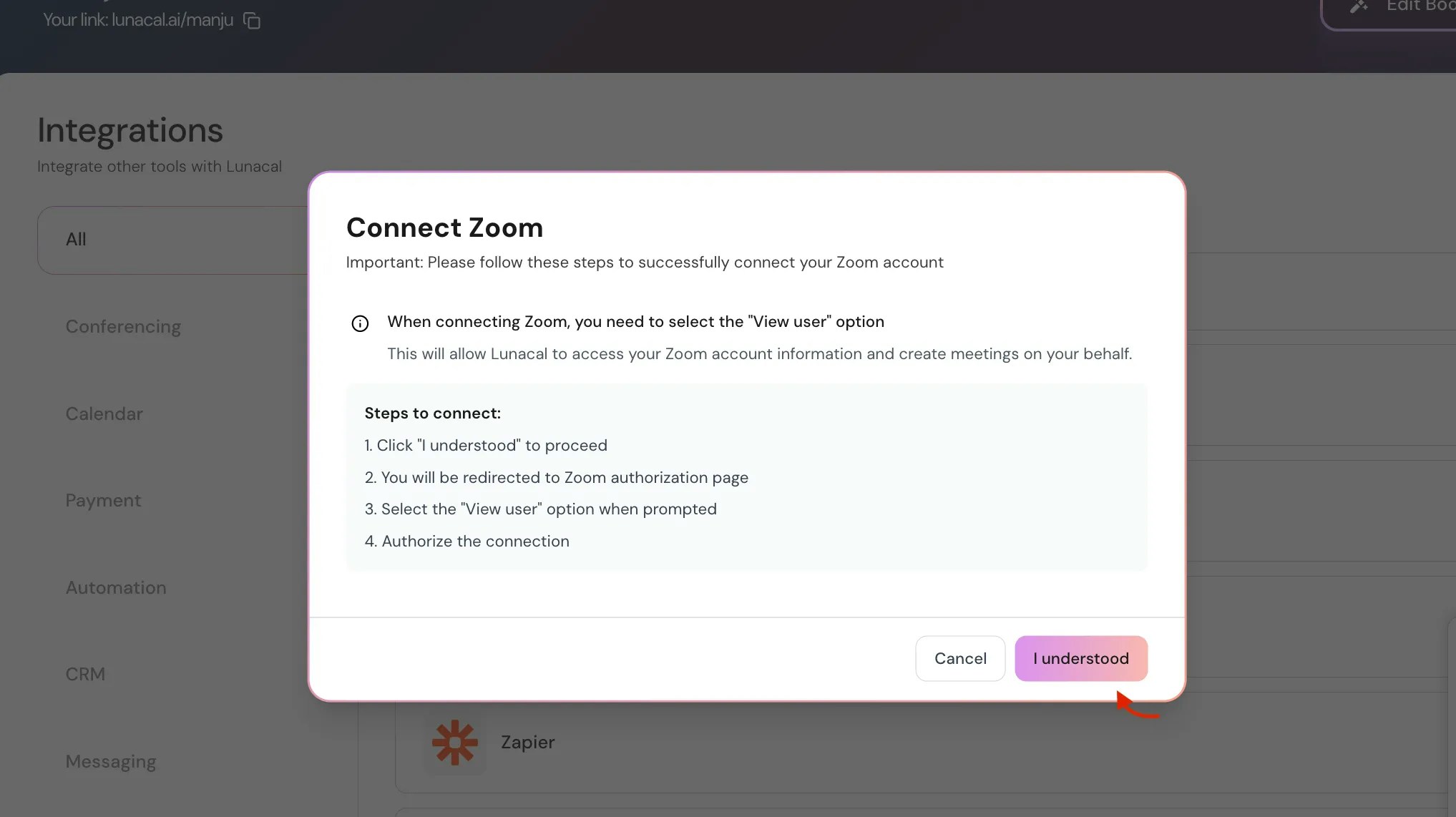
**Important:** When connecting Zoom, make sure to select the "View user" option\
This permission allows Lunacal to access your Zoom profile and automatically create Zoom meetings for your bookings.
### **Steps to connect:**
1. Click **“I understood”** to proceed.
2. You’ll be redirected to the **Zoom authorization page**.
3. When prompted, choose **“View user”** as the permission option.
4. Click **Authorize** to complete the connection.
***
## Step 5
**Important:** When connecting Zoom, make sure to select the "View user" option\
This permission allows Lunacal to access your Zoom profile and automatically create Zoom meetings for your bookings.
### **Steps to connect:**
1. Click **“I understood”** to proceed.
2. You’ll be redirected to the **Zoom authorization page**.
3. When prompted, choose **“View user”** as the permission option.
4. Click **Authorize** to complete the connection.
 Once connected, Zoom will automatically link to your account, and you’ll see a Connected status.
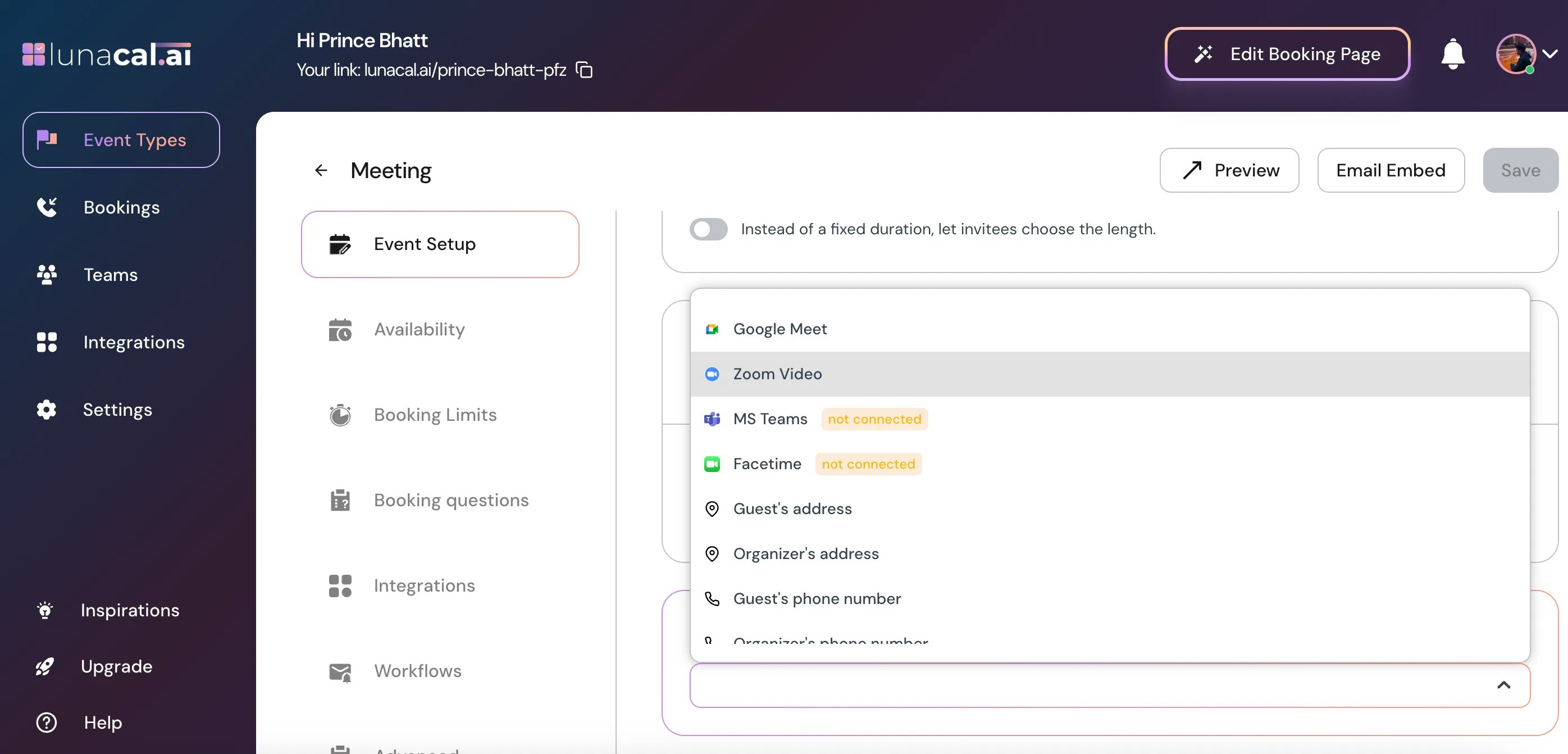
**Important** : For each event, you must manually select "**Zoom Video**" in the "Meeting Location" field.
Once connected, Zoom will automatically link to your account, and you’ll see a Connected status.
**Important** : For each event, you must manually select "**Zoom Video**" in the "Meeting Location" field.
 ***
## Step 6
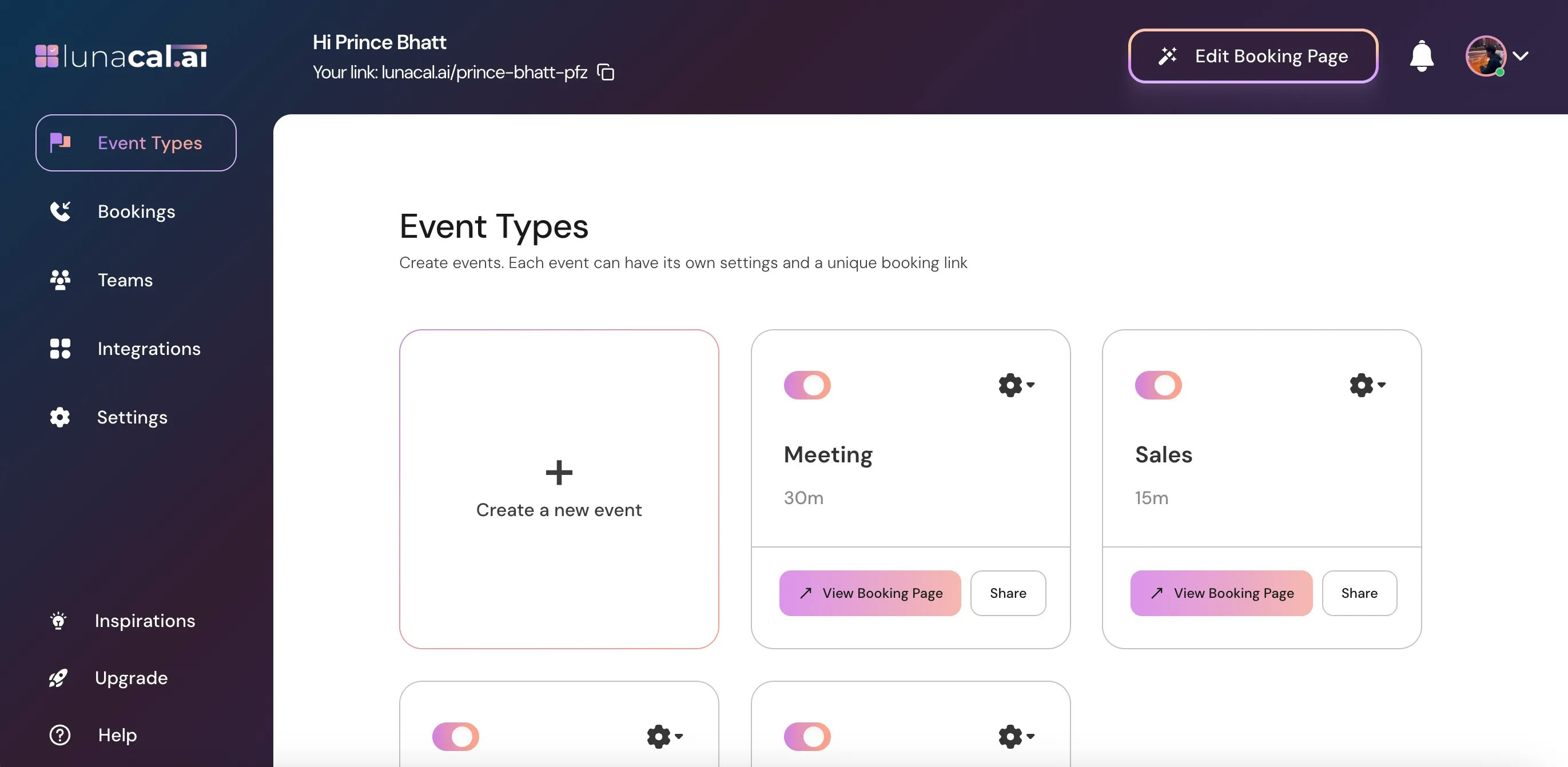
Go to "**Event Types**" in your dashboard.
***
## Step 6
Go to "**Event Types**" in your dashboard.
 ***
## Step 7
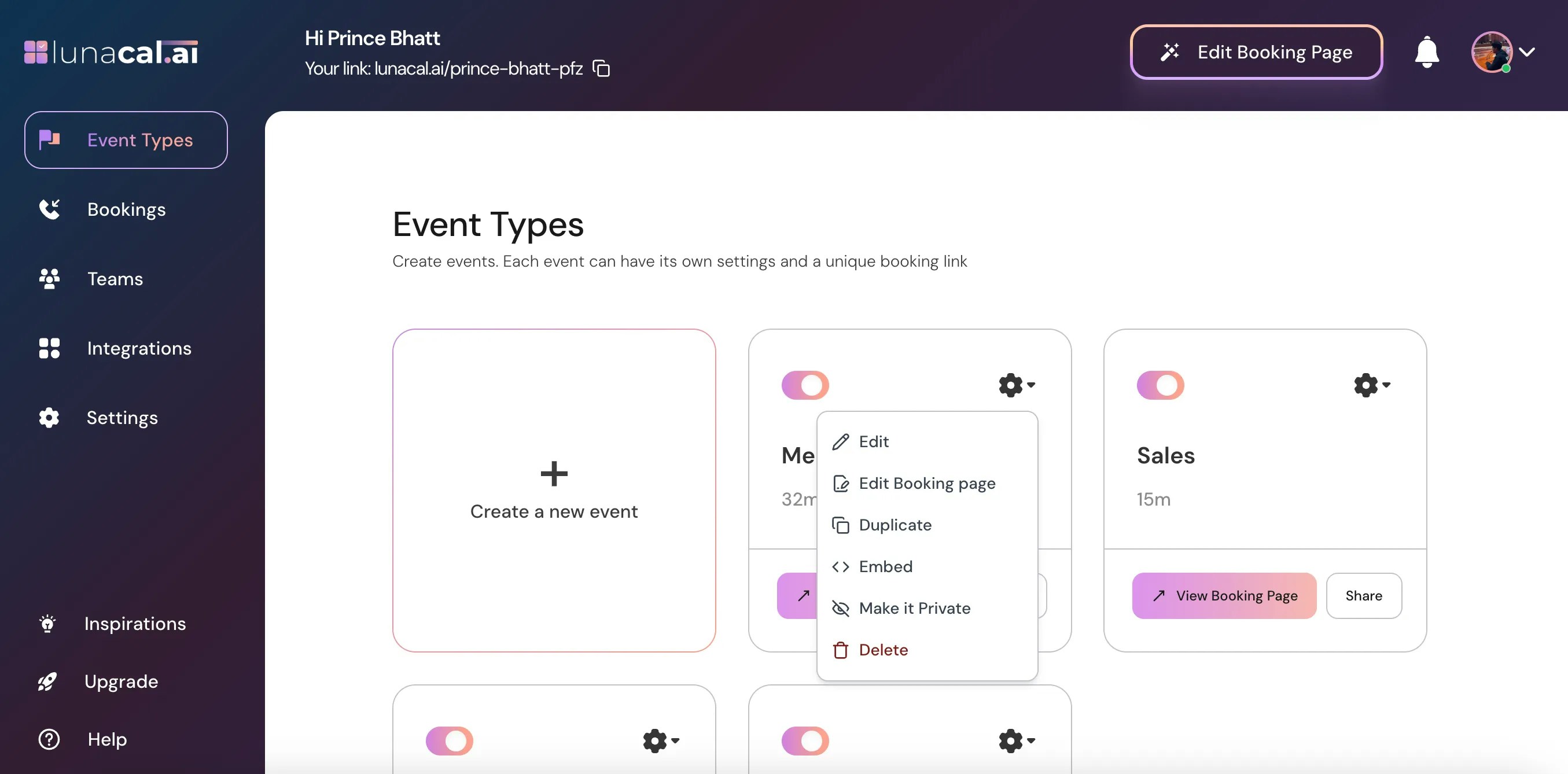
Select the event for which you want to enable **Zoom** and click the "**Settings icon**" on that event card.
***
## Step 7
Select the event for which you want to enable **Zoom** and click the "**Settings icon**" on that event card.
 ***
## Step 8
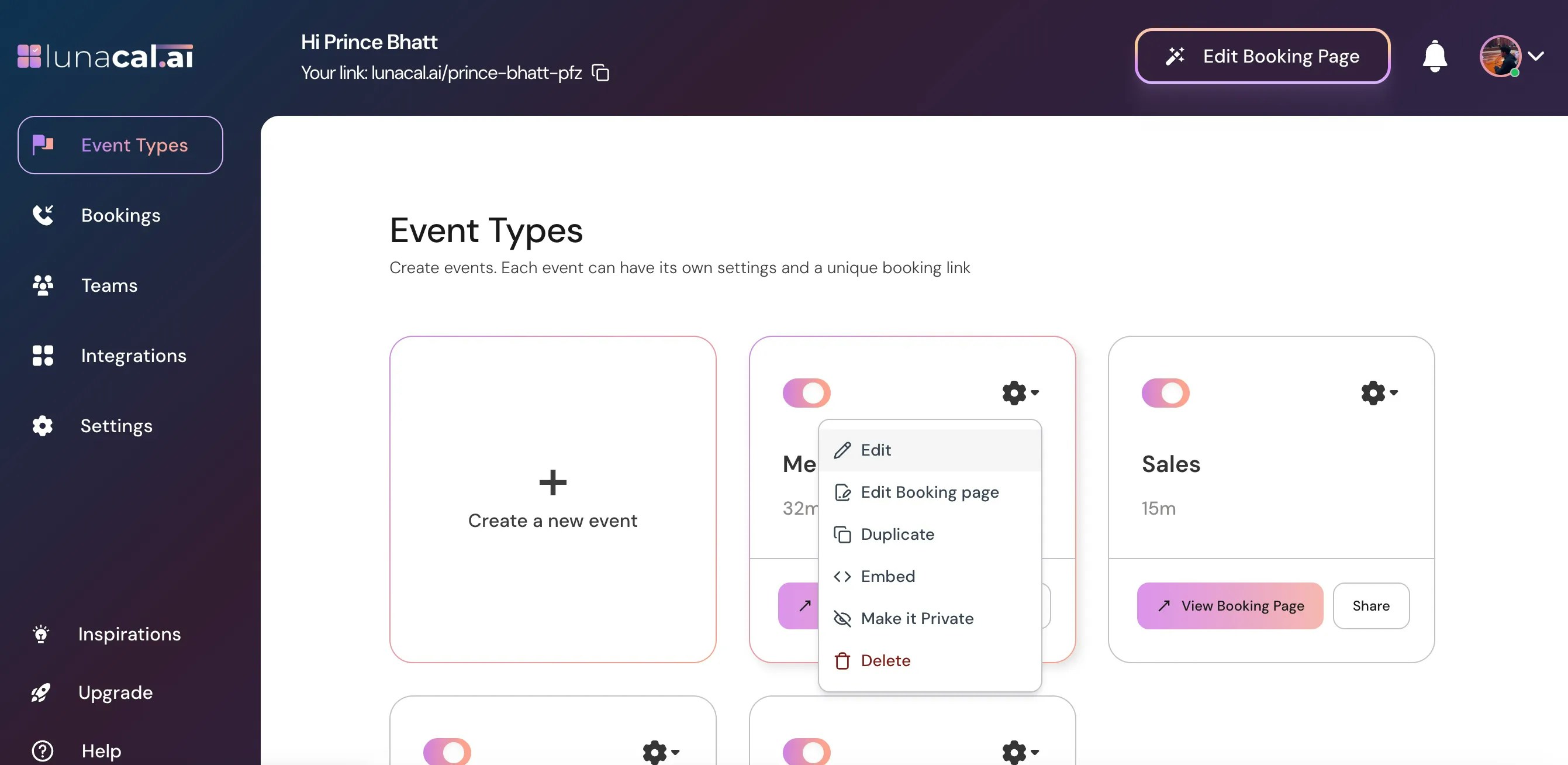
Choose "**Edit**" from the dropdown menu.
***
## Step 8
Choose "**Edit**" from the dropdown menu.
 ***
## Step 9
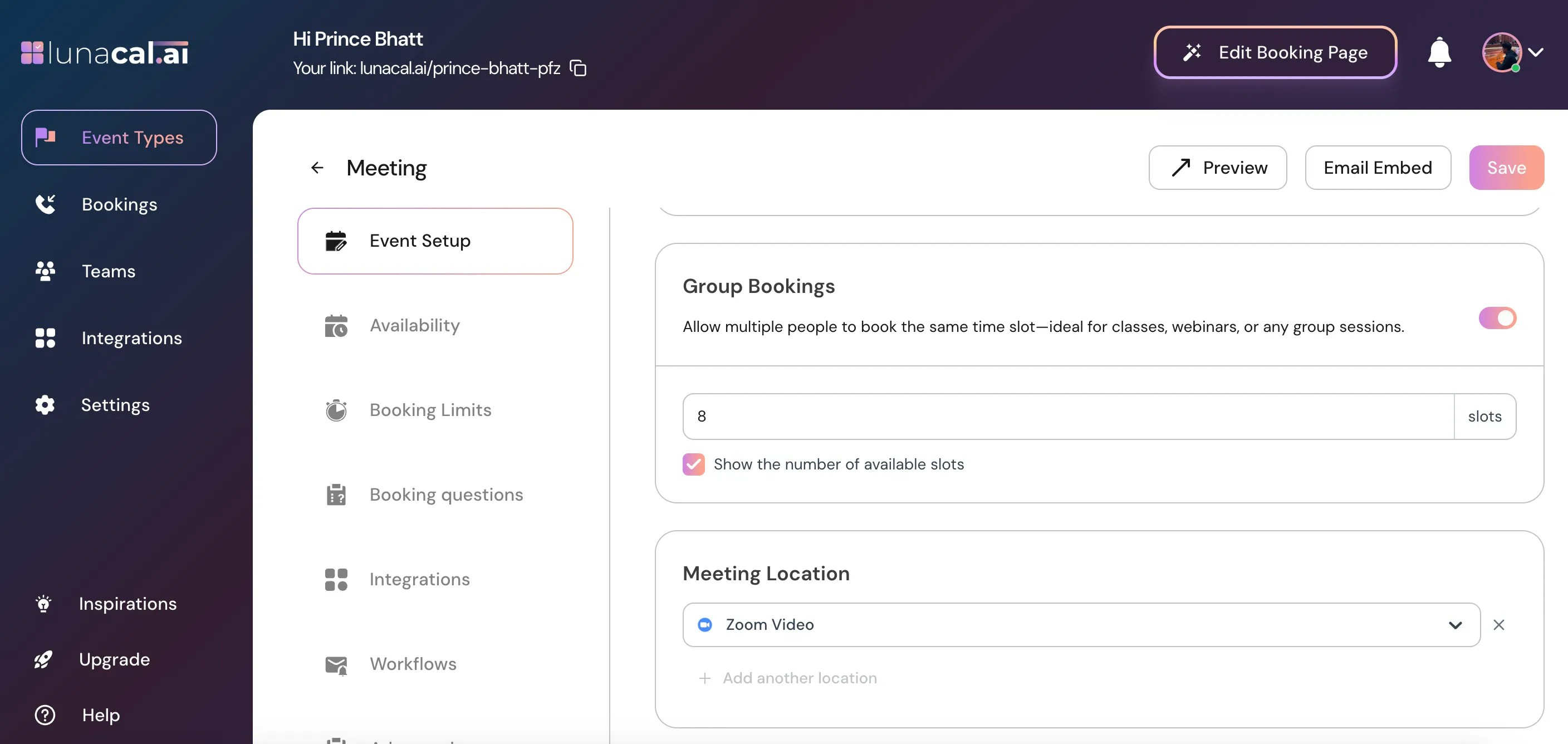
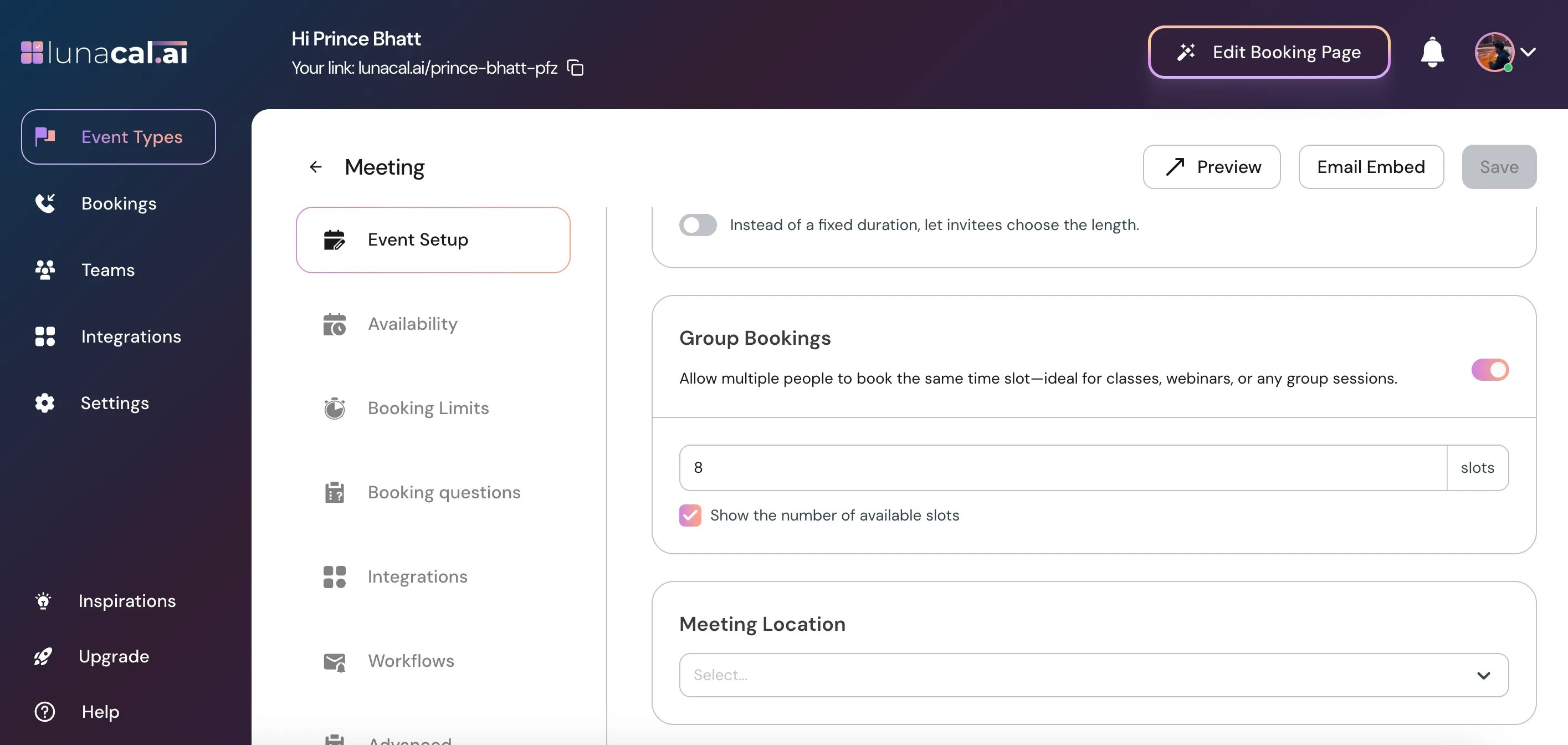
In the "**Event Setup**" section, scroll down to find "**Meeting Location**".
***
## Step 9
In the "**Event Setup**" section, scroll down to find "**Meeting Location**".
 Select "**Zoom Video**" from the options.
 ***
## Step 10
Click "**Save**" to apply the changes.
***
## Step 10
Click "**Save**" to apply the changes.