> ## Documentation Index
> Fetch the complete documentation index at: https://help.lunacal.ai/llms.txt
> Use this file to discover all available pages before exploring further.
# Integrations & Managing Apps
> Use the “Integrations” page to connect tools you already use—conferencing, calendars, CRM, messaging, automation, and payments. This walkthrough shows how to browse categories and remove installed apps when needed.
Integrations extend lunacal by syncing calendars, adding conferencing links, automating workflows, and collecting payments. Connected apps directly affect availability, booking confirmations, and post-meeting actions.
## Step 1
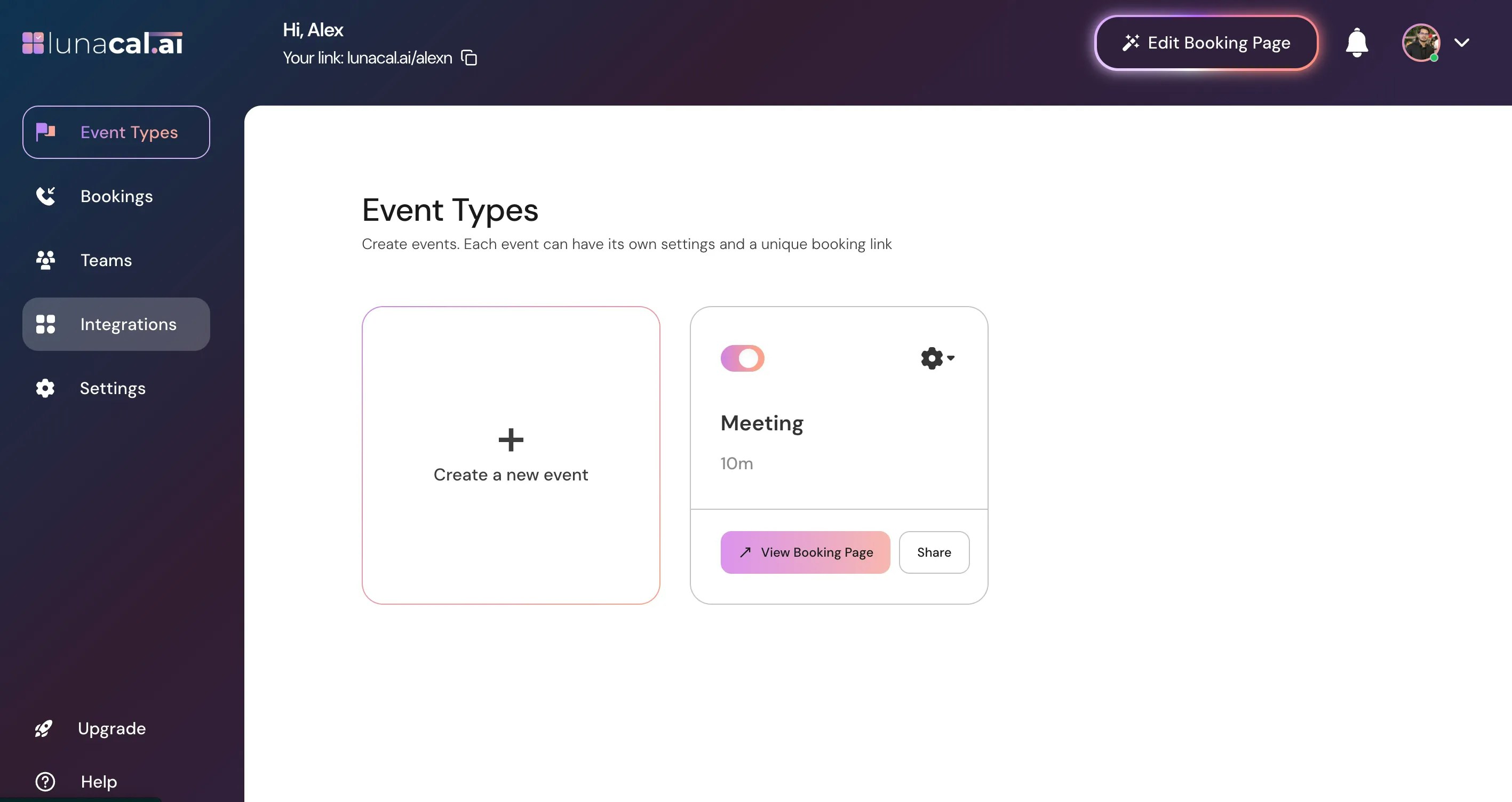
Navigate to the [Integrations](https://app.lunacal.ai/apps) tab.
> **Note:** Integrations are applied to the selected team. Make sure you’re selecting to the correct team before connecting or disconnecting apps.
## Step 2
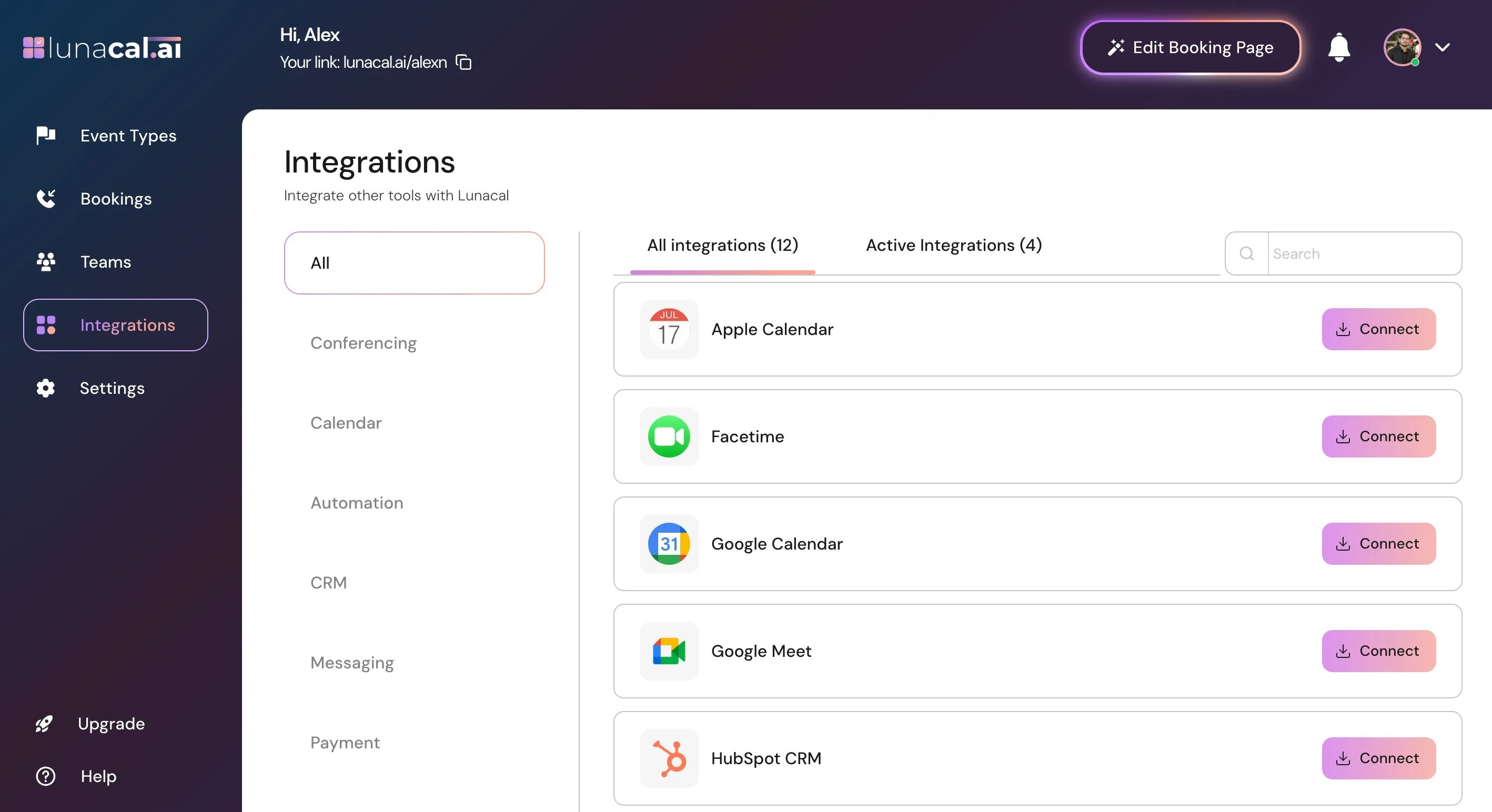
Explore categories: “Conferencing”, “Calendar”, “Automation”, “CRM”, “Messaging”, and “Payment”. Click “Conferencing” to view options.\
Example: You host client demos on Zoom—open “Conferencing” to connect Zoom so links are auto-added to meetings.
> During connection, make sure to grant all requested permissions so this prevents broken setups.
## Step 3
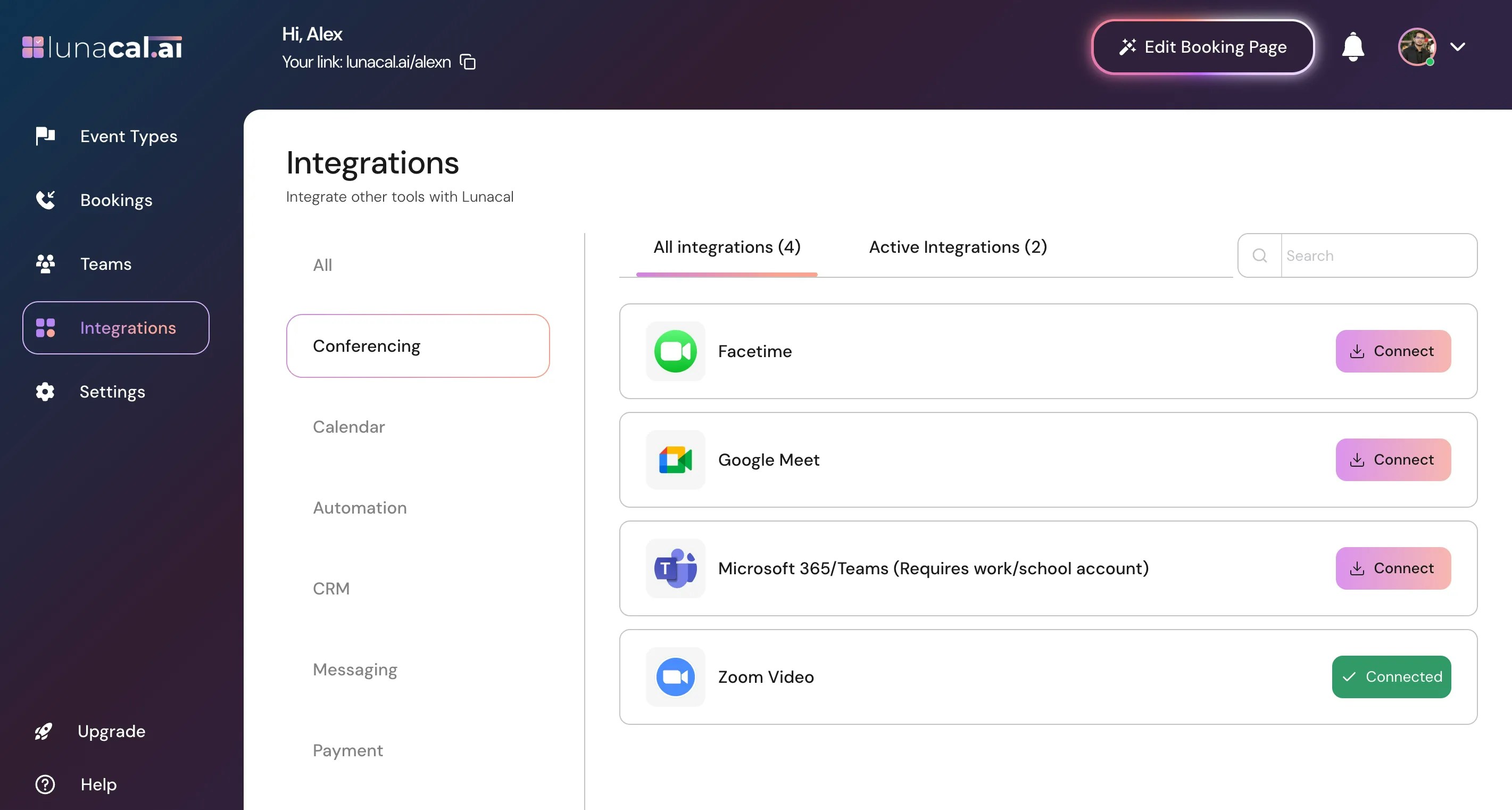
In “Conferencing”, you’ll find FaceTime, Google Meet, MS Teams, and Zoom Video.
## Step 4
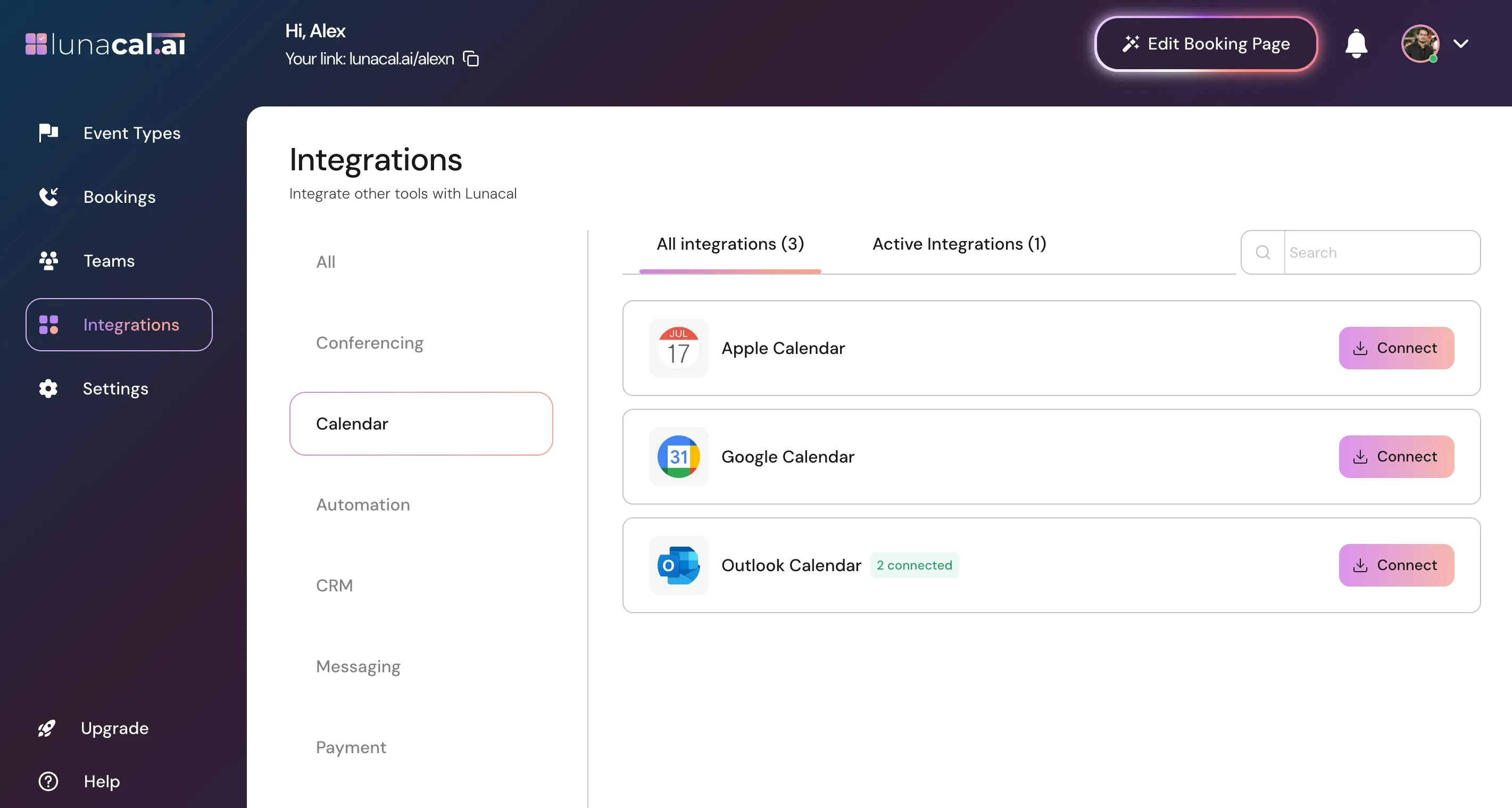
In “Calendar”, available calendars include Apple Calendar, Google Calendar, and Outlook Calendar.\
Example: If your main schedule lives in Google Calendar, connect it so Lunacal avoids double-booking.
> Your connected calendar is used to check availability and prevent double-bookings. Without a calendar integration, lunacal cannot block busy times reliably.
## Step 5
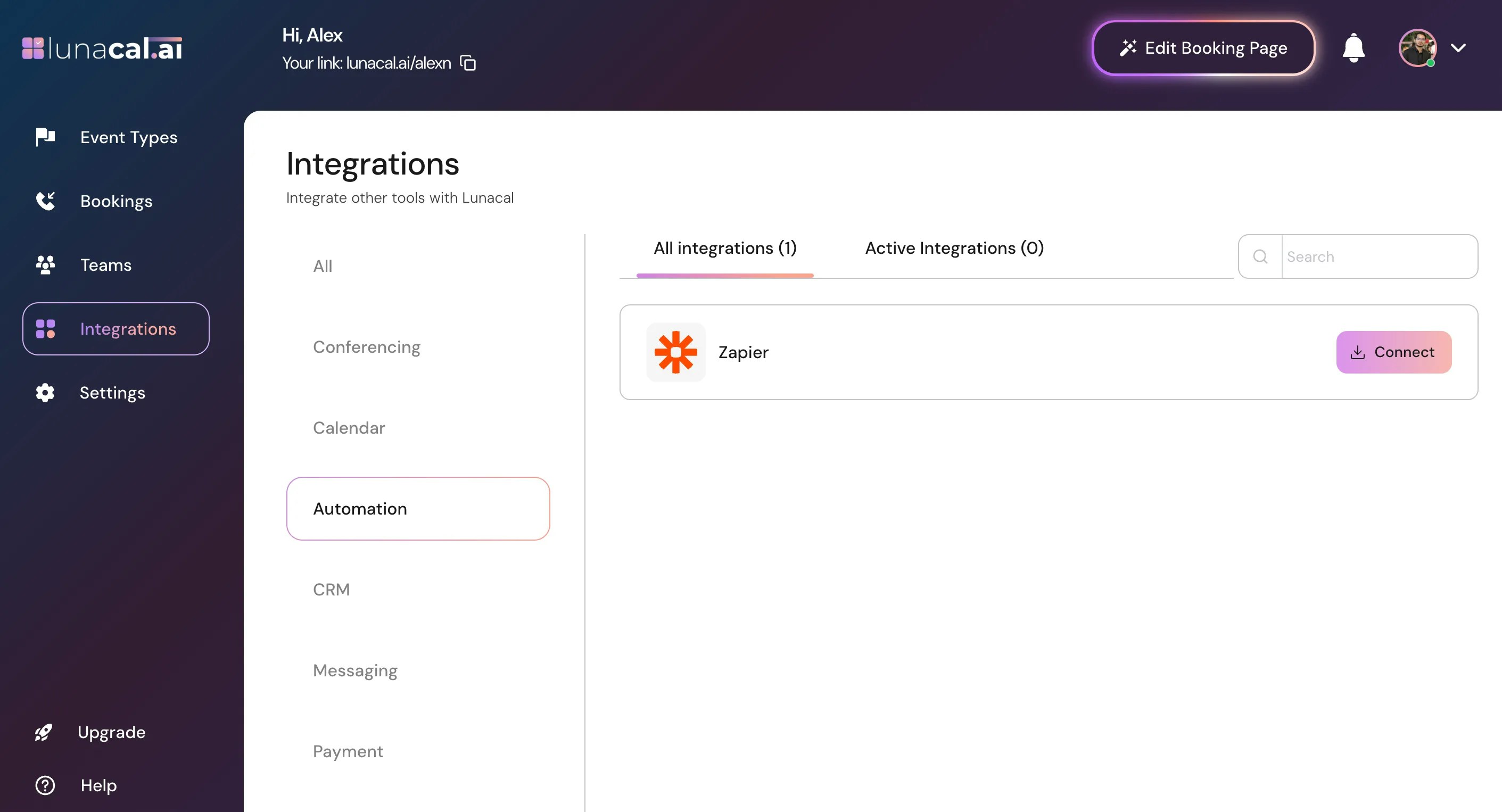
For Automation, Zapier is available.
## Step 6
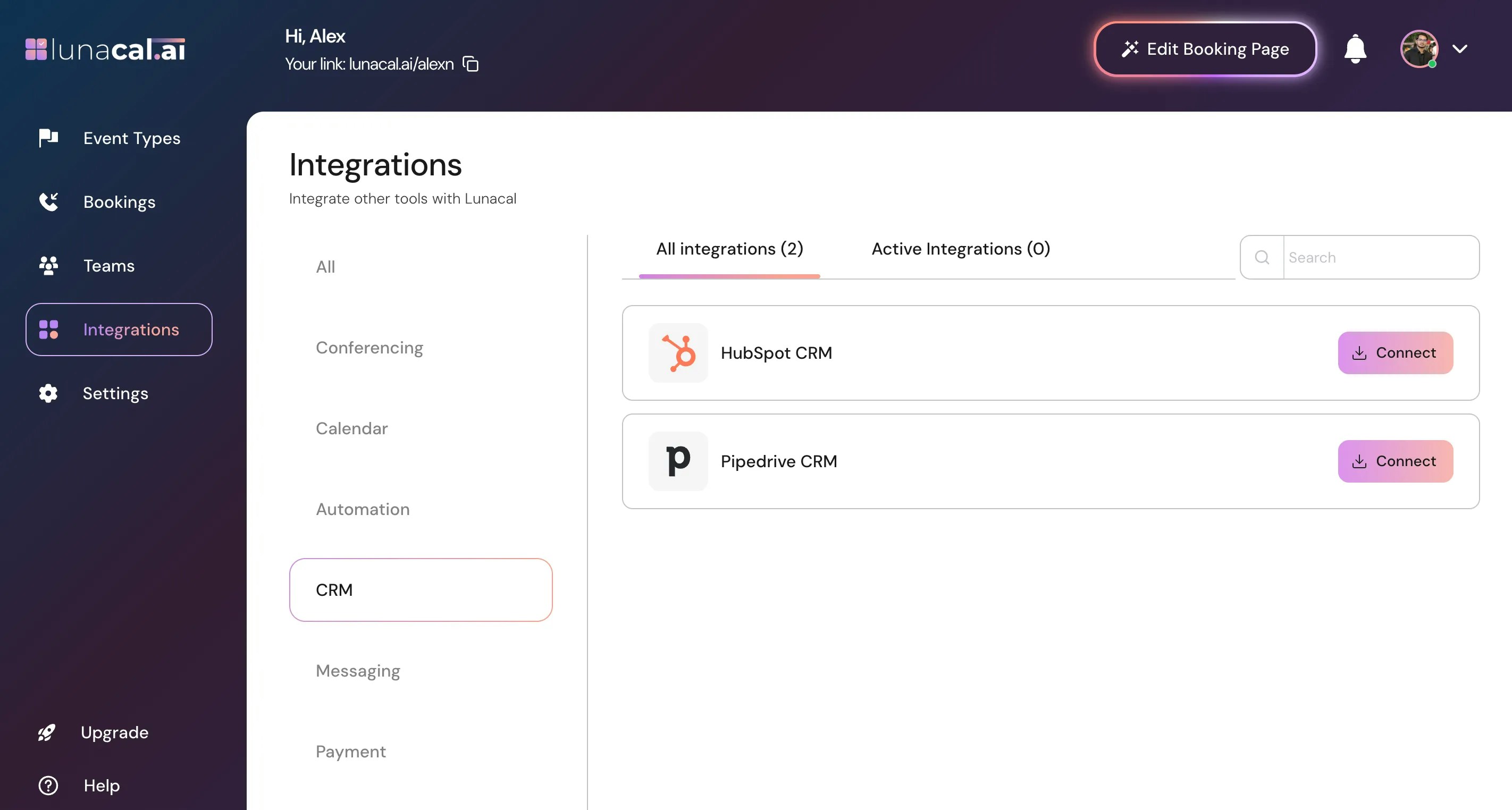
In “CRM”, you can integrate HubSpot CRM and Pipedrive CRM.\
Example: After each meeting, push attendees into your CRM pipeline automatically to save manual data entry.
## Step 7
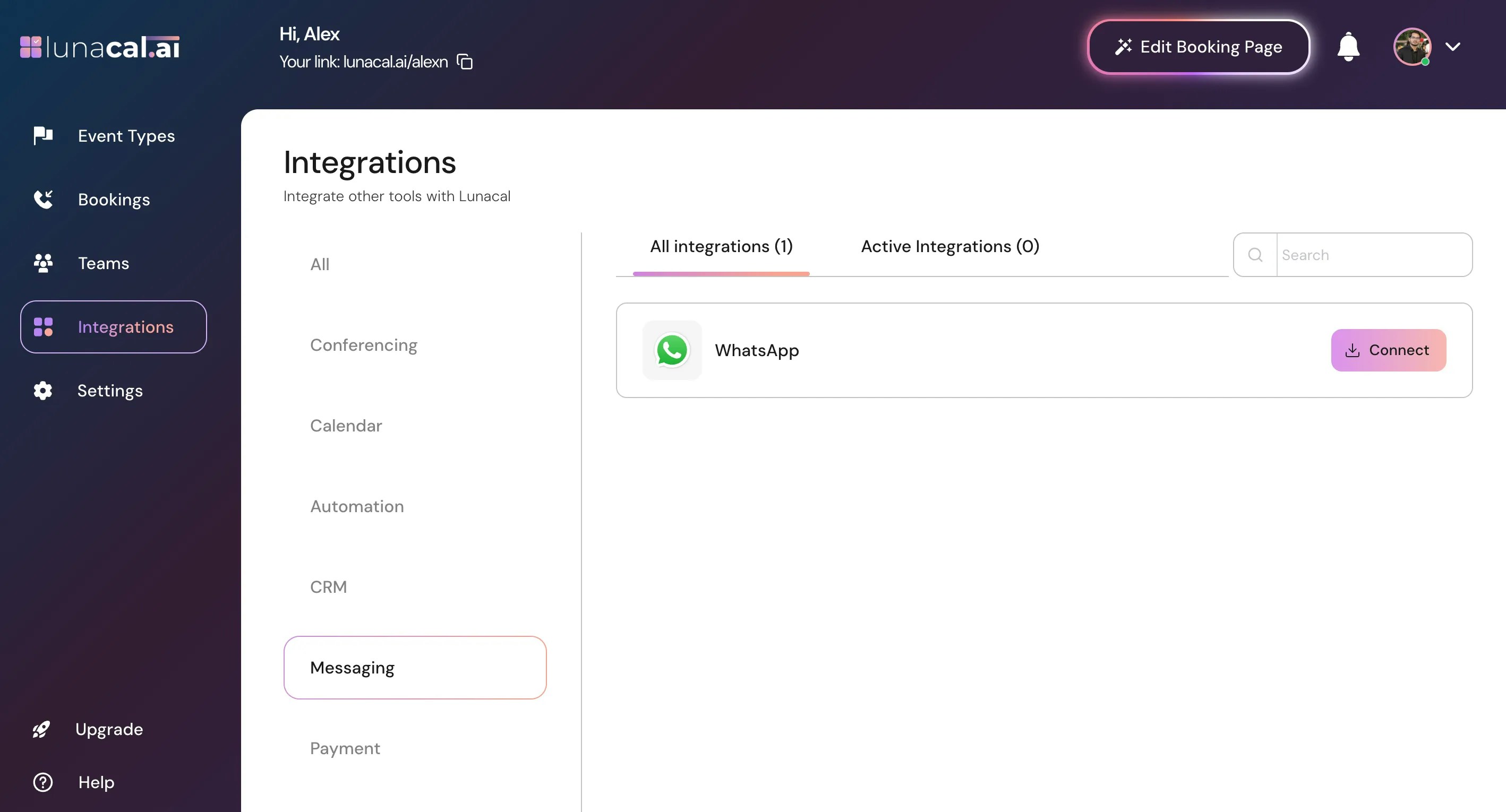
In “Messaging”, WhatsApp is available.\
Example: Send a quick WhatsApp confirmation for high-no-show meetings to reduce last-minute drop-offs.
## Step 8
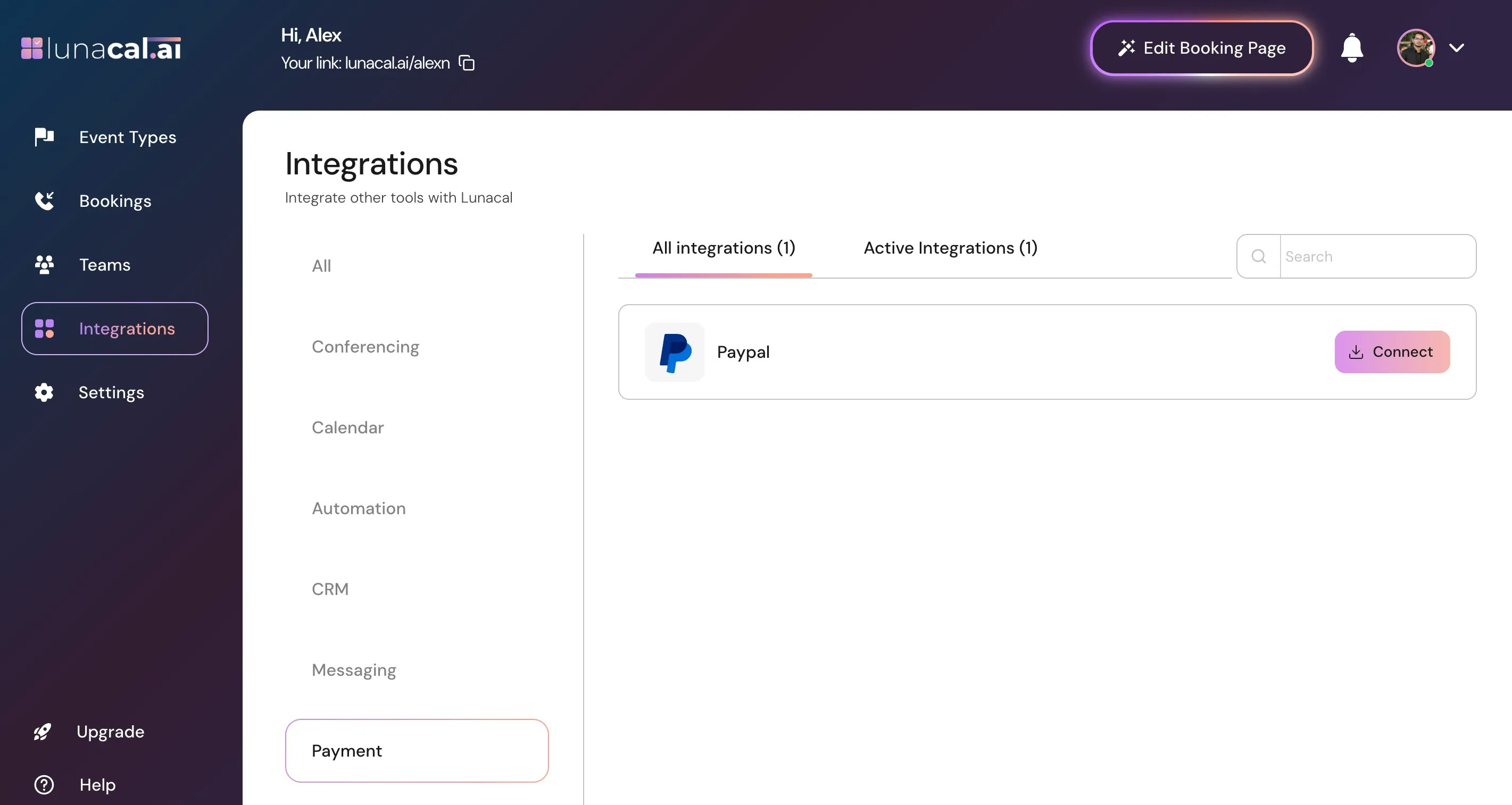
In the Payment category, you'll see PayPal.
## Step 9
> Disconnecting an app stops future syncing but does not remove past bookings or events.
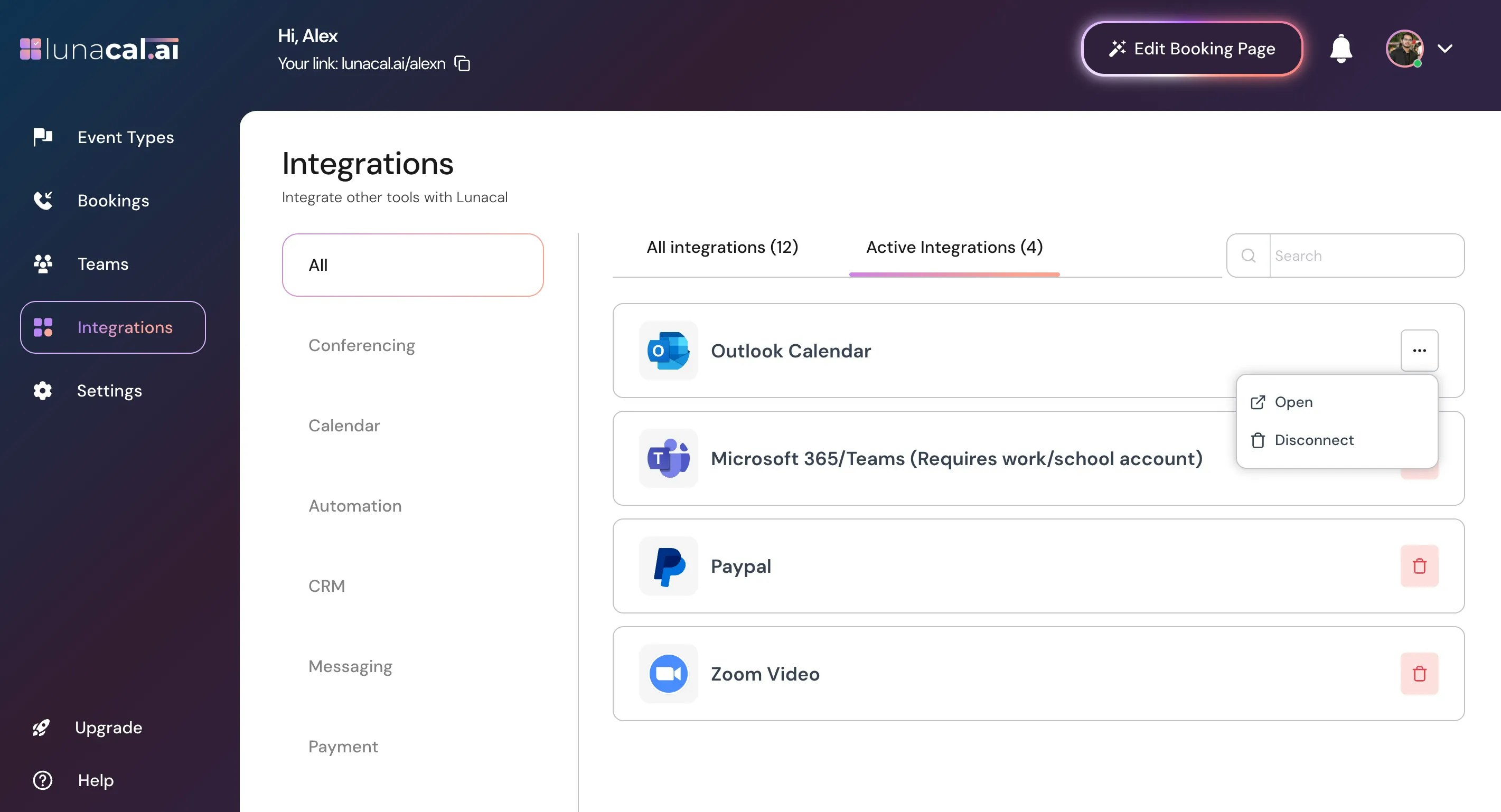
To remove any application, go to “Installed Apps”, click the 3 dotes, then click “Disconnect” to uninstall.\
Example: During testing, disconnect a sandbox Zoom app from “Installed Apps” so only your live Zoom stays connected.
**Common mistakes to avoid**
* Connecting the wrong account (personal instead of work) under “Calendar” or “Conferencing”, which breaks availability or links.
* Skipping required permissions during connect, leading to missing conference links or failed calendar sync.
* Expecting double-booking protection without connecting your primary “Calendar”.
* Removing an app only from the provider’s site and not clicking “Disconnect” in “Installed Apps”.
**Good defaults to start with**
* Connect your main “Calendar” first; then add one preferred “Conferencing” app.
* If you use a CRM, connect “HubSpot CRM” or “Pipedrive CRM” early so new meetings flow into your pipeline.
* Add “Zapier” later for automations once basic scheduling works.
* Keep only one active app per category to reduce conflicts.
 > **Note:** Integrations are applied to the selected team. Make sure you’re selecting to the correct team before connecting or disconnecting apps.
## Step 2
Explore categories: “Conferencing”, “Calendar”, “Automation”, “CRM”, “Messaging”, and “Payment”. Click “Conferencing” to view options.\
Example: You host client demos on Zoom—open “Conferencing” to connect Zoom so links are auto-added to meetings.
> During connection, make sure to grant all requested permissions so this prevents broken setups.
> **Note:** Integrations are applied to the selected team. Make sure you’re selecting to the correct team before connecting or disconnecting apps.
## Step 2
Explore categories: “Conferencing”, “Calendar”, “Automation”, “CRM”, “Messaging”, and “Payment”. Click “Conferencing” to view options.\
Example: You host client demos on Zoom—open “Conferencing” to connect Zoom so links are auto-added to meetings.
> During connection, make sure to grant all requested permissions so this prevents broken setups.
 ## Step 3
In “Conferencing”, you’ll find FaceTime, Google Meet, MS Teams, and Zoom Video.
## Step 3
In “Conferencing”, you’ll find FaceTime, Google Meet, MS Teams, and Zoom Video.
 ## Step 4
In “Calendar”, available calendars include Apple Calendar, Google Calendar, and Outlook Calendar.\
Example: If your main schedule lives in Google Calendar, connect it so Lunacal avoids double-booking.
> Your connected calendar is used to check availability and prevent double-bookings. Without a calendar integration, lunacal cannot block busy times reliably.
## Step 4
In “Calendar”, available calendars include Apple Calendar, Google Calendar, and Outlook Calendar.\
Example: If your main schedule lives in Google Calendar, connect it so Lunacal avoids double-booking.
> Your connected calendar is used to check availability and prevent double-bookings. Without a calendar integration, lunacal cannot block busy times reliably.
 ## Step 5
For Automation, Zapier is available.
## Step 5
For Automation, Zapier is available.
 ## Step 6
In “CRM”, you can integrate HubSpot CRM and Pipedrive CRM.\
Example: After each meeting, push attendees into your CRM pipeline automatically to save manual data entry.
## Step 6
In “CRM”, you can integrate HubSpot CRM and Pipedrive CRM.\
Example: After each meeting, push attendees into your CRM pipeline automatically to save manual data entry.
 ## Step 7
In “Messaging”, WhatsApp is available.\
Example: Send a quick WhatsApp confirmation for high-no-show meetings to reduce last-minute drop-offs.
## Step 7
In “Messaging”, WhatsApp is available.\
Example: Send a quick WhatsApp confirmation for high-no-show meetings to reduce last-minute drop-offs.
 ## Step 8
In the Payment category, you'll see PayPal.
## Step 8
In the Payment category, you'll see PayPal.
 ## Step 9
> Disconnecting an app stops future syncing but does not remove past bookings or events.
To remove any application, go to “Installed Apps”, click the 3 dotes, then click “Disconnect” to uninstall.\
Example: During testing, disconnect a sandbox Zoom app from “Installed Apps” so only your live Zoom stays connected.
## Step 9
> Disconnecting an app stops future syncing but does not remove past bookings or events.
To remove any application, go to “Installed Apps”, click the 3 dotes, then click “Disconnect” to uninstall.\
Example: During testing, disconnect a sandbox Zoom app from “Installed Apps” so only your live Zoom stays connected.
 **Common mistakes to avoid**
* Connecting the wrong account (personal instead of work) under “Calendar” or “Conferencing”, which breaks availability or links.
* Skipping required permissions during connect, leading to missing conference links or failed calendar sync.
* Expecting double-booking protection without connecting your primary “Calendar”.
* Removing an app only from the provider’s site and not clicking “Disconnect” in “Installed Apps”.
**Good defaults to start with**
* Connect your main “Calendar” first; then add one preferred “Conferencing” app.
* If you use a CRM, connect “HubSpot CRM” or “Pipedrive CRM” early so new meetings flow into your pipeline.
* Add “Zapier” later for automations once basic scheduling works.
* Keep only one active app per category to reduce conflicts.
**Common mistakes to avoid**
* Connecting the wrong account (personal instead of work) under “Calendar” or “Conferencing”, which breaks availability or links.
* Skipping required permissions during connect, leading to missing conference links or failed calendar sync.
* Expecting double-booking protection without connecting your primary “Calendar”.
* Removing an app only from the provider’s site and not clicking “Disconnect” in “Installed Apps”.
**Good defaults to start with**
* Connect your main “Calendar” first; then add one preferred “Conferencing” app.
* If you use a CRM, connect “HubSpot CRM” or “Pipedrive CRM” early so new meetings flow into your pipeline.
* Add “Zapier” later for automations once basic scheduling works.
* Keep only one active app per category to reduce conflicts.