> ## Documentation Index
> Fetch the complete documentation index at: https://help.lunacal.ai/llms.txt
> Use this file to discover all available pages before exploring further.
# Manual Booking Approval
> Learn how to enable manual booking approval for your events.
When you enable **Manual Booking**, all booking requests for this Event Type will require your approval before they are confirmed.
This gives you full control over who gets approved, ideal for high-value sessions, limited seats, or situations where you want to screen attendees before confirming.
when **Manual Booking** is turned on:
* Client sends a booking request
* The booking stays in Pending state
* You (the host) must **manually Approve** or **Reject** it from email and [bookings section](https://app.lunacal.ai/bookings/upcoming)
* Only after approval the client receives the confirmation email & calendar invite
* This prevents unwanted or spam bookings from being auto-confirmed.
Step 1\
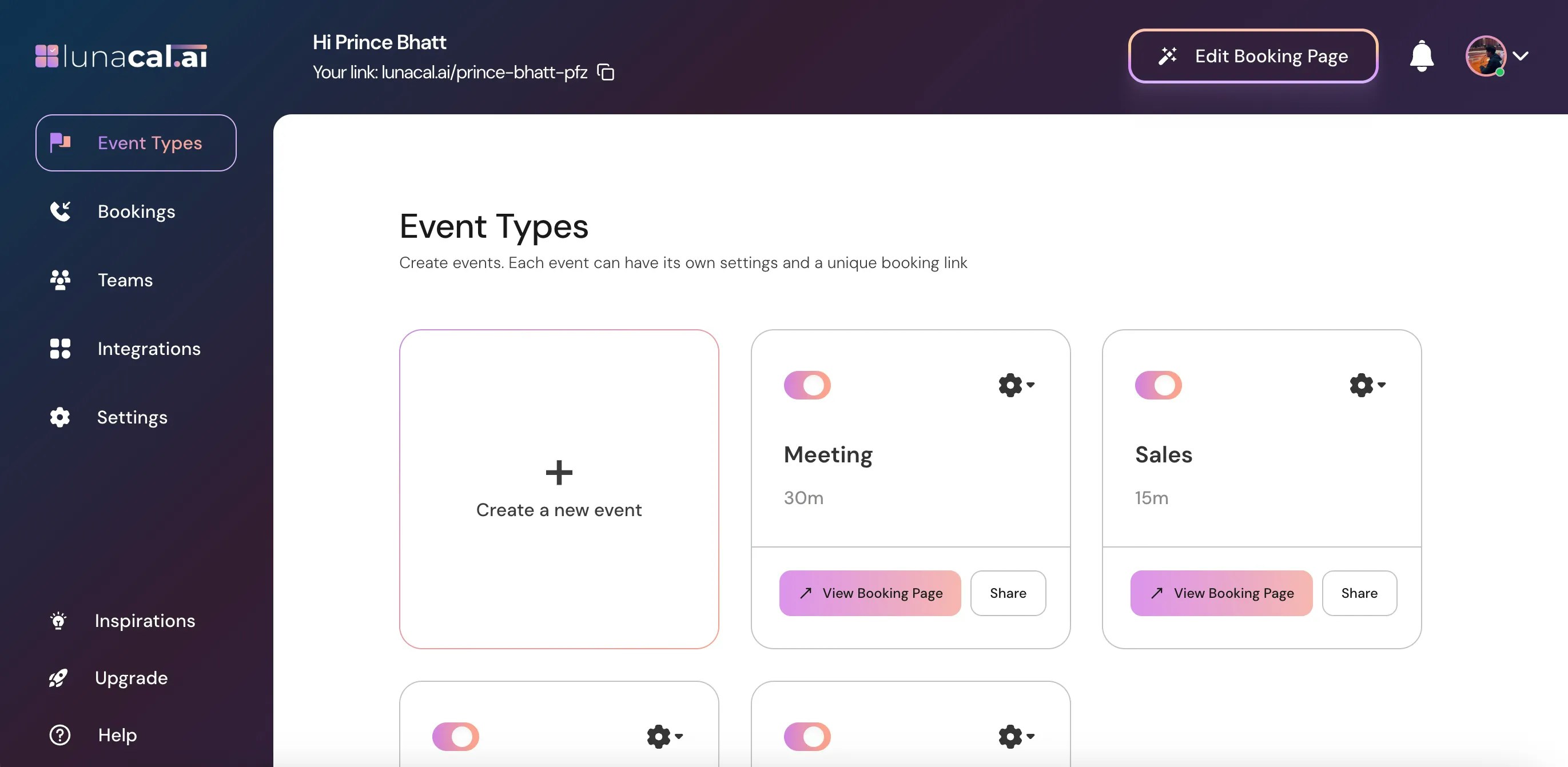
Go to "[Event Types](https://app.lunacal.ai/event-types)" in your dashboard.
 Step 2\
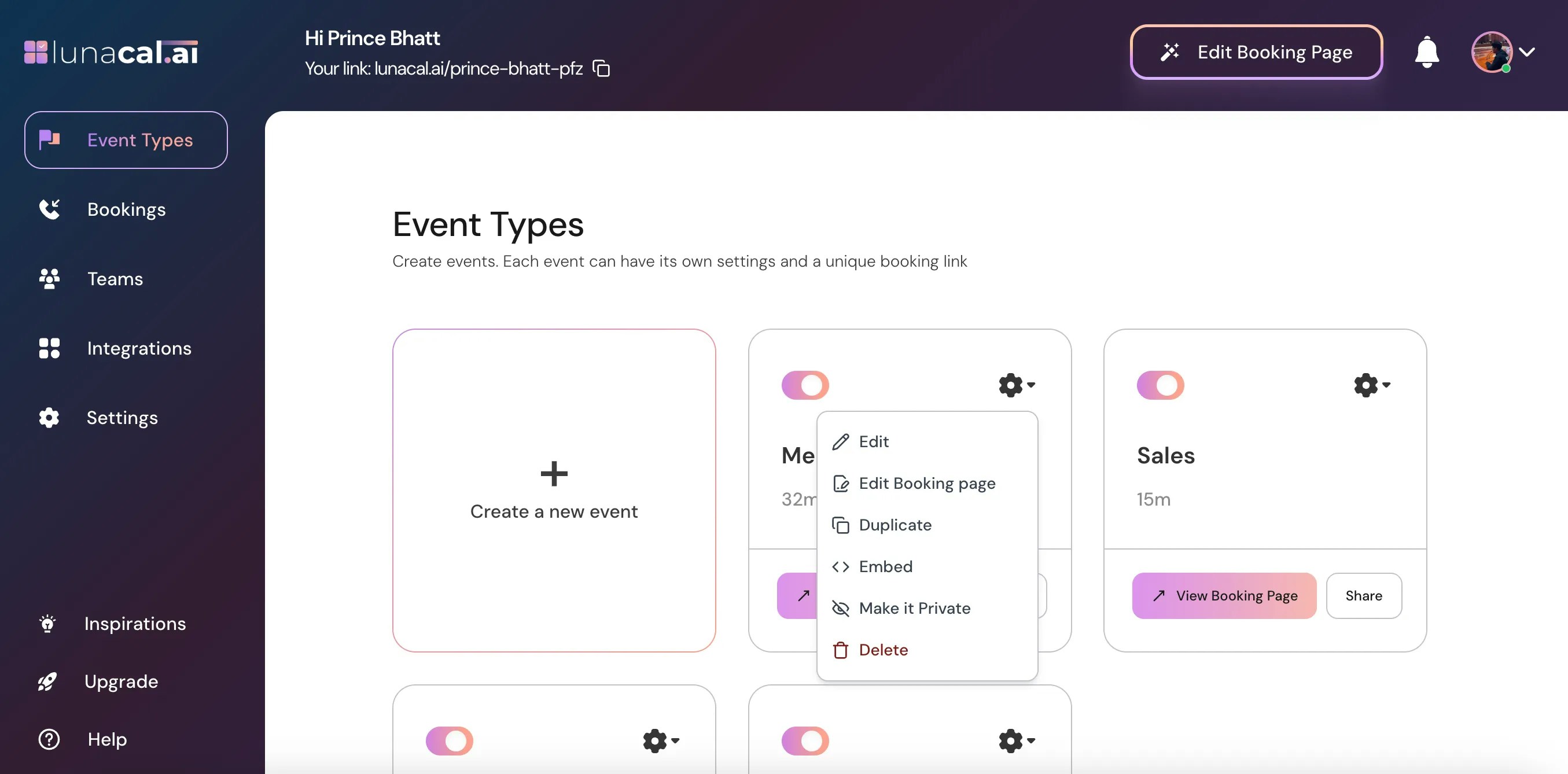
Select the event for which you want to enable manual booking approval and click on the **Settings** icon on that event card.
Step 2\
Select the event for which you want to enable manual booking approval and click on the **Settings** icon on that event card.
 ***
Step 3\
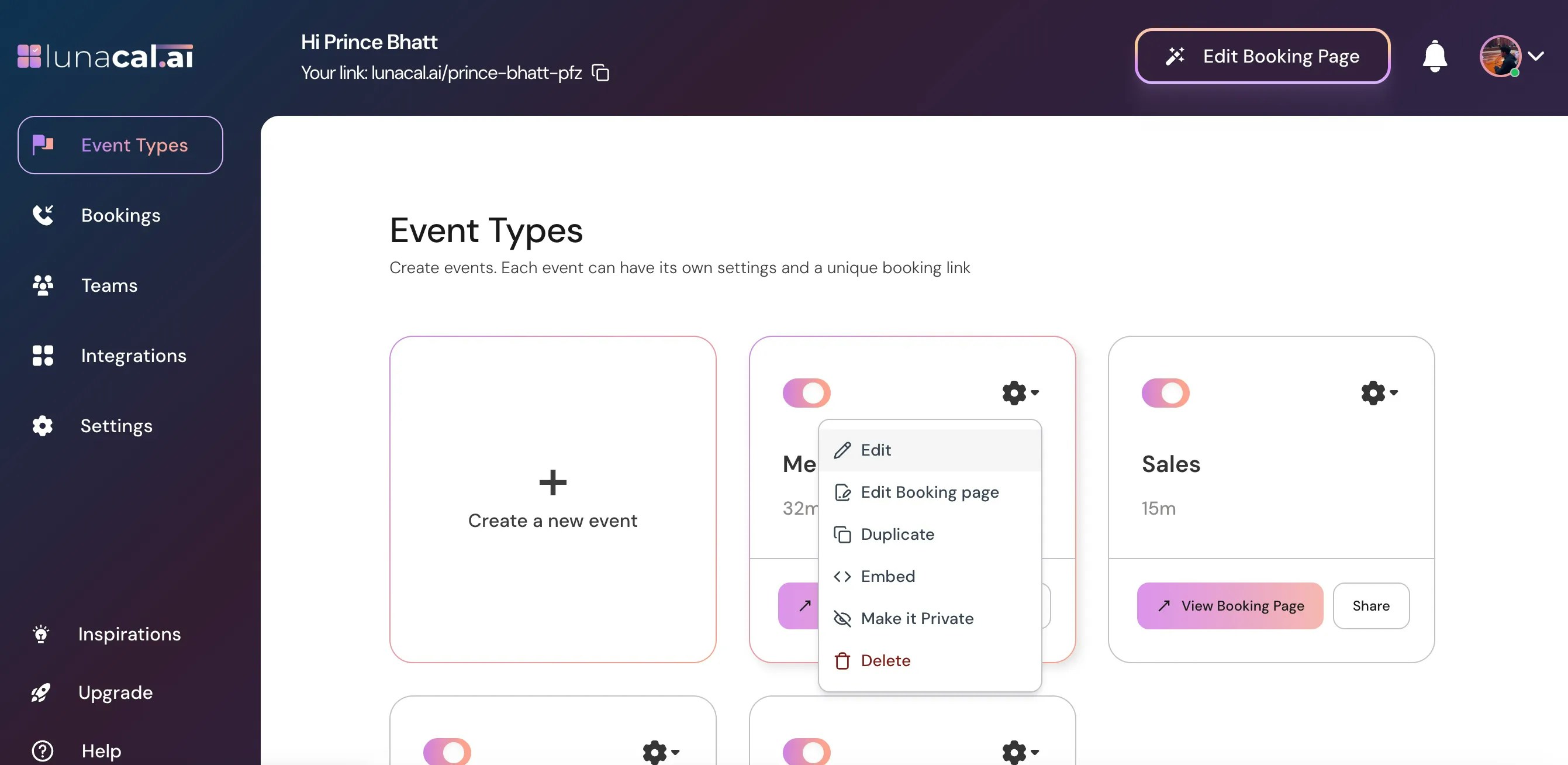
Choose **Edit** from the dropdown.
***
Step 3\
Choose **Edit** from the dropdown.
 ***
Step 4\
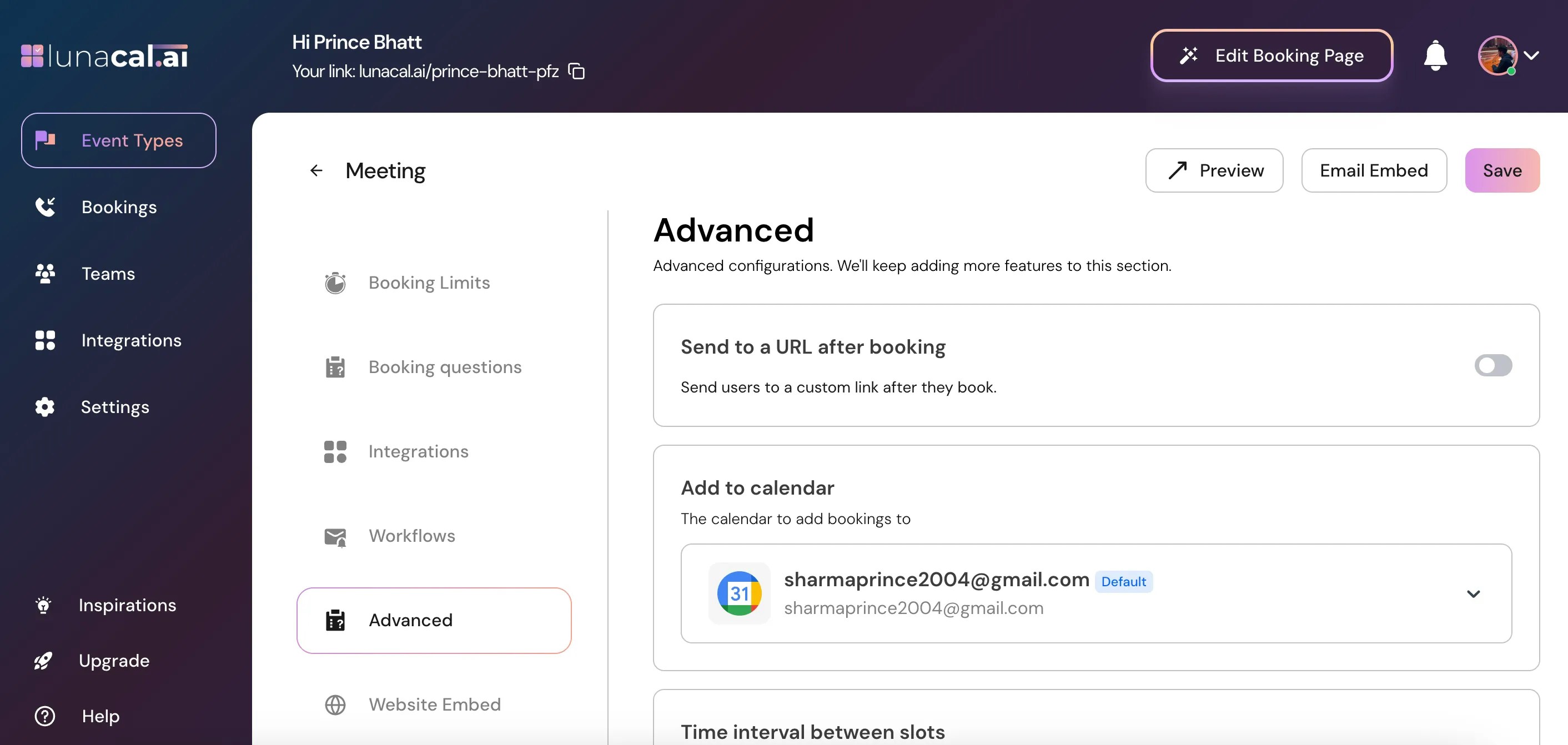
In the "**Event Types**" section, scroll down to find "**Advanced.**"
***
Step 4\
In the "**Event Types**" section, scroll down to find "**Advanced.**"
 ***
Step 5\
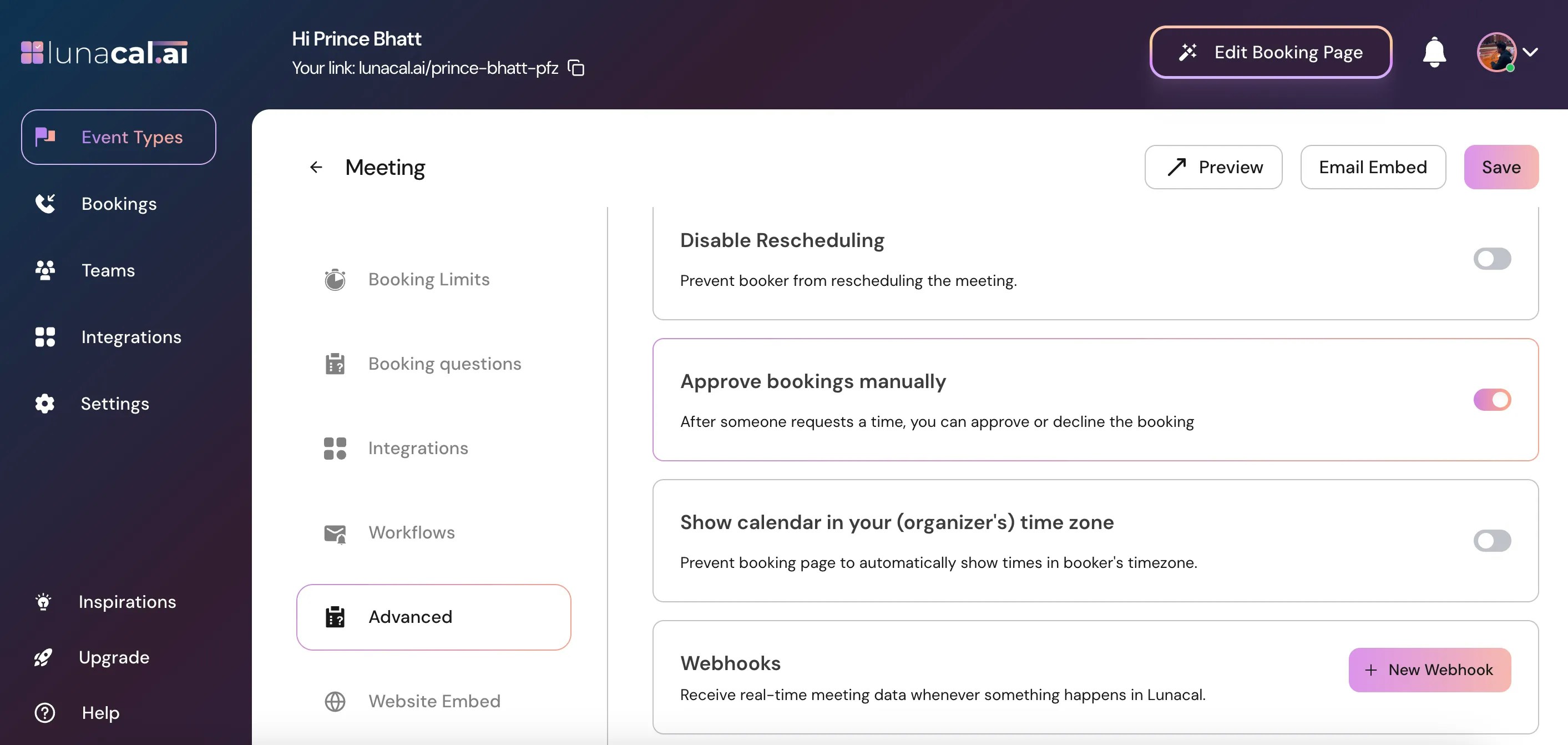
In "**Advanced**" scroll down and toggle on "**Approve bookings manually.**"
***
Step 5\
In "**Advanced**" scroll down and toggle on "**Approve bookings manually.**"
 ***
Step 6\
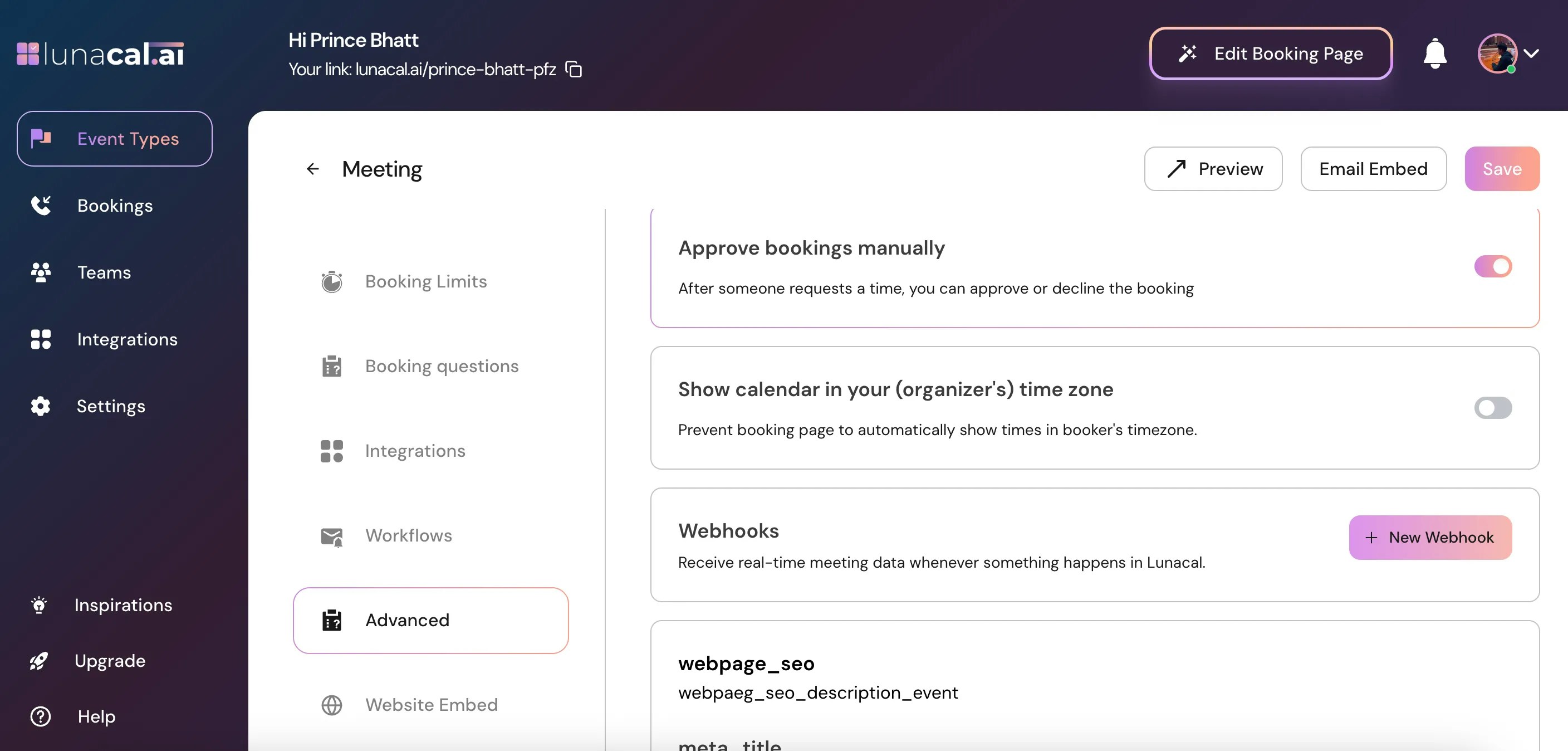
Click "**Save**" to apply the changes.
***
Step 6\
Click "**Save**" to apply the changes.
 📥 What Happens After Enabling Manual Approval?
* Every new booking enters Pending Approval status
* You’ll see the request under your Bookings page
* You’ll receive an email notification
* The client sees a message like "Booking request sent"
* No calendar invite is sent yet
* No reminders are sent until you approve
📥 What Happens After Enabling Manual Approval?
* Every new booking enters Pending Approval status
* You’ll see the request under your Bookings page
* You’ll receive an email notification
* The client sees a message like "Booking request sent"
* No calendar invite is sent yet
* No reminders are sent until you approve