> ## Documentation Index
> Fetch the complete documentation index at: https://help.lunacal.ai/llms.txt
> Use this file to discover all available pages before exploring further.
# Meeting Location
> Learn how to set up different meeting location types for your events in Lunacal — including Zoom, addresses, and phone numbers.
Step 1
Go to [**Event Types**](https://app.lunacal.ai/event-types) in your dashboard.
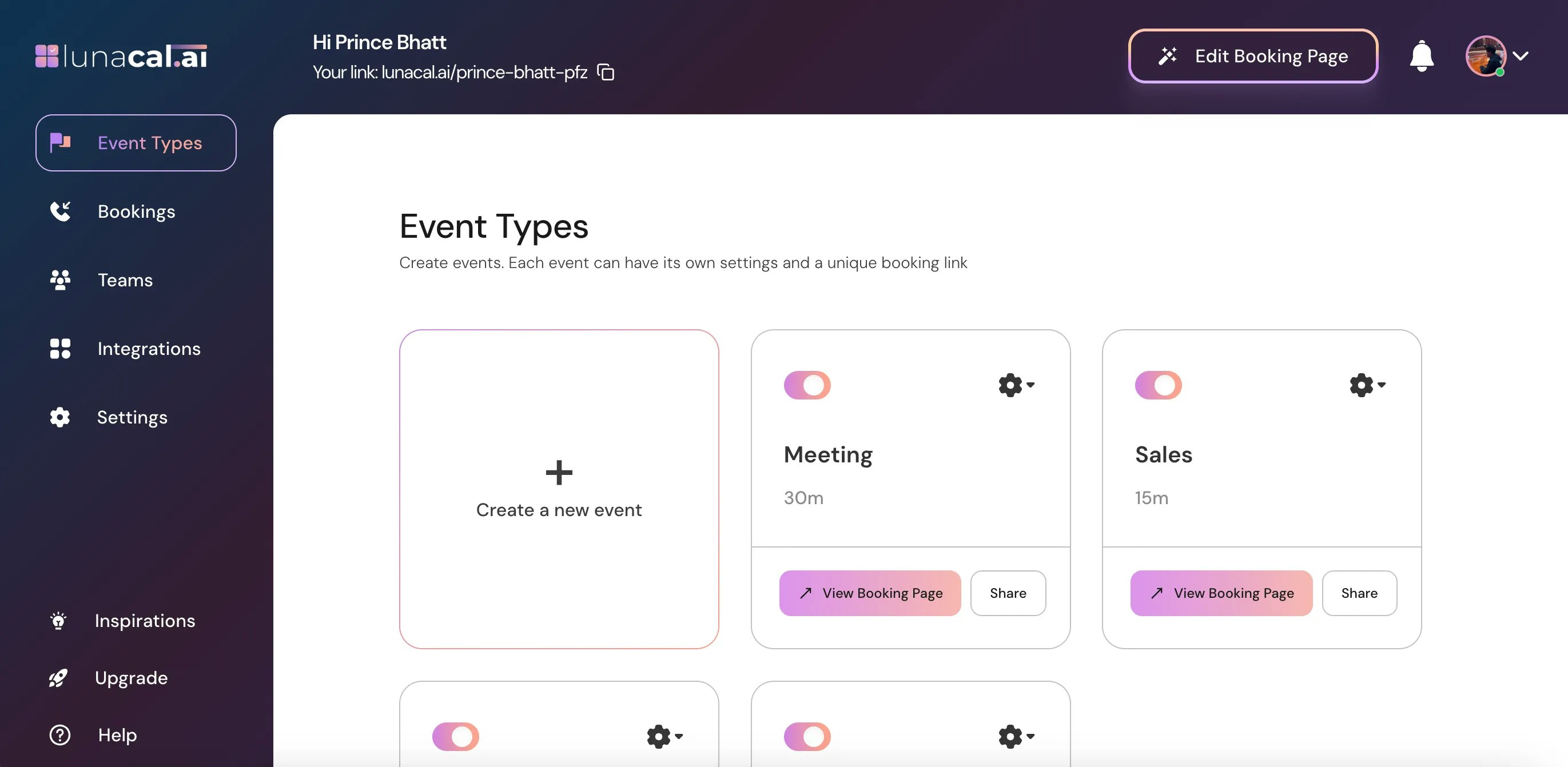
Step 2
Select the event for which you want to set up a meeting location OR click on the Settings icon ⚙️ on that event card.
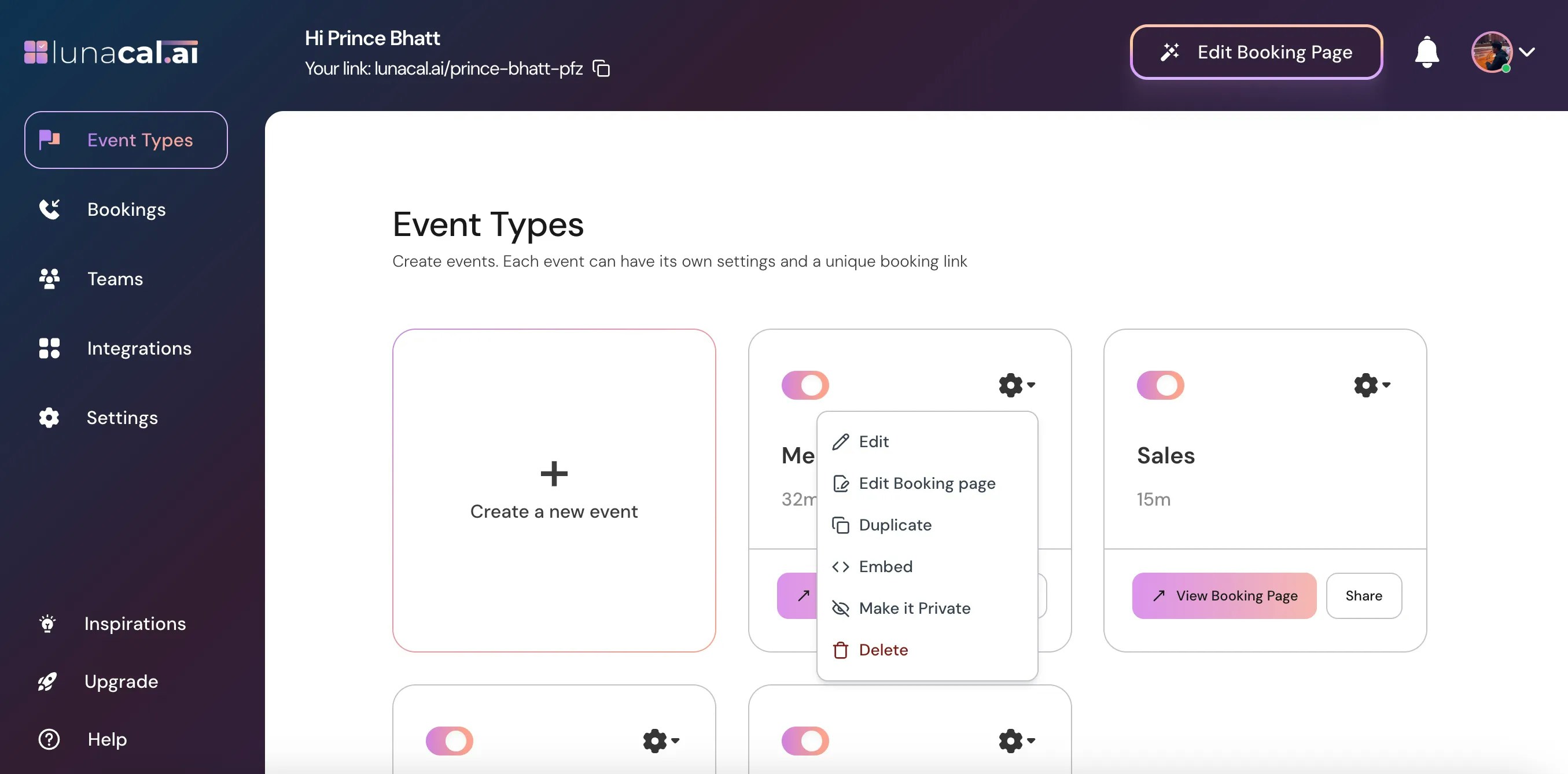
Step 3
Choose **Edit** from the dropdown.
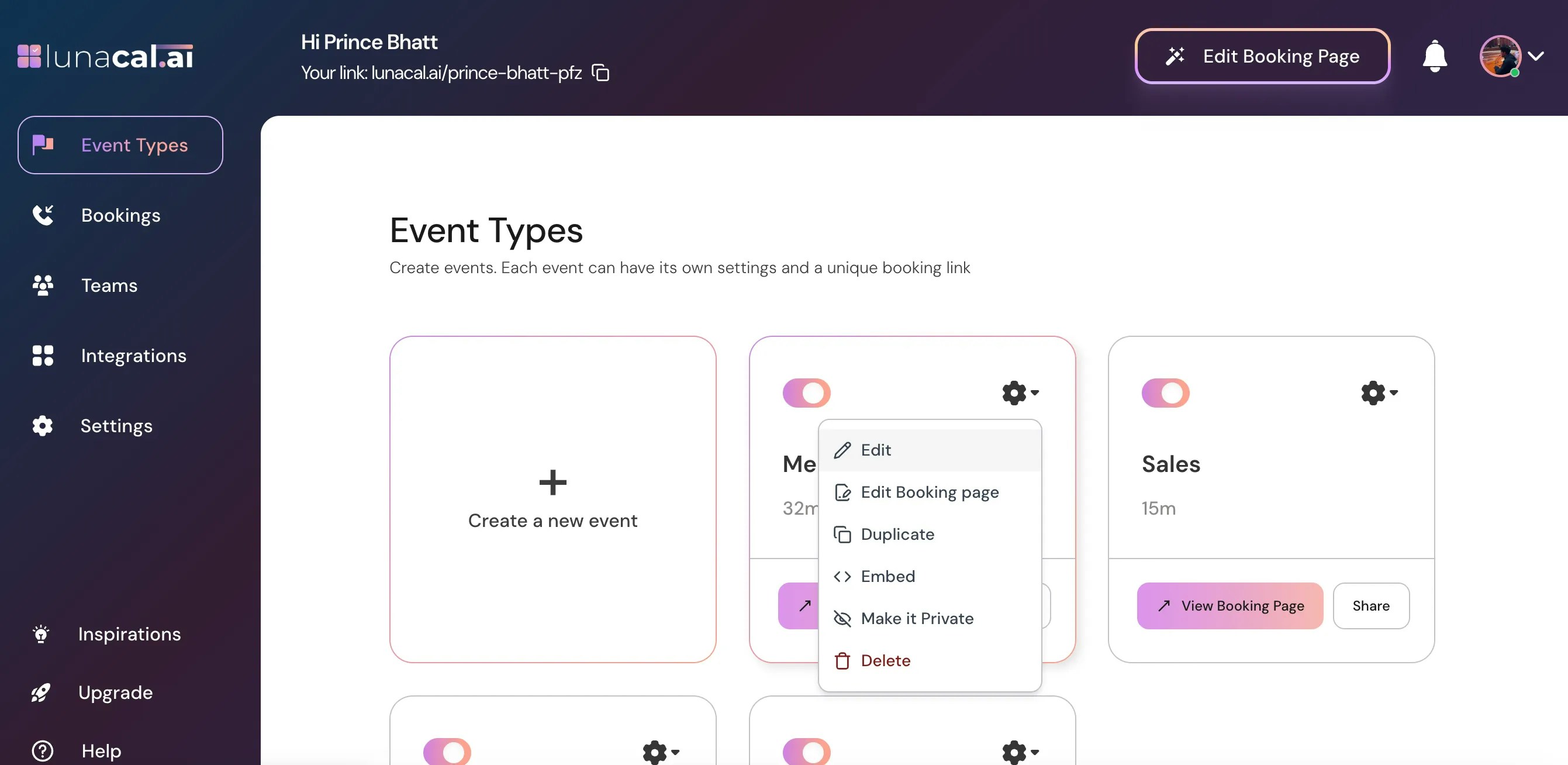
Step 4
In the **Event Setup** section, scroll down to find "Meeting Location."
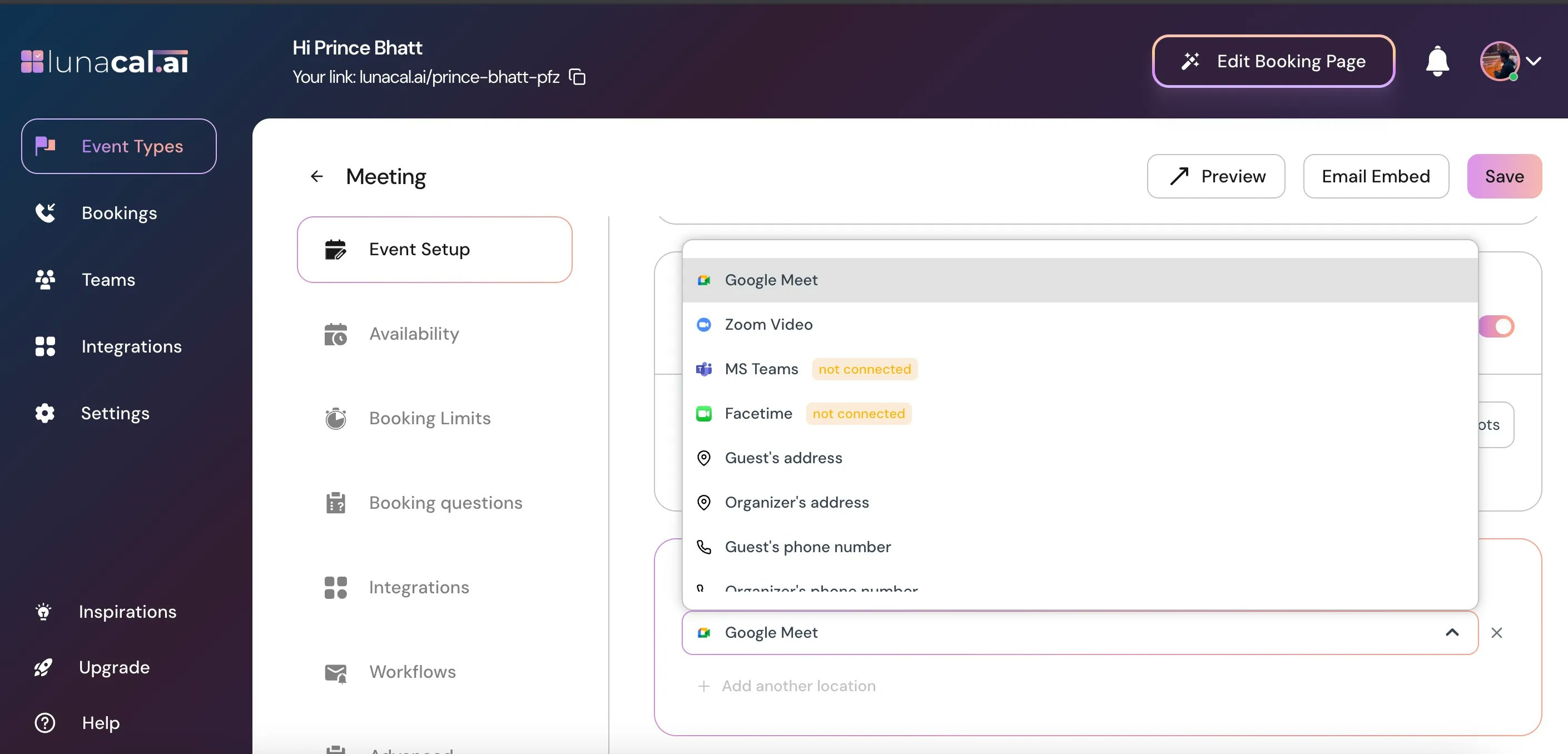
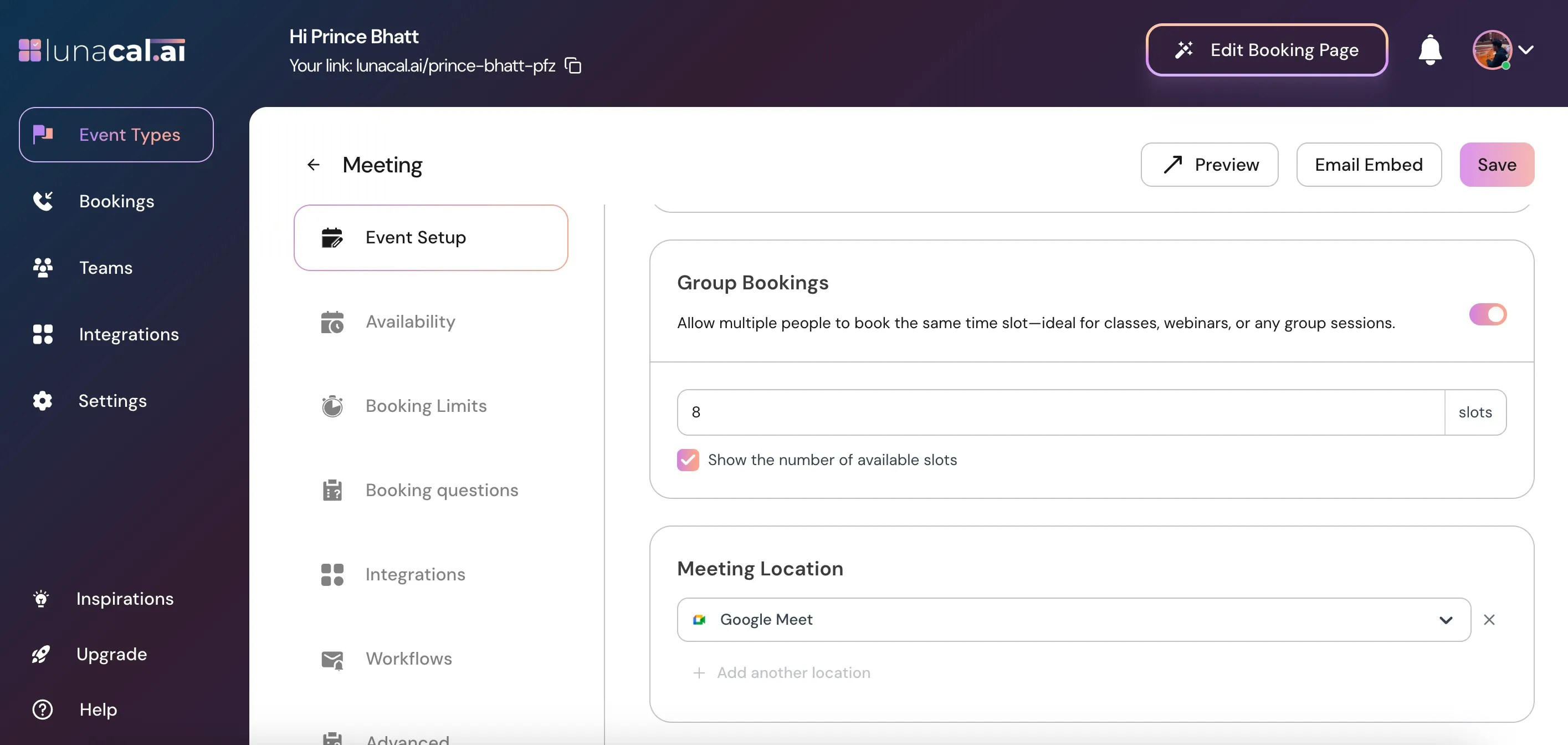 **Different types of meeting locations available in Lunacal are:**
* **Google Meet** - Automatically integrates Google Meet for virtual meetings.
* **Zoom Video** – Automatically integrates Zoom for virtual meetings.
* **MS Teams** – Automatically integrates Microsoft Teams for virtual meetings.
* **FaceTime** – Automatically integrates FaceTime for virtual meetings.
* **Guest Address** – Collect the guest's location for in-person services.
* **Organizer Address** – Show your address so attendees know where to meet you.
* **Guest Phone Number** – Collect the guest's phone number during booking.
* **Organizer Phone Number** – Share your number with attendees after booking.
* **Link Meeting** - Allows you to add a custom online meeting link for any meeting platform or URL.
1. For **Link Meeting**, you can add a **Custom Label** so instead of showing the raw URL, it shows a clean name like ***Join Meeting***.
2. When "**Display on booking page**" is on, **Custom Label** will not work.
For both **Organizer's Address** and **Custom Link Meeting**, you will see an option:
**Different types of meeting locations available in Lunacal are:**
* **Google Meet** - Automatically integrates Google Meet for virtual meetings.
* **Zoom Video** – Automatically integrates Zoom for virtual meetings.
* **MS Teams** – Automatically integrates Microsoft Teams for virtual meetings.
* **FaceTime** – Automatically integrates FaceTime for virtual meetings.
* **Guest Address** – Collect the guest's location for in-person services.
* **Organizer Address** – Show your address so attendees know where to meet you.
* **Guest Phone Number** – Collect the guest's phone number during booking.
* **Organizer Phone Number** – Share your number with attendees after booking.
* **Link Meeting** - Allows you to add a custom online meeting link for any meeting platform or URL.
1. For **Link Meeting**, you can add a **Custom Label** so instead of showing the raw URL, it shows a clean name like ***Join Meeting***.
2. When "**Display on booking page**" is on, **Custom Label** will not work.
For both **Organizer's Address** and **Custom Link Meeting**, you will see an option:
☑ Display on booking page
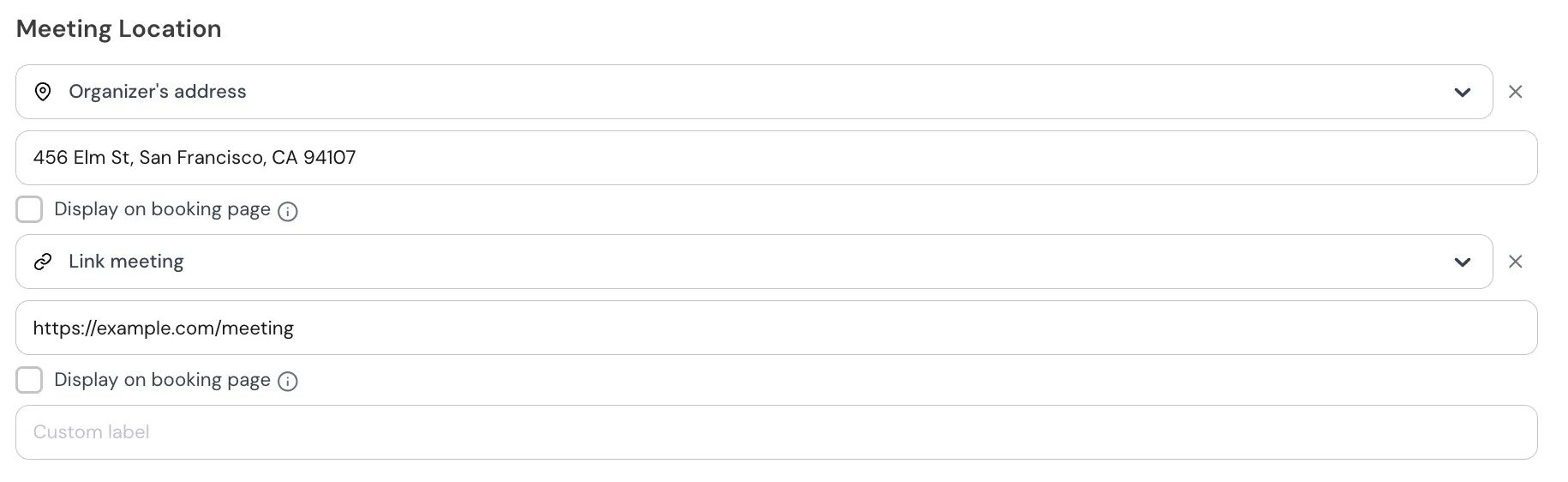 When this option is enabled, the meeting location (your address / your custom meeting link) will be **shown directly on the booking page before the attendee confirms the meeting**.
| Section | Details |
| :-------------------------------- | :-------------------------------------------------------------------------------------------------------------------------------------------------------------------------------------------------------------- |
| **What this means for attendees** | • They can see the location **before booking**.• Lets them decide if the meeting format (in-person, link, office, etc.) works for them.• Provides full transparency about where the meeting will happen. |
| **When you should enable it** | • When you want guests to know the address **before confirming** (e.g., office visits).• When using a **Custom Link** (Google Meet, Teams, personal link) and want attendees to verify the platform in advance. |
| **When you should NOT enable it** | • When the address/link should only be shared **after booking** for privacy or security.• When only confirmed attendees should see the location (via email/calendar invite). |
When this option is enabled, the meeting location (your address / your custom meeting link) will be **shown directly on the booking page before the attendee confirms the meeting**.
| Section | Details |
| :-------------------------------- | :-------------------------------------------------------------------------------------------------------------------------------------------------------------------------------------------------------------- |
| **What this means for attendees** | • They can see the location **before booking**.• Lets them decide if the meeting format (in-person, link, office, etc.) works for them.• Provides full transparency about where the meeting will happen. |
| **When you should enable it** | • When you want guests to know the address **before confirming** (e.g., office visits).• When using a **Custom Link** (Google Meet, Teams, personal link) and want attendees to verify the platform in advance. |
| **When you should NOT enable it** | • When the address/link should only be shared **after booking** for privacy or security.• When only confirmed attendees should see the location (via email/calendar invite). |
Step 5
From the dropdown, choose the preferred location type:
Step 6
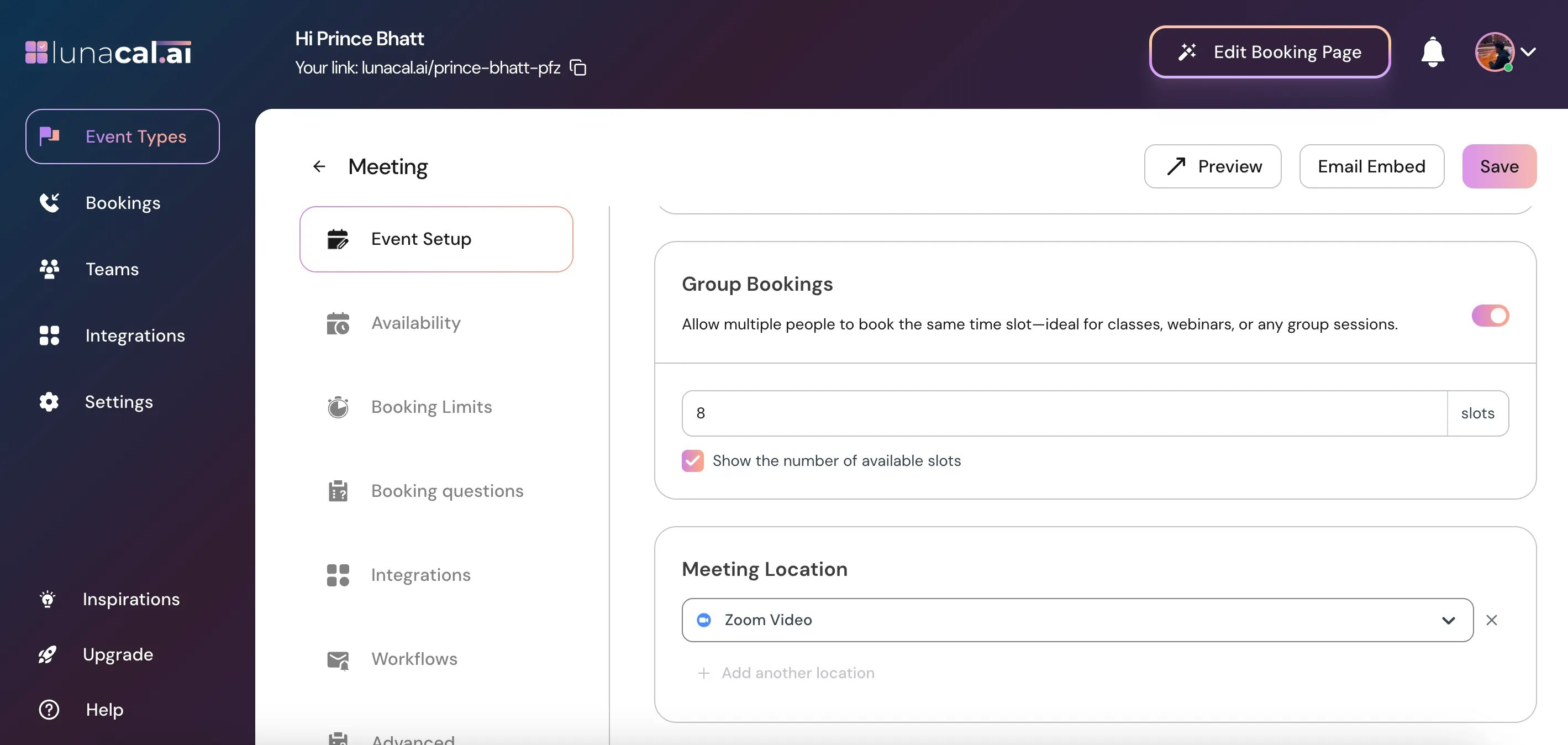
Eg. **Zoom Video** - Refer to the [Zoom help guide](https://help.lunacal.ai/event-types/Zoom-Video) for instructions on integrating Zoom with Lunacal.
Step 7
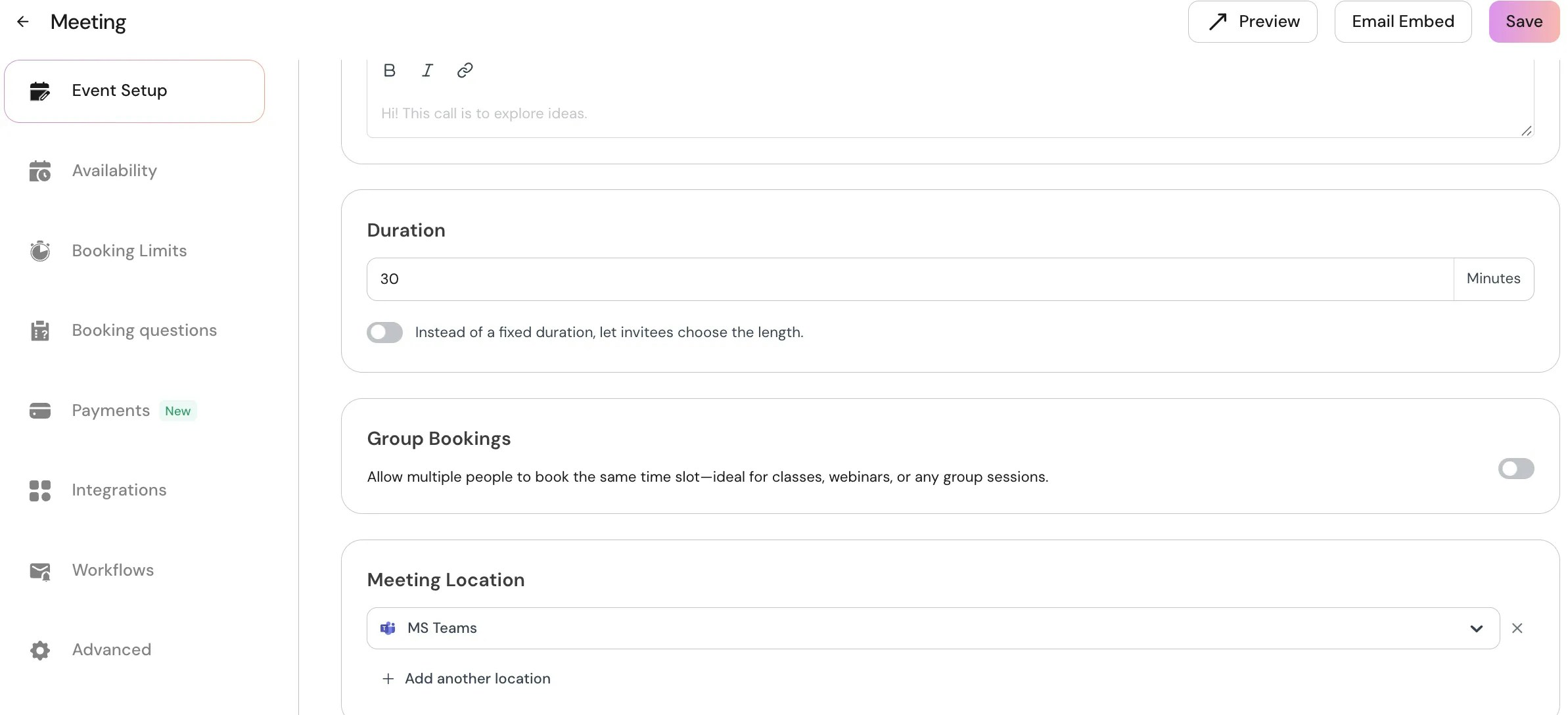
"**Microsoft Teams**" – Use this option to add your MS Teams meeting link so attendees can join the session online.
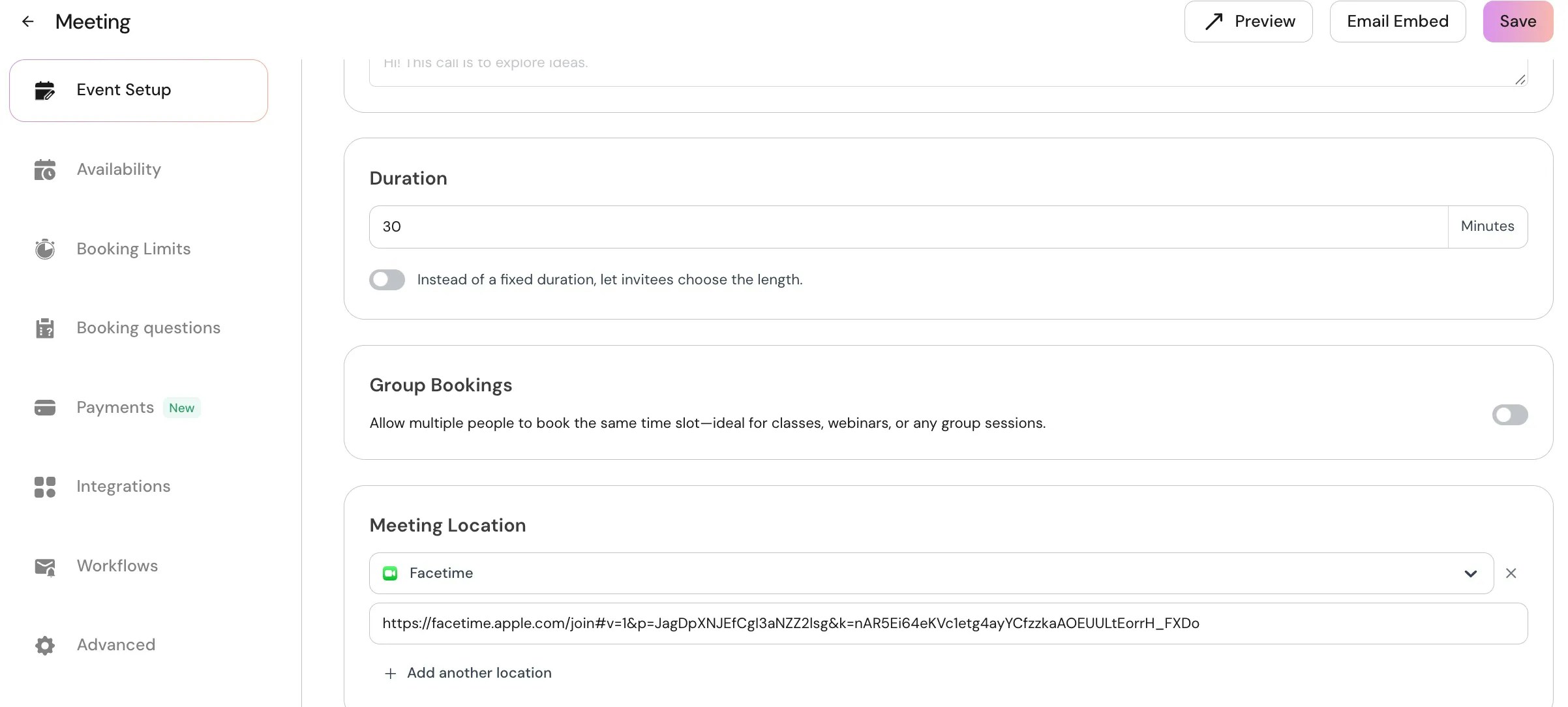
Step 8
"**FaceTime**" – Add your FaceTime link for video calls with Apple users.
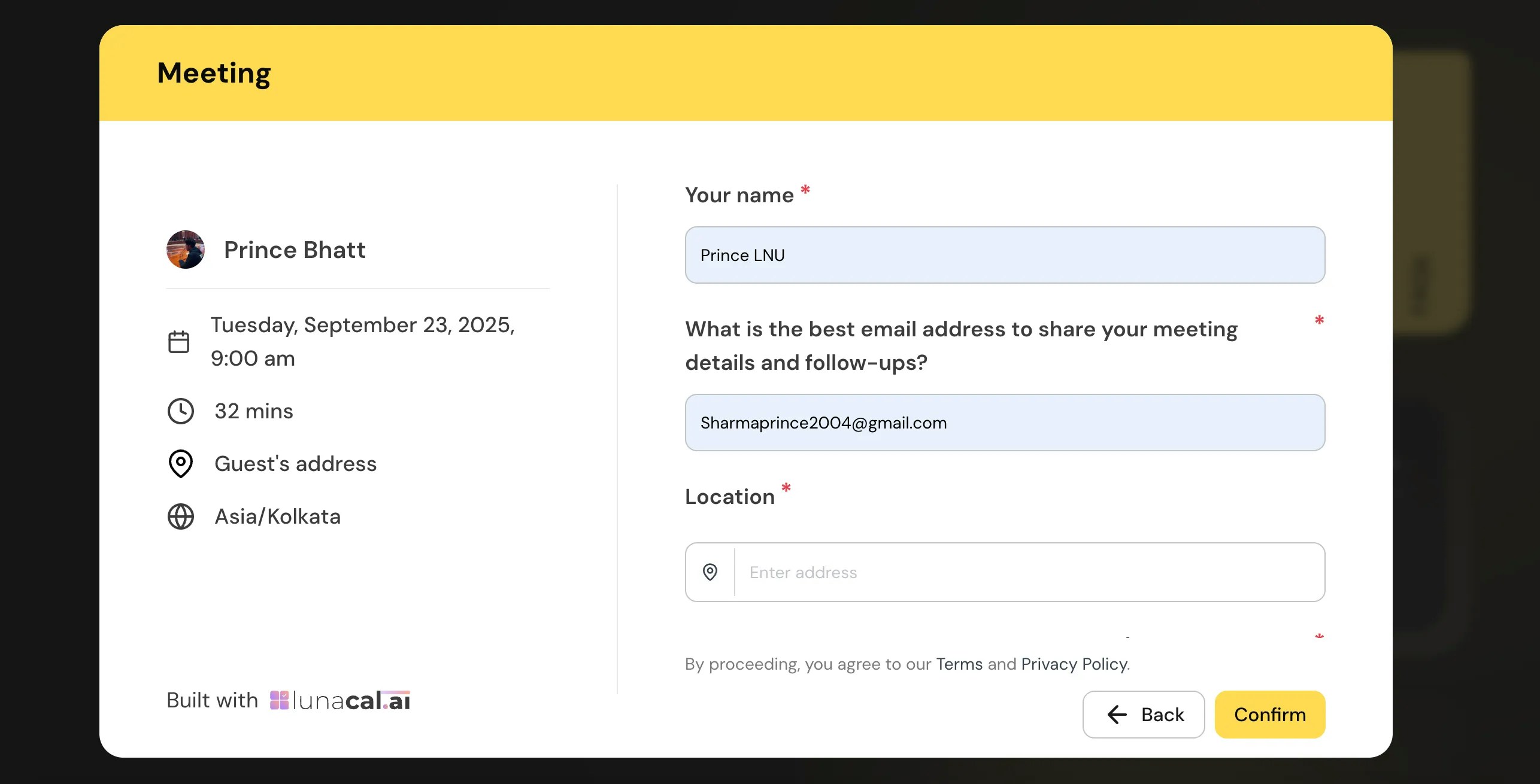
Step 9
"**Guest Address**" - The guest enters their address while booking your page.This is useful for in-person services or sessions held at the guest's location.
Booker View:
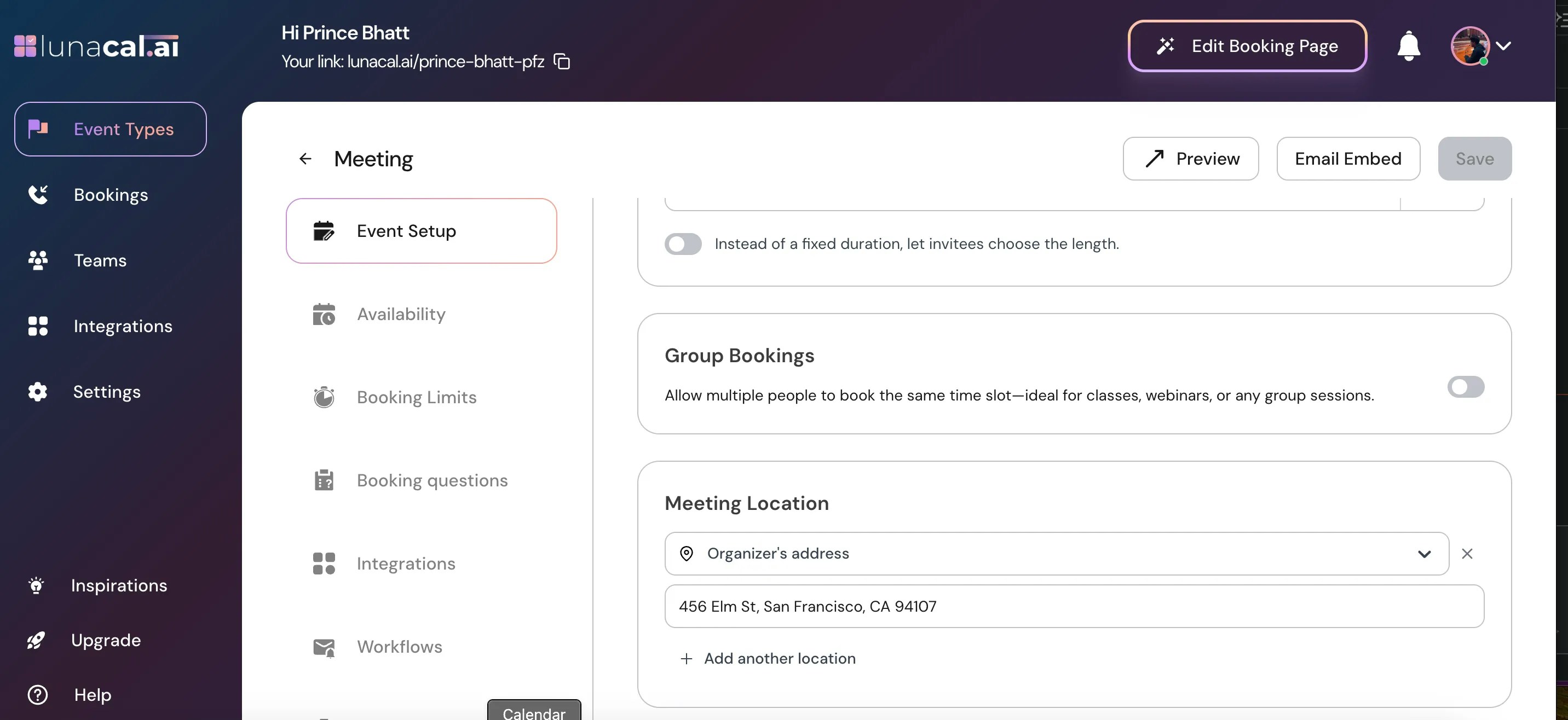
Step 10
"**Organizer Address**" - You can set your own address, which will be shown on the booking page so attendees know exactly where to meet you. ⚠️ Warning: Organizer Address Will be visible on the booking page. Enable only if you're okay sharing your location publicly.
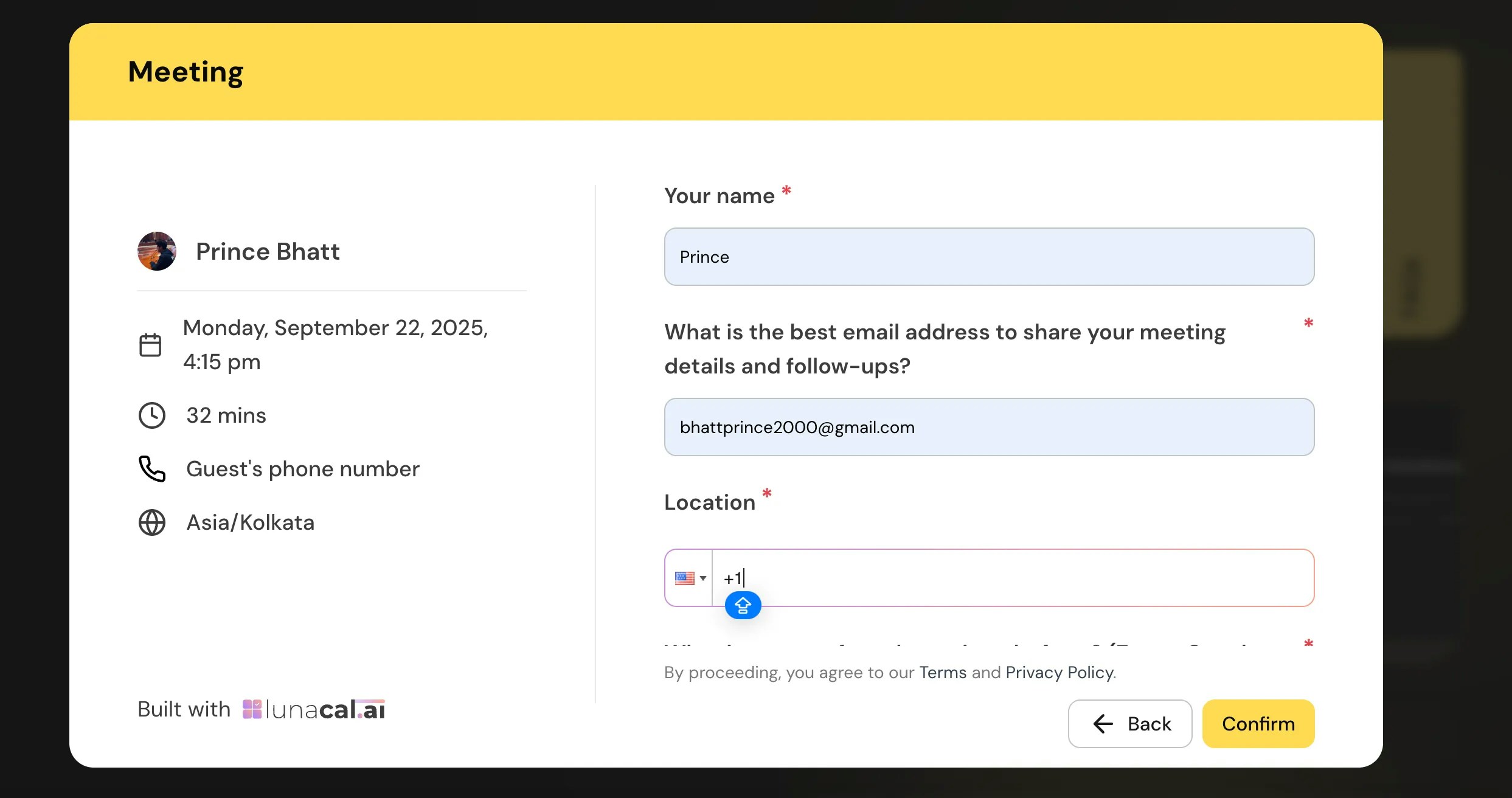
Step 11
"**Guest Phone Number**" - The system collects the guest's phone number at the time of booking, which you can use to connect directly.
Step 12
"**Organizer Phone Number**" - Your phone number will be shared with attendees after booking the slot, so they can reach you if needed.
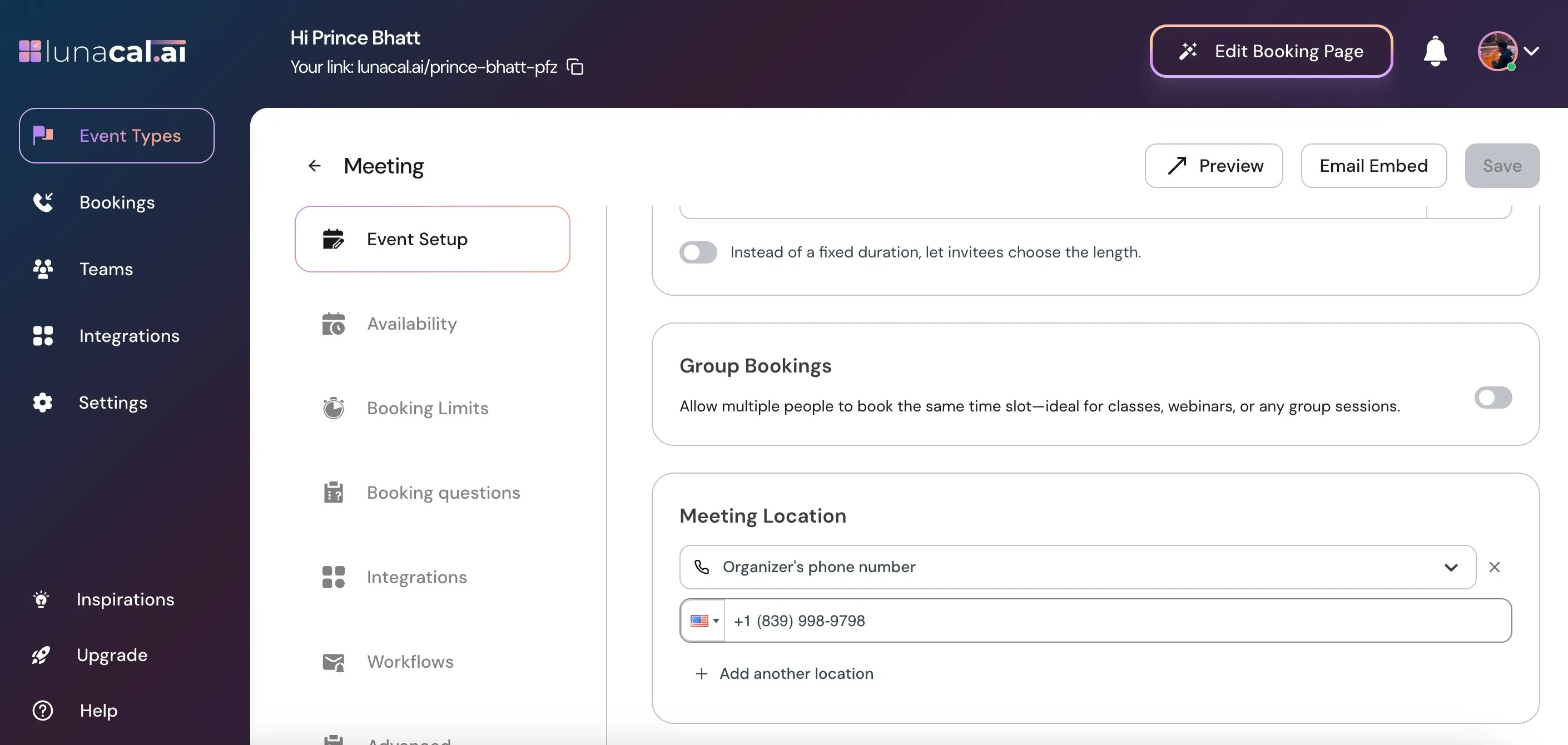
Add Another Location
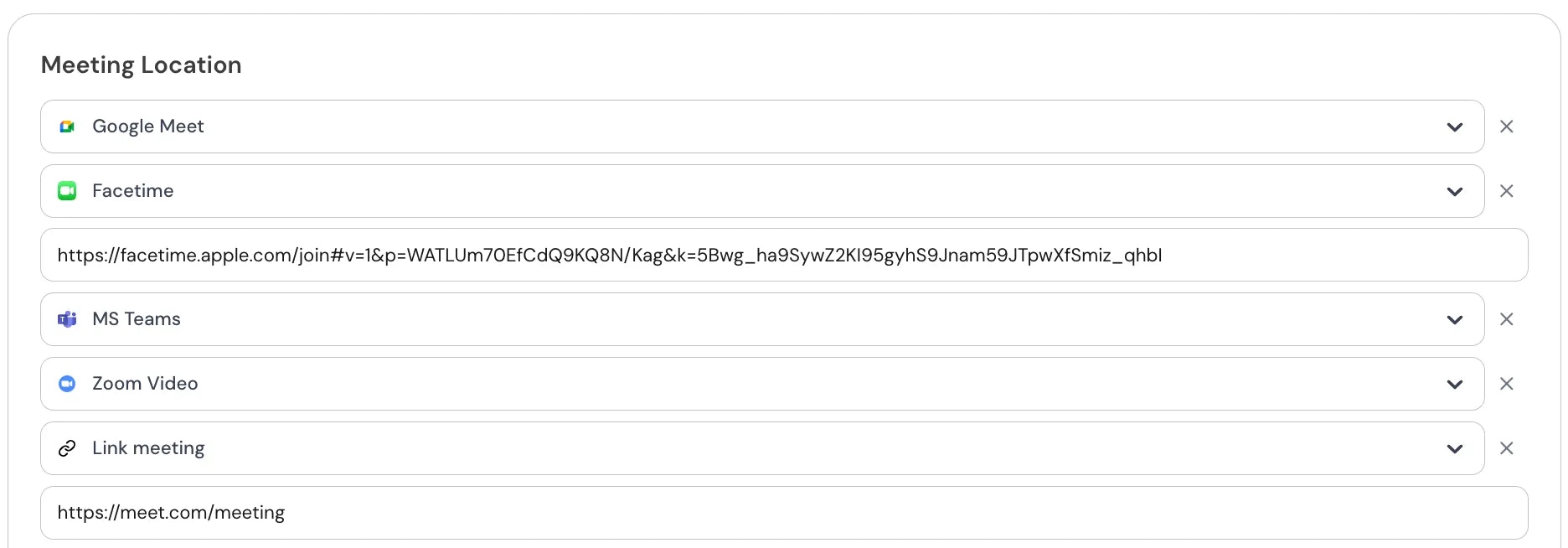
You can add **multiple meeting location** types to the same event — for example Google Meet, Microsoft Teams, Zoom, or any other location option.
When you add 2 or more locations, the attendee will see all available options on the booking page, each with a checkbox or selection option. They can then choose the meeting location they prefer before confirming the booking.
 ***
***