> ## Documentation Index
> Fetch the complete documentation index at: https://help.lunacal.ai/llms.txt
> Use this file to discover all available pages before exploring further.
# PayPal Setup Integration
> Use this guide to connect PayPal so you can accept payments for specific events or teams. It covers the “Integrations” → “Payment” flow, required credentials, and pricing.
Use PayPal integration if you want to collect payments before a booking is confirmed. You can enable payments for specific events or across an entire team.
> **Before you start:** Make sure you have a PayPal Business account. You’ll need access to the Client ID and Secret Key from your PayPal dashboard.
>
> Use a separate Client ID and Secret Key for each lunacal account or teams.
## Step 1
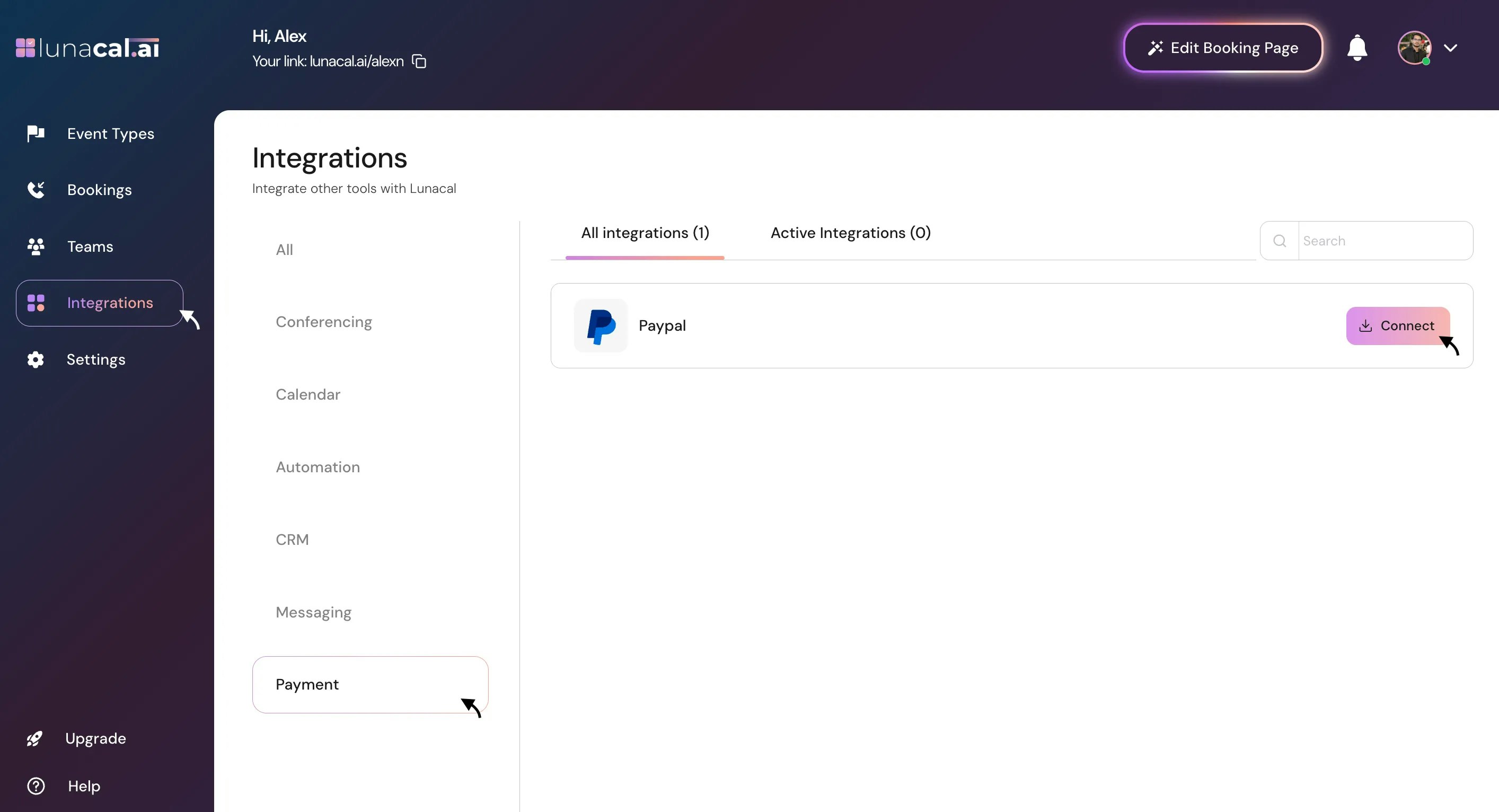
Go to [Integrations](https://app.lunacal.ai/apps) → “[Payment](https://app.lunacal.ai/apps?category=payment)”, then click “connect” to start PayPal setup.
 ## Step 2
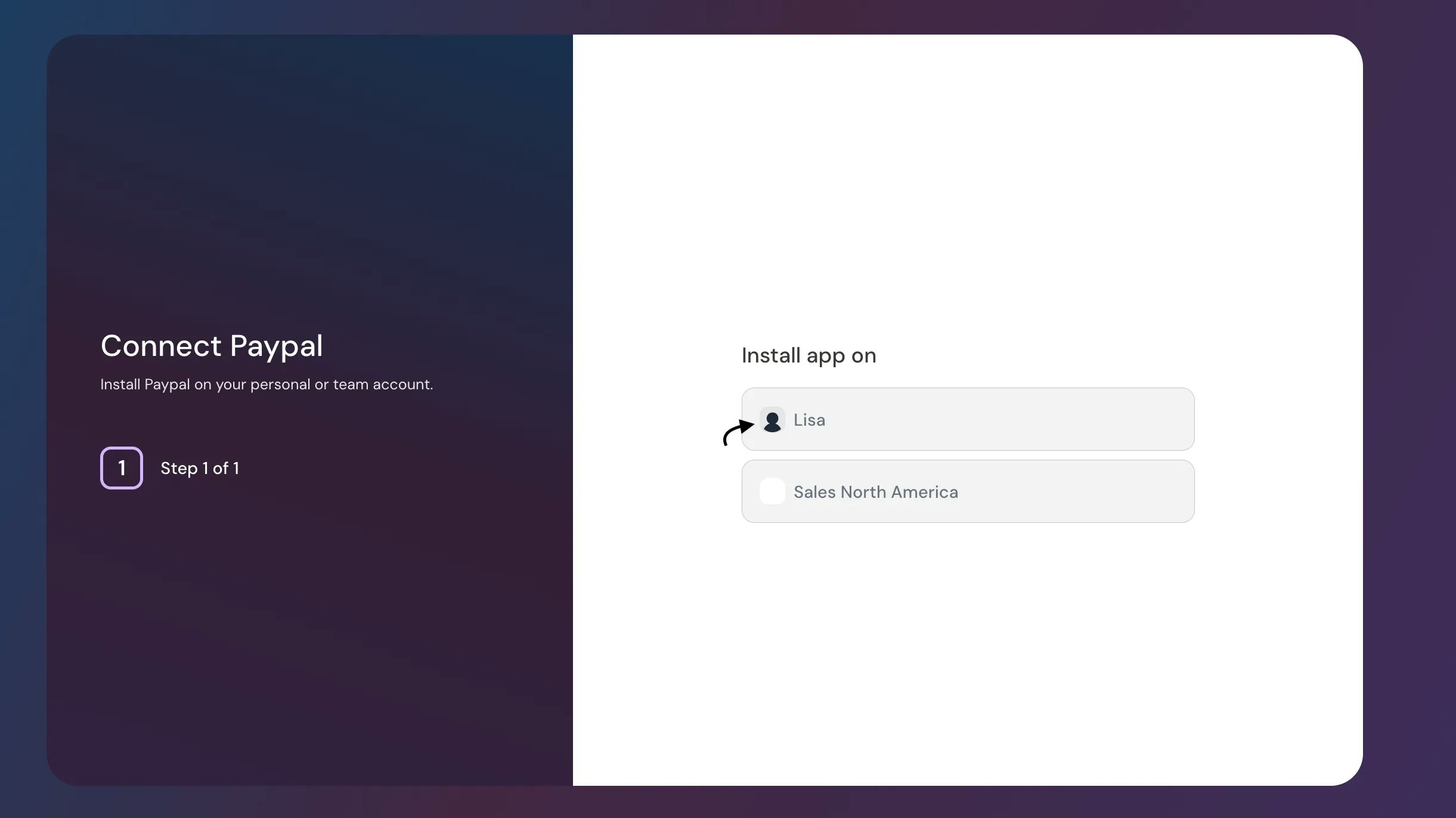
Choose where to install PayPal: a specific event or your teams.\
Example: You run free intro calls but paid workshops. Install PayPal only on the “Workshop” event so intro calls stay free.
## Step 2
Choose where to install PayPal: a specific event or your teams.\
Example: You run free intro calls but paid workshops. Install PayPal only on the “Workshop” event so intro calls stay free.
 ## Step 3
> **Security note:** Never share your Secret Key publicly or store it in unsecured documents.
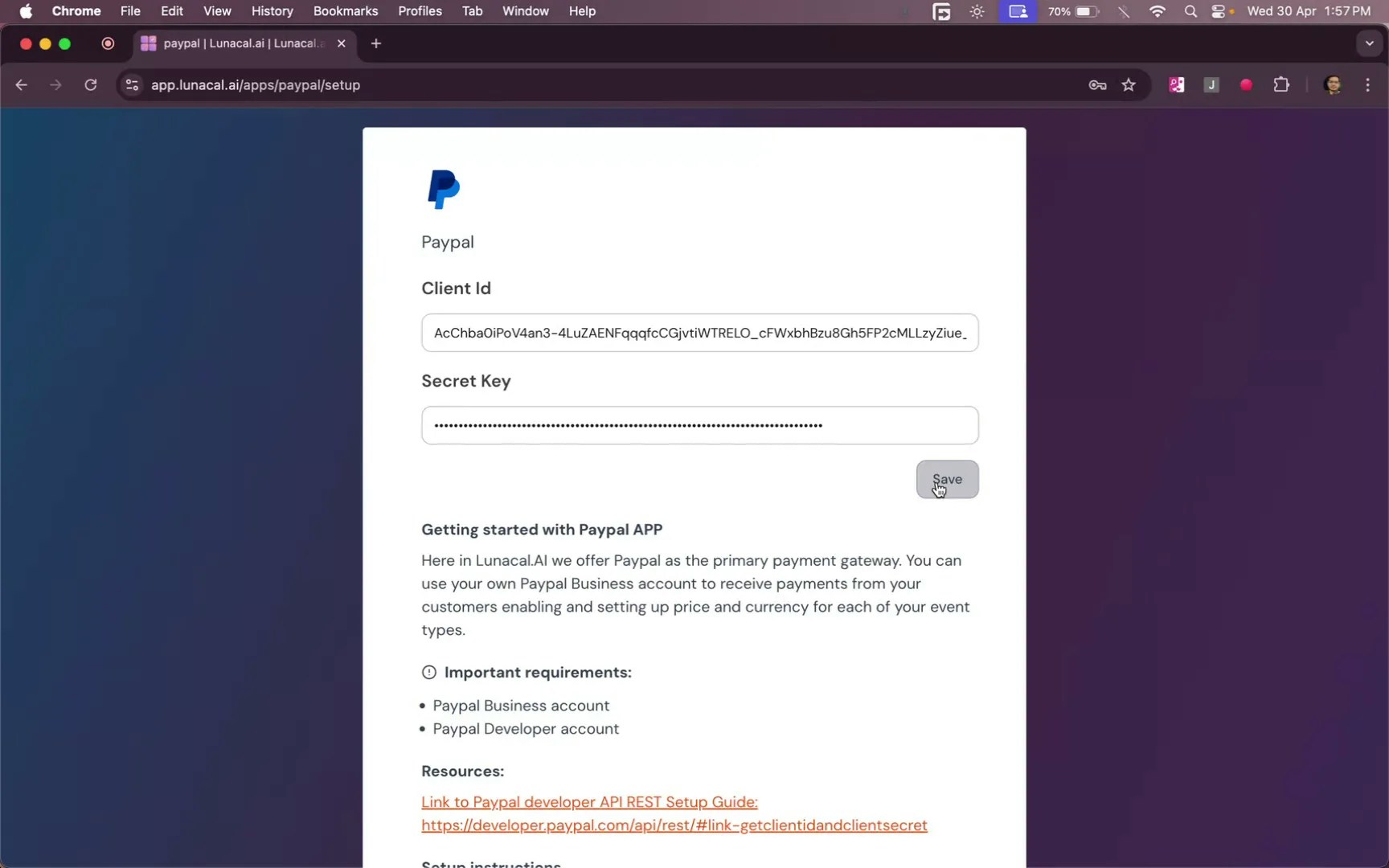
Enter your “**Client ID**” and “**Secret Key**”, then click “**Save**”.\
Example: If your developer manages credentials, ask them for the “**Client ID**” and “**Secret Key**” from PayPal. Keep the “**Secret Key**” private **Note**: To Get Your PayPal Client ID and Secret Key refer to these [Docs](https://developer.paypal.com/api/rest/) OR [Tutorial](https://youtu.be/povhVRdCExc)
## Step 3
> **Security note:** Never share your Secret Key publicly or store it in unsecured documents.
Enter your “**Client ID**” and “**Secret Key**”, then click “**Save**”.\
Example: If your developer manages credentials, ask them for the “**Client ID**” and “**Secret Key**” from PayPal. Keep the “**Secret Key**” private **Note**: To Get Your PayPal Client ID and Secret Key refer to these [Docs](https://developer.paypal.com/api/rest/) OR [Tutorial](https://youtu.be/povhVRdCExc)
 ## Step 4
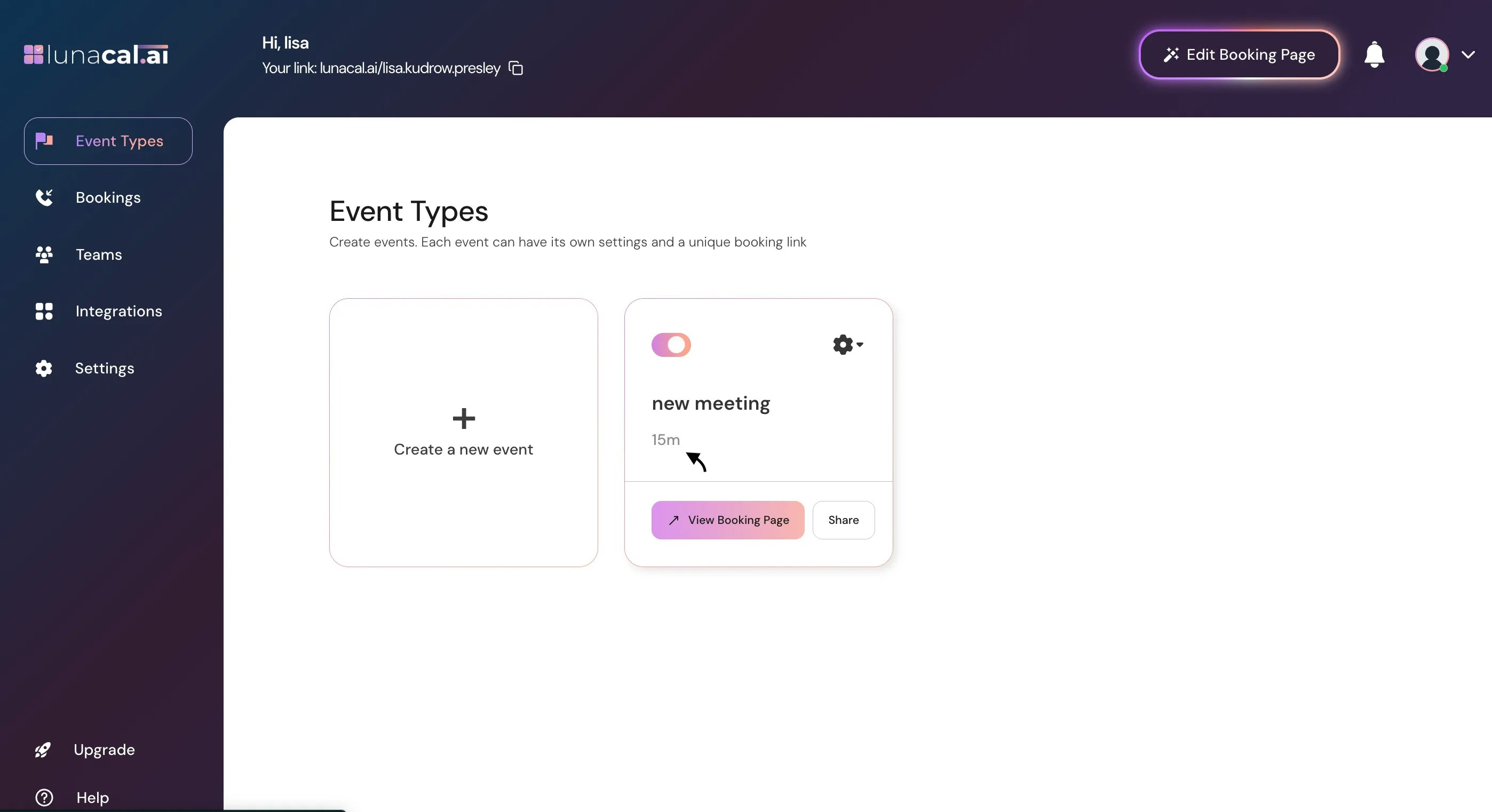
After install, open the event app where you want payments and click the event.
## Step 4
After install, open the event app where you want payments and click the event.
 ## Step 5
In “**Payments**”, enable the “**Paypal**” button.

## Step 6
Set a price (e.g., \$5) and select the currency.\
Example: If your audience is global, set USD. If most clients are in the EU, pick EUR to reduce conversion fees.
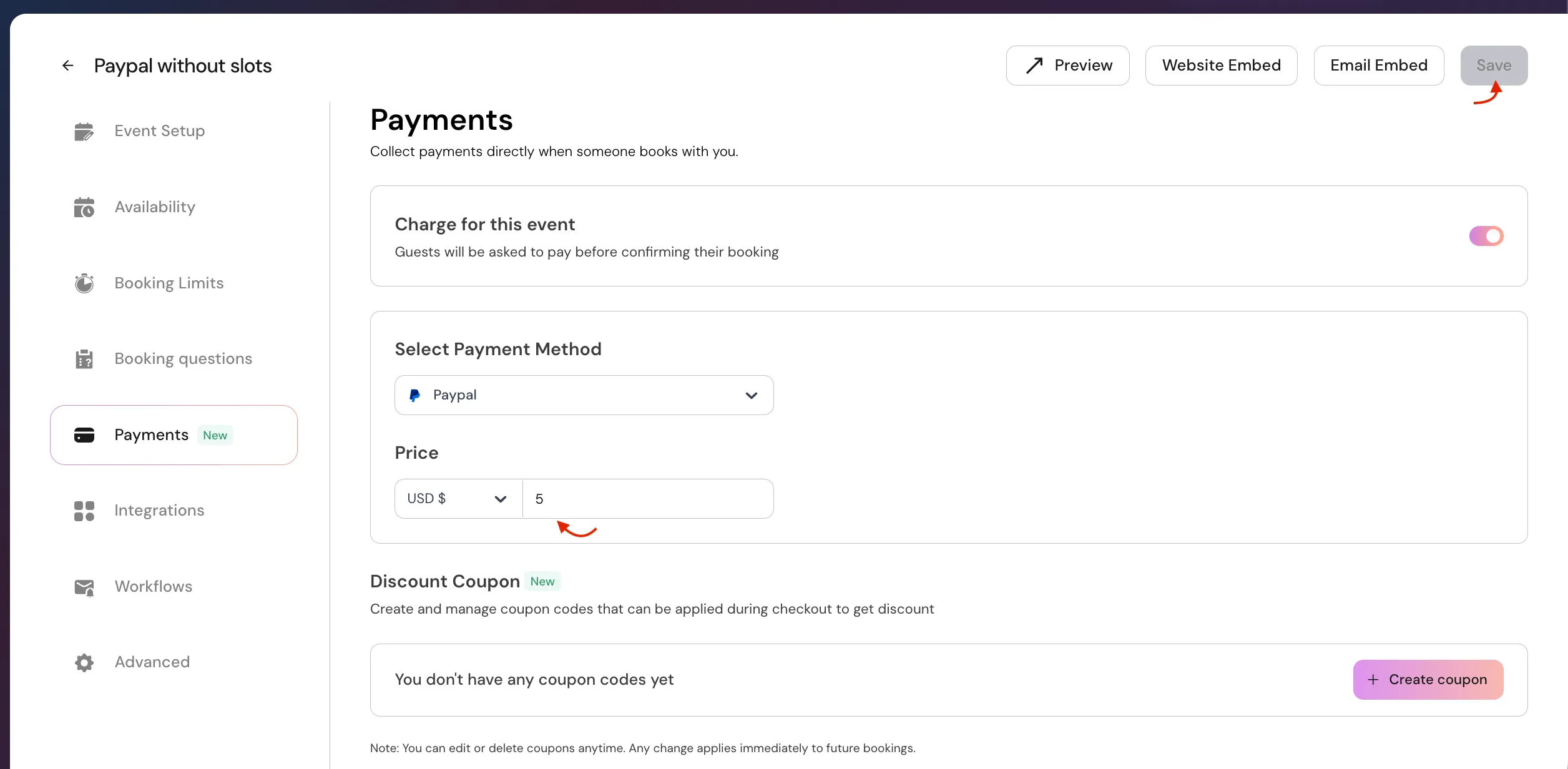
## Step 7
Click "**Save**" to confirm your settings.
## Step 5
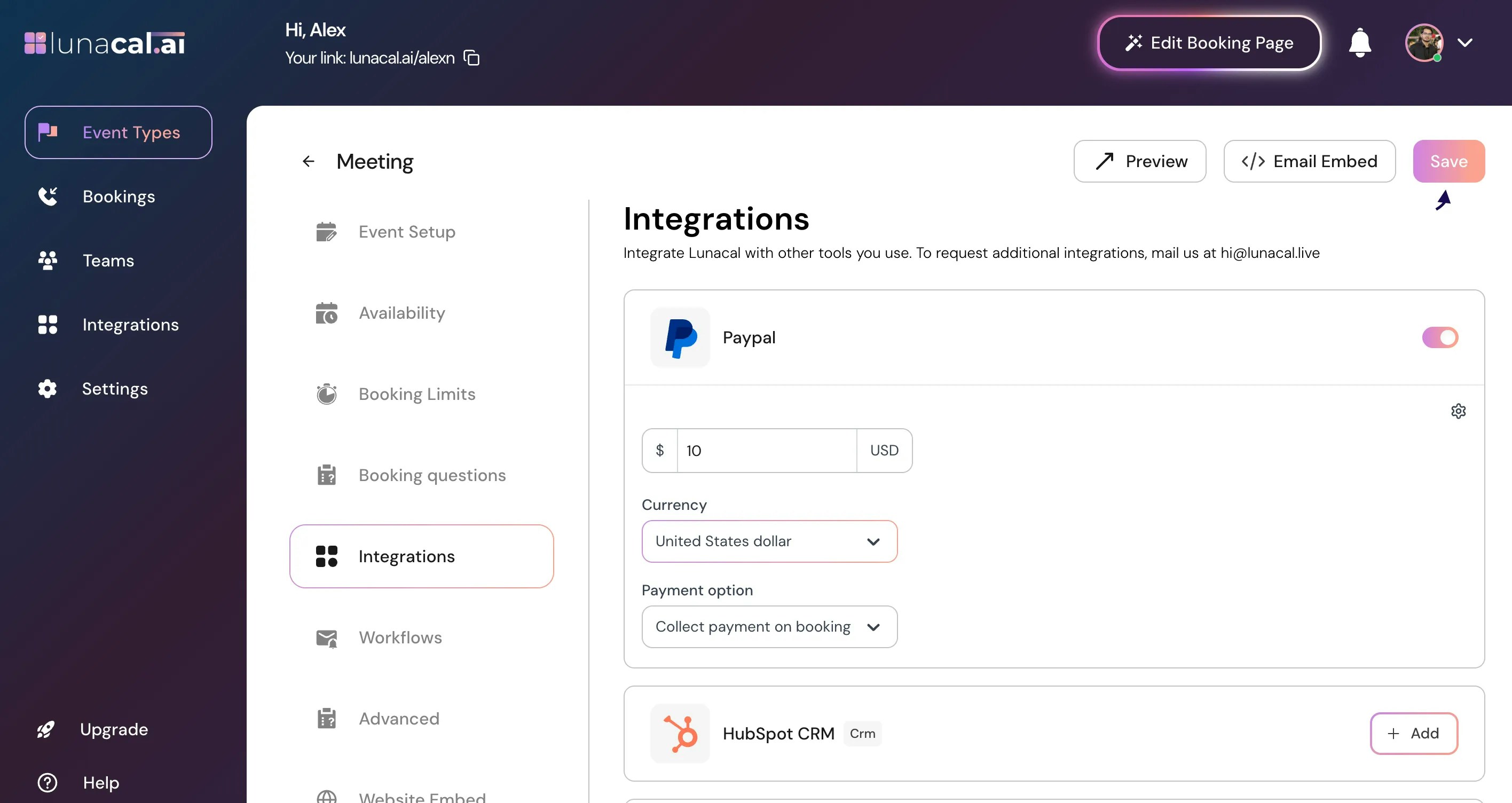
In “**Payments**”, enable the “**Paypal**” button.

## Step 6
Set a price (e.g., \$5) and select the currency.\
Example: If your audience is global, set USD. If most clients are in the EU, pick EUR to reduce conversion fees.

## Step 7
Click "**Save**" to confirm your settings.
 ## Step 8
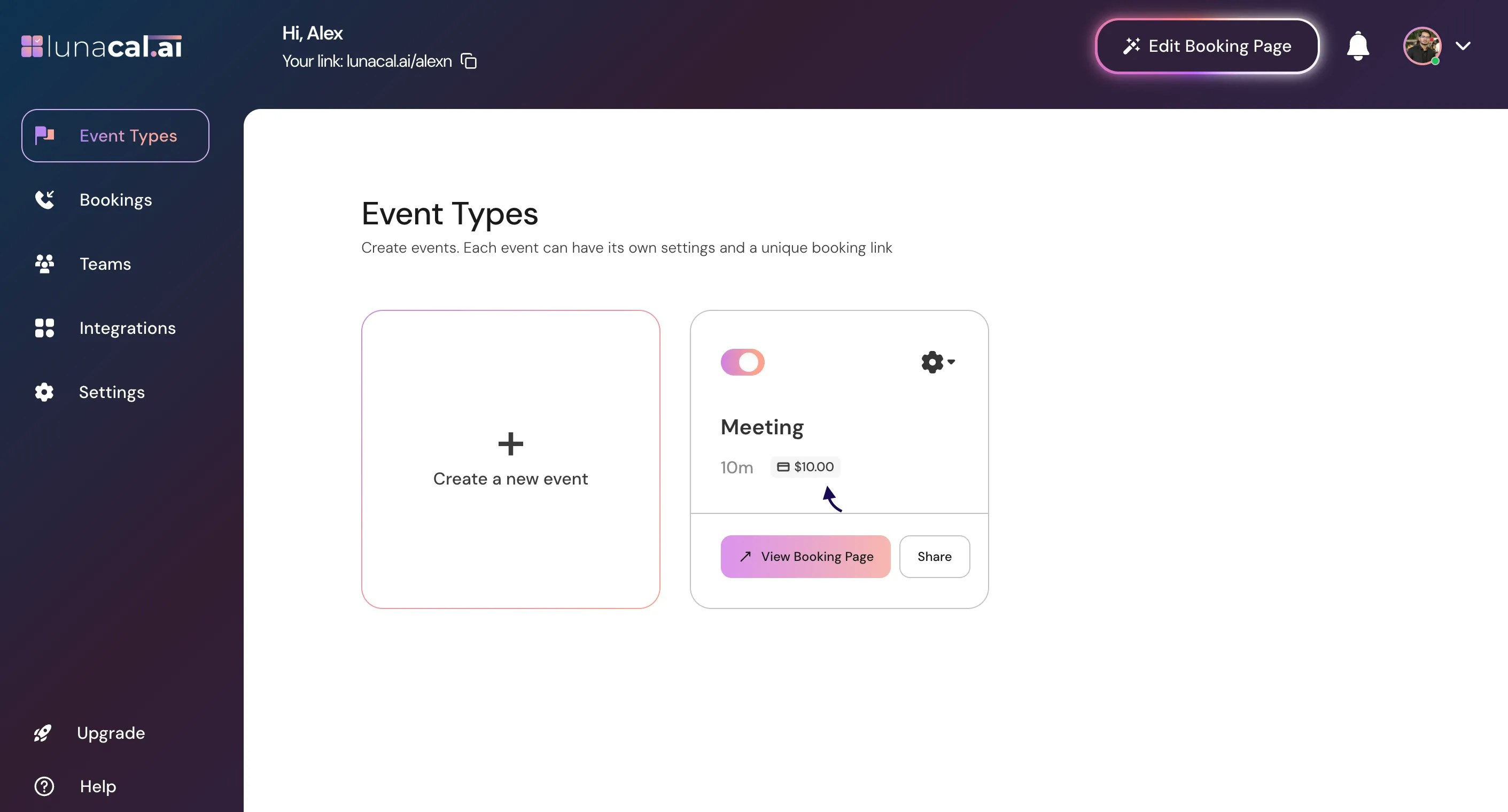
Your setup is complete. You’ll see a price tag on that event type.\
Example: A client books the “Workshop” and sees the price on the scheduling page—no surprises, fewer drop-offs
> During booking, attendees must complete payment via PayPal before the meeting is confirmed. If payment fails or is cancelled, the booking is not created.
## Step 8
Your setup is complete. You’ll see a price tag on that event type.\
Example: A client books the “Workshop” and sees the price on the scheduling page—no surprises, fewer drop-offs
> During booking, attendees must complete payment via PayPal before the meeting is confirmed. If payment fails or is cancelled, the booking is not created.
 **Common mistakes to avoid**
* Using same Client ID and Secret Key for each lunacal account or teams.
* Entering the wrong “Client ID”“Secret Key” (typos break checkout).
* Forgetting to enable the “paypal” toggle under “integrations” for the event.
* Setting price but not saving; the event remains free.
* Installing PayPal at team level when you meant to apply it only to one event.
* If payments don’t appear during booking, confirm PayPal is enabled for the correct event and the price is saved.
**Good defaults to start with**
* Install PayPal on one paid event first (keep trial/intro events free).
* Use a single common currency for your main audience.
* Start with a round price (for example, \$25) to simplify checkout and reporting.
* Test one real booking end-to-end before promoting the link.
**Common mistakes to avoid**
* Using same Client ID and Secret Key for each lunacal account or teams.
* Entering the wrong “Client ID”“Secret Key” (typos break checkout).
* Forgetting to enable the “paypal” toggle under “integrations” for the event.
* Setting price but not saving; the event remains free.
* Installing PayPal at team level when you meant to apply it only to one event.
* If payments don’t appear during booking, confirm PayPal is enabled for the correct event and the price is saved.
**Good defaults to start with**
* Install PayPal on one paid event first (keep trial/intro events free).
* Use a single common currency for your main audience.
* Start with a round price (for example, \$25) to simplify checkout and reporting.
* Test one real booking end-to-end before promoting the link.