> ## Documentation Index
> Fetch the complete documentation index at: https://help.lunacal.ai/llms.txt
> Use this file to discover all available pages before exploring further.
# Pipedrive Integration With lunacal
> Connect Lunacal with Pipedrive and verify contacts and activities.
## How to Connect
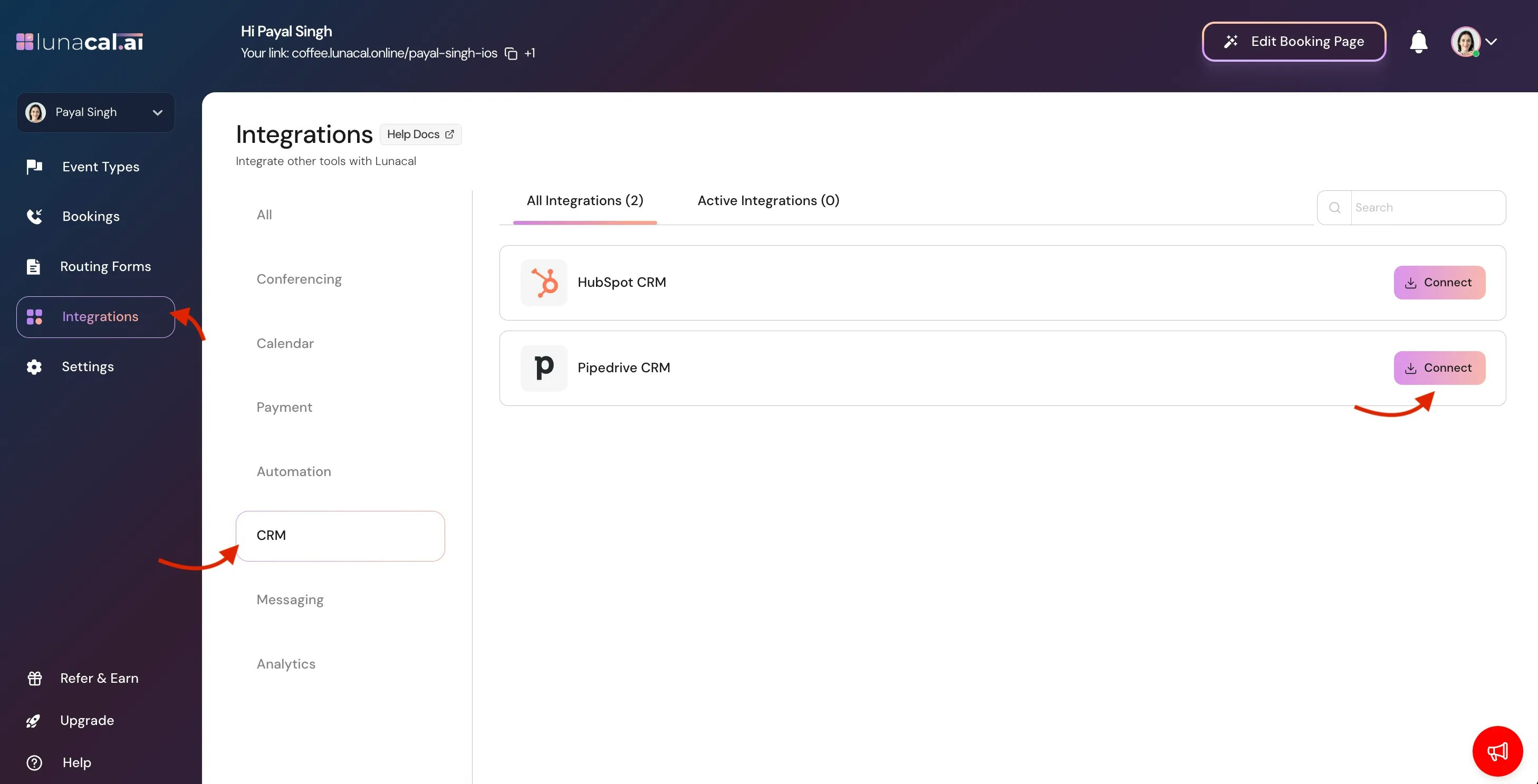
1. Go to **Integrations > CRM > Pipedrive**
2. Click **Connect**
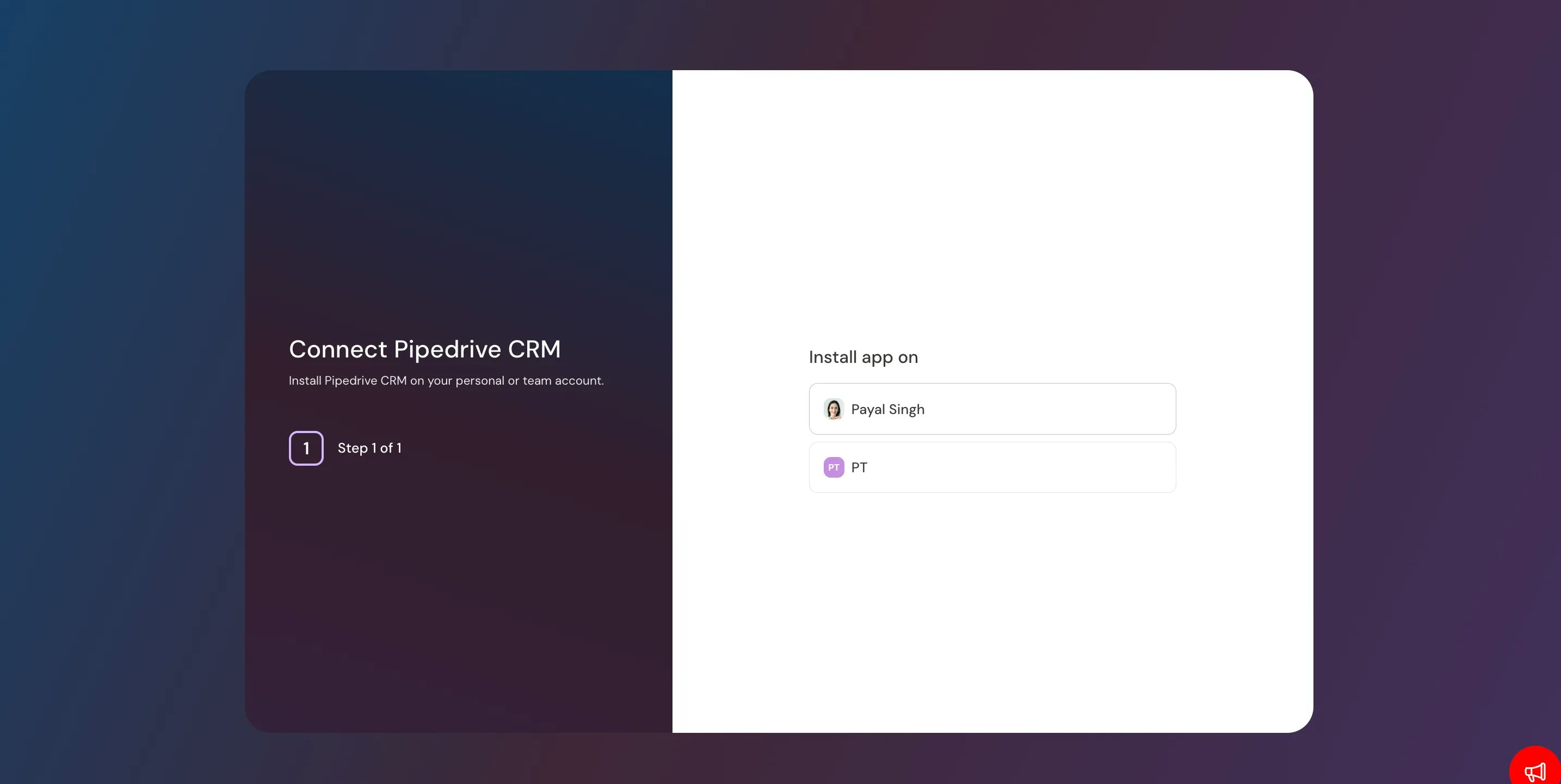
 3. Click on **Personal** **Account** (e,g. Payal Singh )
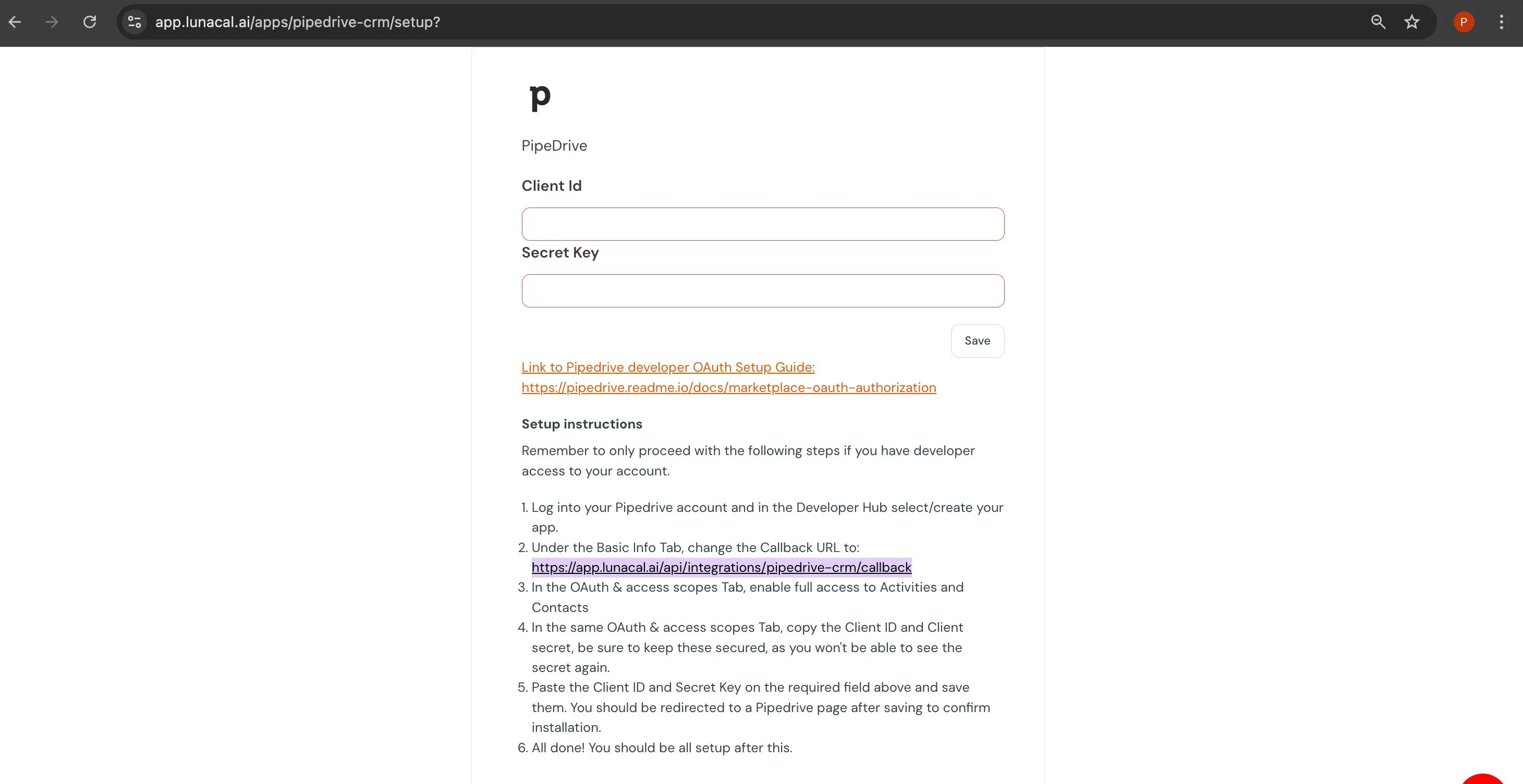
 4. Enter **Client id** & **Secret key**
5. before clicking **SAVE** Copy Callback URL shown in attached image.
4. Enter **Client id** & **Secret key**
5. before clicking **SAVE** Copy Callback URL shown in attached image.
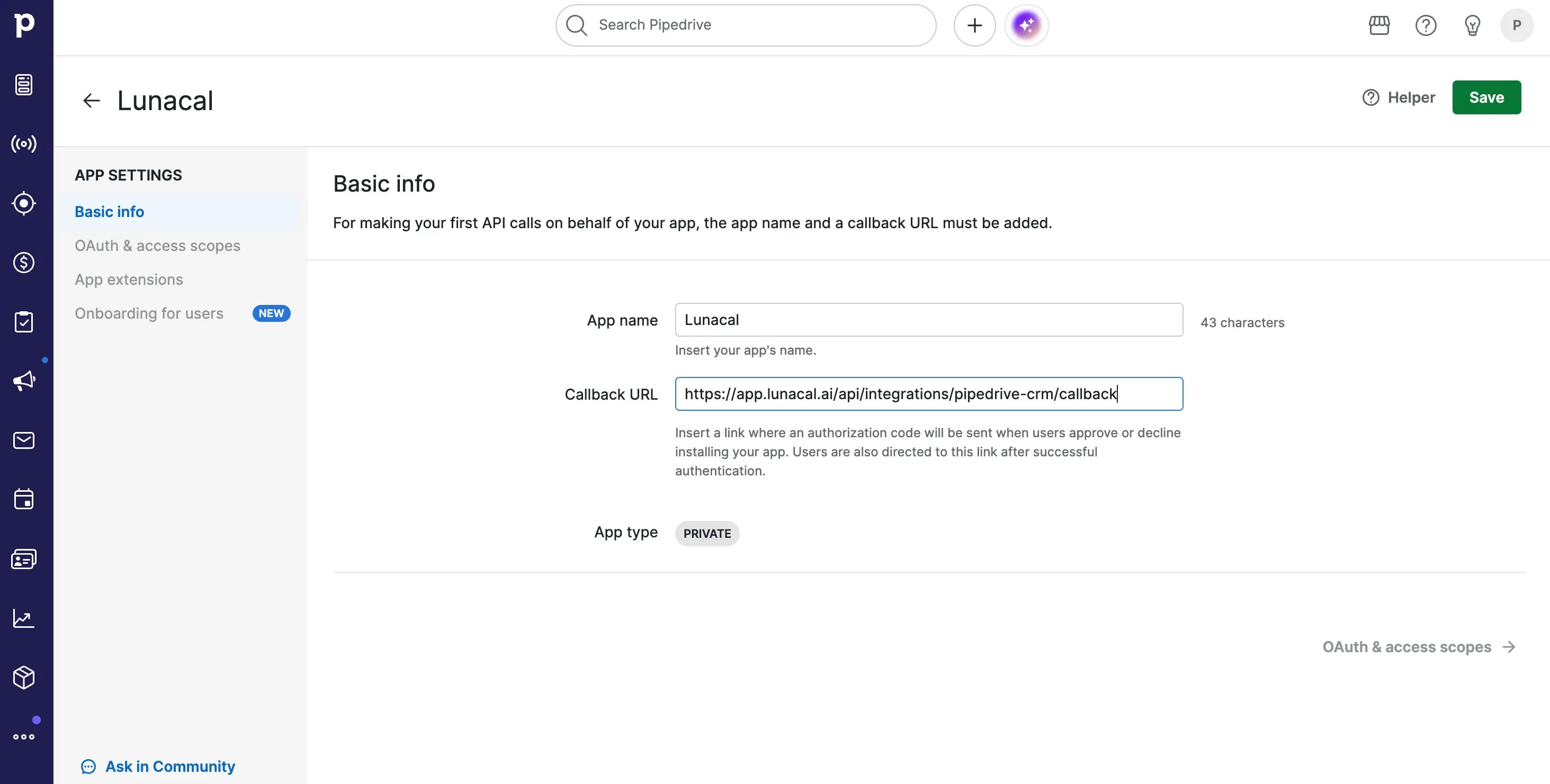
 **Paste Callback URL Here ( while you creating app inside pipedrive):**
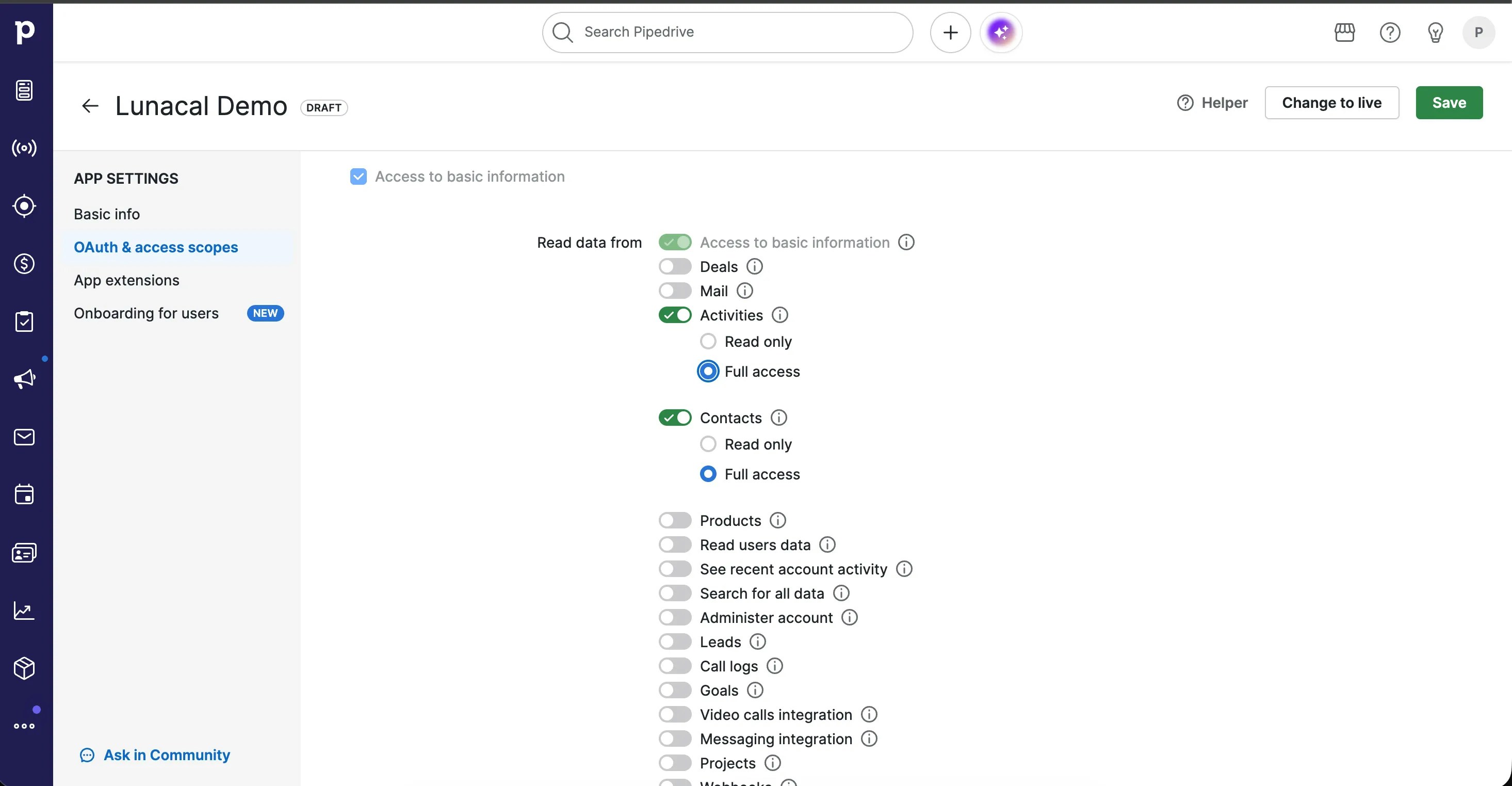
 **Make sure these scopes are enabled in Pipedrive:**
* Access to information
* Contacts → Full access
* Activities → Full access
* Click **SAVE**
* Setup **Completed.**
**Make sure these scopes are enabled in Pipedrive:**
* Access to information
* Contacts → Full access
* Activities → Full access
* Click **SAVE**
* Setup **Completed.**
 ***
# How to Enable Pipedrive Inside Your Events
* Go to **Event Types**
***
# How to Enable Pipedrive Inside Your Events
* Go to **Event Types**
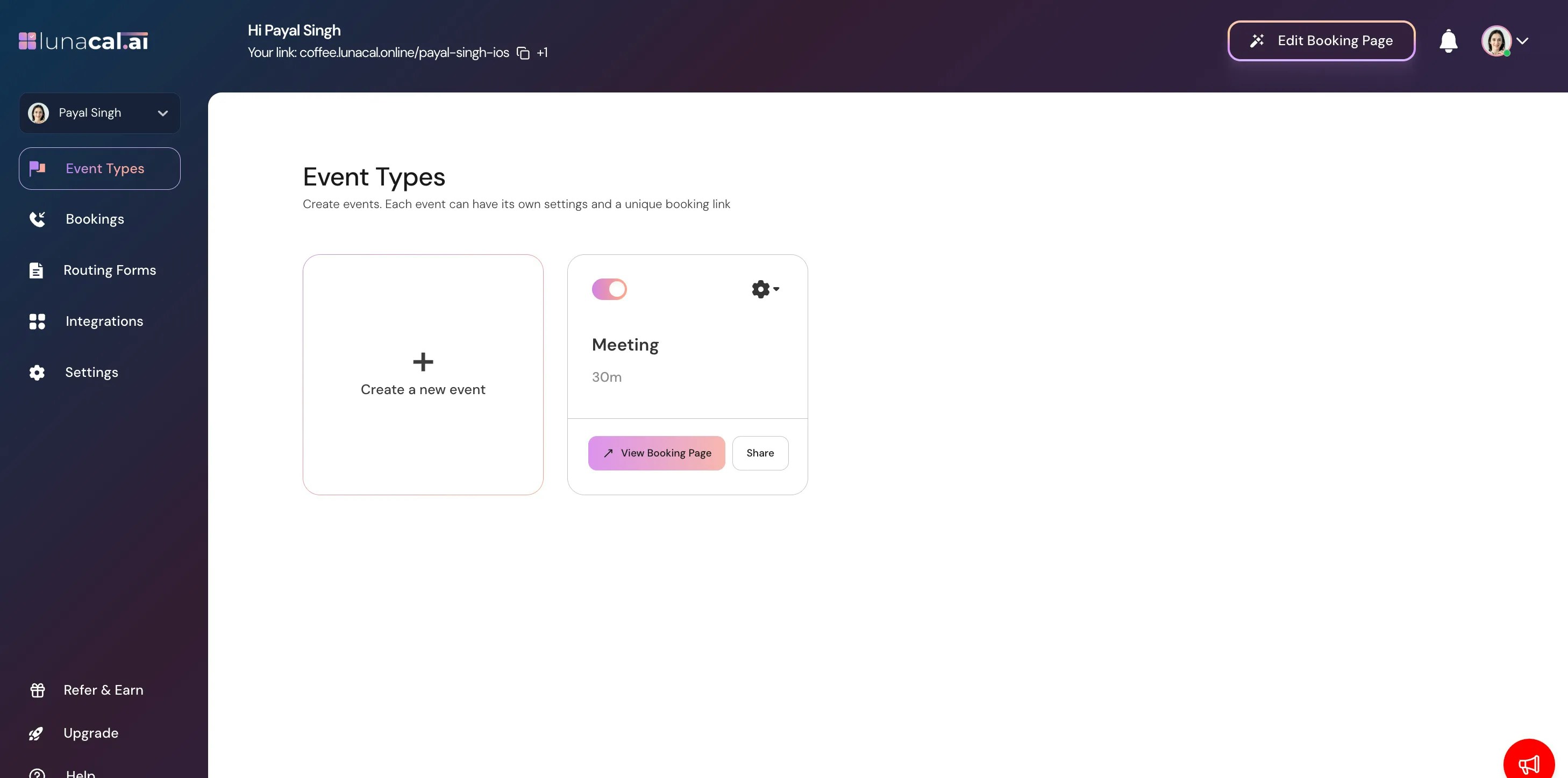 * Click on your event
* go to **integrations**
* Click on your event
* go to **integrations**
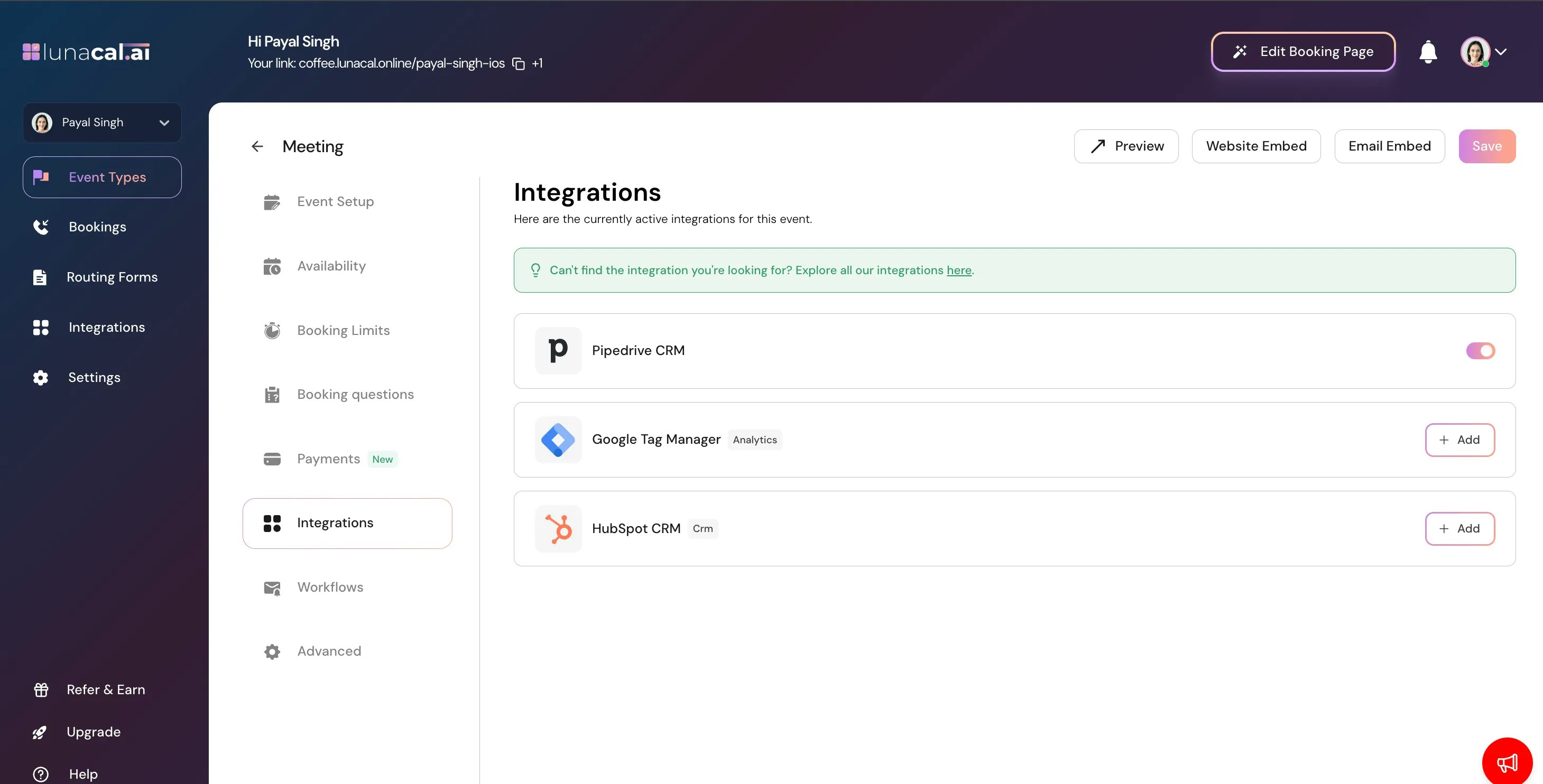
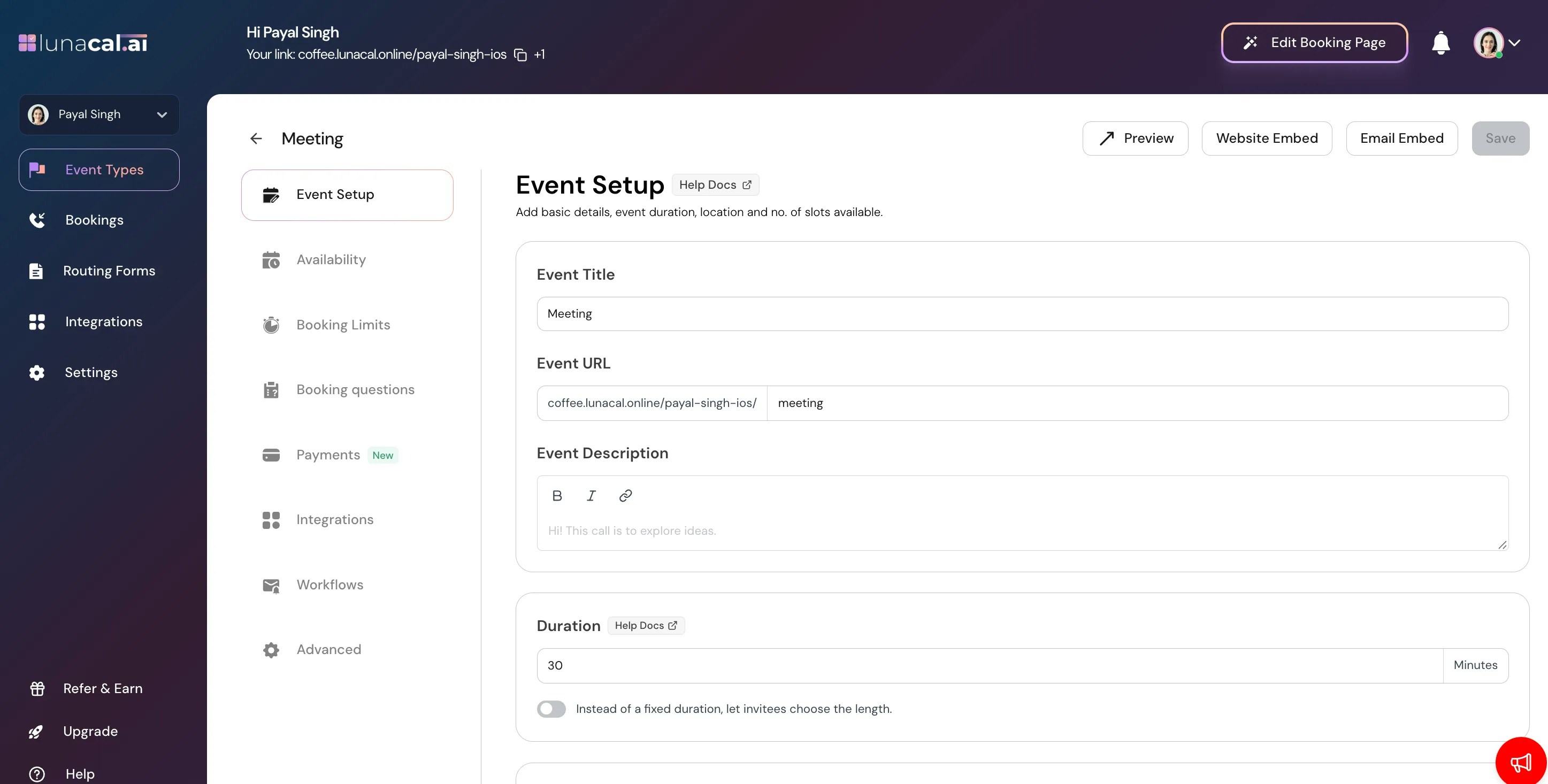 * Enable **Pipedrive**
 ## Make a Booking with Custom Question
1. Open **Booking questions** inside your event.
2. Click **Add / Edit booking question**.
## Make a Booking with Custom Question
1. Open **Booking questions** inside your event.
2. Click **Add / Edit booking question**.
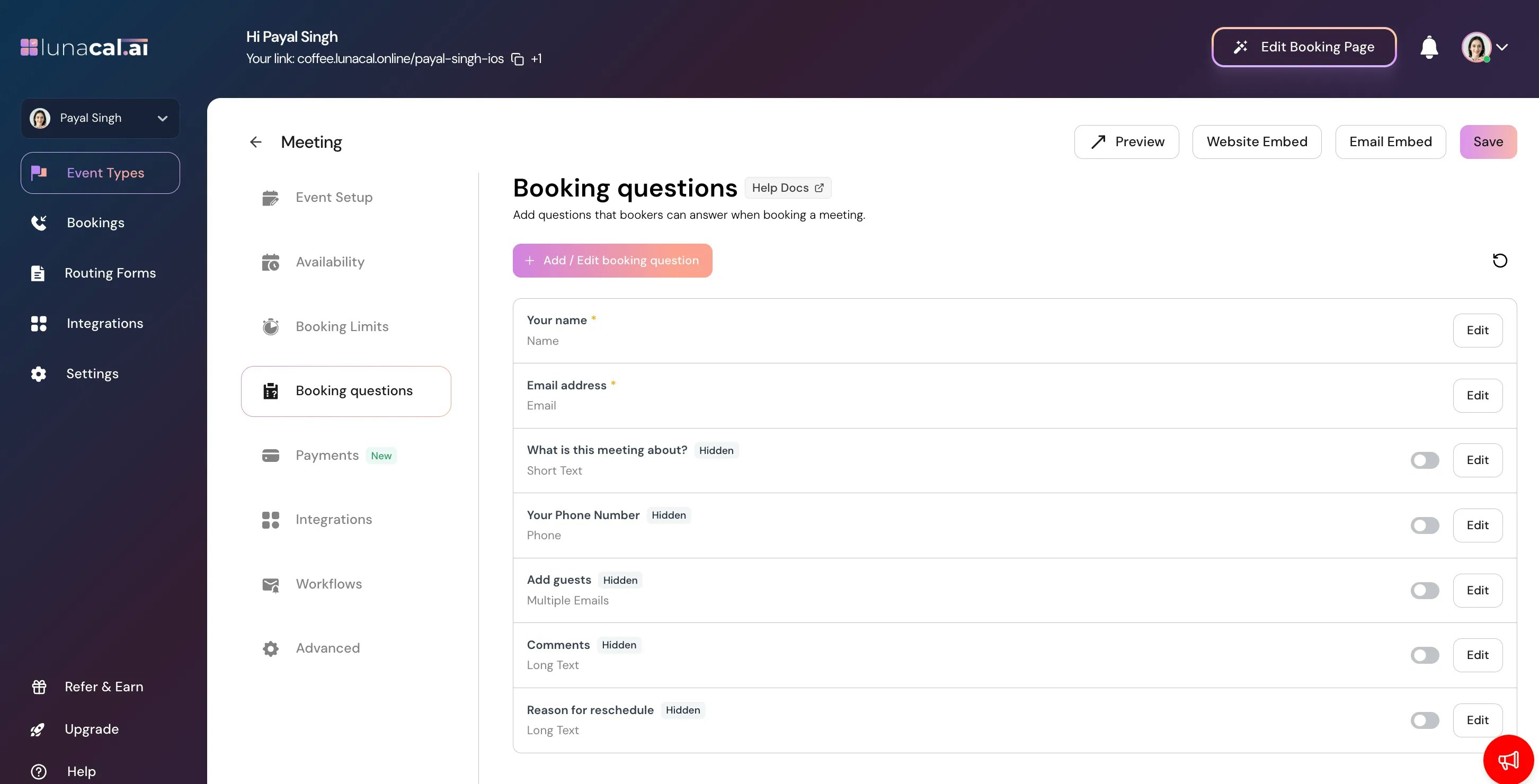 3. Select **Pipedrive Custom Field**.
4. Enter **API Key** & **Setup your booking question**
3. Select **Pipedrive Custom Field**.
4. Enter **API Key** & **Setup your booking question**
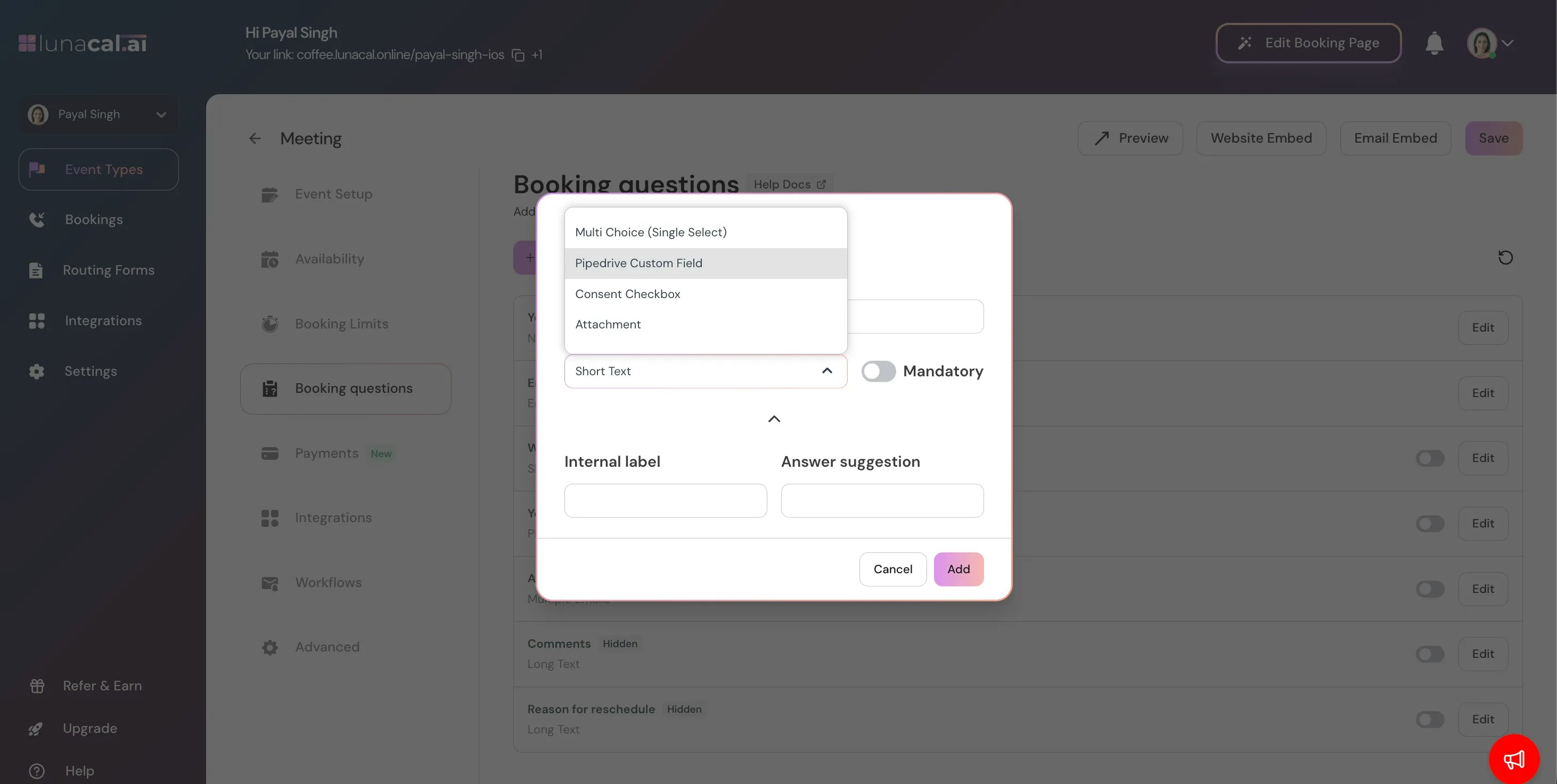 4. **Save** the question.
5. Open your booking link.
4. **Save** the question.
5. Open your booking link.
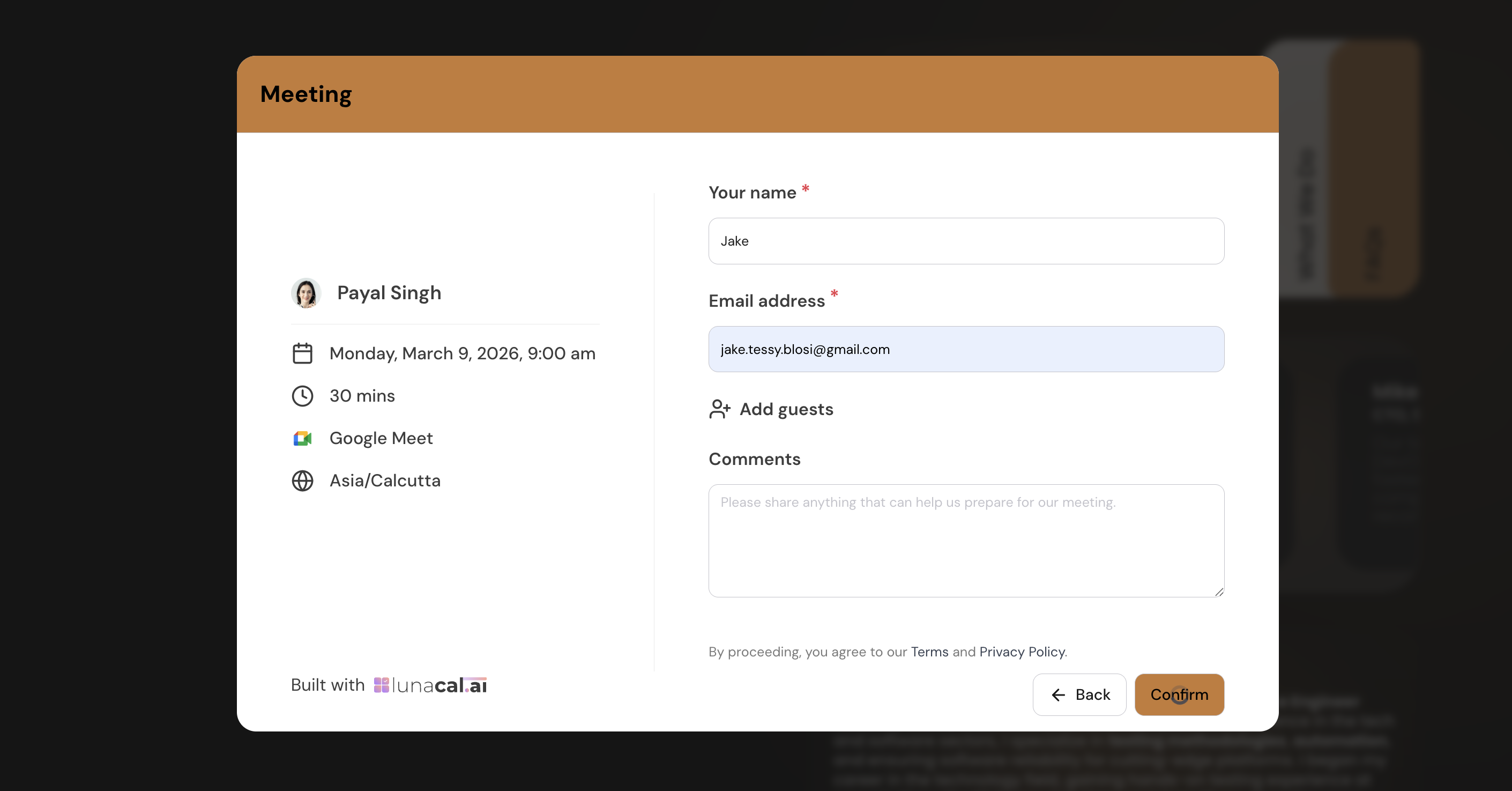 6. Fill in the form and submit.
***
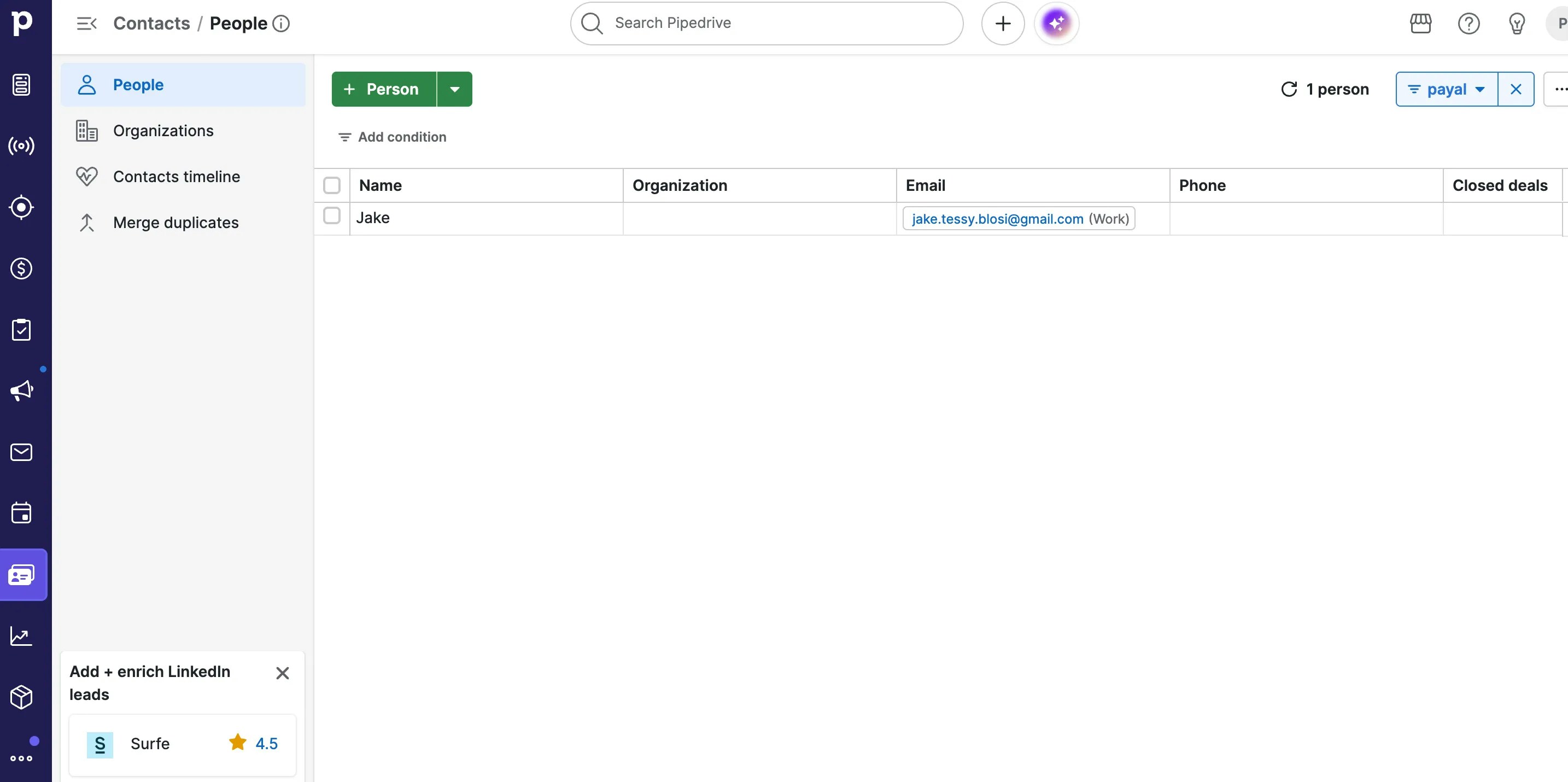
## New Contact Created
If the email does not exist in Pipedrive:
* A new **Person** record is automatically created.
* Name, email, phone, and mapped custom fields are populated.
6. Fill in the form and submit.
***
## New Contact Created
If the email does not exist in Pipedrive:
* A new **Person** record is automatically created.
* Name, email, phone, and mapped custom fields are populated.
 ## Existing Contact Updated
If the email already exists:
* The existing **Person** record is updated.
***
## Pipedrive Activity Section
1. Go to **Activities** in Pipedrive.
2. A new meeting activity is created automatically.
## Existing Contact Updated
If the email already exists:
* The existing **Person** record is updated.
***
## Pipedrive Activity Section
1. Go to **Activities** in Pipedrive.
2. A new meeting activity is created automatically.
.webp?fit=max&auto=format&n=nHrZ0nMAEbCqqEGc&q=85&s=09595e31f3b103c53c98aec98e1406b4)