> ## Documentation Index
> Fetch the complete documentation index at: https://help.lunacal.ai/llms.txt
> Use this file to discover all available pages before exploring further.
# Prefilling Lunacal Booking Form
> If you collect attendee details (like name, email, phone, etc.) on your own website form and then redirect users to a lunacal.ai booking embed, you can pre-populate the lunacal booking form with those values so attendees don't have to re-enter them. This makes scheduling smoother and increases conversions.
## How It Works
Lunacal supports prefilling booking fields by passing values either:
1. via **URL query parameters**
2. via **embed configuration** (if you embed lunacal directly on your site)
### A sample booking form with various fields prefilled
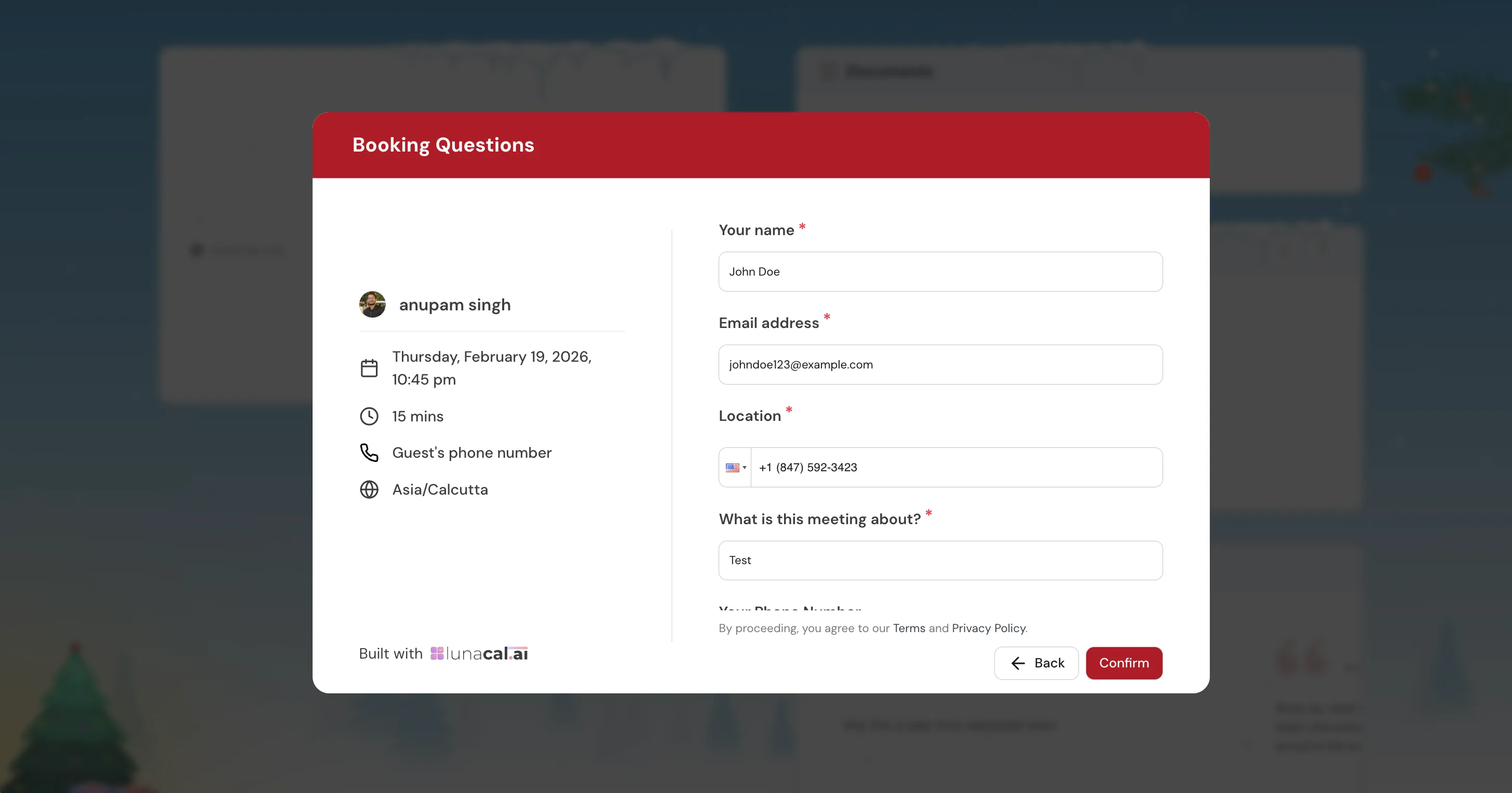
## Step 1 — Find the Internal Label of a Field
Every booking question has an **internal label** (also called an identifier). This is the key you'll use in query parameters or embed config.
**For custom questions you've added:** Go to **Event Settings → Booking Questions**, open any question, and copy its **Internal Label**.
**For built-in system fields**, the internal labels are fixed:
| Field | Internal Label |
| :----------------------- | :--------------- |
| Name (full name) | `name` |
| First Name | `firstName` |
| Last Name | `lastName` |
| Email | `email` |
| Phone (booking question) | `attendee-phone` |
| Location (Guest Phone) | `location` |
| Additional Guests | `guests` |
| Meeting Notes | `notes` |
| Meeting Title | `title` |
## 2. Prefill via URL Parameters
Append fields as query parameters to your booking URL:
`https://lunacal.ai/your-username/your-event?key=value&key2=value2`
### A. Name
**Full name (single field):** `?name=Jane%20Smith`
**First name + Last name (if your event uses split name fields):** `?firstName=Jane&lastName=Smith`
> If both `firstName` and `lastName` are present, they are combined into a single full name automatically.
***
### B. Email
`?email=jane@example.com`
***
### C. Phone Number
There are **two separate cases** for phone, depending on how your event is set up:
**Case 1 — Phone as a booking question**
If you added a **Phone Number** question under Booking Questions, use `attendee-phone`:
`?attendee-phone=%2B919999999999`
The `+` in a country code must be URL-encoded as `%2B`.
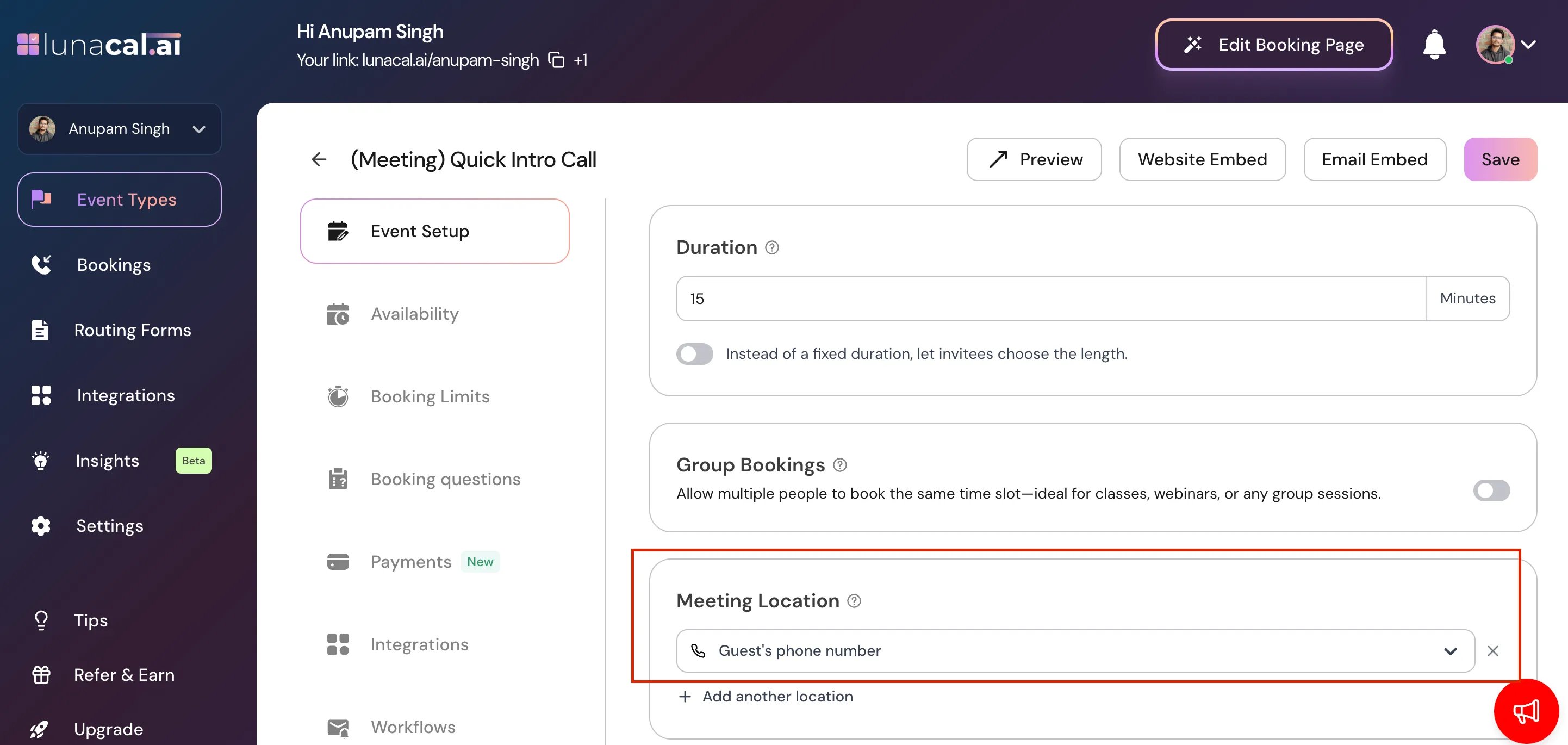
**Case 2 — Phone as the meeting location (Guest Phone Number)**
If your event uses **Guest Phone Number** as the location type, pass a `location` JSON object:
`?location={"value":"phone","optionValue":"%2B919999999999"}`
> In this case, `%2B` replaces `+` in the phone number inside the JSON value.
***
### D. Short Text Question
Use the question's internal label directly:
`?your-internal-label=Your%20answer%20here`
Example — if the internal label is `company-name`: `?company-name=Acme%20Corp`
***
### E. Long Text / Paragraph Question
Same as short text — use the internal label:
`?your-internal-label=This%20is%20a%20longer%20answer%20spanning%20multiple%20sentences.`
***
### F. Dropdown (Single Select) Question
Pass the **exact option value** (case-sensitive) that matches one of the dropdown choices:
`?your-internal-label=Option%20One`
Example — if the internal label is `meeting-type` and the option is `"Product Demo"`: `?meeting-type=Product%20Demo`
***
### G. Multiple Choice — Single Answer (Radio)
Same format as dropdown. Pass the exact label of the option you want pre-selected:
`?your-internal-label=Option%20Label`
***
### H. Checkbox / Multi-Select Question
Pass multiple values for the same key to pre-check multiple options:
`?your-internal-label=Option%20One&your-internal-label=Option%20Two`
Example — if the internal label is `topics`: `?topics=Design&topics=Engineering&topics=Marketing`
***
### I. Consent Checkbox (Boolean)
Pass `true` or `false`:
`?your-internal-label=true`
***
### J. Additional Guests (Multi-Email)
Pass multiple emails using `guests` (or the legacy alias `guest`):
`?guests=alice@example.com&guests=bob@example.com`
***
### K. Notes / Meeting Title
`?notes=Please%20bring%20the%20Q2%20report`
`?title=Strategy%20sync%20-%20Q3`
***
### URL Encoding Rules
| Character | Encoded As |
| :------------- | :--------- |
| Space | `%20` |
| `+` (in phone) | `%2B` |
| `@` | `%40` |
| `"` | `%22` |
***
## 3. Prefill in an Embedded Lunacal Calendar
When embedding Lunacal with the JavaScript snippet, you can pass prefill values directly in the `config` object — no query params needed.
Use the question's **internal label** as the key, and the prefill value as the value.
### Inline Embed Example
```javascript theme={null}
Lunacal.ai["your-event-slug"]("inline", {
elementOrSelector: "#your-event-slug",
config: {
layout: "",
// System fields
name: "Jane Smith",
email: "jane@example.com",
// Custom booking questions — use the internal label as key
"company-name": "Acme Corp",
"meeting-type": "Product Demo",
"topics": ["Design", "Engineering"], // multi-select: pass an array
"consent": true, // boolean: pass true/false
// Phone as a booking question
"attendee-phone": "+919999999999",
// Additional guests
guests: ["alice@example.com", "bob@example.com"],
},
calLink: "your-username/your-event-slug",
});
```
### Popup / Float Embed Example
```javascript theme={null}
Lunacal.ai["your-event-slug"]("floatingButton", {
calLink: "your-username/your-event-slug",
config: {
name: "Jane Smith",
email: "jane@example.com",
"company-name": "Acme Corp",
},
});
```
***
## Quick Reference — All Field Types
| Question Type | URL Parameter Format | Embed Config Format |
| :---------------------- | :--------------------------------------------------- | :------------------------------------- |
| Full Name | `?name=Jane%20Smith` | `name: "Jane Smith"` |
| First + Last Name | `?firstName=Jane&lastName=Smith` | `firstName: "Jane", lastName: "Smith"` |
| Email | `?email=jane@example.com` | `email: "jane@example.com"` |
| Phone (question) | `?attendee-phone=%2B919999999999` | `"attendee-phone": "+919999999999"` |
| Phone (location) | `?location={"value":"phone","optionValue":"%2B91…"}` | Not supported via config |
| Short Text | `?internal-label=value` | `"internal-label": "value"` |
| Long Text | `?internal-label=value` | `"internal-label": "value"` |
| Dropdown | `?internal-label=Option%20Name` | `"internal-label": "Option Name"` |
| Radio (single choice) | `?internal-label=Option%20Name` | `"internal-label": "Option Name"` |
| Checkbox / Multi-select | `?label=Opt1&label=Opt2` | `"internal-label": ["Opt1", "Opt2"]` |
| Consent Checkbox | `?internal-label=true` | `"internal-label": true` |
| Additional Guests | `?guests=a@x.com&guests=b@x.com` | `guests: ["a@x.com", "b@x.com"]` |
| Notes | `?notes=value` | `notes: "value"` |
| Meeting Title | `?title=value` | `title: "value"` |
## Common Issues
**Q: My dropdown prefill isn't working.** Make sure the value you're passing exactly matches the option label, including capitalization and spacing.
**Q: My phone number prefill shows up without the + sign.** The `+` must be URL-encoded as `%2B` in query parameters. For embed config, pass the `+` directly as a string (e.g., `"+919999999999"`).
**Q: The name field isn't being filled.** Check whether your event uses a single Full Name field or split First Name / Last Name fields. Use `?name=` for the combined field, or `?firstName=&lastName=` for the split version.
**Q: Checkbox options aren't being selected.** For multi-select and checkbox fields, each option must be passed as a separate parameter with the same key: `?topics=Design&topics=Engineering`. In embed config, pass an array.
***
## 4. Prefill via URL Parameters (Scheduling Page & Embedded Page)
You can pre-fill all the booking questions on the booking form by using their corresponding internal label that you can see in the booking question tab.
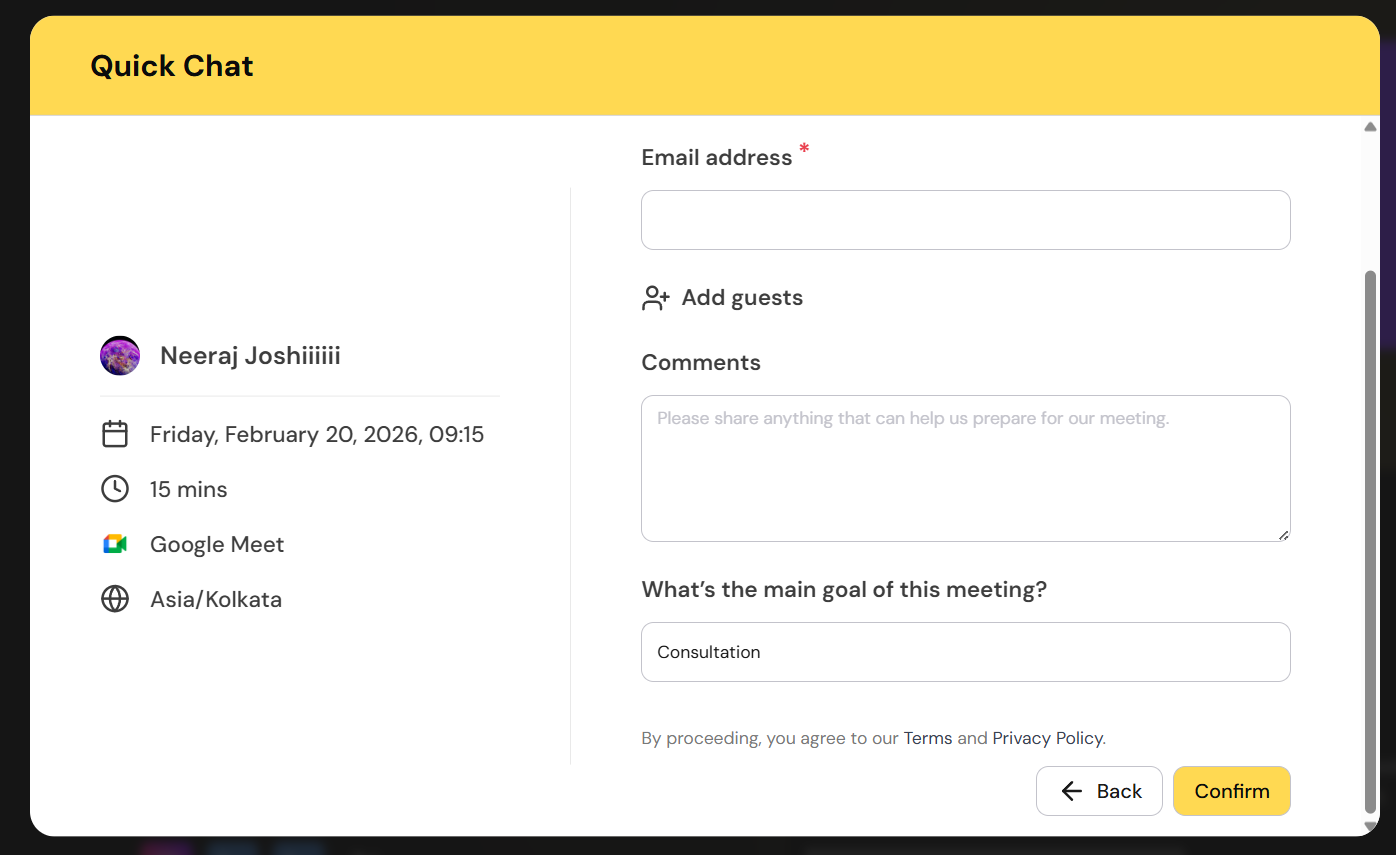
For example, for the question shown in the screenshot below, the question would show up as "What's the main goal of this meeting?" and its internal label is `main-goal`. So we would use `main-goal` as the query param name to prefill the field.
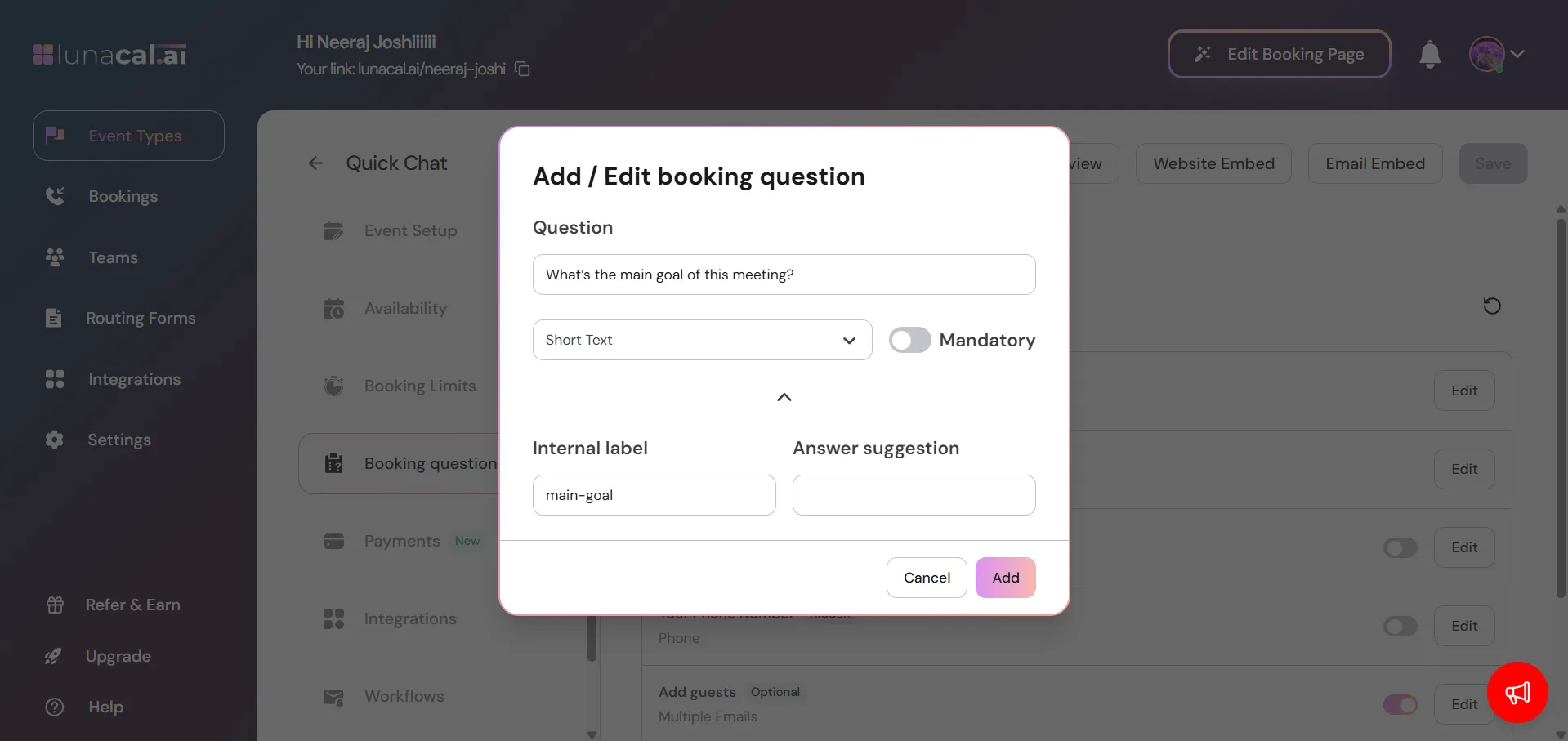
🔗 Example URL
> `https://lunacal.ai/your-username/your-event?main-goal=Consultation`
`{yourFieldIdentifier}`
> Spaces must be URL-encoded (`%20`), and `+` in phone numbers must be URL-encoded as `%2B`.
 ## 5. Pre-filling Phone Number Fields
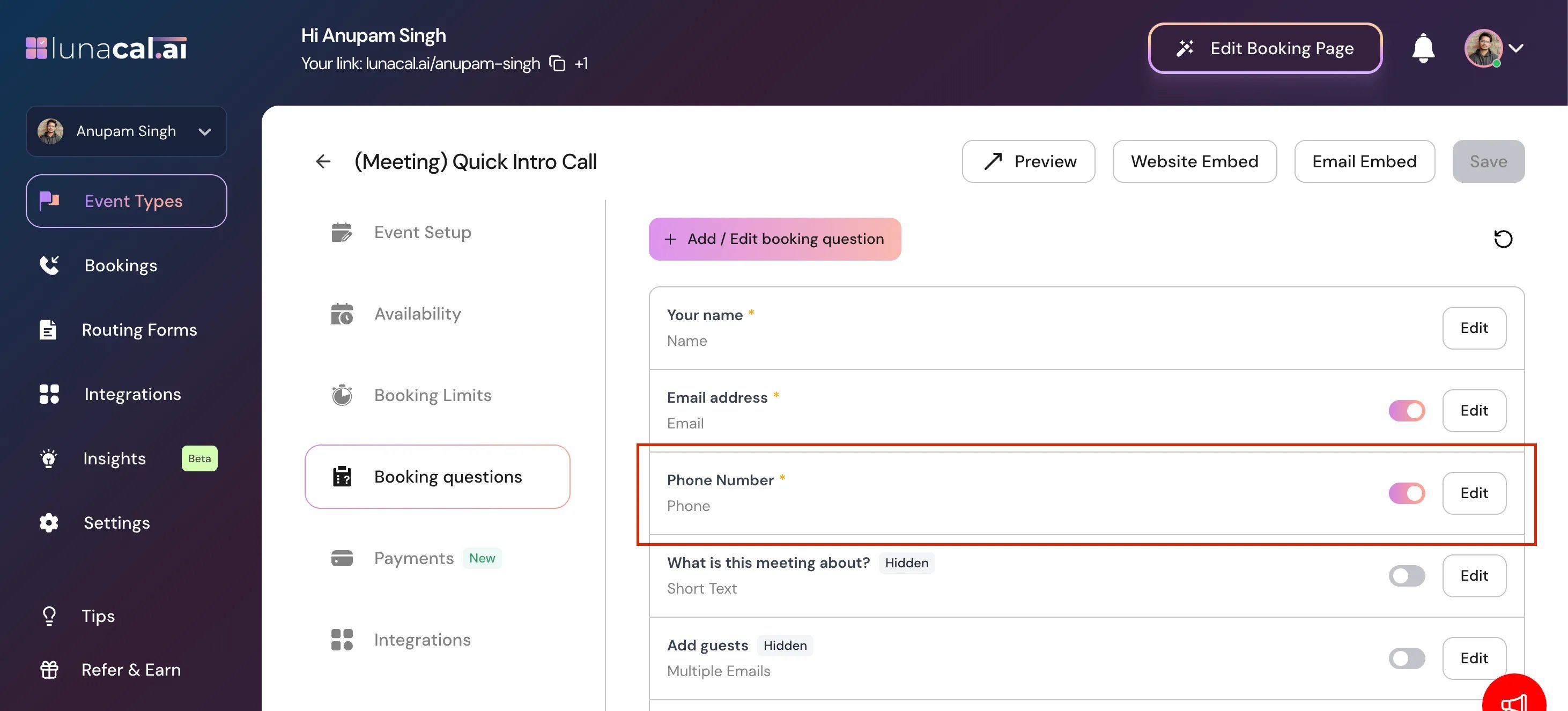
Phone numbers can be pre-filled in two different ways, depending on how the phone field is set up:
**1. Phone as a booking question**
If you've added a **Phone Number** booking question, use the `attendee-phone` parameter:
> `attendee-phone=9999999999`
## 5. Pre-filling Phone Number Fields
Phone numbers can be pre-filled in two different ways, depending on how the phone field is set up:
**1. Phone as a booking question**
If you've added a **Phone Number** booking question, use the `attendee-phone` parameter:
> `attendee-phone=9999999999`
 **2. Phone as the meeting location (Guest Phone Number)**
If your event uses **Guest Phone Number** as the location, pass a `location` object instead. The country code's `+` must be URL-encoded as `%2B`:
> `location={"value":"phone","optionValue":"%2B919999999999"}`
**2. Phone as the meeting location (Guest Phone Number)**
If your event uses **Guest Phone Number** as the location, pass a `location` object instead. The country code's `+` must be URL-encoded as `%2B`:
> `location={"value":"phone","optionValue":"%2B919999999999"}`
 ## 6. Pre-fill in an Embedded Lunacal Calendar
You can use the same query parameter method in the embed as well.
Alternatively, if you prefer not to use query parameters, you can configure the values directly in the embed settings.
**You have to use the booking question identifier (internal label) as the key.**
### Inline Embed Example (JavaScript)
```html theme={null}
Lunacal.ai["your-event-slug"]("inline", {
elementOrSelector: "#your-event-slug",
config: {
layout: "",
// Add your booking questions here.
// Use the question's internal label as the key,
// and set the value to the prefill text you want to pass.
name: "pre-fill-name",
email: "pre-fill-email",
"custom-question": "pre-fill-custom-question",
check: "pre-fill-check",
},
calLink: "your-event-slug",
});
```
## 6. Pre-fill in an Embedded Lunacal Calendar
You can use the same query parameter method in the embed as well.
Alternatively, if you prefer not to use query parameters, you can configure the values directly in the embed settings.
**You have to use the booking question identifier (internal label) as the key.**
### Inline Embed Example (JavaScript)
```html theme={null}
Lunacal.ai["your-event-slug"]("inline", {
elementOrSelector: "#your-event-slug",
config: {
layout: "",
// Add your booking questions here.
// Use the question's internal label as the key,
// and set the value to the prefill text you want to pass.
name: "pre-fill-name",
email: "pre-fill-email",
"custom-question": "pre-fill-custom-question",
check: "pre-fill-check",
},
calLink: "your-event-slug",
});
```