> ## Documentation Index
> Fetch the complete documentation index at: https://help.lunacal.ai/llms.txt
> Use this file to discover all available pages before exploring further.
# Redirect Attendees to a URL After Booking
> Learn how to automatically redirect attendees to a specific URL once their booking is confirmed.
When a attendee completes a booking, lunacal allows you to automatically redirect them to any URL you choose — for example, a custom “Thank You” page, or a confirmation screen on your own website.
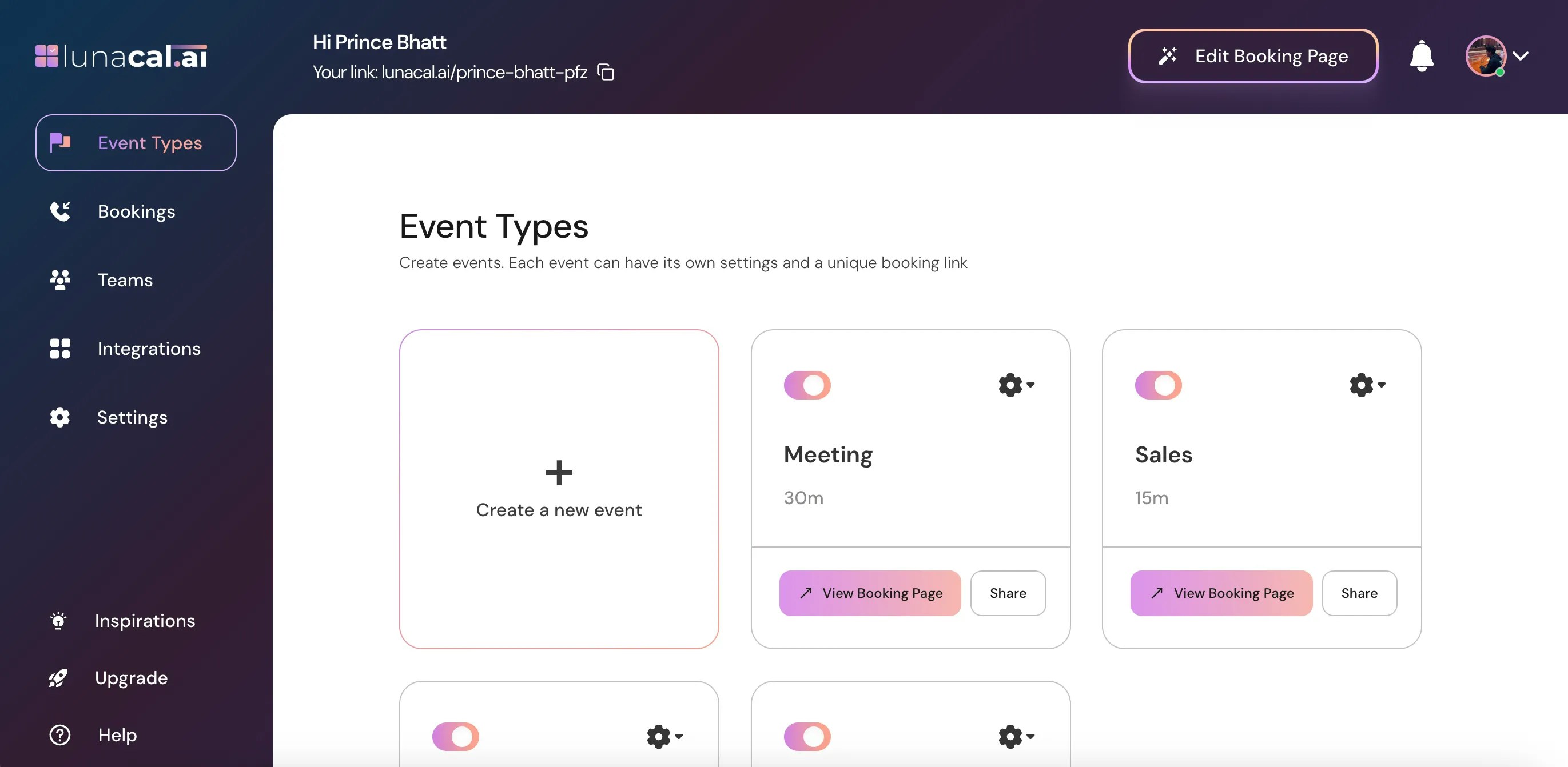
## Step 1
Go to [Event Type](https://app.lunacal.ai/event-types) in your dashboard.
 ***
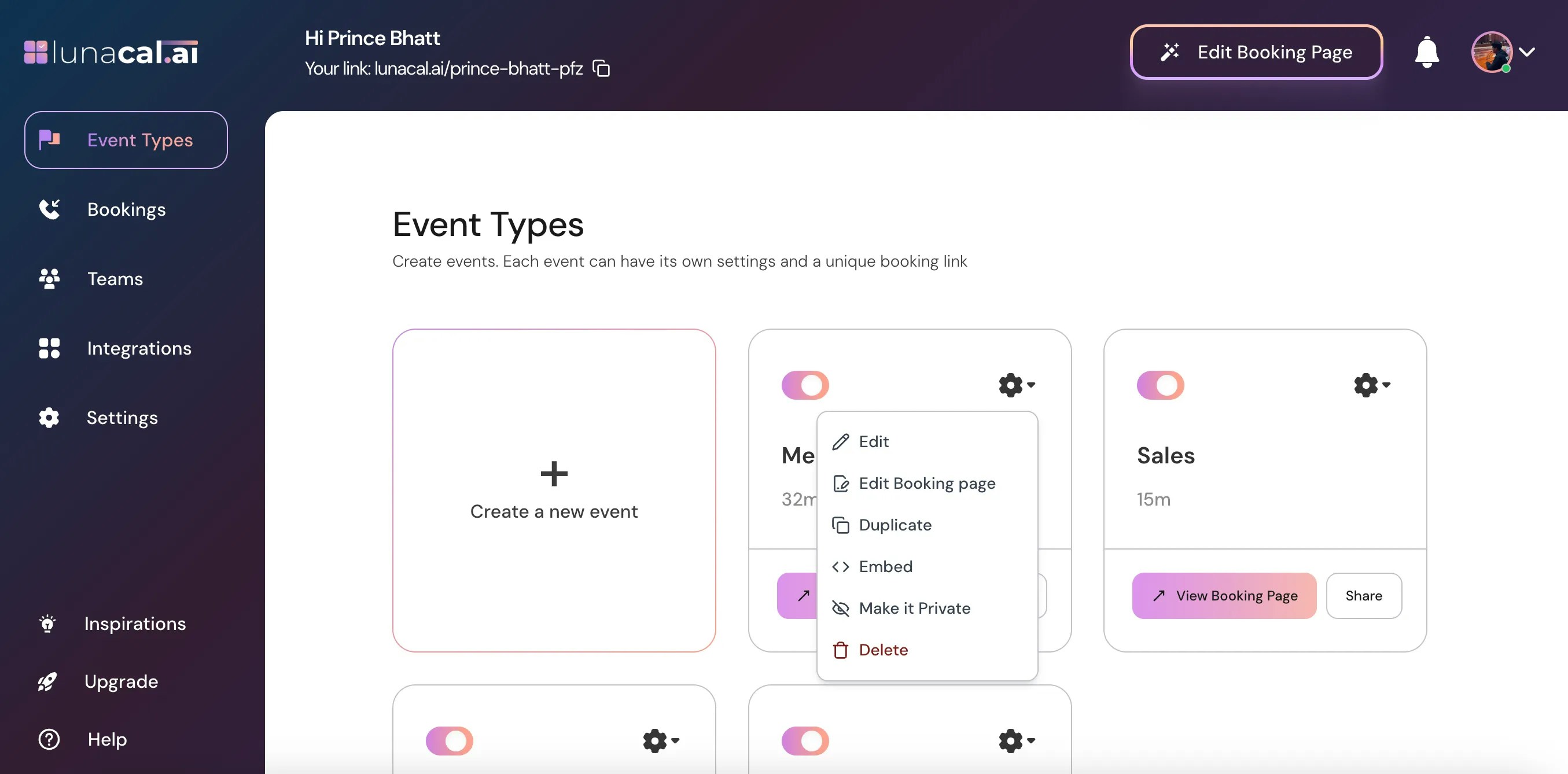
## Step 2
Select the event for which you want to set up a redirect after booking and click on the Settings (⚙️) icon on that event card.
***
## Step 2
Select the event for which you want to set up a redirect after booking and click on the Settings (⚙️) icon on that event card.
 ***
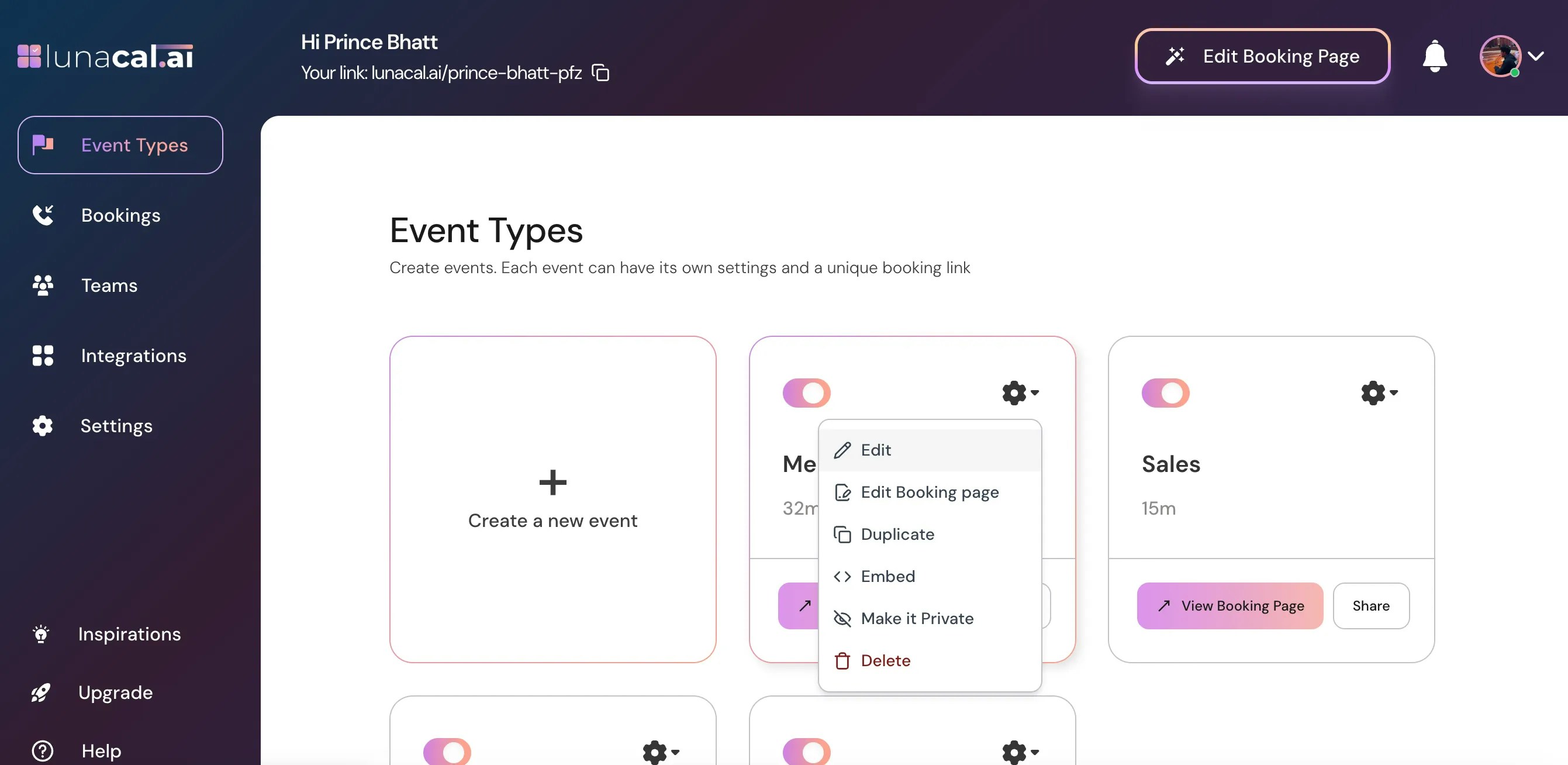
## Step 3
Choose "**Edit**" from the dropdown.
***
## Step 3
Choose "**Edit**" from the dropdown.
 ***
## Step 4
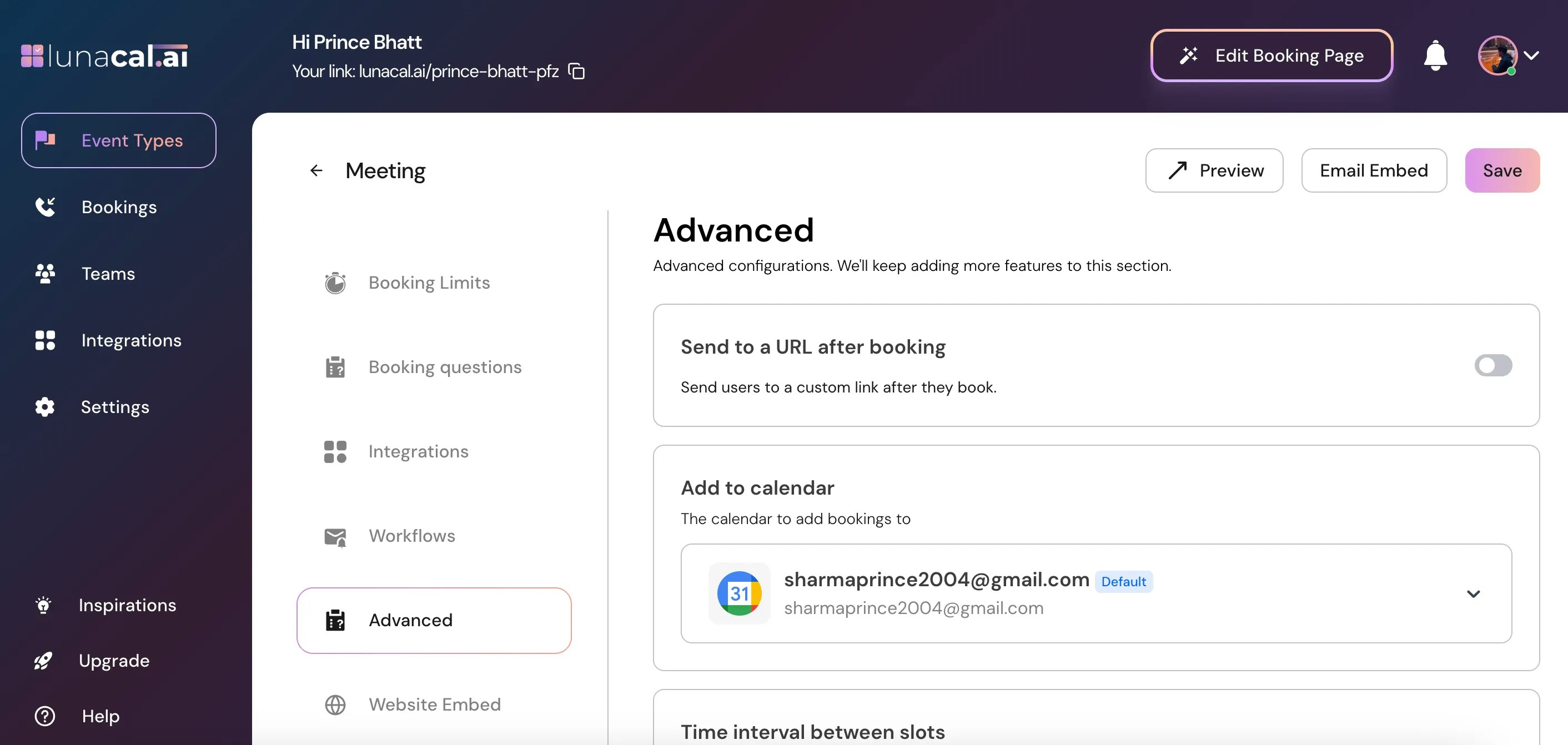
In the "**Event Types**" section, scroll down to find "**Advanced.**"
***
## Step 4
In the "**Event Types**" section, scroll down to find "**Advanced.**"
 ***
## Step 5
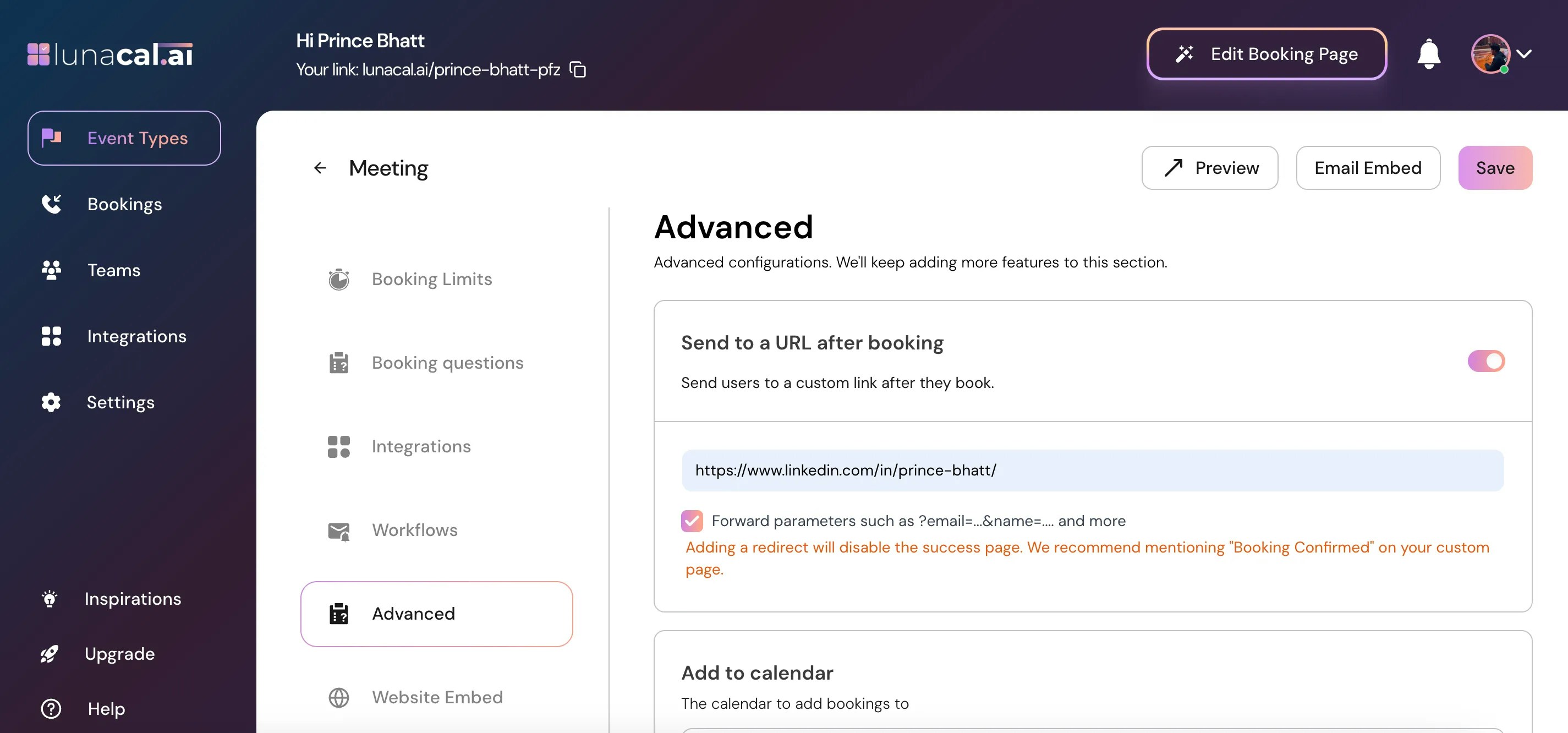
Toggle ON "**Send to a URL after booking.**"
***
## Step 5
Toggle ON "**Send to a URL after booking.**"
 ***
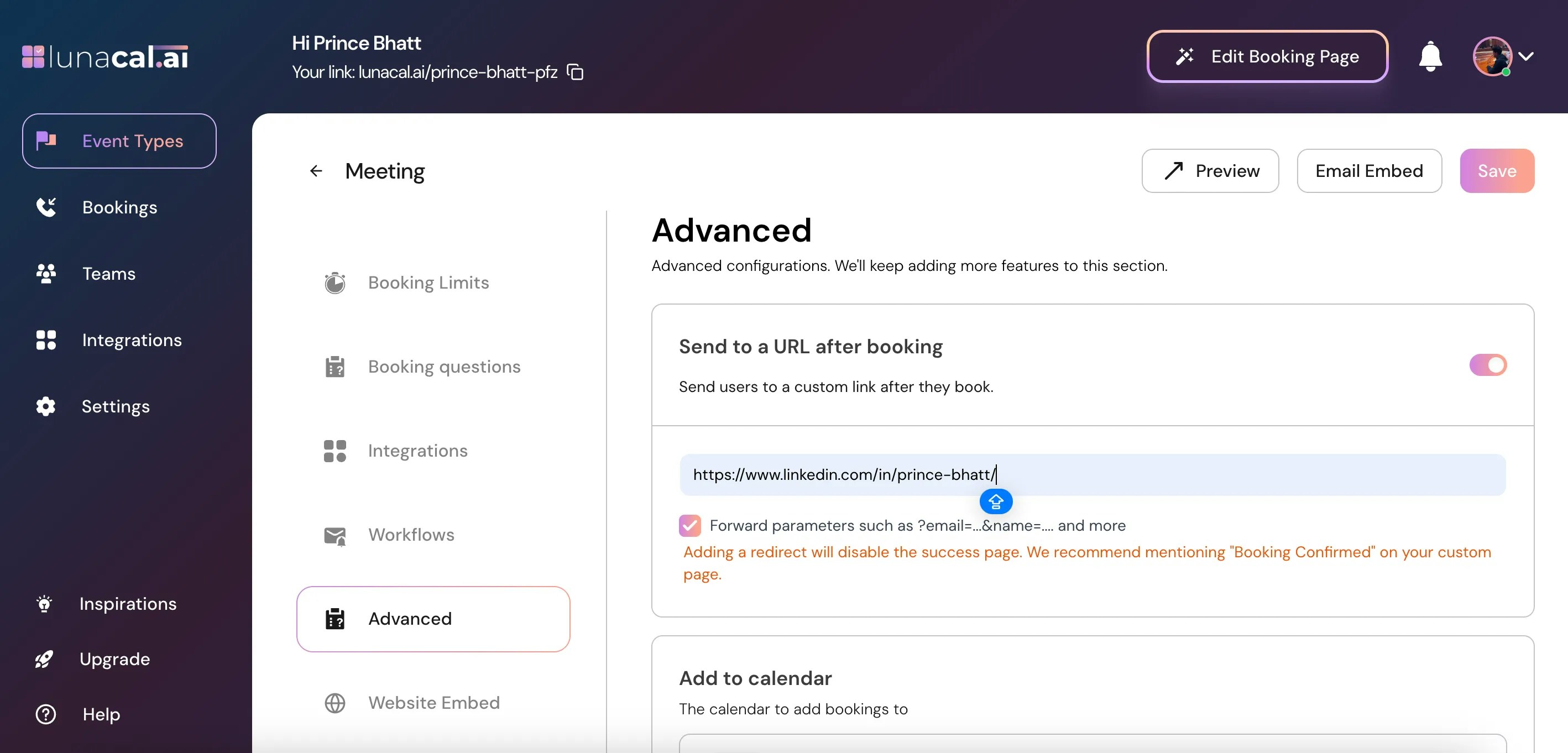
## Step 6
**Enter** or **Paste** the link you want attendees to be redirected to after booking is confirmed.
## Examples
* [https://yourwebsite.com/thank-you](https://yourwebsite.com/thank-you)
* [https://yourwebsite.com/instructions?utm\_source=lunacal](https://yourwebsite.com/instructions?utm_source=lunacal)
* [https://payment-page.com/checkout](https://payment-page.com/checkout)
When entering the redirect URL, you will see an option\
☑️ Forward parameters such as ?email=...\&name=... and more
If you enable this checkbox, Lunacal will automatically append the attendee’s booking details to your redirect URL as query parameters.
This means the page you redirect to will receive booking information such as: `
email
name
timezone
eventName
startTime
endTime`
### When to Use This Option
**Enable this when:**
* You want to pre-fill a form on your website
* You want to track user details in analytics
* You want to pass booking information to your CRM
* You want personalized “Thank You” pages
**Keep it disabled if:**
* You don’t need attendee details
* Your redirect page does not accept parameters
* You want a clean URL
## Step 7
Click "**Save**" to apply the changes.
***
## Step 6
**Enter** or **Paste** the link you want attendees to be redirected to after booking is confirmed.
## Examples
* [https://yourwebsite.com/thank-you](https://yourwebsite.com/thank-you)
* [https://yourwebsite.com/instructions?utm\_source=lunacal](https://yourwebsite.com/instructions?utm_source=lunacal)
* [https://payment-page.com/checkout](https://payment-page.com/checkout)
When entering the redirect URL, you will see an option\
☑️ Forward parameters such as ?email=...\&name=... and more
If you enable this checkbox, Lunacal will automatically append the attendee’s booking details to your redirect URL as query parameters.
This means the page you redirect to will receive booking information such as: `
email
name
timezone
eventName
startTime
endTime`
### When to Use This Option
**Enable this when:**
* You want to pre-fill a form on your website
* You want to track user details in analytics
* You want to pass booking information to your CRM
* You want personalized “Thank You” pages
**Keep it disabled if:**
* You don’t need attendee details
* Your redirect page does not accept parameters
* You want a clean URL
## Step 7
Click "**Save**" to apply the changes.