> ## Documentation Index
> Fetch the complete documentation index at: https://help.lunacal.ai/llms.txt
> Use this file to discover all available pages before exploring further.
# Track UTM Parameters on Booking Pages
> Learn how to capture UTM parameters like utm_source through booking forms on Lunacal.ai. This allows you to track where your bookings are coming from (e.g., LinkedIn, Twitter, etc.).
## **Step 1 – Open the Event Type**
Start by logging in to your Lunacal dashboard.\
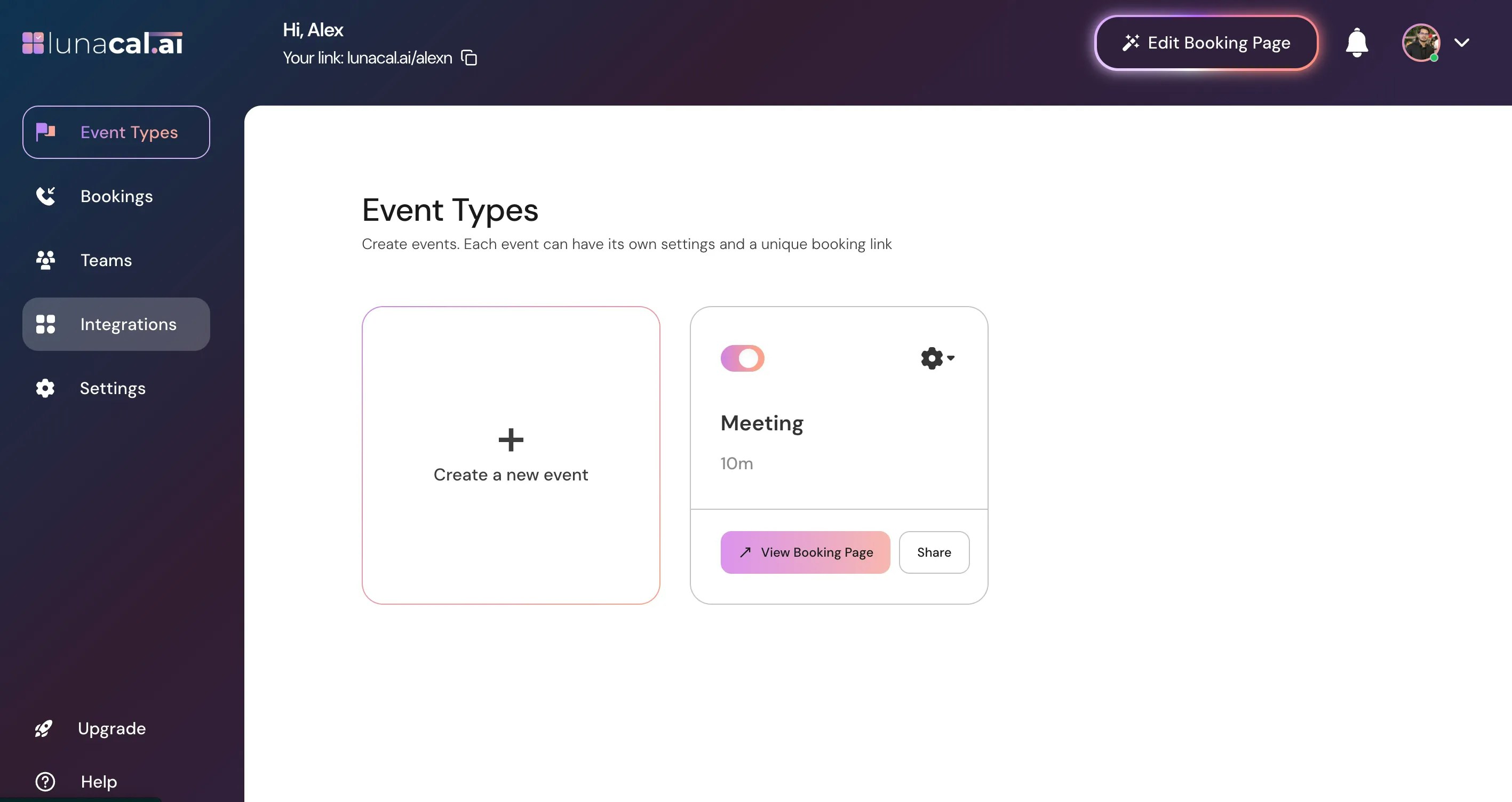
Navigate to the **Event Types** section and choose the event type where you want to track UTM parameters. Click the settings icon (⚙️) or open the event type directly.
## **Step 2 – Go to Booking Questions**
Once inside the event setup, look at the left-hand sidebar.
Click on **Booking questions** to view and manage the questions that appear on the booking form. These questions help you collect custom data manually or through URL params when someone books your event.
## **Step 3 – Add a New Booking Question**
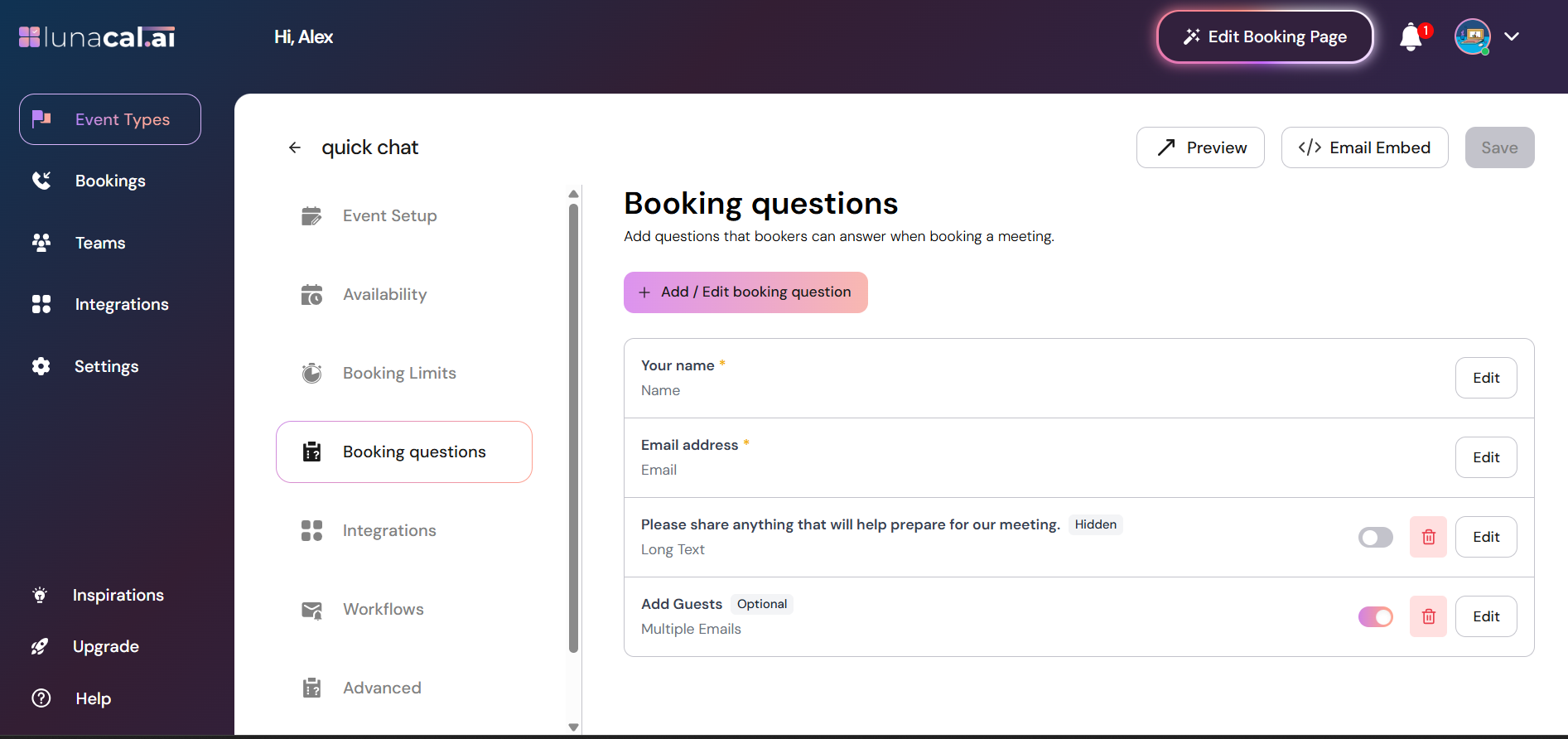
Click on the **Add / Edit booking question** button.
In the popup form:
* **Question:**\
Enter a user-friendly label like: `UTM Source`
> This is the label that would normally be shown on the booking form (but we’ll hide it later).
* **Question Type:**\
Choose `Short Text` from the dropdown. This allows UTM values (like `linkedin`, `newsletter`, `twitter`) to be entered or passed via URL.
* **Mandatory:**\
Leave this **disabled**, since we’ll be populating it via URL and not asking users to fill it out.
* **Internal Label:**\
Enter: `utm_source`
> This label is important — it gets used in the booking URL as the query param key. Always advised to start it with `utm_` to maintain clarity and consistency in your tracking.
* **Answer Suggestion:**\
(Optional) Add common values you expect like: `linkedin`, `instagram`, `email`.
Click the **Add** button to save the booking question.
## **Step 4 – Hide the Question**
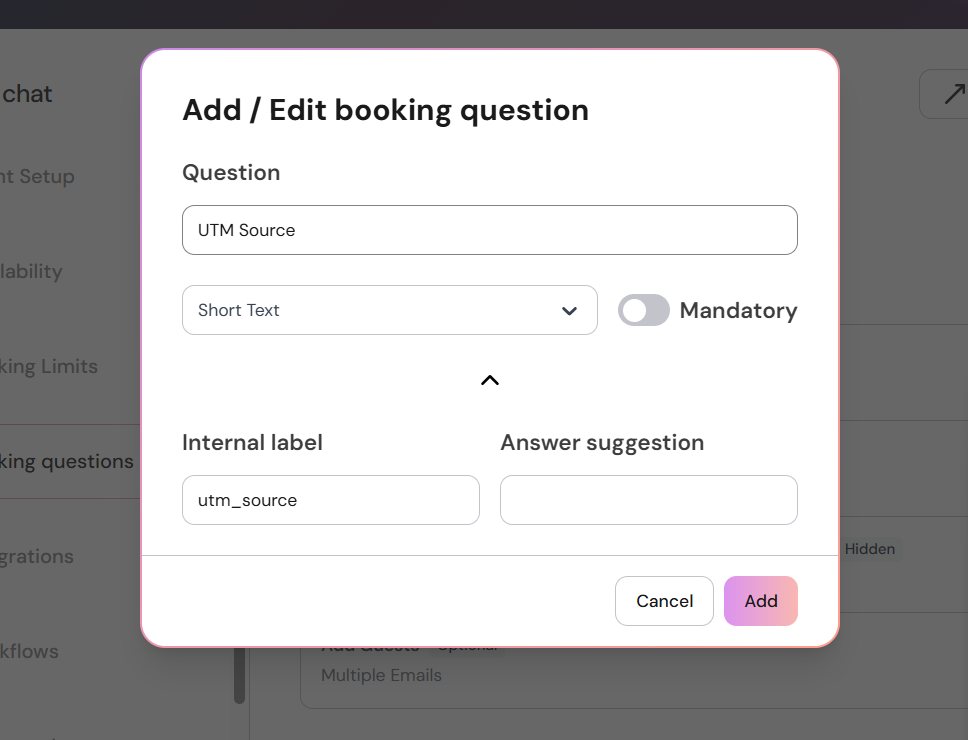
Once the UTM Source question has been added, toggle the switch to **Hide** the field.\
This ensures it doesn’t appear on the public booking form, but it will still be processed if passed through a URL query parameter.
> Hidden questions can still capture values passed via URL, making this ideal for tracking marketing sources without disrupting the booking flow.
***
## **Step 5 – Generate Your Booking URL with UTM Parameters**
Next, go to your **View Booking Page** for the event.
To pass UTM data, simply append it to the end of your booking URL as query parameters.
For example:
`https://lunacal.ai/{username}/{event-name}?utm_source=linkedin`
> ✅ Make sure the keys in the URL match the **internal labels** you’ve set in your booking questions (e.g. `utm_source`, `utm_campaign`, etc.).
## **Step 6 – Book and Verify**
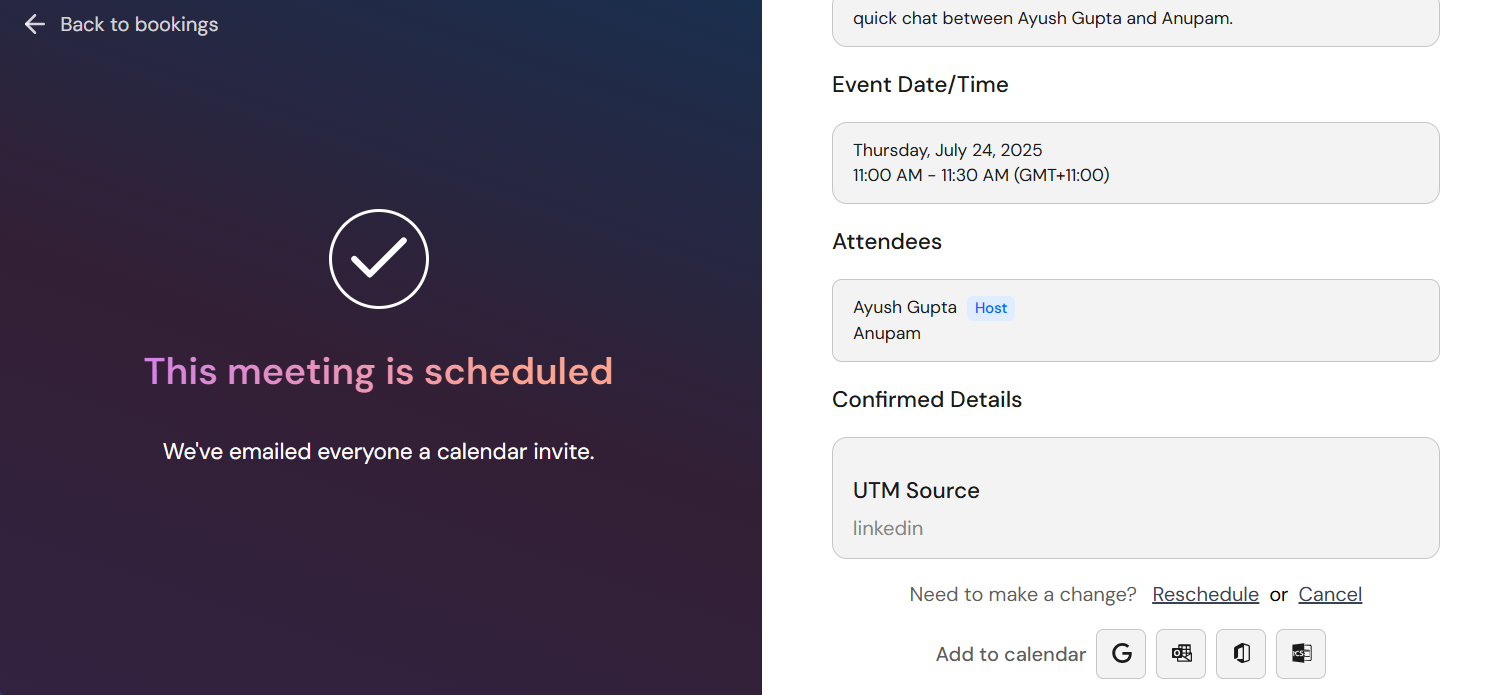
Book a meeting using the updated booking link with UTM parameters.
After a successful booking:
* As the **event admin**, you can view the UTM value (e.g., `linkedin`) under the booking details in your Lunacal dashboard.
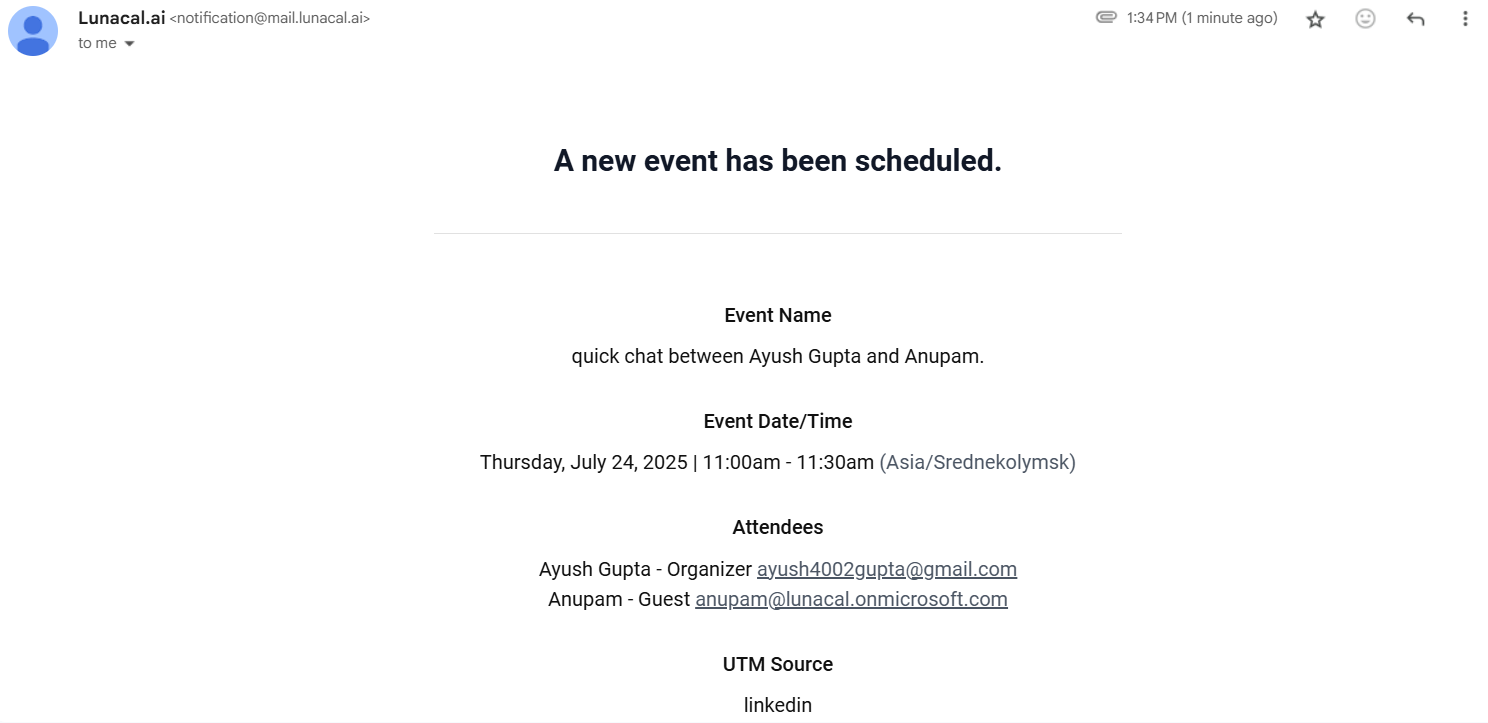
* Additionally, if booking notifications are enabled, the UTM values will appear in your confirmation email.
* These utm related fields can also be accessed via webhooks in **"responses"** key which contains responses for all booking questions.
***
## ✅ Summary
By following this guide, you can:
* Track the source of your bookings (e.g., LinkedIn, newsletter, website).
* Capture UTM data without showing fields to users.
* Use it to evaluate marketing channels and attribution.
You can extend this setup to include `utm_medium`, `utm_campaign`, or custom fields in same way!
 ## **Step 2 – Go to Booking Questions**
Once inside the event setup, look at the left-hand sidebar.
Click on **Booking questions** to view and manage the questions that appear on the booking form. These questions help you collect custom data manually or through URL params when someone books your event.
## **Step 2 – Go to Booking Questions**
Once inside the event setup, look at the left-hand sidebar.
Click on **Booking questions** to view and manage the questions that appear on the booking form. These questions help you collect custom data manually or through URL params when someone books your event.
 ## **Step 3 – Add a New Booking Question**
Click on the **Add / Edit booking question** button.
In the popup form:
* **Question:**\
Enter a user-friendly label like: `UTM Source`
> This is the label that would normally be shown on the booking form (but we’ll hide it later).
* **Question Type:**\
Choose `Short Text` from the dropdown. This allows UTM values (like `linkedin`, `newsletter`, `twitter`) to be entered or passed via URL.
* **Mandatory:**\
Leave this **disabled**, since we’ll be populating it via URL and not asking users to fill it out.
* **Internal Label:**\
Enter: `utm_source`
> This label is important — it gets used in the booking URL as the query param key. Always advised to start it with `utm_` to maintain clarity and consistency in your tracking.
* **Answer Suggestion:**\
(Optional) Add common values you expect like: `linkedin`, `instagram`, `email`.
Click the **Add** button to save the booking question.
## **Step 3 – Add a New Booking Question**
Click on the **Add / Edit booking question** button.
In the popup form:
* **Question:**\
Enter a user-friendly label like: `UTM Source`
> This is the label that would normally be shown on the booking form (but we’ll hide it later).
* **Question Type:**\
Choose `Short Text` from the dropdown. This allows UTM values (like `linkedin`, `newsletter`, `twitter`) to be entered or passed via URL.
* **Mandatory:**\
Leave this **disabled**, since we’ll be populating it via URL and not asking users to fill it out.
* **Internal Label:**\
Enter: `utm_source`
> This label is important — it gets used in the booking URL as the query param key. Always advised to start it with `utm_` to maintain clarity and consistency in your tracking.
* **Answer Suggestion:**\
(Optional) Add common values you expect like: `linkedin`, `instagram`, `email`.
Click the **Add** button to save the booking question.
 ## **Step 4 – Hide the Question**
Once the UTM Source question has been added, toggle the switch to **Hide** the field.\
This ensures it doesn’t appear on the public booking form, but it will still be processed if passed through a URL query parameter.
> Hidden questions can still capture values passed via URL, making this ideal for tracking marketing sources without disrupting the booking flow.
## **Step 4 – Hide the Question**
Once the UTM Source question has been added, toggle the switch to **Hide** the field.\
This ensures it doesn’t appear on the public booking form, but it will still be processed if passed through a URL query parameter.
> Hidden questions can still capture values passed via URL, making this ideal for tracking marketing sources without disrupting the booking flow.
 ***
## **Step 5 – Generate Your Booking URL with UTM Parameters**
Next, go to your **View Booking Page** for the event.
To pass UTM data, simply append it to the end of your booking URL as query parameters.
For example:
`https://lunacal.ai/{username}/{event-name}?utm_source=linkedin`
> ✅ Make sure the keys in the URL match the **internal labels** you’ve set in your booking questions (e.g. `utm_source`, `utm_campaign`, etc.).
## **Step 6 – Book and Verify**
Book a meeting using the updated booking link with UTM parameters.
After a successful booking:
* As the **event admin**, you can view the UTM value (e.g., `linkedin`) under the booking details in your Lunacal dashboard.
* Additionally, if booking notifications are enabled, the UTM values will appear in your confirmation email.
* These utm related fields can also be accessed via webhooks in **"responses"** key which contains responses for all booking questions.
***
## **Step 5 – Generate Your Booking URL with UTM Parameters**
Next, go to your **View Booking Page** for the event.
To pass UTM data, simply append it to the end of your booking URL as query parameters.
For example:
`https://lunacal.ai/{username}/{event-name}?utm_source=linkedin`
> ✅ Make sure the keys in the URL match the **internal labels** you’ve set in your booking questions (e.g. `utm_source`, `utm_campaign`, etc.).
## **Step 6 – Book and Verify**
Book a meeting using the updated booking link with UTM parameters.
After a successful booking:
* As the **event admin**, you can view the UTM value (e.g., `linkedin`) under the booking details in your Lunacal dashboard.
* Additionally, if booking notifications are enabled, the UTM values will appear in your confirmation email.
* These utm related fields can also be accessed via webhooks in **"responses"** key which contains responses for all booking questions.
 ***
## ✅ Summary
By following this guide, you can:
* Track the source of your bookings (e.g., LinkedIn, newsletter, website).
* Capture UTM data without showing fields to users.
* Use it to evaluate marketing channels and attribution.
You can extend this setup to include `utm_medium`, `utm_campaign`, or custom fields in same way!
***
## ✅ Summary
By following this guide, you can:
* Track the source of your bookings (e.g., LinkedIn, newsletter, website).
* Capture UTM data without showing fields to users.
* Use it to evaluate marketing channels and attribution.
You can extend this setup to include `utm_medium`, `utm_campaign`, or custom fields in same way!