> ## Documentation Index
> Fetch the complete documentation index at: https://help.lunacal.ai/llms.txt
> Use this file to discover all available pages before exploring further.
# How Workspaces Work
> A workspace is where you manage all your bookings in lunacal — your own bookings as well as your team's (if you have one).
## What is a Workspace?
A workspace is simply **your home base in lunacal**. It's where all your scheduling lives — your event types, your bookings, your settings.
Every Lunacal account starts with a **Personal Workspace**. This is yours. You don't need a team to use it. If you're a solo consultant, freelancer, or individual professional, your Personal Workspace is all you need.
If you work with others, you can create a **Team Workspace**. It lets multiple people share event types, booking pages, and scheduling rules.
**How do I share my license with someone?**
Invite them to your Team Workspace. Once they accept, they get a paid license under your plan — no separate purchase required. They also get their own Personal Workspace for independent scheduling.
## Personal Bookings vs. Team Bookings
**Personal Bookings**
One person, one calendar, one link — `lunacal.ai/yourname/event-name`. You control everything: duration, location, price, custom questions.
**Team Bookings**
Three ways team bookings work:
* **Round Robin** — Meetings are distributed one-by-one across team members. Lunacal picks whoever was booked least recently. Optionally, let the person booking choose a specific team member.
* **Collective** — The meeting only books when *everyone* on the team is free. Useful for group interviews, panel calls, or any meeting where the whole team must be present.
* **Managed Events** — An admin creates one event type and pushes it to selected team members. Each member gets their own personal version with consistent settings. Members can't edit locked fields.
## How Event Types, Booking Pages, and Routing Forms Fit Together
* **Event types** are the meetings you offer (e.g., "30-min Consultation").
* **Booking pages** are where people pick a time and book with you.
* **Routing forms** are optional intake forms that ask questions first, then send the person to the right event type.
**Routing Form** (optional) → asks questions → **Booking Page** → person picks a time → **Booking confirmed**
## What Happens When Someone Books
1. They visit your booking link (or a routing form sends them there).
2. They pick a time slot from your available calendar.
3. They fill in their details and any custom questions.
4. For paid events, they enter payment and apply a coupon code if available.
5. They see a confirmation page and receive a confirmation email with everything they need — including links to reschedule or cancel.
For round-robin events, Lunacal automatically assigns a team member. For collective events, all team members are added.
## What Your Attendees See For Personal Booking Page
When someone clicks your username link e.g. [https://lunacal.ai/mario-rossi](https://lunacal.ai/mario-rossi) they see:
* Your name, designation and photo
* All your events you created
.webp?fit=max&auto=format&n=5qP0WyVxrDP7Ark9&q=85&s=fa3c7c7265709fc7422b9a77678a0e1f) When someone clicks your event booking link e.g. [https://lunacal.ai/mario-rossi/45-min-session](https://lunacal.ai/mario-rossi/45-min-session), they see:
* Your name, designation and photo
* The event title and description
* Meeting duration
* Available time slots on a clean calendar
* Widgets on your booking page (Testimonials, About Us, FAQs, Social Media Posts etc.)
When someone clicks your event booking link e.g. [https://lunacal.ai/mario-rossi/45-min-session](https://lunacal.ai/mario-rossi/45-min-session), they see:
* Your name, designation and photo
* The event title and description
* Meeting duration
* Available time slots on a clean calendar
* Widgets on your booking page (Testimonials, About Us, FAQs, Social Media Posts etc.)
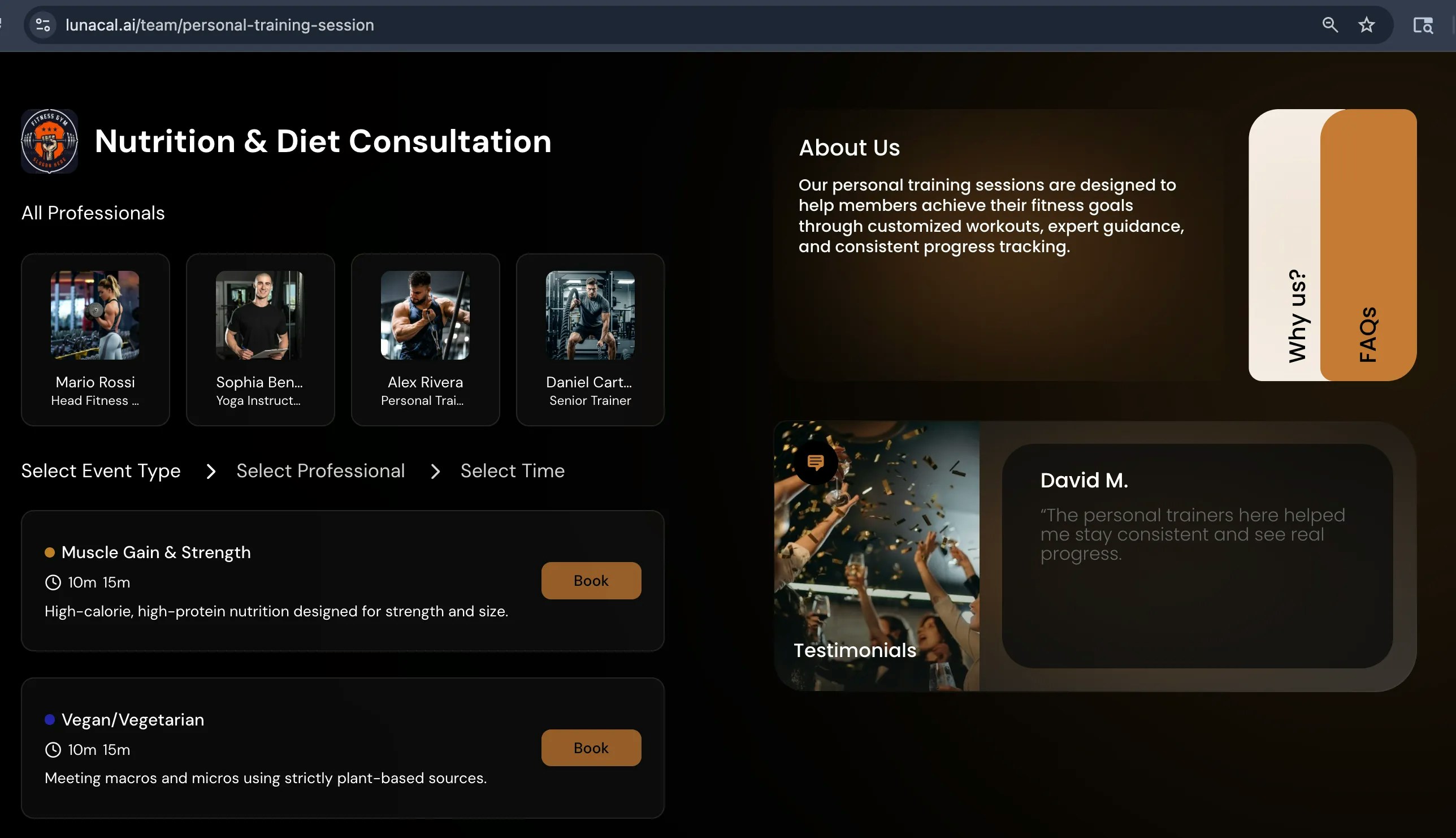
.webp?fit=max&auto=format&n=5qP0WyVxrDP7Ark9&q=85&s=53ce1de5f3d59844165eca273251c879) ## What Your Attendees See For Teams Booking Page
* Team name and photo
* All your team members
* All team events you created
* Widgets on your team booking page (Testimonials, About Us, FAQs, Social Media Posts etc.)
## What Your Attendees See For Teams Booking Page
* Team name and photo
* All your team members
* All team events you created
* Widgets on your team booking page (Testimonials, About Us, FAQs, Social Media Posts etc.)
 ## Why You See Team Features (Even If You're Solo)
**"Why does the workspace dropdown show 'Your Teams'?"**
Your workspace selector always shows Personal Workspace at the top and Your Teams below. If you haven't created a team, it just shows an option to create one. Your Personal Workspace always works independently.
## Why You See Team Features (Even If You're Solo)
**"Why does the workspace dropdown show 'Your Teams'?"**
Your workspace selector always shows Personal Workspace at the top and Your Teams below. If you haven't created a team, it just shows an option to create one. Your Personal Workspace always works independently.
.webp?fit=max&auto=format&n=VET-z2qZqXNLsq9Z&q=85&s=d8c0b6dc2b9470ee6712dc92a2178005 "Screenshot (3)") **"Why are some event settings locked or grayed out?"**
A team admin created a **managed event** and assigned it to you. They control settings like duration and title to keep things consistent. You'll see "Locked by the team admin" on those fields. Ask your admin if you need a change.
**"Why are some event settings locked or grayed out?"**
A team admin created a **managed event** and assigned it to you. They control settings like duration and title to keep things consistent. You'll see "Locked by the team admin" on those fields. Ask your admin if you need a change.
.webp?fit=max&auto=format&n=VET-z2qZqXNLsq9Z&q=85&s=66234bd1d9a2bda1fa60e86ec8af0700) **"Why does it feel like everything is built for teams?"**
lunacal uses the same workspace structure for individuals and teams. Your Personal Workspace uses the same tools — team features are additions on top, not replacements. They don't affect your personal scheduling unless you actively set up a team.
## Managed Events: What They Are and Why Settings Are Locked
1. A team admin creates a managed event (e.g., "Initial Consultation — 30 min").
2. The admin assigns it to specific members — or the entire team, including future members.
3. Each member gets their own copy at `lunacal.ai/membername/event-name`.
4. The admin controls the settings. Members can't change locked fields.
Any changes the admin makes automatically apply to everyone's copy.
## Routing Forms: Sending People to the Right Place
1. The person fills out a simple form with your questions.
2. Based on their answers, Lunacal sends them to the right booking page — or shows a custom message or external redirect.
3. Their answers can pre-fill the booking form so they don't repeat themselves.
Routing forms can belong to your Personal Workspace or a Team Workspace.
## Quick Reference
| **Concept** | **What It Means** |
| :----------------- | :--------------------------------------------------------------------------------- |
| Personal Workspace | Your own scheduling home base. Always there. |
| Team Workspace | A shared space for a group to manage scheduling together. |
| Event Type | A meeting you offer (e.g., "30-min Call"). |
| Booking Page | The public page where someone picks a time and books. |
| Routing Form | An optional questionnaire that directs people to the right event. |
| Managed Event | An event type created by an admin and pushed to team members. Settings are locked. |
| Round Robin | Automatically distributes bookings across team members evenly. |
| Collective | Books only when all team members are available at the same time. |
**"Why does it feel like everything is built for teams?"**
lunacal uses the same workspace structure for individuals and teams. Your Personal Workspace uses the same tools — team features are additions on top, not replacements. They don't affect your personal scheduling unless you actively set up a team.
## Managed Events: What They Are and Why Settings Are Locked
1. A team admin creates a managed event (e.g., "Initial Consultation — 30 min").
2. The admin assigns it to specific members — or the entire team, including future members.
3. Each member gets their own copy at `lunacal.ai/membername/event-name`.
4. The admin controls the settings. Members can't change locked fields.
Any changes the admin makes automatically apply to everyone's copy.
## Routing Forms: Sending People to the Right Place
1. The person fills out a simple form with your questions.
2. Based on their answers, Lunacal sends them to the right booking page — or shows a custom message or external redirect.
3. Their answers can pre-fill the booking form so they don't repeat themselves.
Routing forms can belong to your Personal Workspace or a Team Workspace.
## Quick Reference
| **Concept** | **What It Means** |
| :----------------- | :--------------------------------------------------------------------------------- |
| Personal Workspace | Your own scheduling home base. Always there. |
| Team Workspace | A shared space for a group to manage scheduling together. |
| Event Type | A meeting you offer (e.g., "30-min Call"). |
| Booking Page | The public page where someone picks a time and books. |
| Routing Form | An optional questionnaire that directs people to the right event. |
| Managed Event | An event type created by an admin and pushed to team members. Settings are locked. |
| Round Robin | Automatically distributes bookings across team members evenly. |
| Collective | Books only when all team members are available at the same time. |