> ## Documentation Index
> Fetch the complete documentation index at: https://help.lunacal.ai/llms.txt
> Use this file to discover all available pages before exploring further.
# Team Booking Page
> Manage how your team appears to visitors. Learn how to view, embed, and control visibility of your team booking page and individual member pages inside a Workspace.
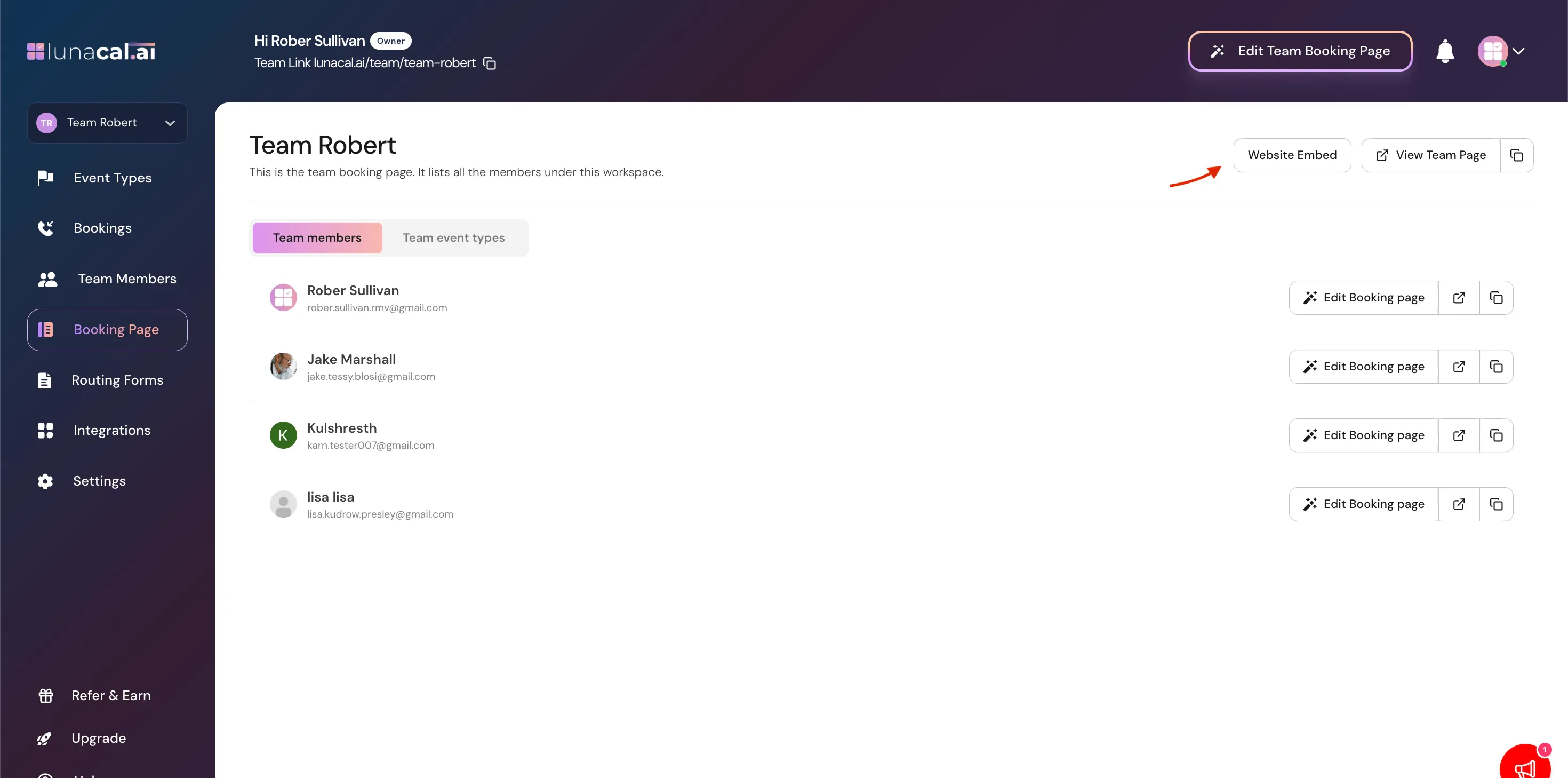
The **Booking Page** tab allows you to manage how your team appears to visitors.
This is the public-facing page where people can:
* View your team members
* View available team event types
* Book meetings
## What You’ll See in This Section
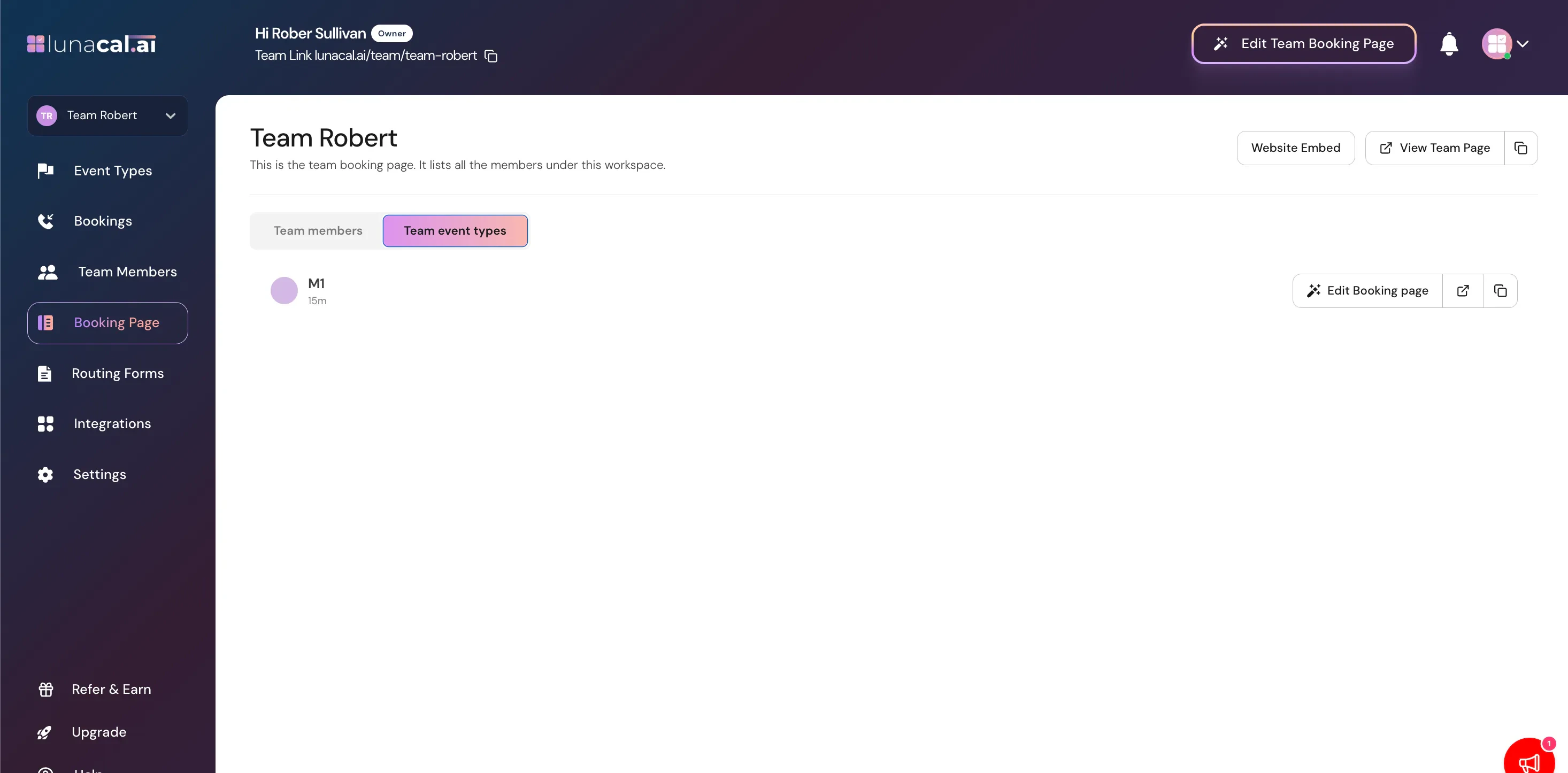
Inside the Booking Page tab, you’ll see:
* **Website Embed**
* **View Team Page**
* A list of **Team Members**
* A list of **Team Event Types**
* **"Edit Booking Page"** option for each member
## View Team Page
Click **View Team Page** to open your public team booking page.
This page:
* Lists all visible team members
* Displays published team event types
* Allows visitors to select and book meetings
Only members who are:
* Not hidden from booking page
* Assigned to events
* Have availability set
…will properly appear and be bookable.
## Website Embed
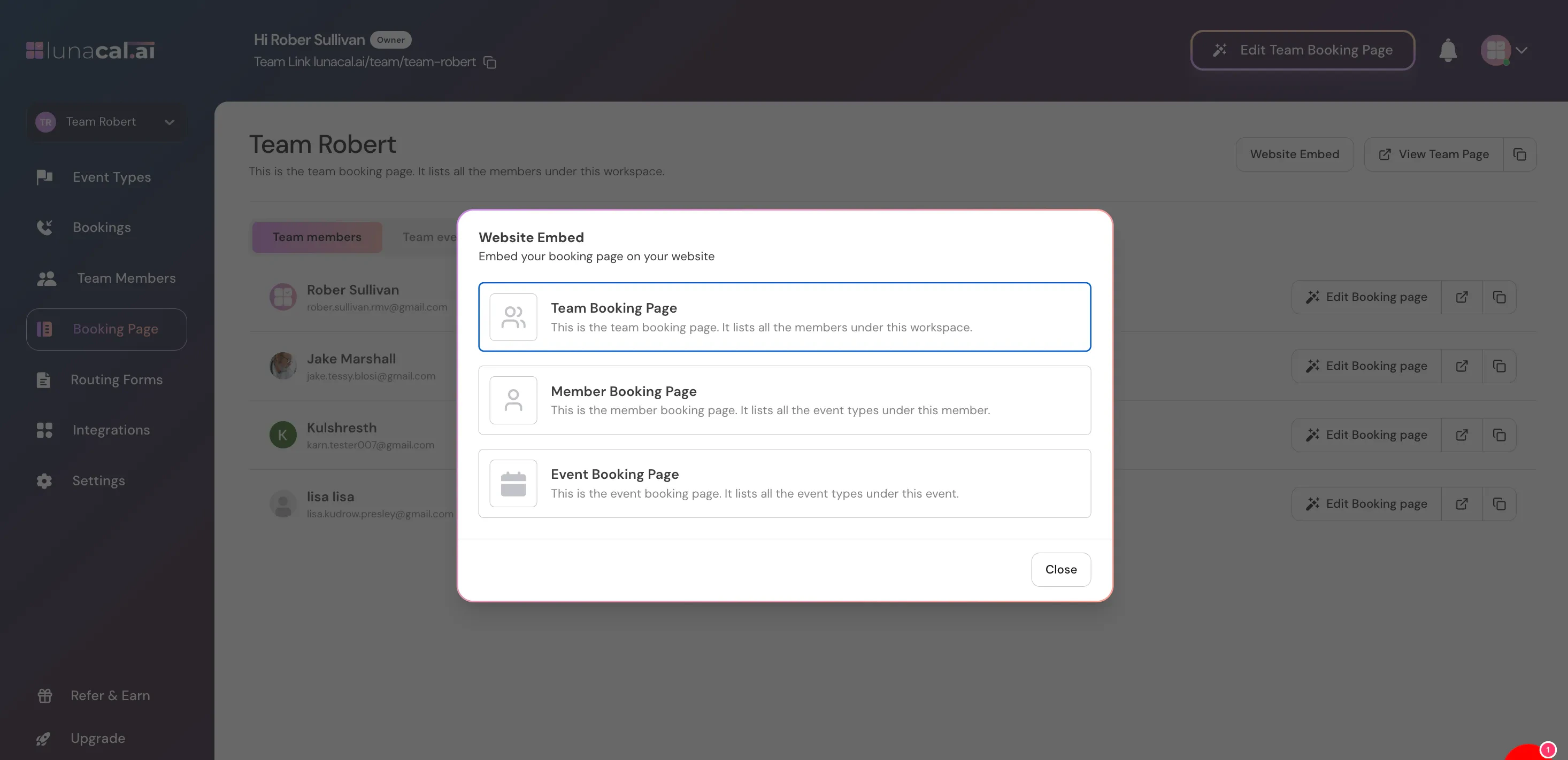
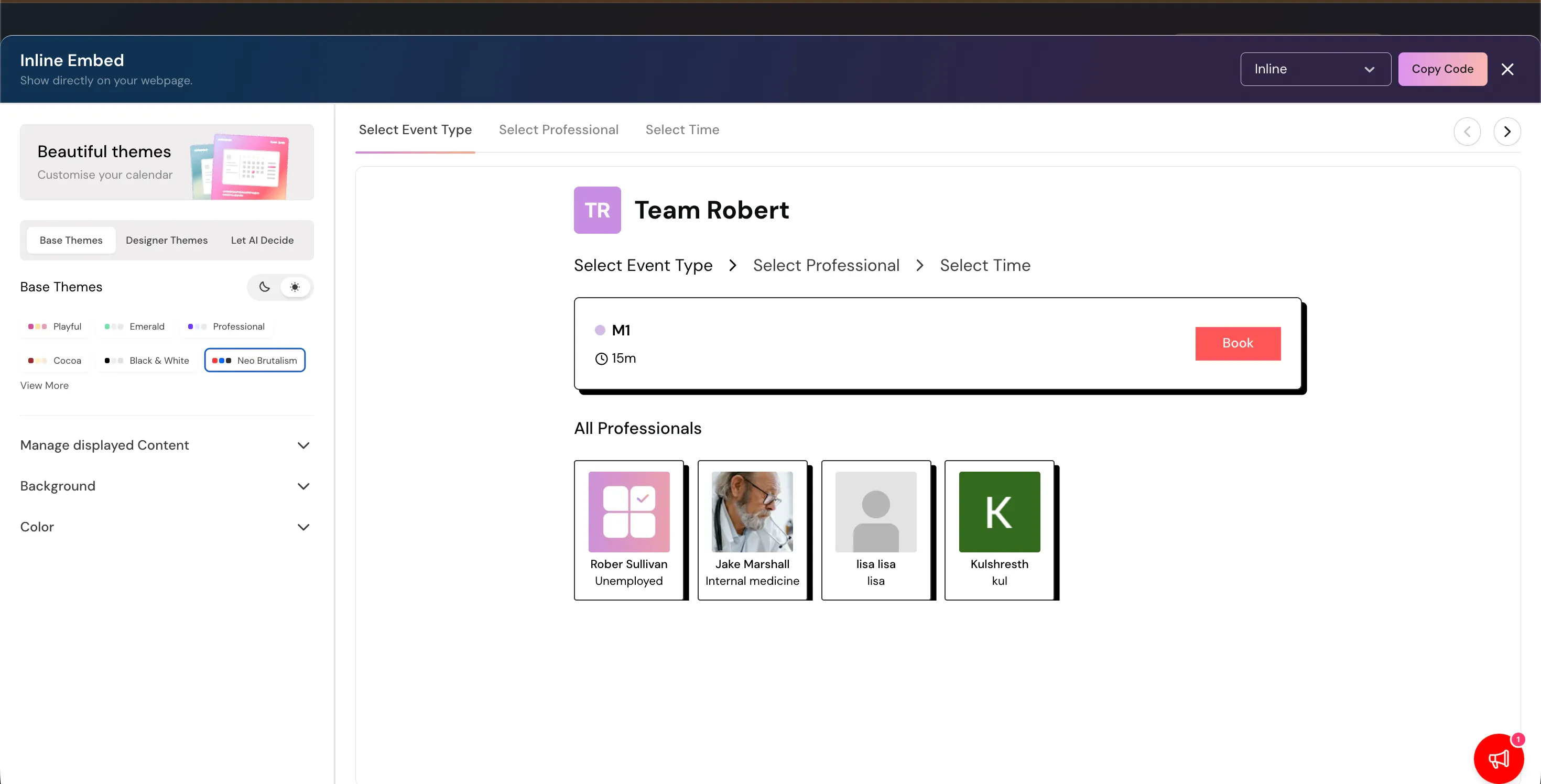
Use **Website Embed** if you want to embed your team booking page on your own website.
This allows you to:
* Add your team scheduler to your homepage
* Embed inside a landing page
* Place inside a client portal
Learn more : [https://help.lunacal.ai/website-embed](https://help.lunacal.ai/website-embed)
The embed code loads your team booking interface directly on your website. just **COPY** the code and paste it into your website.
 ## Team Members Section
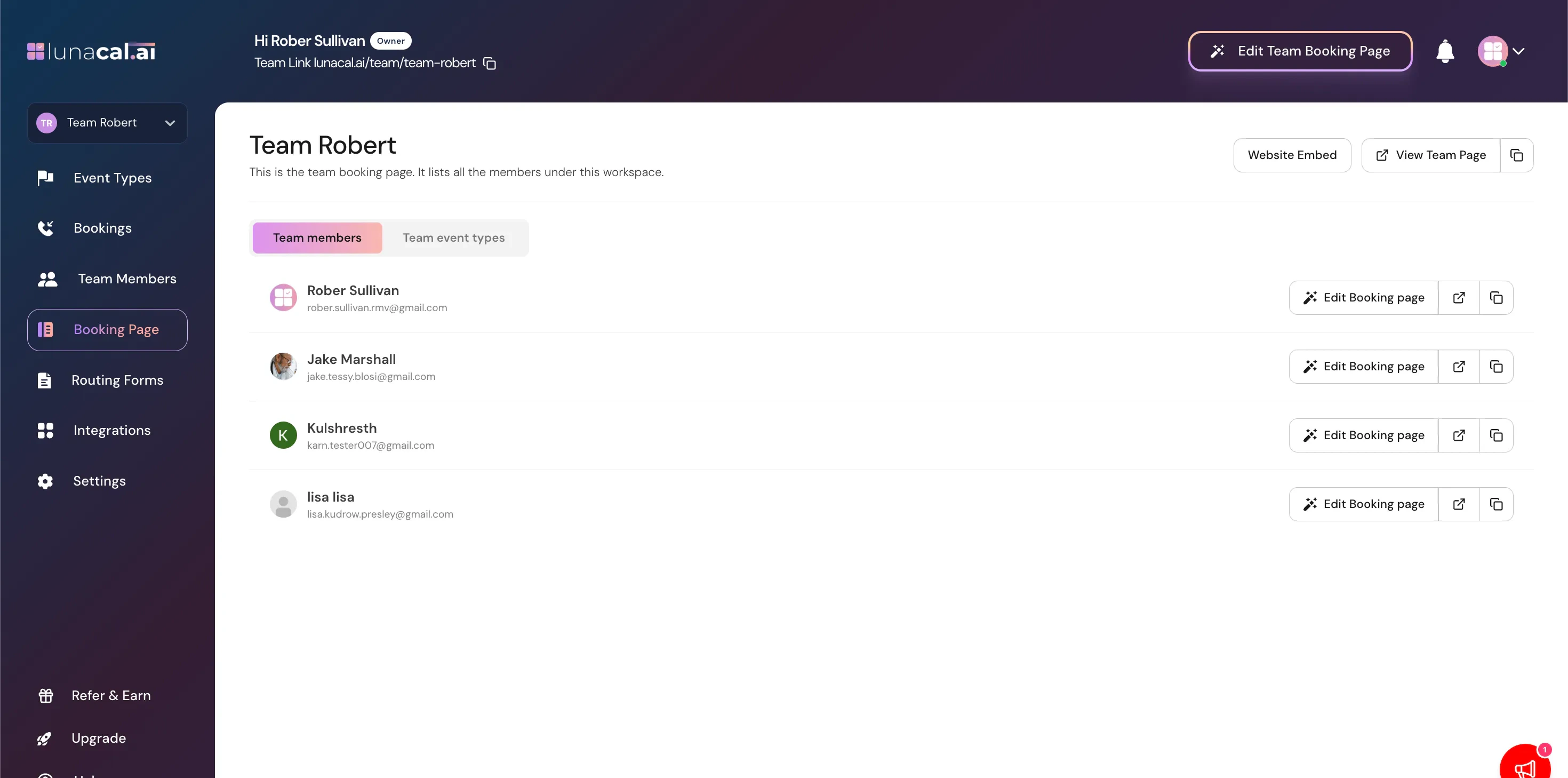
You’ll see a list of all members in the workspace.
For each member, you can:
* View their name and email
* Click **Edit Booking Page**
## Team Members Section
You’ll see a list of all members in the workspace.
For each member, you can:
* View their name and email
* Click **Edit Booking Page**
 ## Edit Booking Page (Per Member)
Clicking **Edit Booking Page** allows you to customize that individual member’s public booking profile.
You can modify:
* Public display information
* Profile details
* How they appear on the team page
* How their public booking page will look like
Important:
If a member is:
* Hidden from booking page (via Team Members tab)
* Not assigned to events
* Has scheduling disabled
They may not appear publicly even if their profile is configured.
## Team Event Types Section
Beside members, you’ll see the list of team event types just click on "Team event types.
These are the events that:
* Appear on the public team page
* Can be booked by visitors
Only published event types will be visible.
## Edit Booking Page (Per Member)
Clicking **Edit Booking Page** allows you to customize that individual member’s public booking profile.
You can modify:
* Public display information
* Profile details
* How they appear on the team page
* How their public booking page will look like
Important:
If a member is:
* Hidden from booking page (via Team Members tab)
* Not assigned to events
* Has scheduling disabled
They may not appear publicly even if their profile is configured.
## Team Event Types Section
Beside members, you’ll see the list of team event types just click on "Team event types.
These are the events that:
* Appear on the public team page
* Can be booked by visitors
Only published event types will be visible.
 ## How Visibility Works (Important Logic)
A team member will appear on the team booking page only if:
1. They are not hidden from booking page
2. They are assigned to at least one event
3. Scheduling is not disabled
4. They have availability configured
If any of the above conditions are not met, the member may not appear or may not show available slots.
# Best Practices
* Hide internal-only members from the booking page.
* Disable scheduling instead of removing members when they are temporarily unavailable.
* Regularly review assigned events to ensure accurate public visibility.
* Test the **View Team Page** after making changes.
## How Visibility Works (Important Logic)
A team member will appear on the team booking page only if:
1. They are not hidden from booking page
2. They are assigned to at least one event
3. Scheduling is not disabled
4. They have availability configured
If any of the above conditions are not met, the member may not appear or may not show available slots.
# Best Practices
* Hide internal-only members from the booking page.
* Disable scheduling instead of removing members when they are temporarily unavailable.
* Regularly review assigned events to ensure accurate public visibility.
* Test the **View Team Page** after making changes.