> ## Documentation Index
> Fetch the complete documentation index at: https://help.lunacal.ai/llms.txt
> Use this file to discover all available pages before exploring further.
# Manage Team Bookings
> In a team workspace, the Bookings page shows all bookings made for your team’s event types. It gives you a unified place to view, update, and manage every meeting scheduled through your team’s scheduling pages.
> **Note:** In team workspaces, only members with the right permissions (team Owner & Admin) can edit or update bookings, based on their role.
***
## **Booking Views & What They Mean**
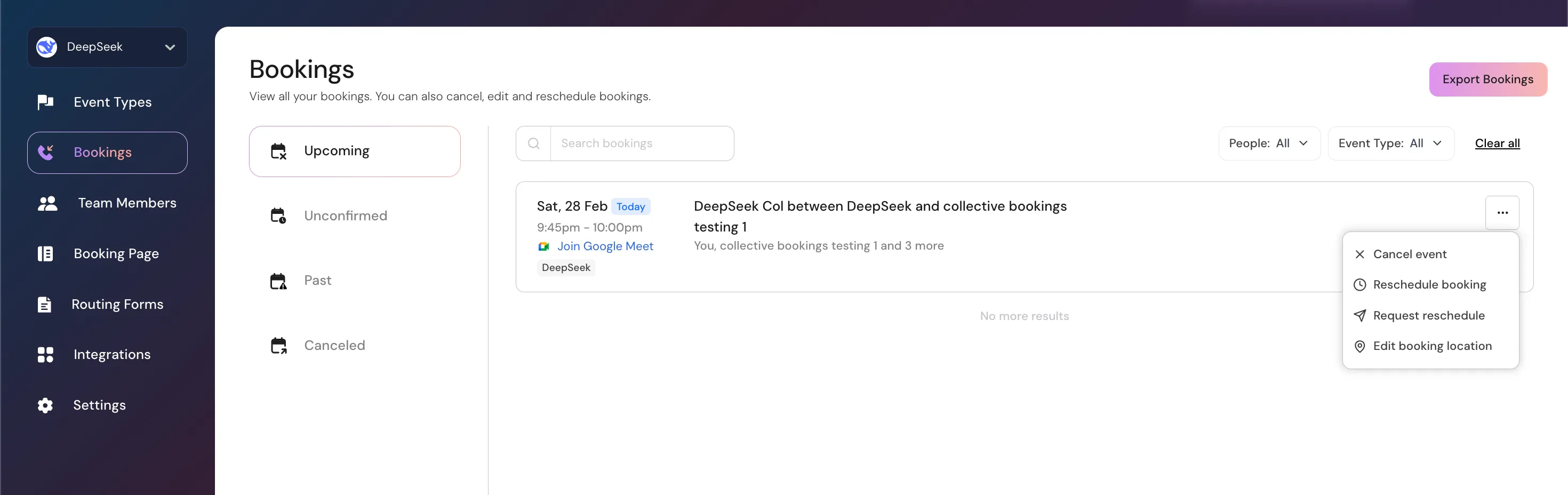
1. **Upcoming**\
All confirmed future team bookings across your event types.
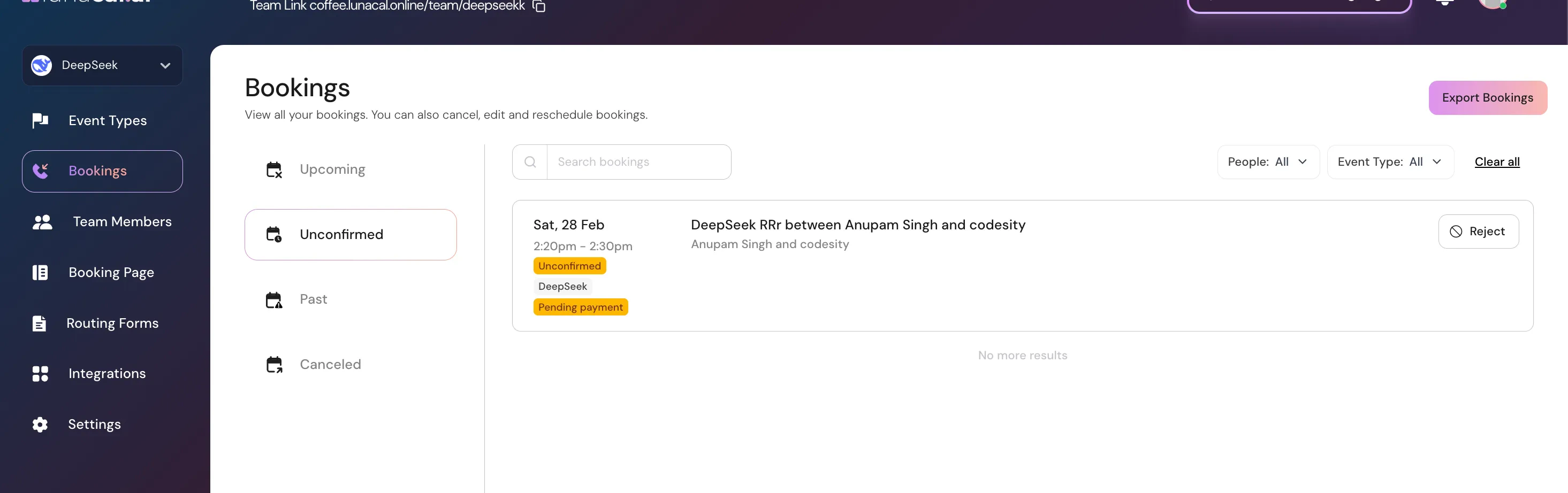
 2. **Unconfirmed**\
Bookings that require further action — e.g., awaiting payment completion or manual approval.
2. **Unconfirmed**\
Bookings that require further action — e.g., awaiting payment completion or manual approval.
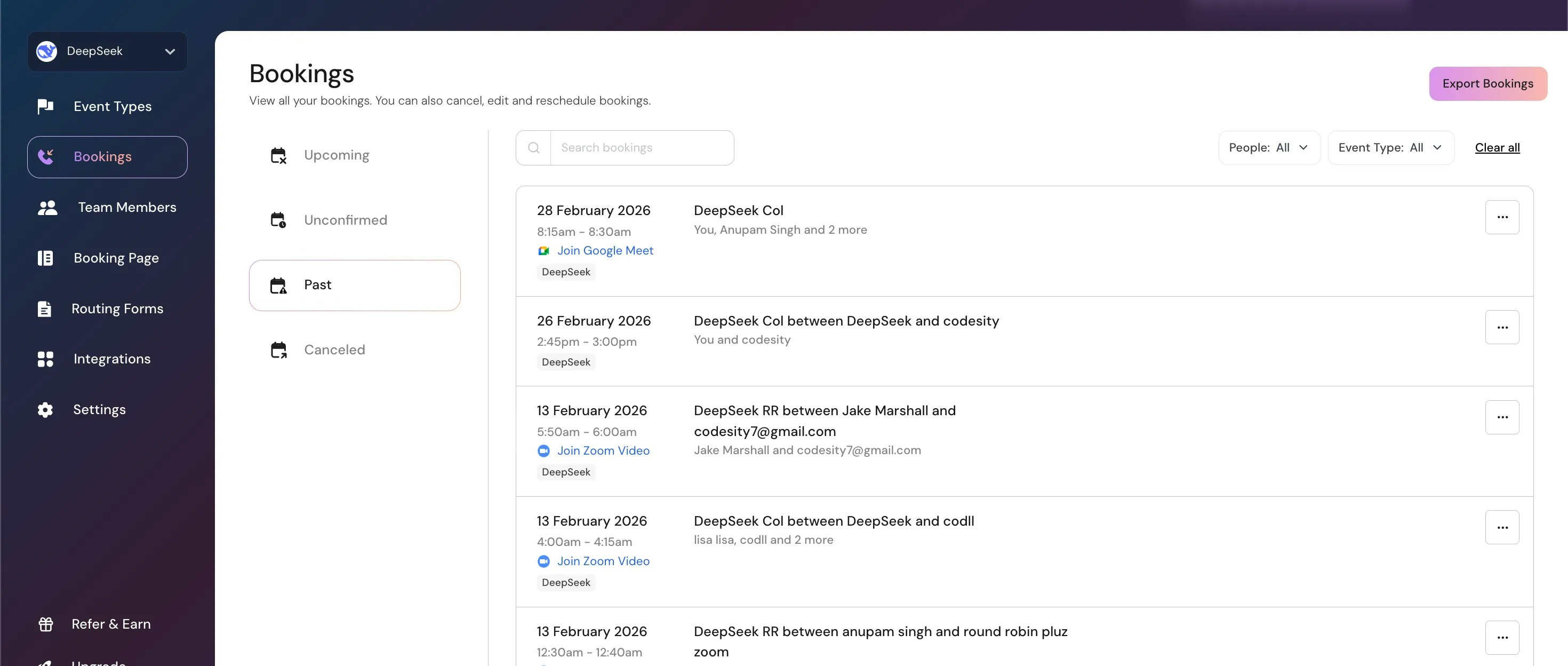
 3. **Past**\
Meetings that have already occurred.
3. **Past**\
Meetings that have already occurred.
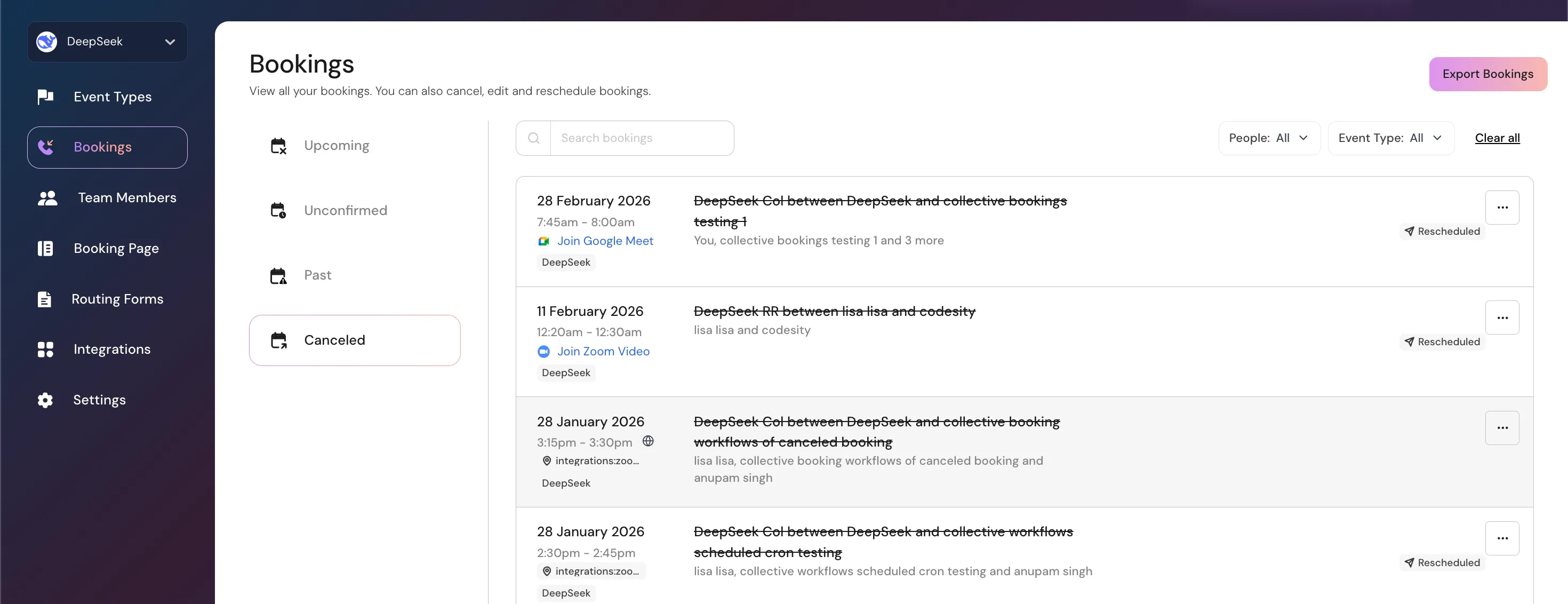
 4. **Canceled**\
Previously scheduled meetings that were canceled by your team or by the attendee.
4. **Canceled**\
Previously scheduled meetings that were canceled by your team or by the attendee.
 ***
## **How to Access Team Bookings**
1. In your team workspace sidebar, click **Bookings**.
2. The list refreshes to show bookings for events that belong to your team’s workspace (not your personal events).
***
## **Edit, Reschedule, or Cancel a Team Booking**
Use the **Edit** menu on any booking in the list to:
***
## **How to Access Team Bookings**
1. In your team workspace sidebar, click **Bookings**.
2. The list refreshes to show bookings for events that belong to your team’s workspace (not your personal events).
***
## **Edit, Reschedule, or Cancel a Team Booking**
Use the **Edit** menu on any booking in the list to:
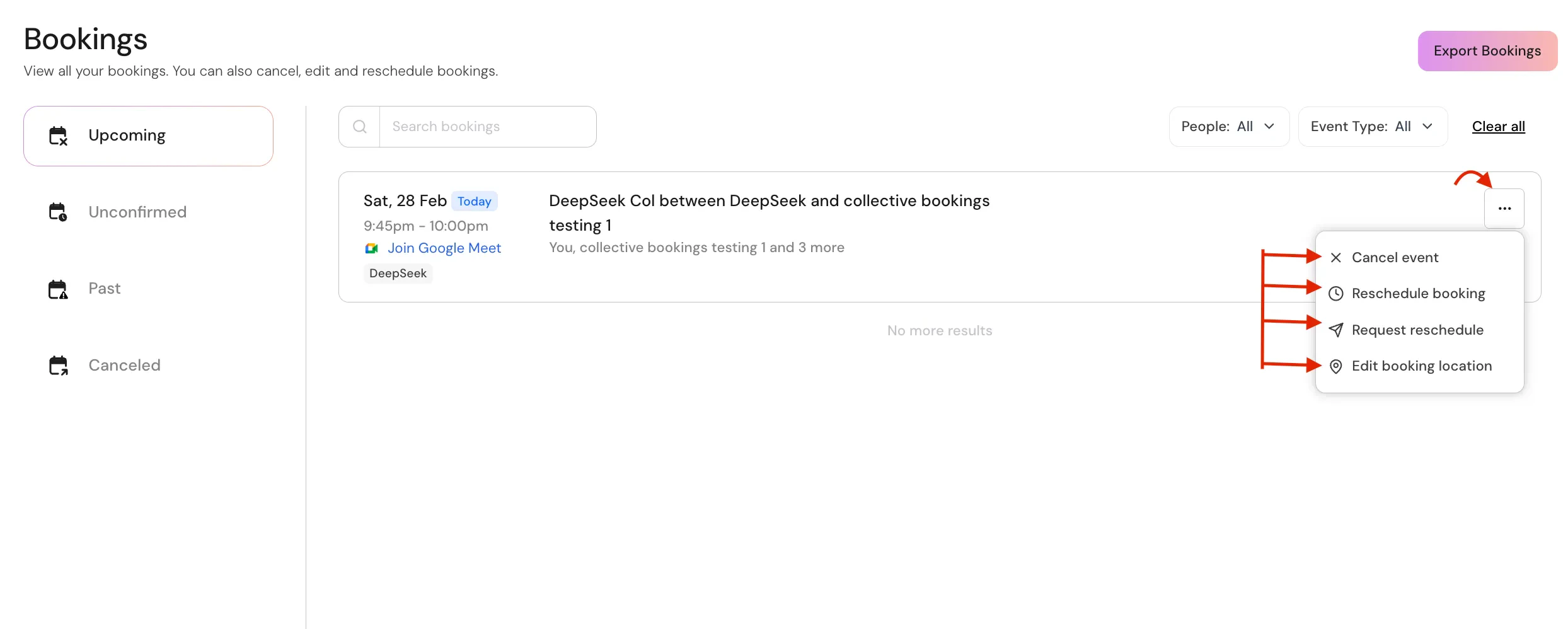 * **Reschedule** — pick a new time and send the updated invite to the attendee(s)
* **Request a Reschedule** — prompt the attendee to choose a new time
* **Cancel** — remove the booking from the calendar and notify
* **Change Location** — update the meeting type (e.g., Zoom, Meet, physical address)

**After any change**, Lunacal automatically sends updated notifications/mails to attendees & hosts.
## **Booking Details & Full View**
Click a booking entry to open its detail panel. Here you can:
* See attendee contact info
* View which event type was booked
* See assigned team member(s)
* Copy conferencing links for meetings (Zoom, Meet, Teams, etc.)

This is helpful to prepare before a meeting starts.
## **Handling Unconfirmed Team Bookings**
The **Unconfirmed** tab shows bookings that haven’t been fully completed, such as:
* Bookings with **pending payment**
* Bookings awaiting **manual approval**
* **Reschedule** — pick a new time and send the updated invite to the attendee(s)
* **Request a Reschedule** — prompt the attendee to choose a new time
* **Cancel** — remove the booking from the calendar and notify
* **Change Location** — update the meeting type (e.g., Zoom, Meet, physical address)

**After any change**, Lunacal automatically sends updated notifications/mails to attendees & hosts.
## **Booking Details & Full View**
Click a booking entry to open its detail panel. Here you can:
* See attendee contact info
* View which event type was booked
* See assigned team member(s)
* Copy conferencing links for meetings (Zoom, Meet, Teams, etc.)

This is helpful to prepare before a meeting starts.
## **Handling Unconfirmed Team Bookings**
The **Unconfirmed** tab shows bookings that haven’t been fully completed, such as:
* Bookings with **pending payment**
* Bookings awaiting **manual approval**
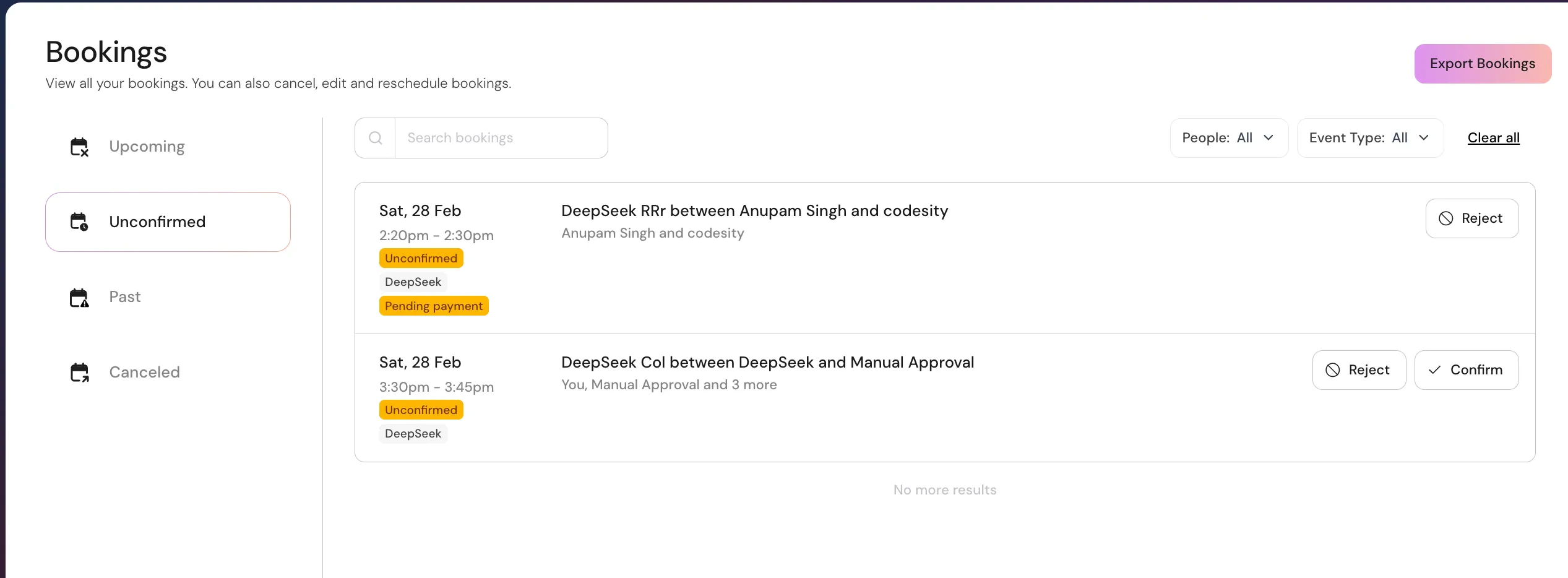 Review this section regularly so team members with booking privileges can follow up and convert them into confirmed meetings.
## **Past & Canceled Bookings**
* **Past:** Review completed meetings across the team; useful for reporting, notes, or CRM follow-up.
* **Canceled:** See meetings that were canceled, either by your team or by attendees — this can help you spot patterns in no-shows or reschedules.
## **Permissions & Editing Rights**
Team Owners and Admins can view all bookings and often can edit them.
However:
* Only the event **owner** or users with appropriate team roles can **edit or cancel** individual bookings
Always make sure you’re in the correct **team workspace** and have the required permissions before editing bookings.
## **Best Practices for Team Booking Management**
* Check **“Unconfirmed”** daily — don’t let pending actions accumulate.
* Standardize meeting **“Location”** defaults (e.g., Zoom for demos) to reduce errors.
* Use **reschedule requests** when timing shifts instead of canceling outright.
* **Review** the **Canceled** tab weekly to identify possible booking friction points.
## **Common Mistakes to Avoid**
* Editing booking details directly in a connected calendar instead of through the team **Bookings** page.
* Forgetting to send updated notifications after rescheduling or canceling.
* Ignoring unconfirmed bookings, leading to lost revenue or missed meetings.
Review this section regularly so team members with booking privileges can follow up and convert them into confirmed meetings.
## **Past & Canceled Bookings**
* **Past:** Review completed meetings across the team; useful for reporting, notes, or CRM follow-up.
* **Canceled:** See meetings that were canceled, either by your team or by attendees — this can help you spot patterns in no-shows or reschedules.
## **Permissions & Editing Rights**
Team Owners and Admins can view all bookings and often can edit them.
However:
* Only the event **owner** or users with appropriate team roles can **edit or cancel** individual bookings
Always make sure you’re in the correct **team workspace** and have the required permissions before editing bookings.
## **Best Practices for Team Booking Management**
* Check **“Unconfirmed”** daily — don’t let pending actions accumulate.
* Standardize meeting **“Location”** defaults (e.g., Zoom for demos) to reduce errors.
* Use **reschedule requests** when timing shifts instead of canceling outright.
* **Review** the **Canceled** tab weekly to identify possible booking friction points.
## **Common Mistakes to Avoid**
* Editing booking details directly in a connected calendar instead of through the team **Bookings** page.
* Forgetting to send updated notifications after rescheduling or canceling.
* Ignoring unconfirmed bookings, leading to lost revenue or missed meetings.