> ## Documentation Index
> Fetch the complete documentation index at: https://help.lunacal.ai/llms.txt
> Use this file to discover all available pages before exploring further.
# Team Settings
> Configure global workspace settings including branding, availability, workflows, billing, custom labels, privacy, domain configuration, and advanced email setup.
The **Settings** section controls global configuration for your Team Workspace.
All changes made here apply to the entire team unless overridden at the event or member level.
To access:
1. Switch to your **Team Workspace**
2. Click **Settings** from the sidebar
You’ll see the following tabs:
* General
* Account
* Availability
* Workflows
* Custom Labels
* Advanced
# General Tab
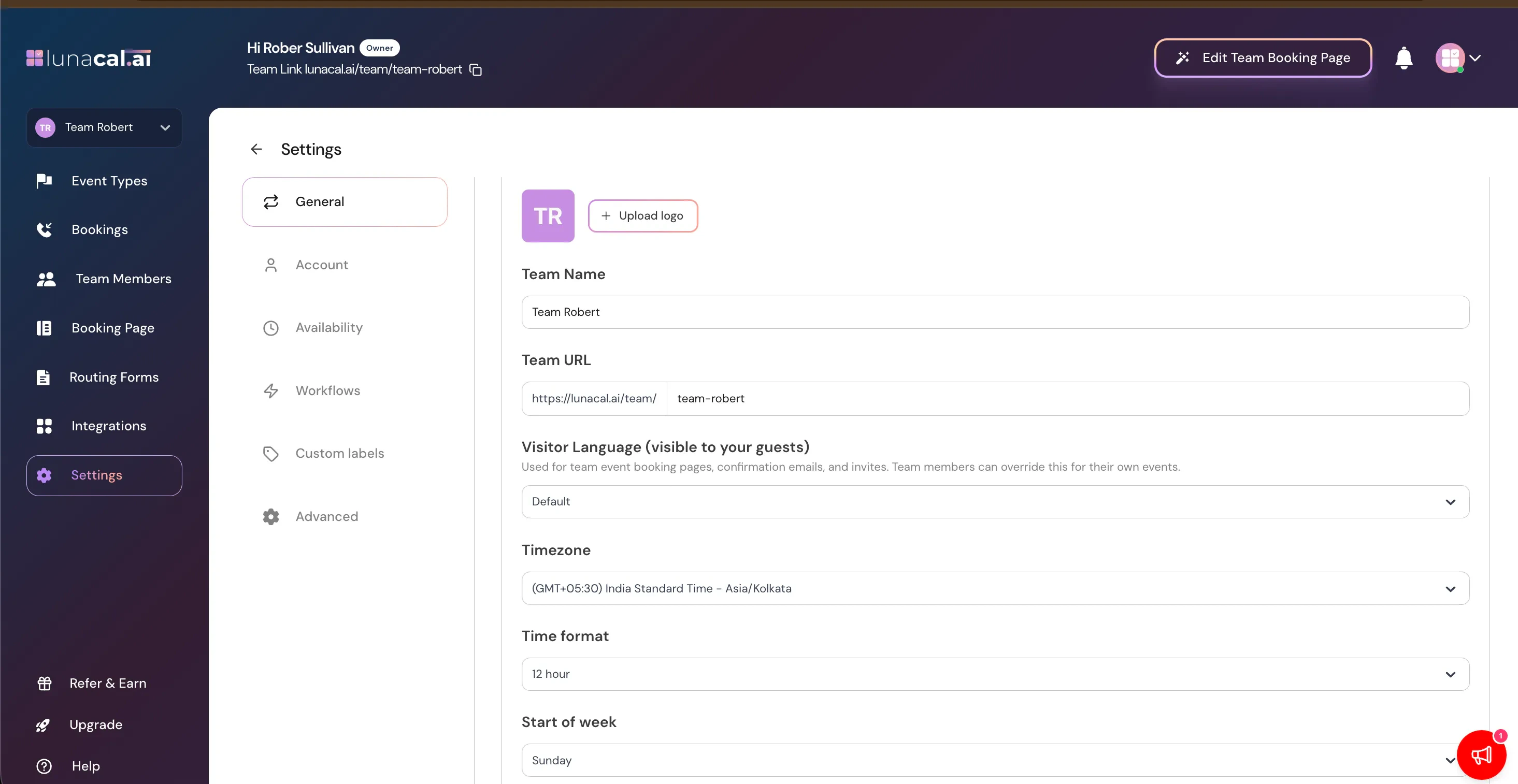 The **General** tab controls your team’s identity, public page behavior, SEO, privacy, and branding.
## Team Identity
### Upload Logo
Add a logo that appears on your team booking page.
### Team Name
This is your public team name.
### Team URL
Your public booking page link:
`https://lunacal.ai/team/your-team-slug`
Changing the slug updates your team’s booking page URL.
## Visitor Language
Controls the default language used for:
* Team booking pages
* Confirmation emails
* Calendar invites
Note: Individual team members can override this setting for their own events.
## Timezone
Sets the default timezone for the workspace.
This affects:
* Booking availability display
* Event scheduling behavior
Members can have their own timezones, but team events may use this default.
## Time Format
Choose between:
* 12-hour format
* 24-hour format
Applies to public booking pages and internal scheduling view.
## Start of Week
Defines which day your calendar week begins on.
This affects:
* Calendar display
* Weekly availability layout
## Webpage SEO & Branding
Control how your team booking page appears:
* In browser tabs
* In search results
* When shared on social media
### Meta Title
Appears in browser tab and search results.
### Meta Description
Appears in search previews.
### Social Preview Image
Image shown when sharing your team booking link.
Always click **Update** after making changes.
## Privacy Settings
### Make Team Private
When enabled:
* Team members cannot see each other’s data
* Useful for independent contractors within one workspace
Does not affect public visibility.
## Remove Lunacal Branding
Removes “Built with Lunacal.ai” from your scheduling page.
Availability depends on your subscription plan.
## Danger Zone
### Disband Team
Permanently deletes the team workspace.
Warning:
* This action cannot be undone.
* All team settings and configurations will be removed.
Bookings history may not be recoverable.
Proceed with caution.
# Account Tab
The **General** tab controls your team’s identity, public page behavior, SEO, privacy, and branding.
## Team Identity
### Upload Logo
Add a logo that appears on your team booking page.
### Team Name
This is your public team name.
### Team URL
Your public booking page link:
`https://lunacal.ai/team/your-team-slug`
Changing the slug updates your team’s booking page URL.
## Visitor Language
Controls the default language used for:
* Team booking pages
* Confirmation emails
* Calendar invites
Note: Individual team members can override this setting for their own events.
## Timezone
Sets the default timezone for the workspace.
This affects:
* Booking availability display
* Event scheduling behavior
Members can have their own timezones, but team events may use this default.
## Time Format
Choose between:
* 12-hour format
* 24-hour format
Applies to public booking pages and internal scheduling view.
## Start of Week
Defines which day your calendar week begins on.
This affects:
* Calendar display
* Weekly availability layout
## Webpage SEO & Branding
Control how your team booking page appears:
* In browser tabs
* In search results
* When shared on social media
### Meta Title
Appears in browser tab and search results.
### Meta Description
Appears in search previews.
### Social Preview Image
Image shown when sharing your team booking link.
Always click **Update** after making changes.
## Privacy Settings
### Make Team Private
When enabled:
* Team members cannot see each other’s data
* Useful for independent contractors within one workspace
Does not affect public visibility.
## Remove Lunacal Branding
Removes “Built with Lunacal.ai” from your scheduling page.
Availability depends on your subscription plan.
## Danger Zone
### Disband Team
Permanently deletes the team workspace.
Warning:
* This action cannot be undone.
* All team settings and configurations will be removed.
Bookings history may not be recoverable.
Proceed with caution.
# Account Tab
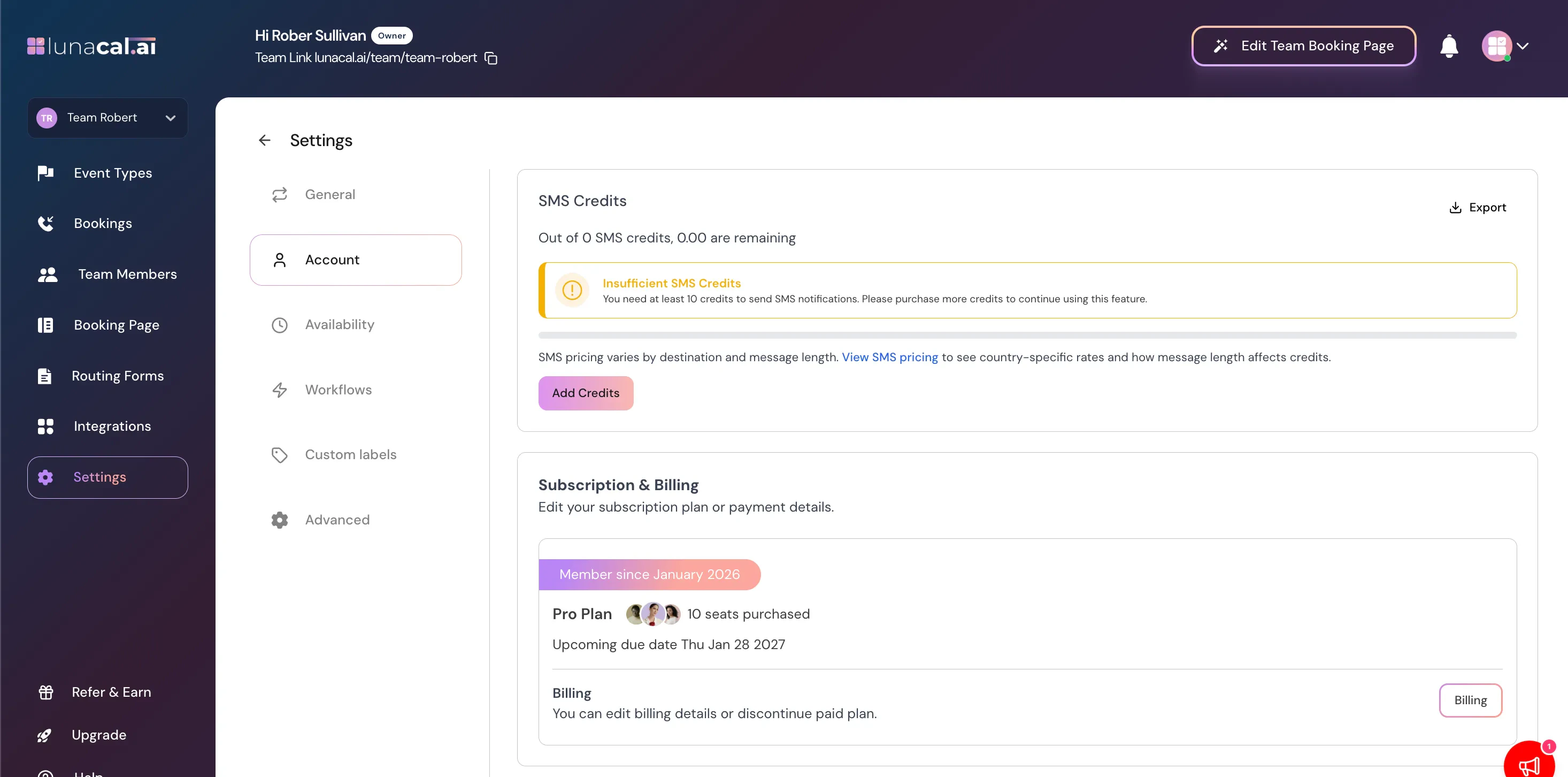 This tab manages SMS credits and billing.
## SMS Credits
Used for sending SMS notifications.
You’ll see:
* Total credits
* Remaining credits
* Pricing details
Minimum required credits apply for sending SMS.
If insufficient credits:
* SMS reminders will not send.
Use **Add Credits** to purchase more.
## Subscription & Billing
Shows your current plan (e.g., Free Plan).
From here you can:
* Edit billing details
* Upgrade plan
* Discontinue paid plan
# Availability Tab
This tab manages SMS credits and billing.
## SMS Credits
Used for sending SMS notifications.
You’ll see:
* Total credits
* Remaining credits
* Pricing details
Minimum required credits apply for sending SMS.
If insufficient credits:
* SMS reminders will not send.
Use **Add Credits** to purchase more.
## Subscription & Billing
Shows your current plan (e.g., Free Plan).
From here you can:
* Edit billing details
* Upgrade plan
* Discontinue paid plan
# Availability Tab
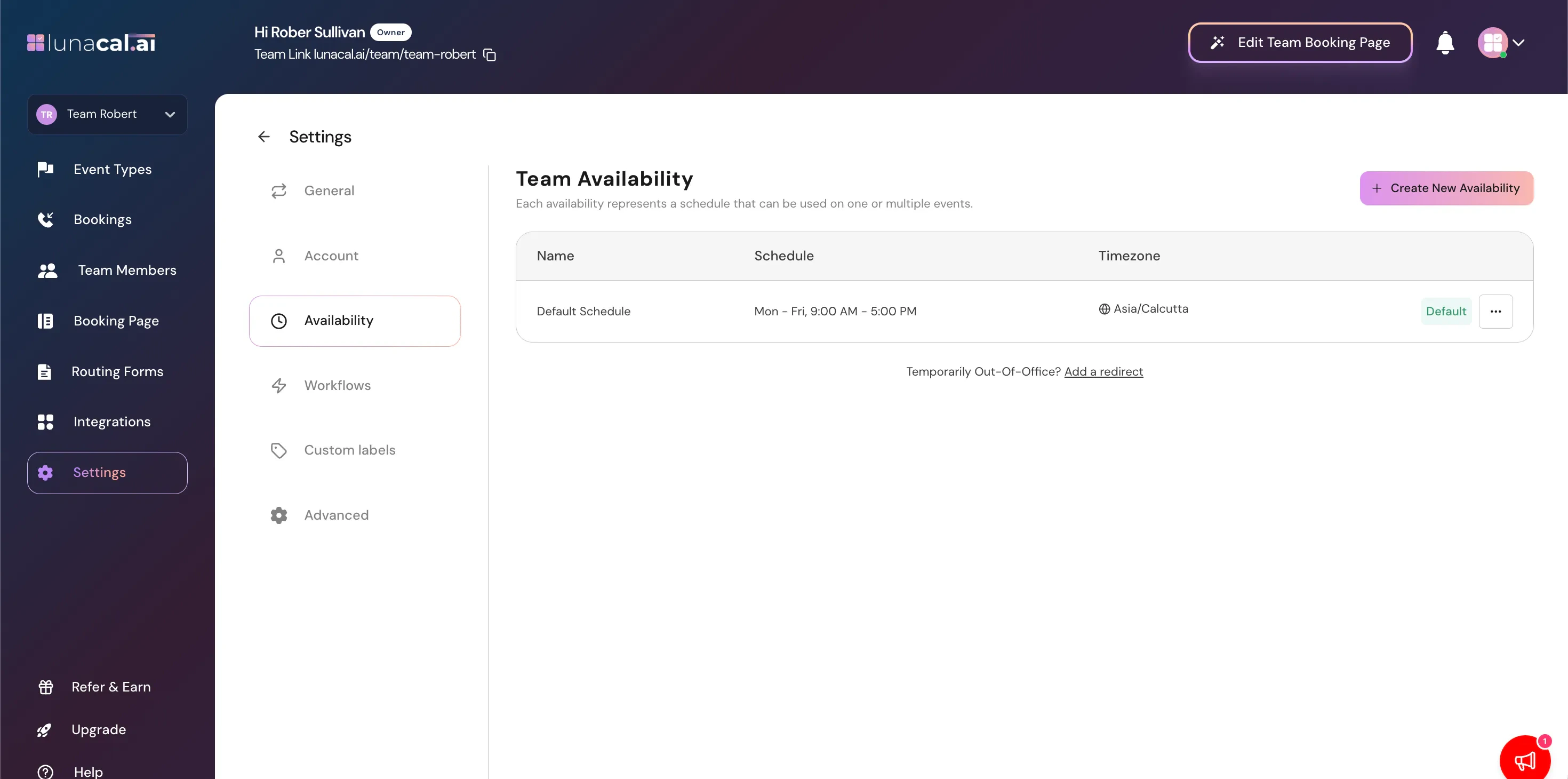 Controls global team availability schedules.
## Team Availability
Each availability schedule can be applied to:
* One event
* Multiple events
You can:
* Create new availability
* Edit existing schedules
* Set working hours
* Assign timezone
Example: Mon – Fri, 9:00 AM – 5:00 PM
## Default Schedule
The default availability can be reused across events.
# Workflows Tab
Controls global team availability schedules.
## Team Availability
Each availability schedule can be applied to:
* One event
* Multiple events
You can:
* Create new availability
* Edit existing schedules
* Set working hours
* Assign timezone
Example: Mon – Fri, 9:00 AM – 5:00 PM
## Default Schedule
The default availability can be reused across events.
# Workflows Tab
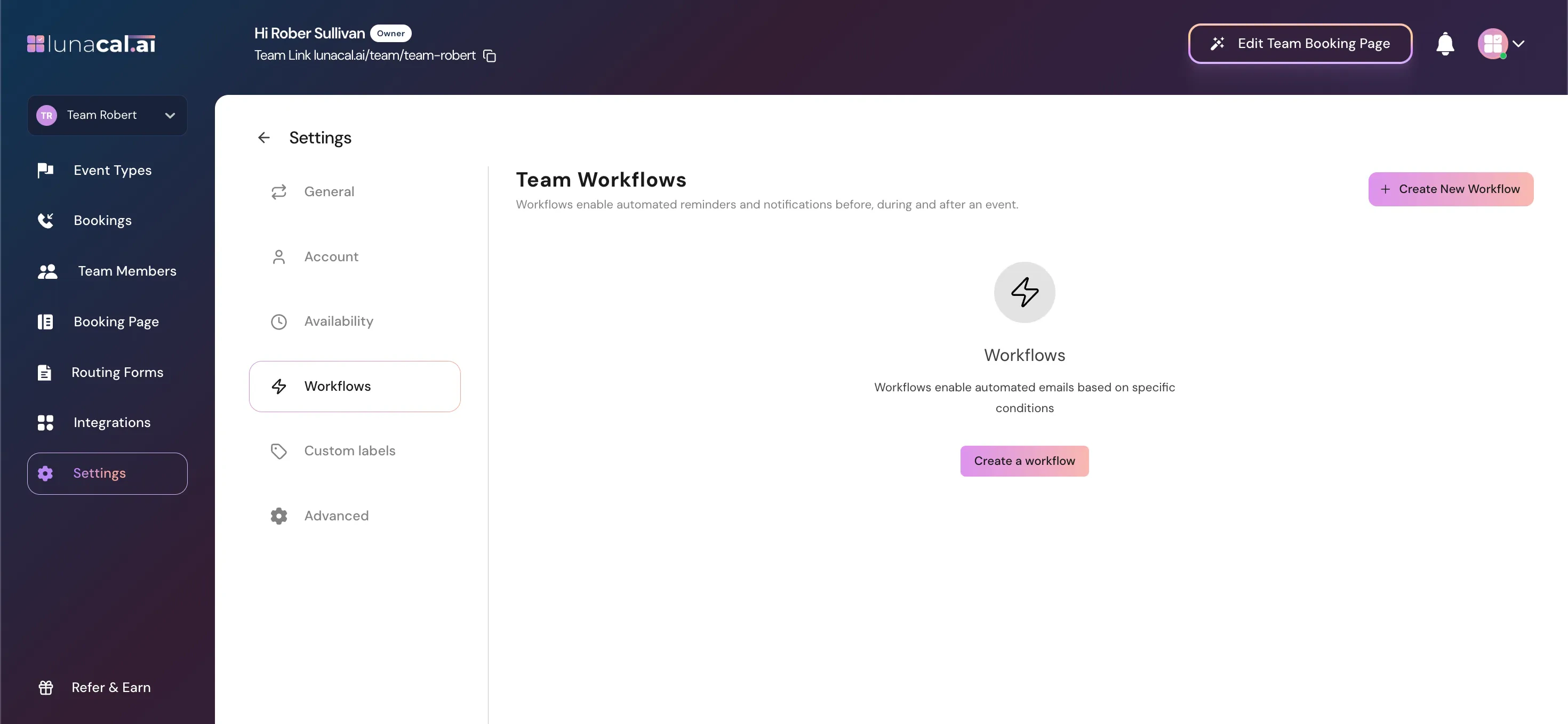 Workflows automate communication.
## Team Workflows
Used for:
* Reminder emails
* Follow-ups
* Notifications
You can:
* Create new workflows
* Define trigger conditions
* Attach workflows to specific events
Workflows operate automatically once configured.
# Custom Labels Tab
Workflows automate communication.
## Team Workflows
Used for:
* Reminder emails
* Follow-ups
* Notifications
You can:
* Create new workflows
* Define trigger conditions
* Attach workflows to specific events
Workflows operate automatically once configured.
# Custom Labels Tab
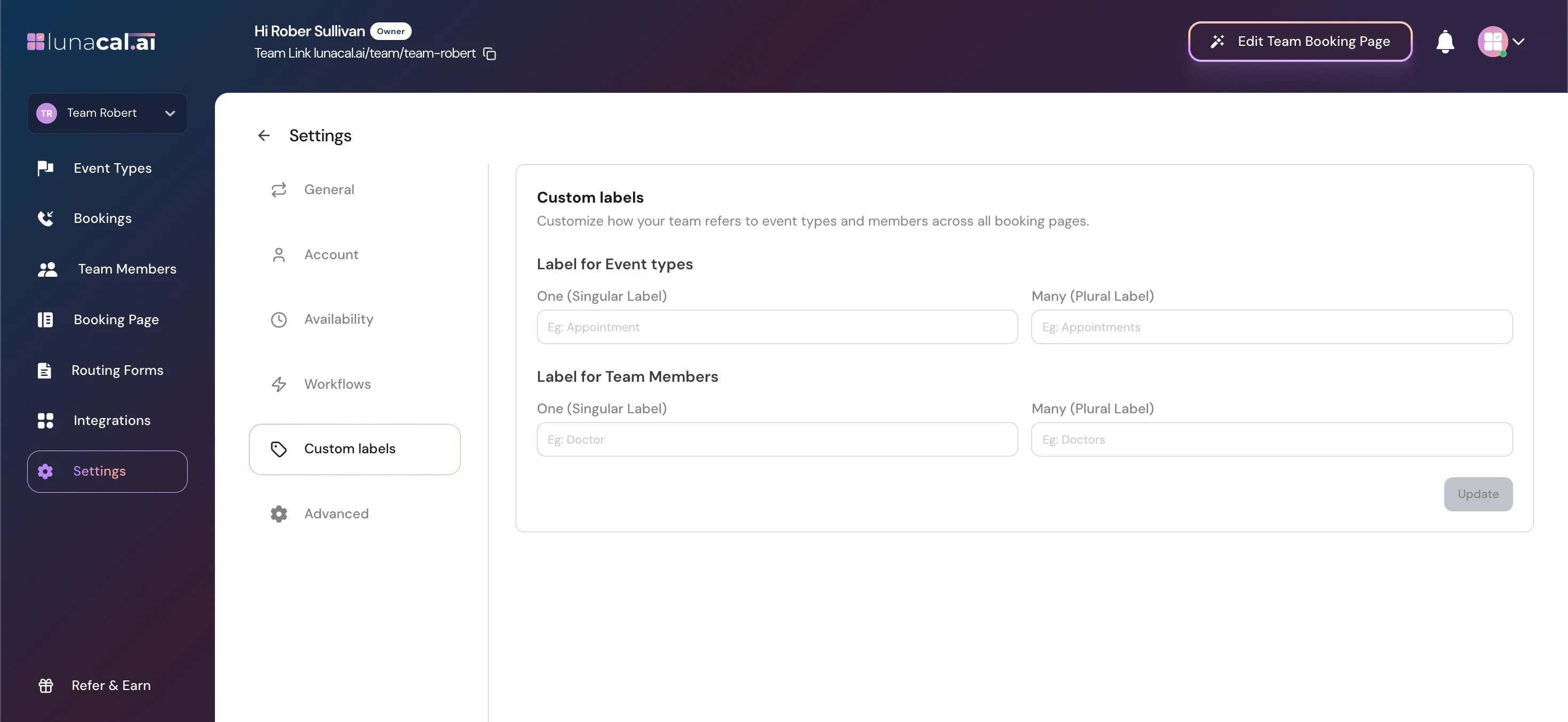 Customize terminology used across your booking pages.
## Label for Event Types
Change how events are referred to.
Example:
Singular: Appointment Plural: Appointments
## Label for Team Members
Change how members are referred to.
Example:
Singular: Doctor Plural: Doctors
These labels update everywhere on your team booking pages.
# Advanced Tab
Customize terminology used across your booking pages.
## Label for Event Types
Change how events are referred to.
Example:
Singular: Appointment Plural: Appointments
## Label for Team Members
Change how members are referred to.
Example:
Singular: Doctor Plural: Doctors
These labels update everywhere on your team booking pages.
# Advanced Tab
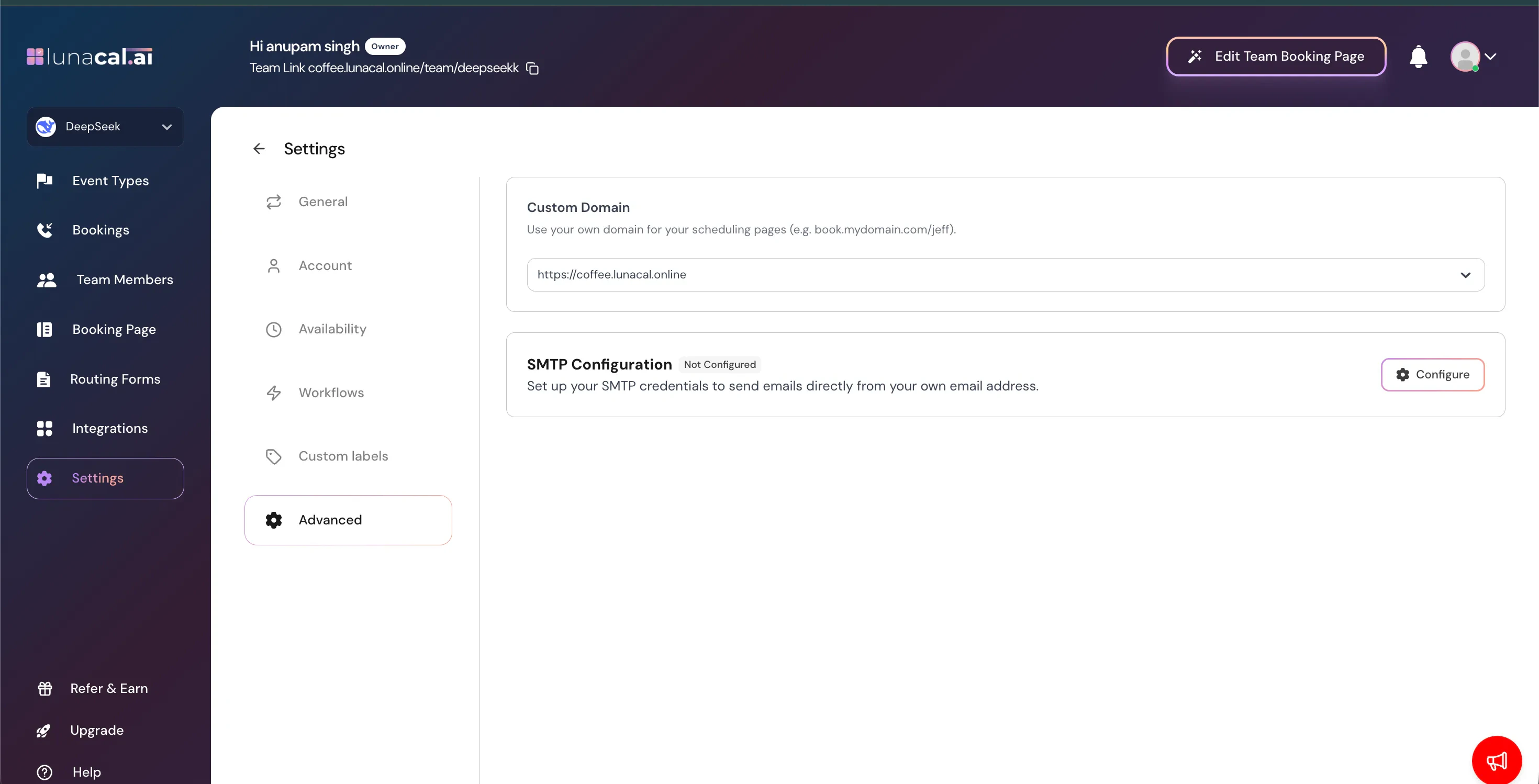 Advanced technical configuration.
## Custom Domain
Use your own domain for booking pages.
Example: `book.yourdomain.com/team-name`
Requires domain configuration.
## SMTP Configuration
Send emails from your own email address instead of default system emails.
If not configured:
* System default email sender will be used.
Click **Configure** to add SMTP credentials.
# How Team Settings Affect Booking Behavior
| Setting | Affects |
| ----------------- | --------------------- |
| Timezone | Availability display |
| Visitor Language | Booking page language |
| Team Availability | Bookable time slots |
| Workflows | Email automation |
| Custom Labels | Public wording |
| Custom Domain | Booking URL |
| SMTP | Email sender identity |
# Best Practices
* Configure branding before publishing booking page.
* Set availability before assigning events.
* Ensure SMS credits are sufficient if using reminders.
* Test public team page after major updates.
* Avoid disbanding team unless absolutely necessary.
Advanced technical configuration.
## Custom Domain
Use your own domain for booking pages.
Example: `book.yourdomain.com/team-name`
Requires domain configuration.
## SMTP Configuration
Send emails from your own email address instead of default system emails.
If not configured:
* System default email sender will be used.
Click **Configure** to add SMTP credentials.
# How Team Settings Affect Booking Behavior
| Setting | Affects |
| ----------------- | --------------------- |
| Timezone | Availability display |
| Visitor Language | Booking page language |
| Team Availability | Bookable time slots |
| Workflows | Email automation |
| Custom Labels | Public wording |
| Custom Domain | Booking URL |
| SMTP | Email sender identity |
# Best Practices
* Configure branding before publishing booking page.
* Set availability before assigning events.
* Ensure SMS credits are sufficient if using reminders.
* Test public team page after major updates.
* Avoid disbanding team unless absolutely necessary.