

We’ve Moved to Workspace
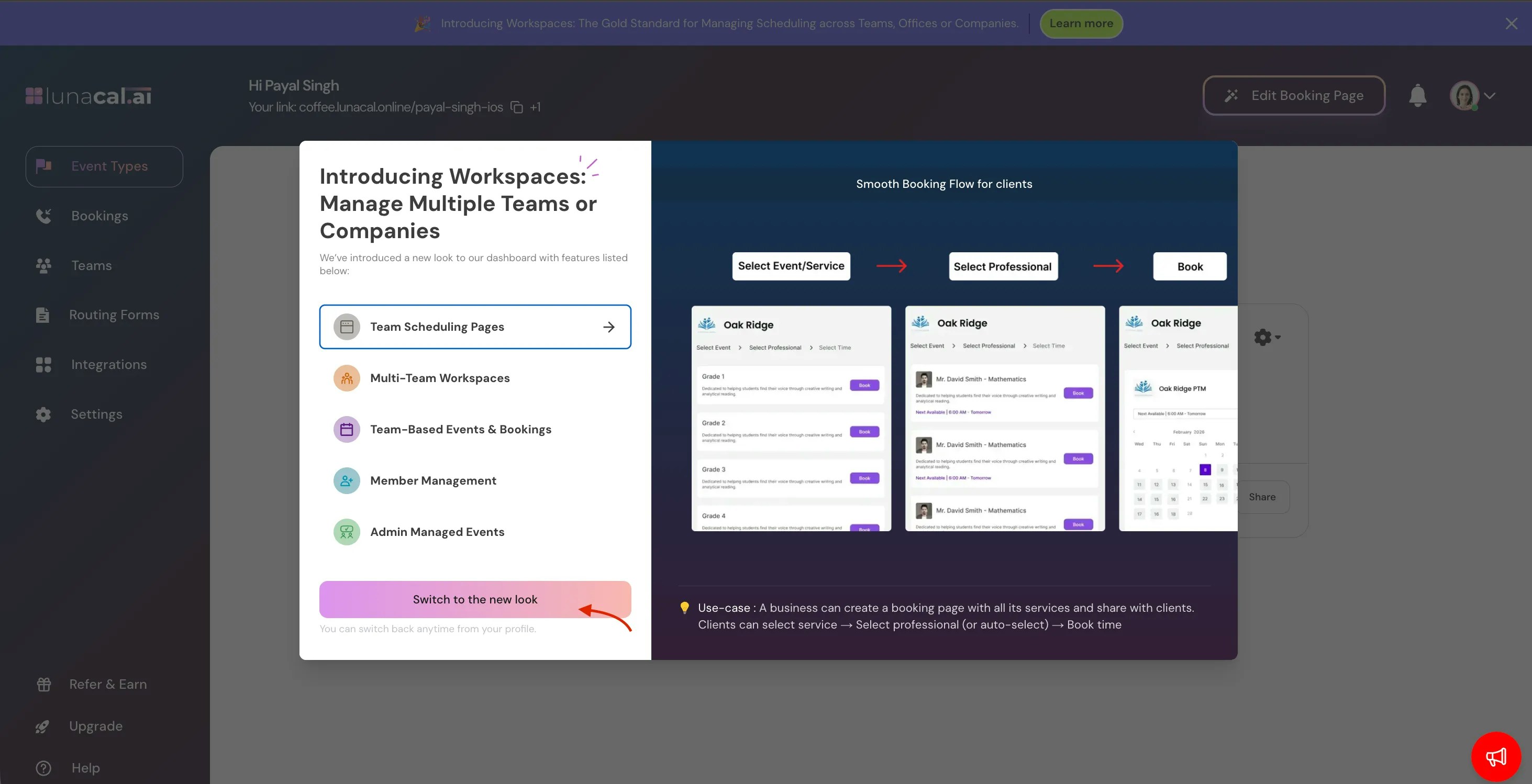
We’ve upgraded Teams to our new Workspace interface. Go to your Dashboard → click Learn More on the banner → select Switch to New UI. Your existing data remains unchanged.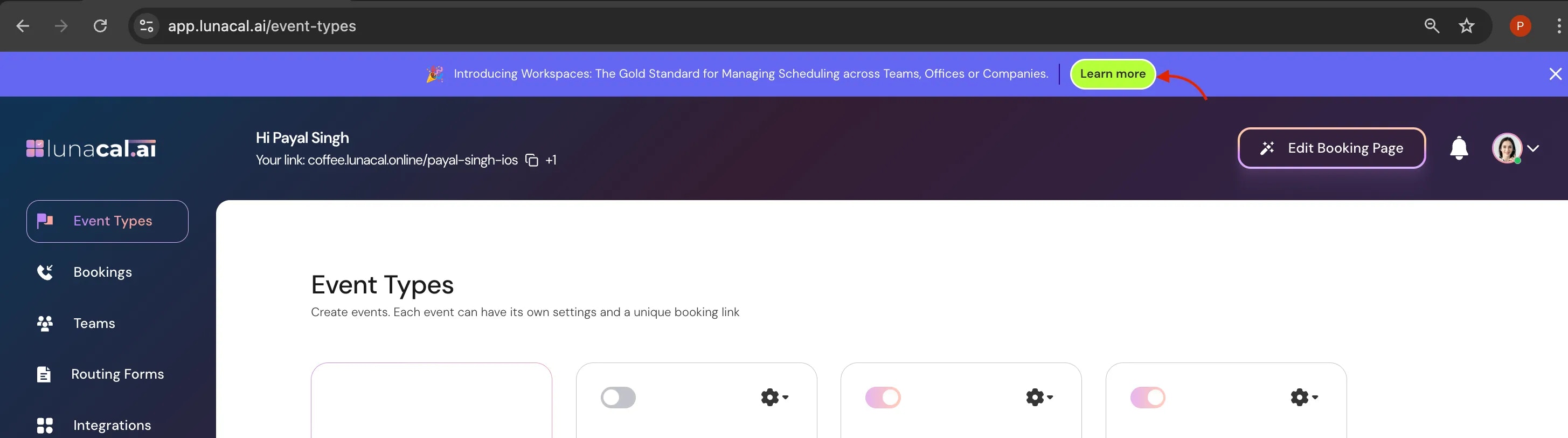
Adding Team Members
Team members allow you to collaborate within a company by sharing scheduling pages, events, and availability.Note: You must be the team owner or have admin permissions to invite or remove members.
Step 1
Navigate to the Teams section in your Lunacal dashboard.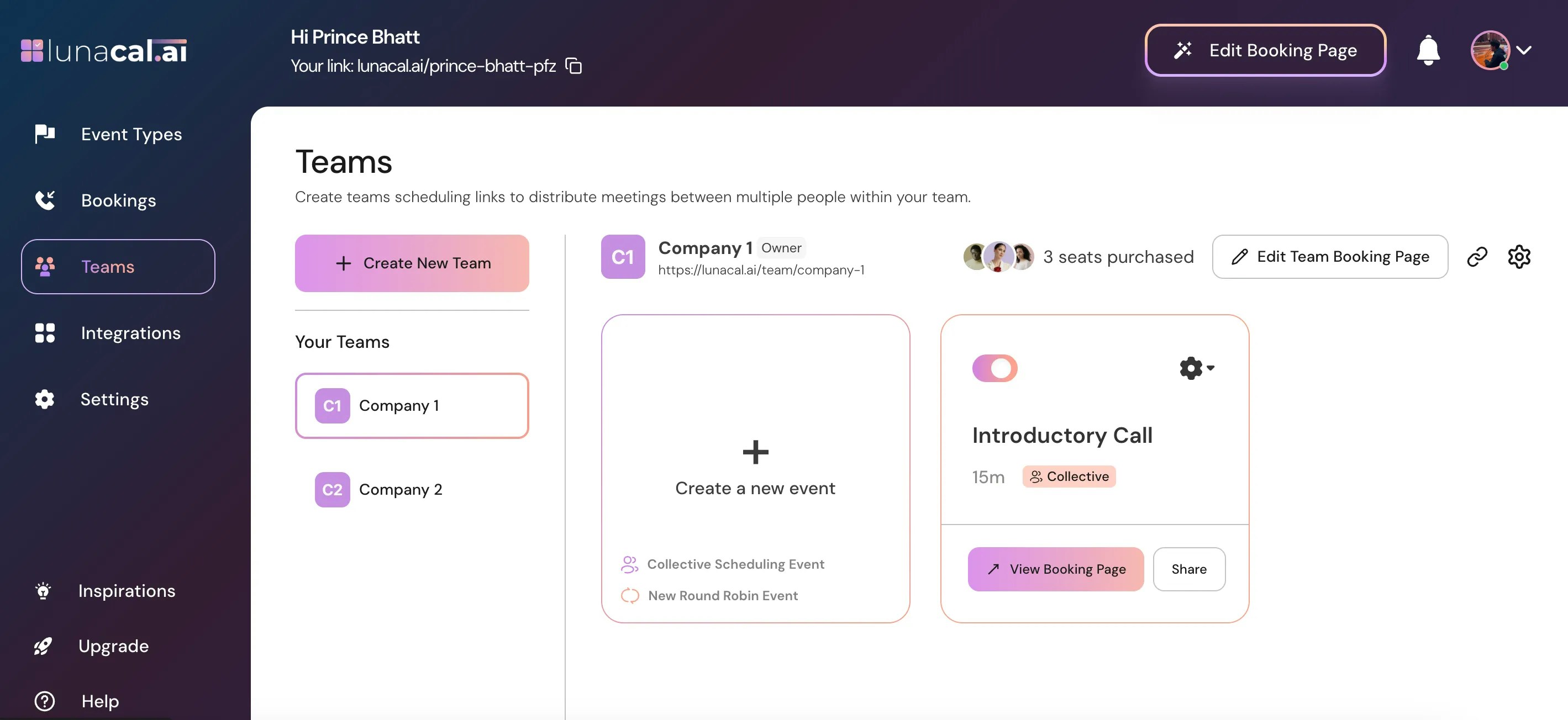
Step 2
Select the specific team/company you want to manage.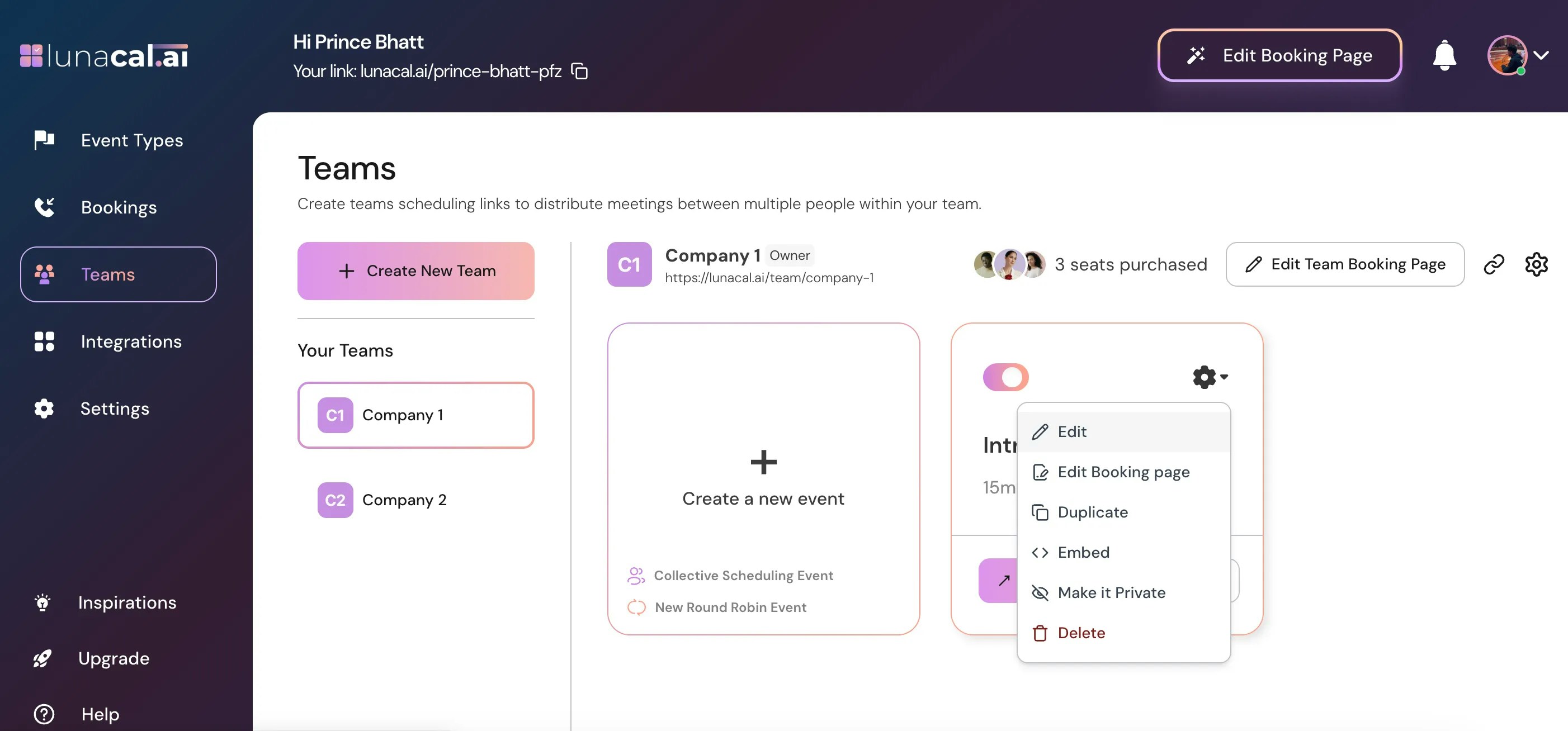
Step 3
Click on the settings icon and then choose “Invite team member”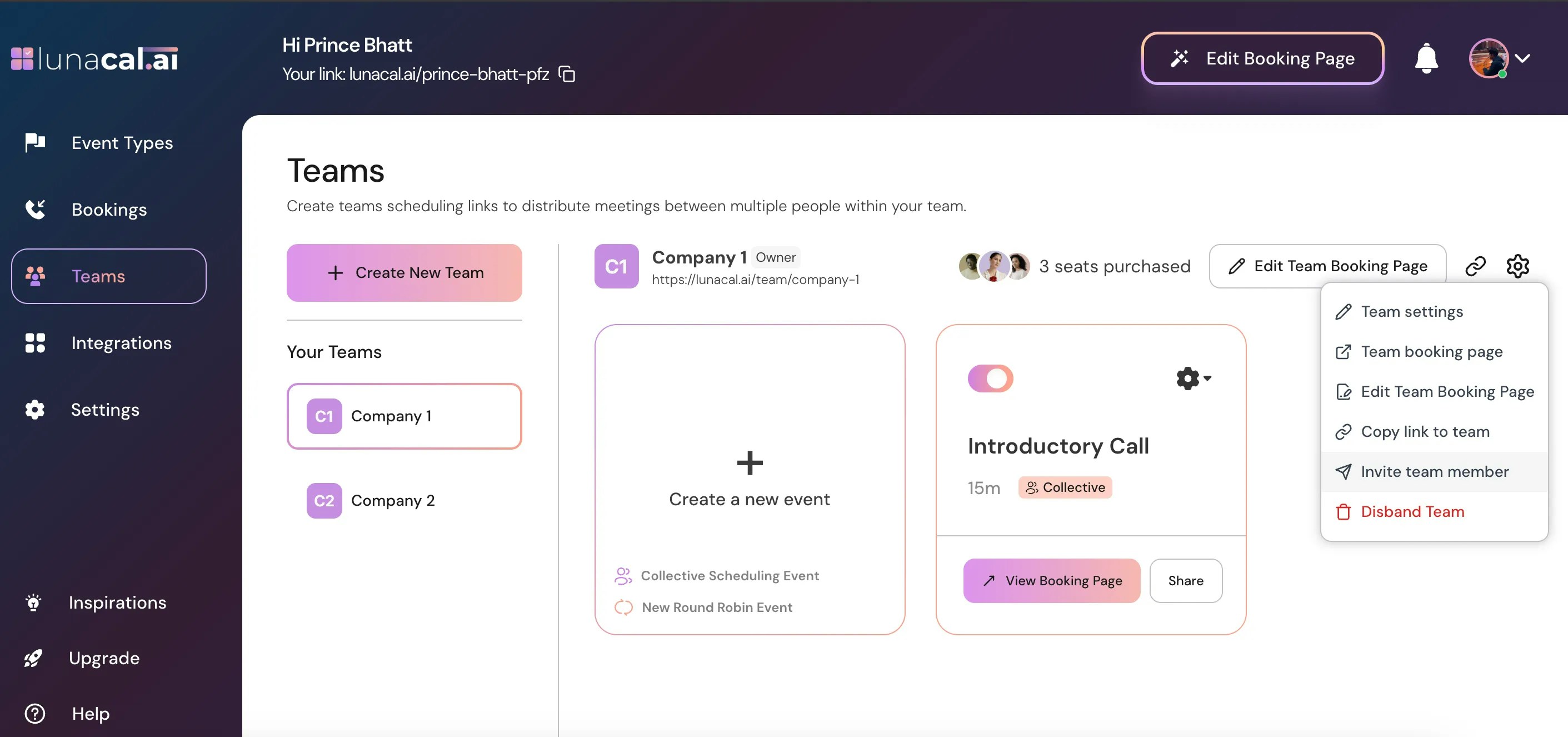
Step 4
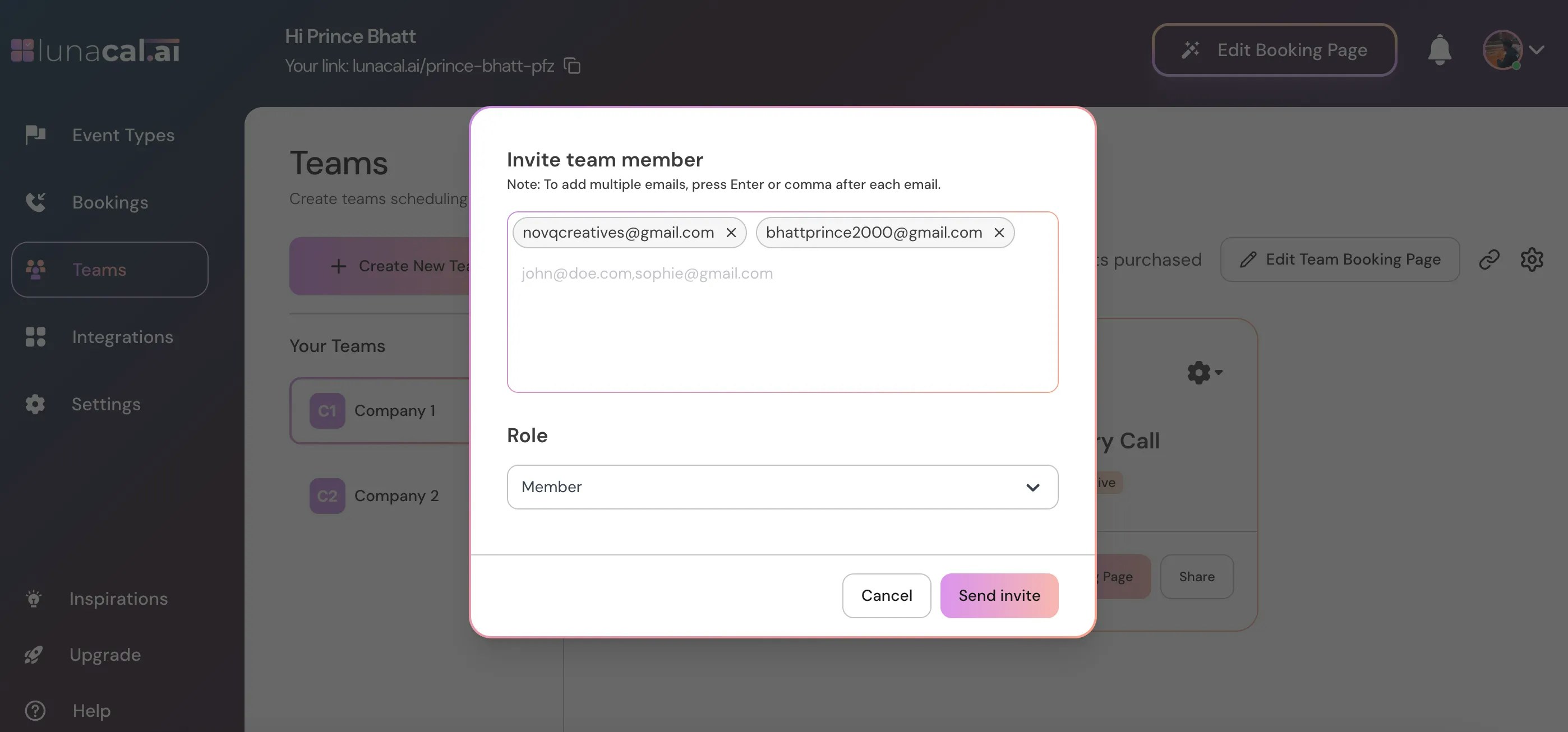
Enter the email address (or multiple addresses) of the members you want to add.Important: Each invited member consumes one license/seat from your plan.
Step 5
The user receives an invitation email.
Step 6
If they are not already on Lunacal, they need to click “Create your account” in the invitation email.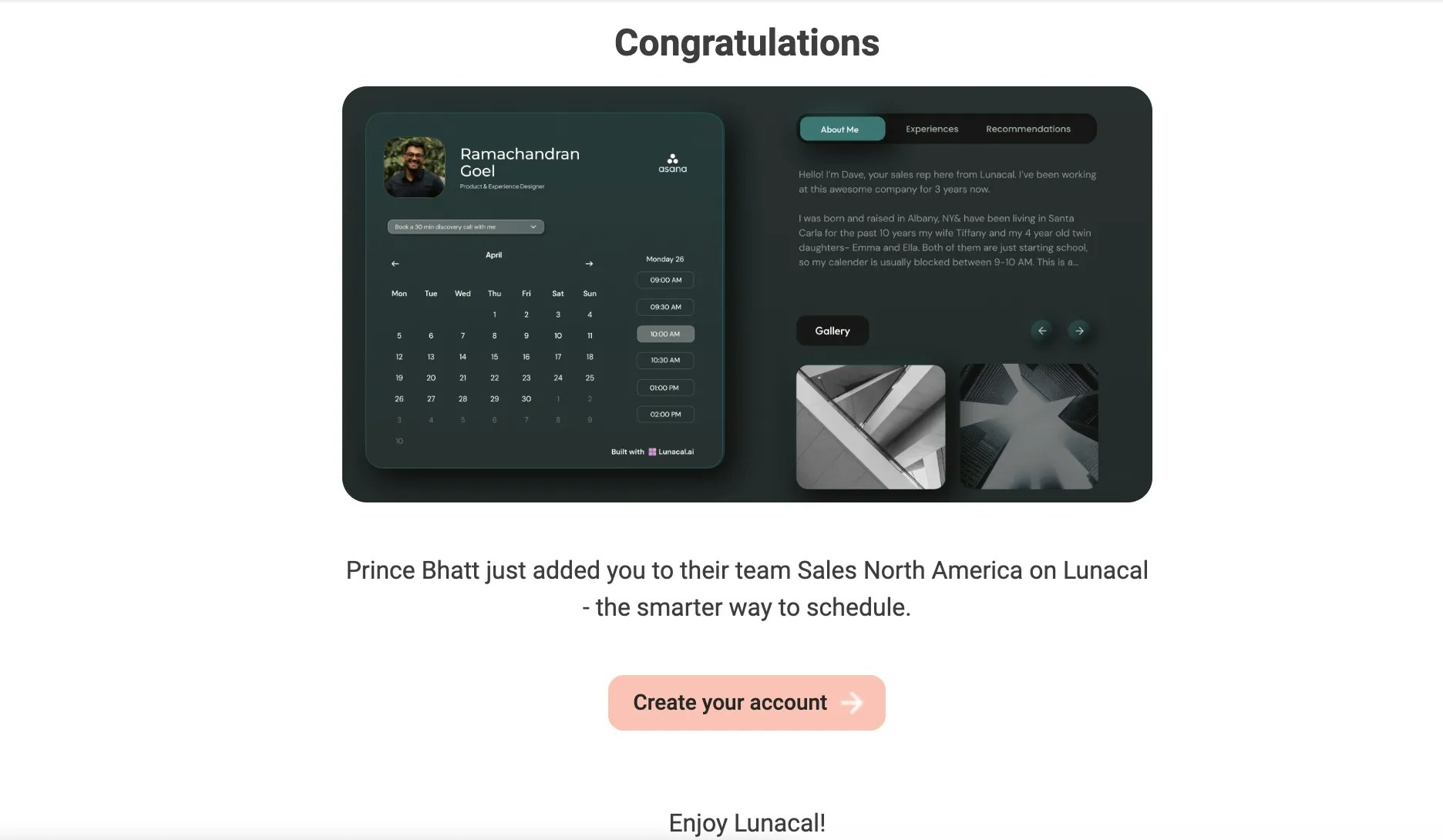
Step 7
After clicking “Create your account,” they just need to complete the sign-up form to join Lunacal.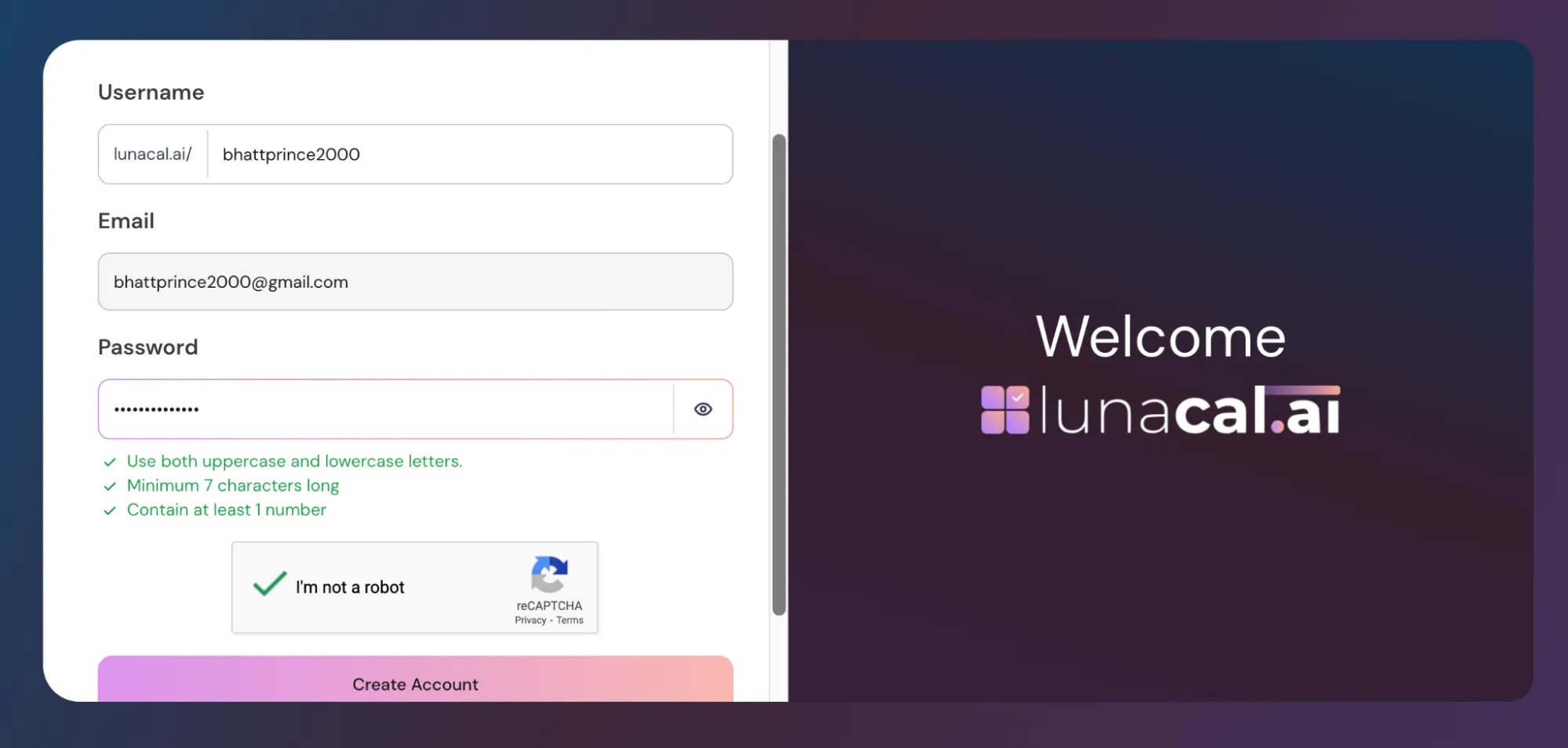
Step 8
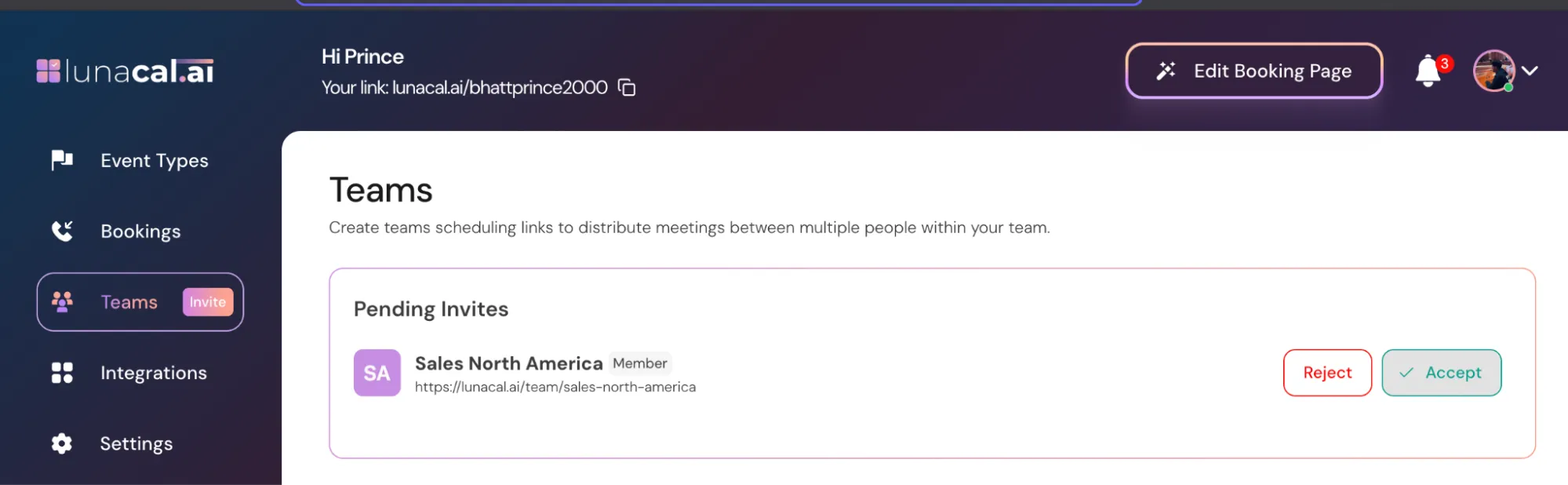
Important: After creating their account, the user must go to the Teams section and click “Accept” to officially join the team.
- Once accepted, the member will have access to the team’s events, scheduling pages, and settings based on their role.
- If a user hasn’t accepted the invite yet, they will appear as a pending member in the team settings.
Removing Team Members
Removing a team member immediately revokes their access to the team’s events, scheduling pages, and settings.Step 9
Click on the Settings ⚙️ icon and choose “Team Settings.”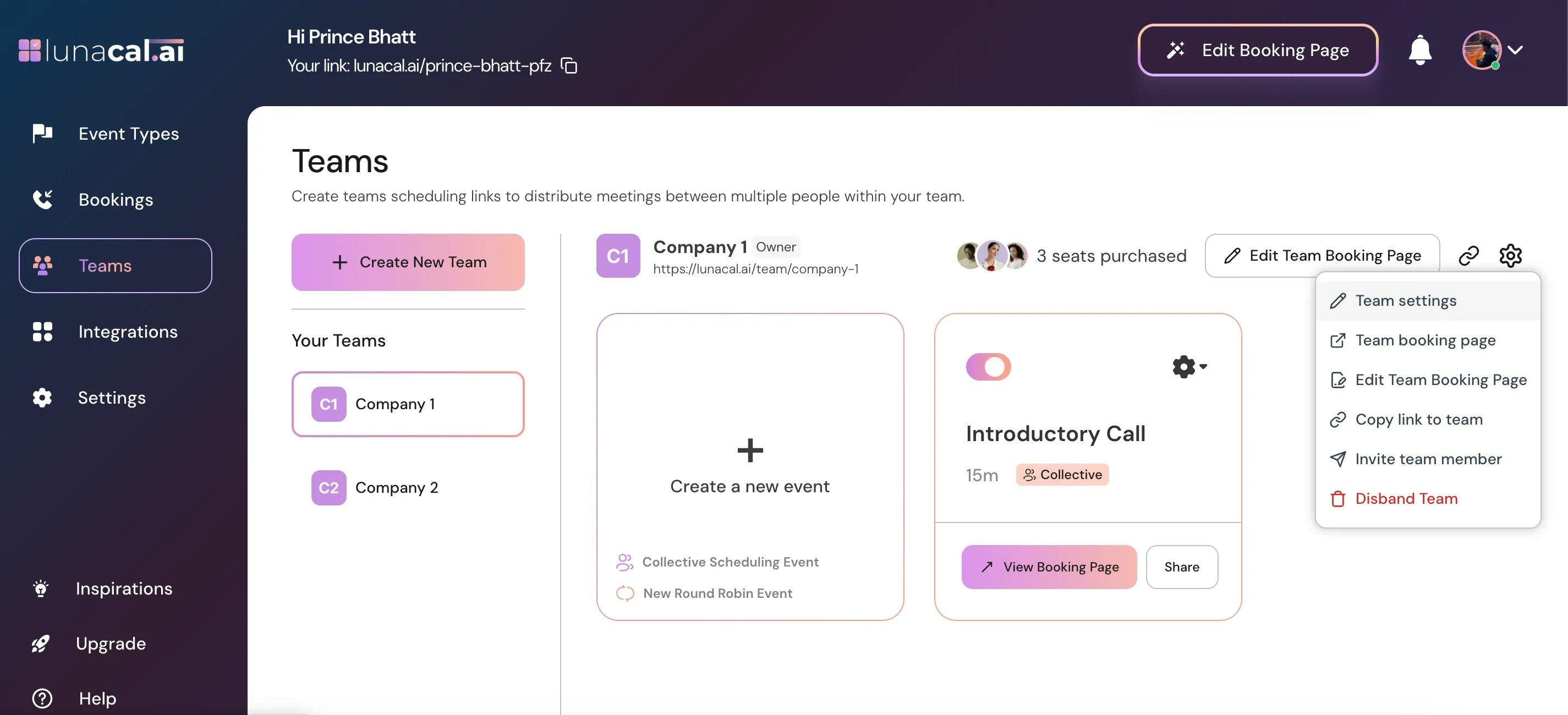
Step 10
Scroll down to the Team Members section.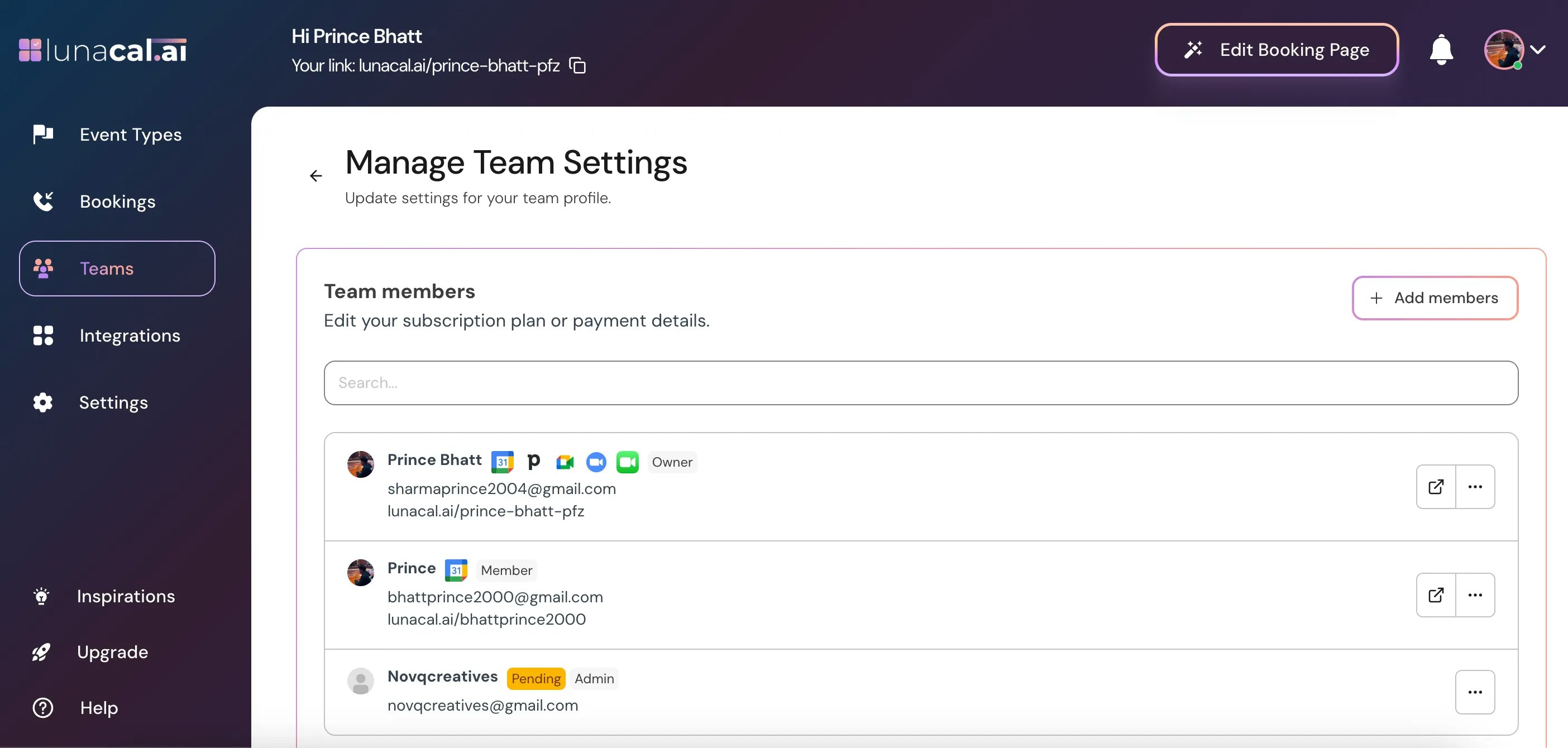
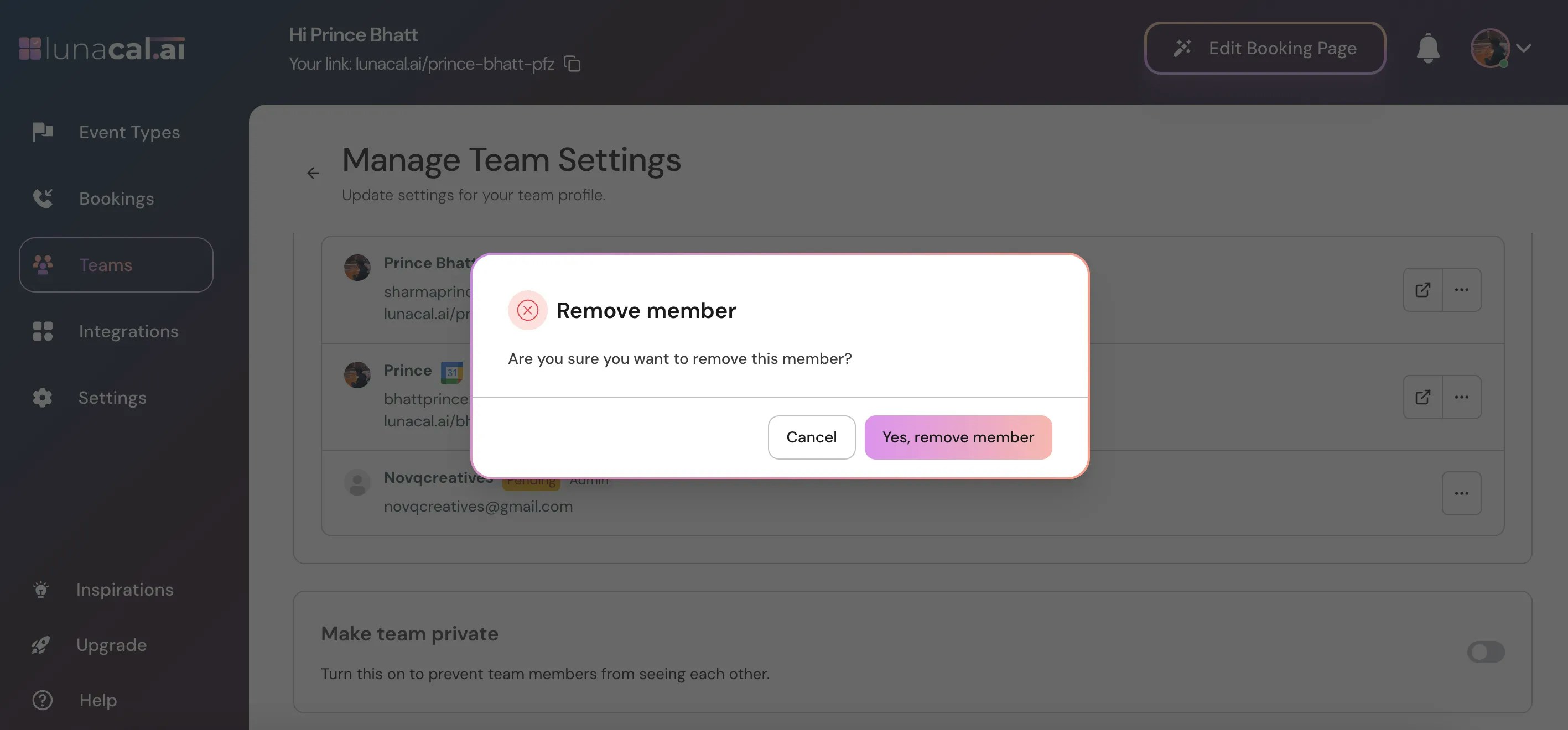
Step 11
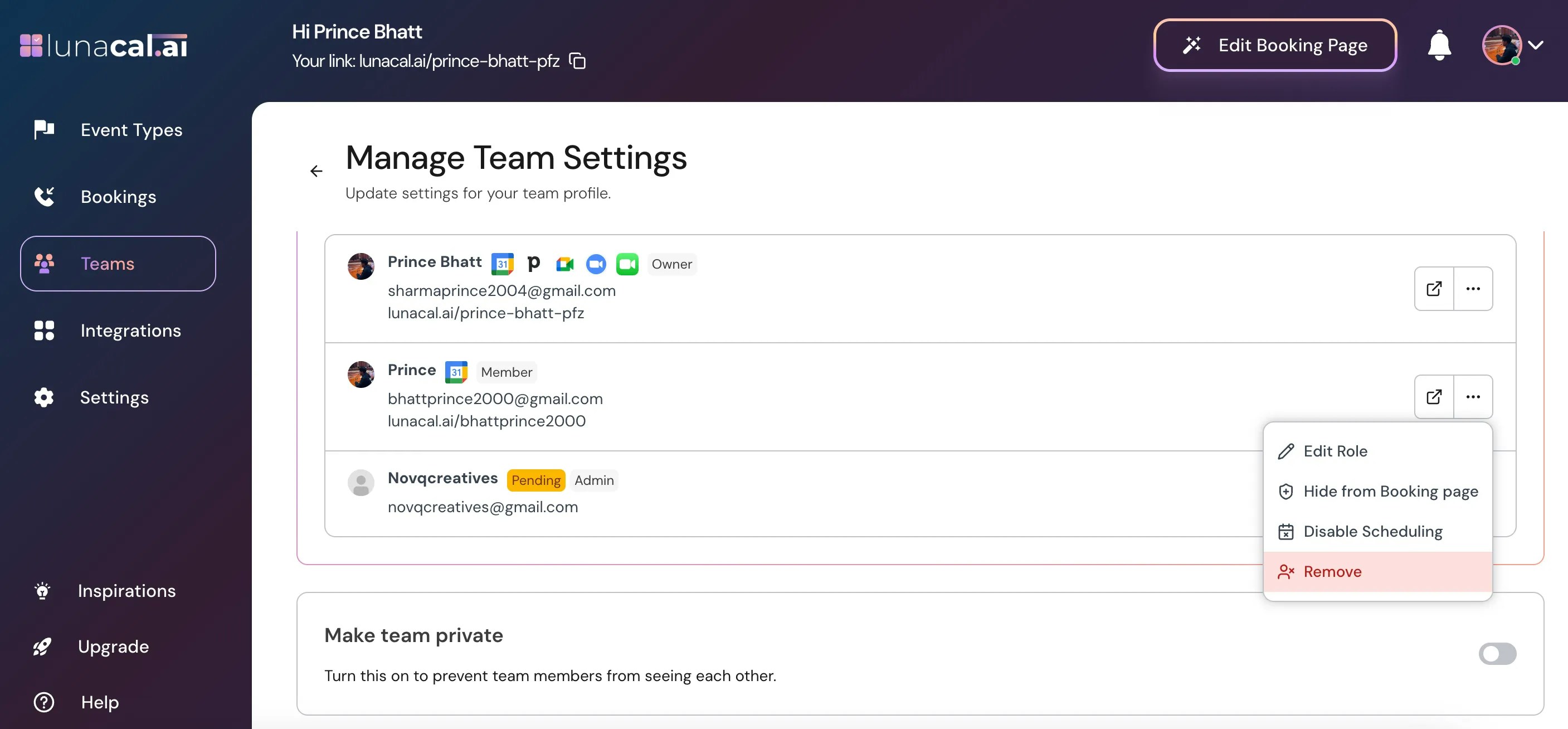
Click the three dots next to the member you want to remove, then select “Remove.”Existing events and bookings created by the removed member are not deleted automatically. Once a member is removed, their seat becomes available for reuse.
Note: If you don’t see the option to add or remove members, make sure you’re switched to the correct team and have admin access.