

- Prerequisite: You need a payment app before creating coupon, Connect Paypal OR Stripe from Integrations -> payment
Step 1.
Navigate to Event Types & Open the event type you want to configure by clicking on (⚙️) icon.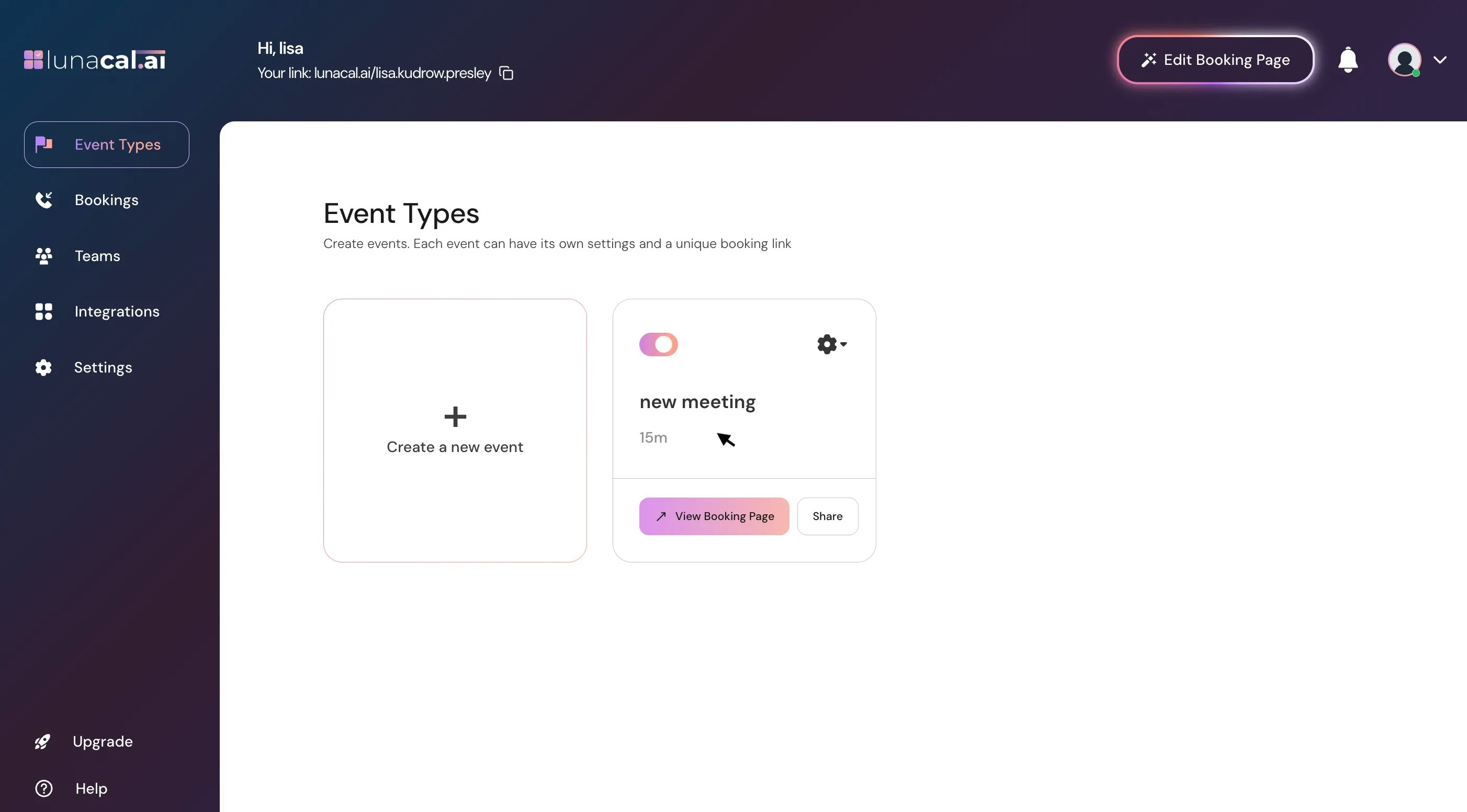
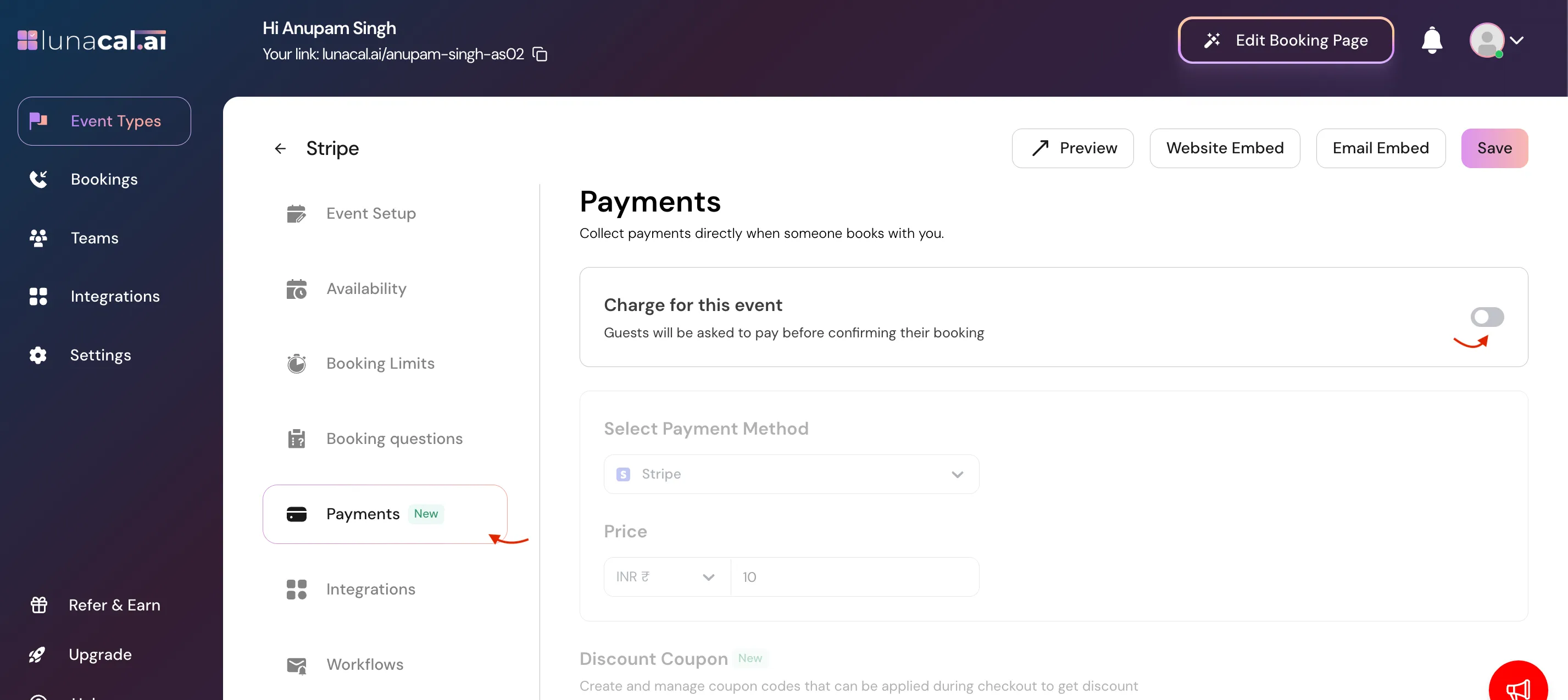
Step 2.
Navigate to Payments & toggle ON “Charge for this event”If the Payment App toggle is turned off, you will not be able to create coupons.
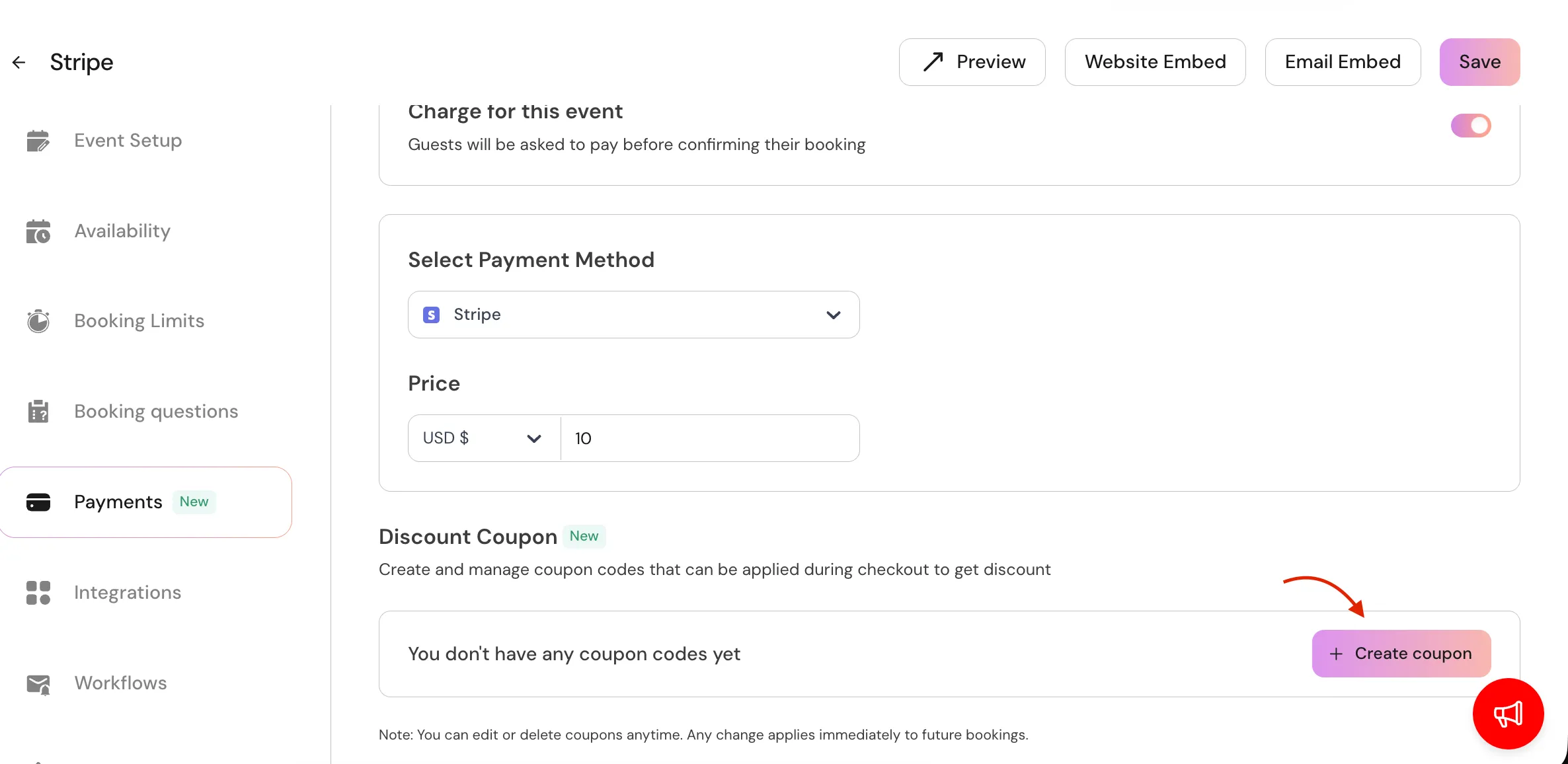
Step 3.
Inside Payments, you’ll find the Coupons, Click Create Coupon to open the coupon creation modal.Important: Coupons are available only for paid events.
Creating a Coupon
You’ll need to fill in the following details: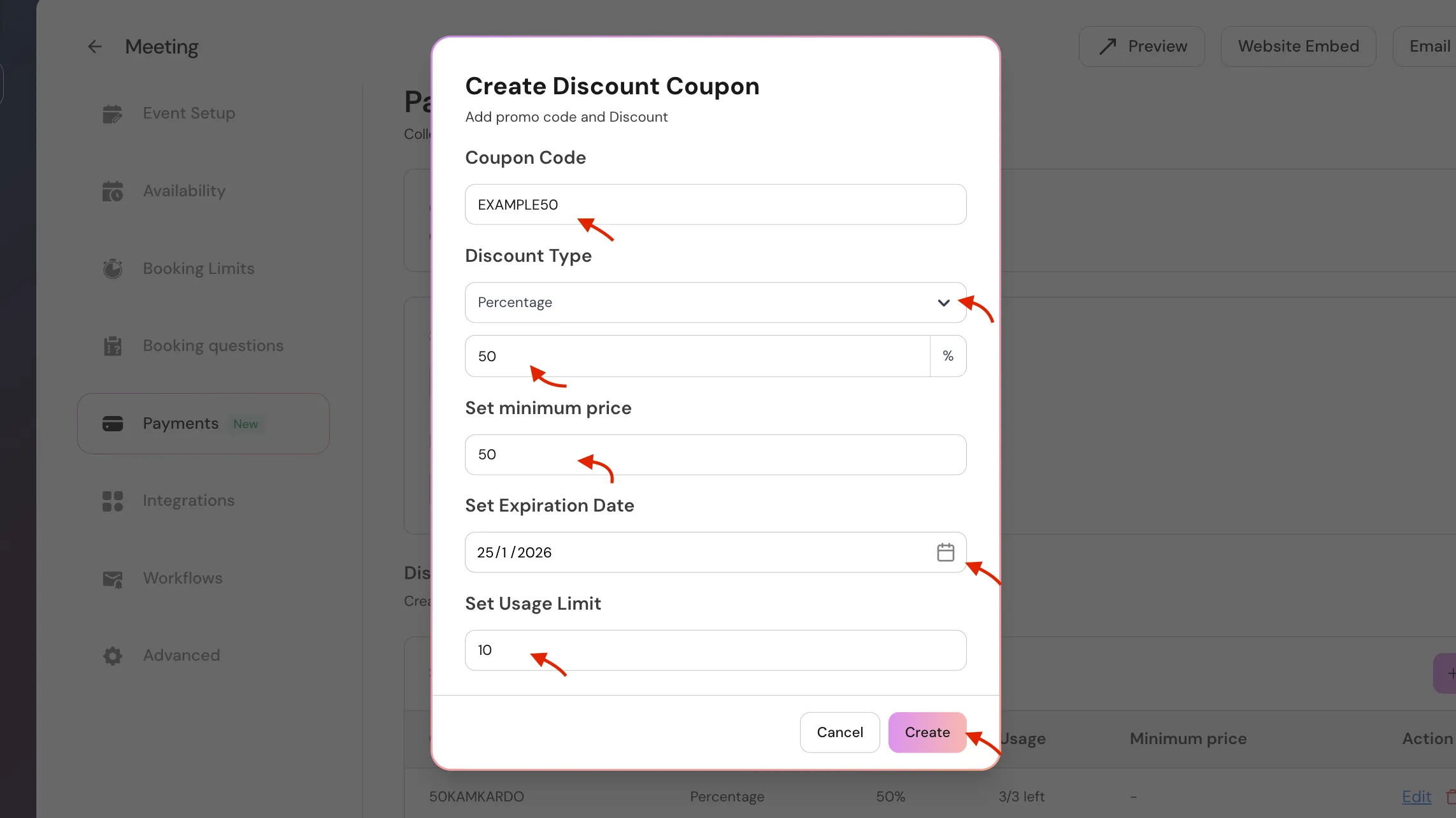 Discount types explained
- Percentage discount – Reduces the event price by a percentage (e.g., 80% off).
- Fixed amount discount – Deducts a fixed amount from the event price (e.g., $10 off).
Note: You cannot combine percentage and amount discounts in a single coupon.
Minimum Booking Price (Special Coupons)
The Minimum Booking Price lets you control when a coupon becomes valid. This is useful when your event supports multi-slot or package bookings.Example
COUPON50 Set to 50% discount.
- Price per slot: $20
- Attendee selects 2 slots → Total = $40
- Coupon minimum booking price = $50 → ❌ Coupon will not apply
- Attendee selects 3 slots → Total = $60
- Coupon minimum booking price = $50 → ✅ Coupon **applies successfully **and the final price will be 30$
How Coupons Work for Attendees
- Attendees can apply the coupon code during checkout
- The discount is applied instantly to the final price
- If the coupon is expired or usage limit is exceeded, it won’t be accepted
- A coupon will be rejected if:
- It has expired.
- It has reached its usage limit.
- It’s entered in the wrong event’s checkout (coupons are event-specific).
- When a coupon is applied:
- The discounted price is shown before checkout.
- The final amount charged reflects the discount.
- The coupon label appear in confirmation emails of attendees.
Things to Keep in Mind
- Coupons work only when payments are enabled for the event
- 100% discount coupons are not supported
- Coupons are specific to the event type they are created for
Troubleshooting
- Coupon not applied? Confirm payments are enabled and the coupon is created for the correct event type.
- Discount doesn’t show at checkout? Double-check the coupon code spelling and expiration date.
- Coupon already used? Check the usage limit — it may have been reached.
- Coupon reduced price less than expected? Make sure the discount type (percent vs amount) matches your intention.