

Documentation Index
Fetch the complete documentation index at: https://help.lunacal.ai/llms.txt
Use this file to discover all available pages before exploring further.
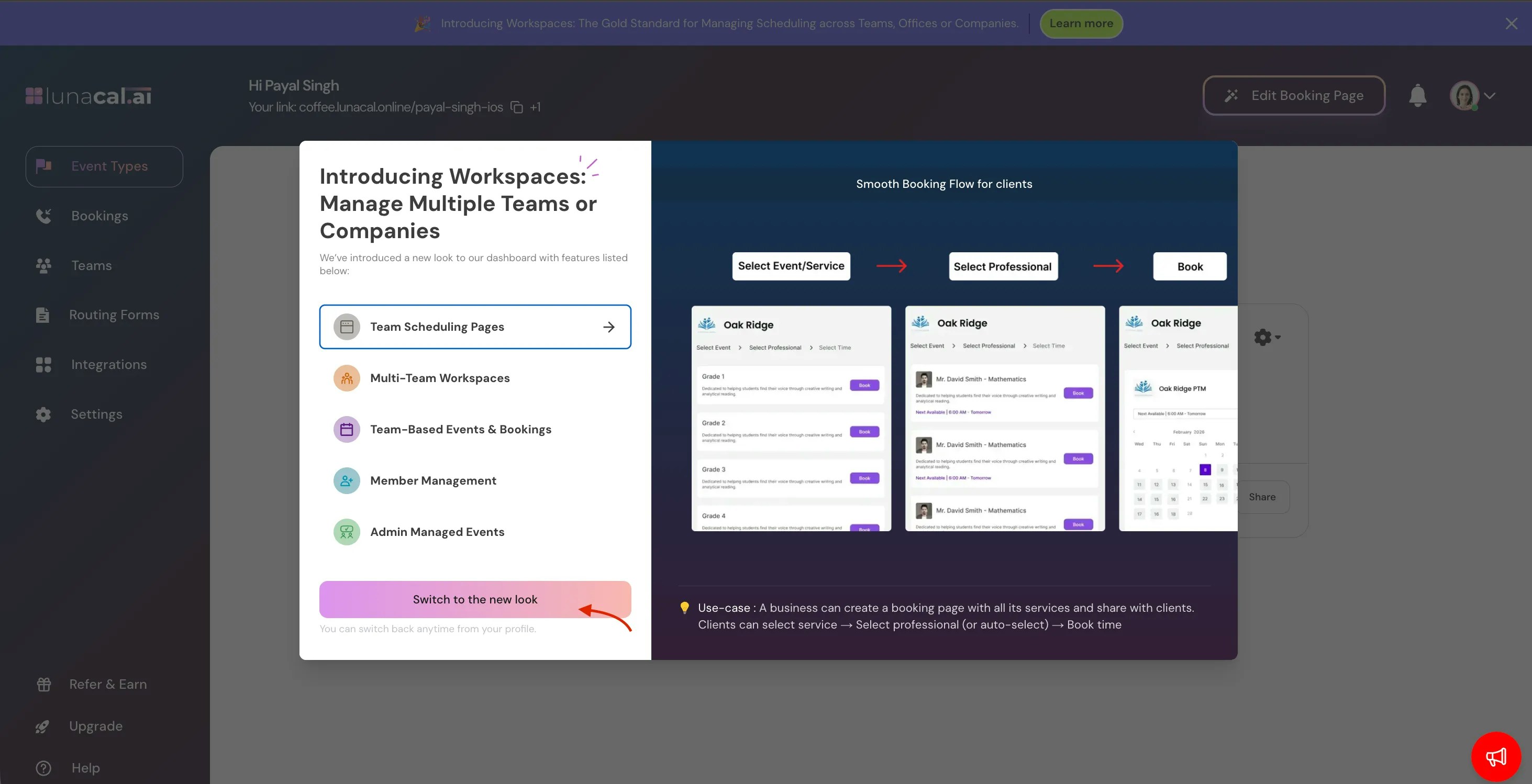
We’ve Moved to Workspace
We’ve upgraded Teams to our new Workspace interface. Go to your Dashboard → click Learn More on the banner → select Switch to New UI. Your existing data remains unchanged.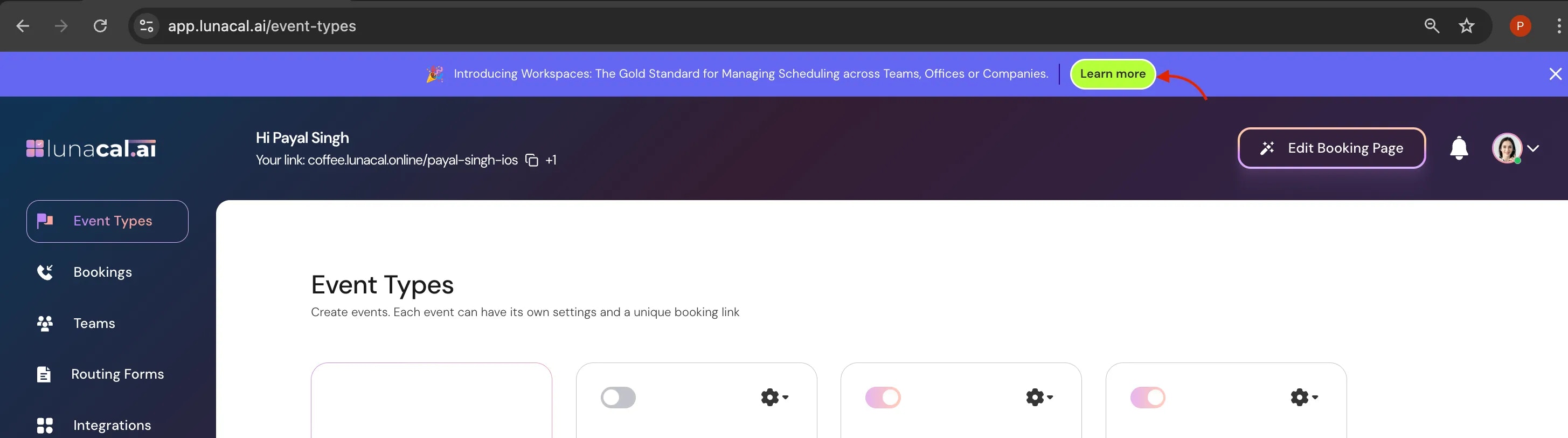
When visitors open your team booking page, they can either:
- Book directly with a specific team member, or
- Choose a specific event and get scheduled with the right team member.
Note: Make sure your team members and event types are already created. Members without active event types or availability may not appear on the booking page.
Step 1
Click “Edit Team Booking” Page from the top-right corner. This opens your team page editor with all sections in one place.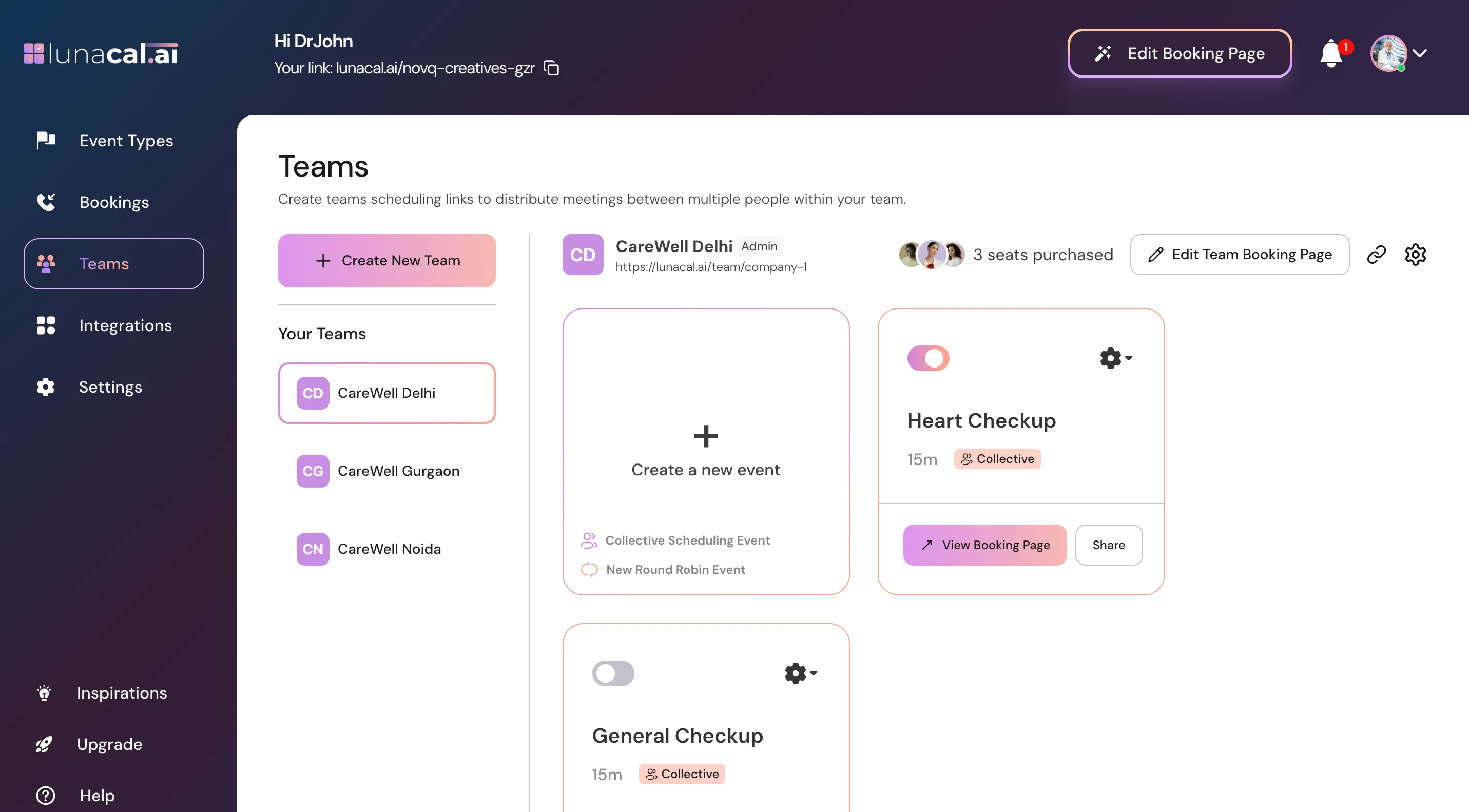
Step 2
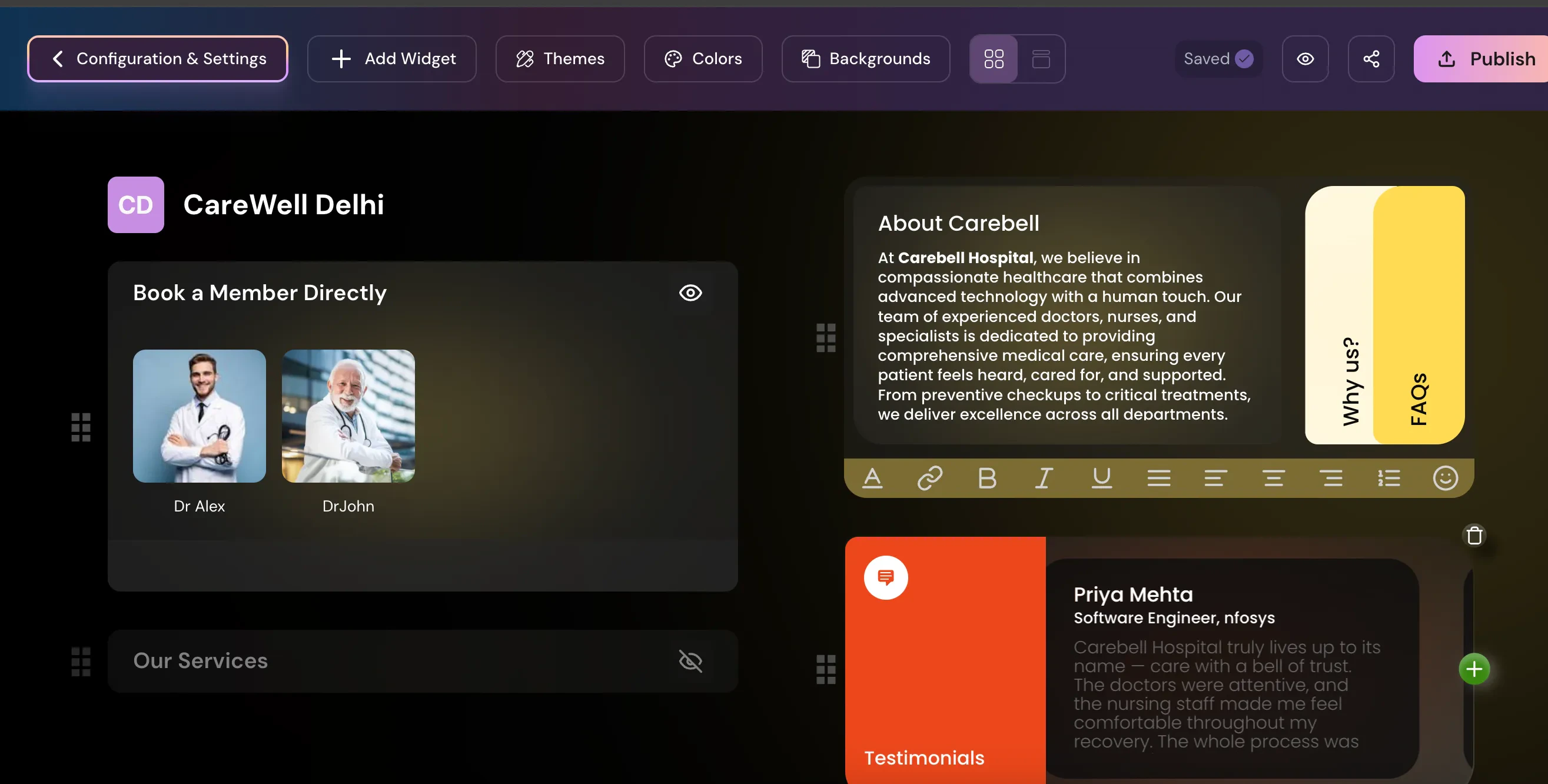
Book a Member Directly
This section displays all team members you’ve added. Visitors can click an individual member to book directly with them. You can hide any member by clicking the eye icon (visibility toggle) on their profile card.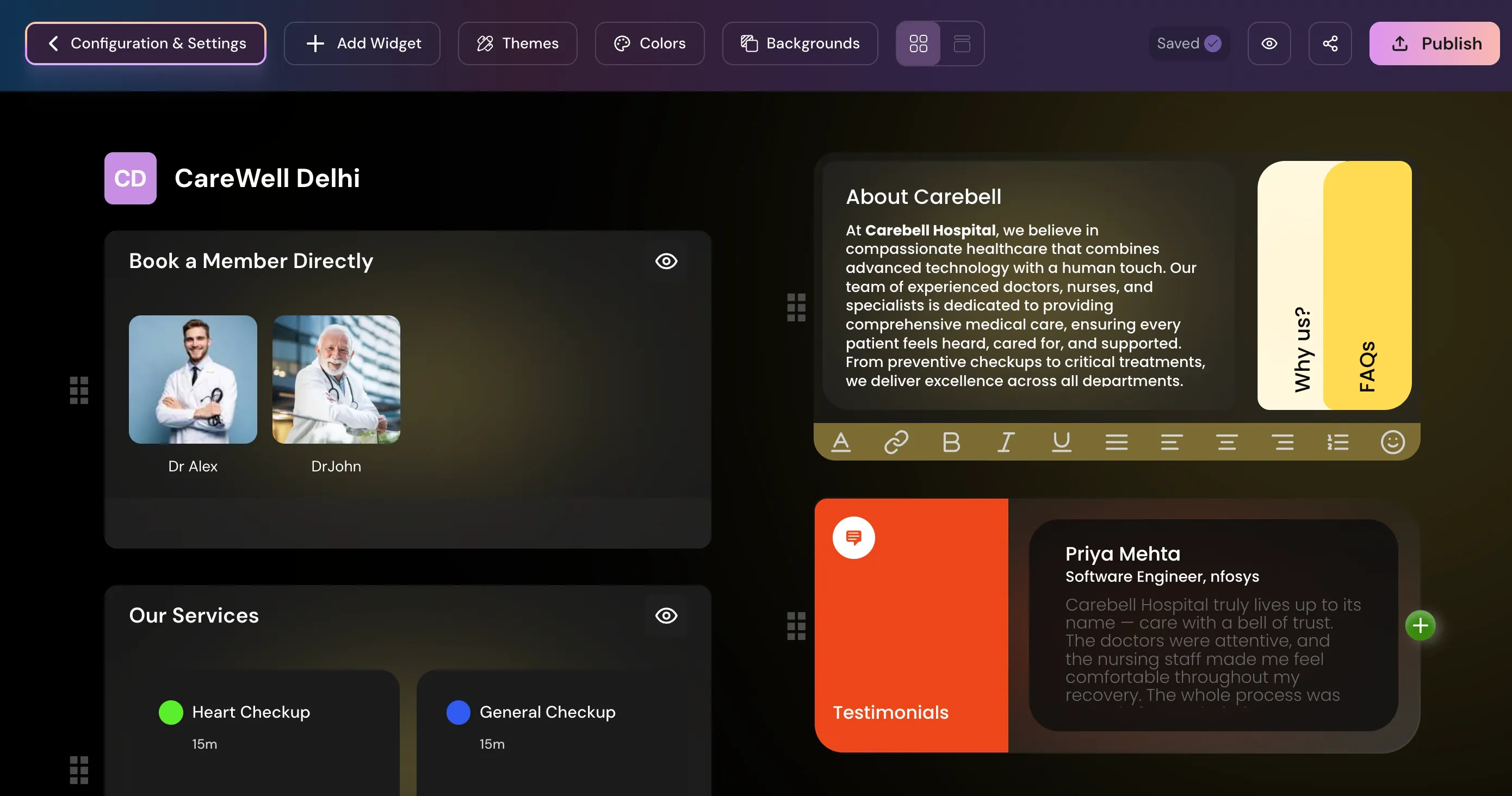
Step 3
Our Services
This block shows all event types created for the team. Visitors can click any event to book it directly. You can hide any event by clicking the eye icon (visibility toggle) on the event card.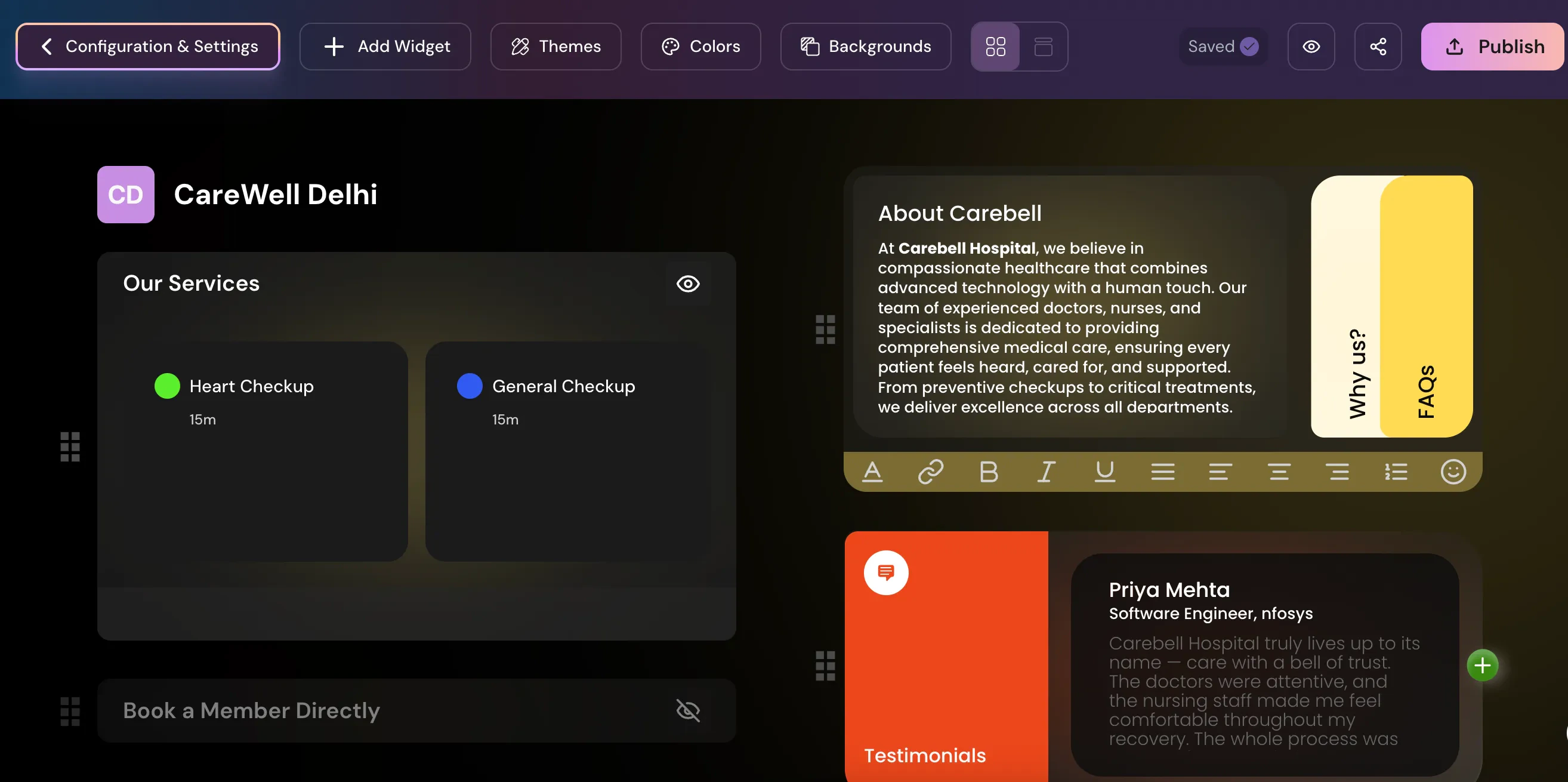
Step 4
Widgets & Customization
Widgets help answer common visitor questions before booking and improve conversion.Add extra widgets like “About Me”, Video Embed, FAQs, or “Why Us?” to personalize the page. Use short, clear content that helps the visitor decide quickly.
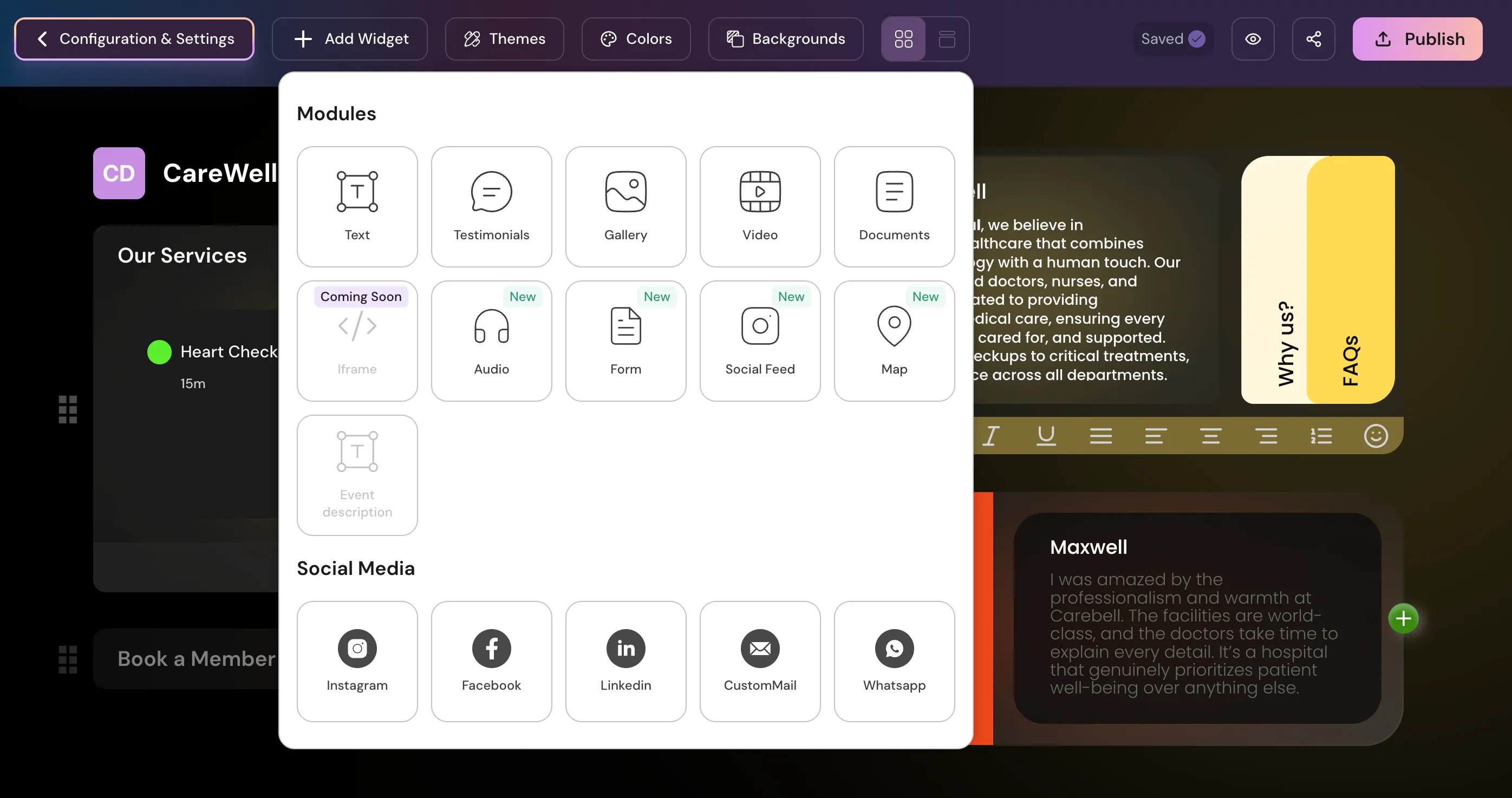
- Healthcare: Add a brief “About the Clinic”, accepted insurance info in FAQs, and a short intro to build trust before booking.
Step 5
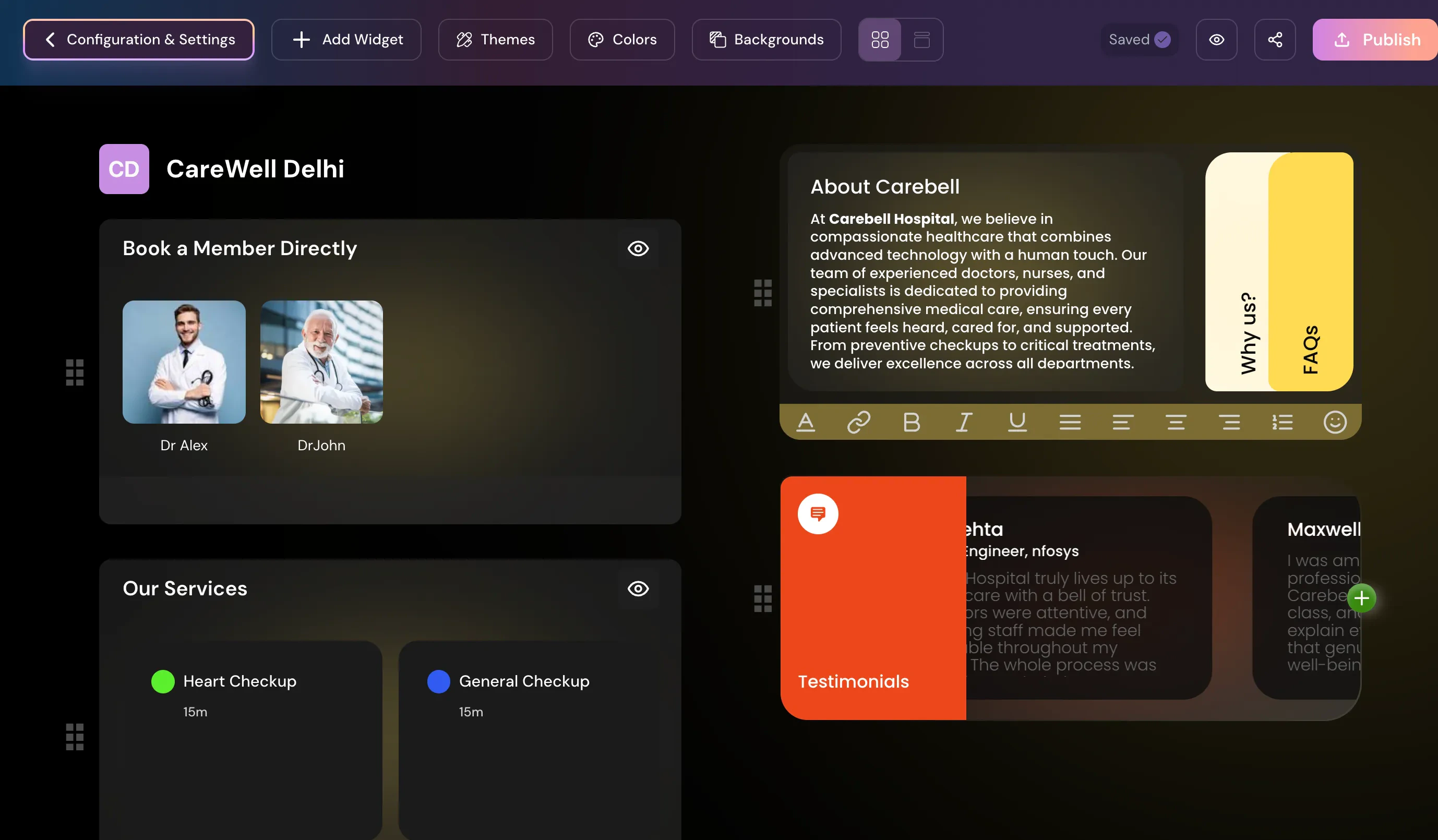
After making changes, click “Publish” (top-right corner) to make updates live. Changes won’t appear to visitors until you publish.Tip: Open the booking link in an incognito window to verify your changes as a visitor.
Common mistakes to avoid
If something doesn’t appear as expected, double-check visibility toggles and click Publish again.
- Showing both many members and many events at once, which overwhelms visitors. Pick one primary path (member-first or service-first).
- Forgetting to use the eye icon to hide items you don’t want shown, causing duplicate or confusing options.
- Publishing layout changes but leaving old event types visible, leading to dead ends or inconsistent flows.
- Editing content in widgets but not clicking “Publish”, so visitors still see the old content.