

- Round Robin Scheduling automatically assigns each new booking to the next available team member in a rotating order
Examples: Inbound product demos, support callbacks, clinic general consult pool, discovery calls. Use “Collective Scheduling” when the meeting must include multiple hosts (e.g., panel interview, complex demo with SE).
Step 1
Click on “Create a new event”.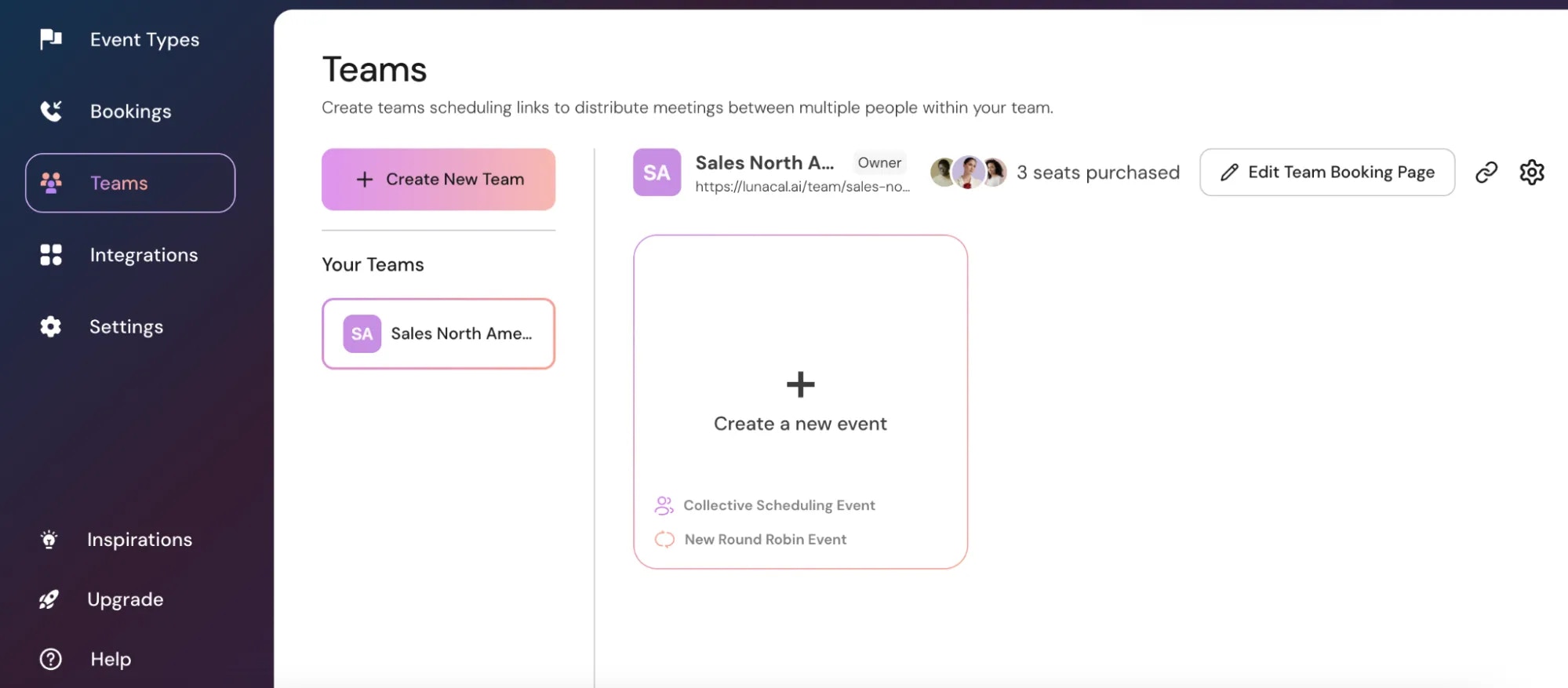
Step 2
Select “Round Robin” from the “Assignment” options.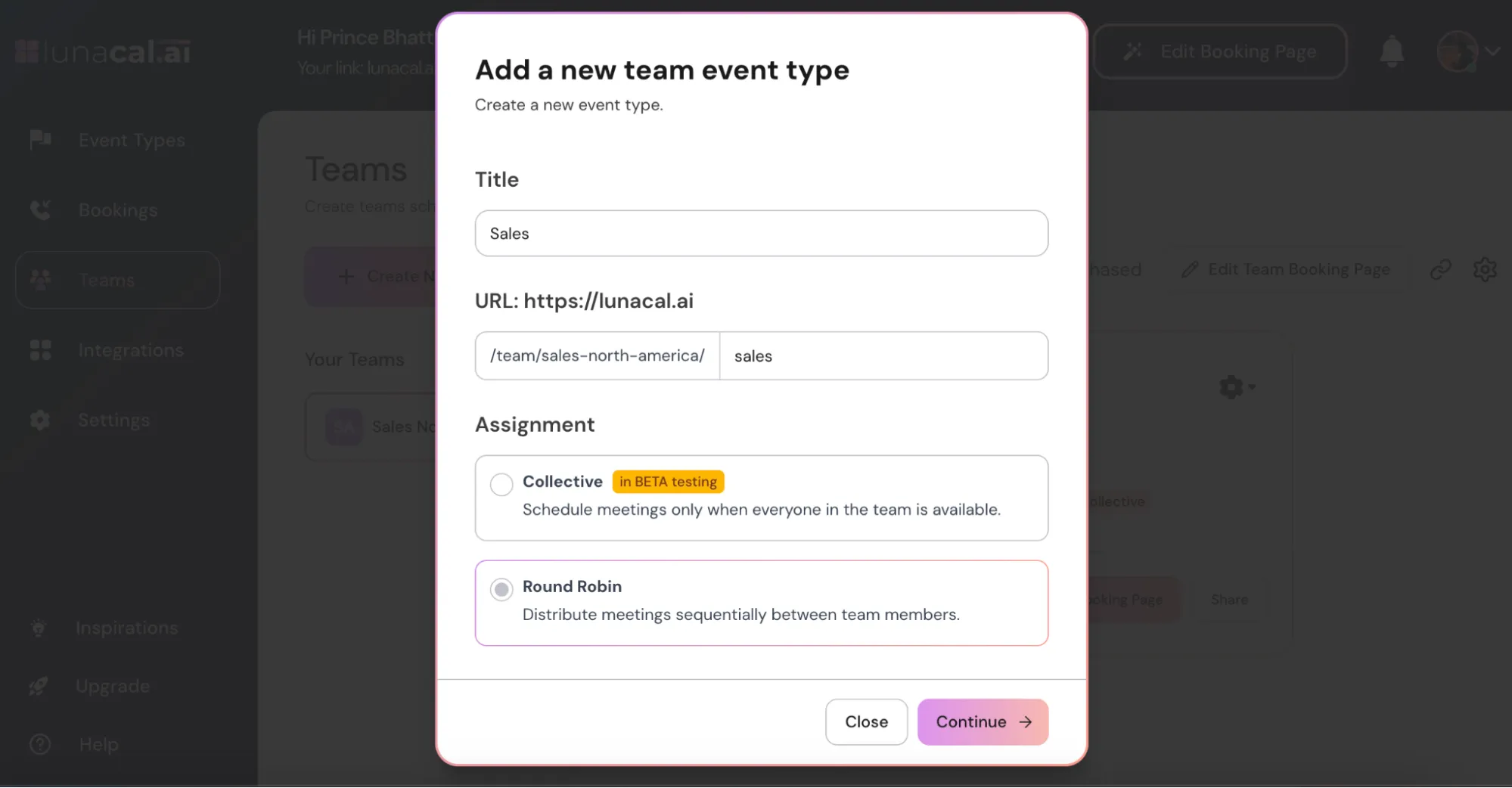
Step 3
The “Event Setup”, “Booking Limits”, and other settings work the same way as a regular event.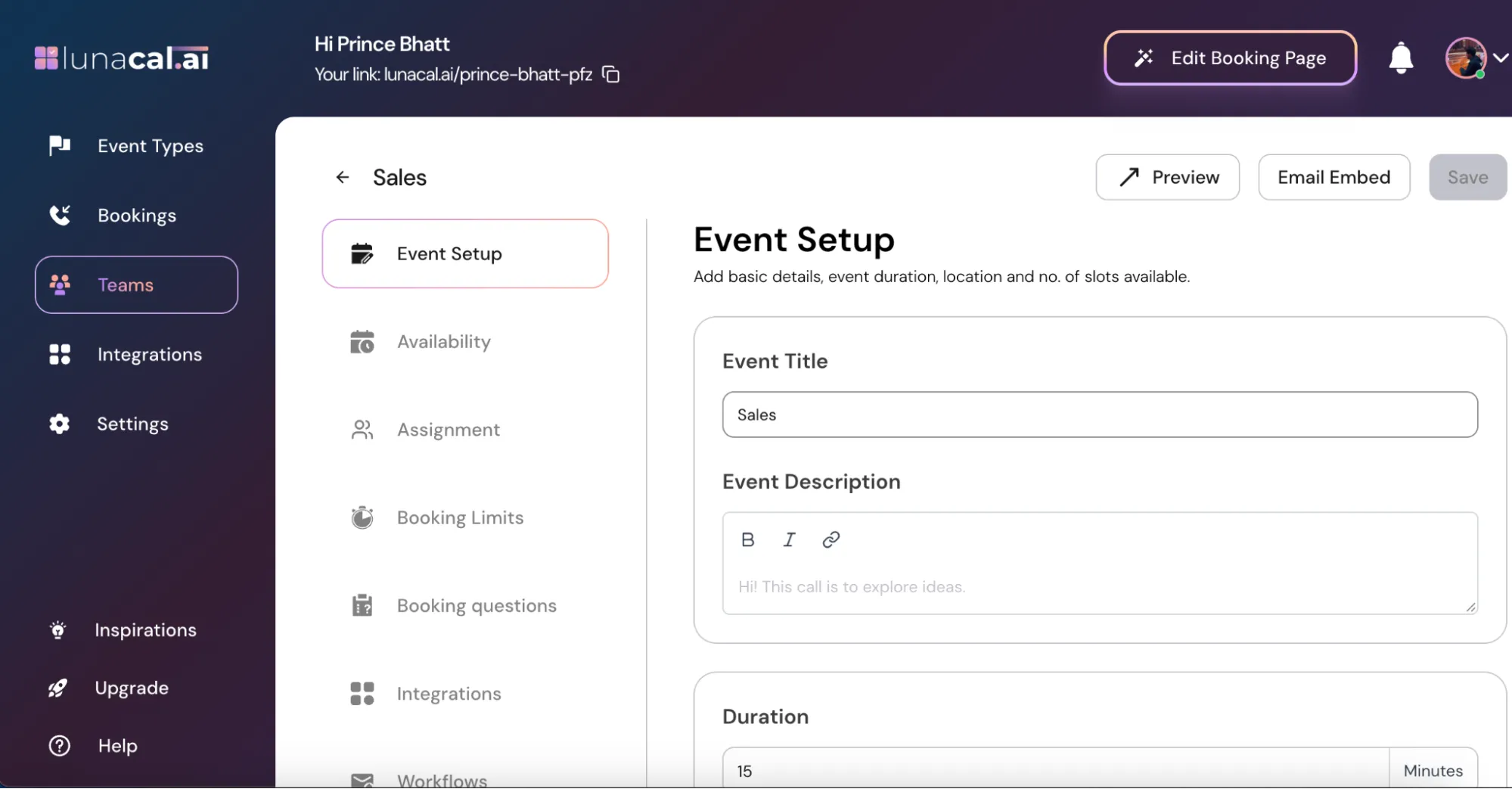
Step 4
Go to the “Assignment” section.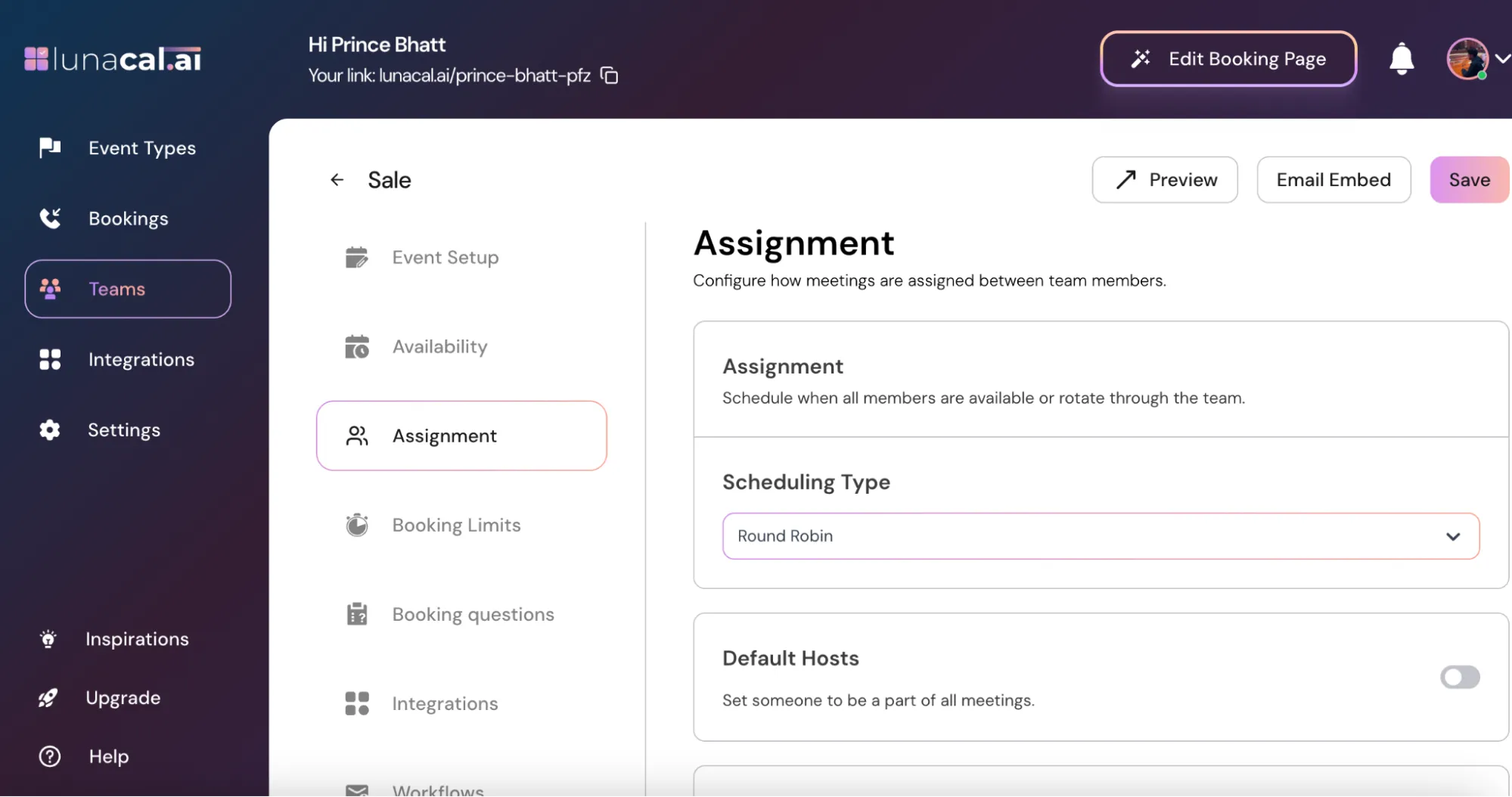
Step 5
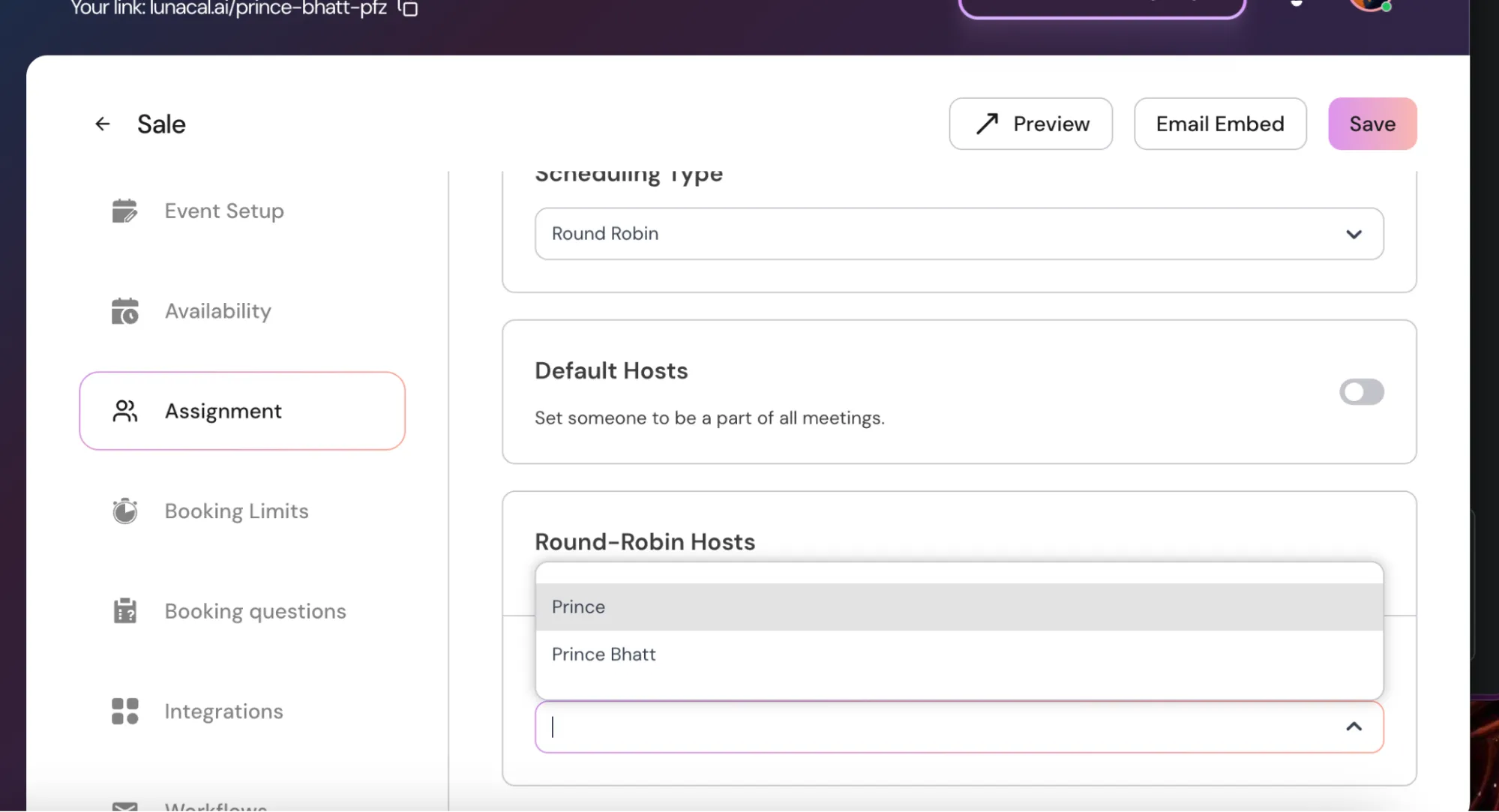
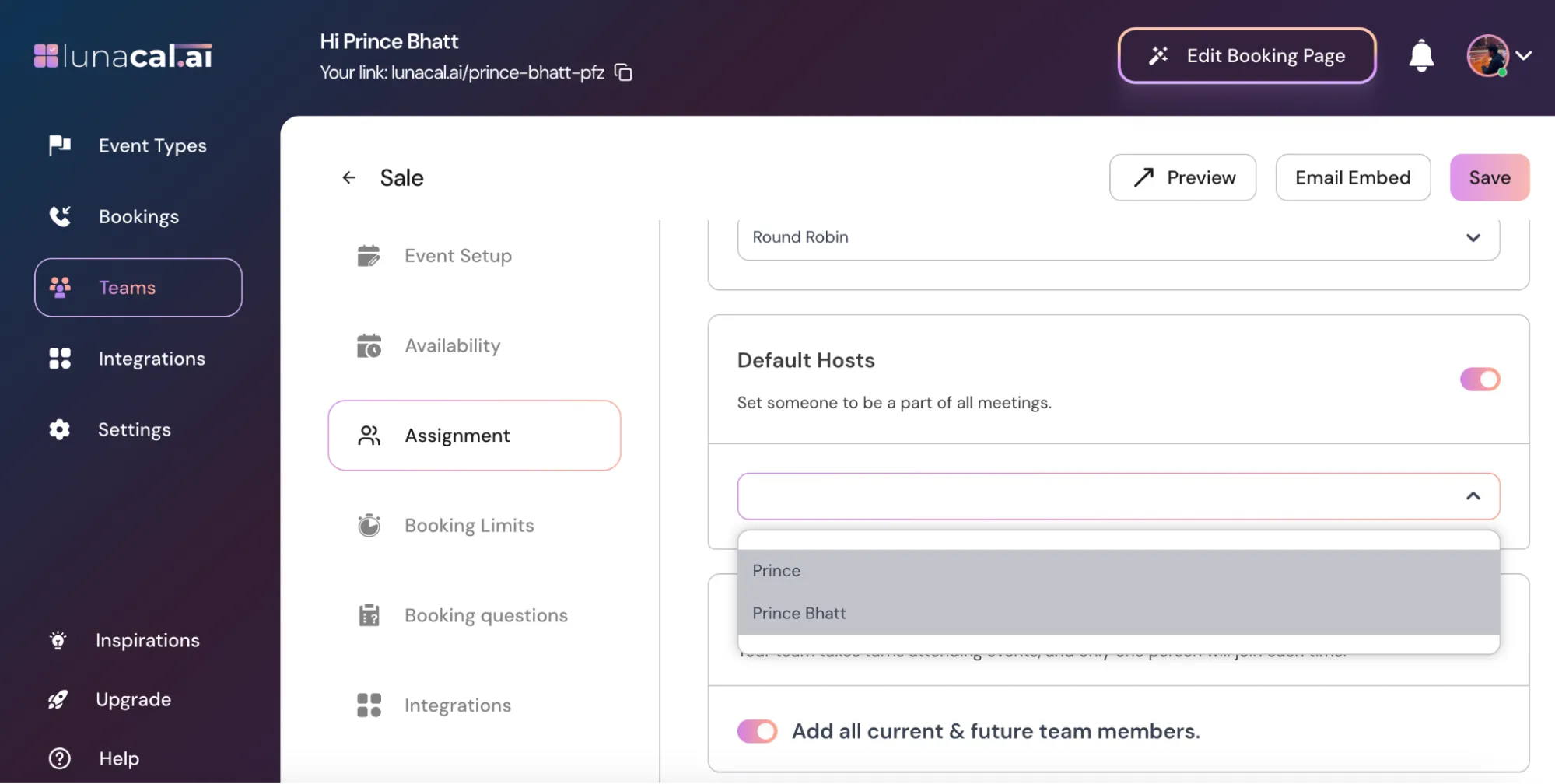
“Round-Robin Hosts” Turn ON → All current and future team members are automatically included in the rotation.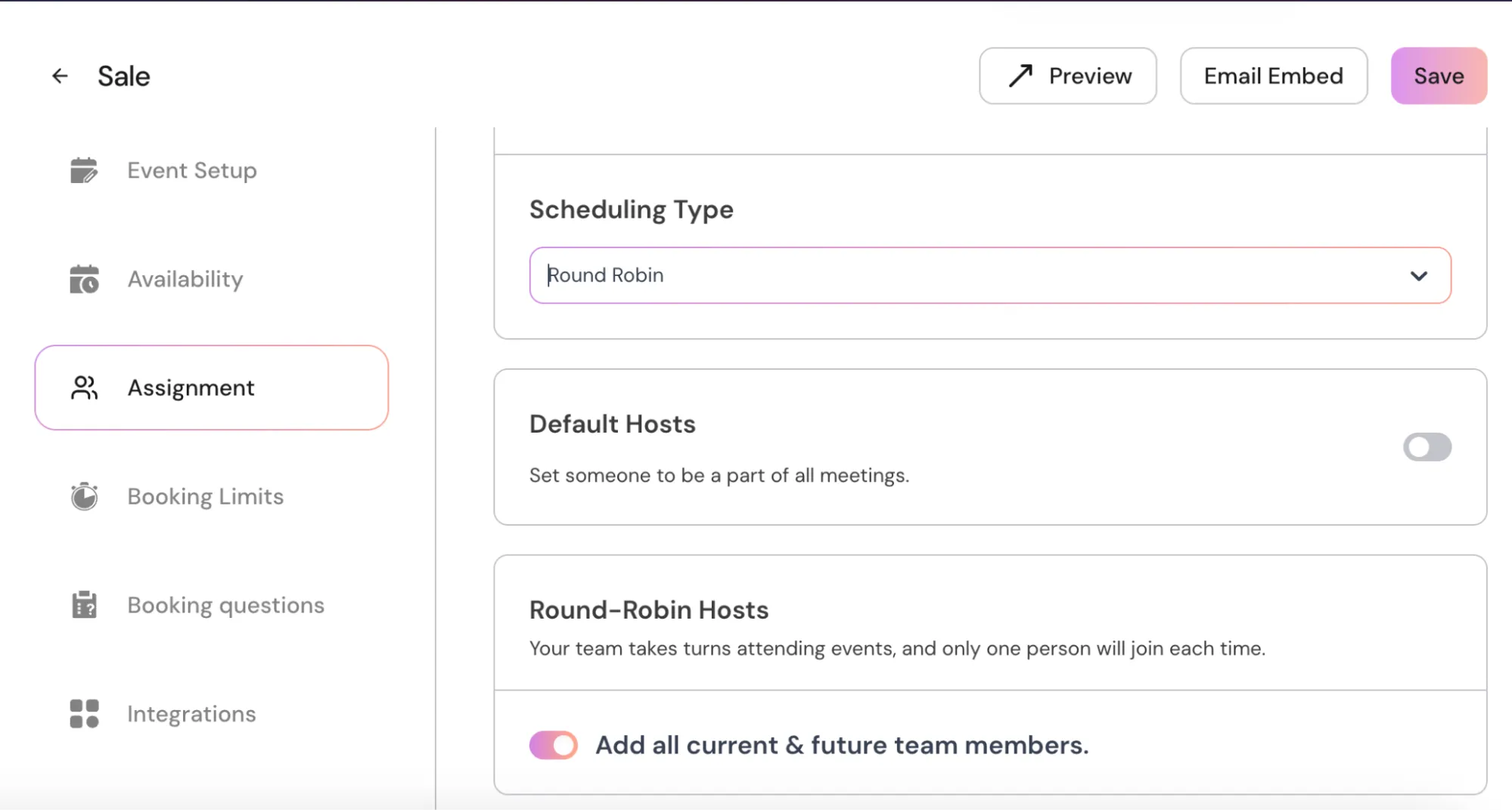
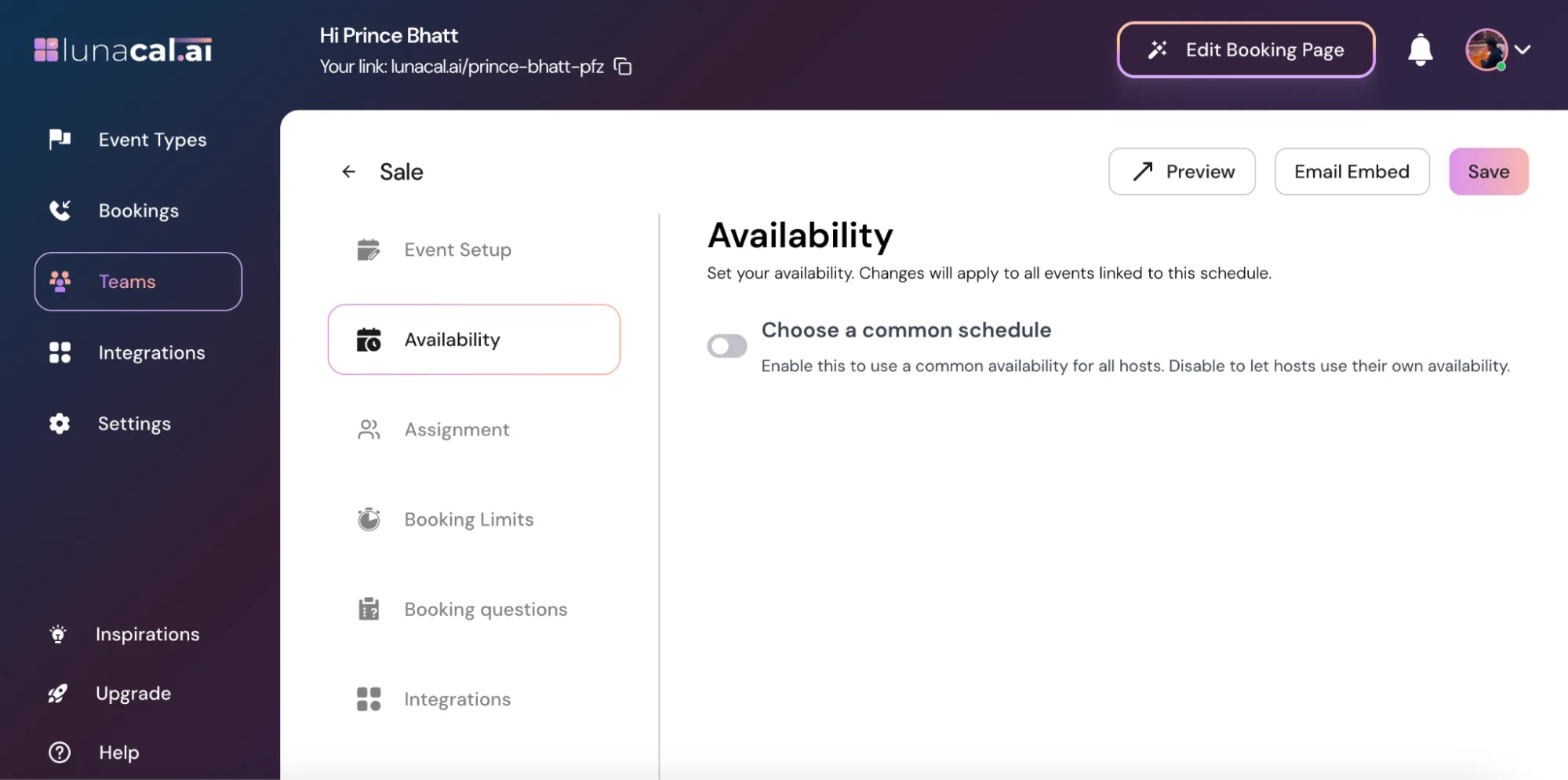
Step 6
“Availability Options” “Choose a Common Schedule (ON)”: All hosts follow the same availability you set here. Any changes apply to all linked events.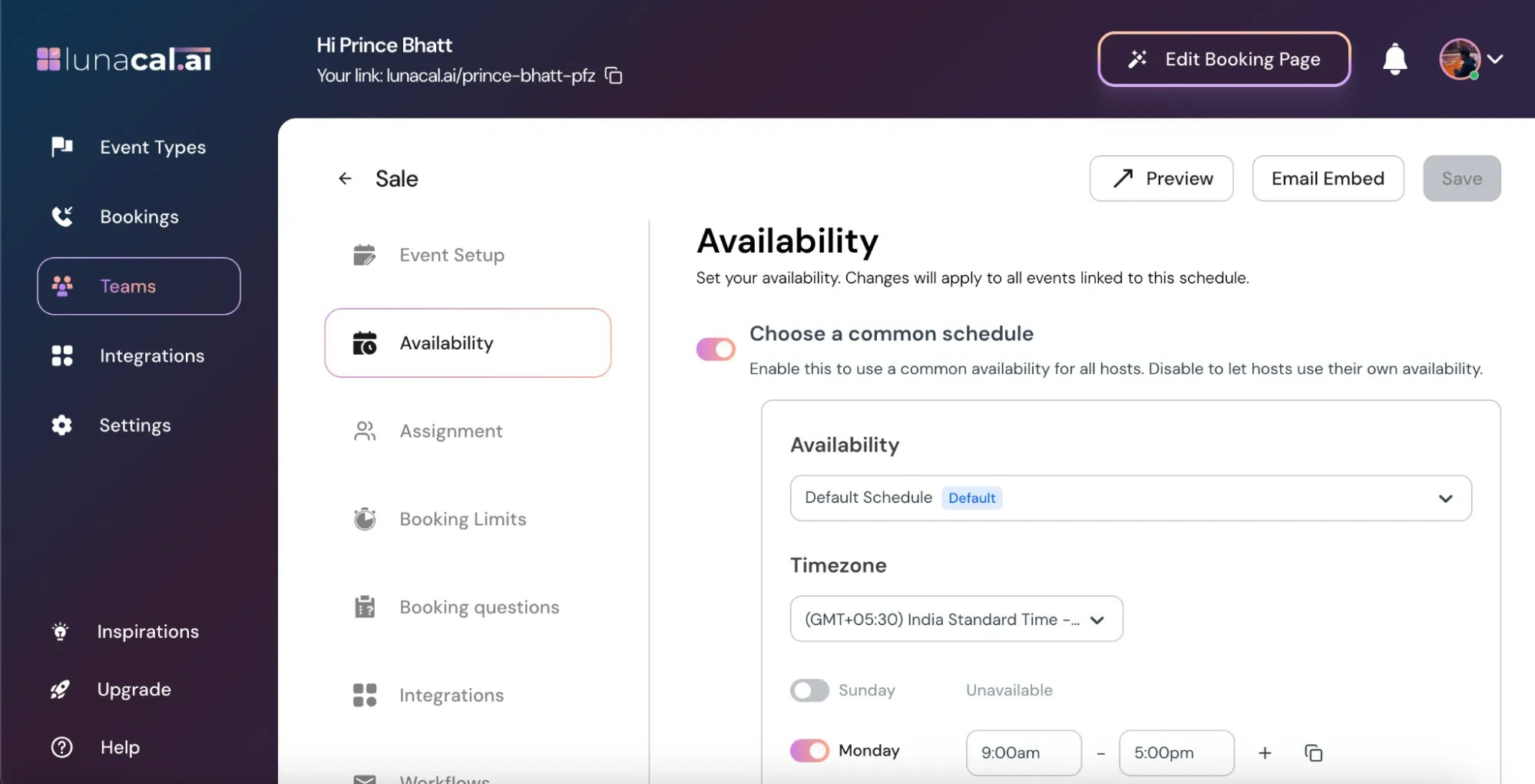
Common mistakes to avoid
- Turning “Round-Robin Hosts” ON but leaving some members with no availability; they’ll never receive bookings.
- Forgetting buffers in “Booking Limits”, causing back-to-back assignments for whoever is next.
- Adding a “Default Host” unintentionally and wondering why one person appears on every invite.
- Mixing “Choose a Common Schedule (ON)” with hosts who need different time zones; use OFF for individual schedules.
- Leaving future hires out when “Round-Robin Hosts” is OFF; remember to add them manually.