Skip to main contentWhen to use Collective vs other options (quick guide)
Collective Scheduling lets you book a meeting only when all selected hosts are available at the same time. It’s ideal for meetings like panel interviews, group demos, or team discussions where everyone must attend.
Use Round Robin when any one qualified host can take the meeting (e.g., inbound demo queue).
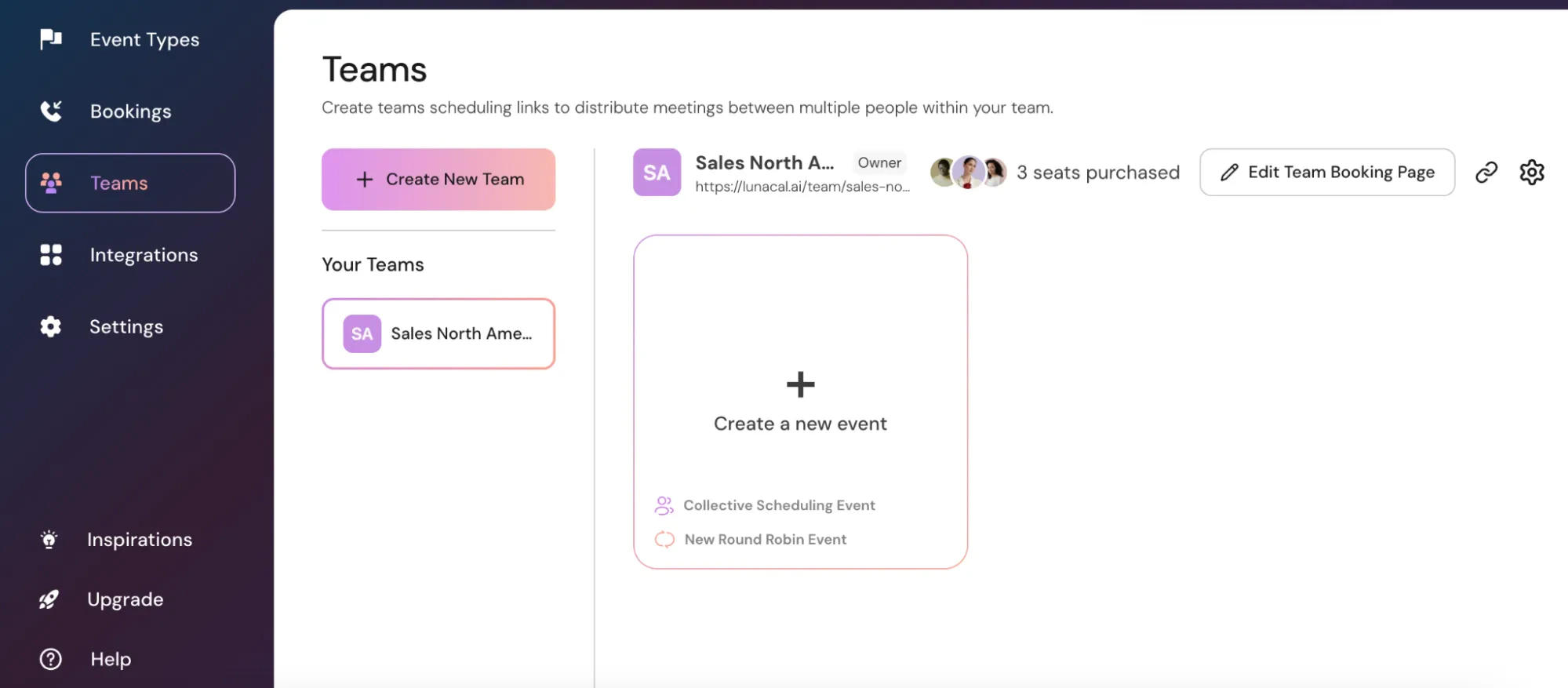
Step 1
Click on “Create a new event”.
Step 2
Select “Collective Scheduling” from the Assignment options.
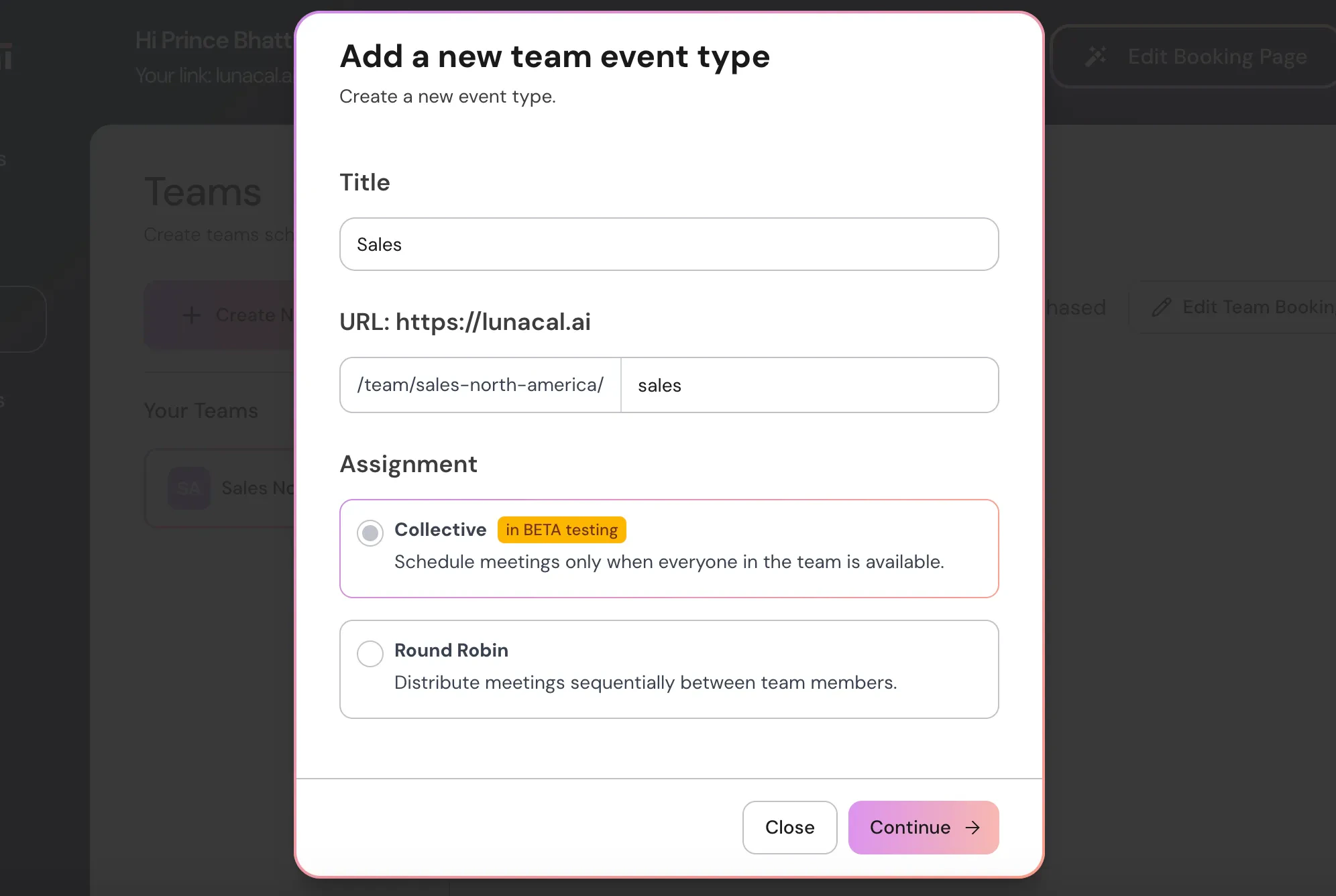
Example Client onboarding that always needs an AE and a CSM: pick “Collective Scheduling” so both must be available for a slot to appear.
Step 3
The “Event Setup”, “Booking Limits”, and other features work the same way as a regular event.
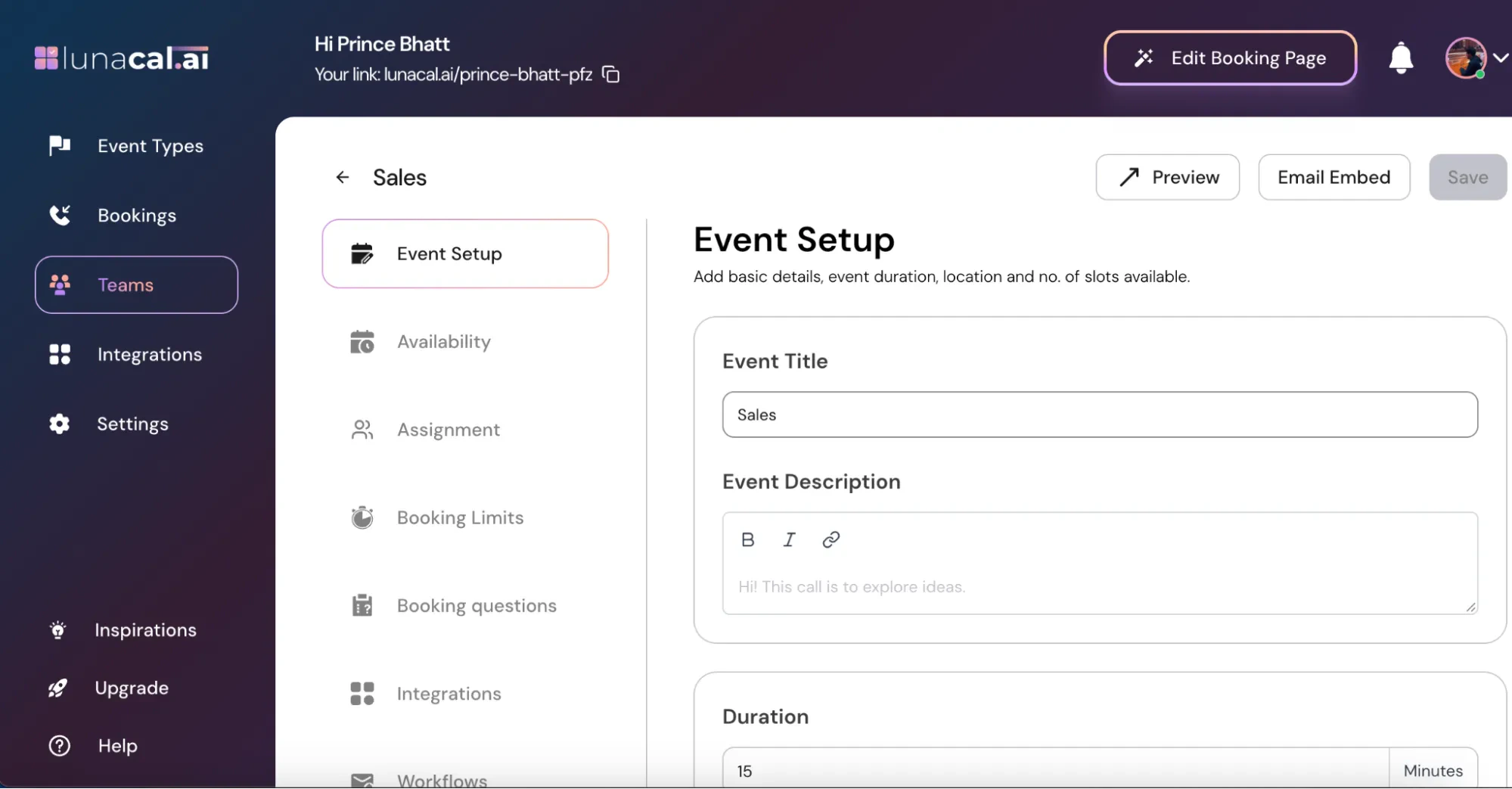
Example Keep buffers in “Booking Limits” (e.g., 10 min before, 15 min after) so team members have prep and wrap-up time.
Step 4
Go to the “Assignment” section.
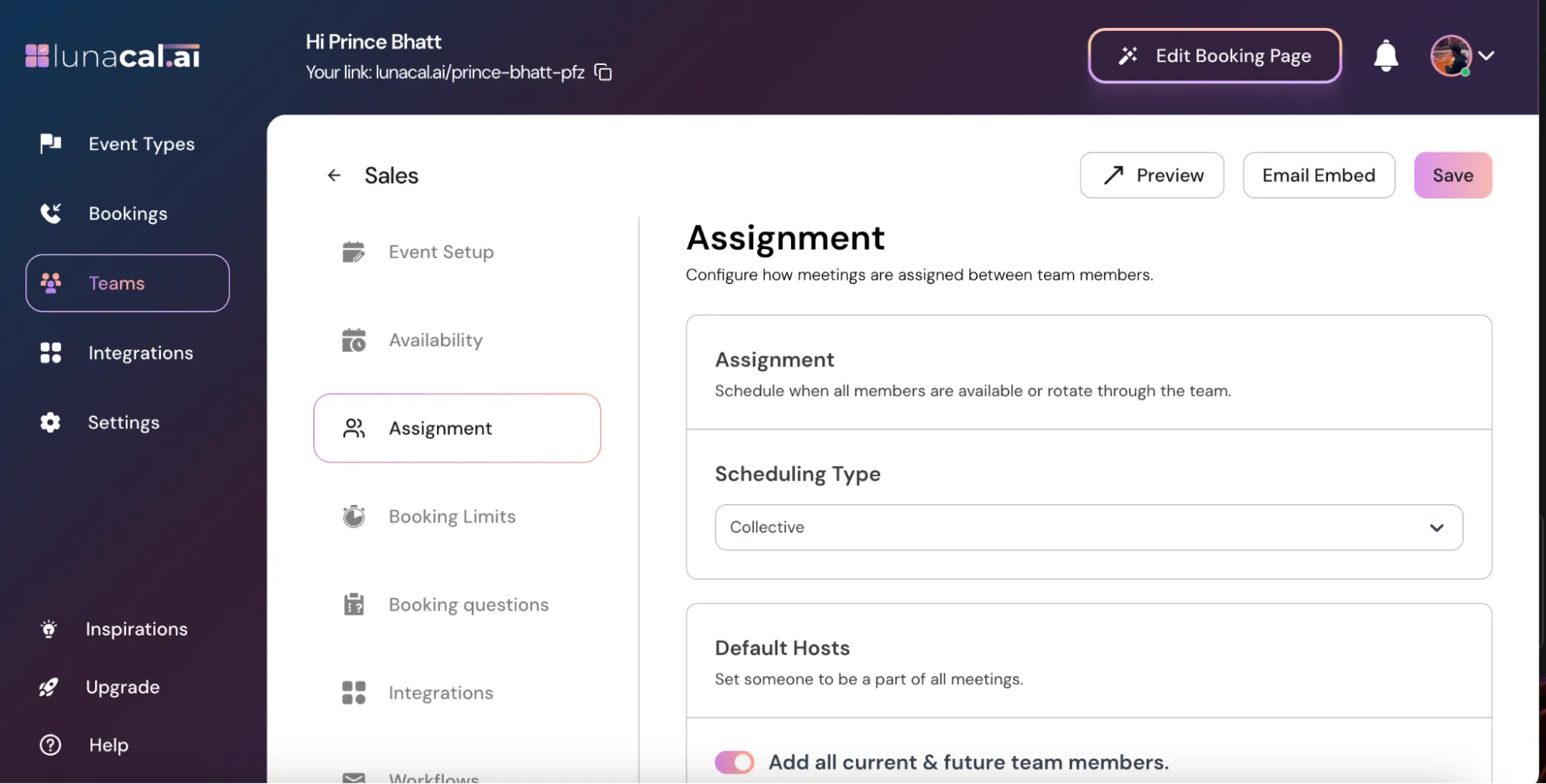
Example Pre-sales call that must include Founder + Tech Lead: add both here so only overlapping times are shown to the booker.
Step 5
“Default Hosts”
Turn ON “Add all current & future team members” → Automatically include everyone in all meetings.
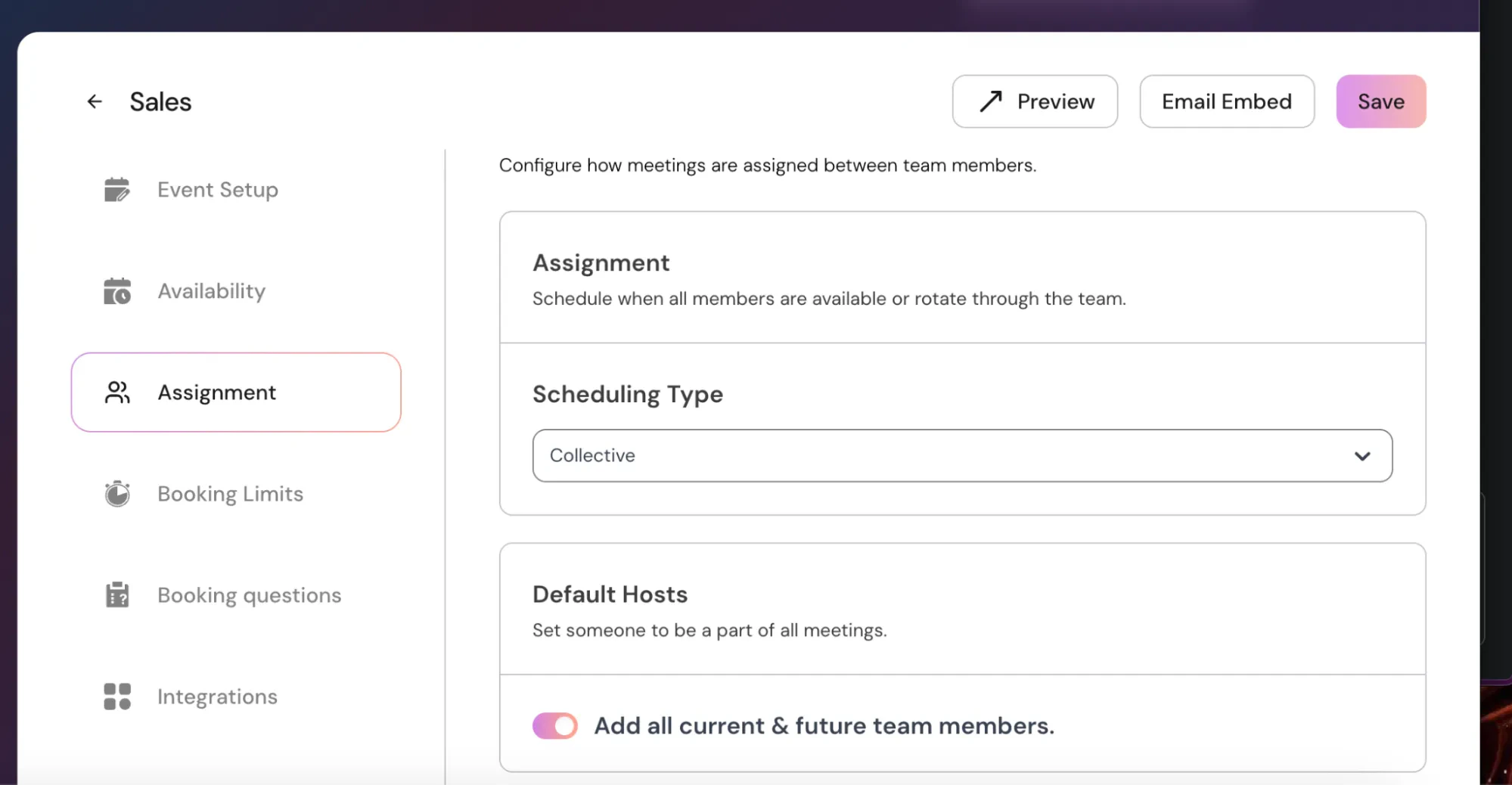
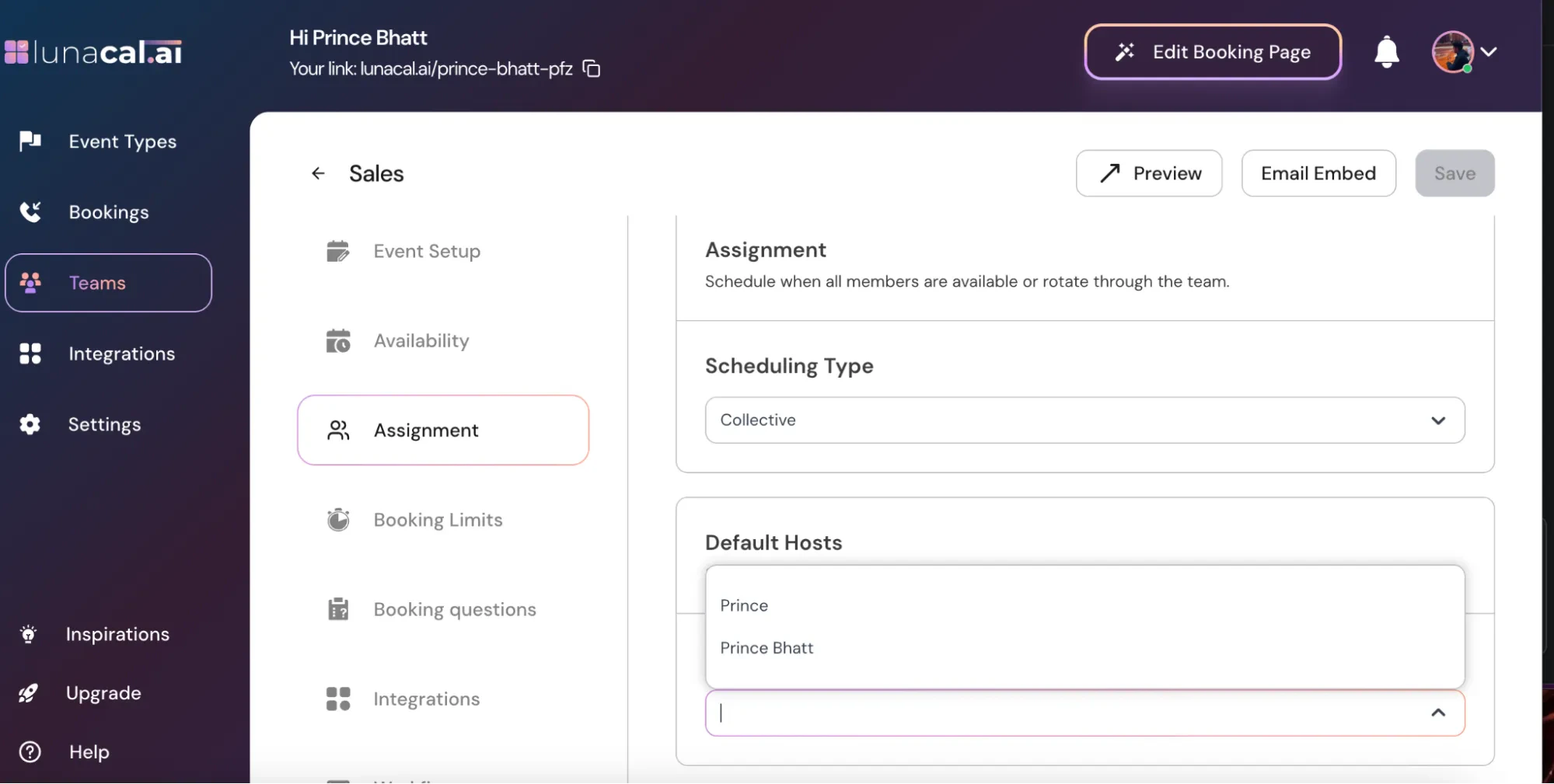
Keep it OFF → Manually select the specific team members you want to always include in the meeting.
Example Weekly investor update: keep it OFF and choose just the CEO and CFO; new hires won’t be auto-added by mistake.
Step 6
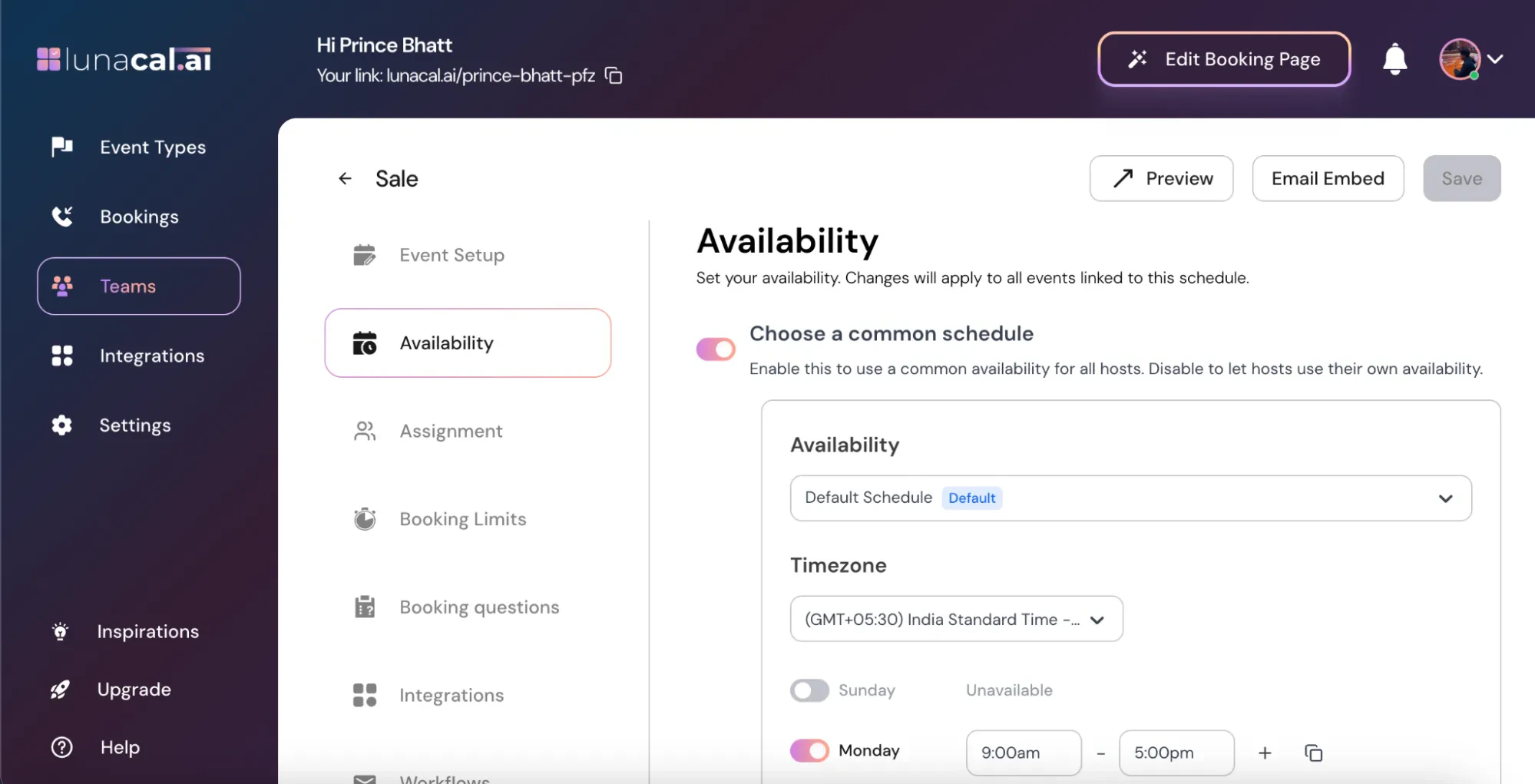
“Availability Options”
Choose a Common Schedule (ON): All hosts follow the same availability schedule you set here. Any changes apply to all linked events.
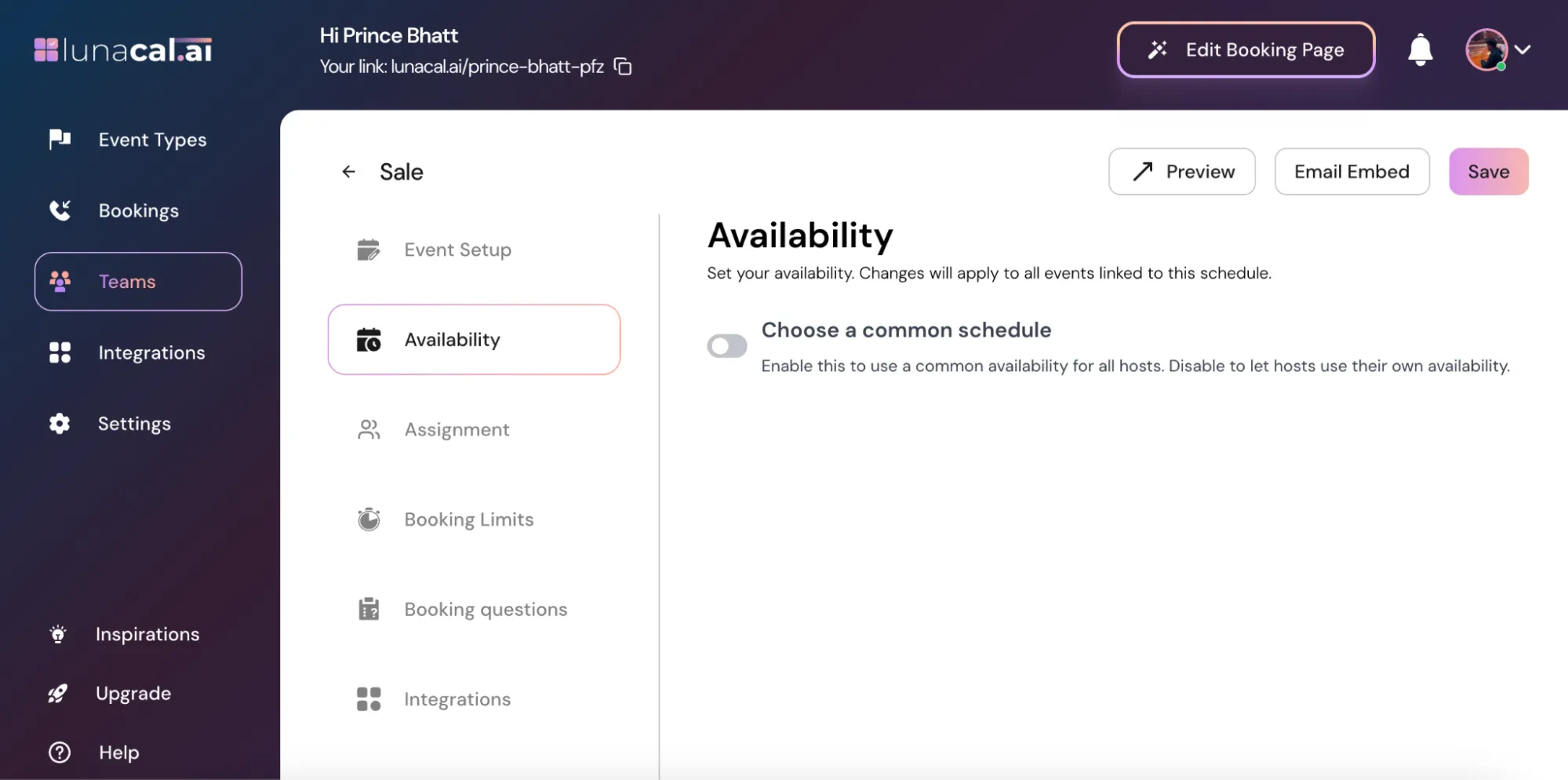
Choose a Common Schedule (OFF): Each host can set and use their own individual availability for events.
Example Global team (IST + CET + ET): use (OFF) so each person keeps their local hours; the page still shows only overlapping slots.
Common mistakes to avoid
- Selecting “Collective Scheduling” but forgetting to add all required people in “Assignment”, so the meeting misses a key host.
- Leaving “Choose a Common Schedule (ON)” when hosts work different time zones; overlapping slots may disappear.
- Turning ON “Add all current & future team members” for a sensitive meeting type, which auto-adds new hires.
- No buffers in “Booking Limits”, causing tight back-to-back meetings for multiple hosts.