

- By default, clients may be allowed to cancel or reschedule their booked events. With these settings:
Step 1
Go to Event Types.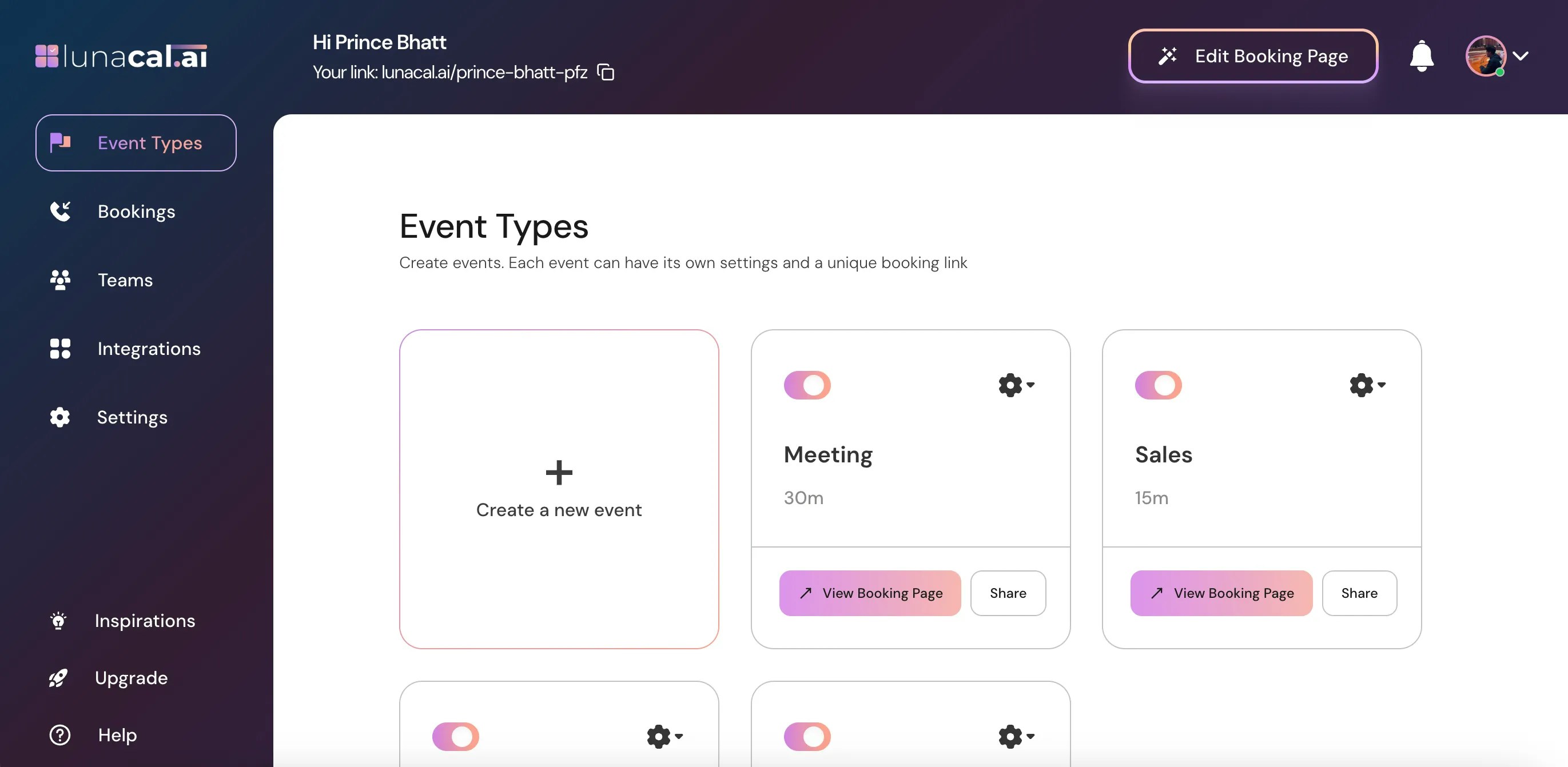
Step 2
Select the event for which you want to disable cancellation or rescheduling and click on the Settings icon on that event card.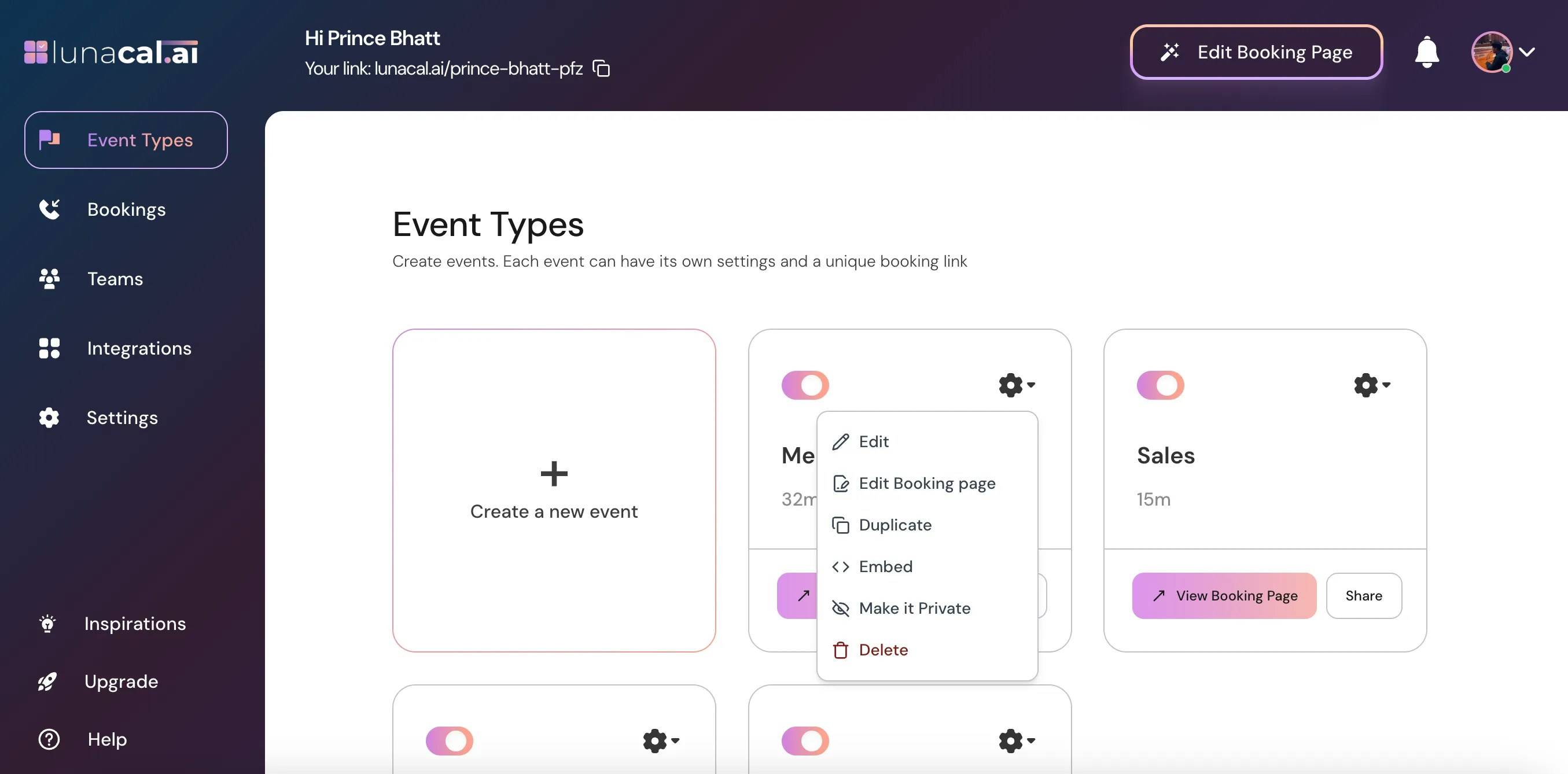
Step 3
Choose Edit from the dropdown.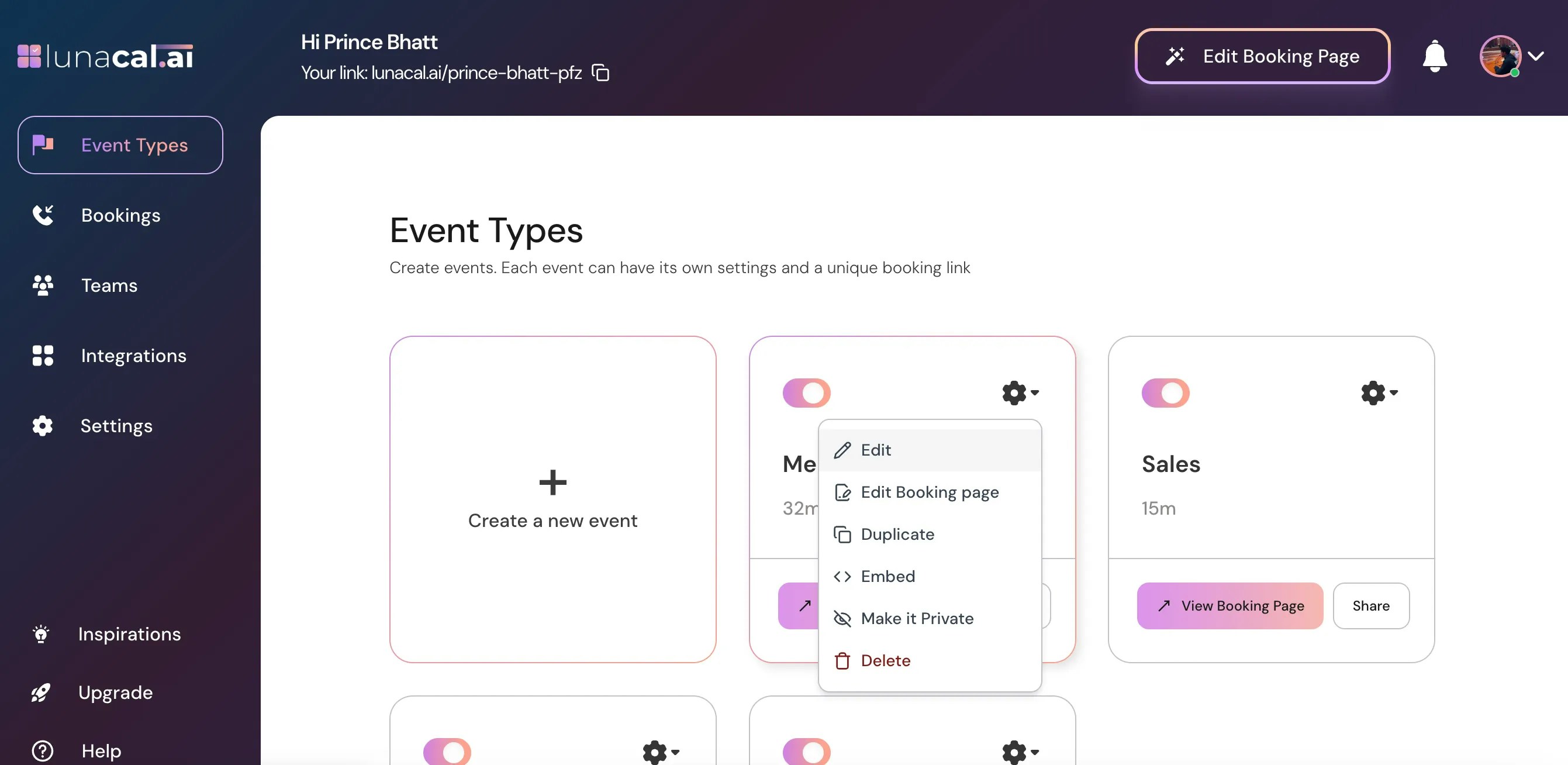
Step 4
In the “Event Types” section, scroll down to find “Advanced.”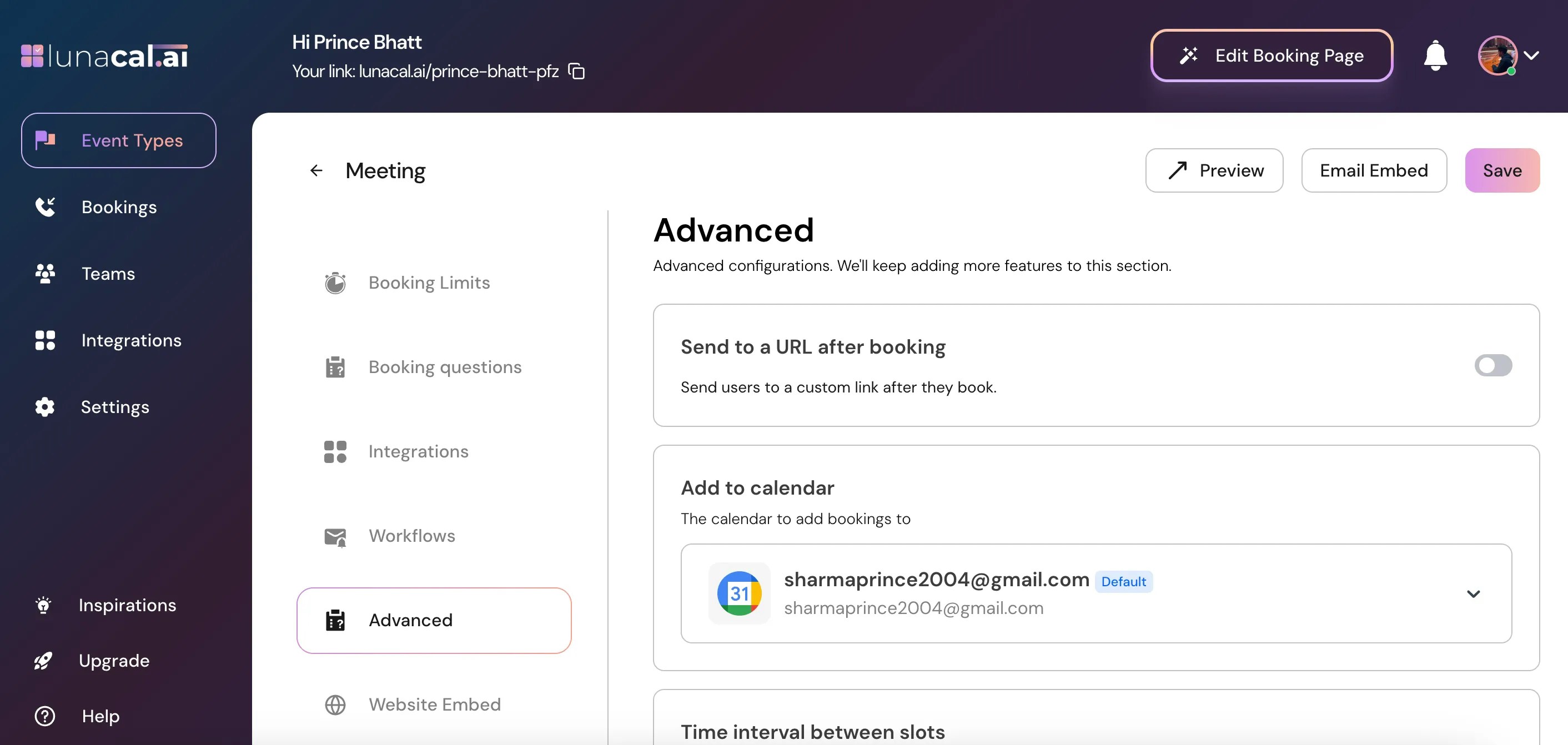
Step 5
“Disable Cancelling” → Toggle this ON to prevent the booker from cancelling the meeting.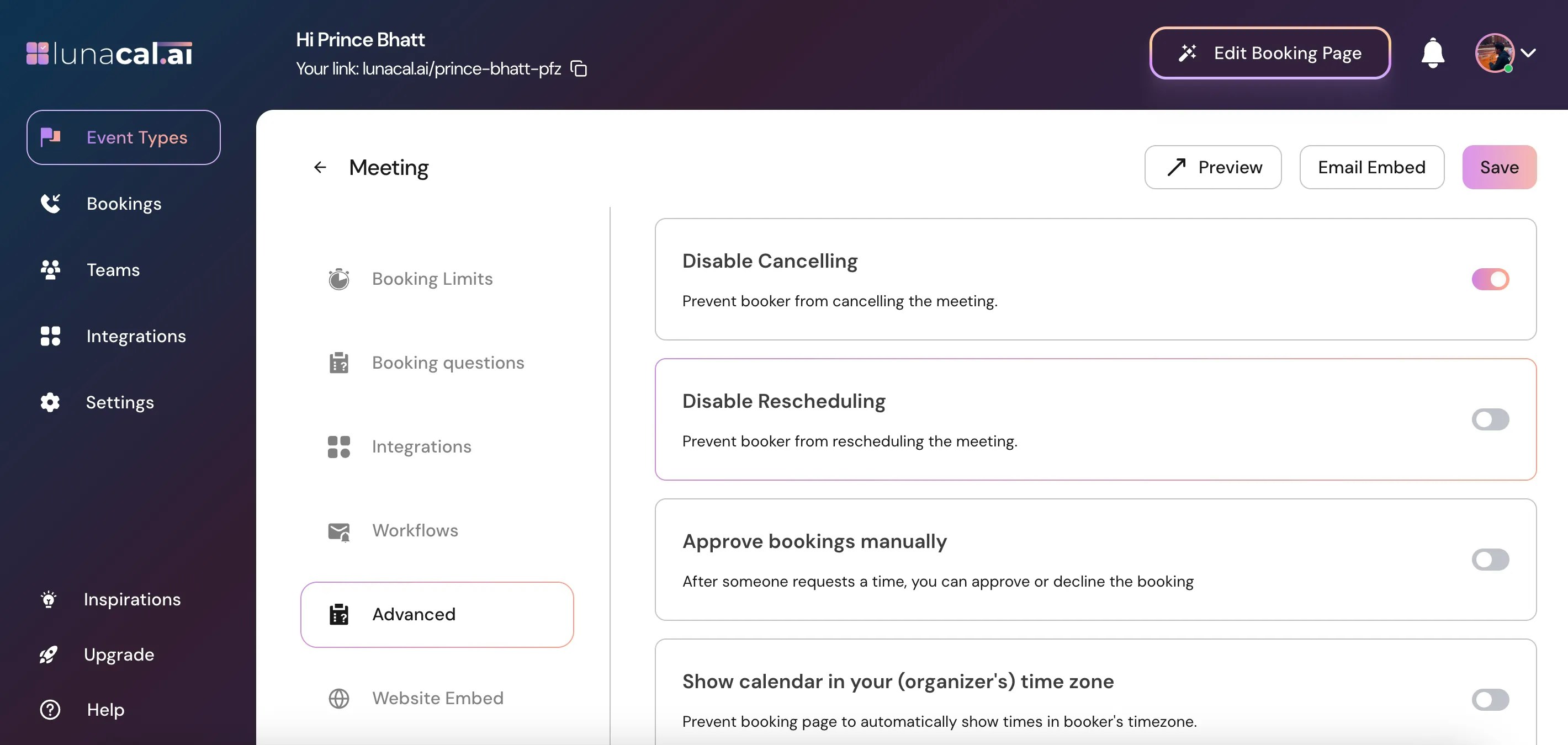
Step 6
“Disable Rescheduling” → Toggle this ON to prevent the booker from rescheduling the meeting.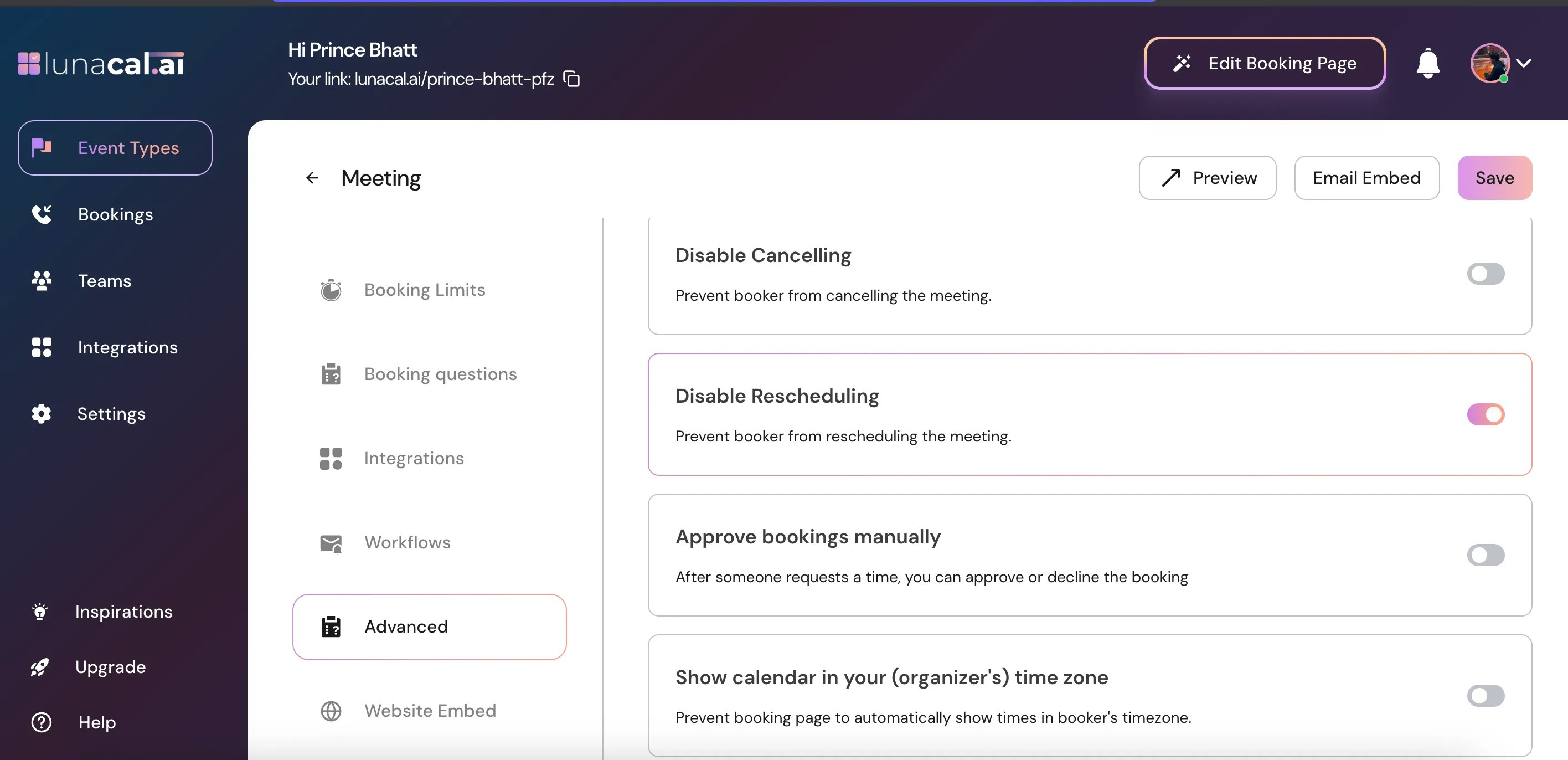
Step 7
Click “Save” to apply the changes.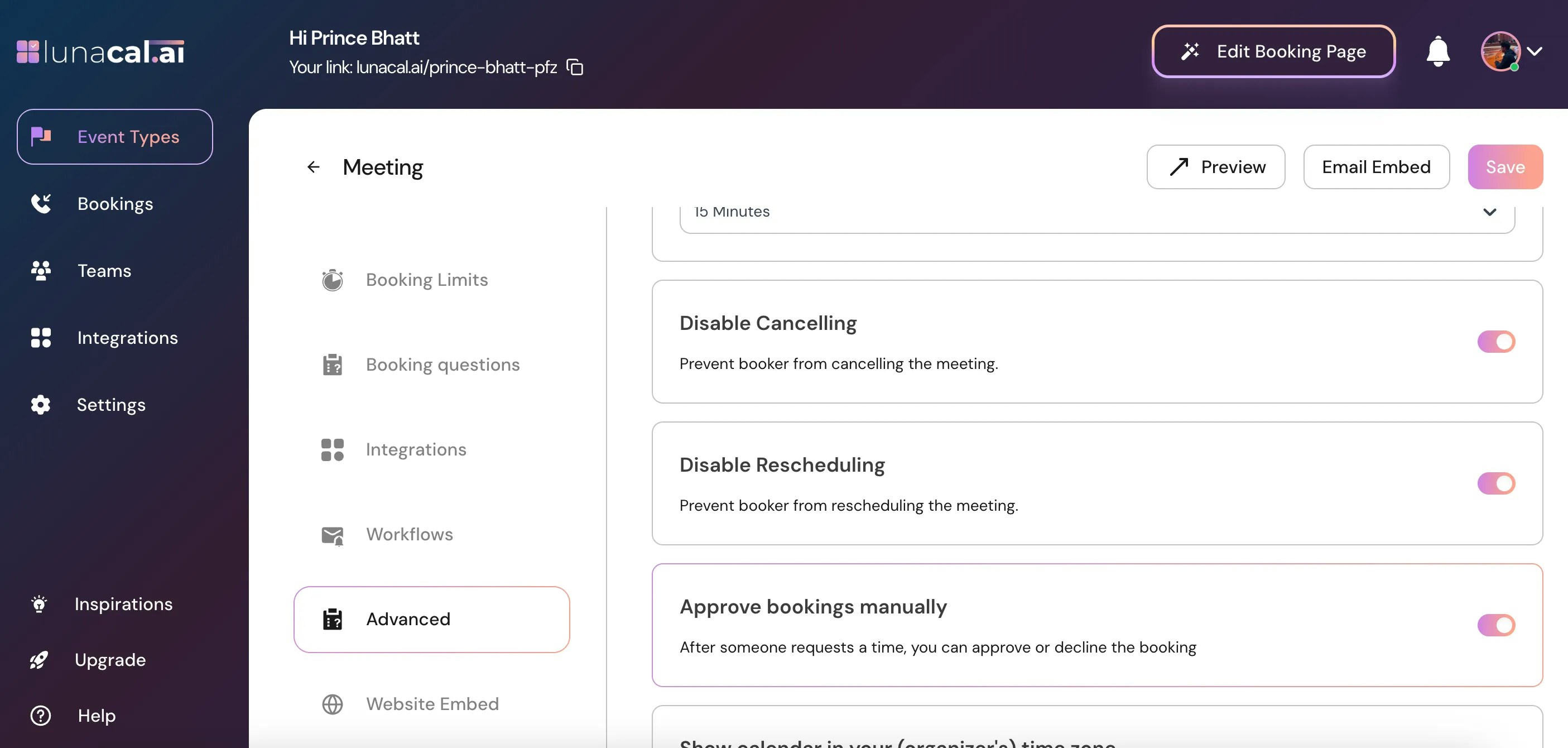
- For new bookings after you enable the toggle: Clients will not see options to cancel or reschedule.
- For existing bookings (before you enabled the toggle): They remain unaffected and attendee can reschedule/cancel bookings.
- Clients trying to cancel/reschedule: They will not have the option on their booking page (or the links/buttons will be disabled).
- If a booking needs to be rescheduled/cancelled by you (the host), you can still do it via your bookings.