What does LunaCal’s Zoom integration do?

The Zoom integration lets LunaCal automatically create Zoom meetings for bookings when Zoom Video is selected as the event’s meeting location. Setup has two parts in LunaCal’s appointment booking software:
  • Connect Zoom through Integrations → Conferencing for your personal account or a team event type.
  • Assign Zoom to each event through Event Setup → Meeting Location → Zoom Video, then save.
Connecting the account does not automatically select Zoom as the location for every event.

How to connect Zoom to LunaCal

Open Integrations

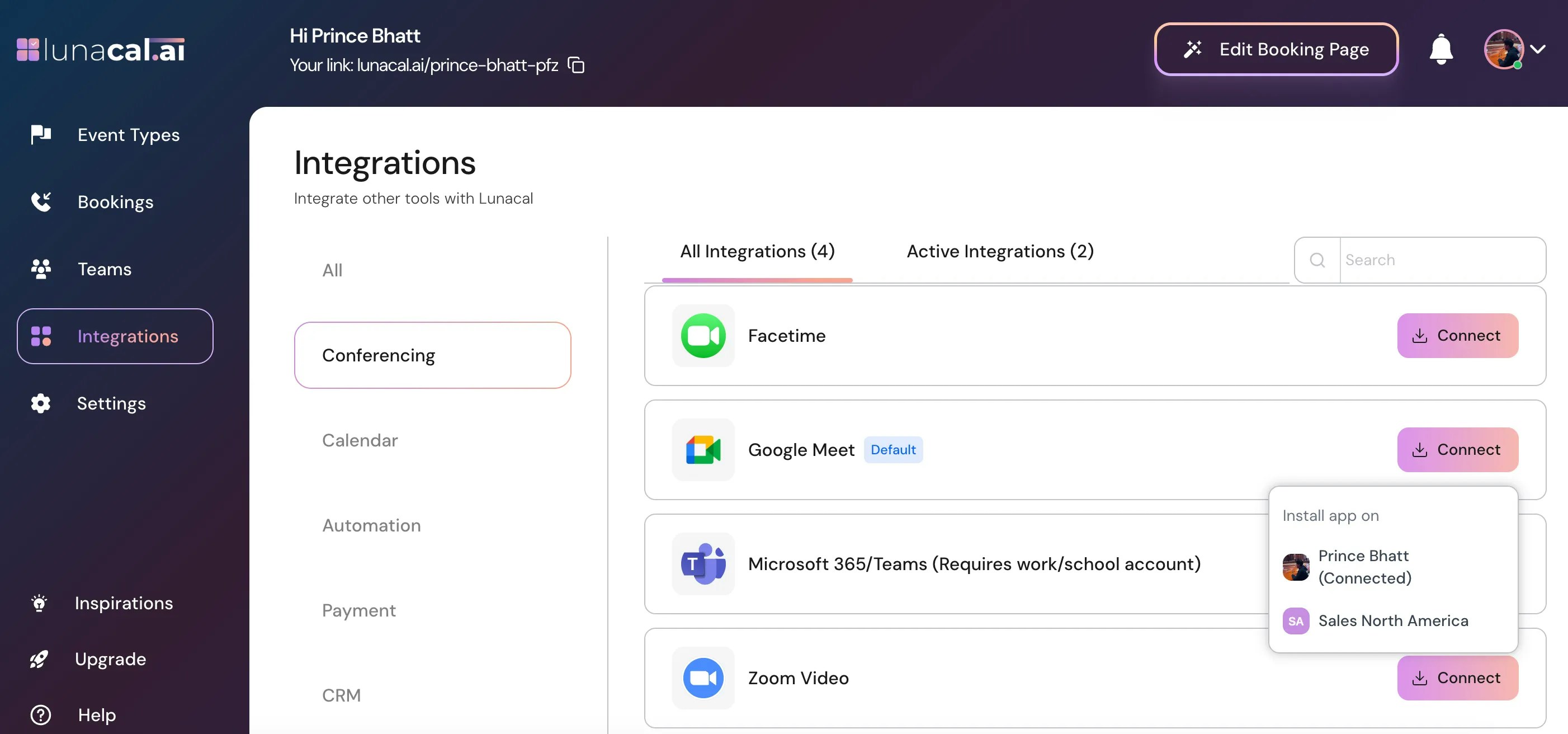
Go to Integrations in your dashboard.
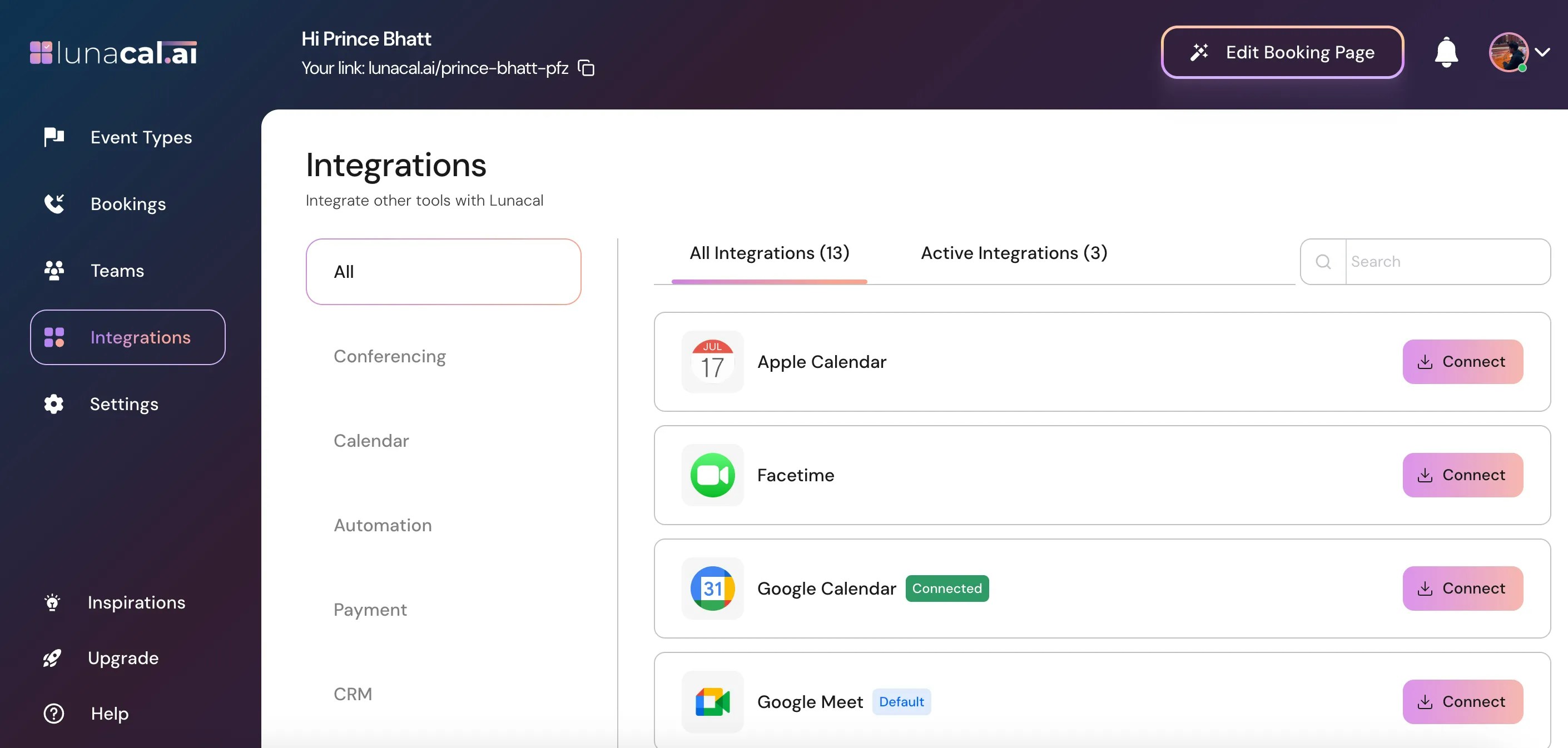
Open Integrations in LunaCal

Open Conferencing

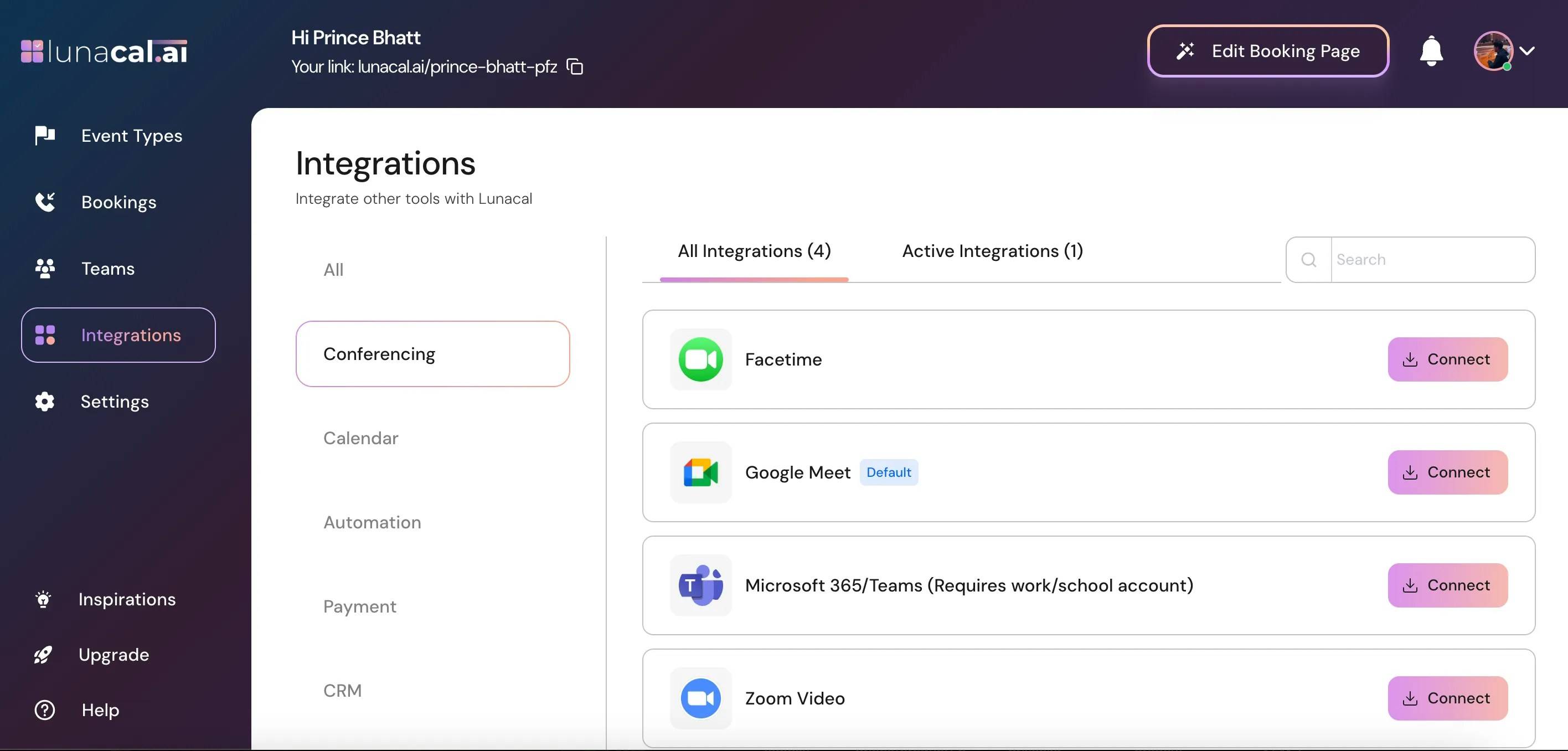
Select Conferencing.
Open conferencing integrations

Choose where to install Zoom Video

Select Zoom Video, then choose a team event type or your personal account. Example: Choose a team event type such as “Sales North America” when connecting Zoom for that team’s events. Example: Choose your personal account when connecting Zoom for your own appointments.
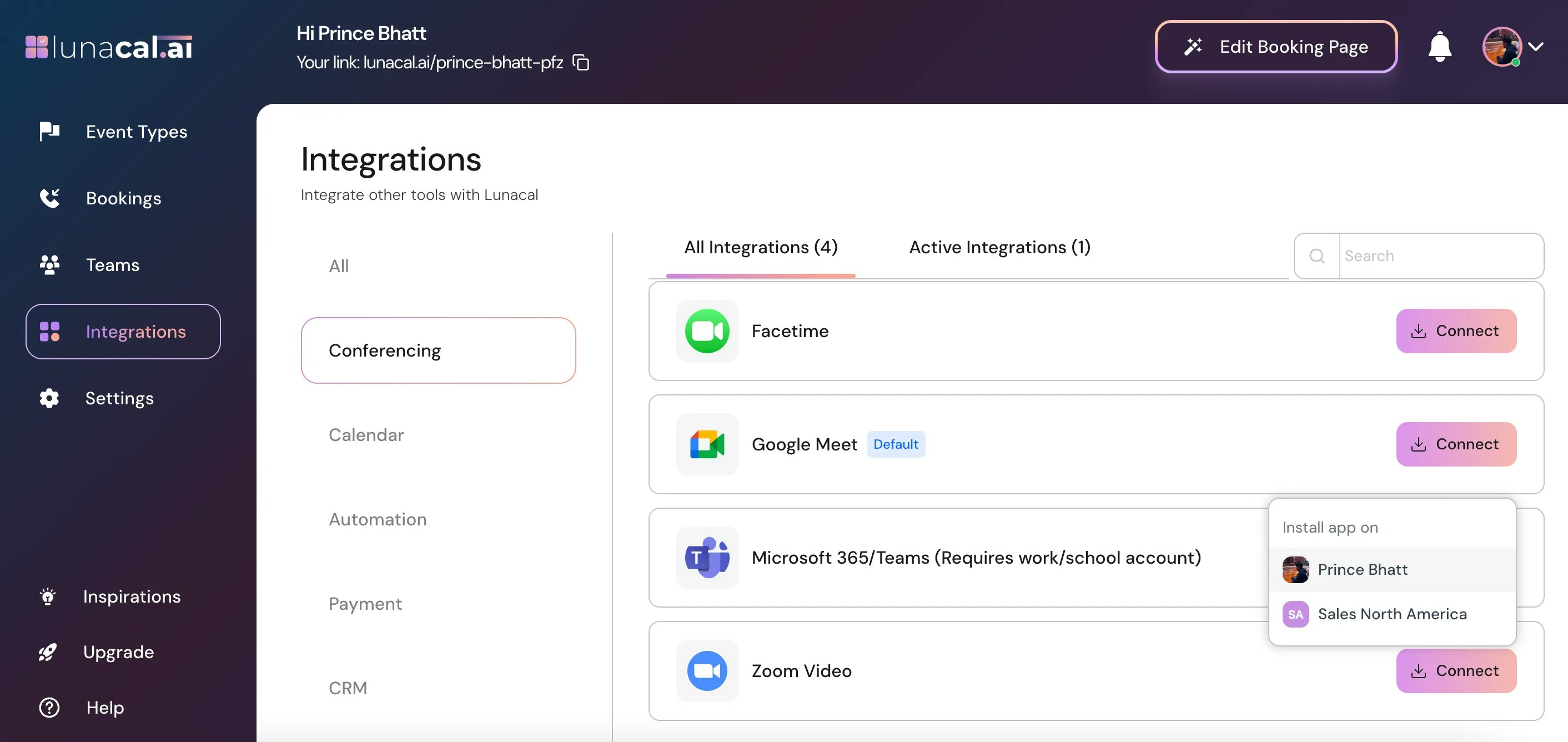
Choose Zoom Video for a personal account or team event type

Sign in to Zoom

Enter your Zoom credentials to connect the account you want to use.
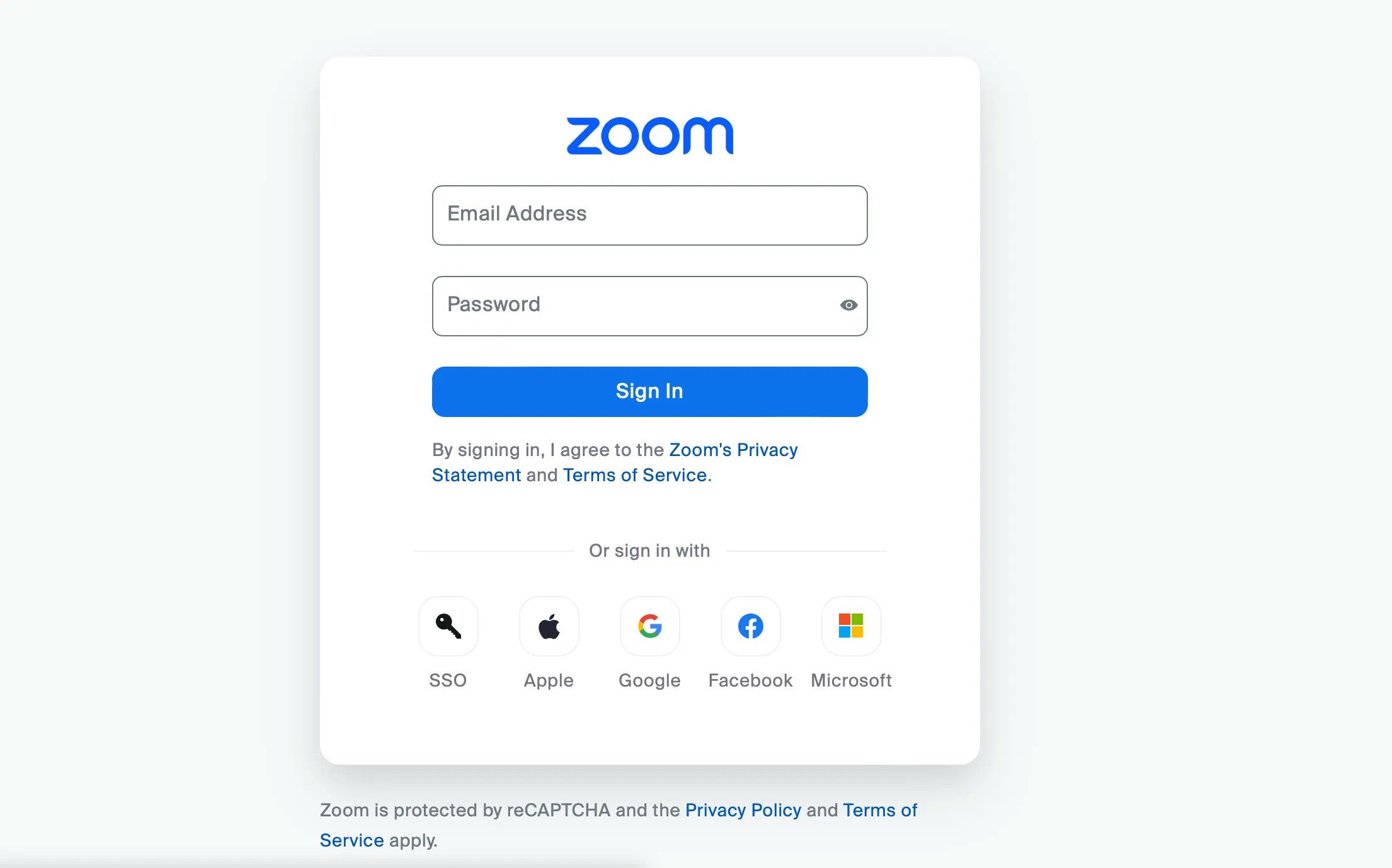
Sign in to the Zoom account you want to connect

Authorize the connection

Select the View user option when connecting Zoom. This permission allows LunaCal to access your Zoom profile and automatically create Zoom meetings for your bookings.
  1. Click I understood to proceed.
  2. On the Zoom authorization page, choose View user when prompted.
  3. Click Authorize to complete the connection.
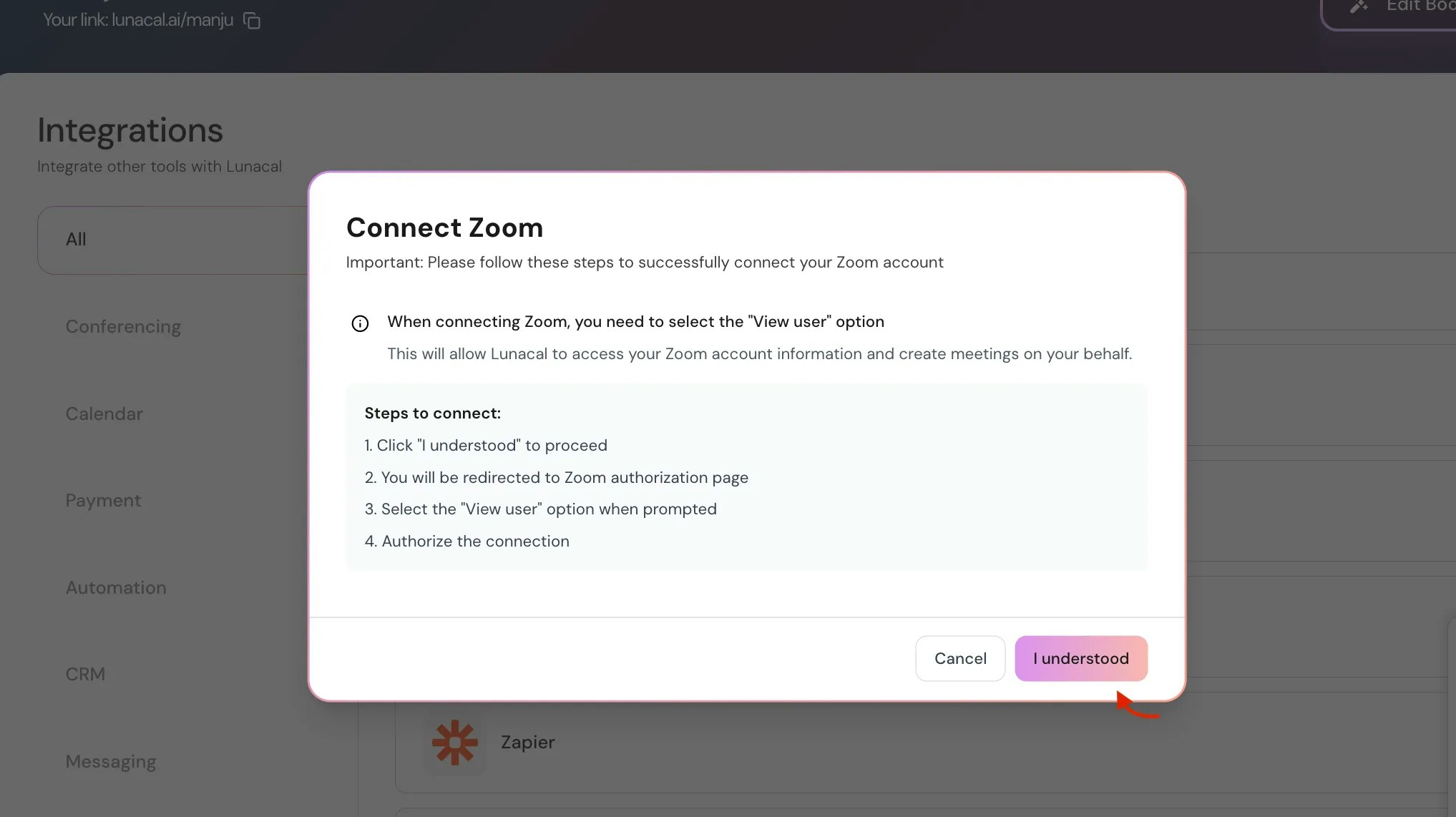
Continue to Zoom authorization
Select the View user permission during Zoom authorization
After connecting, Zoom links to your account and shows a Connected status. You must still select Zoom Video in the Meeting Location field for each event that should use it.
Check that Zoom shows a Connected status

How to set Zoom as an event’s meeting location

Open Event Types

Go to Event Types in your dashboard.
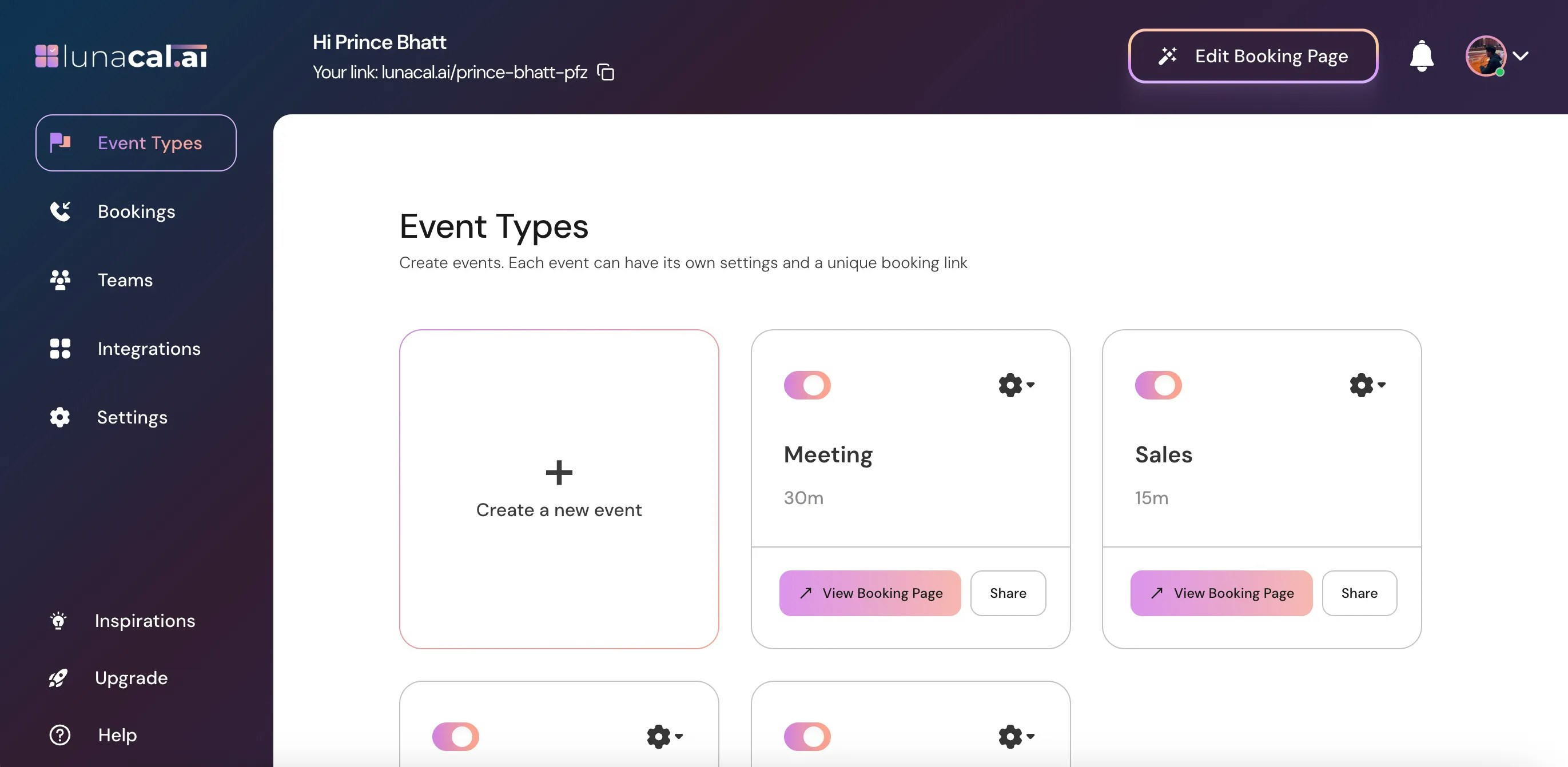
Open Event Types to assign Zoom to an event

Select the event

Find the event that should use Zoom and click the settings icon on its event card.
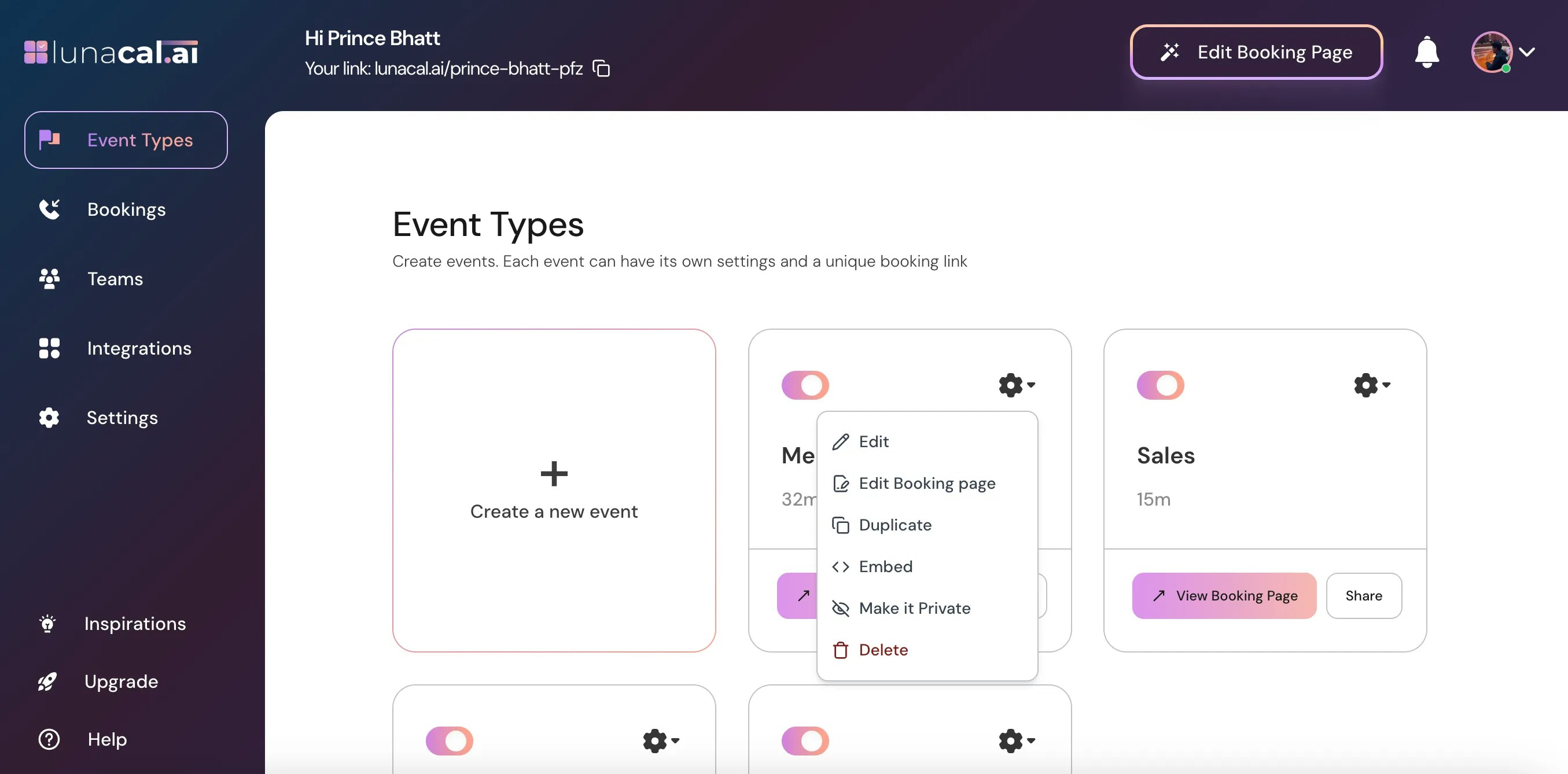
Open settings for the event that will use Zoom

Edit the event

Choose Edit from the dropdown menu.
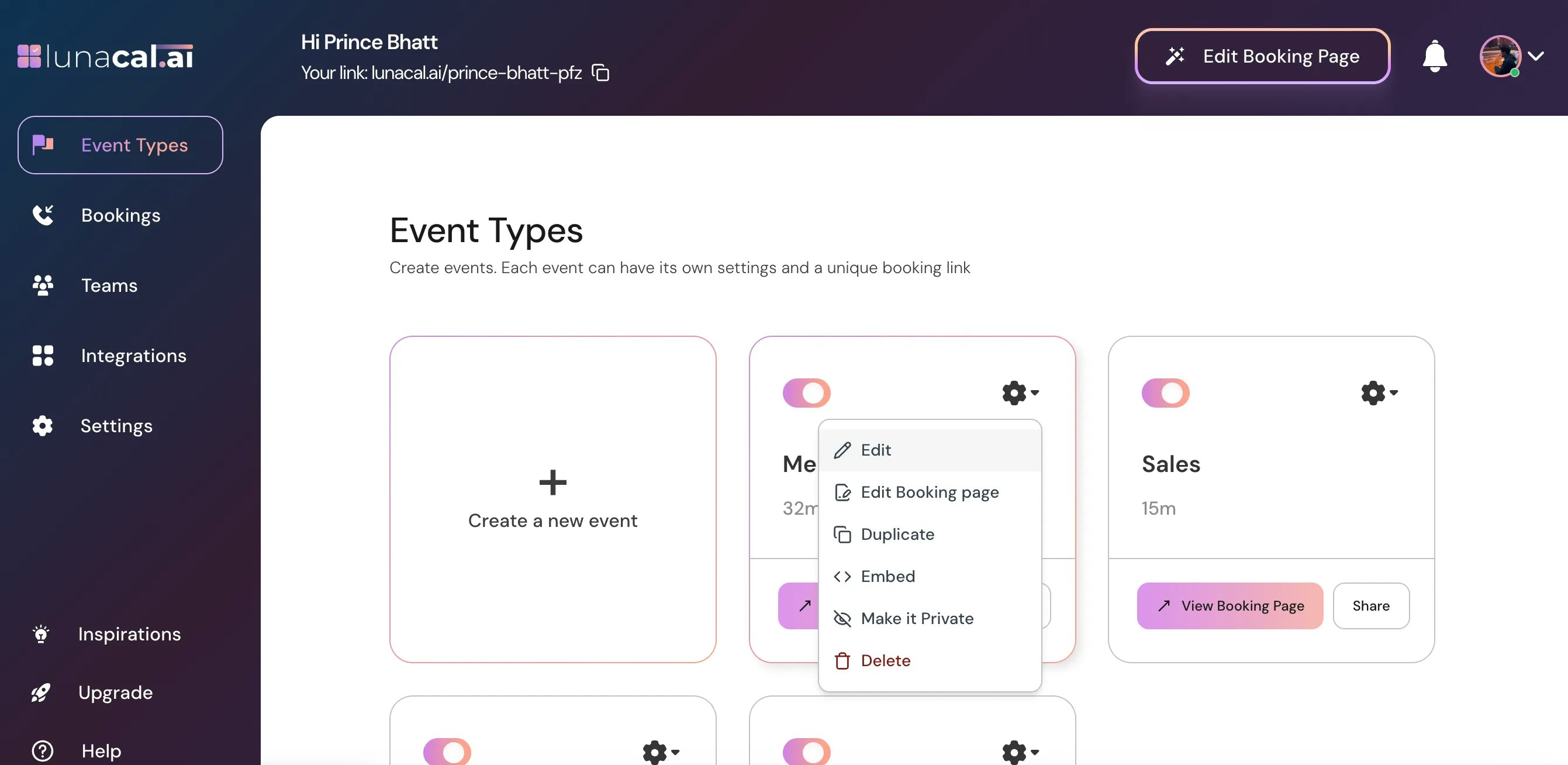
Choose Edit for the selected event

Set the meeting location

In Event Setup, scroll down to Meeting Location.
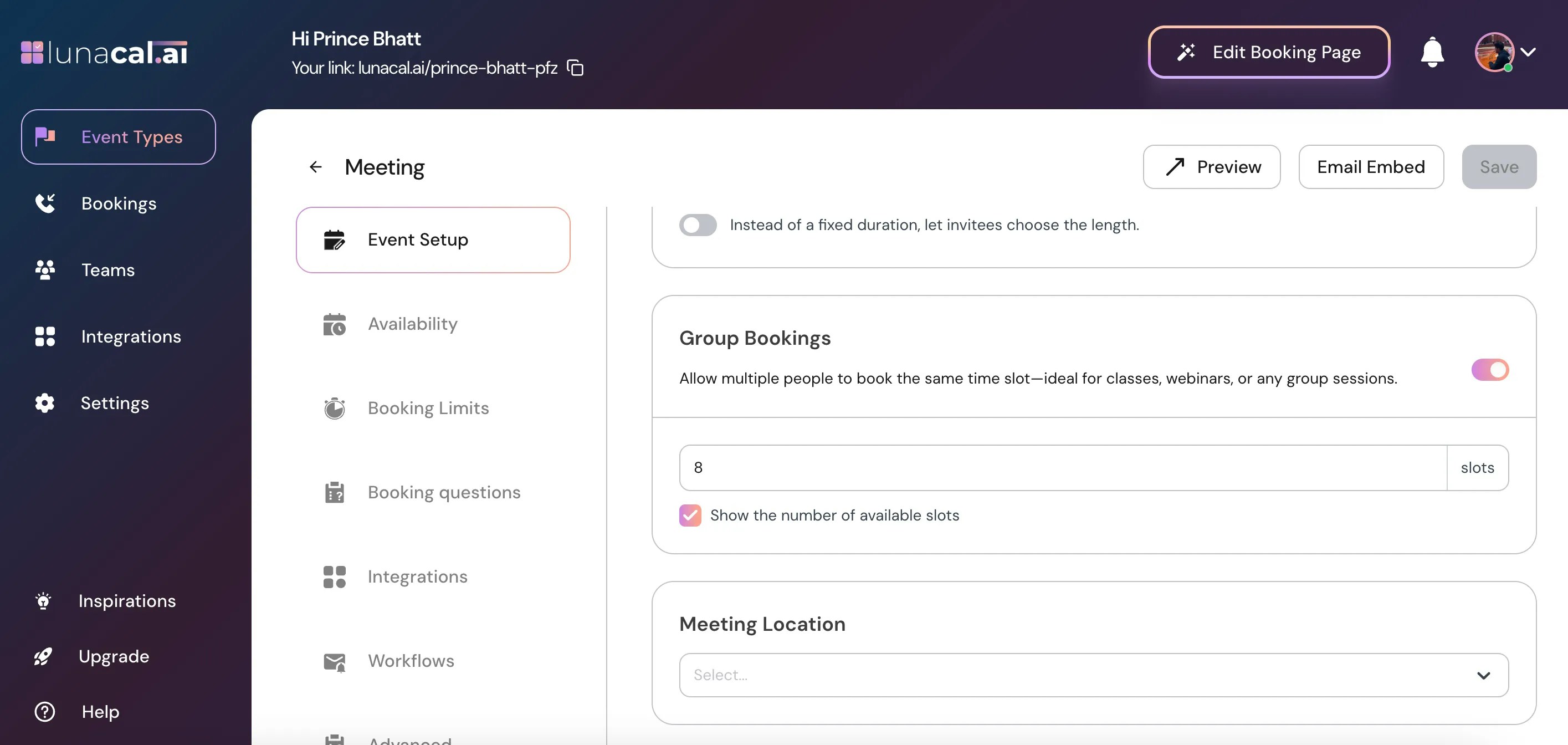
Find Meeting Location in Event Setup
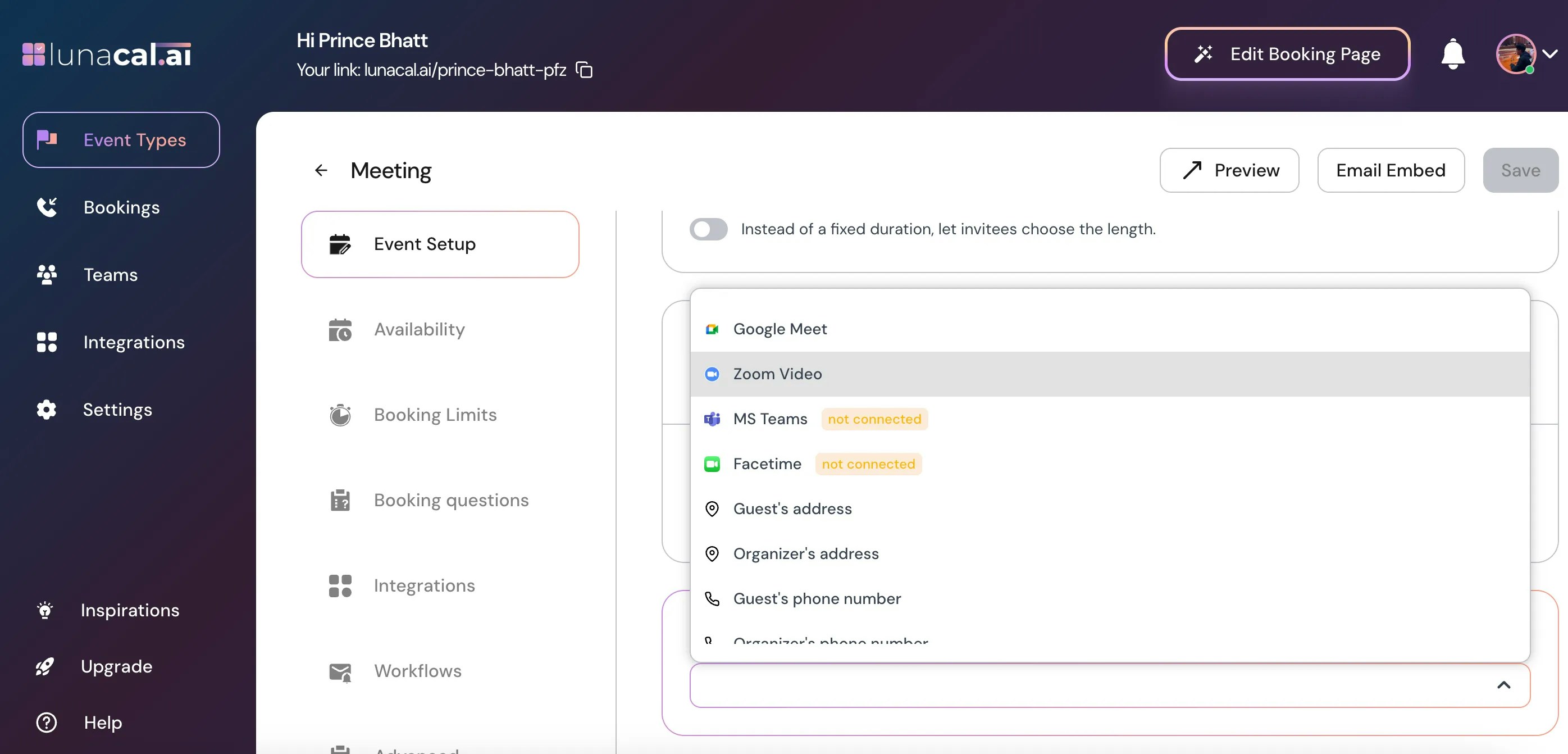
Select Zoom Video from the options.
Select Zoom Video as the meeting location

Save your changes

Click Save to apply the meeting location.
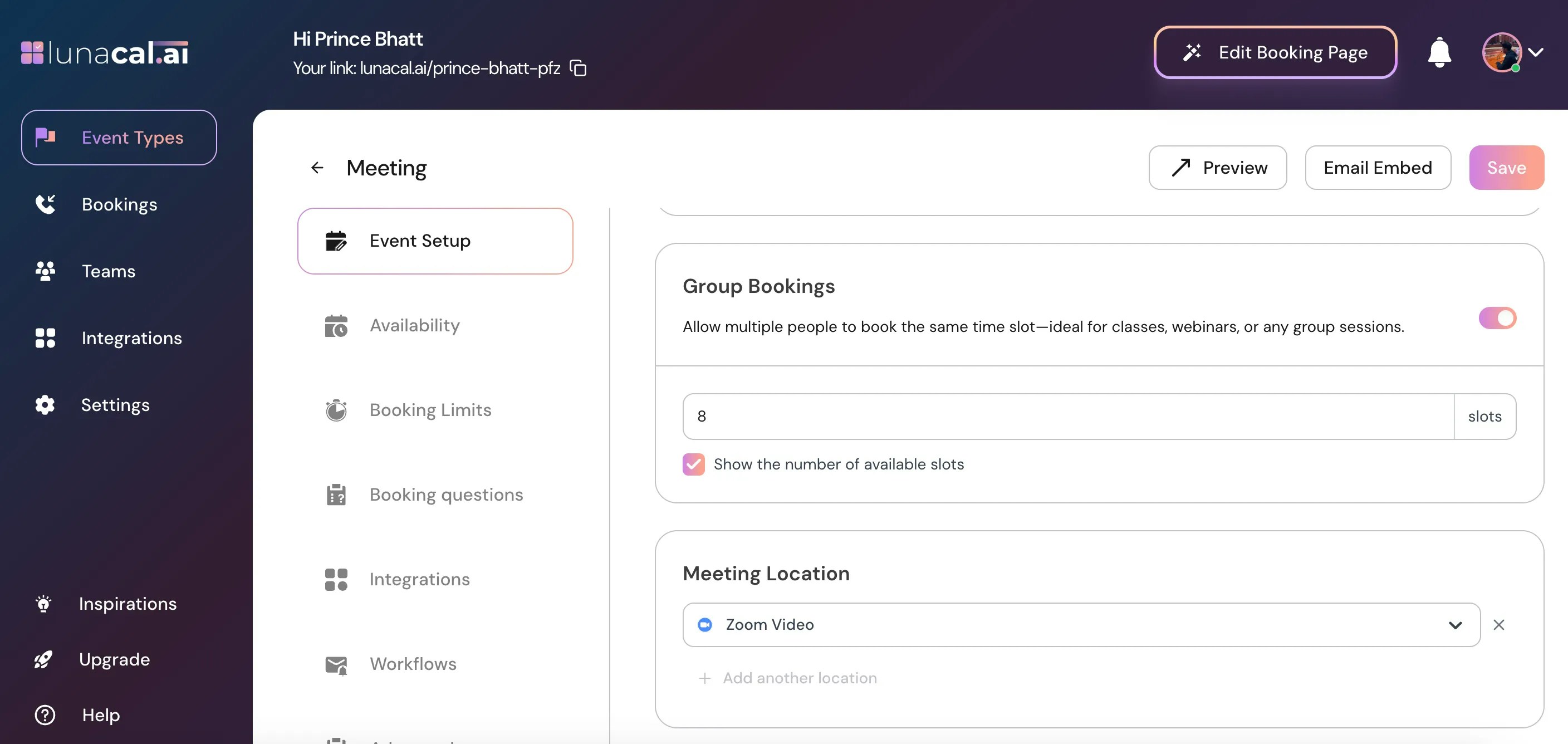
Save the event with Zoom Video selected

Why use LunaCal to schedule Zoom appointments?

LunaCal’s scheduling tool connects appointment booking with Zoom meeting creation, so bookings for events configured with Zoom Video can create their Zoom meetings automatically. You choose whether to install the integration for your personal account or a team event type, then select which events use Zoom. This gives you control over the connection’s scope and each event’s meeting location.

Frequently asked questions

How do I automatically create Zoom meetings when someone books?

Connect Zoom through LunaCal’s Integrations → Conferencing settings, then select Zoom Video as the event’s Meeting Location and click Save. Both the connection and the event location must be configured.

Why isn’t Zoom being added to my appointments?

Check that Zoom shows a Connected status in LunaCal and that the relevant event has Zoom Video selected under Meeting Location. Save the event after selecting it. Connecting Zoom alone does not assign it to every event.

Can I connect Zoom for a team?

Yes. When installing Zoom Video in LunaCal, you can choose a team event type or your personal account. Select the scope you need, then configure Zoom Video as the meeting location for the events that should use it.

Does connecting Zoom change all my event locations?

No. In LunaCal, you must manually select Zoom Video in each event’s Meeting Location field and save the change. The account connection and event location are separate setup steps.

Which Zoom permission do I need to select?

Choose View user when prompted during the LunaCal Zoom connection flow, then click Authorize. This is the permission option specified in the setup instructions for accessing your Zoom profile and creating meetings for bookings.