

Embed Lunacal on Your Website
Lunacal lets you embed your booking calendar directly into your website in a few different ways. Choose the option that best fits how you want users to discover and open your calendar. Currently, Lunacal supports the following website embed types:- Inline Calendar Embed
- Floating Pop-up Button
- Popup (Trigger-based)
1. Inline Calendar Embed
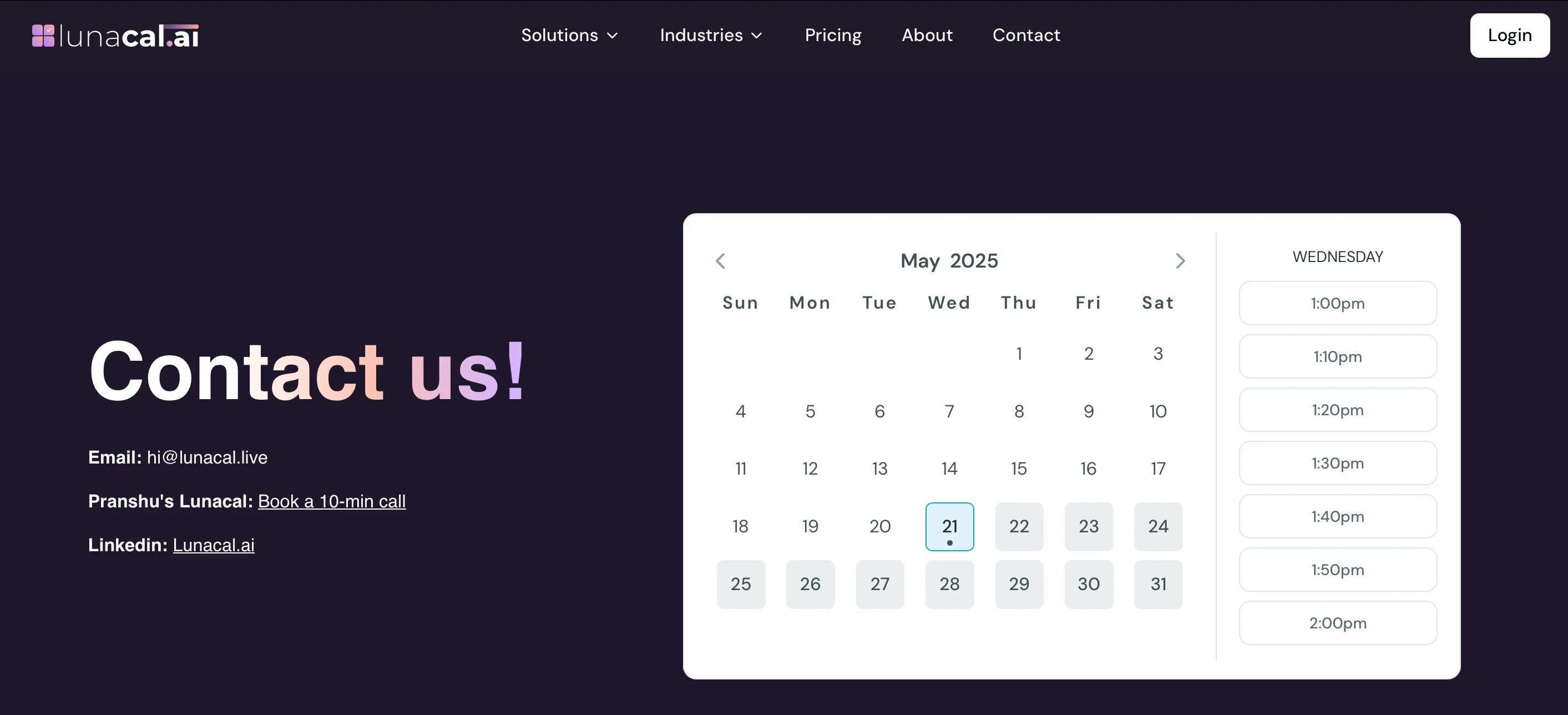
Best for: Landing pages, contact pages, or dedicated booking pages. The inline embed displays your Lunacal calendar directly on the page. Visitors can view availability and book a slot without leaving your website or clicking an extra button. How it works- The calendar is rendered as part of the page layout.
- Time slots automatically adjust to the visitor’s local time zone.
- Booking happens inline, without redirects.
- Scheduling is the primary action on the page
- You want the lowest friction booking experience
- You have enough page space to show the full calendar
2. Floating Pop-up Button
Best for: Websites where booking is secondary but should stay accessible. This option adds a floating button (usually at the bottom corner of the screen). When clicked, it opens the Lunacal calendar in a pop-up. How it works- A floating button stays visible as users scroll.
- Clicking the button opens the booking calendar in an overlay.
- The rest of the page remains unchanged.
- You don’t want the calendar to dominate the page
- You want booking available from anywhere on the site
- You prefer a cleaner layout with on-demand scheduling
3. Popup (Trigger-based Embed)
Best for: Custom UI flows or existing buttons/links. The popup embed lets you open the Lunacal calendar when a user clicks a specific element on your website—such as a “Book a call” button or link. How it works- You attach Lunacal to an existing button or element.
- When the element is clicked, the calendar opens in a modal popup.
- No page reload or redirect is required.
- You already have custom CTA buttons
- You want full control over when the calendar appears
- You’re integrating Lunacal into an existing design system
Step 1
Use “Embed Event Into Your Website” to place your booking flow directly on your site so visitors can book without leaving. You’ll use the “Embed” section to generate and copy a small HTML snippet.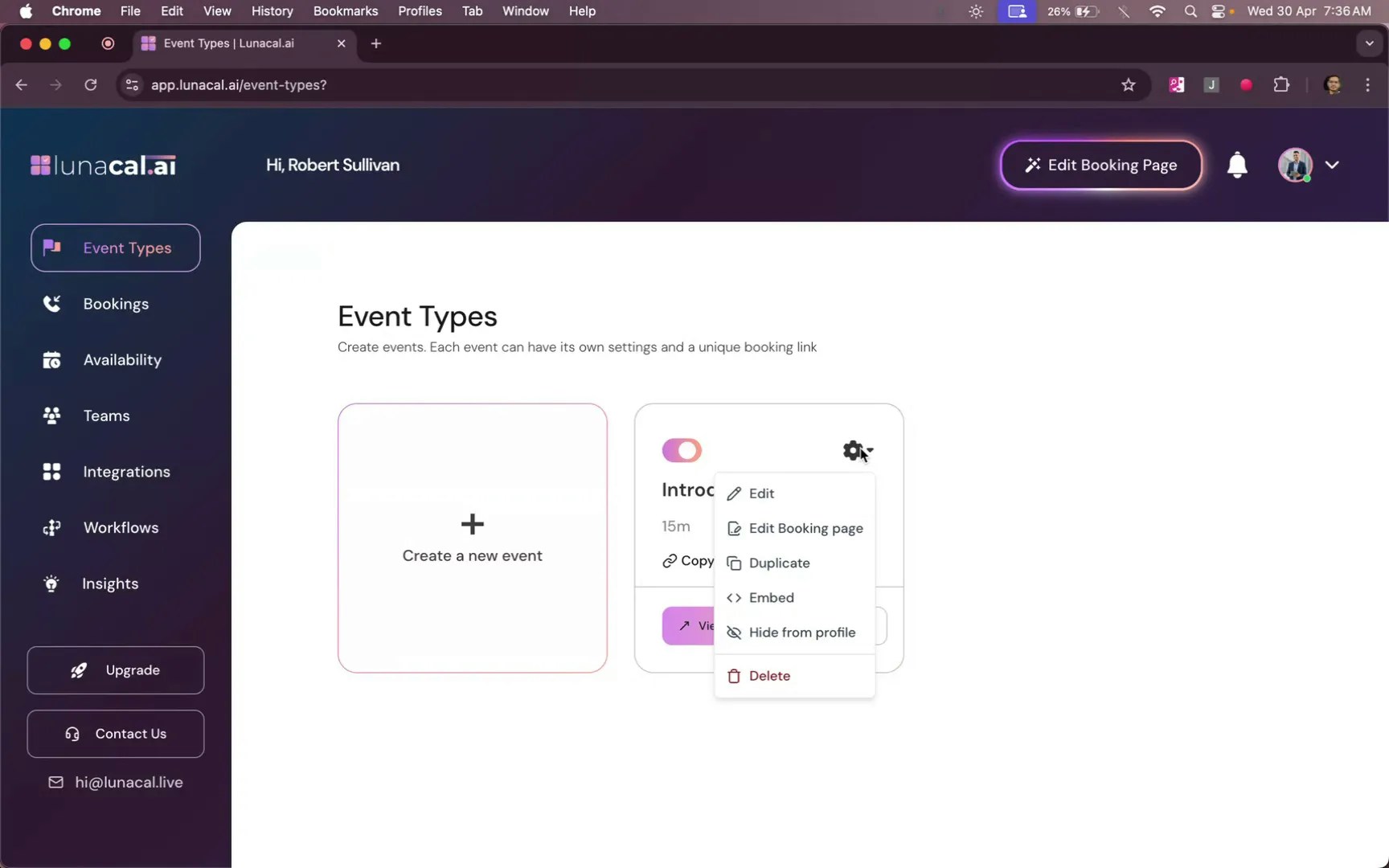
Step 2
Next, click on the “Embed” option.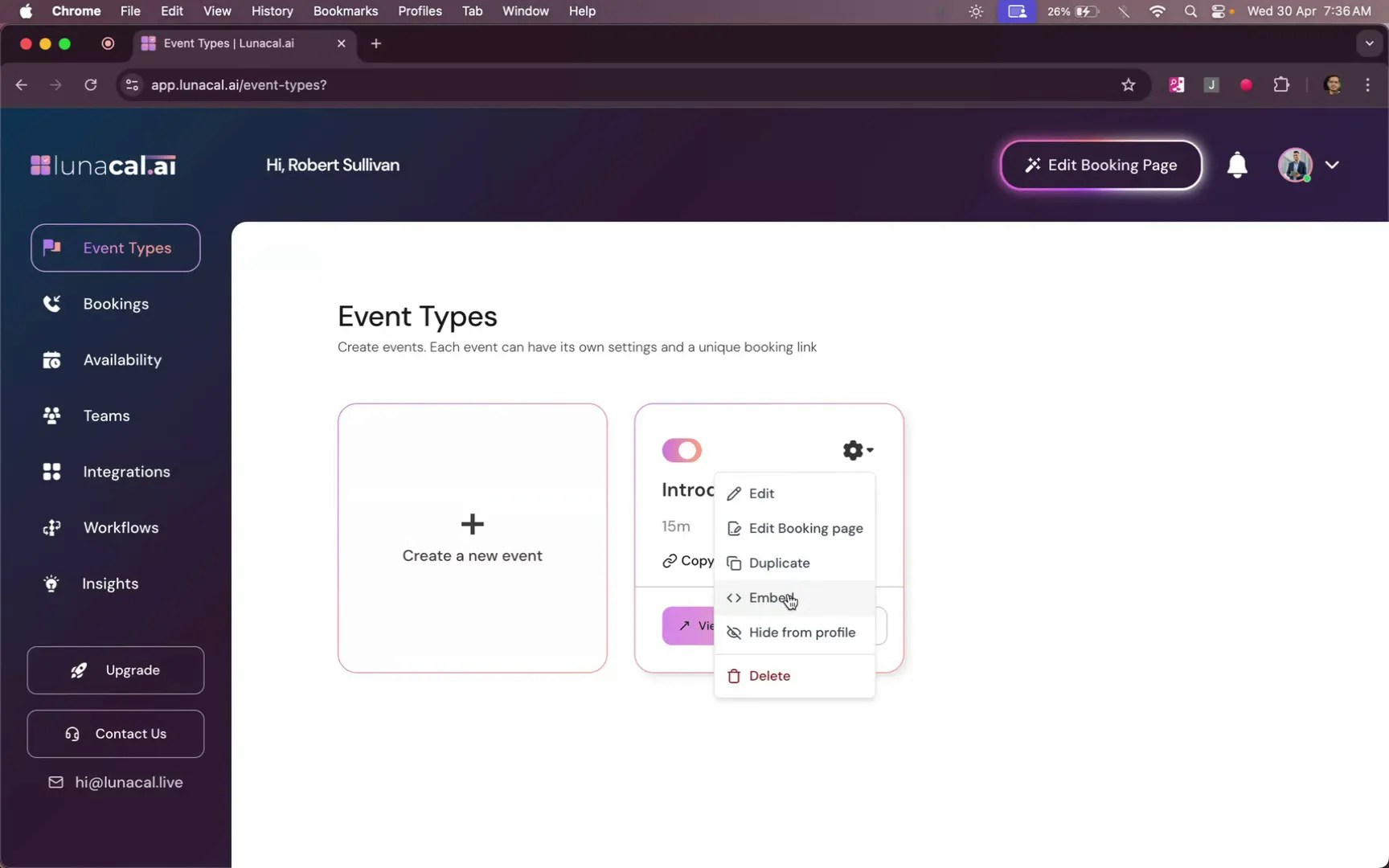
Step 3
Then, Choose “Inline Calendar Embed”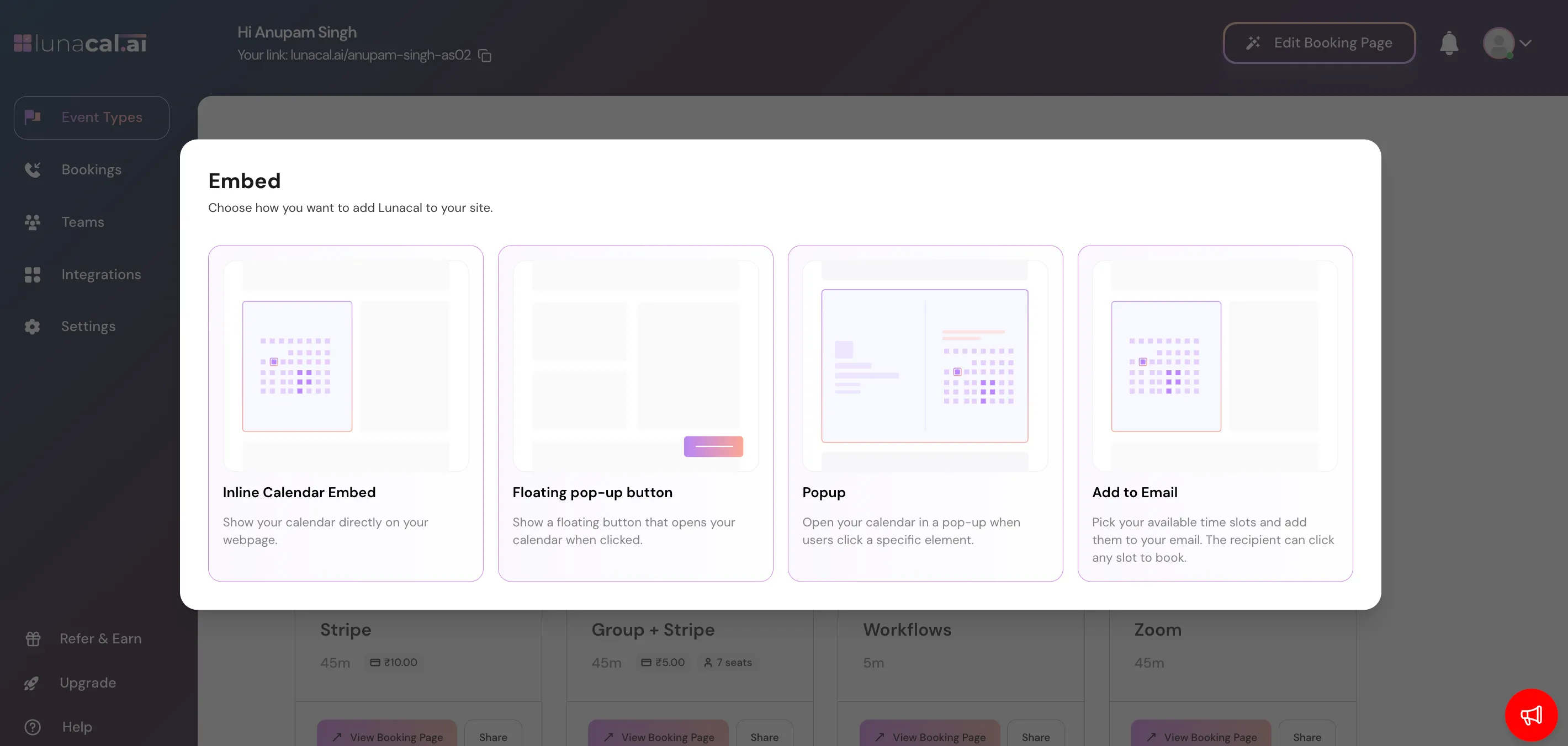
Step 4
You’ll be provided to copy the HTML Code, but before copying the code, You can also customise your calendar.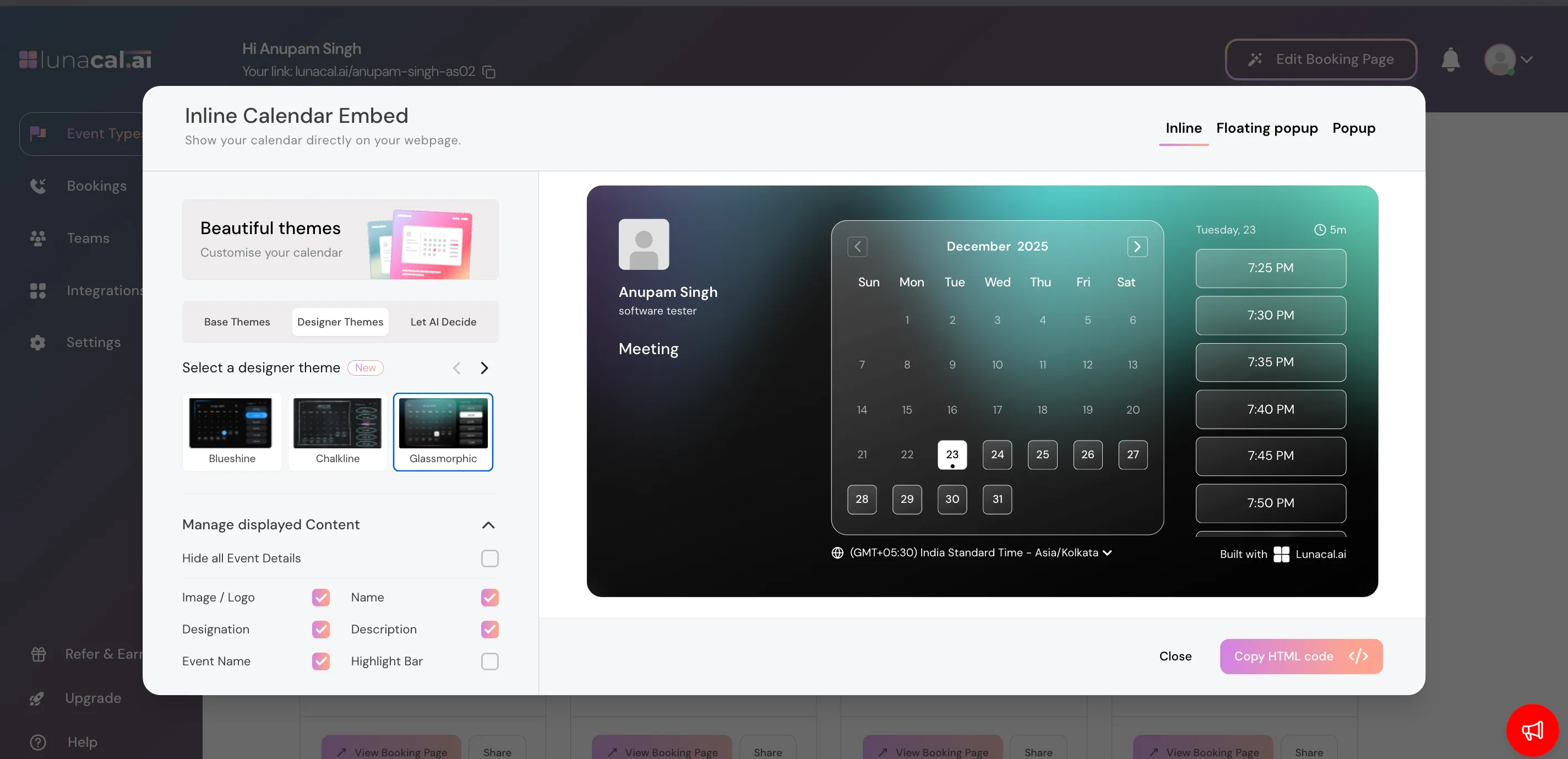
Step 5
Paste this HTML into your site where you want the event or calendar to appear (e.g., your “Contact Us” page).- Example 1: An agency adds the “Discovery Call” event to the Pricing page so leads can book right after reviewing plans.
After embedding, any changes you make to the event (such as availability, title, or description) will automatically reflect inside the embed — no need to replace the code again.
Important: Embeds rely on raw HTML code. Some site builders (especially free landing page builders or restricted editor modes) remove or block HTML embed code. Make sure to use a “Custom HTML”, “HTML”, or “Code” block when pasting the snippet.
Common mistakes to avoid
- Pasting into a builder block that strips HTML—use a proper “HTML” or “Custom code” block.
- Embedding the wrong event (e.g., copying a test event’s code), causing wrong durations or questions.
- Forgetting to republish or clear cache/CDN, so the embed doesn’t appear for visitors.
- Using low-contrast colors that make the calendar hard to read on mobile.
- Place the embed above the fold on a dedicated “Book a Call” or “Contact Us” page.
- Keep width at 100% of the container and give enough height so the calendar isn’t cut off.
- Match the calendar color to your brand and add a one-line heading (“Pick a time that works for you”).
- Test once on desktop and mobile to confirm the widget loads and scrolls smoothly
If you want to share booking options directly in emails (without redirecting visitors), see the “Embed Your Event In Mails” guide.