

Step 1
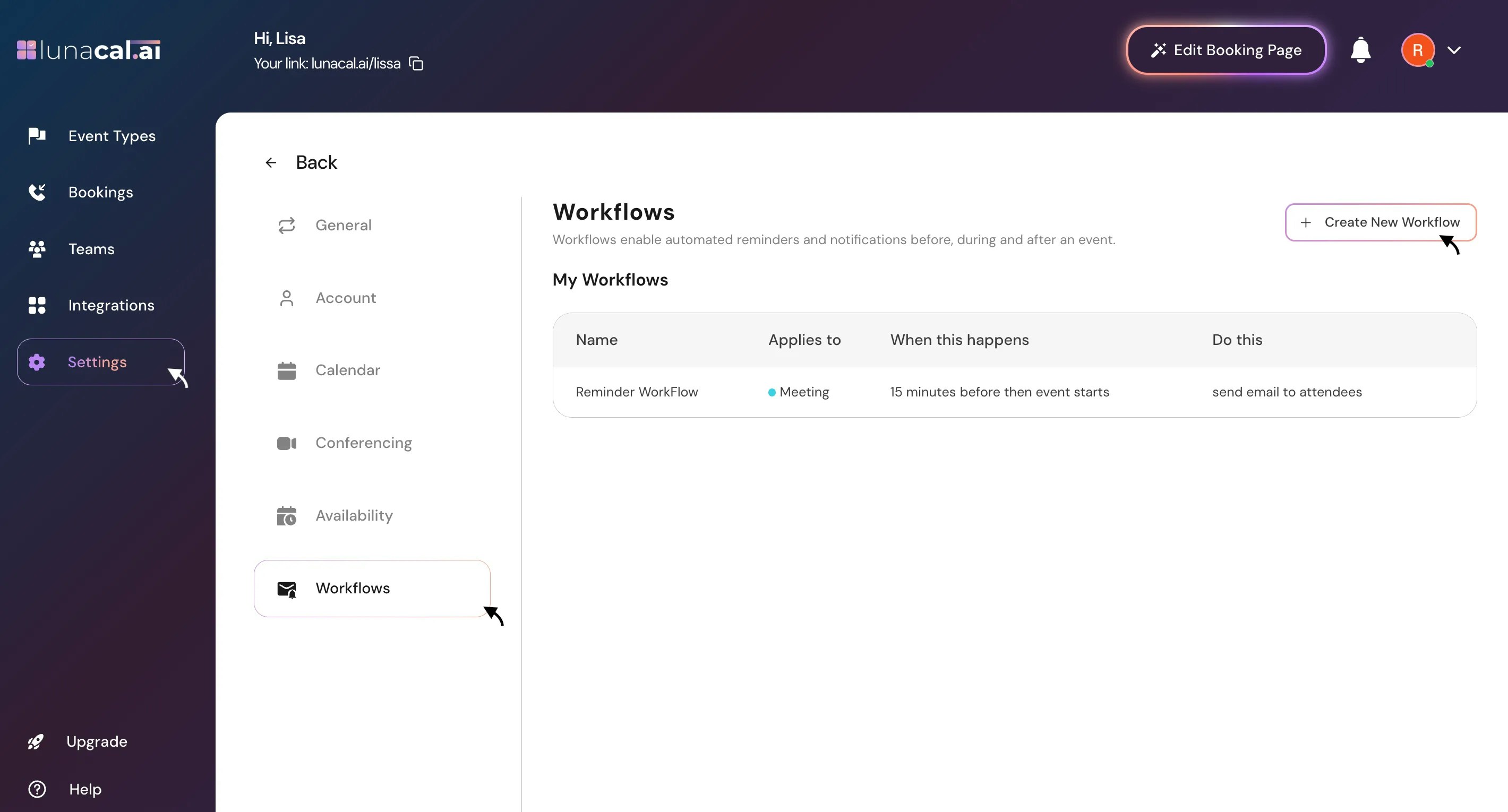
Go to the Workflows tab and click Create New WorkflowNote: You can’t create more than 10 Workflows
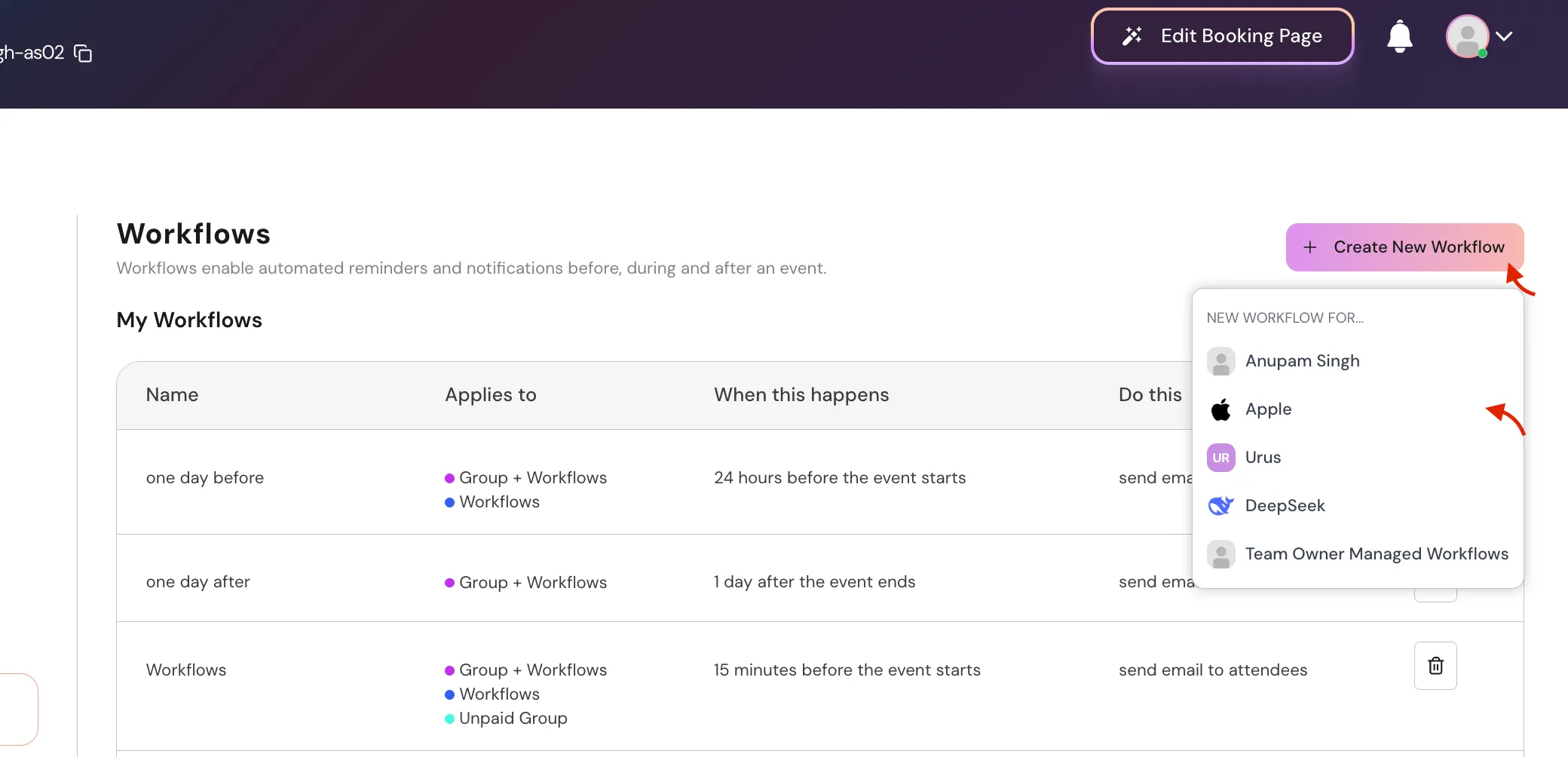
Creating workflows for yourself or a team
When you click Create New Workflow, a dropdown appears if:- You are part of one or more teams, or
- You are a team admin
- Your personal account → creates a personal workflow
- A team → creates a team-level workflow for that team
Once selected, the workflow setup process is exactly the same as described below.
Step 2
Provide a unique name for your workflow in the designated field.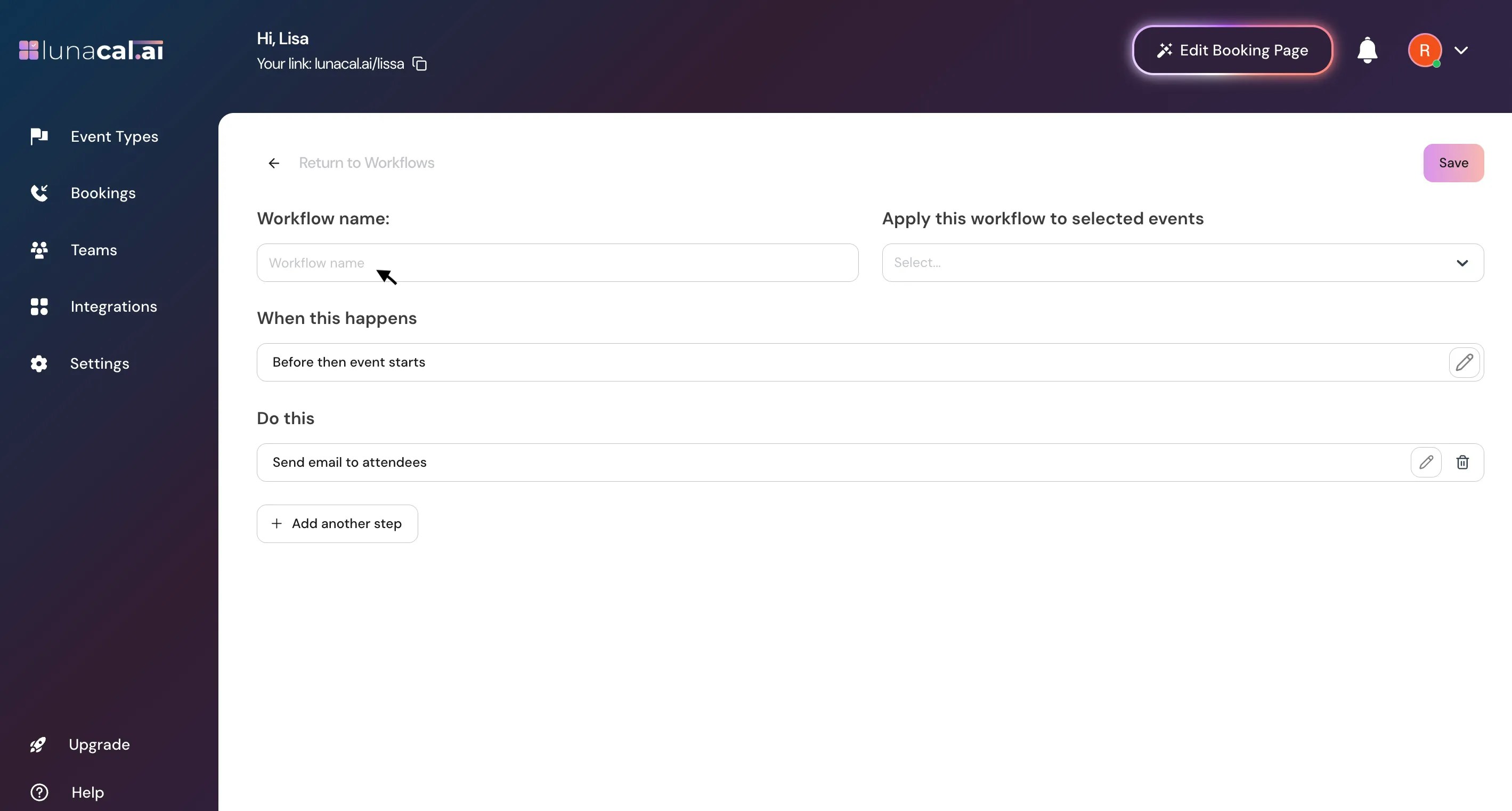
Step 3
Determine the event type to which the workflow will apply. For instance i’m selecting “Meeting”, You can also select multiple events.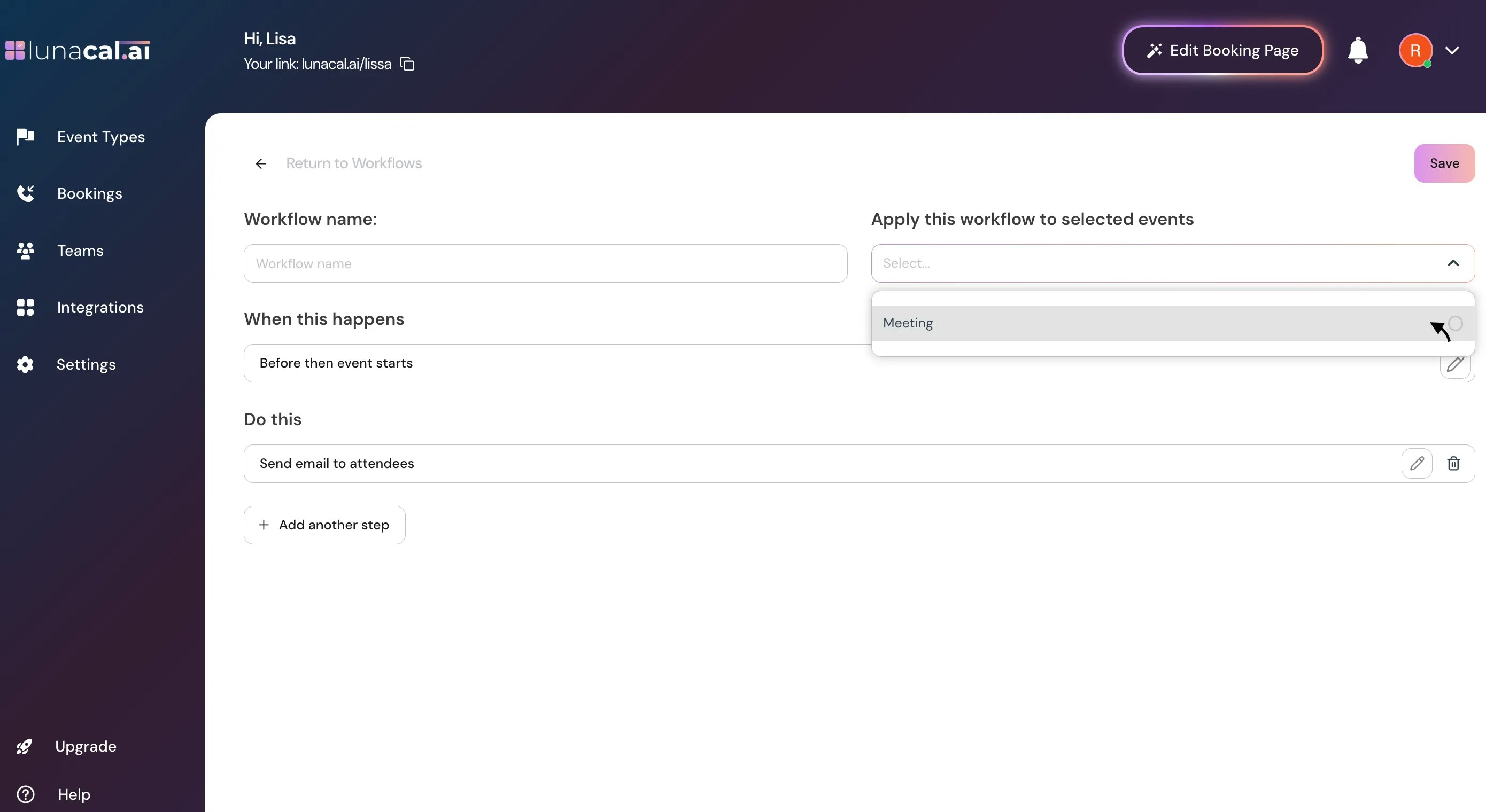
Step 4
Choose when the workflow should be triggered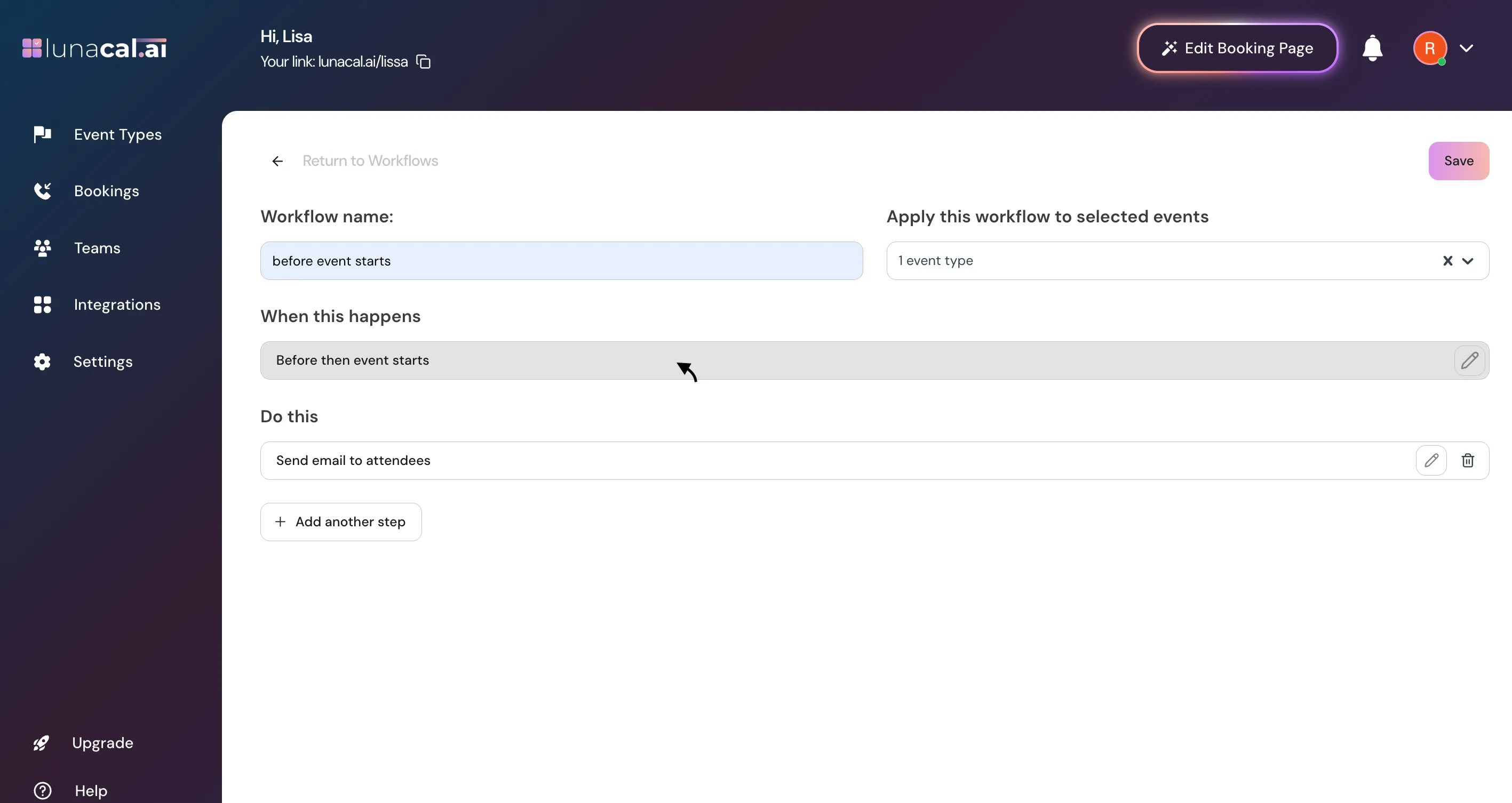
Step 5
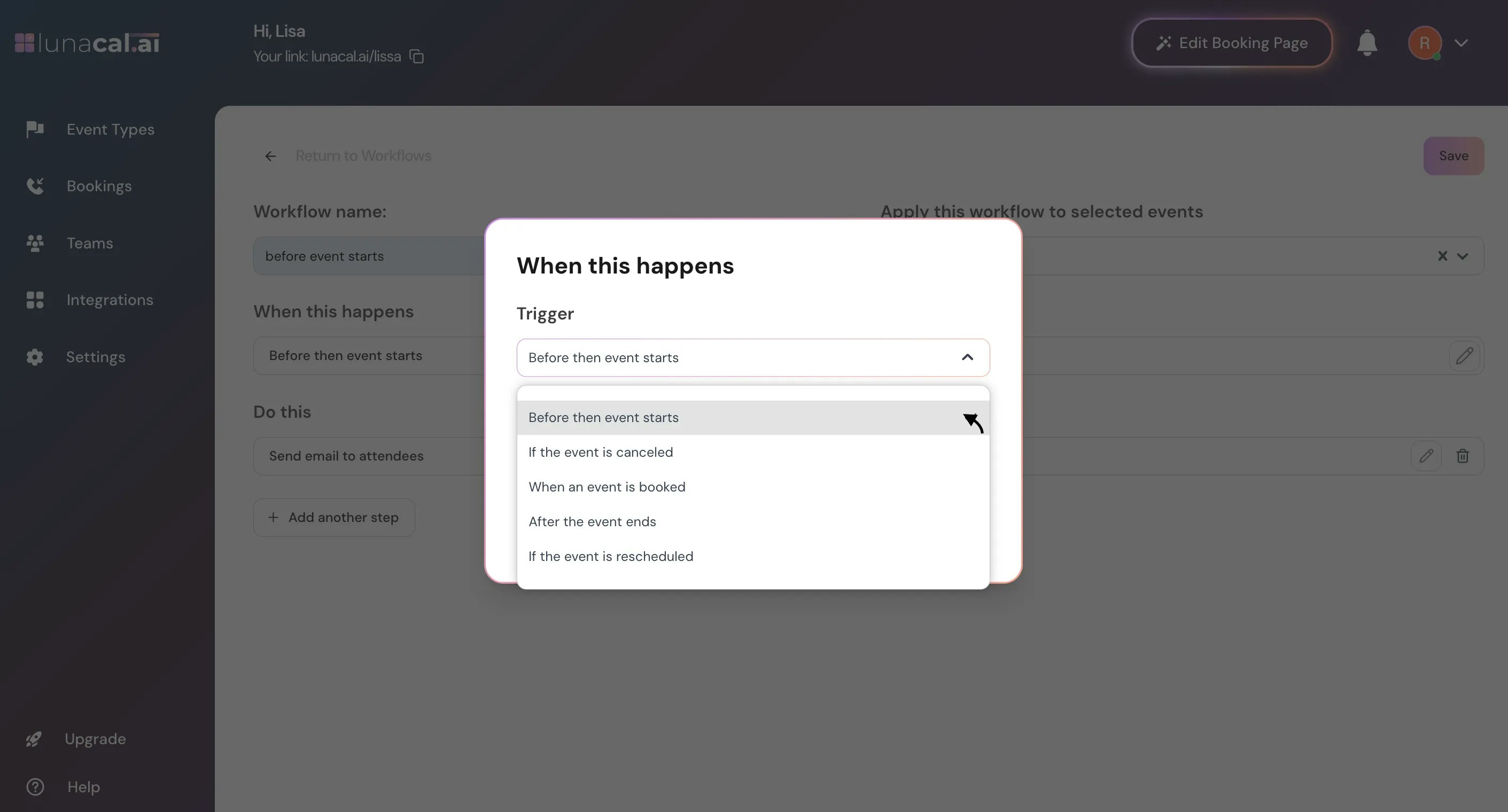
Pick a trigger:- Before an event starts
- When event is canceled
- When new event is booked
- After event ends
- When event is rescheduled
Example: Send a reminder “Before an event starts” so attendees don’t miss the call.Workflows can send either email or SMS messages. When you select an action like “Send message”, you’ll be able to choose whether the notification is sent via email, SMS, or both.
- Keep in mind that SMS messages are billed based on message length and destination country — longer messages or certain carriers may use more than one SMS segment. SMS Pricing
Triggers are events in lunacal that start an automated workflow (for example, when a new booking occurs, when an event is canceled, when an event is rescheduled, or a set time before an event starts).
Actions are what your workflow does after it’s triggered — like sending an email or SMS reminder.
- Send an SMS + email reminder 24 hours before a meeting
- Notify the host via email when a booking is canceled
- Send an SMS follow-up after a meeting ends
Step 6
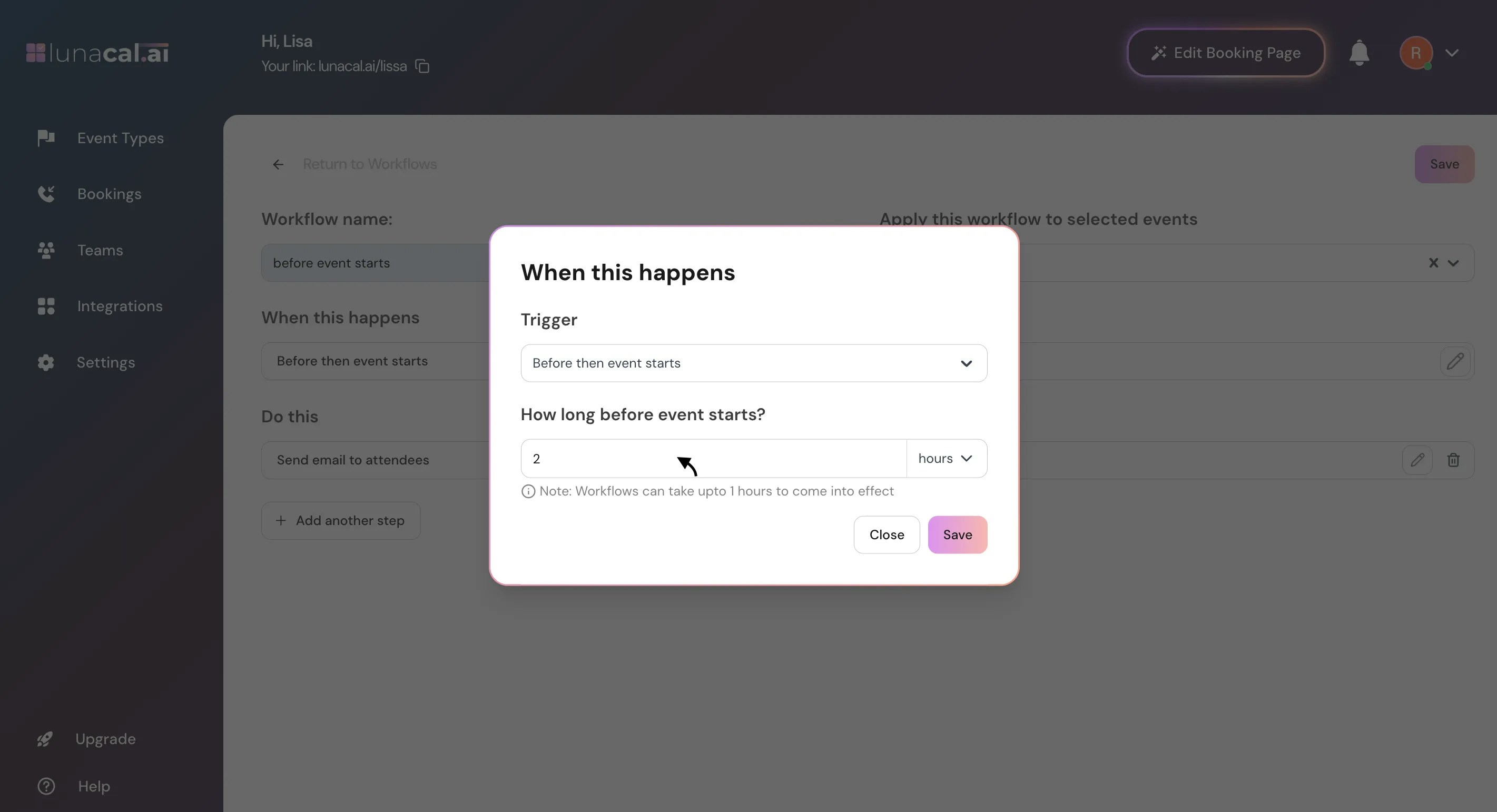
If using a “Before an event starts” trigger, you have to set the time (e.g., 2 Hours).- Example: For first-time “Meeting” calls, set 24 Hours so people prep earlier.
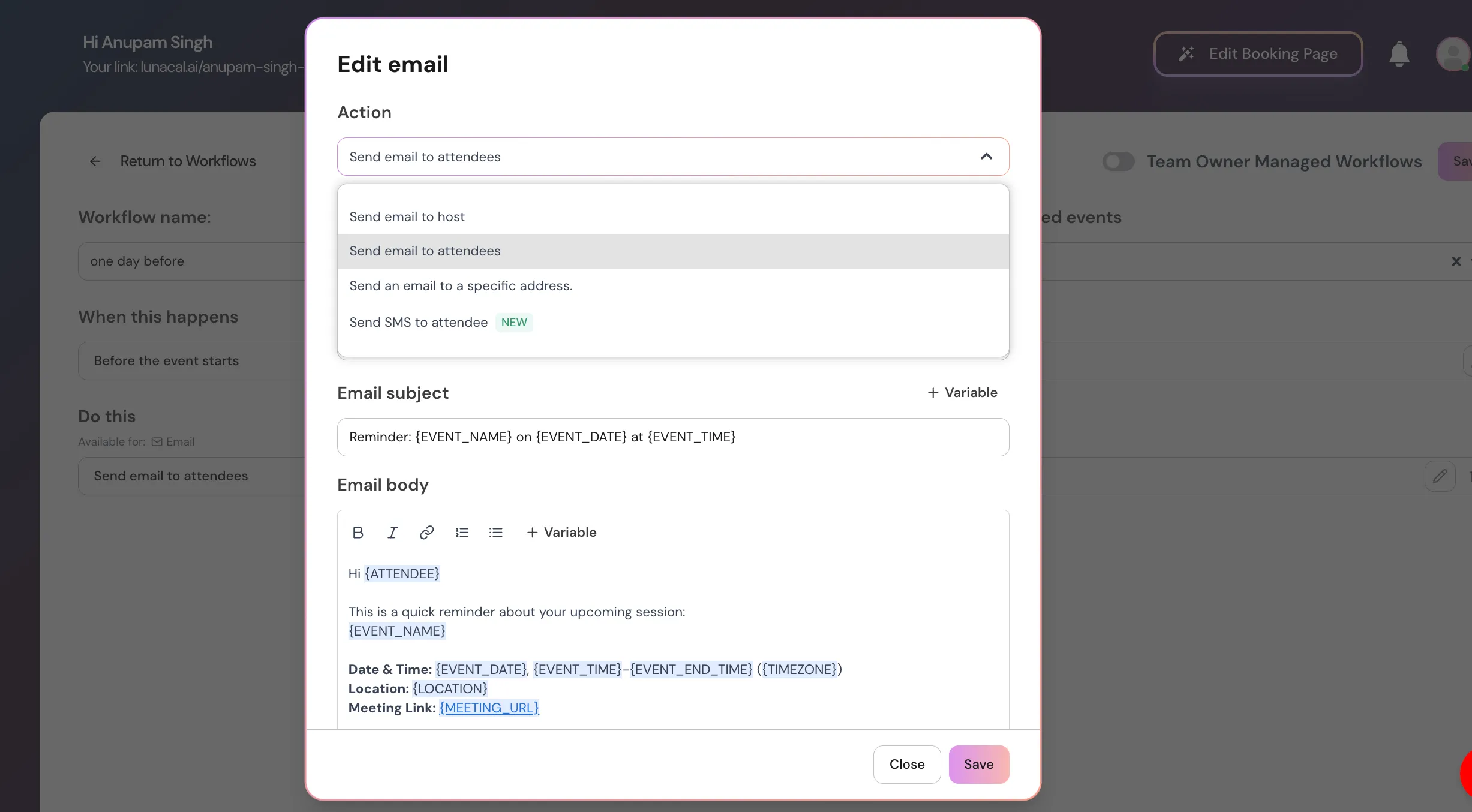
Step 7
Specify the recipients of the workflow trigger.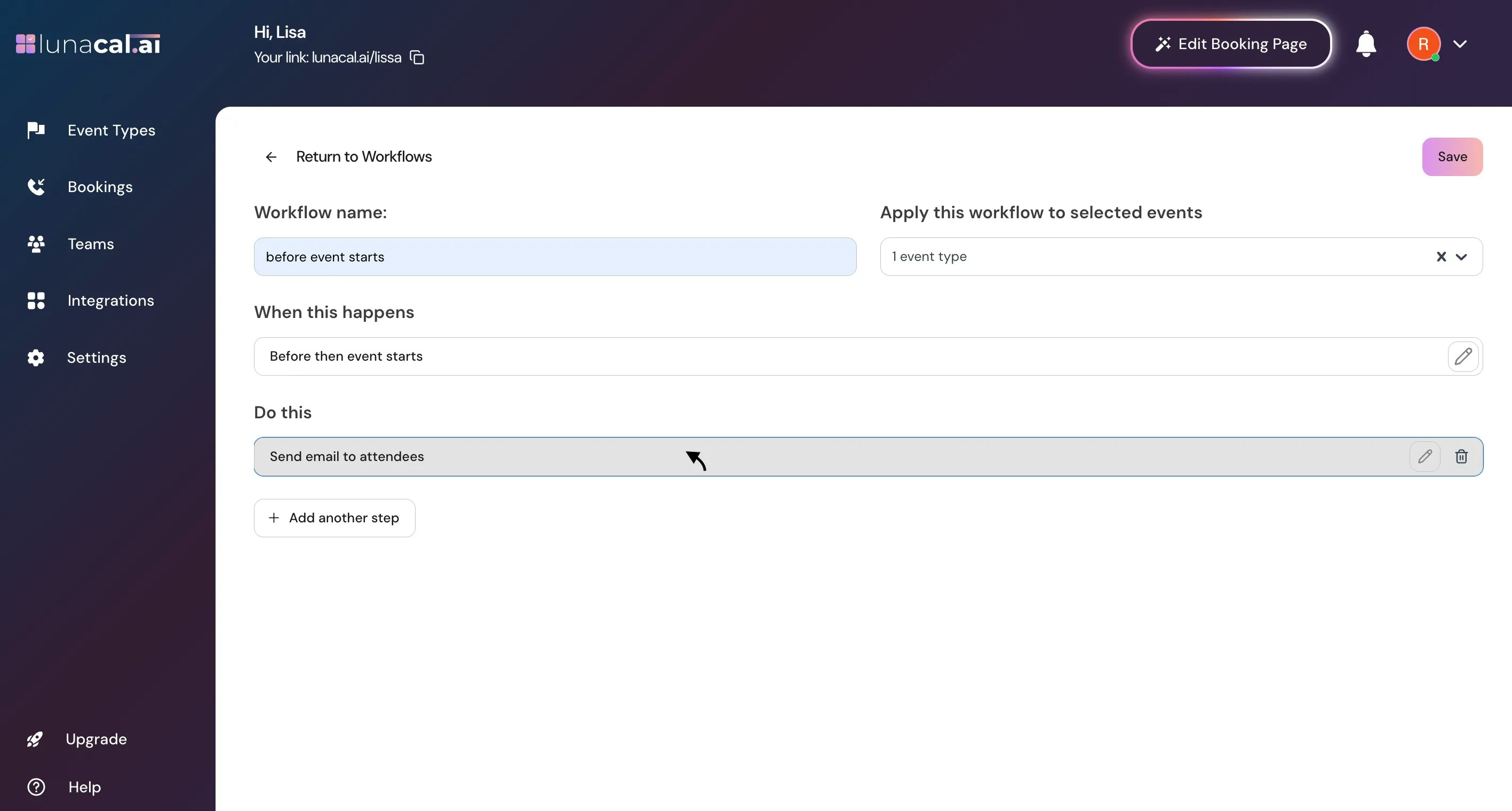
Step 8
Select “attendees”, “host”, or add a specific email, and for sms currently there’s only one option Send SMS to attendee.- Example: Add your coordinator’s email so they get alerts for last-minute changes.
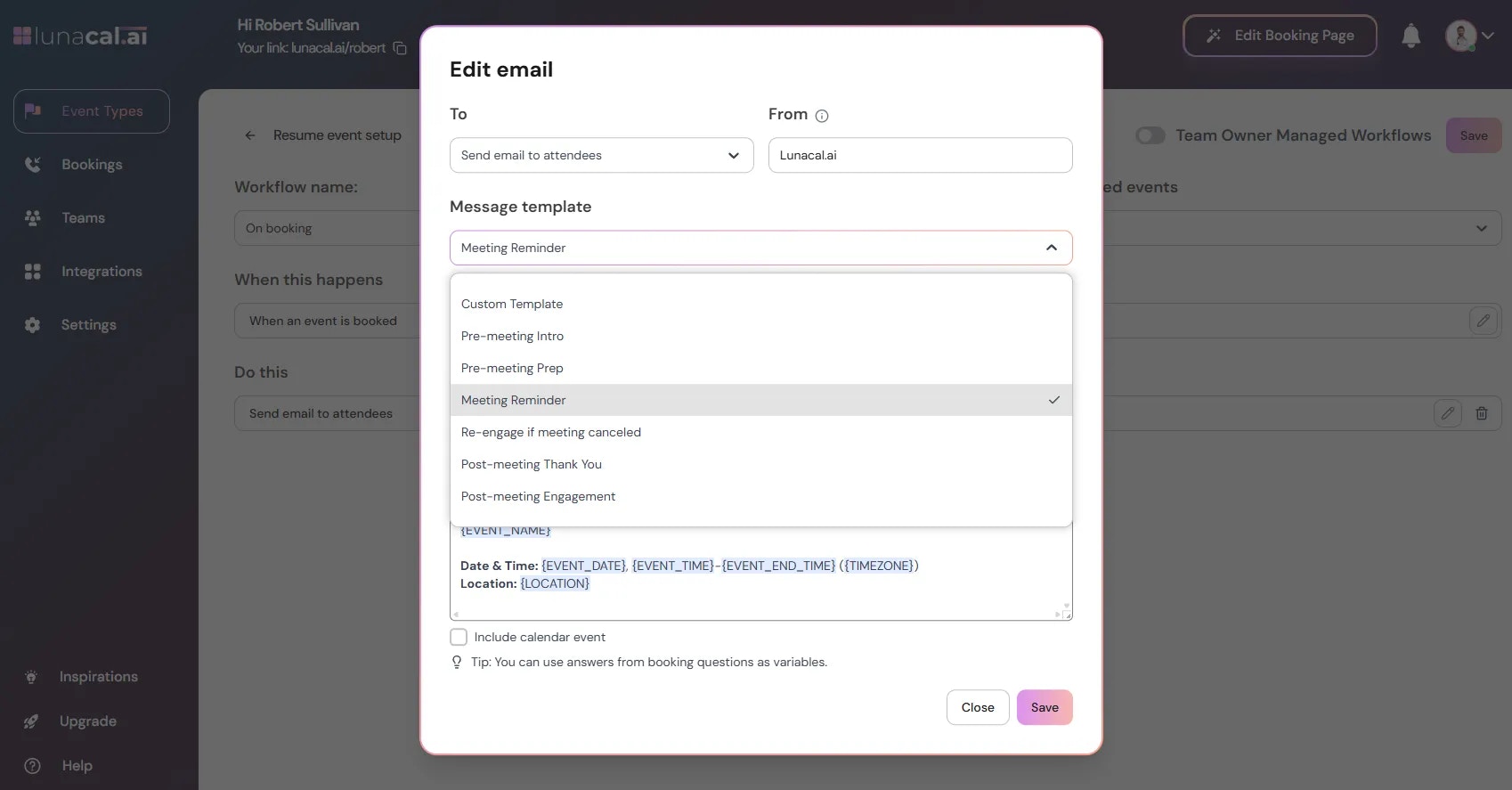
Step 9
There are multiple templates options to set for attendee workflow emails.Note: You can’t edit SMS template.
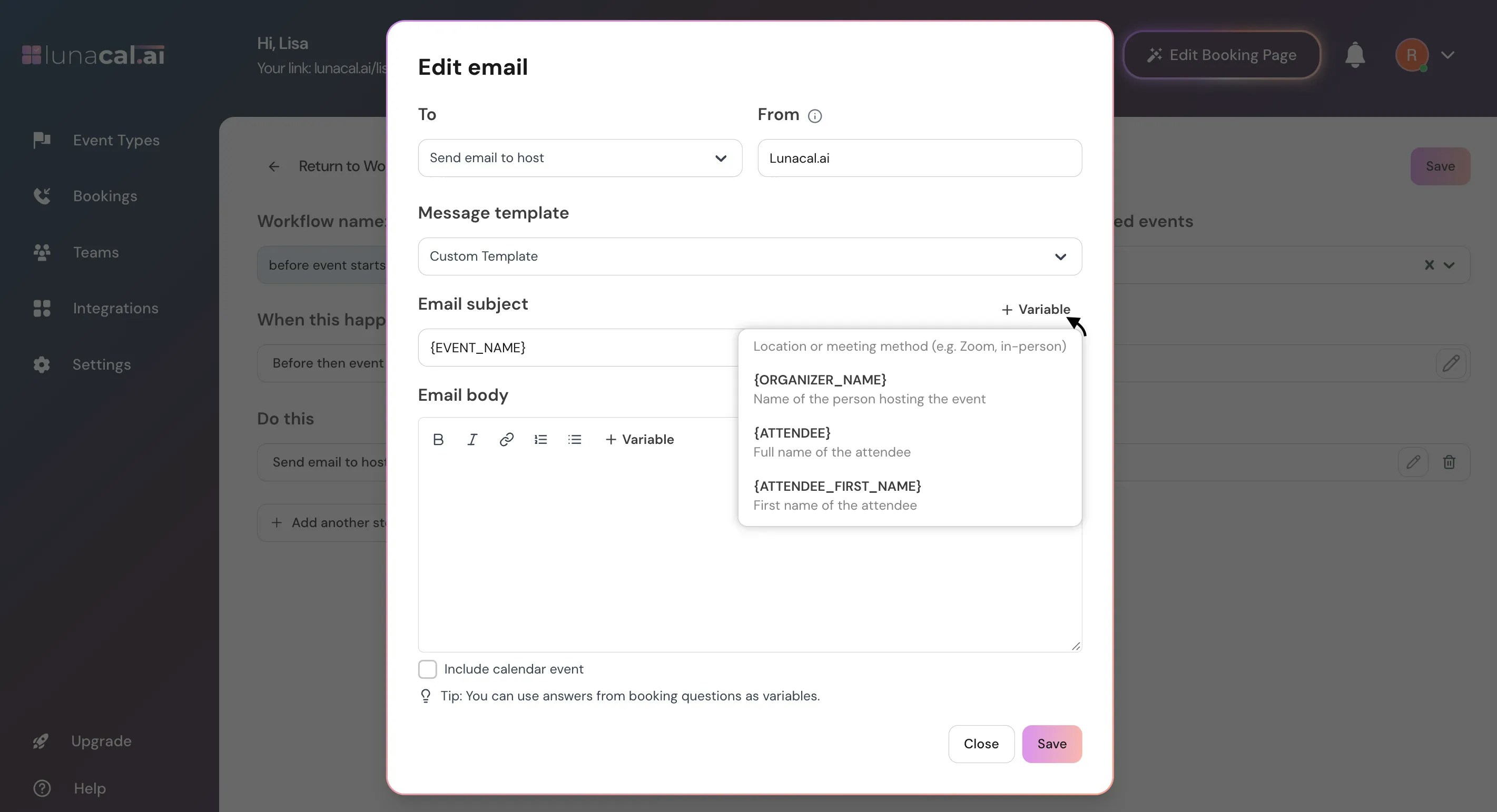
Step 10
Insert variables as needed Variable examplesATTENDEE_NAME— the name of the attendeeEVENT_TIME— the scheduled time of the eventLOCATION_LINK— conferencing link or location
Step 11
Click “Save” to activate the workflow.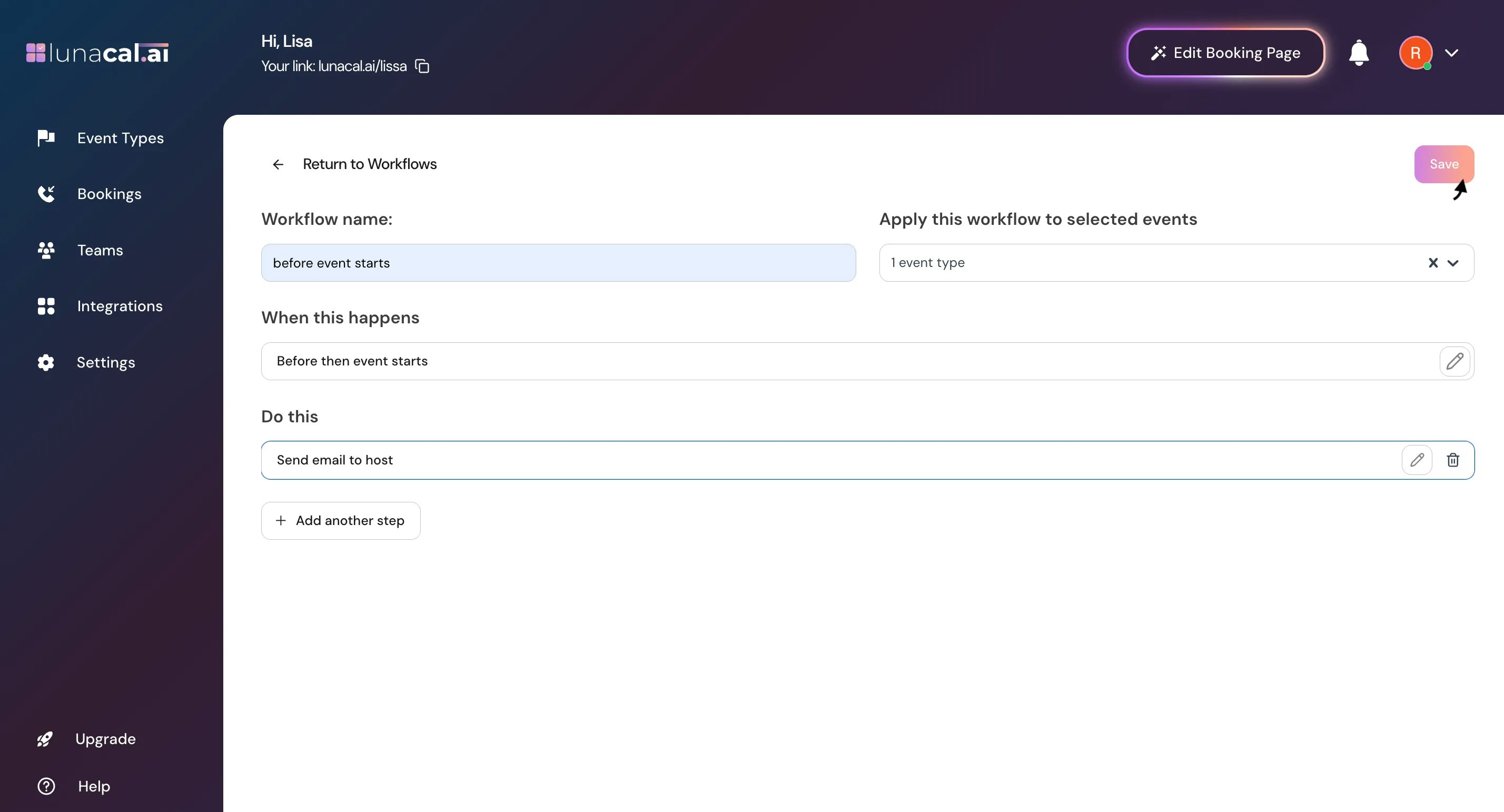
- Keep SMS messages concise to reduce cost (short messages are typically 1 segment, long messages may cost more).
- Include key details like date, time, and event name in your SMS.
- Test SMS workflows with a real booking to verify delivery before rolling them out broadly.
- Send an SMS reminder 24 hours before the event start.
- Send a confirmation SMS immediately after booking is completed.
- Deliver a follow-up SMS after the meeting ends.
- Picking a trigger but forgetting to set time for “Before an event starts”, which sends nothing.
- Selecting “host” only when you meant to notify “attendees” as well.
- Leaving variables blank (for example, missing LOCATION_LINK) so emails are unclear.
- Creating overlapping reminders (for example, two reminders at 1 Hour) and spamming recipients.
- Triggers: “When new event is booked” (instant confirmation) and “Before an event starts” at 24 Hours + 1 Hour.
- Recipients: “attendees” for reminders, “host” for reschedule/cancel alerts.
- Variables: always include ATTENDEE_NAME, EVENT_TIME, LOCATION_LINK.
- Naming: include event and timing in the name (for example, “Meeting — Reminder 24h”).