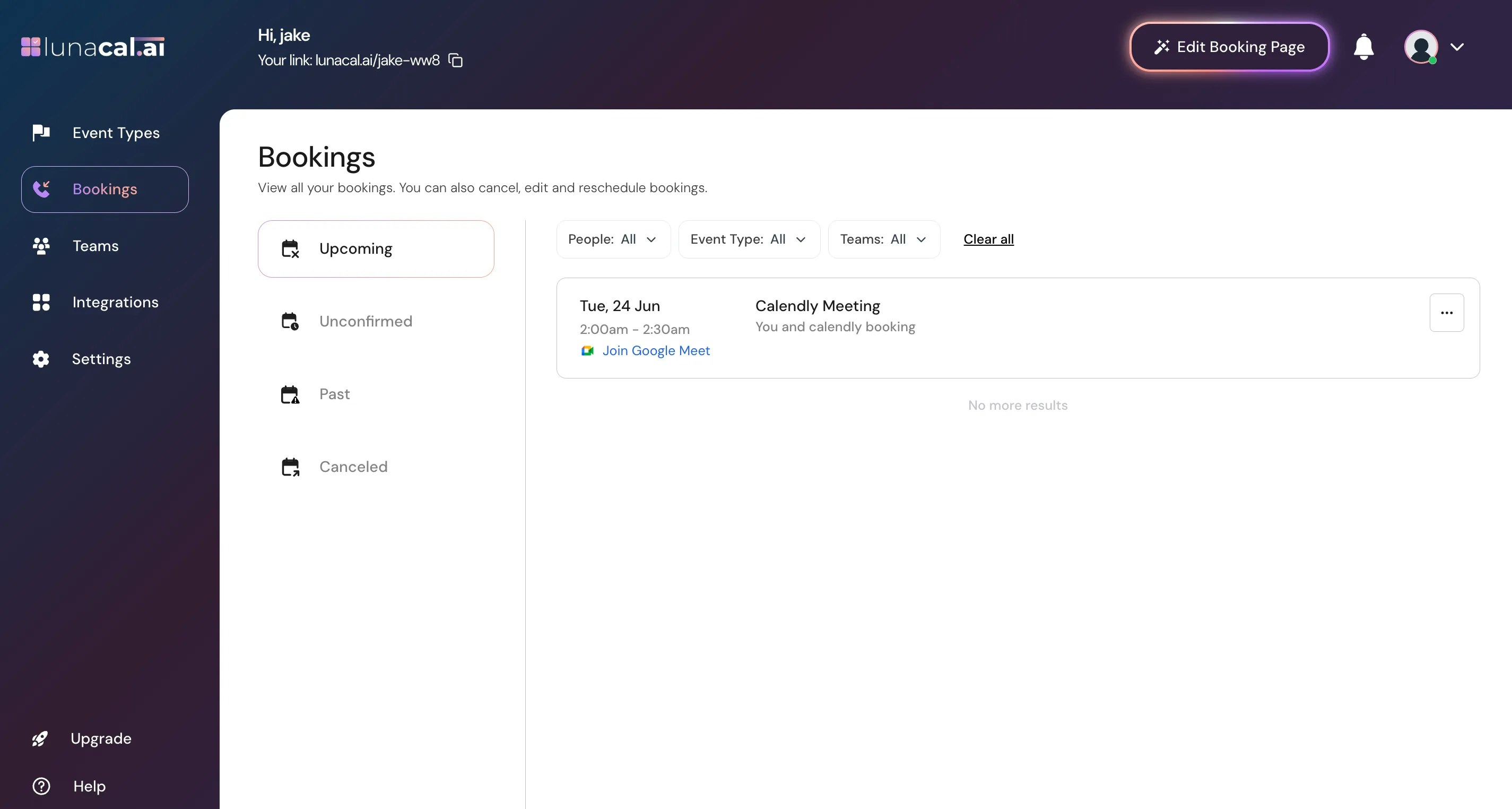
Use this feature to bring your Calendly event types and existing bookings into lunacal so you don’t have to recreate everything manually. This helps you transition scheduling without losing existing events or attendee data.
Step 1
Verify there are no upcoming bookings visible in the “booking section”. Then start the importing process.Example: You paused new bookings for the week; check the “booking section” to ensure nothing is scheduled before you import.
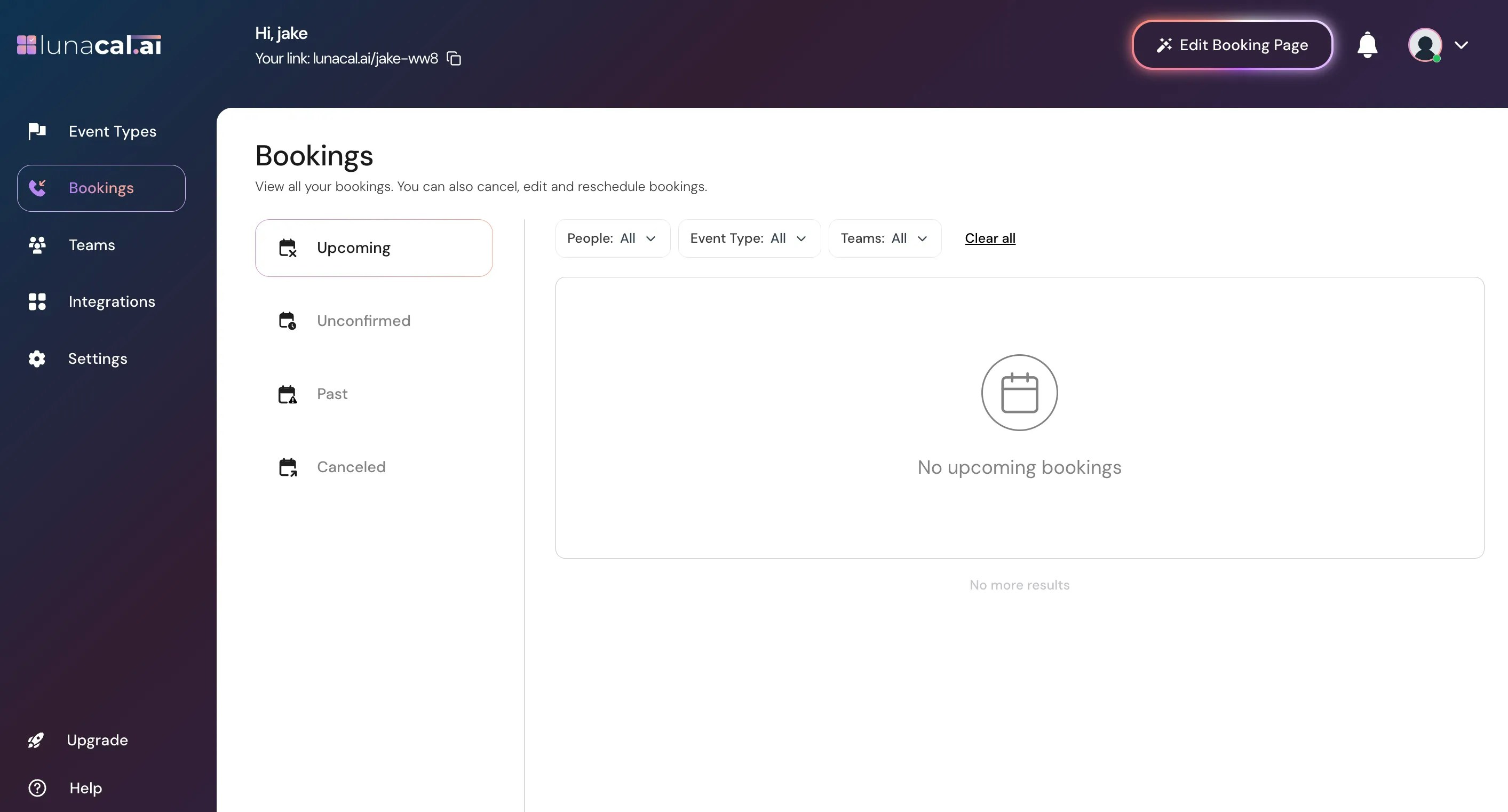
Imported data includes:
- Event types you created in Calendly
- Scheduled bookings associated with those event types
Calendly questions, custom fields, or advanced settings may not be fully imported and may require manual adjustment afterward.
Step 2
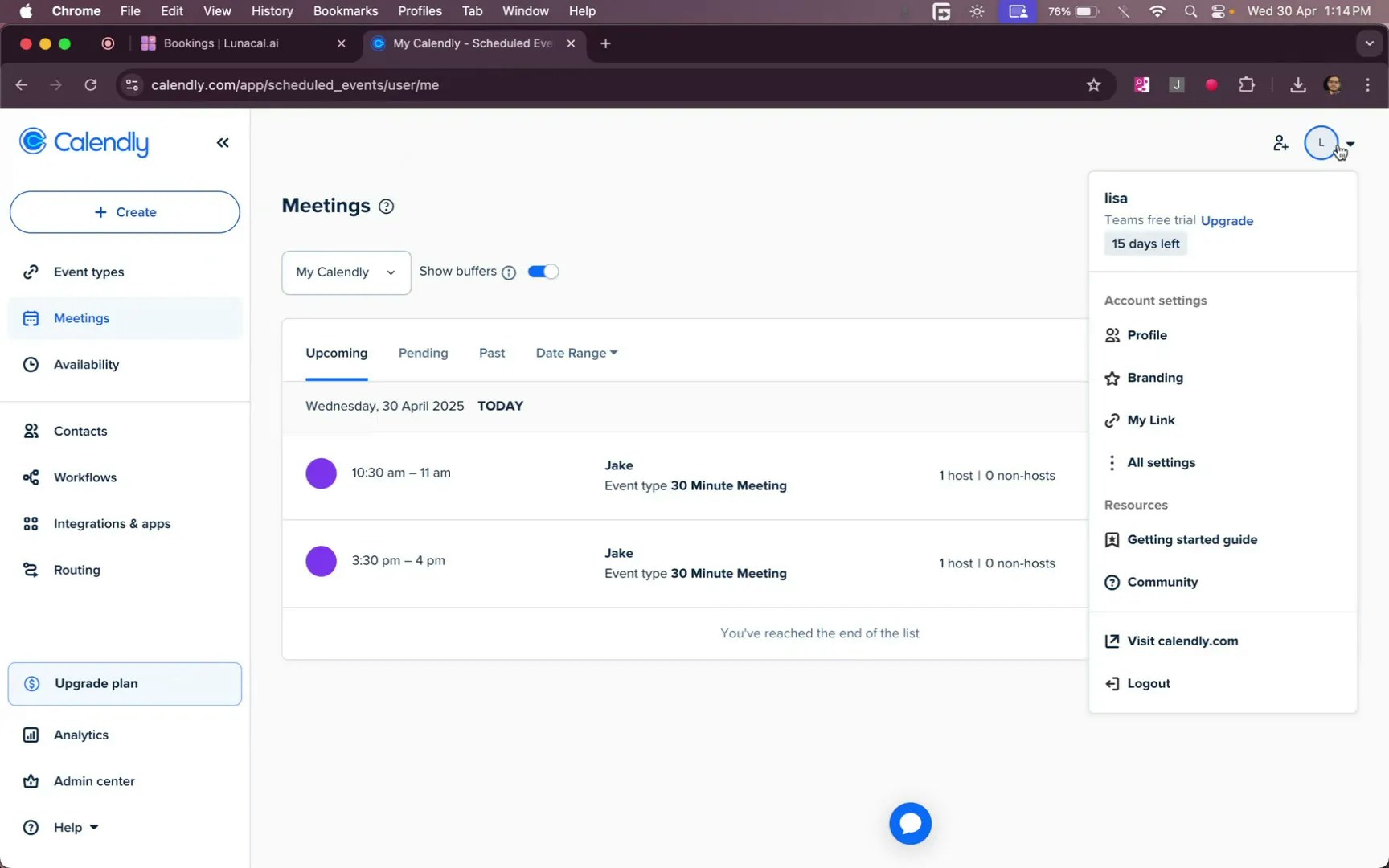
Ensure you are signed into Calendly with your correct account credentials to proceed.Example: If you manage multiple Calendly accounts (agency and personal), confirm you’re logged into the right one to avoid importing the wrong data.
Permissions:
You must be logged into the correct Calendly account that owns the event types you want to import. If you manage multiple Calendly accounts (e.g., personal and work), make sure you’re signed into the right one before importing.
Step 3
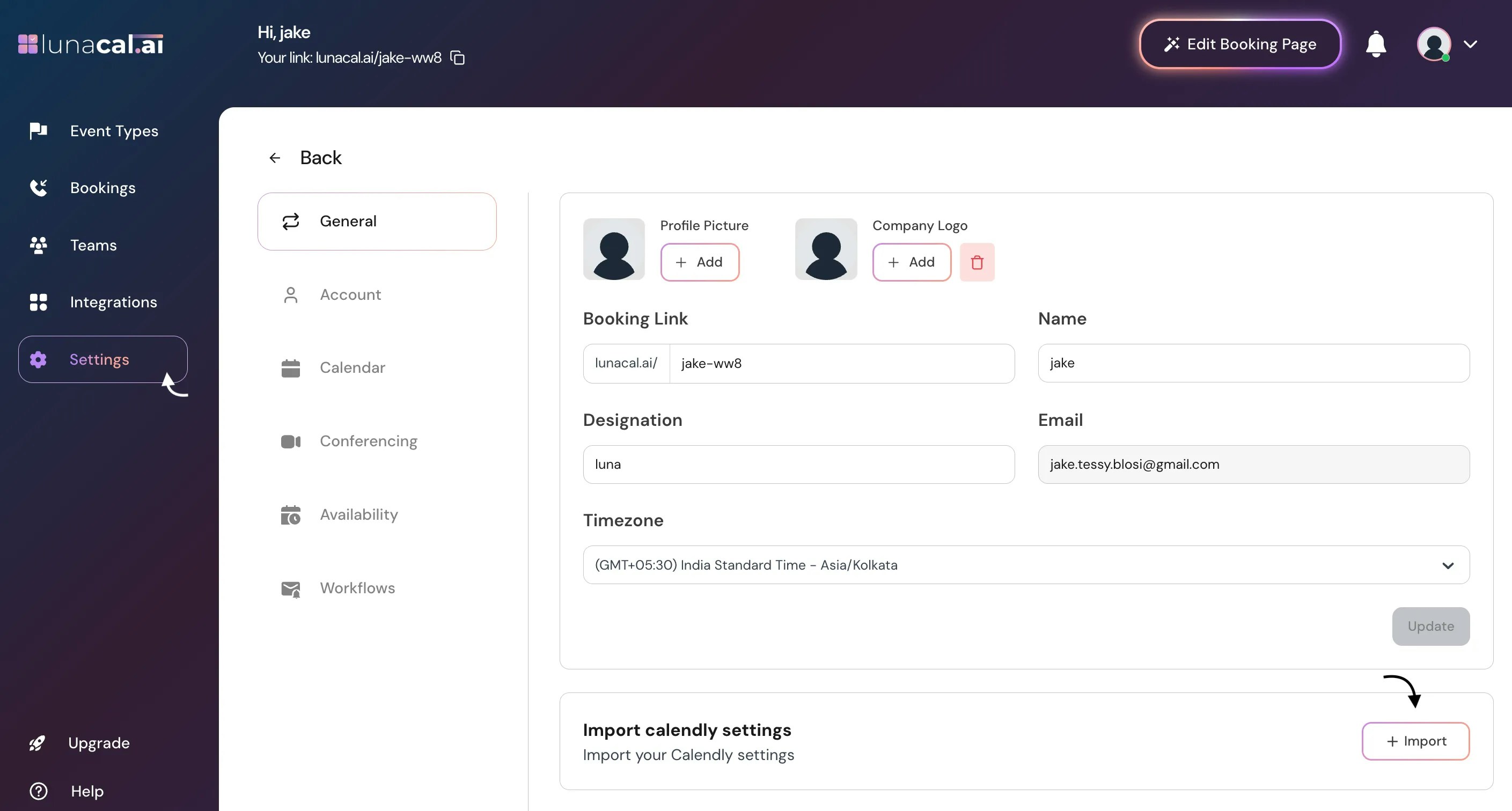
Navigate to the “settings” section. In the “import calendly settings” feature, click “Import” to initiate the process.Example: Testing first? Create a temporary team in Lunacal and run “Import” there so you can review event types safely before using them live.
Conflict handling:
If Lunacal already has events with the same names or settings, imported events may create duplicates. After the import, review your Lunacal events and adjust titles or settings to avoid confusion.
Step 4
Once the import is complete, you’ll see your Calendly event types and bookings appear in lunacal.Example: After import, open a migrated event type and check its duration, buffers, and location details match your original setup. If needed, adjust and save
After Import — Validate Your Setup
After the import finishes:- Open the migrated event types in Lunacal and verify durations, buffers, locations, and availability match your Calendly settings.
- Confirm imported bookings appear correctly under Bookings.
- If needed, update individual event settings and buffers to align with your scheduling rules.
Limitations
- Custom booking questions or form logic from Calendly may not transfer perfectly and may need manual setup in lunacal.
- Workflows or automations configured in Calendly do not automatically migrate; recreate them using lunacal workflows if needed.
Re-Import or Undo
If the import didn’t go as expected:Always test imports in a separate team first if you’re unsure.
- Duplicate event types can be deleted in Lunacal manually.
- Remove imported bookings from the Bookings section if needed.
- You can re-run the import after cleaning up or in a test team before a live run.