

- Client sends a booking request
- The booking stays in Pending state
- You (the host) must manually Approve or Reject it from email and bookings section
- Only after approval the client receives the confirmation email & calendar invite
- This prevents unwanted or spam bookings from being auto-confirmed.
Go to “Event Types” in your dashboard.
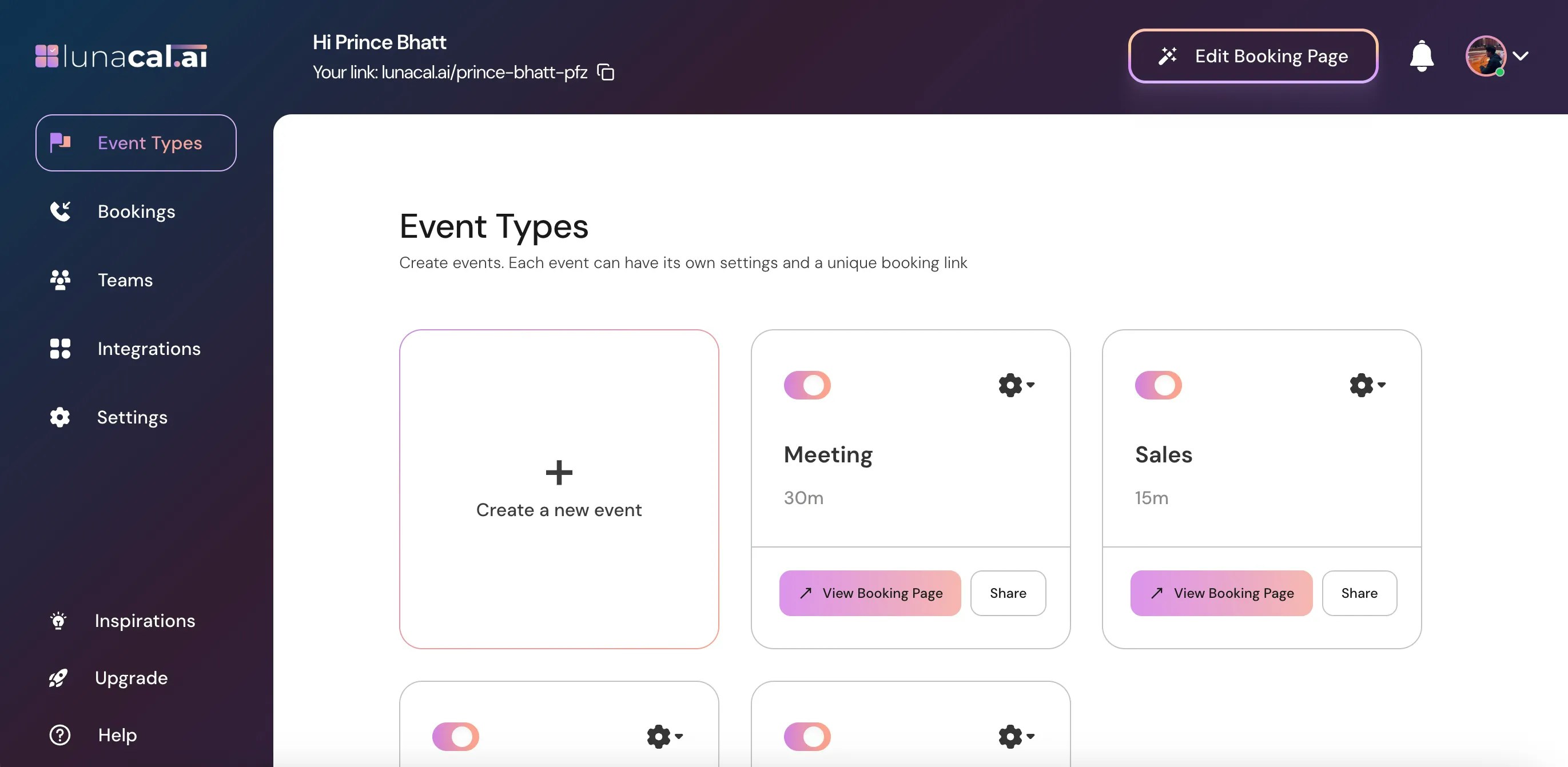
Select the event for which you want to enable manual booking approval and click on the Settings icon on that event card.
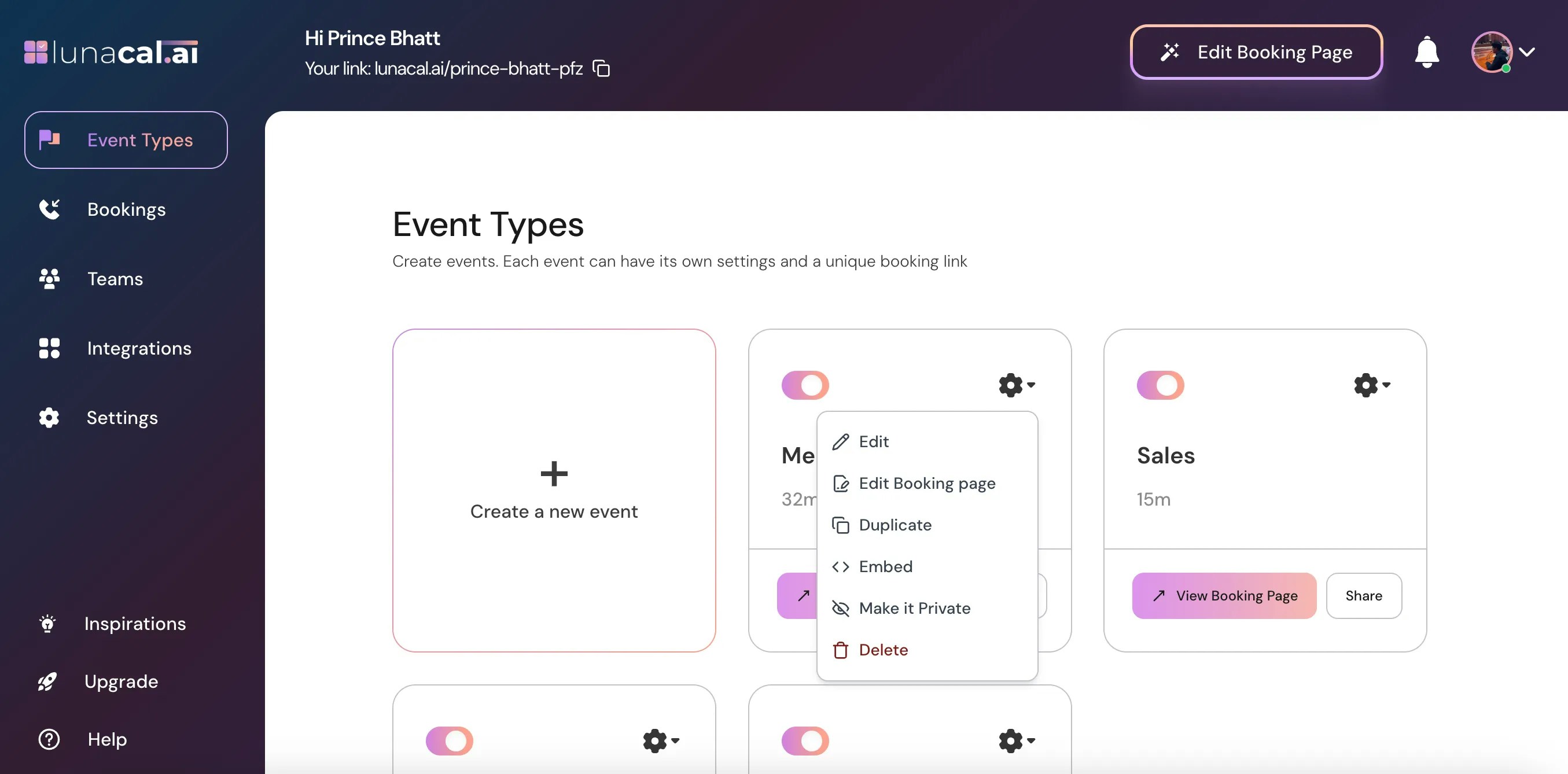
Step 3
Choose Edit from the dropdown.
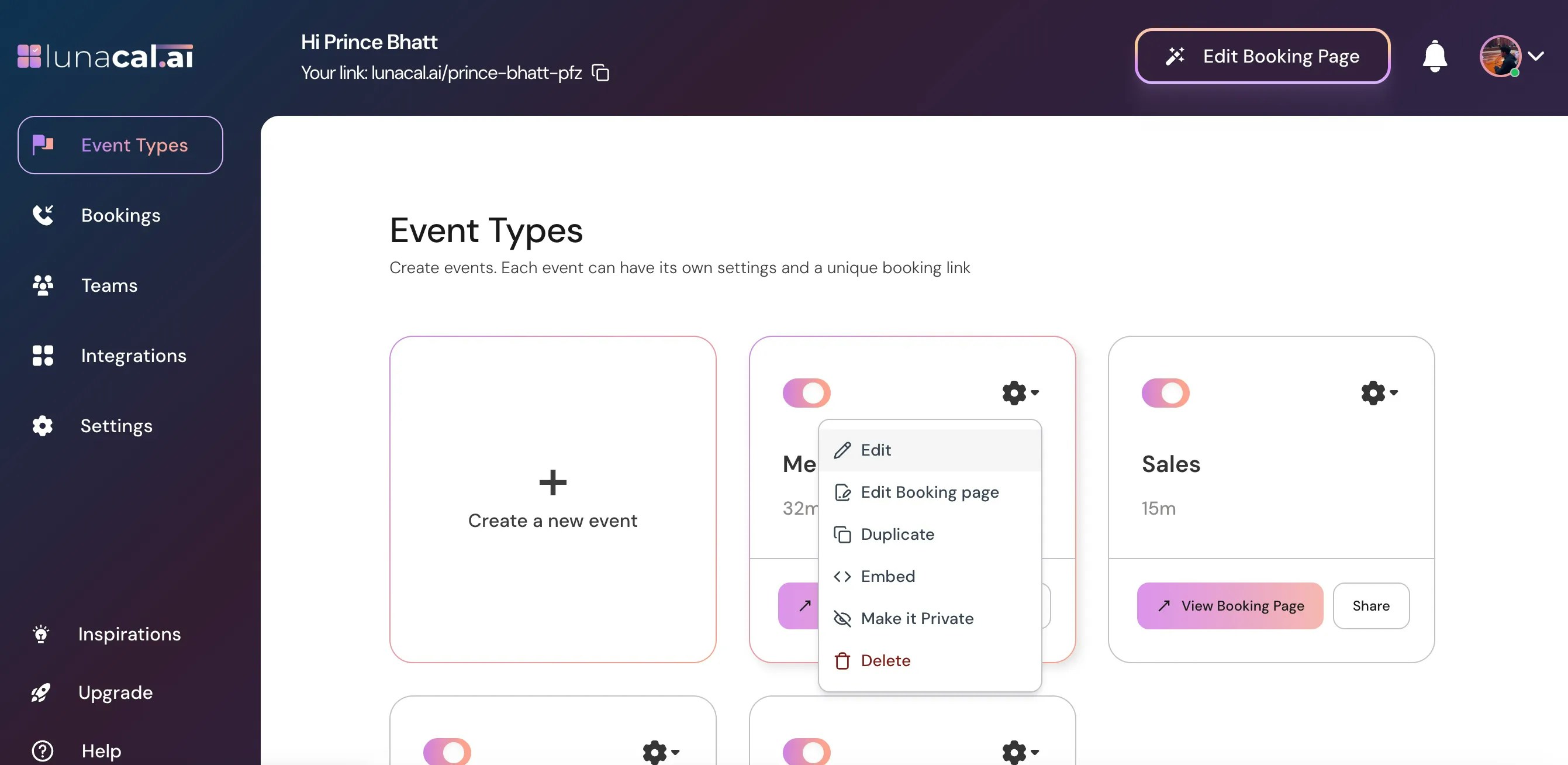
Step 4
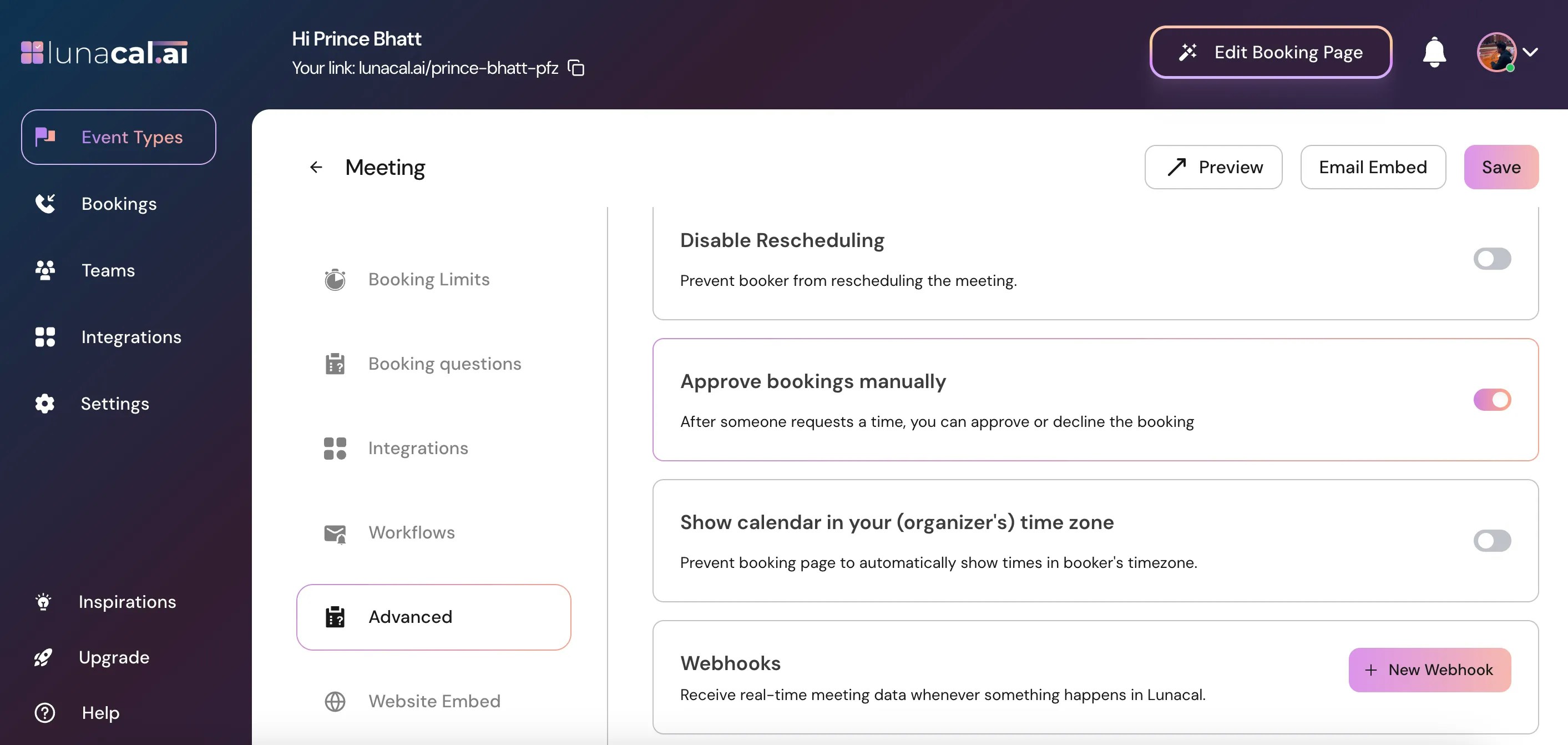
In the “Event Types” section, scroll down to find “Advanced.”
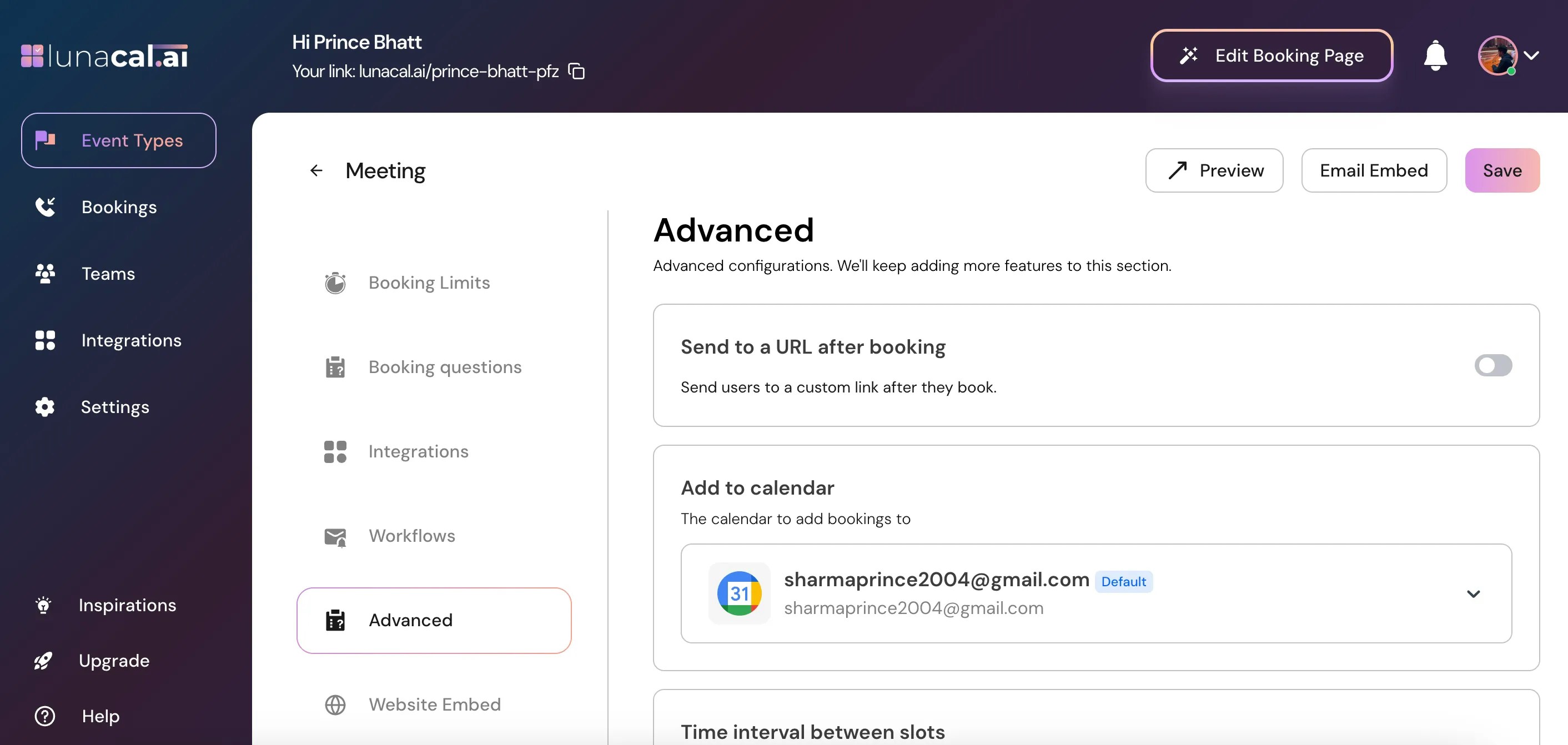
Step 5
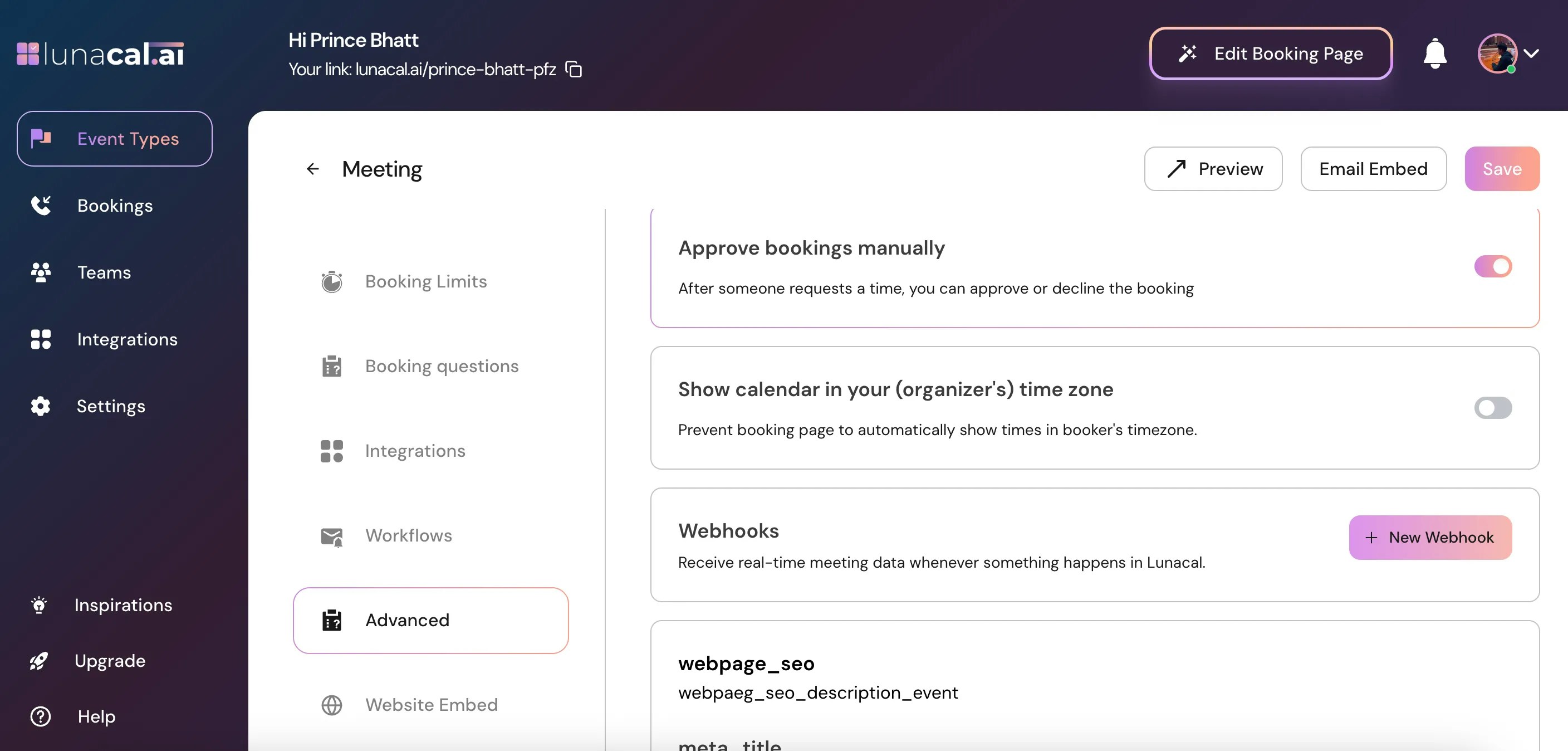
In “Advanced” scroll down and toggle on “Approve bookings manually.”
Step 6
Click “Save” to apply the changes.
- Every new booking enters Pending Approval status
- You’ll see the request under your Bookings page
- You’ll receive an email notification
- The client sees a message like “Booking request sent”
- No calendar invite is sent yet
- No reminders are sent until you approve