

1. Understanding GTM Container ID in Lunacal
A GTM Container ID looks like:GTM-XXXXXXXX
lunacal requires this ID to load your GTM container and trigger your tags.You can set this ID at multiple levels depending on your tracking needs:
(A) Account-level (User Profile)
- This is the default container for your personal events.
- It loads on all booking pages unless overridden by a specific container set for your Event Types.
(B) Team-level
- Each team can have its own GTM Container ID.
- When added here, It loads on all team events, it didn’t overrides the account-level ID.
Installing GTM
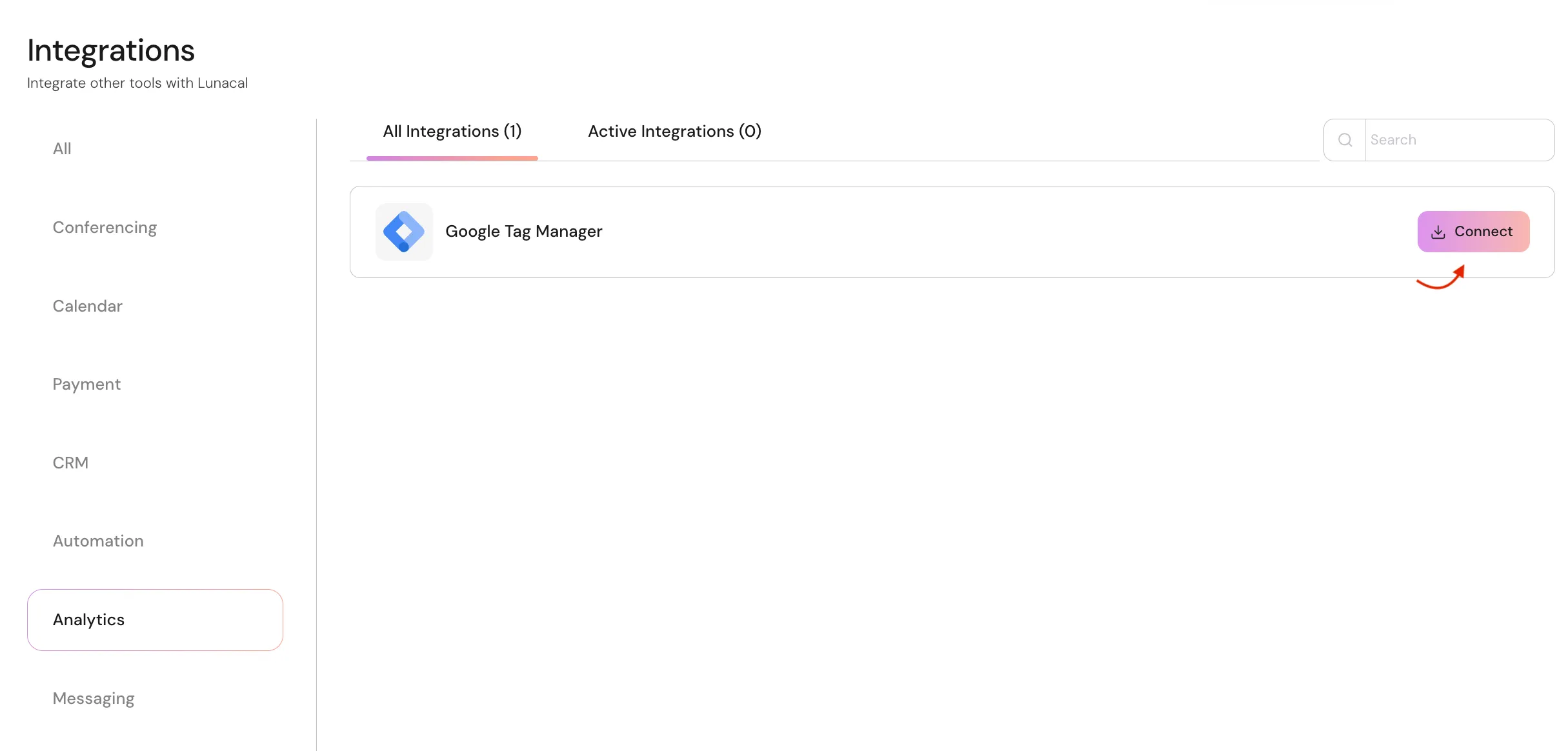
- Go-to: Integrations > Analytics
- Find Google Tag Manager (GTM).
- Click Connect.
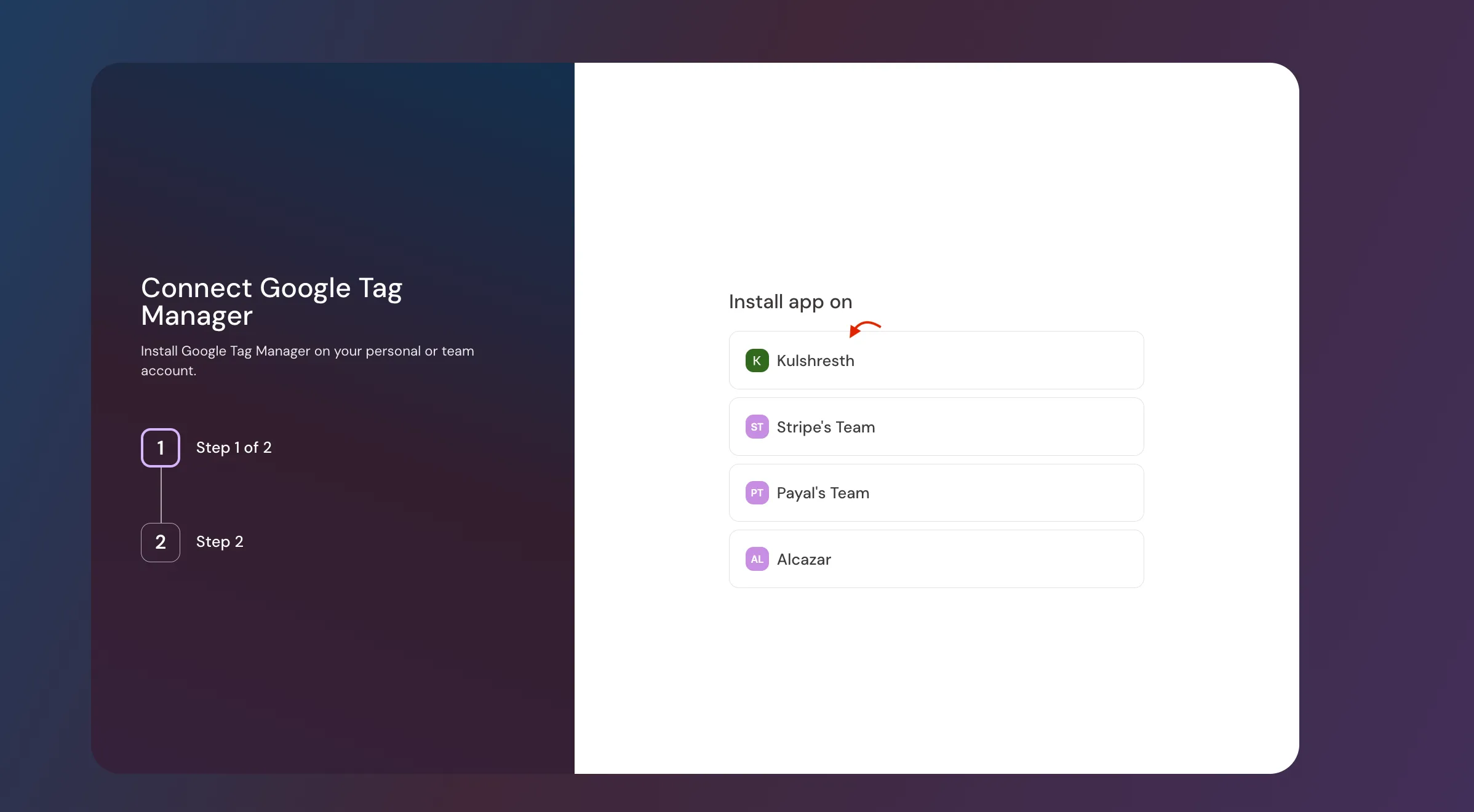
Step 2: Choose Installation Scope
When you click Connect, you will see: Option A – Connect GTM for your Account- This makes GTM available for all event types in your workspace.
- Choose this if you only want GTM for selected teams. Select your preferred option and continue.
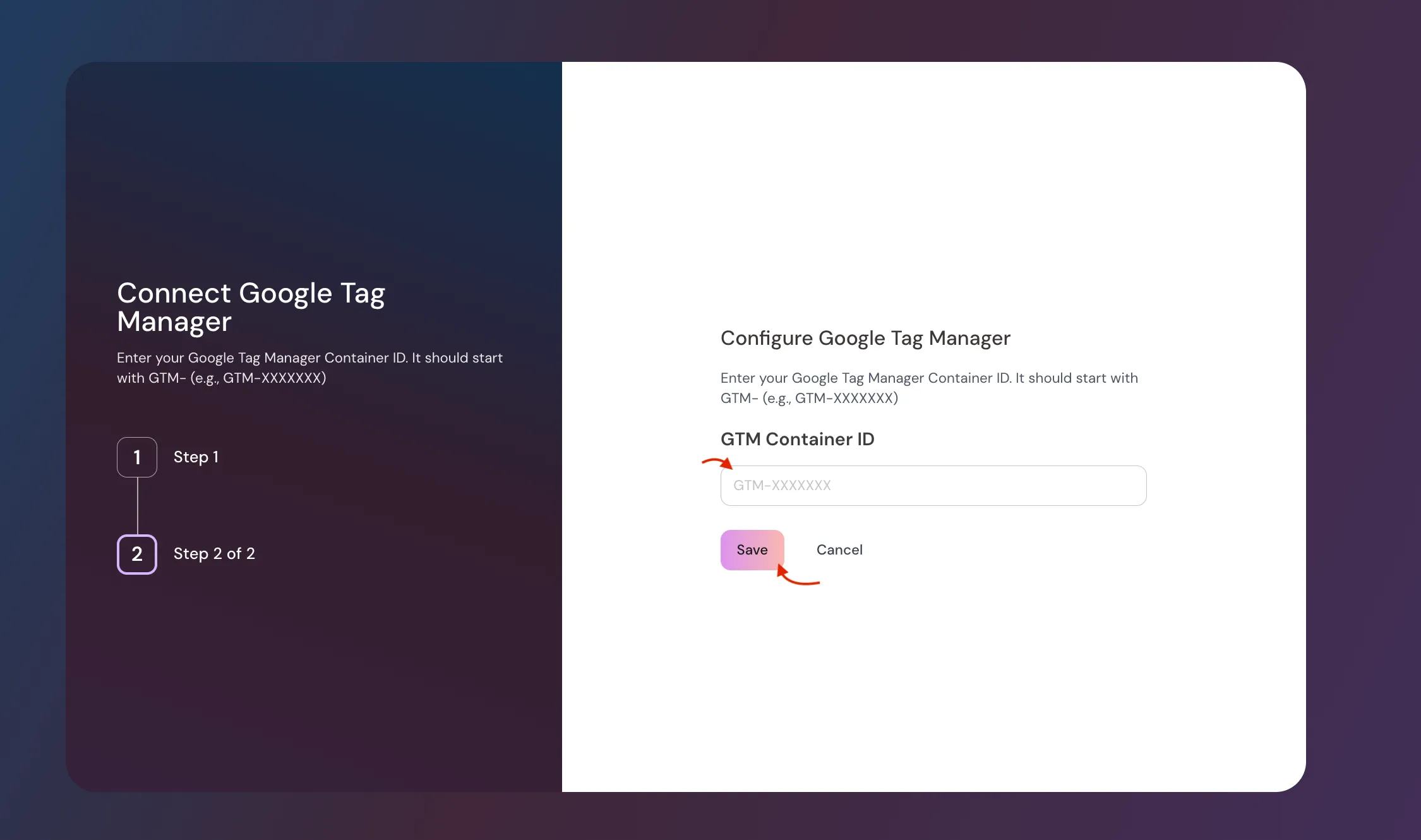
Step 3: Enter Your GTM Container ID
- After selecting Account or Team, you will see an input box.
- Enter your GTM container ID (example: GTM-XXXXX123).
- Click Save.
 GTM is now installed.
The GTM ID you enter here becomes the default ID shown inside event types (when you enable GTM for them).
2. Enabling GTM for Individual Event Types
Installing GTM does not automatically enable it for all event types.You must activate GTM for each event type you want to track.
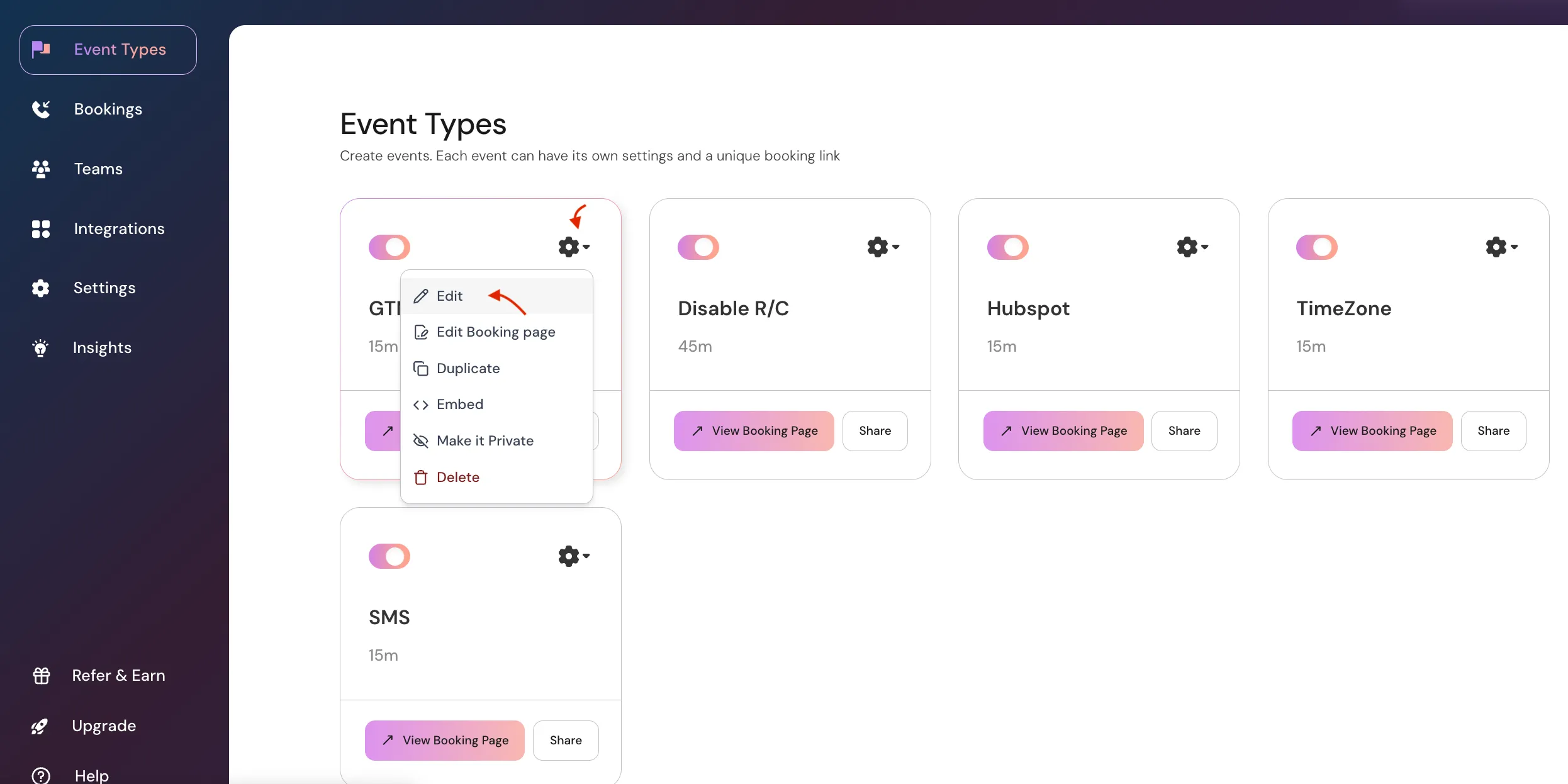
- Go to Event Types
- Click the gear ⚙️ icon.
- Click Edit.
- Go to Integrations Section.
- You will see a GTM toggle in off state.
- To Enable GTM Turn ON the GTM toggle
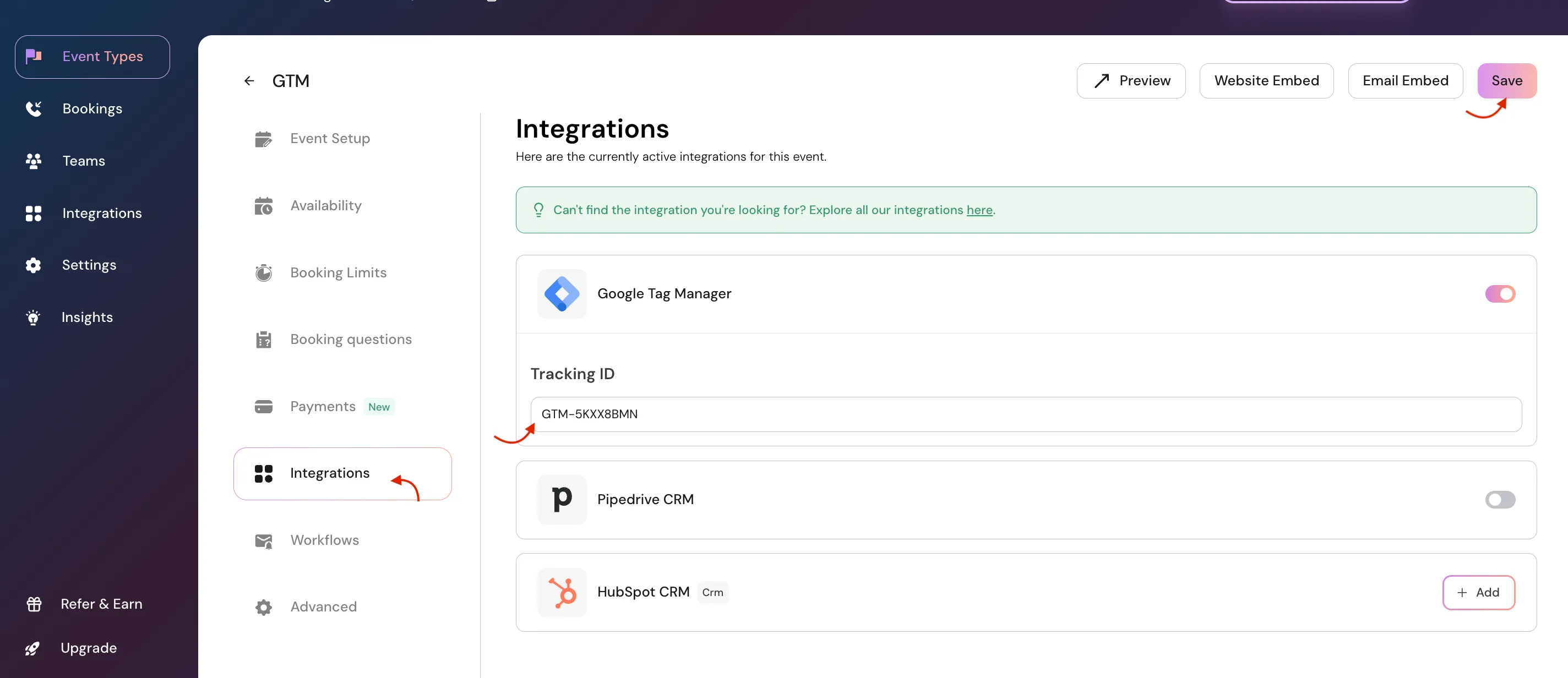
You will see the same GTM ID you entered during installation (auto-filled)
Click SAVE
That’s it — GTM is now active for this event type.
You can repeat these same steps for your team events.