

What are Managed Events?
Managed Events in lunacal allow admins to create and control event types centrally, then assign them to one or more team members (hosts). Instead of each person creating and maintaining their own event types, Managed Events ensure consistency across your team while still allowing hosts to focus only on their availability. Managed Events are ideal when you want:- A single source of truth for event settings
- Consistent branding, duration, buffers, and rules
- Easy assignment and reassignment of hosts
- Scalable scheduling for growing teams
How Managed Events Work
- An admin creates a Managed Event
- Event settings are configured and (optionally) locked
- Members are assigned to the Managed Event
- lunacal uses the event rules and host availability to schedule meetings
Permissions Tab (Managed Events)
Inside every Managed Event, there is a Permissions tab. This tab allows admins/owners to control what assigned members are allowed to modify within that specific Managed Event.- If the admin/owner enables permission for a setting, the assigned member can modify that setting.
- If the admin/owner does not enable permission, the member cannot change that setting.
- Any setting not allowed remains locked and controlled only by the admin/owner.
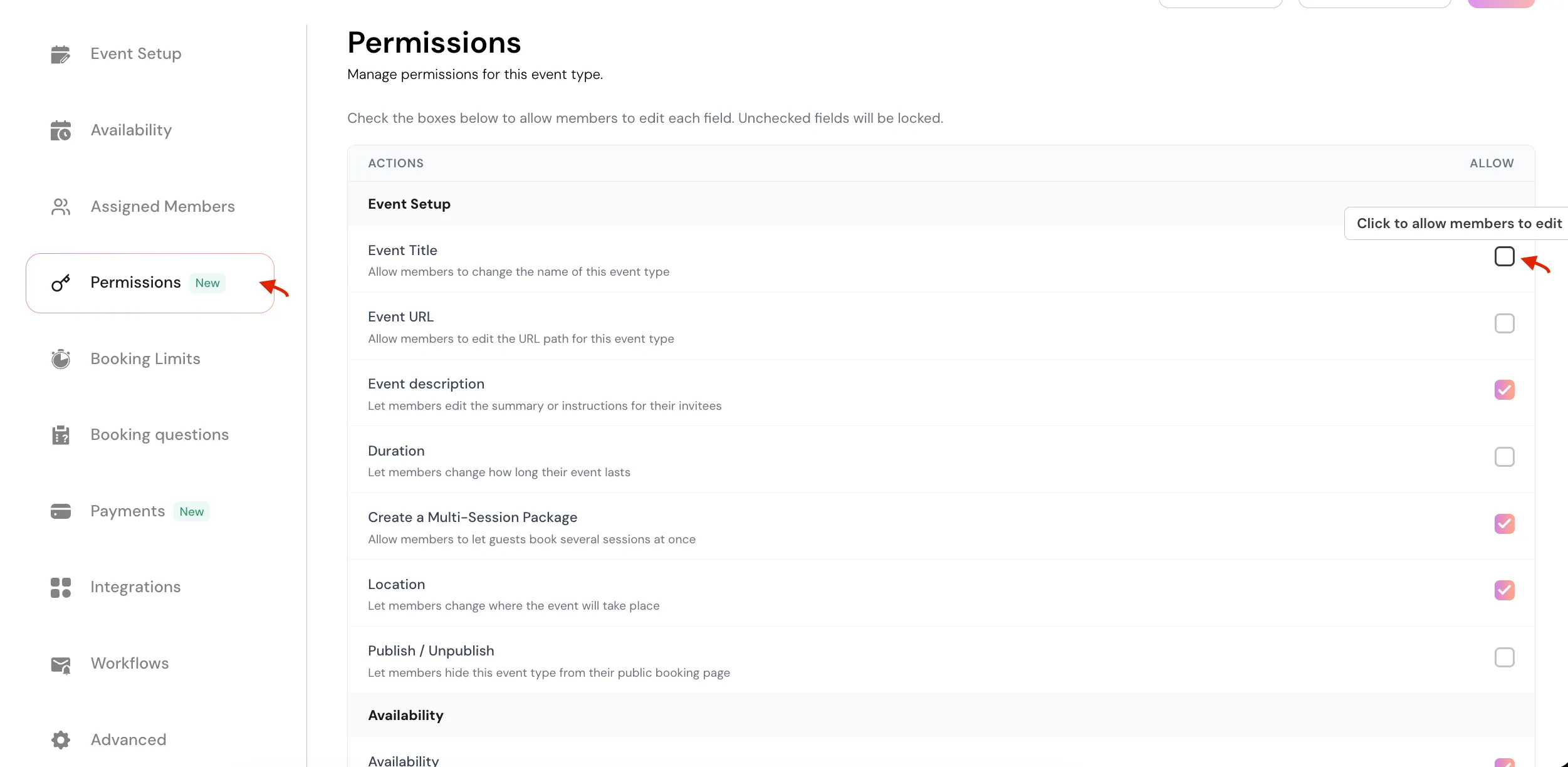
This ensures flexibility where needed, while still maintaining centralized control over critical event configurations.
What Can Be Managed (Locked) by Admins
Admins can decide which event fields are centrally managed and which are editable by hosts. Commonly managed fields include:- Event name and description
- Duration
- Location (Zoom, Google Meet, phone, in‑person, etc.)
- Availability rules
- Buffers and minimum notice
- Booking questions
- Confirmation, reminder, and follow‑up emails
Create a Managed Event
- Navigate to your team.
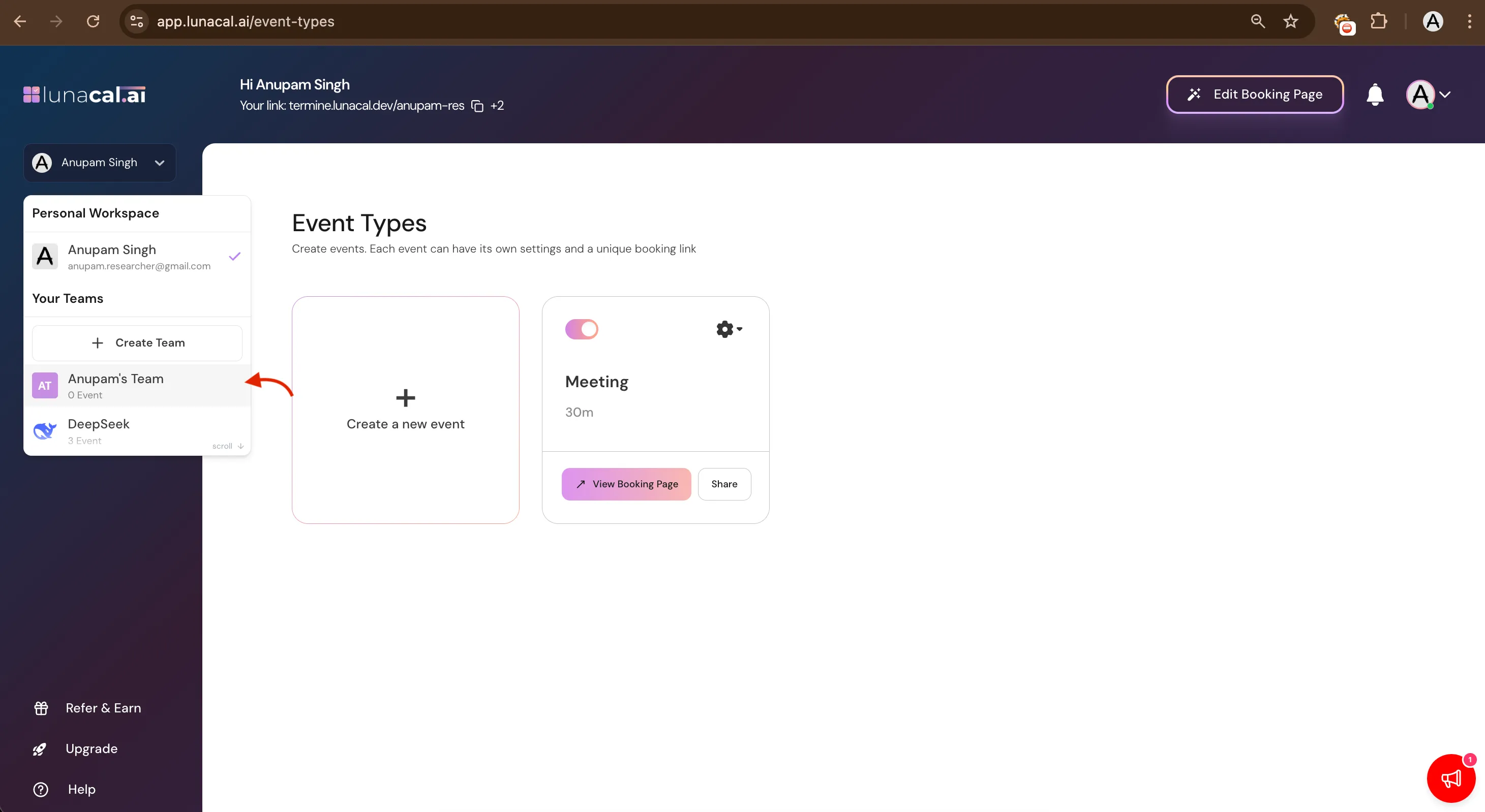
- Click Create Event
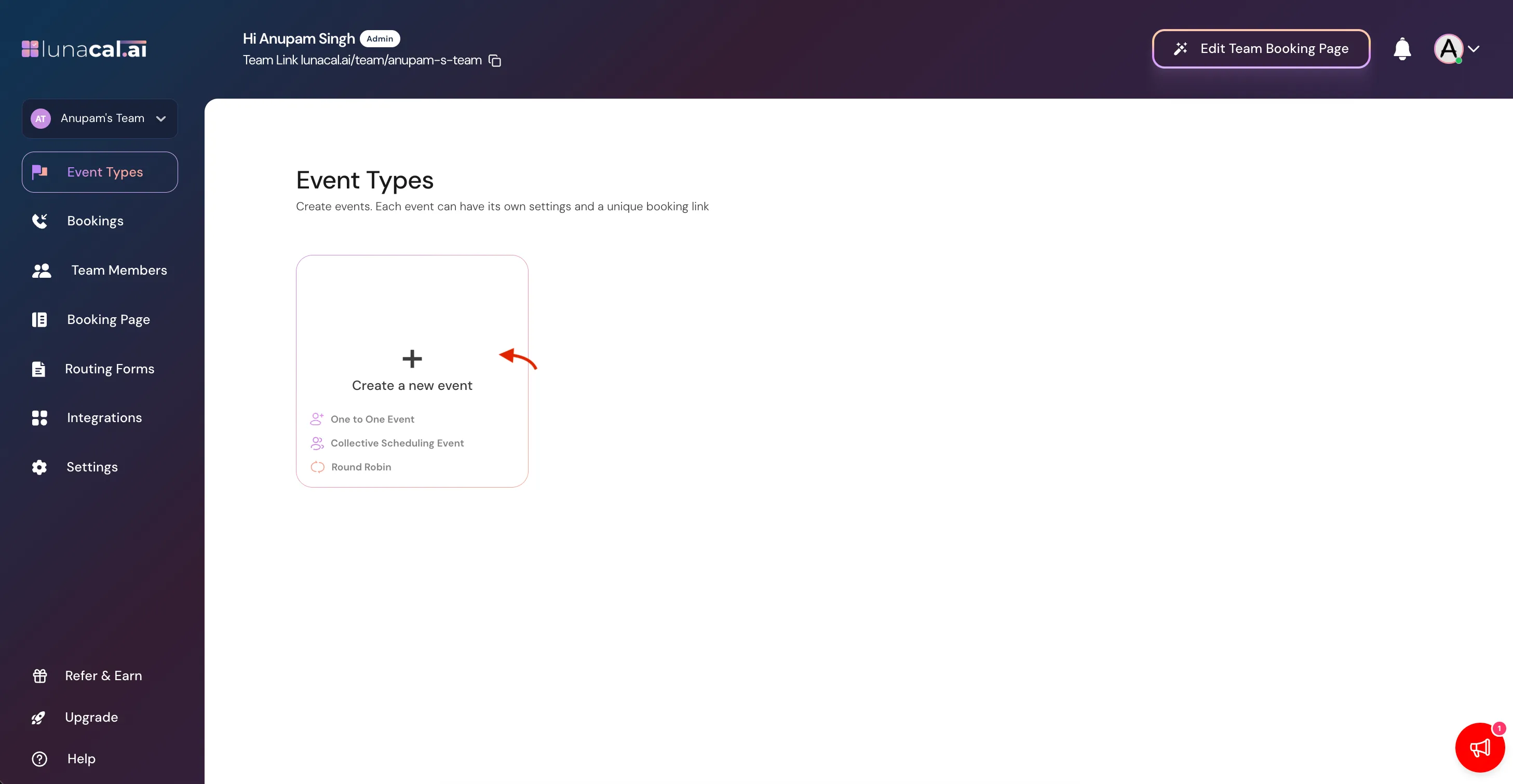
- Select Managed Event ( One-to-One ).
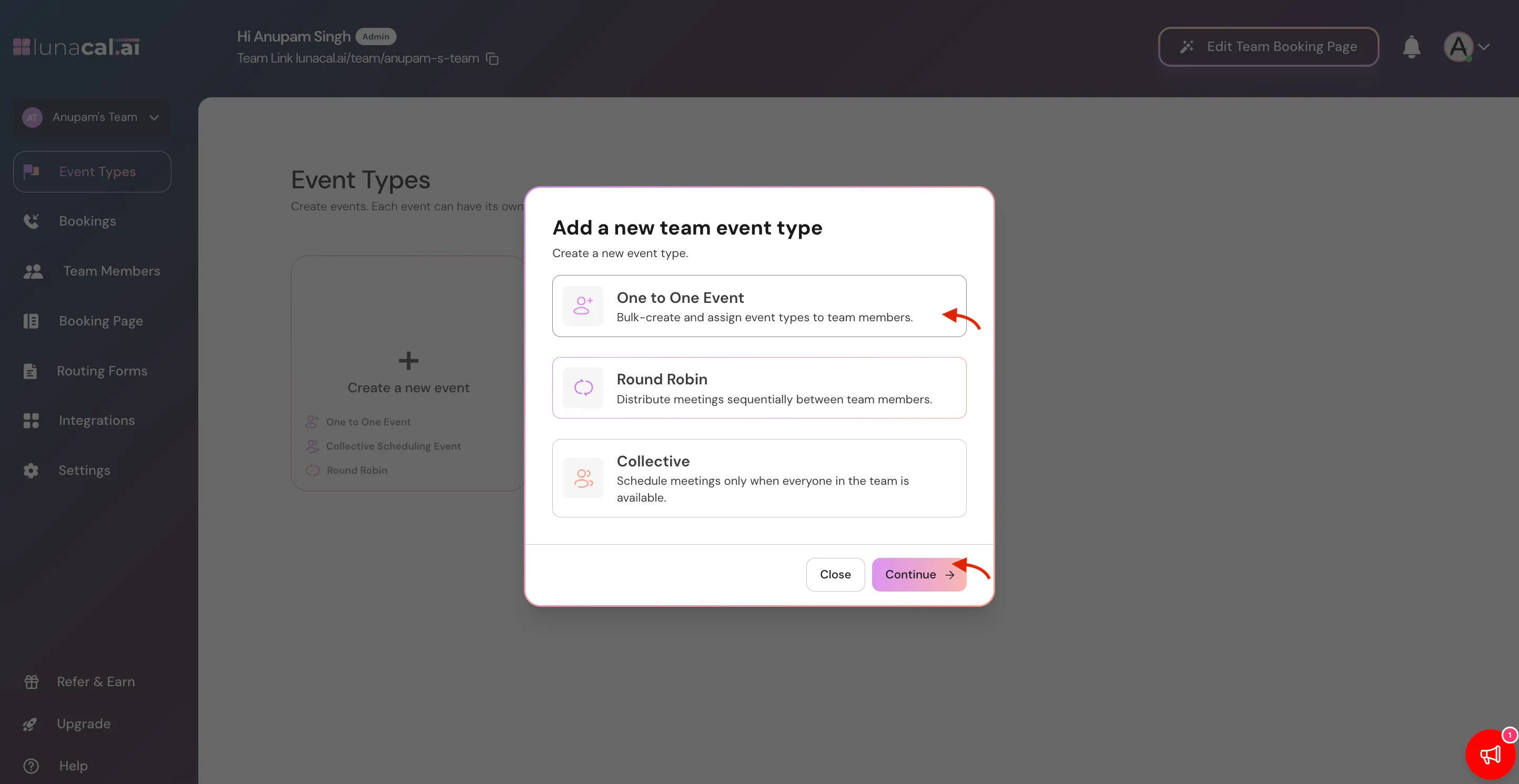
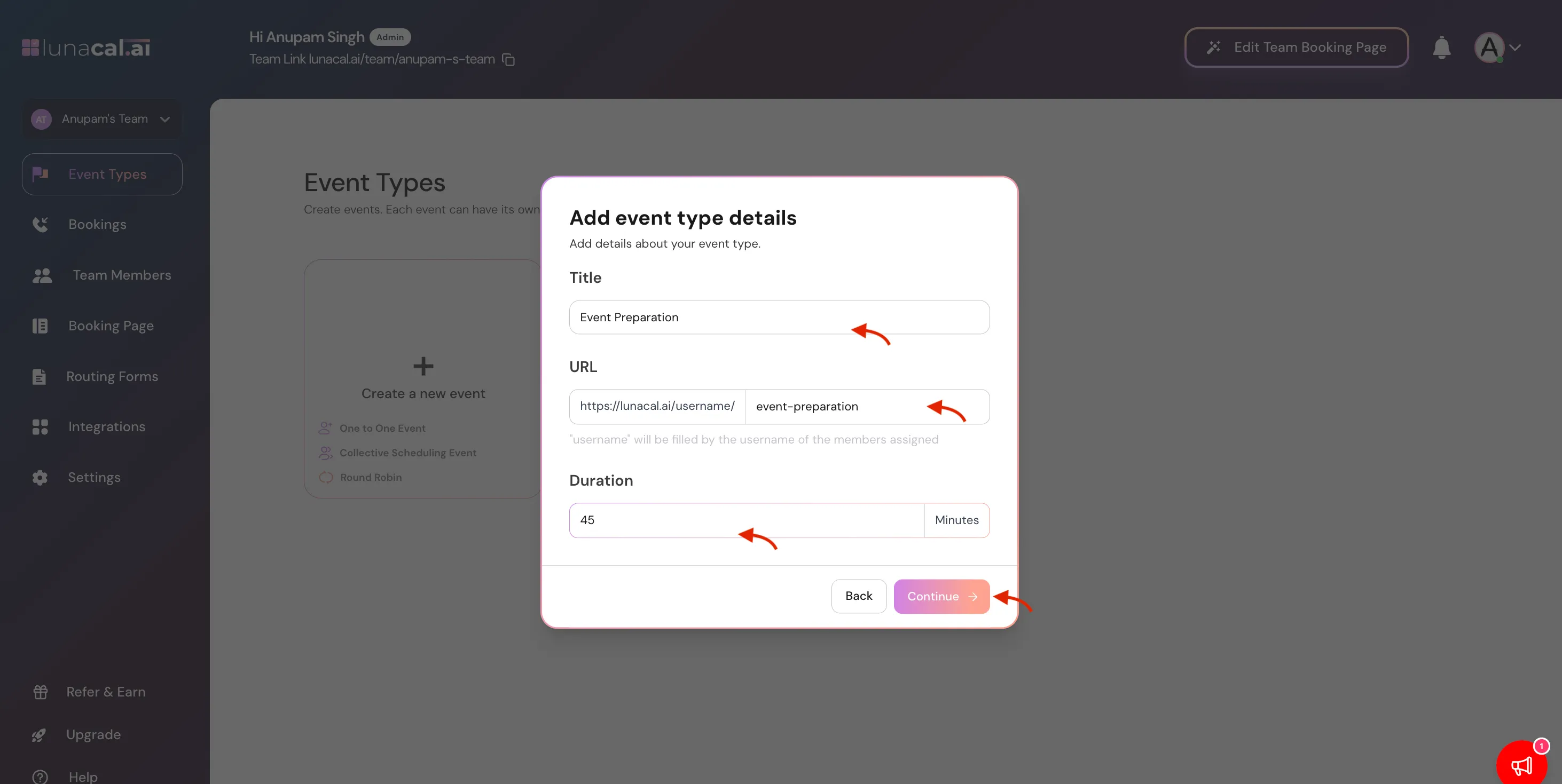
- Enter the event details:
- Event name
- Event URL
- Duration
- You’ll see members list.
- Select members you want to assign this event.
- Click Finish
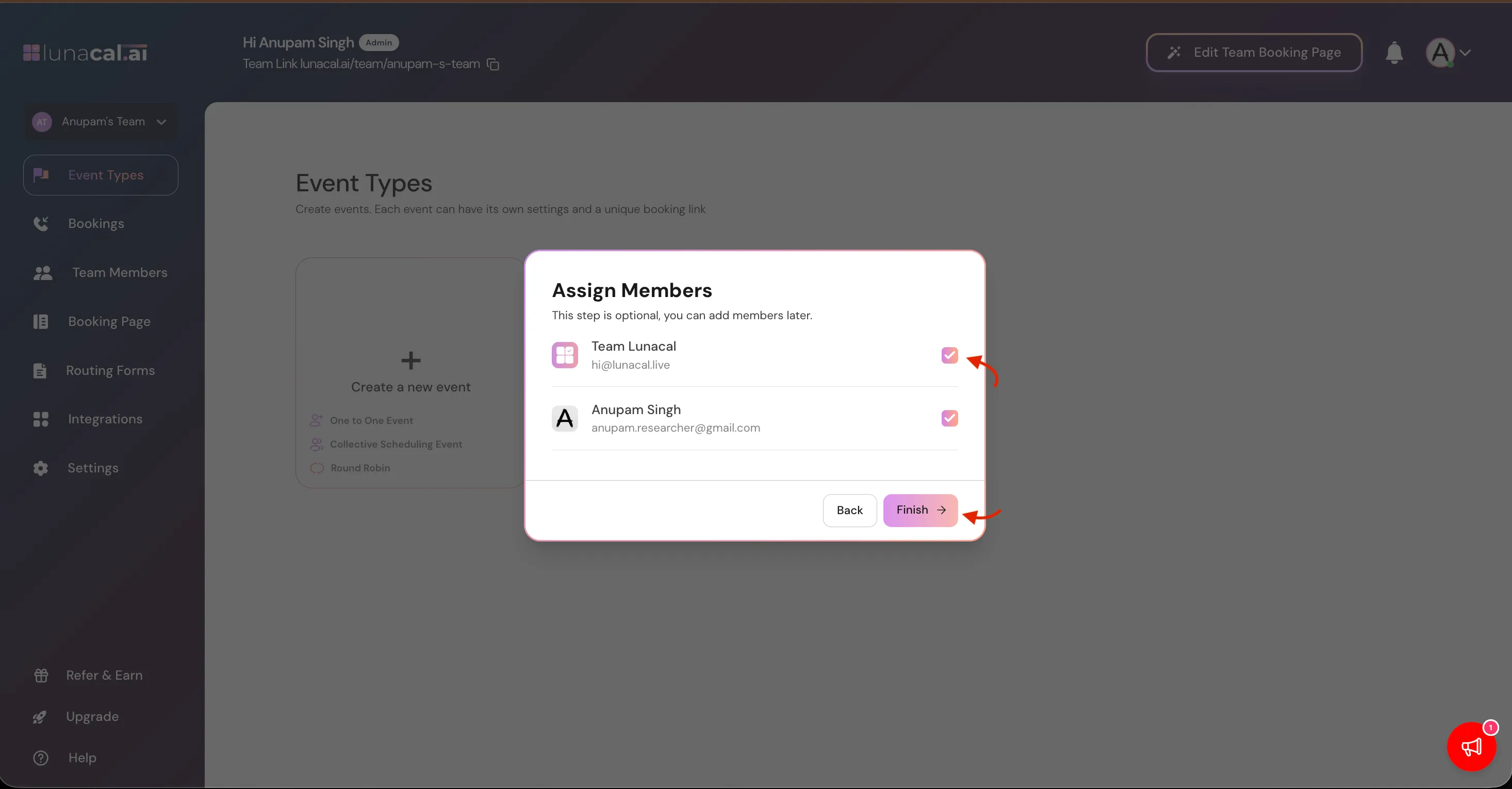
- Your event is created
If you want to know more about events read this
https://help.lunacal.ai/event-types/event-setup
Assign Hosts to a Managed Event
- Open the Managed Event
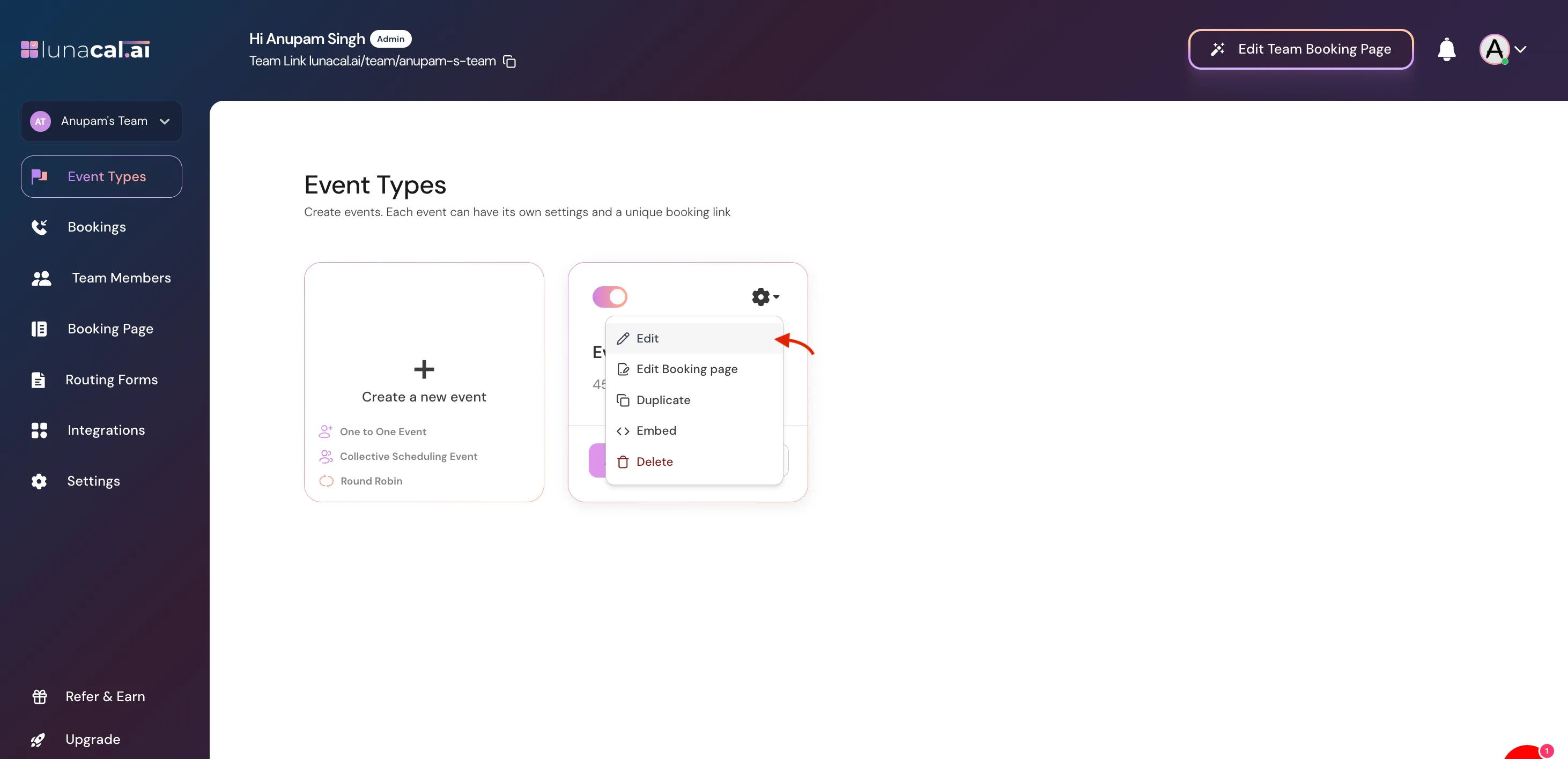
- Go to the Assigned Members tab
- Select one or more team members
- Save changes
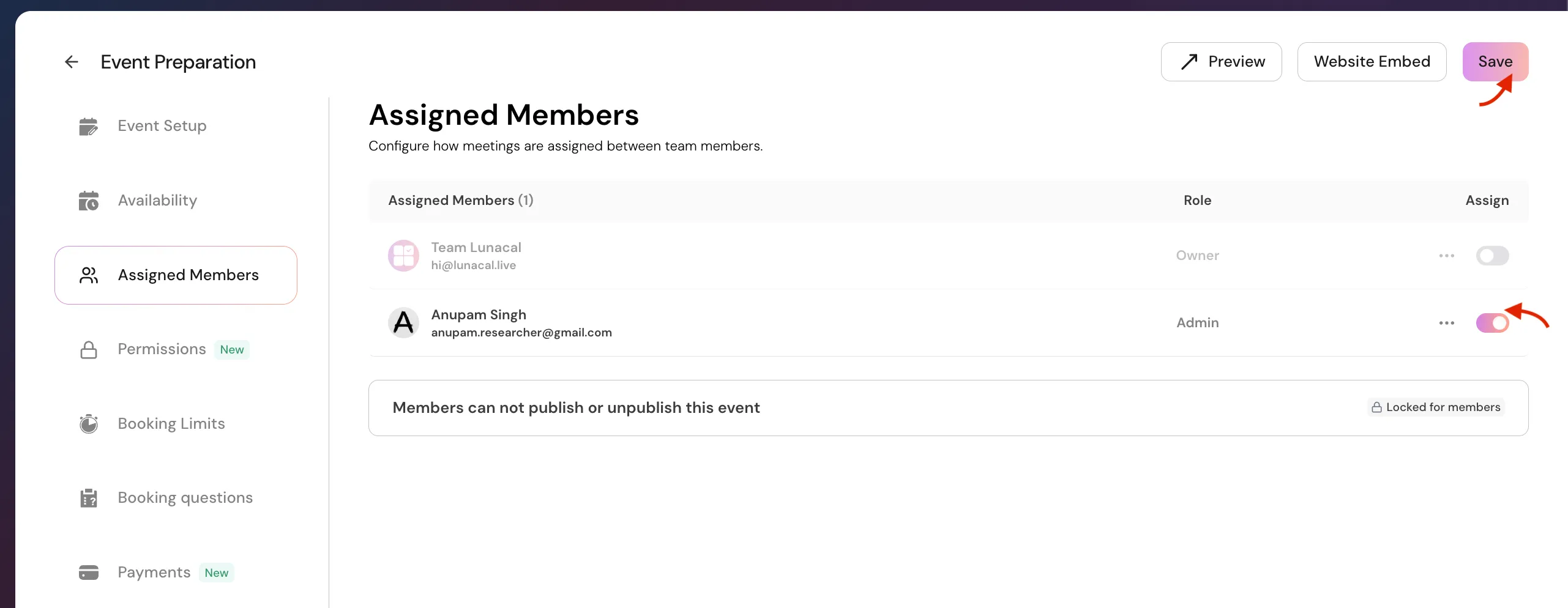 Hosts will immediately see the Managed Event in their dashboard.
Editing a Managed Event
Admins can update a Managed Event at any time.- Changes apply to future bookings only
- Existing meetings are not affected
- Updates sync automatically across all assigned hosts
Delete a Managed Event
- Delete: Permanently remove the event (existing bookings remain scheduled)
Common Use Cases
- Sales demos scheduled across multiple reps
- Support calls handled by a shared team
- Interviews with rotating interviewers
- Onboarding or training sessions managed by operations teams
Important Things to Know
- Only admins can create or edit Managed Events
- Hosts cannot change locked event settings
- Removing a host does not cancel existing meetings
- Managed Events help maintain consistency across large teams