

Overview
By default, all widgets (Gallery, Videos, About, Testimonials, Documents, etc.) are shown across every event type. If you have multiple events, they all share the same widget layout. Event-Specific Widgets allow you to decide:Which widget appears on which event.
Where to Find It
- Open your Edit Booking Page Editor
-1.webp?fit=max&auto=format&n=AOKKArpDs5svQ93Z&q=85&s=e4c5d84077ba343eb47307a9d1ae2dfc)
- Click Settings in the top navigation bar
- Show Widgets
- Allow Event-Specific Widgets
-1.webp?fit=max&auto=format&n=AOKKArpDs5svQ93Z&q=85&s=997e72e55e485677cd191953d9f17dbd)
Setting 1: Show Widgets (Global Toggle)
This controls widgets for the entire booking page.- Enabled → All added widgets are visible
- Disabled → No widgets appear on any event and your calendar will be center alligned.
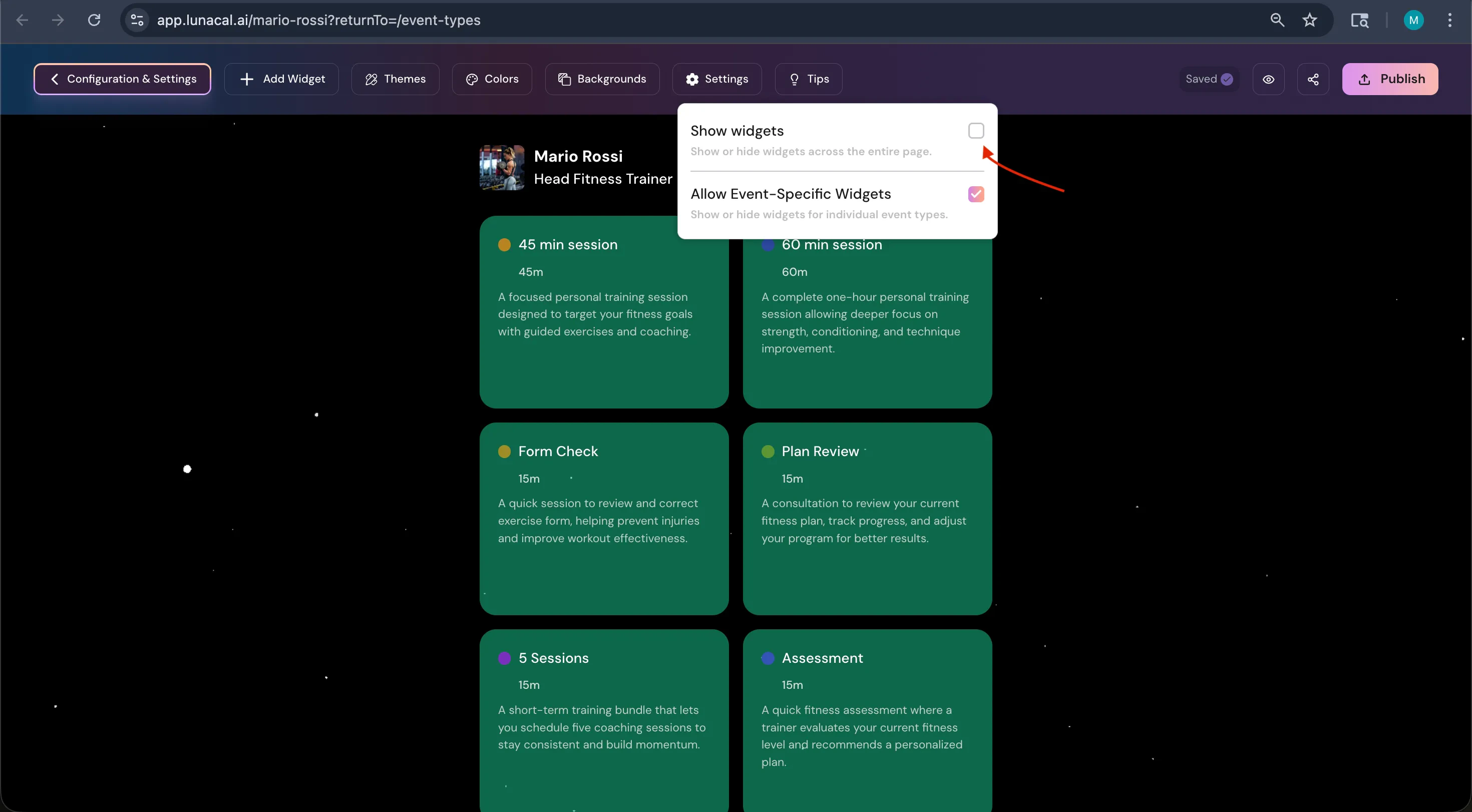
Setting 2: Allow Event-Specific Widgets
When disabled (default):- Every event type shows the same widgets.
- An eye icon appears on each widget.
- You can control visibility per event type.
-1.webp?fit=max&auto=format&n=AOKKArpDs5svQ93Z&q=85&s=b01ba9e1e0a8282cdeb228576f541617)
-1.webp?fit=max&auto=format&n=AOKKArpDs5svQ93Z&q=85&s=59558a6ca8d11323d8e6cffeaf64045b)
How It Works
After enabling Allow Event-Specific Widgets:- Go to your widgets list.
- Click the 👁 icon on a widget.
- Select the event types where it should appear.
- Publish.
Example
You have 4 events:- 1:1 Consultation
- Webinar
- Portfolio Review
- Corporate Demo
- Consultation → About + Testimonials
- Webinar → Videos + Documents
- Portfolio Review → Gallery only
- Corporate Demo → About + Documents
When to Use This
Use Event-Specific Widgets if:- You run different types of events
- Each event needs different supporting content
- You want cleaner, more focused booking pages
- You want higher conversion through relevance
Summary
If you want, tell me what tone Lunacal uses (technical, friendly, startup-style, minimal), and I’ll rewrite it properly aligned with your product voice.