

- View your team members
- View available team event types
- Book meetings
What You’ll See in This Section
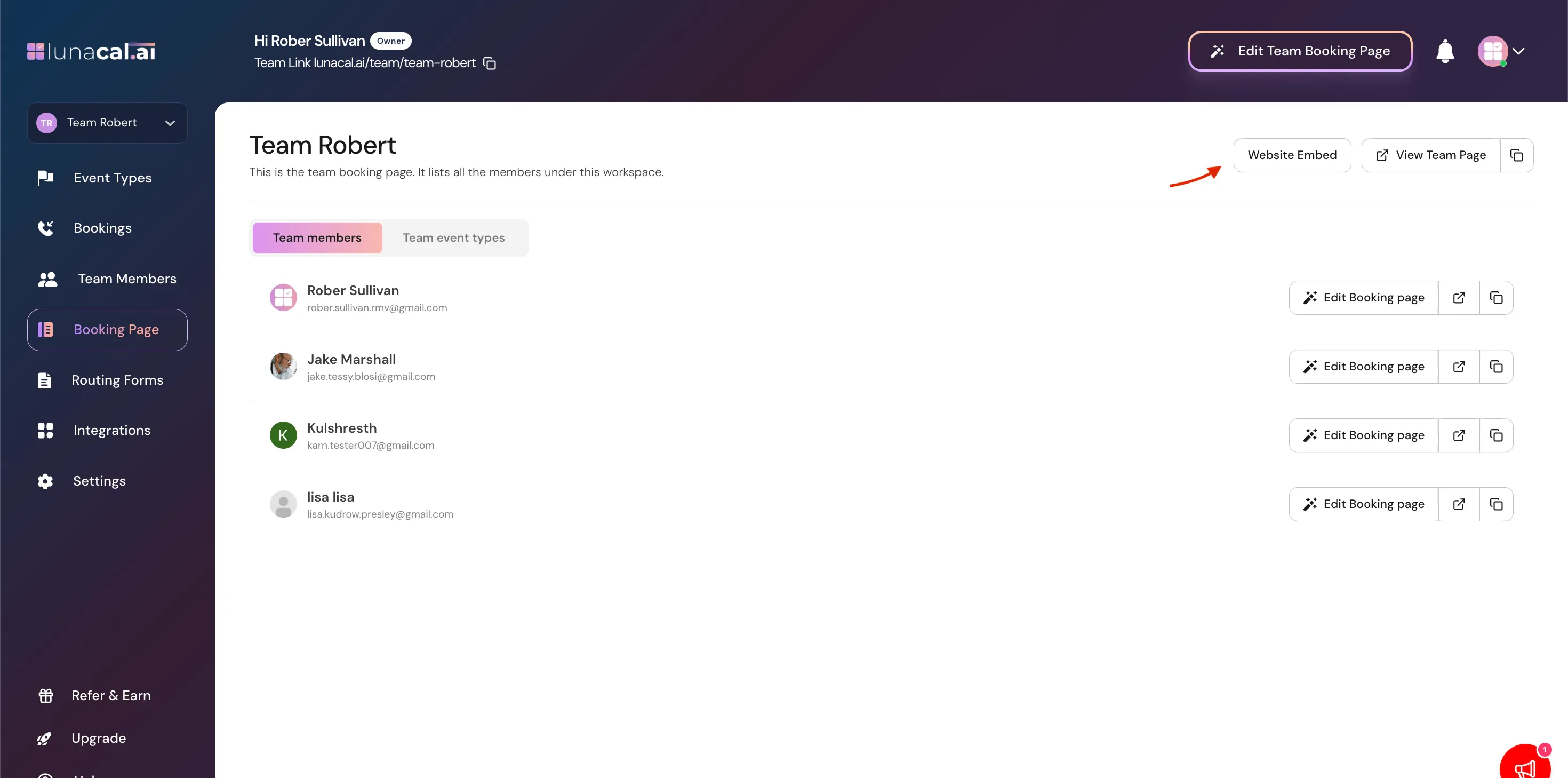
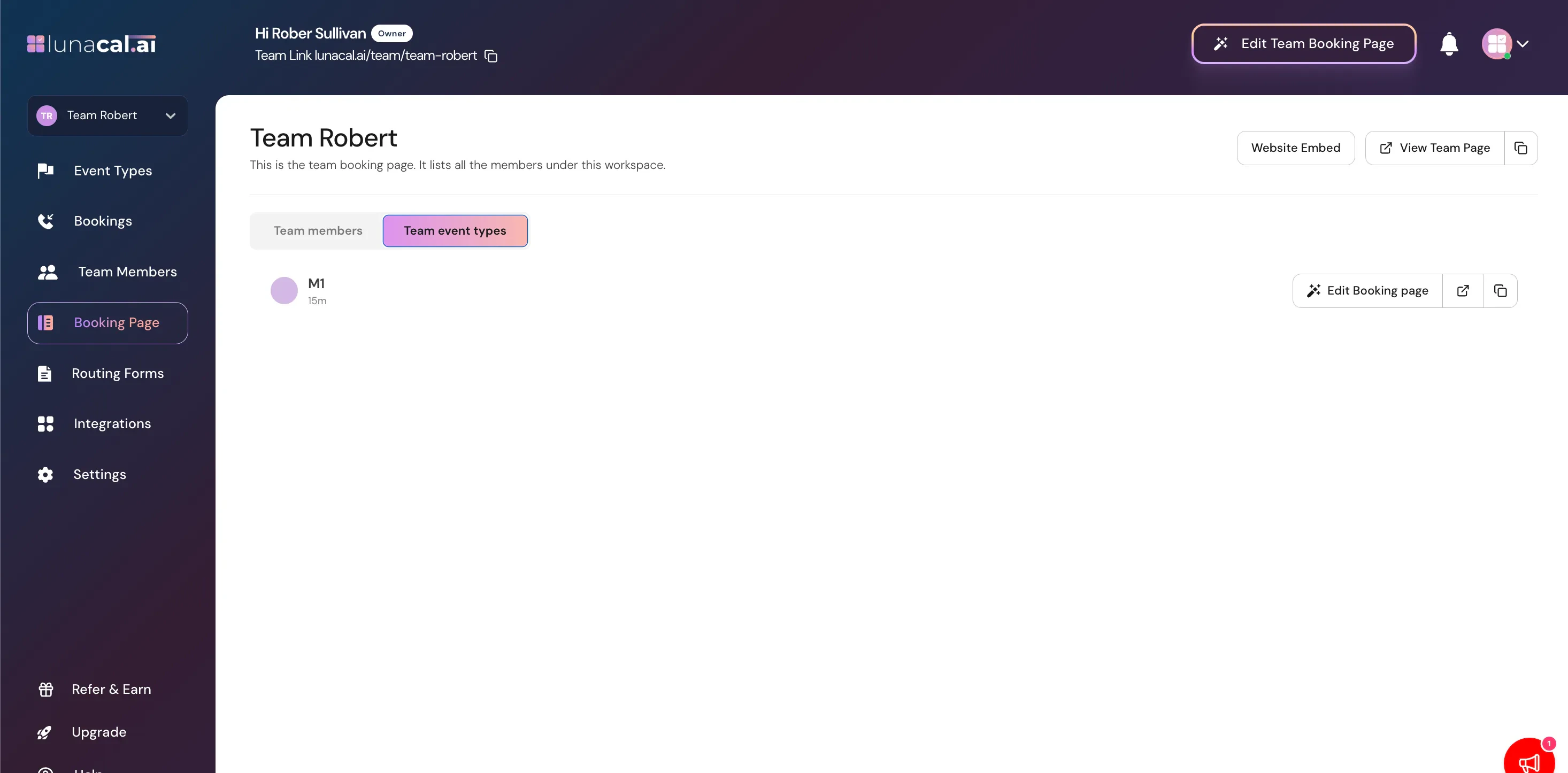
Inside the Booking Page tab, you’ll see:- Website Embed
- View Team Page
- A list of Team Members
- A list of Team Event Types
- “Edit Booking Page” option for each member
View Team Page
Click View Team Page to open your public team booking page. This page:- Lists all visible team members
- Displays published team event types
- Allows visitors to select and book meetings
- Not hidden from booking page
- Assigned to events
- Have availability set
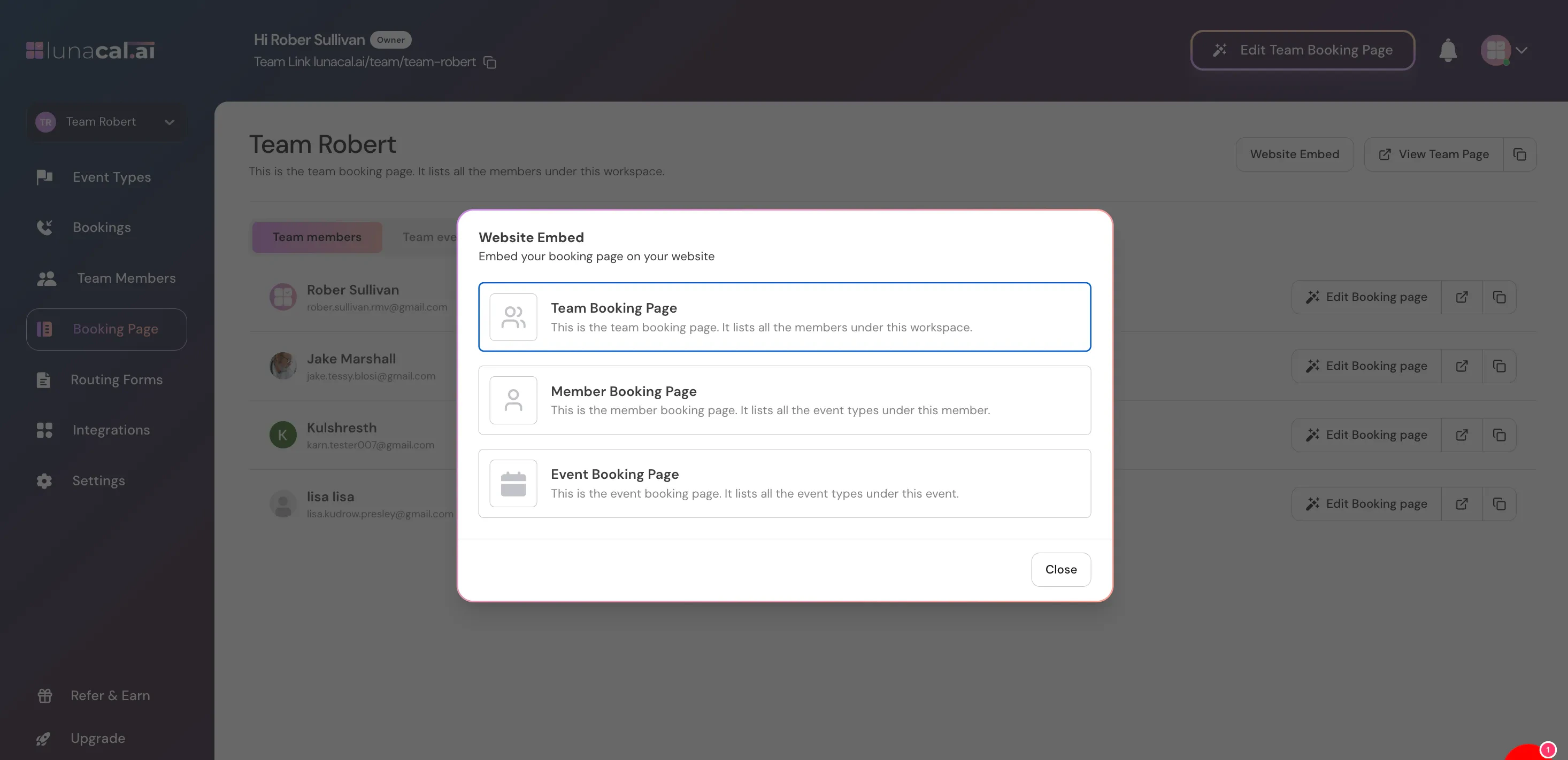
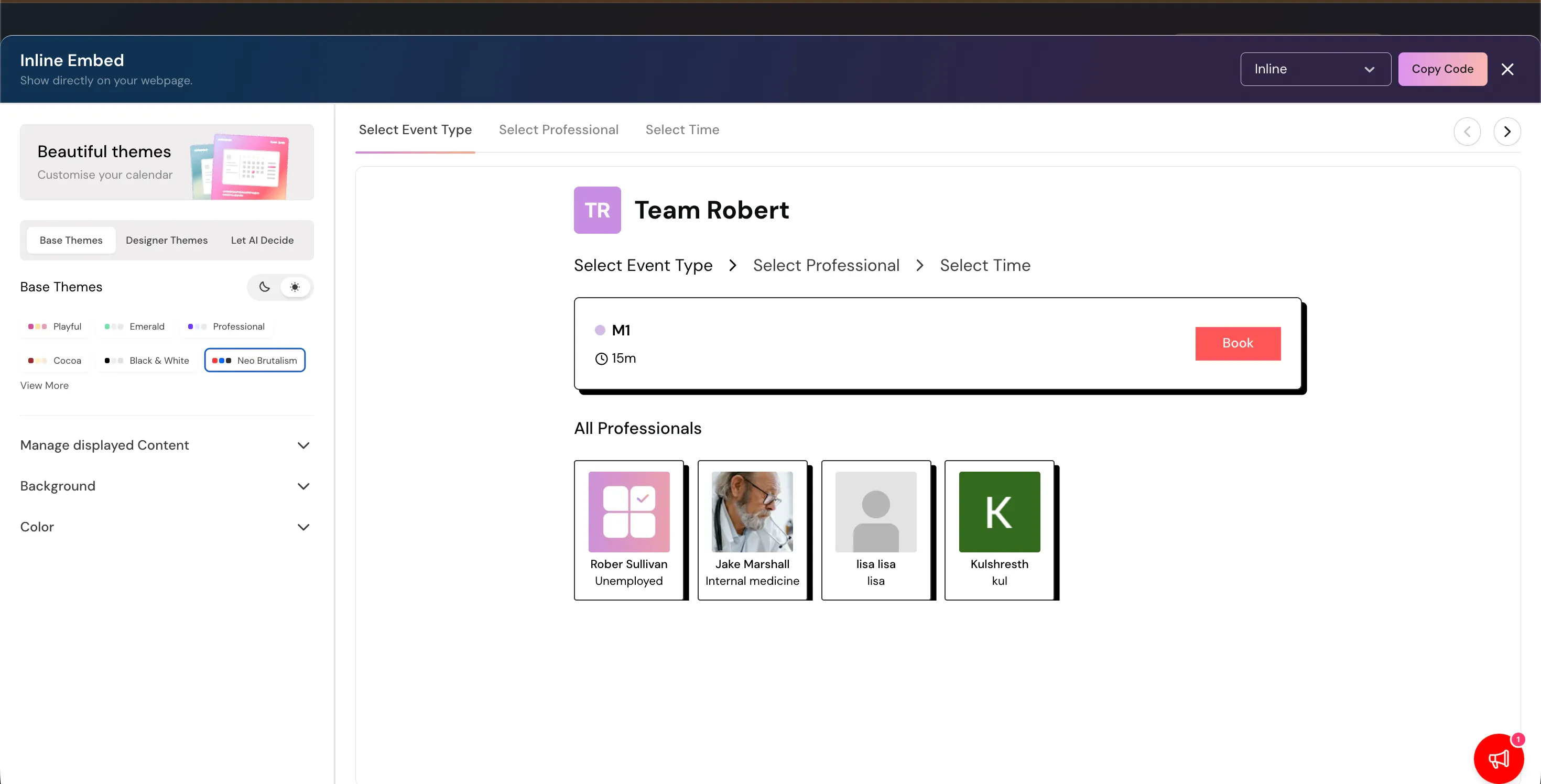
Website Embed
Use Website Embed if you want to embed your team booking page on your own website. This allows you to:- Add your team scheduler to your homepage
- Embed inside a landing page
- Place inside a client portal
Team Members Section
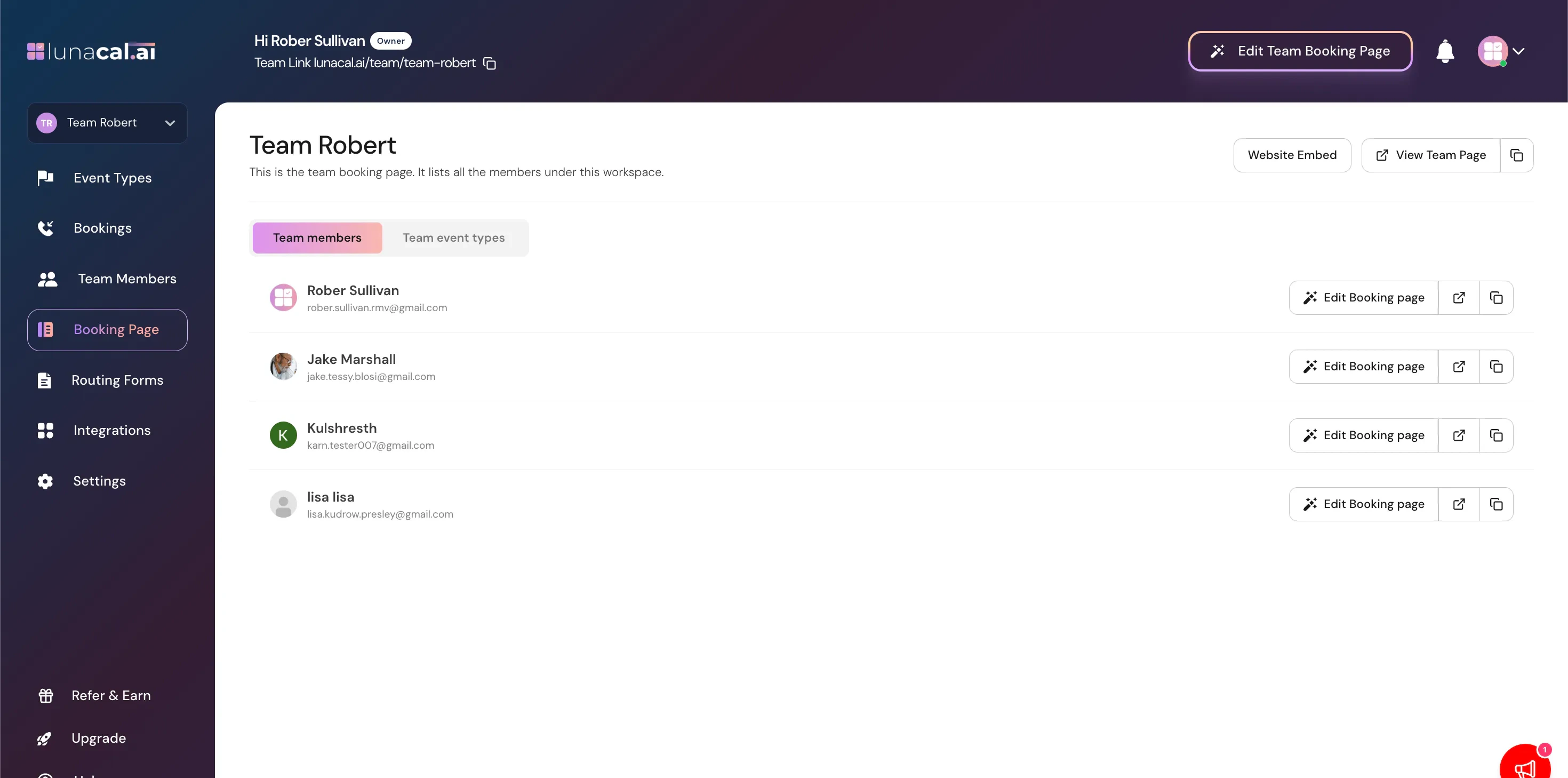
You’ll see a list of all members in the workspace. For each member, you can:- View their name and email
- Click Edit Booking Page
Edit Booking Page (Per Member)
Clicking Edit Booking Page allows you to customize that individual member’s public booking profile. You can modify:- Public display information
- Profile details
- How they appear on the team page
- How their public booking page will look like
- Hidden from booking page (via Team Members tab)
- Not assigned to events
- Has scheduling disabled
Team Event Types Section
Beside members, you’ll see the list of team event types just click on “Team event types. These are the events that:- Appear on the public team page
- Can be booked by visitors
How Visibility Works (Important Logic)
A team member will appear on the team booking page only if:- They are not hidden from booking page
- They are assigned to at least one event
- Scheduling is not disabled
- They have availability configured
Best Practices
- Hide internal-only members from the booking page.
- Disable scheduling instead of removing members when they are temporarily unavailable.
- Regularly review assigned events to ensure accurate public visibility.
- Test the View Team Page after making changes.