

- Add new team members
- Manage roles
- Control booking visibility
- Enable or disable scheduling
- Assign event types
- Configure individual availability
Accessing Team Members
- Switch to your Team Workspace
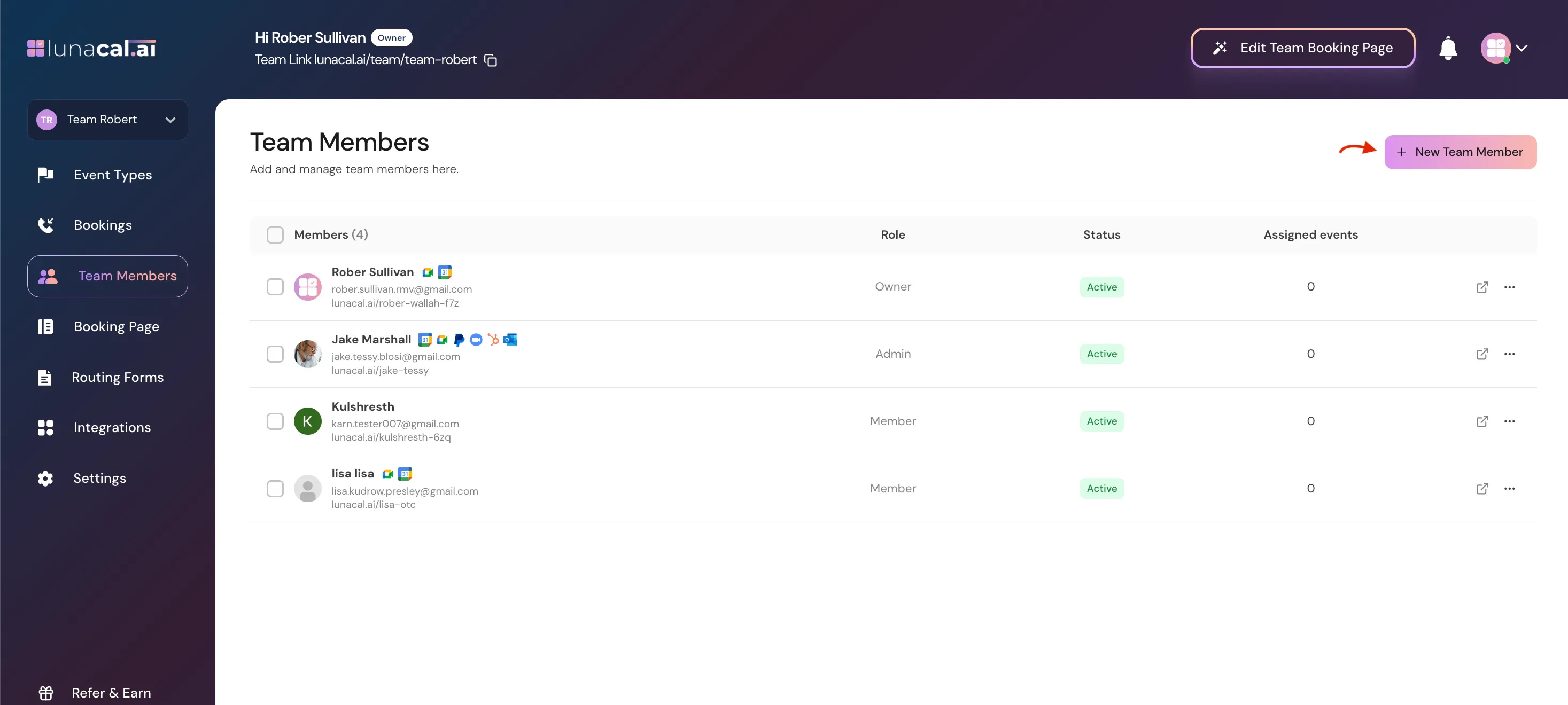
- Click Team Members from the left sidebar
- Name & email
- Role (Owner / Admin / Member)
- Status (Active)
- Assigned Events count
Adding a New Team Member
To invite someone:- Click + New Team Member
- Enter their email address
- Select their role
- Click Send invite
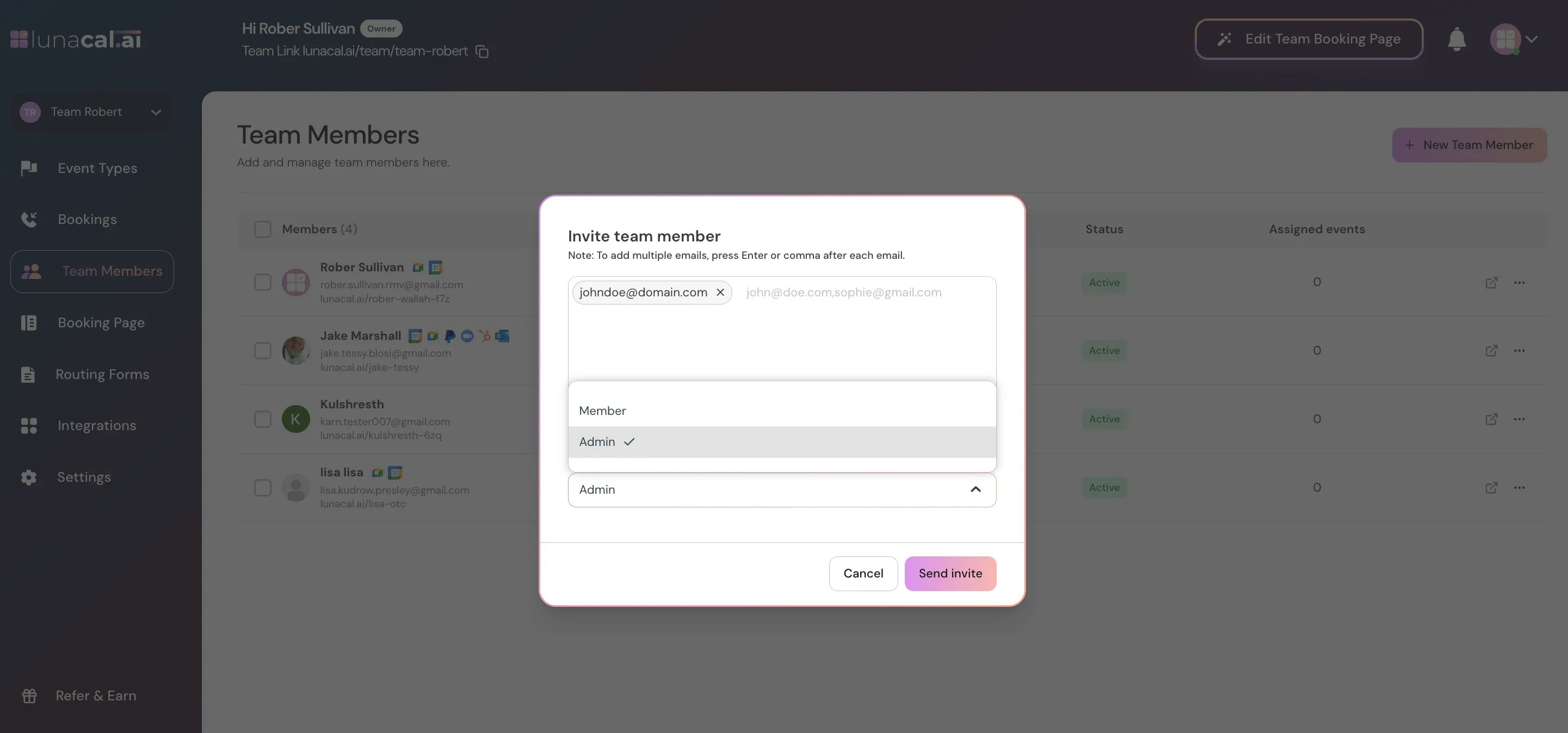
Only Owners and Admins can invite members.
Managing Team Members (Three-Dot Menu)
Next to each member, click the ⋯ (three dots) menu to access management options.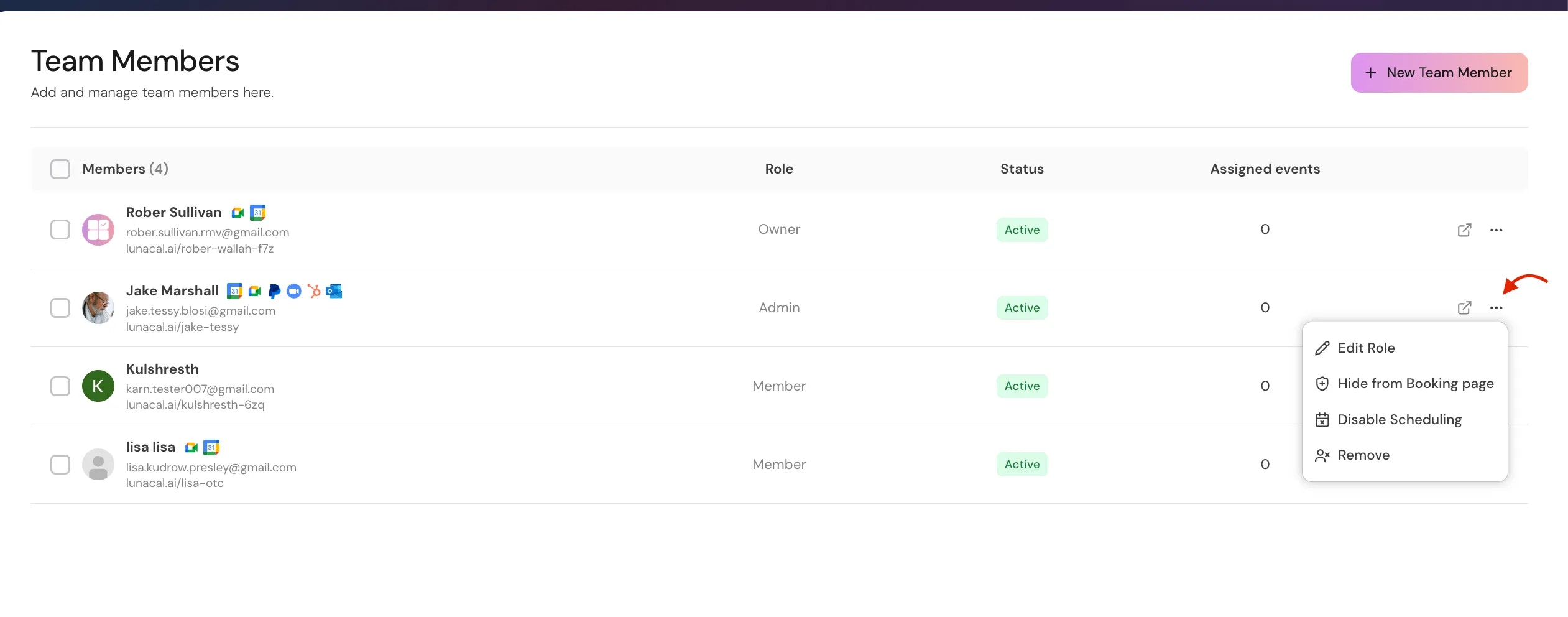
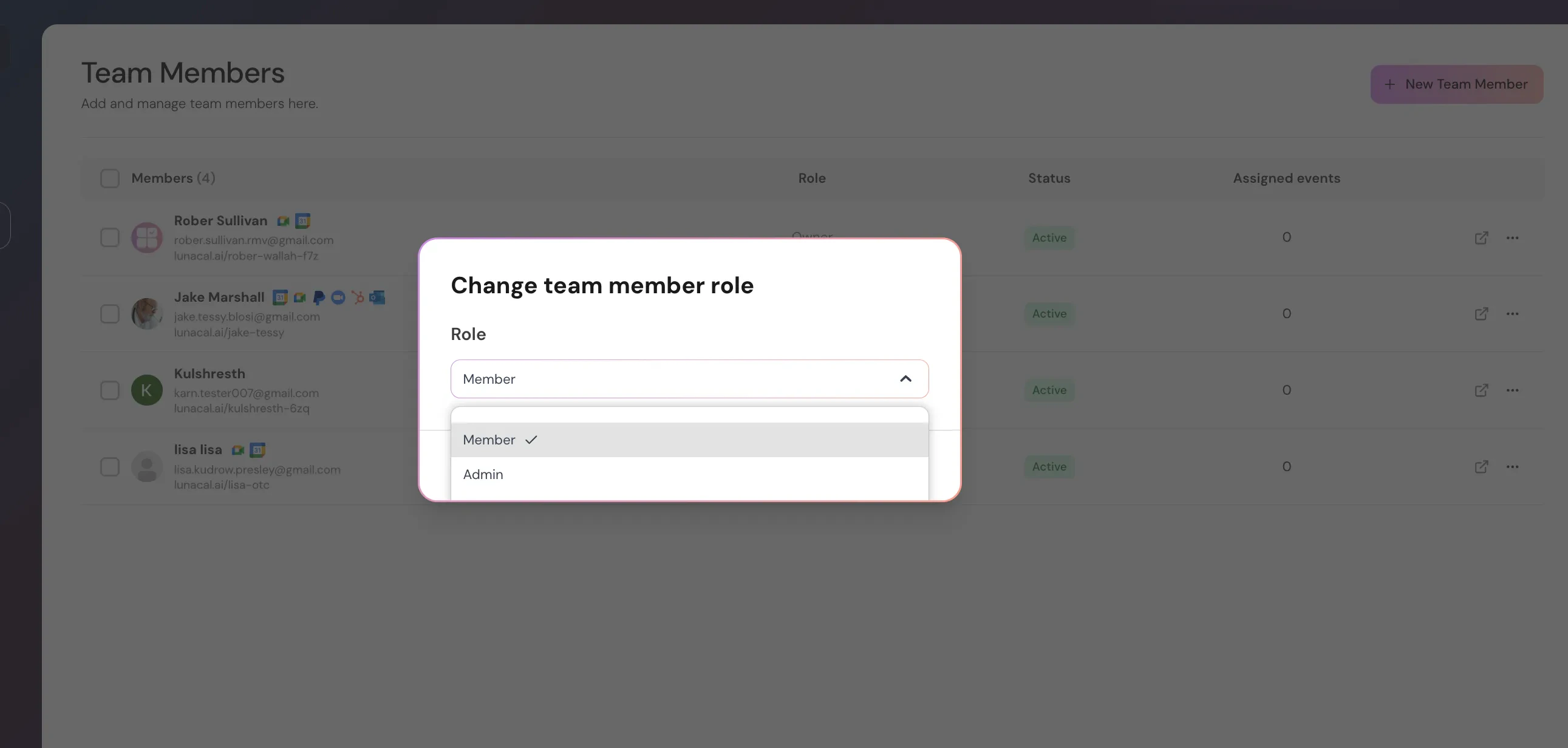
1. Edit Role
Change the member’s role:- Admin – Can manage events and members
- Member – Can manage assigned events only
2. Hide from Booking Page
This removes the member from the public team booking page. Use this when:- A member should not appear publicly
- Internal team members shouldn’t be bookable directly
- Be assigned to events
- Receive bookings (if assigned)
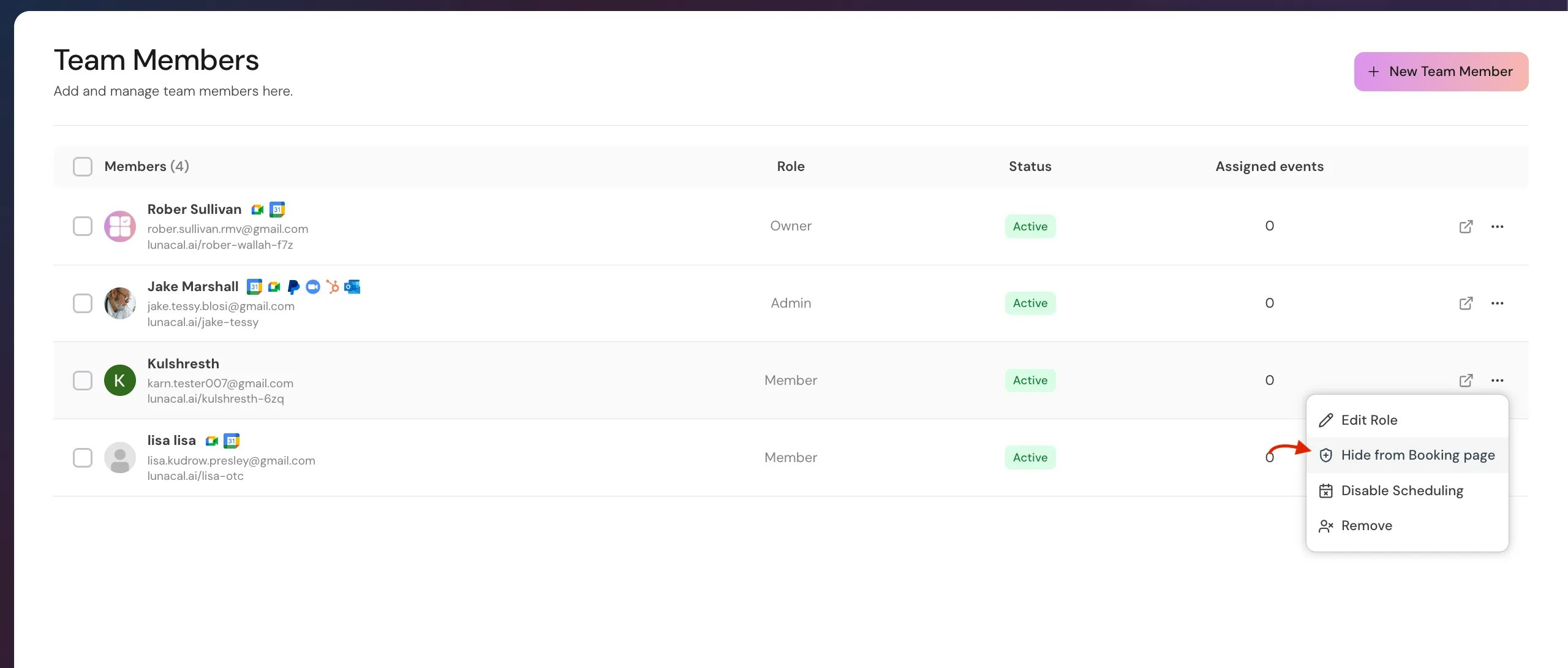
3. Disable Scheduling
This temporarily prevents the member from receiving new bookings. Use this when:- A member is on leave
- Temporarily unavailable
- Transitioning out of the team
- Existing bookings remain unchanged
- They simply won’t receive new ones
4. Remove Member
This permanently removes the user from the workspace. What happens:- They lose access to the team workspace
- They are unassigned from team events
- Future bookings may require reassignment
Clicking on a Team Member (Member Profile Page)
When you click a member’s name, you open their detailed profile. You’ll see three tabs:- Profile
- Availability
- Assigned Event Types
1. Profile Tab
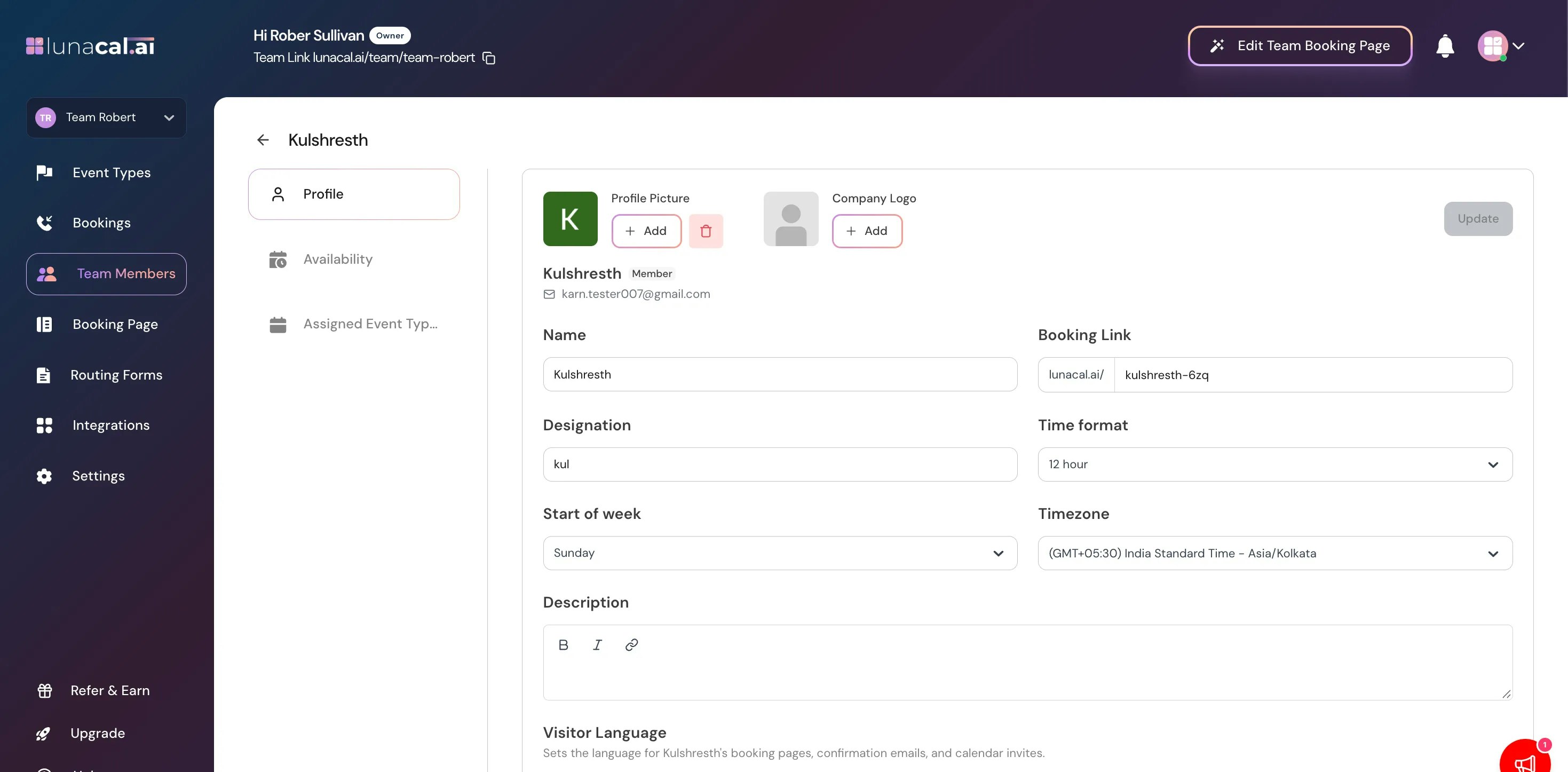
Here you can modify:- Full name, Description, Booking Link, Designation
- Profile photo
- Contact information
- Public booking page details
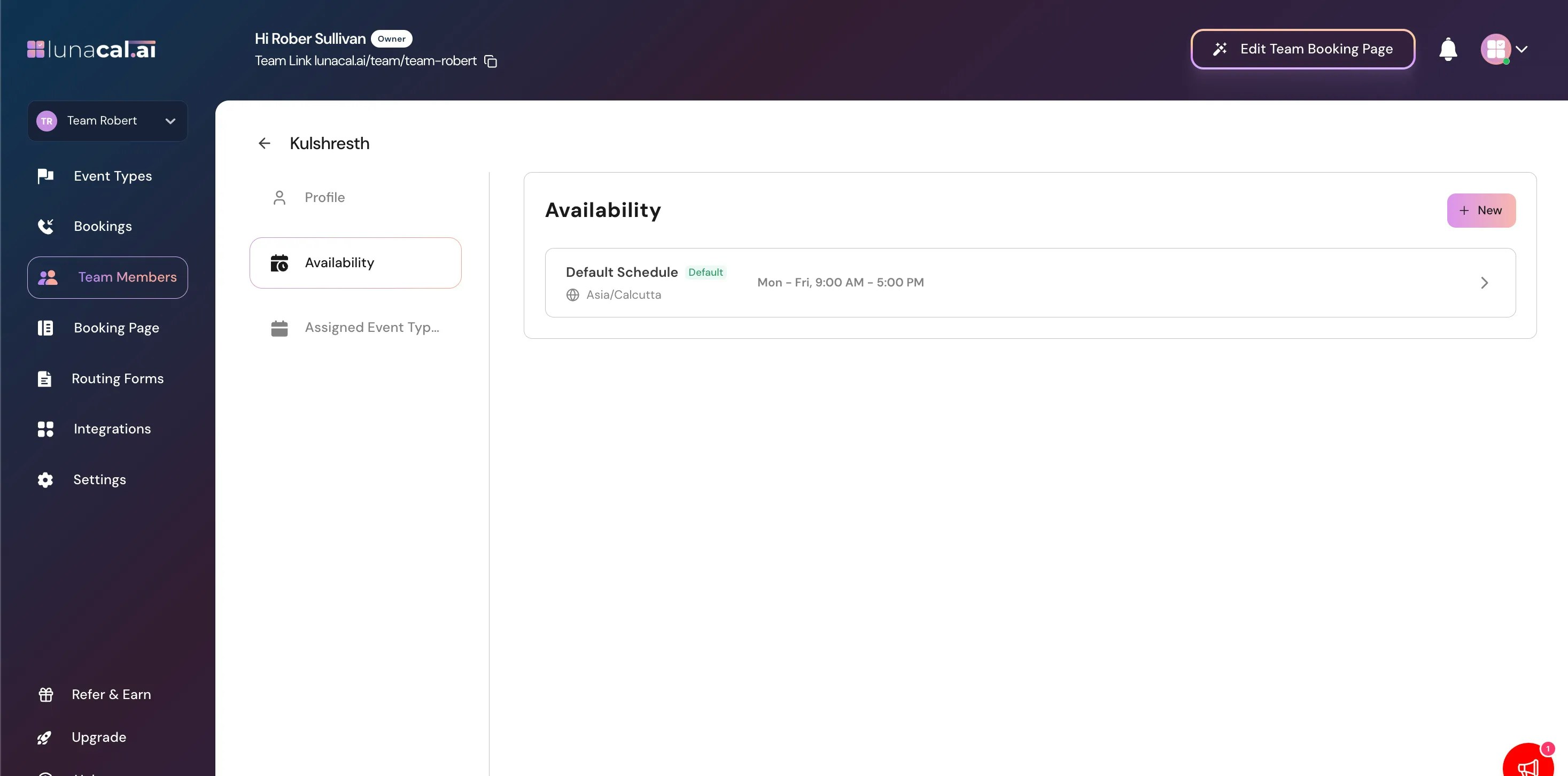
2. Availability Tab
This controls when the member is available for team events. You can:- Create new availability schedules
- Modify working hours
- Set different time blocks per day
- Delete old schedules
- Event-level availability
- Member availability
- Connected calendar availability
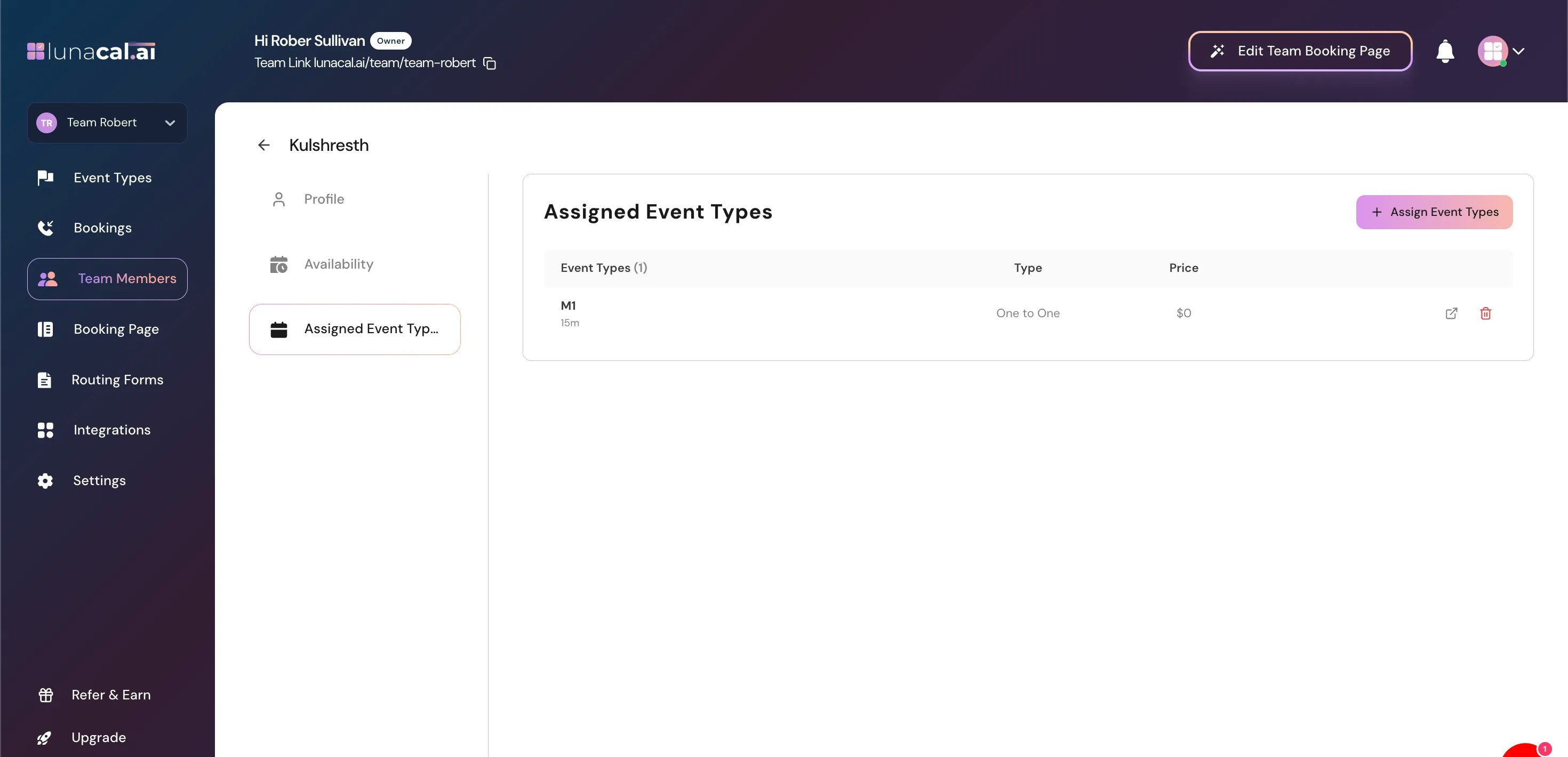
3. Assigned Event Types Tab
Here you control which team events this member participates in. You can:- Assign event types
- Unassign event types
- Whether they appear in Round Robin events
- Whether they are included in Collective events
- Whether they can host specific event types
- They will not receive bookings for that event
How Team Member Settings Affect Booking Behavior
Understanding this logic prevents confusion:Best Practices
- Use Disable Scheduling instead of removing members temporarily.
- Always configure availability before assigning events.
- Review assigned events when promoting or changing roles.
- Hide internal-only members from the booking page.
Common Mistakes
- Assigning an event but not setting availability
- Leaving a member visible publicly but not assigning events
- Removing a member without checking future bookings
- Forgetting to disable scheduling when someone goes on leave