

- Shared event types
- Team bookings
- Member availability
- Integrations
- Branding & domain
- Permissions
What is a Workspace?
A Workspace is a shared environment where a team operates together.Once you switch to a team workspace, your entire dashboard updates to reflect that team’s data — including events, bookings, members, and settings.
Creating a Workspace
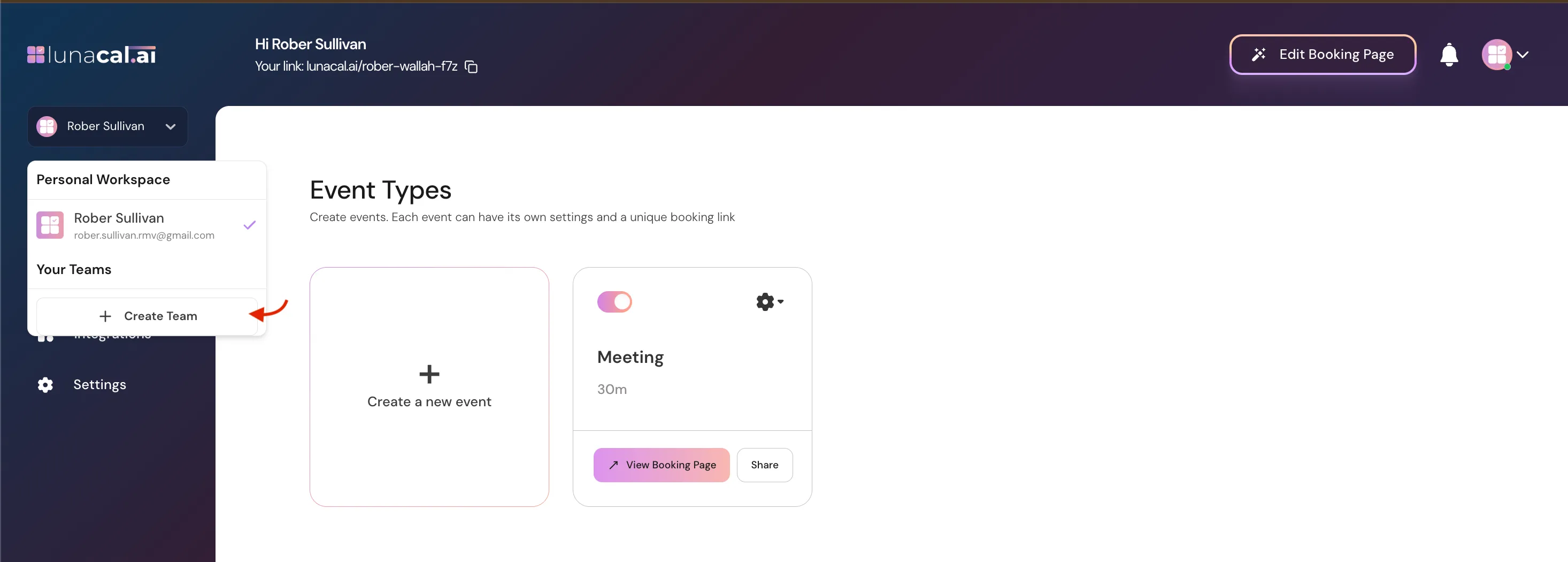
To create a new workspace:- Click the workspace dropdown (top-left corner).
- Select Create Team.
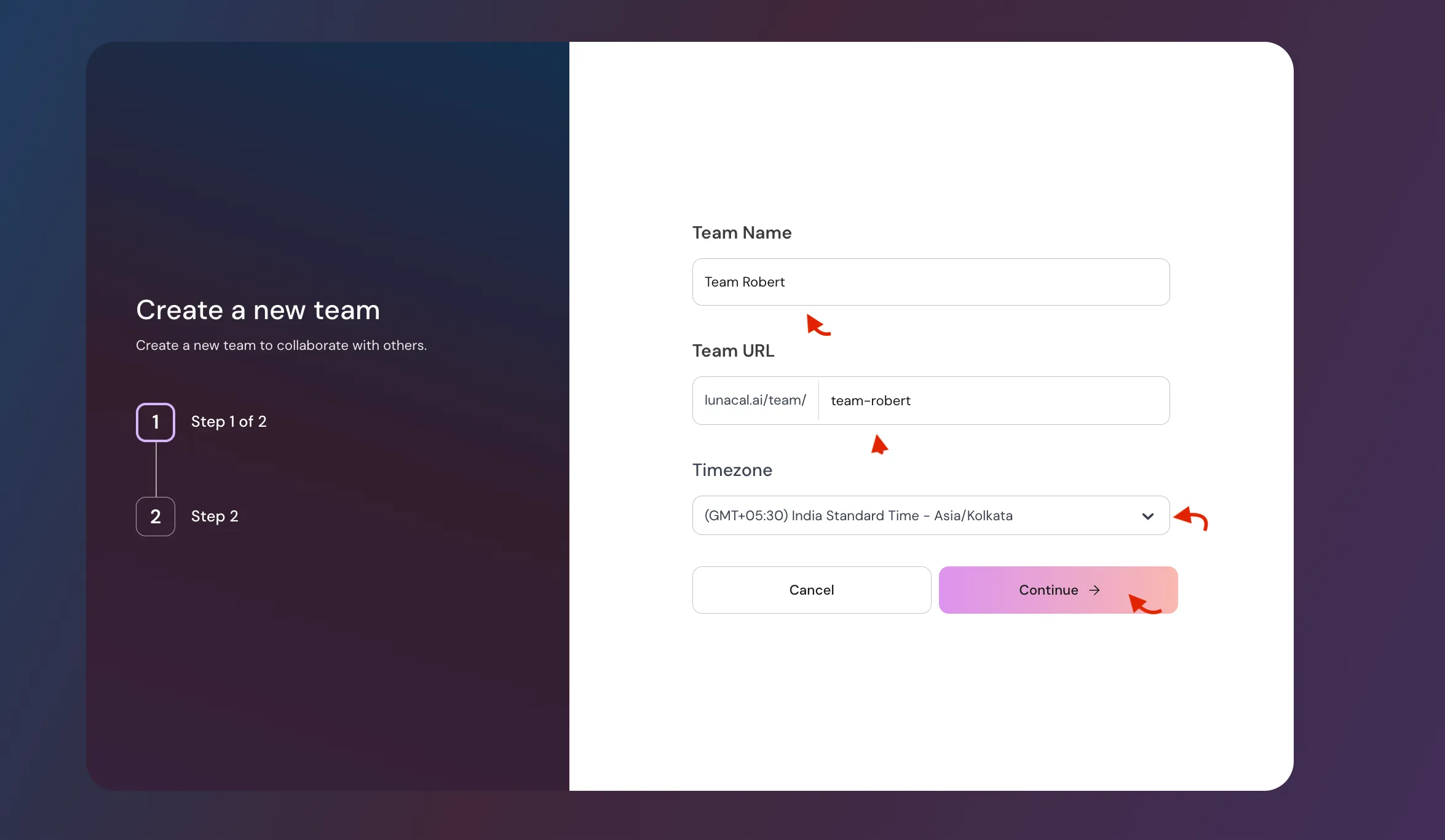
- Enter:
- Team name
- Team URL (slug)
- Select timezone
- click Continue
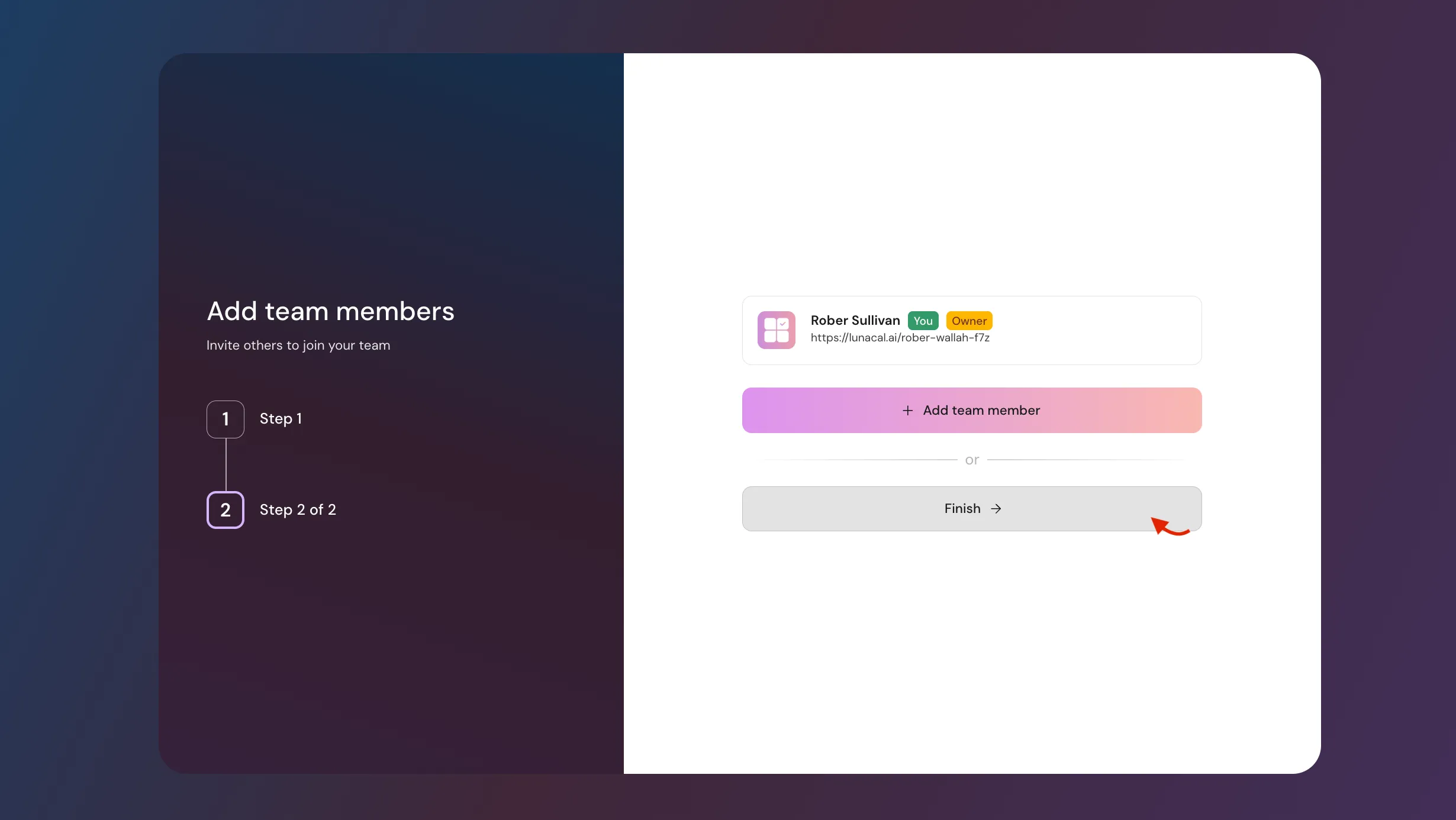
- Confirm creation ( here you can add team member instantly or later )
- Click Finish
 After creation :
- You automatically become the Owner
- You can invite members & admins ( from team members seciton )
- You can create team event types
- All settings inside this workspace apply to the team only
Switching Between Workspaces
You can switch workspaces using the dropdown in the top-left corner of your dashboard.- Select your personal workspace or any team workspace you’re part of
- When you switch to a team workspace, all sections (events, bookings, settings, etc.) will show team-level data
Team Members & Roles
You can invite members via email.Available Roles & Permissions
Team Event Types
Team event types differ from personal events. They allow multiple members to participate. When creating a team event, you can configure:Event Types
Round Robin- Bookings rotate between assigned members.
- All selected members must be available.
- The meeting includes everyone.
- Booking is routed to a specific member.
Workspace Dashboard Sections
When you’re inside a team workspace, you’ll see the following tabs on the left sidebar:Event Types
Use Event Types to create and manage events for your team. From here, you can:- Create new team event types
- Edit or manage existing team events
- Control availability, duration, buffers, and other event settings
Bookings
The Bookings section shows all bookings made for team events. You can:- View upcoming and past team bookings
- Manage or reschedule bookings
- Cancel bookings when needed
Team Members
Manage everyone who belongs to your team workspace. From the Team Members section, you can:- View all team members
- Invite new members via email
- Change member roles
- Remove members from the team
- View each member’s booking page
Booking Page
The Booking Page section lets you manage how your team appears to visitors. You can:- View and edit the team booking page
- View and edit individual team member booking pages
- Control branding and page visibility
Integrations
Set up integrations and apps that apply to the entire team. You can:- Connect calendars
- Enable video conferencing tools
- Configure other supported integrations for team scheduling
Settings
The Settings section controls overall team configuration. From here, you can manage:Team Details
- Upload team logo
- Update team name
- Customize team URL
- Set visitor language (used for booking pages, emails, and invites)
Webpage SEO & Branding
- Edit meta title and description
- Customize social preview image
- Control how your team page appears in search results and social shares
Privacy & Branding Options
- Make team private (hide team members from each other)
- Remove “Built with lunacal.ai” branding from scheduling pages
Availability & Workflows
- Create or update team availability
- Manage existing workflows or create new ones
Domain Settings
- Change the booking page domain if you’ve configured a custom domain for your lunacal account
Danger Zone
- Disband Team (permanently deletes the team — this action cannot be undone)
When Should You Use a Workspace?
Workspaces are ideal when you:- Manage multiple people or departments
- Offer team-based scheduling
- Need shared event types and bookings
- Want centralized control over branding, availability, and workflows