

- Switch to your Team Workspace
- Click Settings from the sidebar
- General
- Account
- Availability
- Workflows
- Custom Labels
- Advanced
General Tab
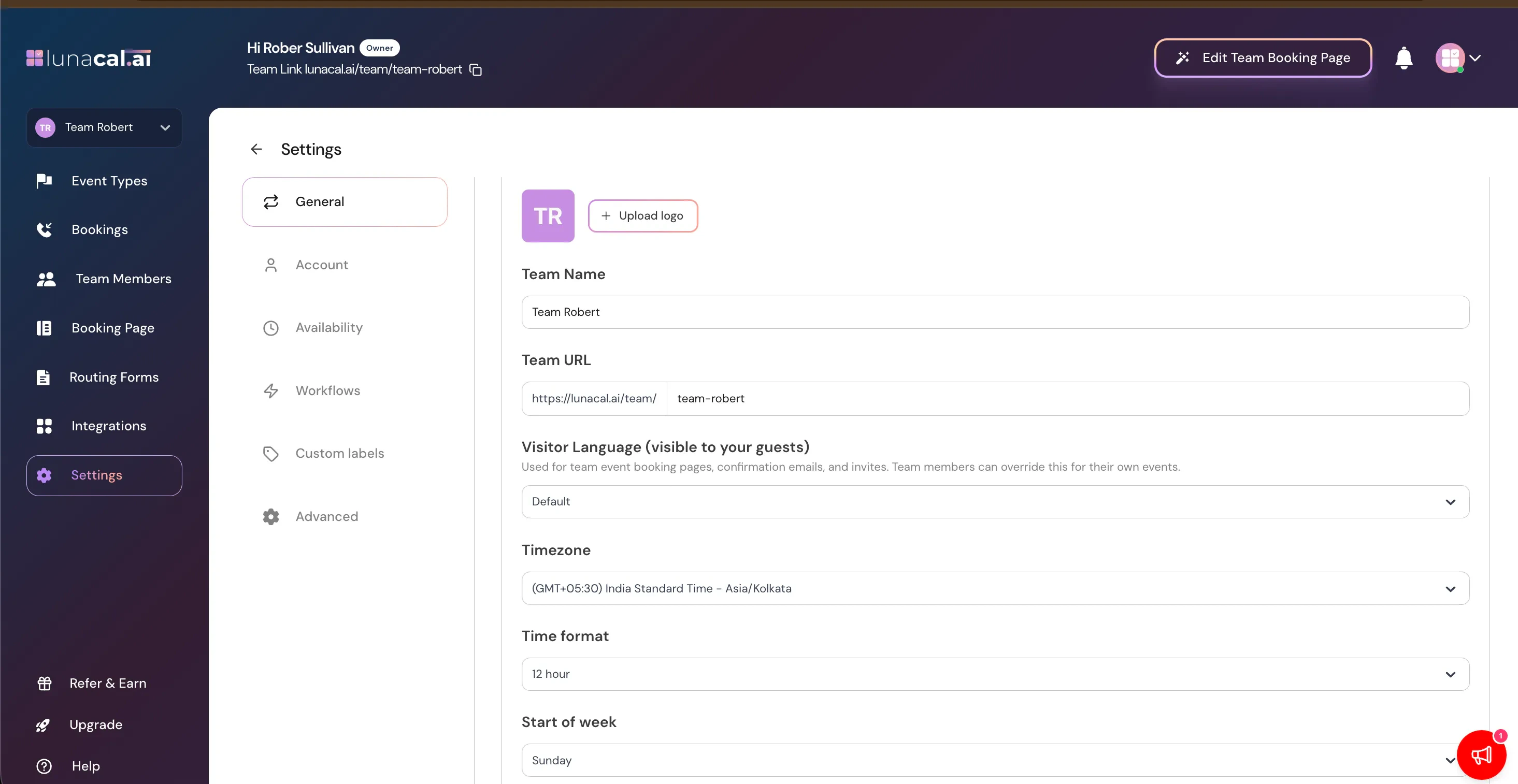
Team Identity
Upload Logo
Add a logo that appears on your team booking page.Team Name
This is your public team name.Team URL
Your public booking page link:https://lunacal.ai/team/your-team-slug
Changing the slug updates your team’s booking page URL.
Visitor Language
Controls the default language used for:- Team booking pages
- Confirmation emails
- Calendar invites
Timezone
Sets the default timezone for the workspace. This affects:- Booking availability display
- Event scheduling behavior
Time Format
Choose between:- 12-hour format
- 24-hour format
Start of Week
Defines which day your calendar week begins on. This affects:- Calendar display
- Weekly availability layout
Webpage SEO & Branding
Control how your team booking page appears:- In browser tabs
- In search results
- When shared on social media
Meta Title
Appears in browser tab and search results.Meta Description
Appears in search previews.Social Preview Image
Image shown when sharing your team booking link. Always click Update after making changes.Privacy Settings
Make Team Private
When enabled:- Team members cannot see each other’s data
- Useful for independent contractors within one workspace
Remove Lunacal Branding
Removes “Built with Lunacal.ai” from your scheduling page. Availability depends on your subscription plan.Danger Zone
Disband Team
Permanently deletes the team workspace. Warning:- This action cannot be undone.
- All team settings and configurations will be removed.
Account Tab
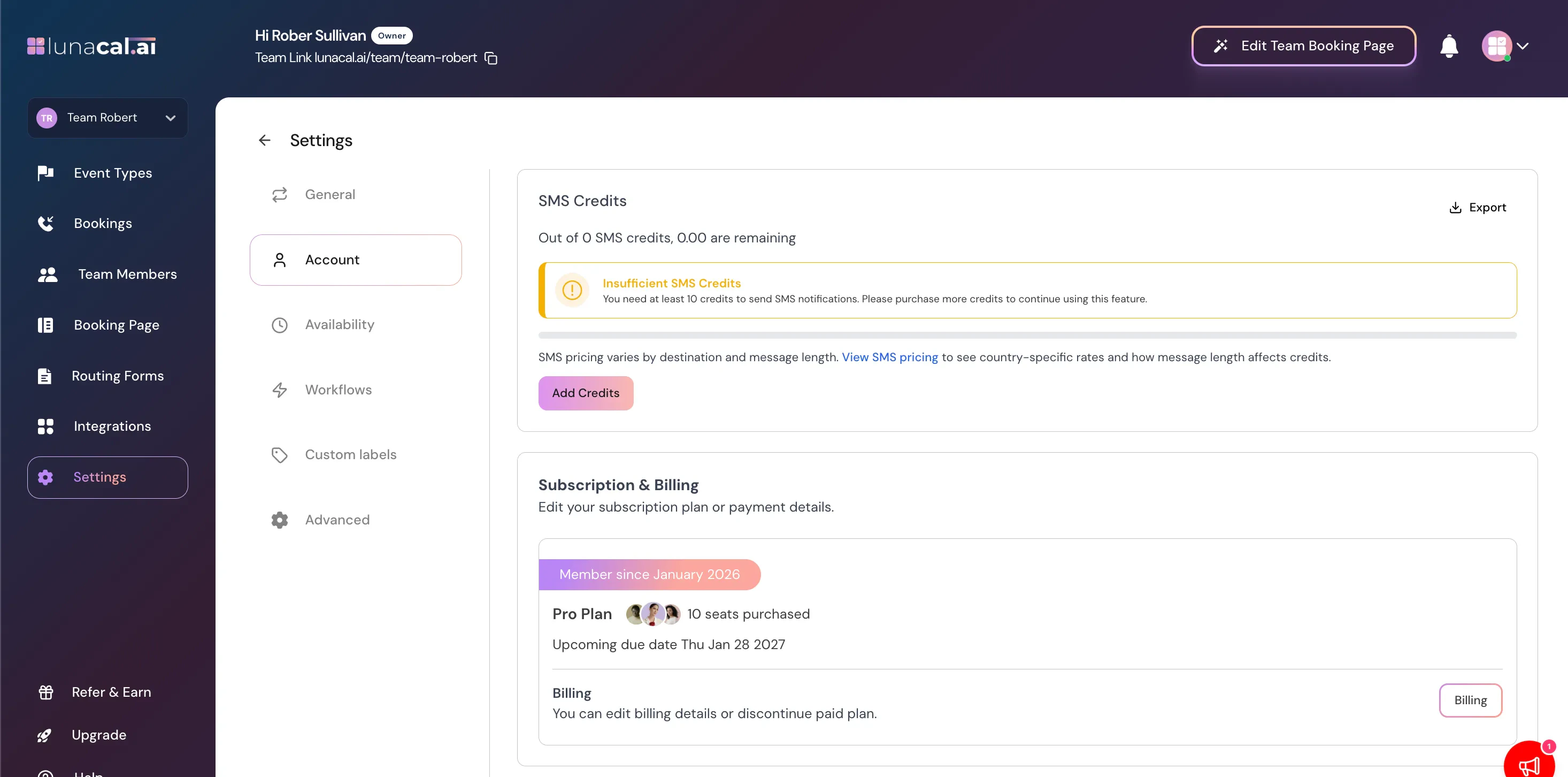
SMS Credits
Used for sending SMS notifications. You’ll see:- Total credits
- Remaining credits
- Pricing details
- SMS reminders will not send.
Subscription & Billing
Shows your current plan (e.g., Free Plan). From here you can:- Edit billing details
- Upgrade plan
- Discontinue paid plan
Availability Tab
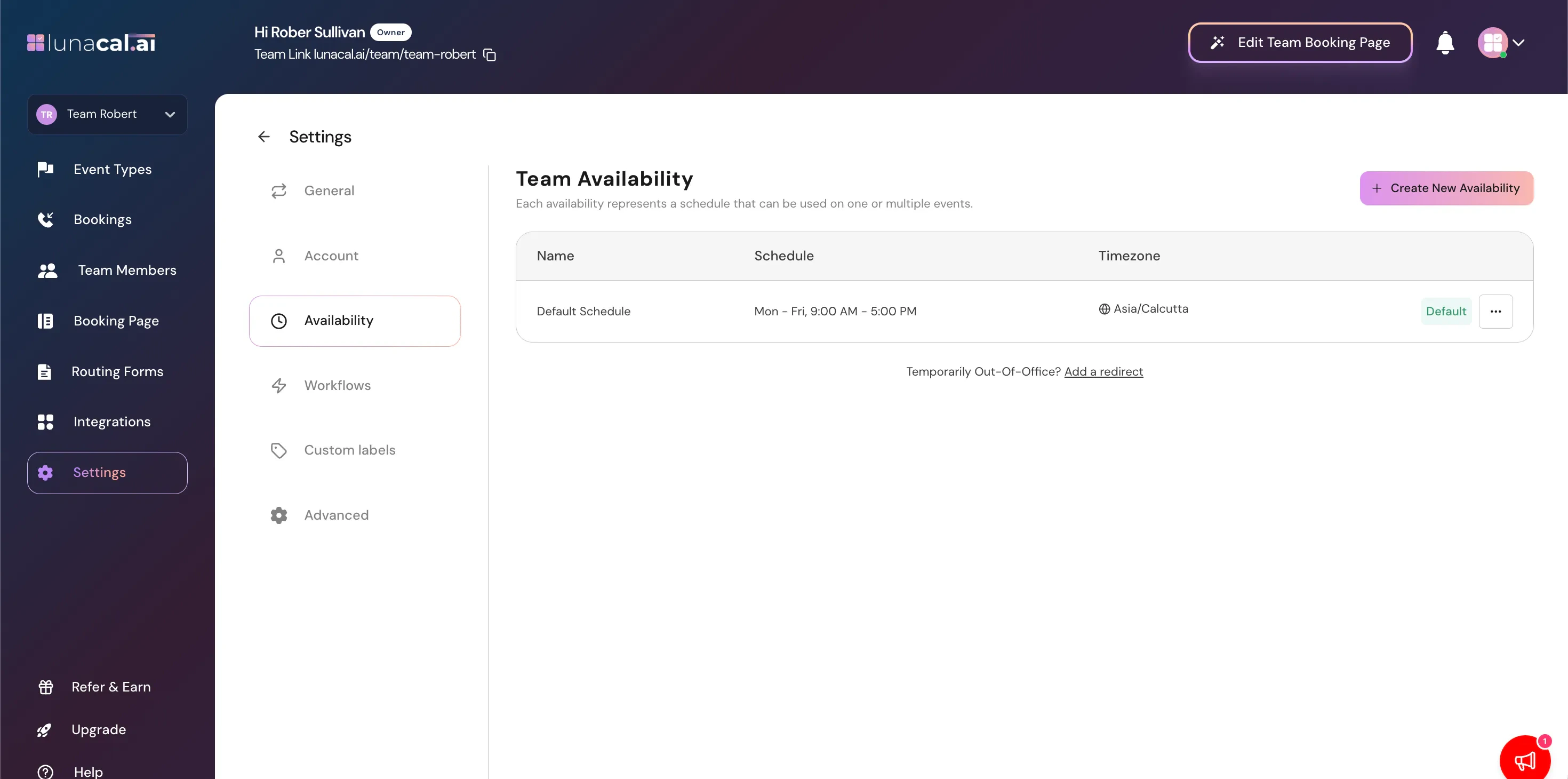
Team Availability
Each availability schedule can be applied to:- One event
- Multiple events
- Create new availability
- Edit existing schedules
- Set working hours
- Assign timezone
Default Schedule
The default availability can be reused across events.Workflows Tab
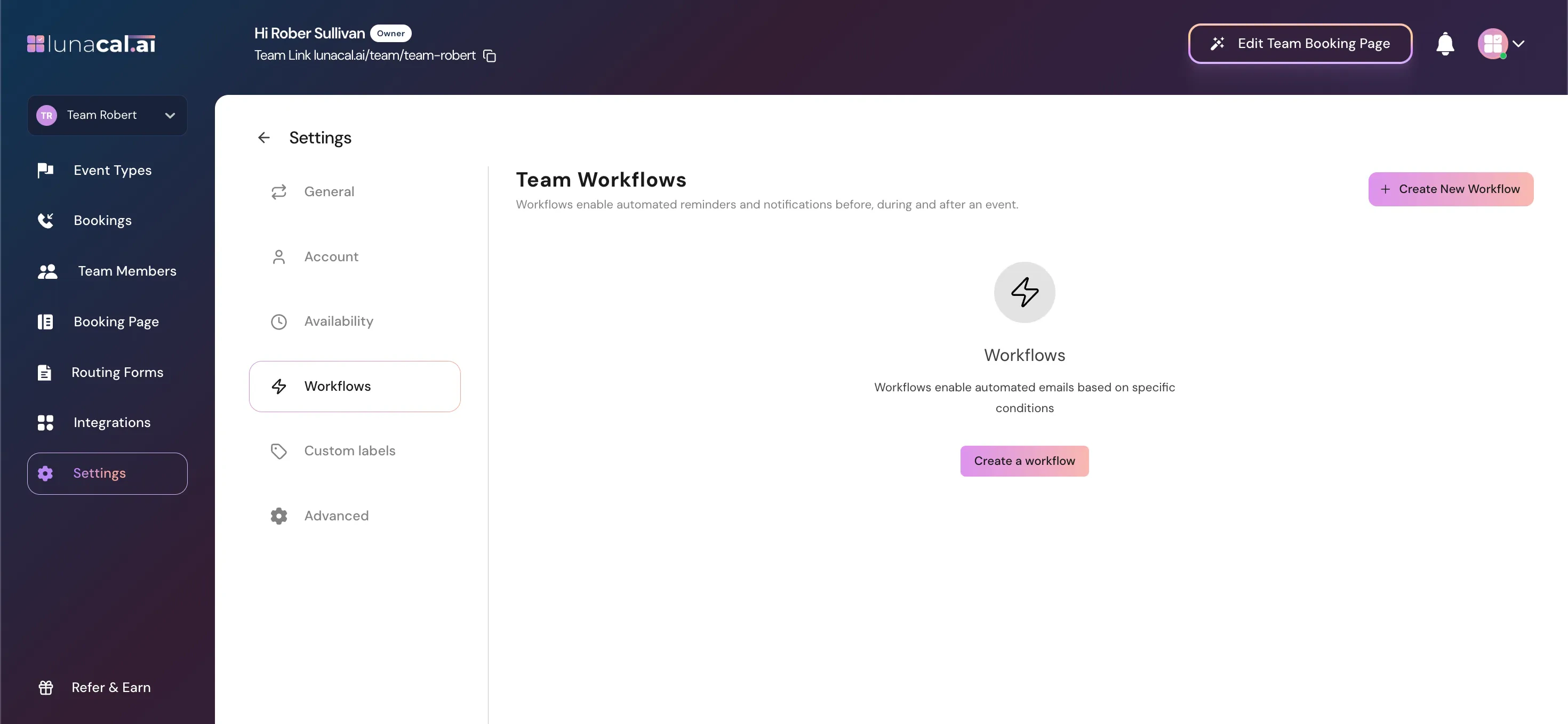
Team Workflows
Used for:- Reminder emails
- Follow-ups
- Notifications
- Create new workflows
- Define trigger conditions
- Attach workflows to specific events
Custom Labels Tab
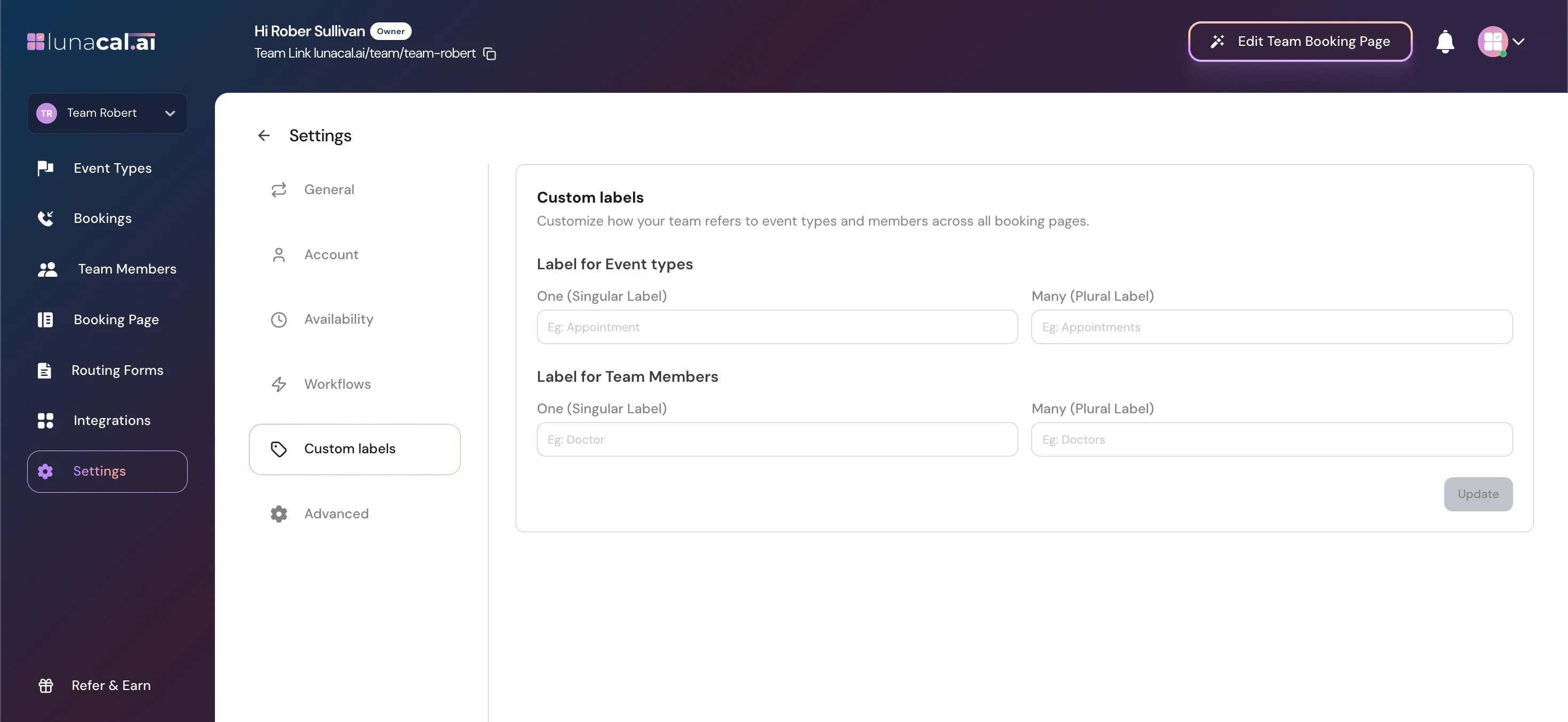
Label for Event Types
Change how events are referred to. Example: Singular: Appointment Plural: AppointmentsLabel for Team Members
Change how members are referred to. Example: Singular: Doctor Plural: Doctors These labels update everywhere on your team booking pages.Advanced Tab
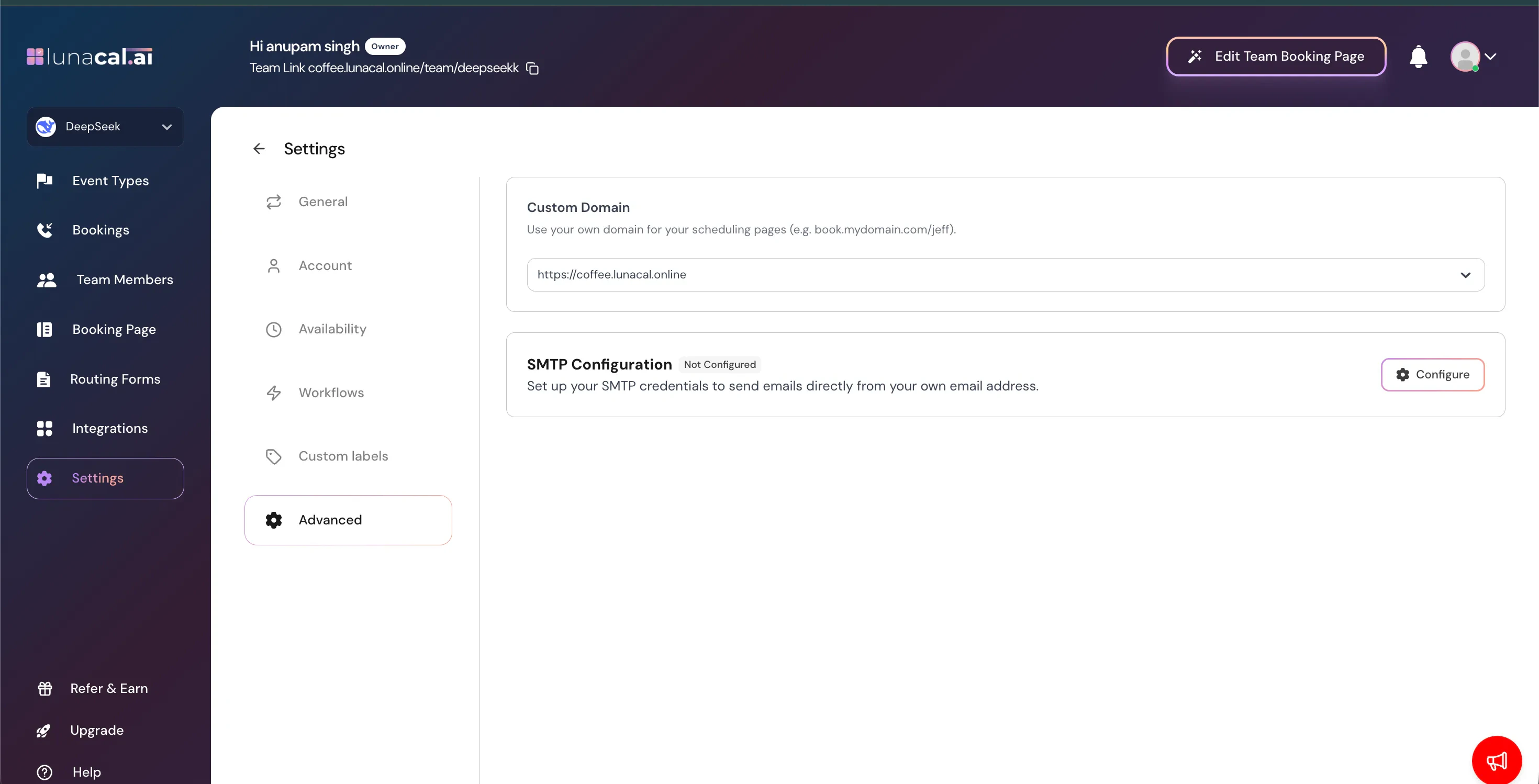
Custom Domain
Use your own domain for booking pages. Example:book.yourdomain.com/team-name
Requires domain configuration.
SMTP Configuration
Send emails from your own email address instead of default system emails. If not configured:- System default email sender will be used.
How Team Settings Affect Booking Behavior
Best Practices
- Configure branding before publishing booking page.
- Set availability before assigning events.
- Ensure SMS credits are sufficient if using reminders.
- Test public team page after major updates.
- Avoid disbanding team unless absolutely necessary.