

What it does
With Subscriptions turned on for an event type:- Your client pays when they first subscribe, then gets charged automatically every cycle after that — no reminders or manual invoices needed from you.
- Each time they’re billed, they get a fresh batch of sessions to book (you decide how many).
- Everything runs through Stripe, so payments, retries, and receipts are handled for you.
Before you turn it on
A few things need to be true first:- You need Stripe connected as your payment method — Subscriptions doesn’t work with PayPal or free events.
- You need a price set under “Charge for this event” — it has to be more than $0.
- Your event type can’t be a collective event (multiple hosts sharing bookings).
- Your event type can only have one duration option — Subscriptions doesn’t work with multiple session lengths.
- You can’t combine it with a flexible-count package or with deposit payments — turning Subscriptions on will automatically switch deposits off.
Setting it up
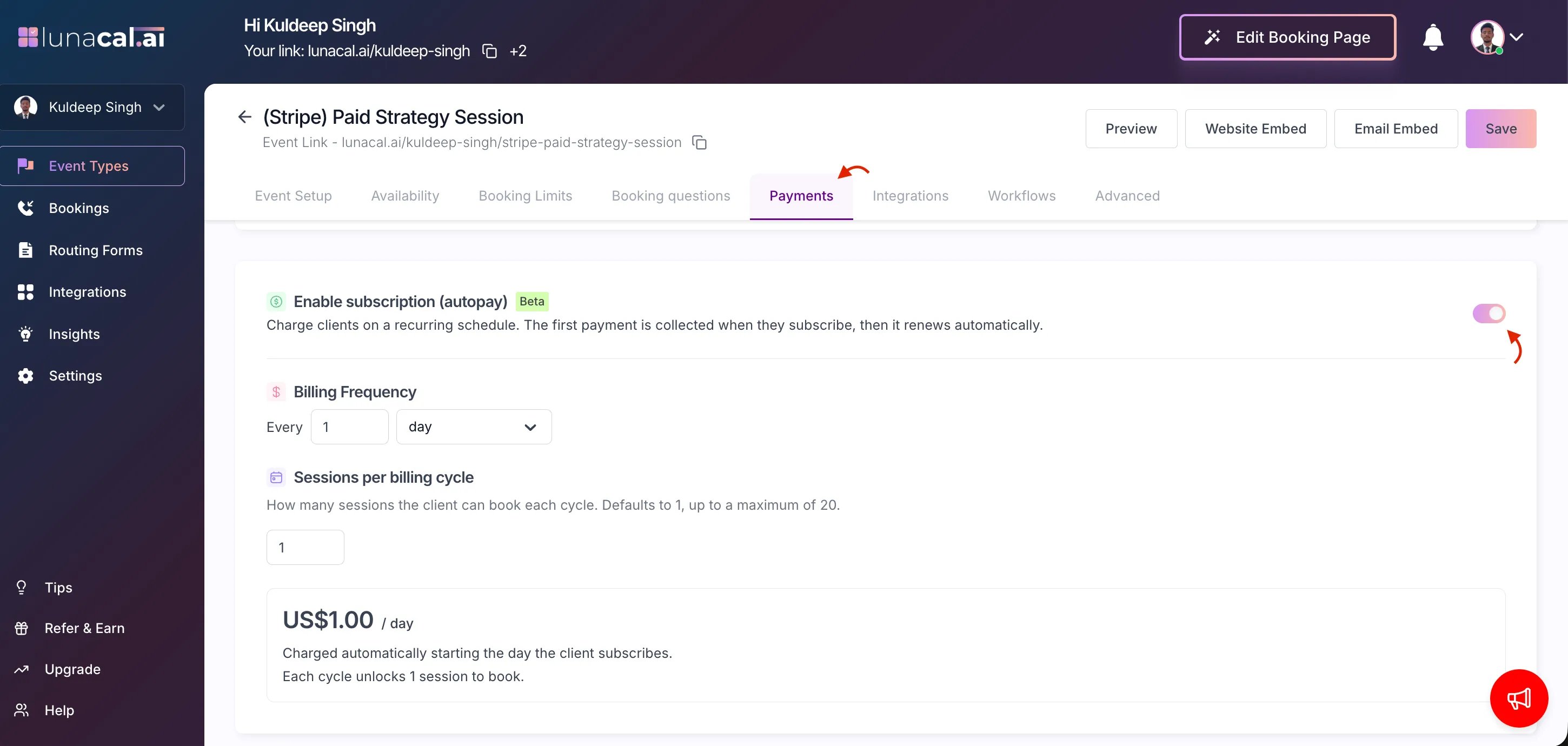
- Go to the event type → Payments tab.
- Make sure Stripe is selected and a price is set.
- Turn on Enable subscription (autopay).
- Choose your billing frequency — how often to charge (every 1 day, 2 weeks, 1 month, 1 year, etc.).
- Set sessions per billing cycle — how many bookings each payment unlocks (1 to 20). If you leave it at 1, your client gets one session per payment.
- Save.
What your client sees
When they visit your booking page:- The price is shown per cycle, like
$49 / month. - They’ll see a note that it renews automatically and how many sessions they get each time.
- Instead of “Book,” the button says Subscribe.
- Their subscription becomes active.
- Their first batch of sessions is unlocked immediately, and they can start booking.
Coupons
You can apply a discount code to a subscription, and choose whether it applies:- First payment only — full price kicks back in from the second cycle onward, or
- Every payment — the discount applies for as long as they stay subscribed.
Renewals
Every time the billing cycle repeats:- Stripe charges your client automatically.
- If the payment goes through, they get their next batch of sessions right away, and may get a “sessions ready to book” email.
- Unused sessions from the previous cycle don’t roll over — it’s a fresh allotment each time, so let your clients know this if they tend to book less than what they’re allotted.
Cancelling
Either you or your client can cancel a subscription. Either way:- Cancellation takes effect at the end of the current billing period — not immediately.
- Your client keeps their remaining sessions and access until then.
- They won’t be charged again.
Managing subscriptions
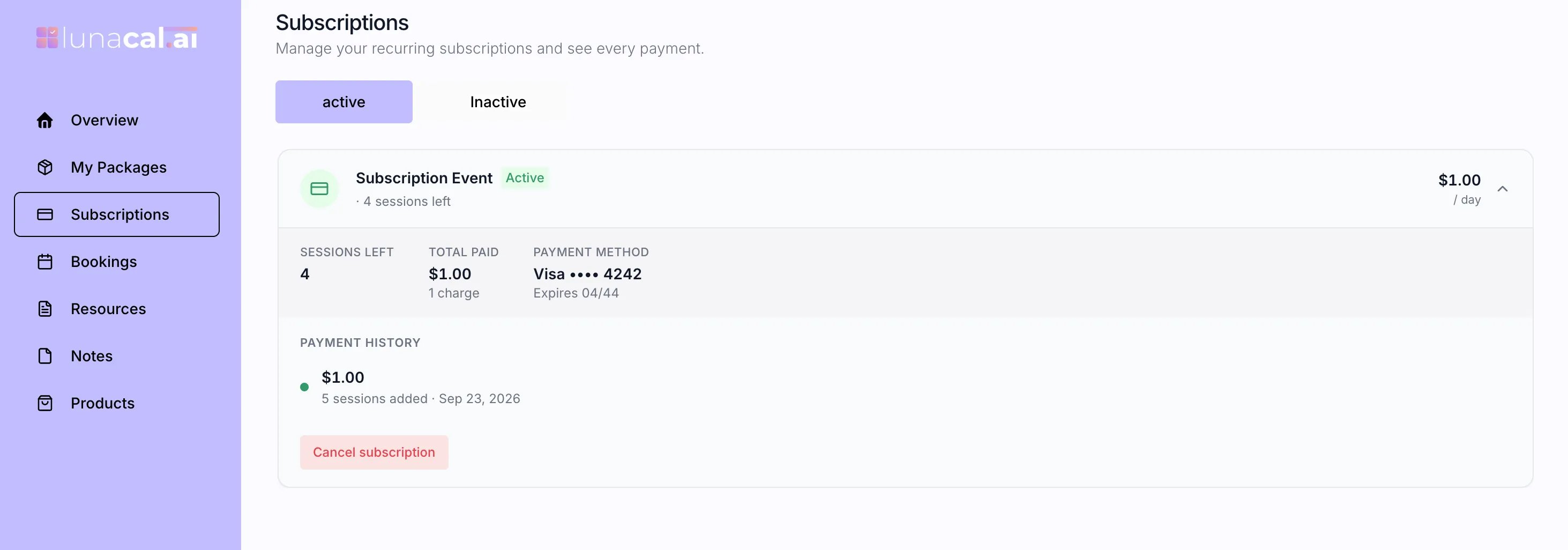
As a host: Go to your Bookings list → Subscriptions tab. There you can see each subscriber’s status, when they renew or end, sessions left, total paid, and full payment history — and cancel a subscription from there if needed. As a client: They manage everything from Client Portal/package/subscriptions in their account — an Active tab and an Inactive tab, showing sessions left, next renewal date, saved payment method, payment history, and the option to cancel or resubscribe.
Common questions
Why can’t I turn autopay on? Check that: Stripe is your payment method, you’ve set a price above $0, the event isn’t collective, it only has one duration, and you’re not using a flexible-count package. Also make sure the event type isn’t locked by a team admin. What’s the difference between Packages and Subscriptions? Packages are a one-time upfront payment for a set (or flexible) number of sessions. Subscriptions charge automatically on a repeating schedule and refresh the session count each cycle. You can’t use both at once. Do unused sessions carry over to the next cycle? No — each renewal gives a fresh batch, regardless of what was left over. Can my client cancel mid-cycle and get a refund? They can cancel anytime, but it only takes effect at the end of the period they’ve already paid for — they keep access until then rather than losing it immediately. Refunds aren’t handled automatically as part of cancelling. Can I accept PayPal for a subscription? No — Stripe only. Can I use a 100%-off coupon? No, subscriptions require some payment to go through each cycle. What’s the maximum sessions per cycle? 20 per cycle. Clients can book up to 10 slots in a single booking action. Where do I see my subscribers? Bookings → Subscriptions tab. Where does my client manage their subscription?/package/subscriptions in their account, under Active or Inactive.